In this lecture, we will discuss how to enter and store content into cells
Content can be in the form of:
Formulas, or
Constants (hard-coded data)
For simplicity, we will focus primarily on entering and storing constants
We will also touch on the differences between Ready, Enter, Edit, and Point modes
Entering Content Into Cells
Entering content into cells is easy!
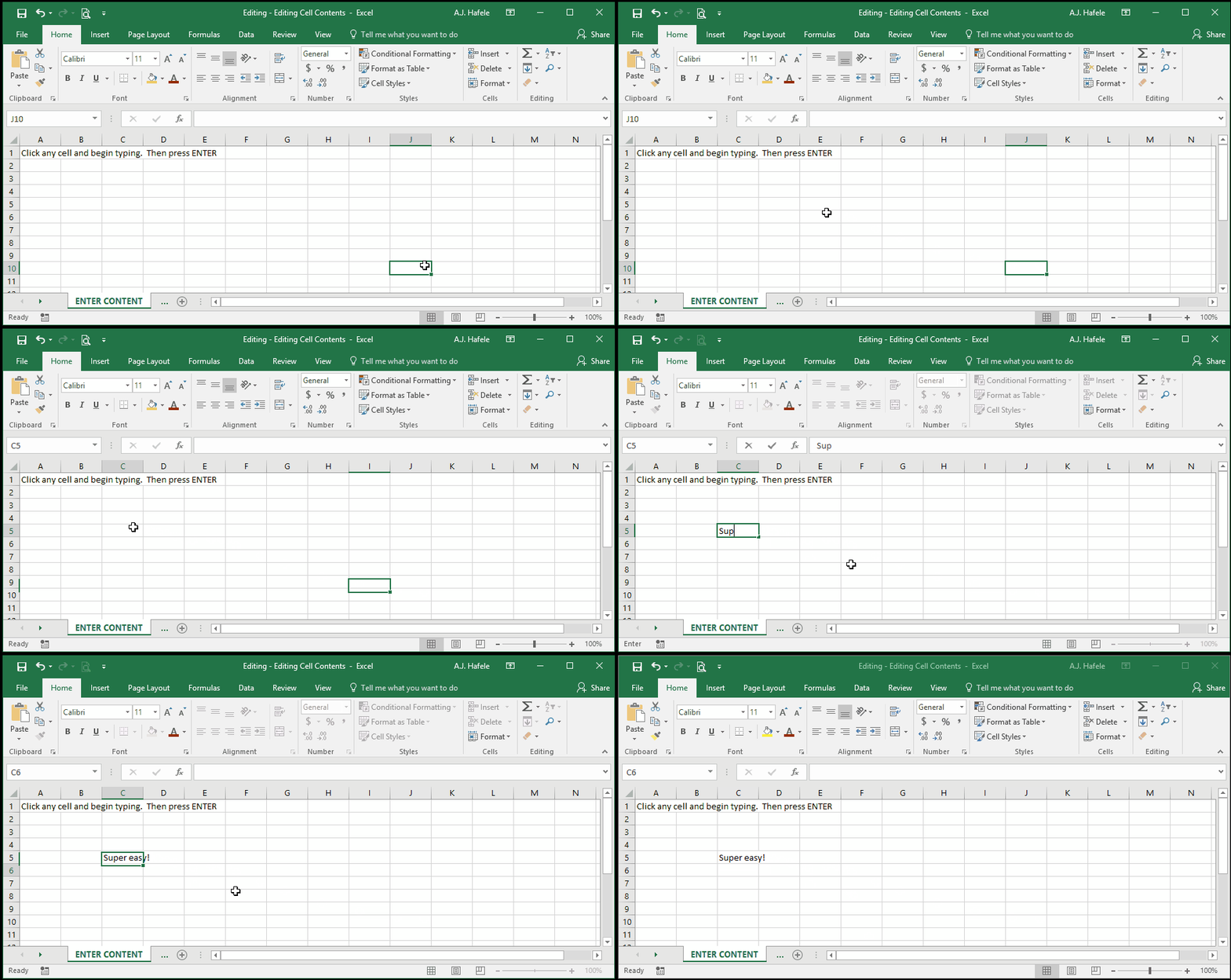
Simply select the cell you want to add content to, and begin typing
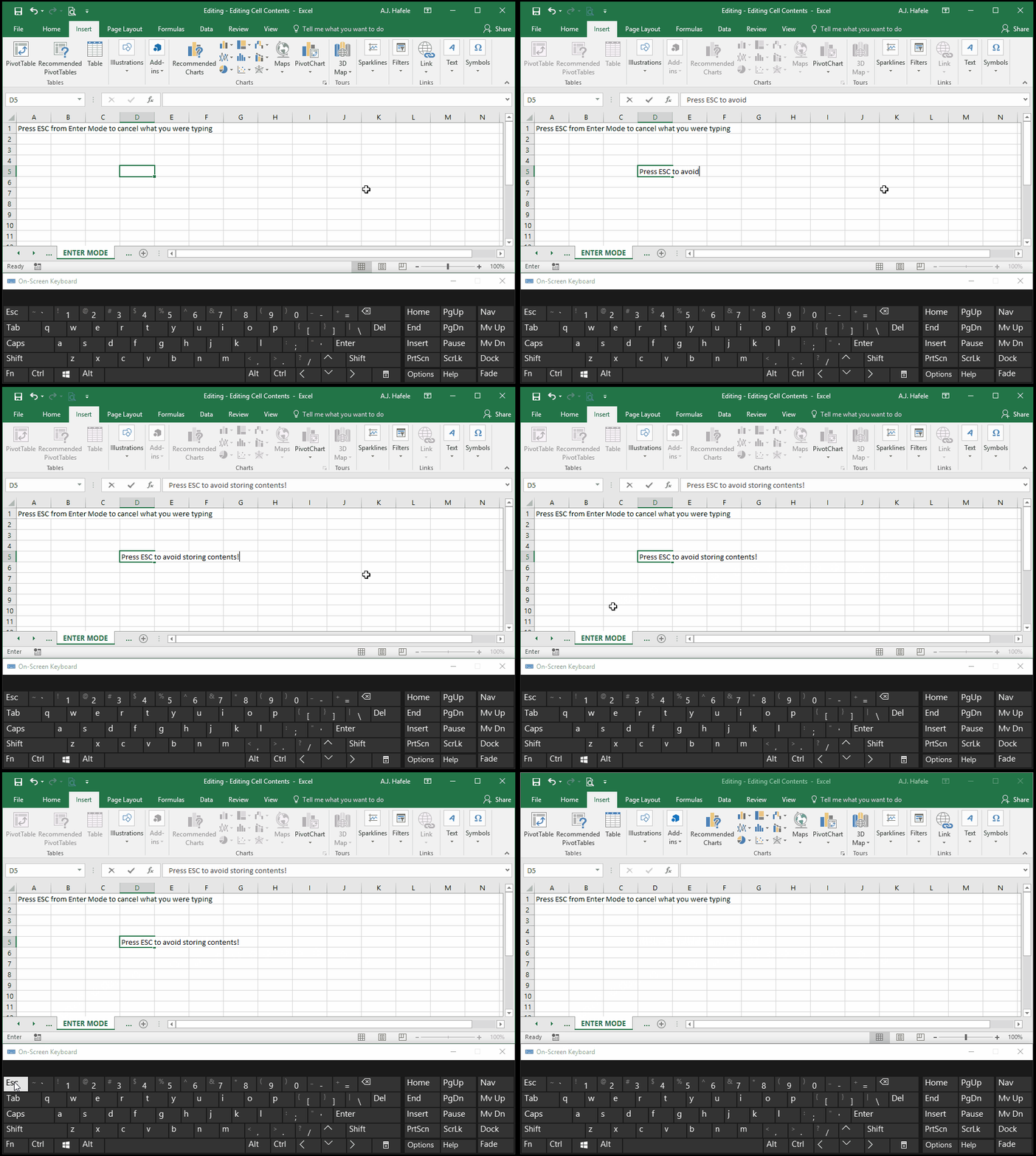
Press ENTER to store the contents, as shown here:
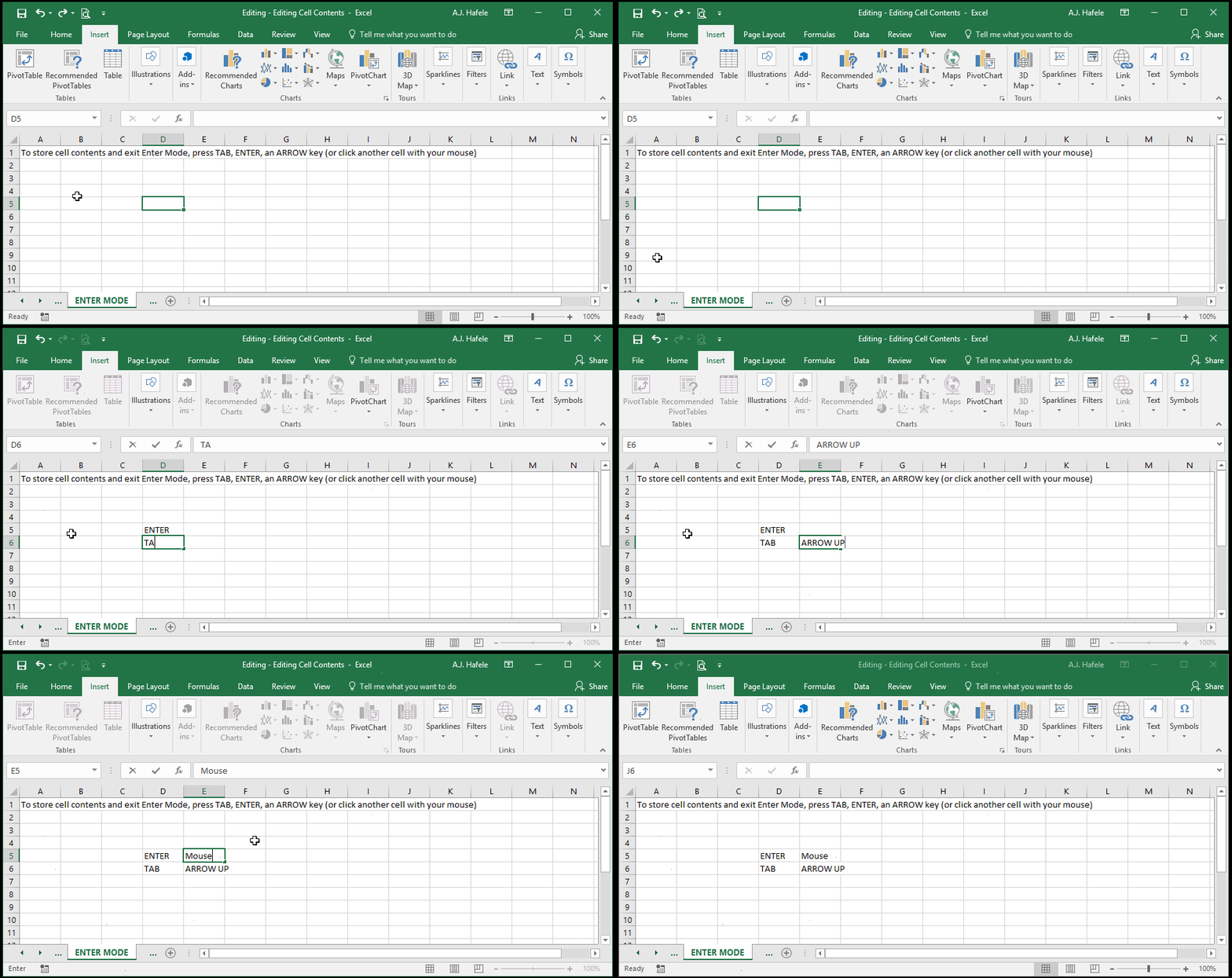
Instead of pressing ENTER, you can also press TAB or click on another cell to store the contents
Both methods will also move you out of the cell
You can also use the ARROW keys to store contents and move out of the cell (as discussed below)
Ready Mode
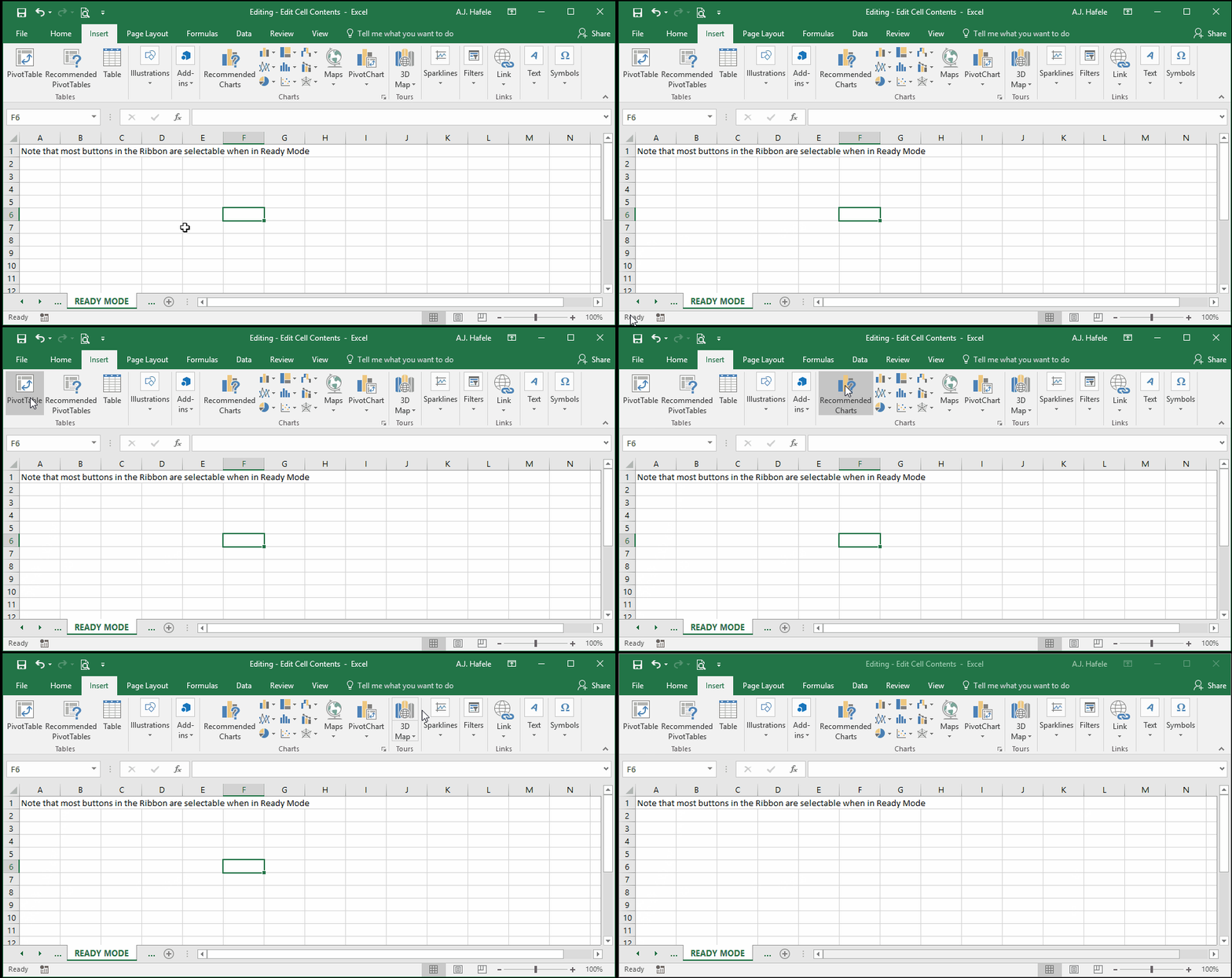
When a worksheet is first opened, it usually begins in Ready Mode
Ready Mode indicates that you are not currently not editing any cell contents
Most functionalities in the Ribbon can only be used when you are in Ready Mode
Enter Mode
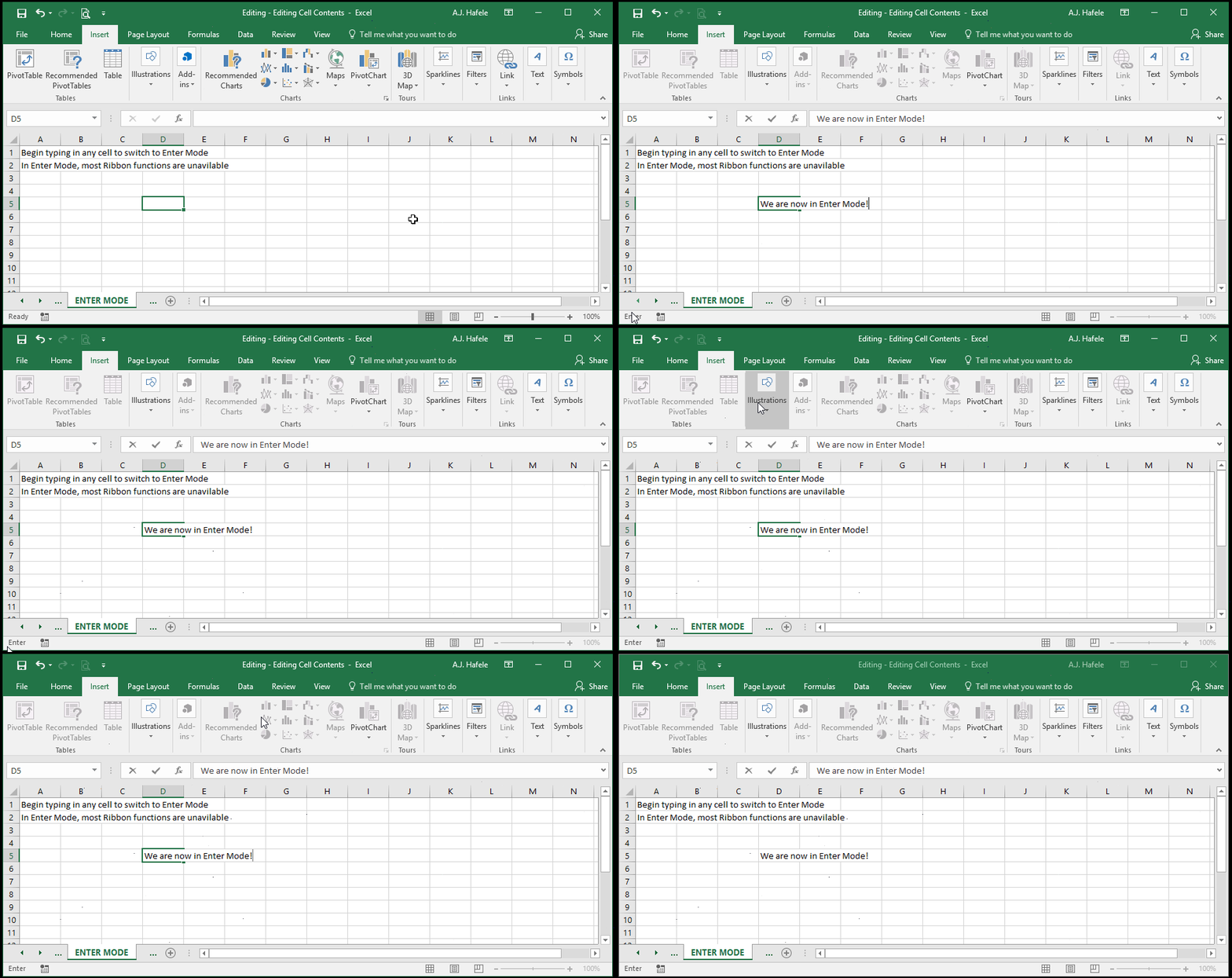
If you immediately start typing in a cell, Ready Mode changes to Enter Mode:
Enter Mode indicates that:
You are entering content in cells
You are limited in your ability to modify cells, as many Ribbon buttons are greyed out (as shown above)
You cannot move between and select different cells, while simultaneously entering data. However, you can modify or move between cells after you go back to Ready Mode
Pressing TAB, pressing ENTER, pressing an ARROW key, or clicking a different cell will store the cell contents and move you out of the cell being edited, into another cell, as shown here:
Notice the bottom-left corner of the Excel window as we flipped between Ready and Enter Mode
But what if we did not want to store cell contents?
Simply press ESC to cancel and return to Ready Mode, as shown here:
Edit Mode
Edit Mode is almost exactly the same as Enter Mode but with some differences:
When in Edit Mode, using ARROW keys will not move you to a different cell
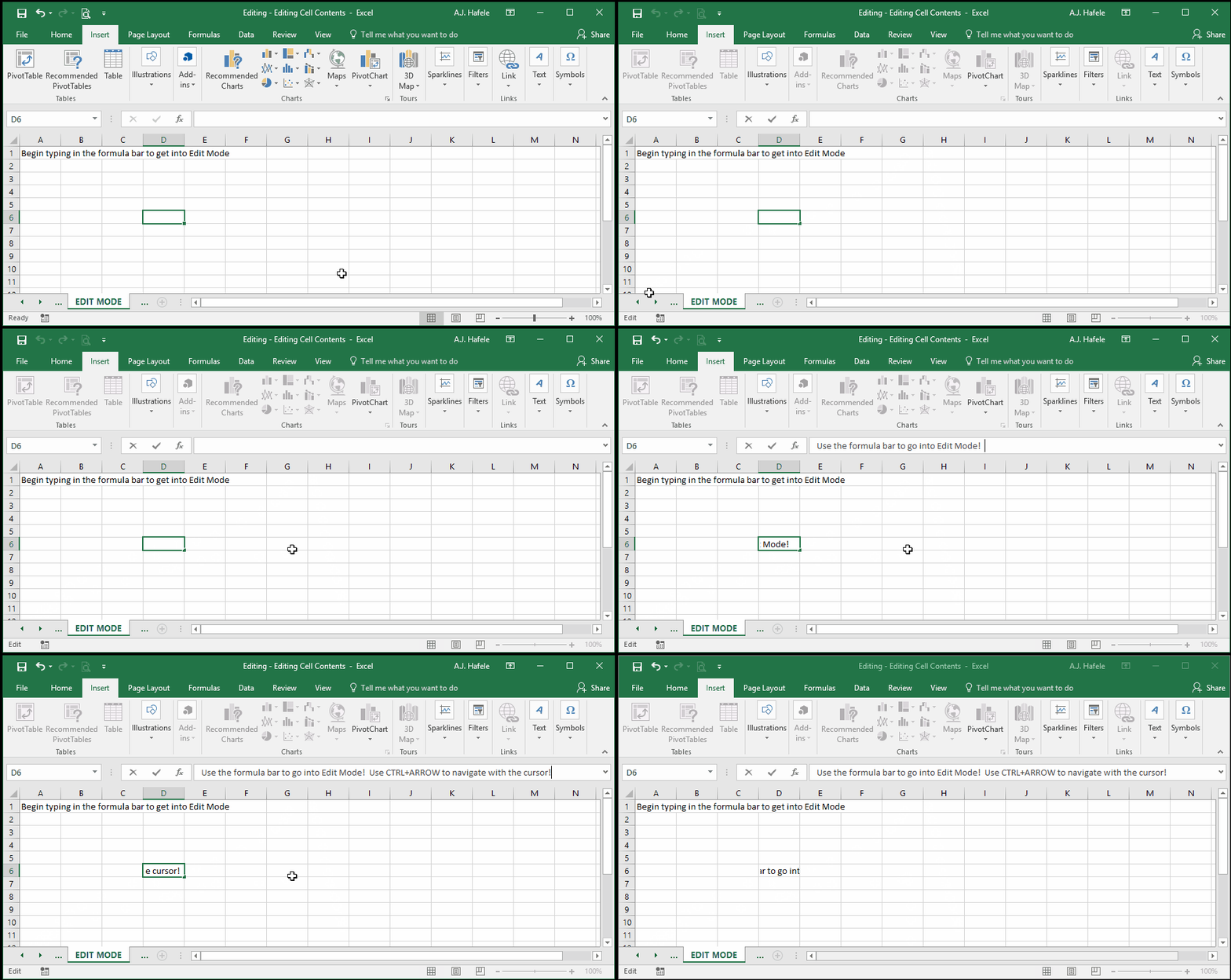
Instead, the ARROW keys can be used to navigate within the cell contents (as with a word processor application)
You can then press ARROW to navigate through text
CTRL+ARROW will help you quickly navigate through text (as per the illustration above)
SHIFT+ARROW will allow you to select text
CTRL+SHIFT+ARROW will allow you to quickly select text
CTRL+HOME will bring you to the 1st position in the cell
CTRL+SHIFT+HOME will select all text (if you start from the last position)
CTRL+END will bring you to the last position in the cell
CTRL+SHIFT+END will select all text (if you start from the 1st position)
This is very useful when you need to modify content within a cell without using a mouse
Advanced Excel users should become comfortable with switching to Edit mode and doing this
Edit Mode is the same as Enter Mode in that:
Cell modifications are limited (and most Ribbon options are unavailable)
You can still press TAB, press ENTER, or click another cell to exit Edit Mode
You can still press ESC to cancel and return to Ready Mode
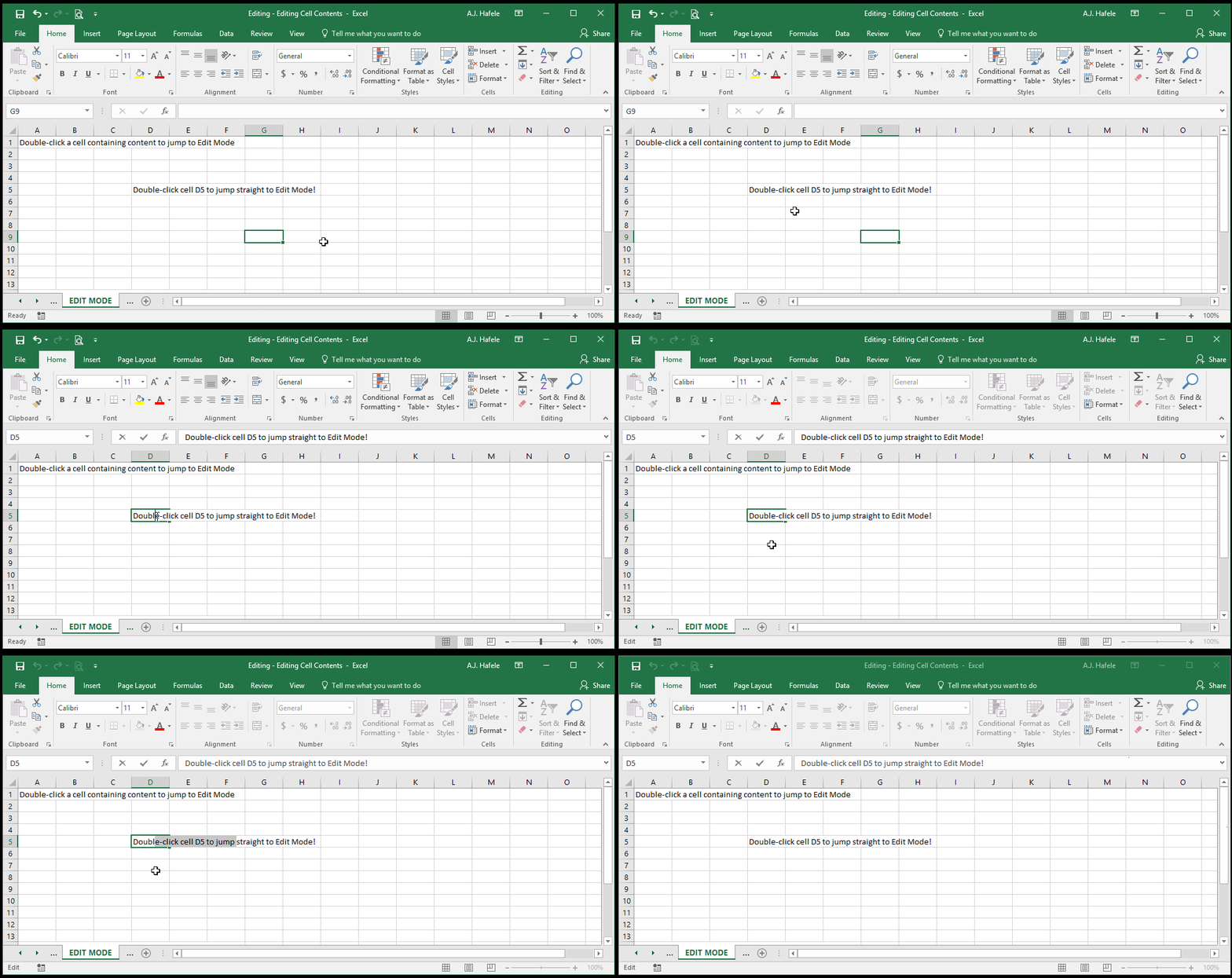
Besides clicking in the formula bar (as per the illustration above), how else can we get into Edit Mode?
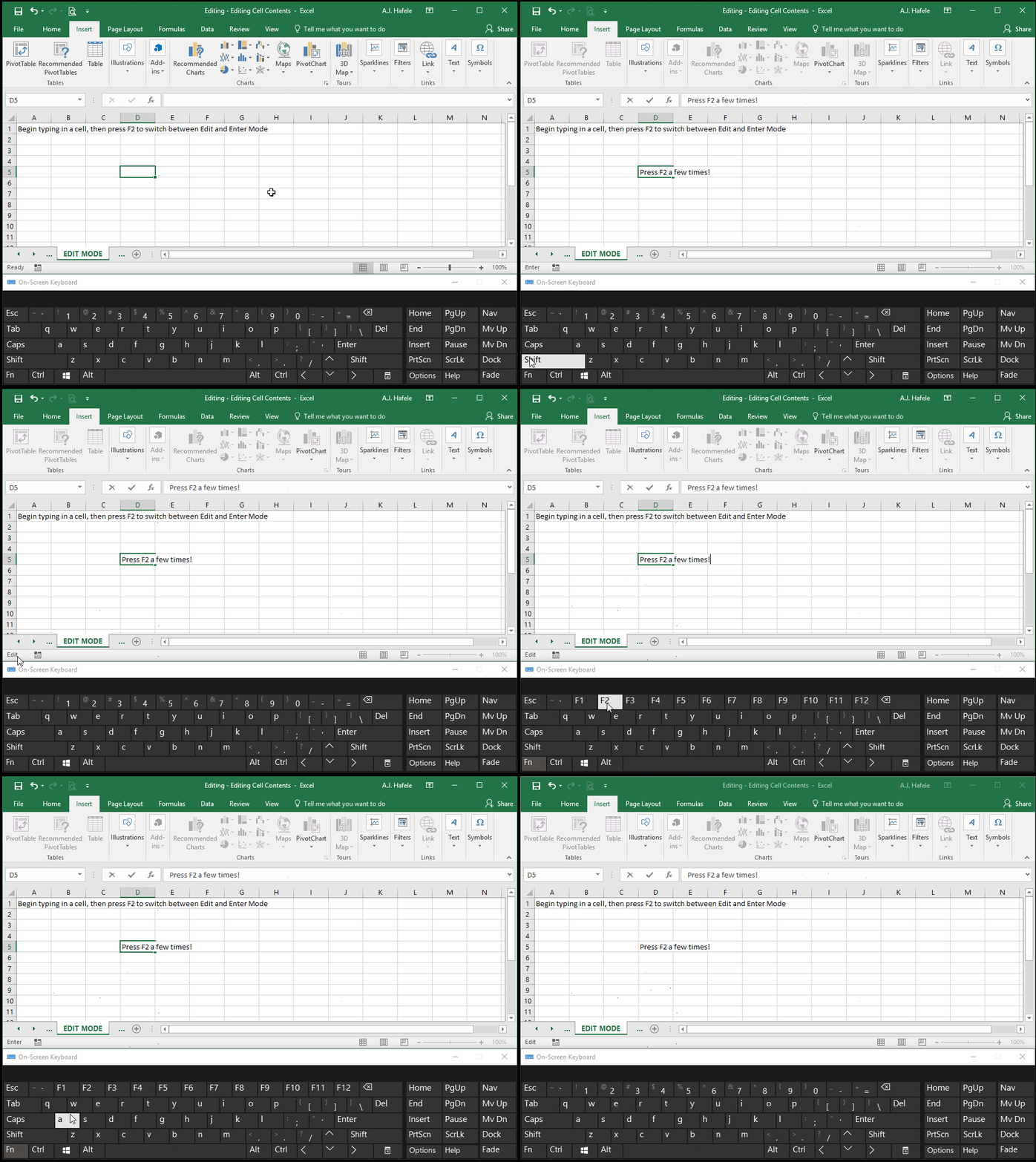
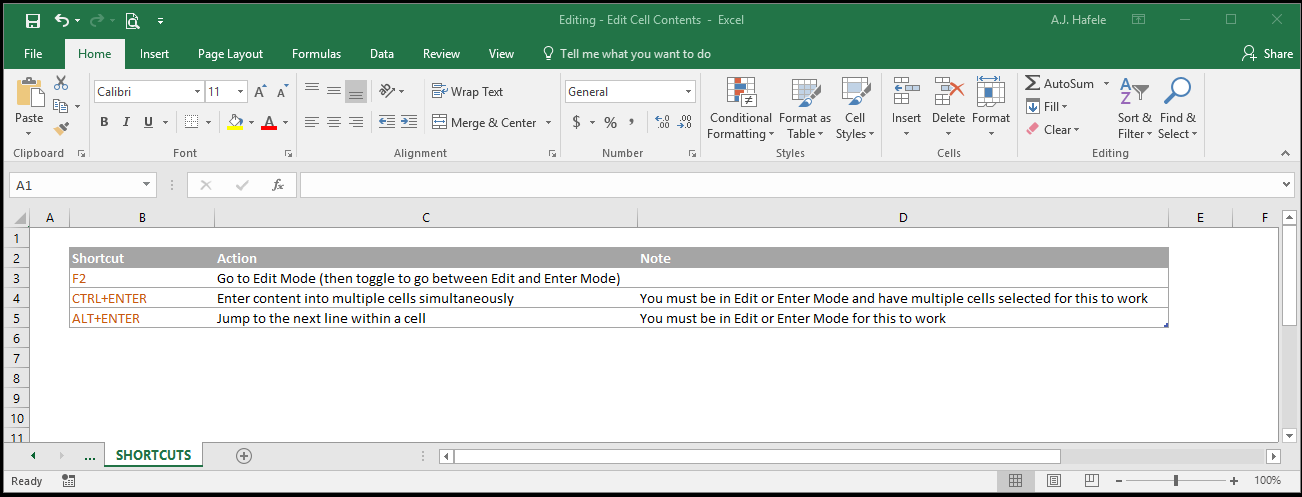
Option 1: Press the F2 shortcut, as shown here (it toggles you between Enter and Edit Mode):
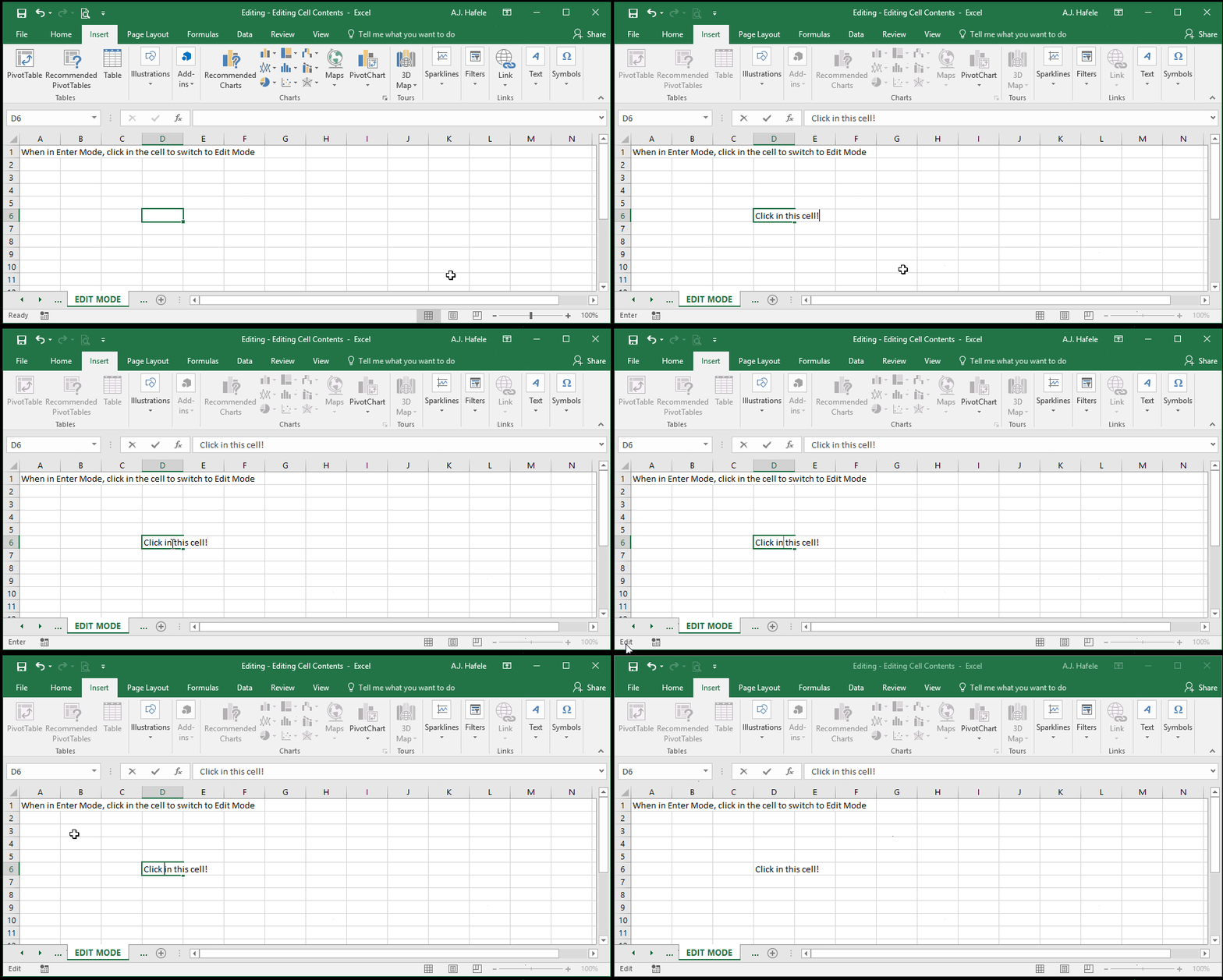
Option 2: Click in the cell from Enter Mode, as shown here:
Option 3: Double-click a cell that already contains content, as shown here (we hold CTRL+SHIFT+ARROW to quickly select some of the text):
Point Mode
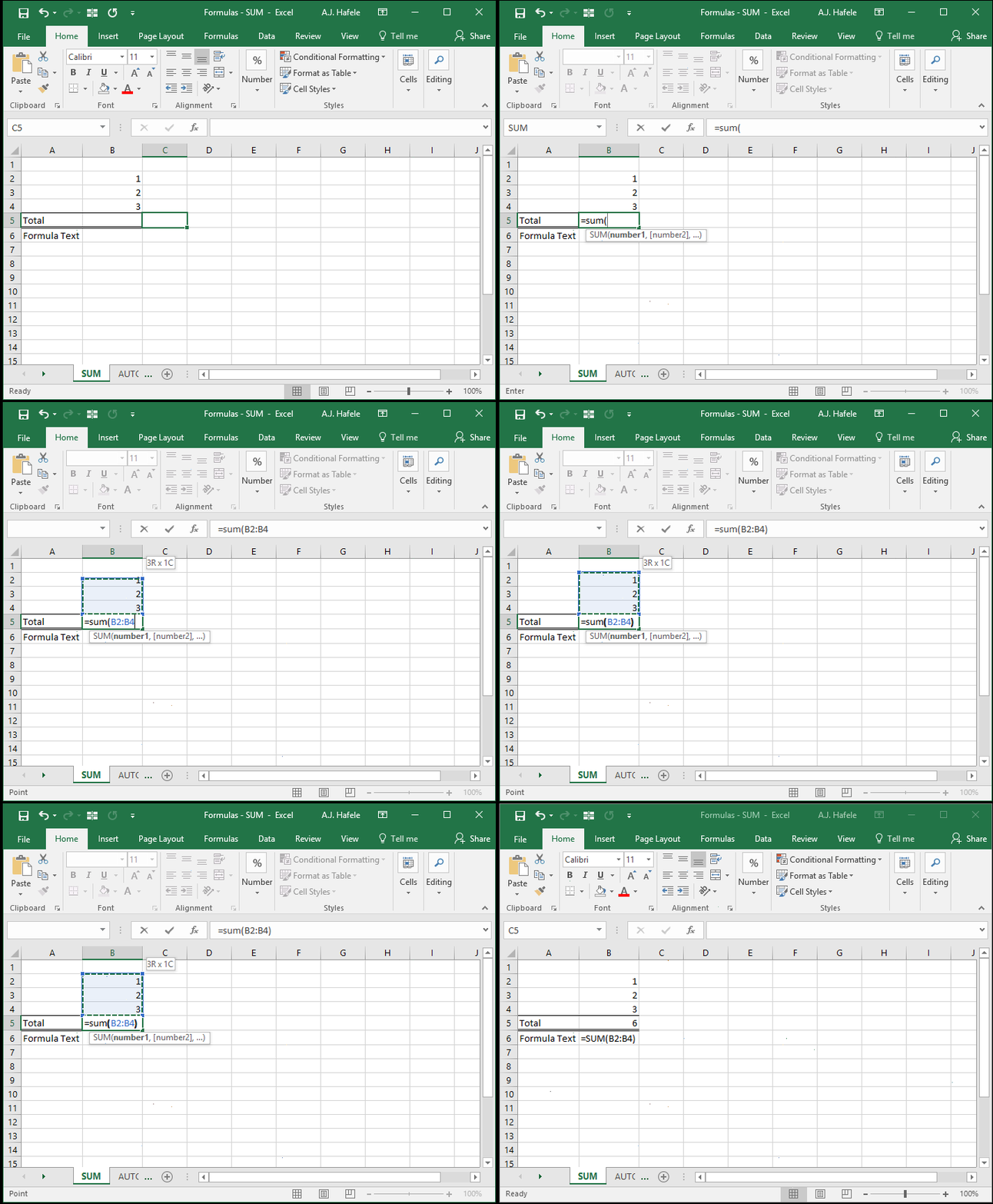
In the above illustration, notice that when cells B2:B4 are selected, the mode changes to Point in the bottom-left corner
Any time you are in the act of referencing a cell or range of cells in a formula (as shown above), you enter into Point Mode
Note that we will discuss formulas and functions extensively later on in the course, including how to reference cells
At this point, just know that Point Mode is the mode you are in when you are selecting cells when building formulas
Edit Multiple Cells At Once
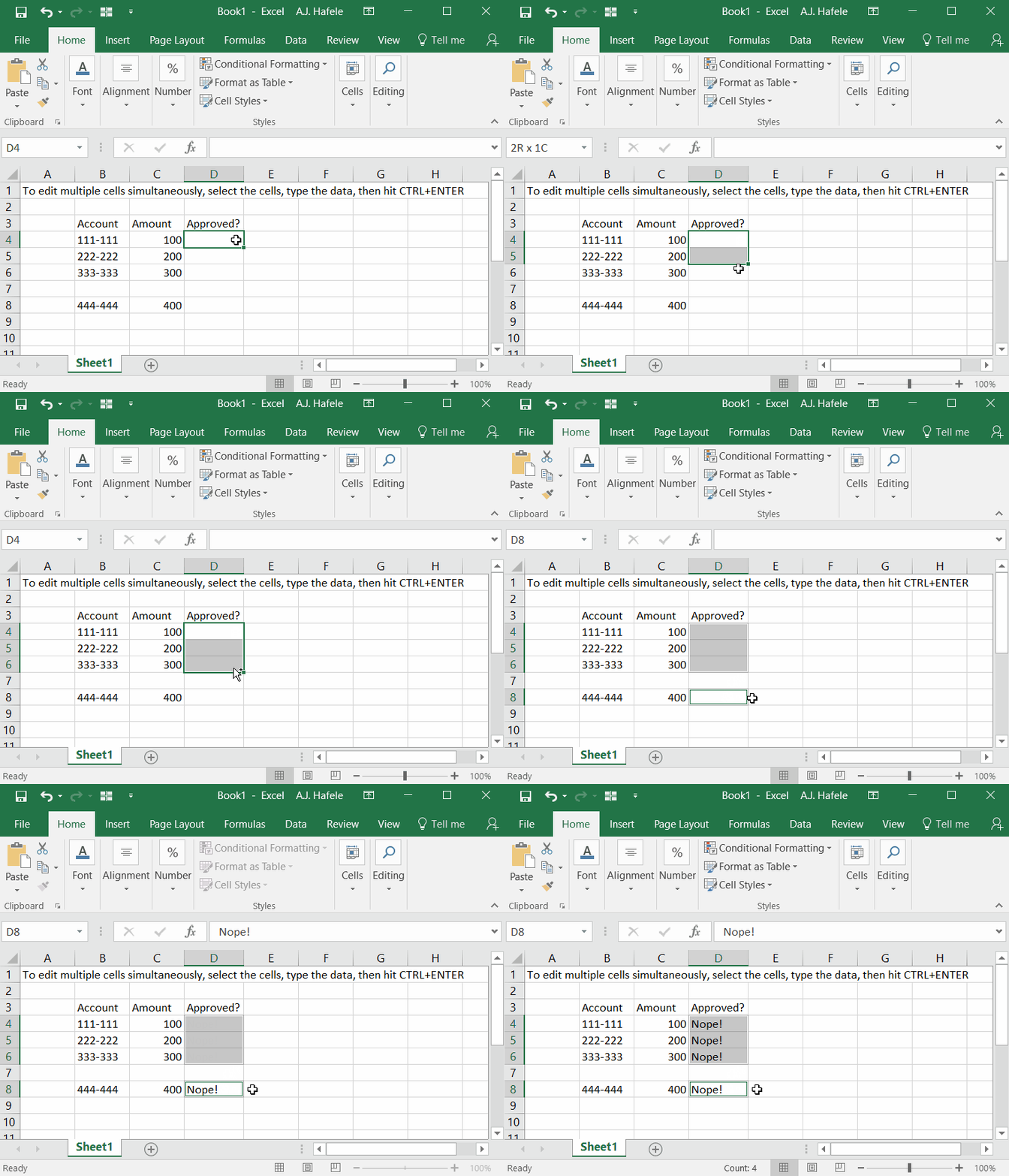
Often there is a need to enter the same exact information or formula in multiple cells
Using CTRL+ENTER with multiple cells selected is a quick way to do this, as shown here:
This trick will work on contiguous and non-contiguous ranges
This is a much faster alternative to copying and pasting values from one cell to another (copying and pasting is discussed later)
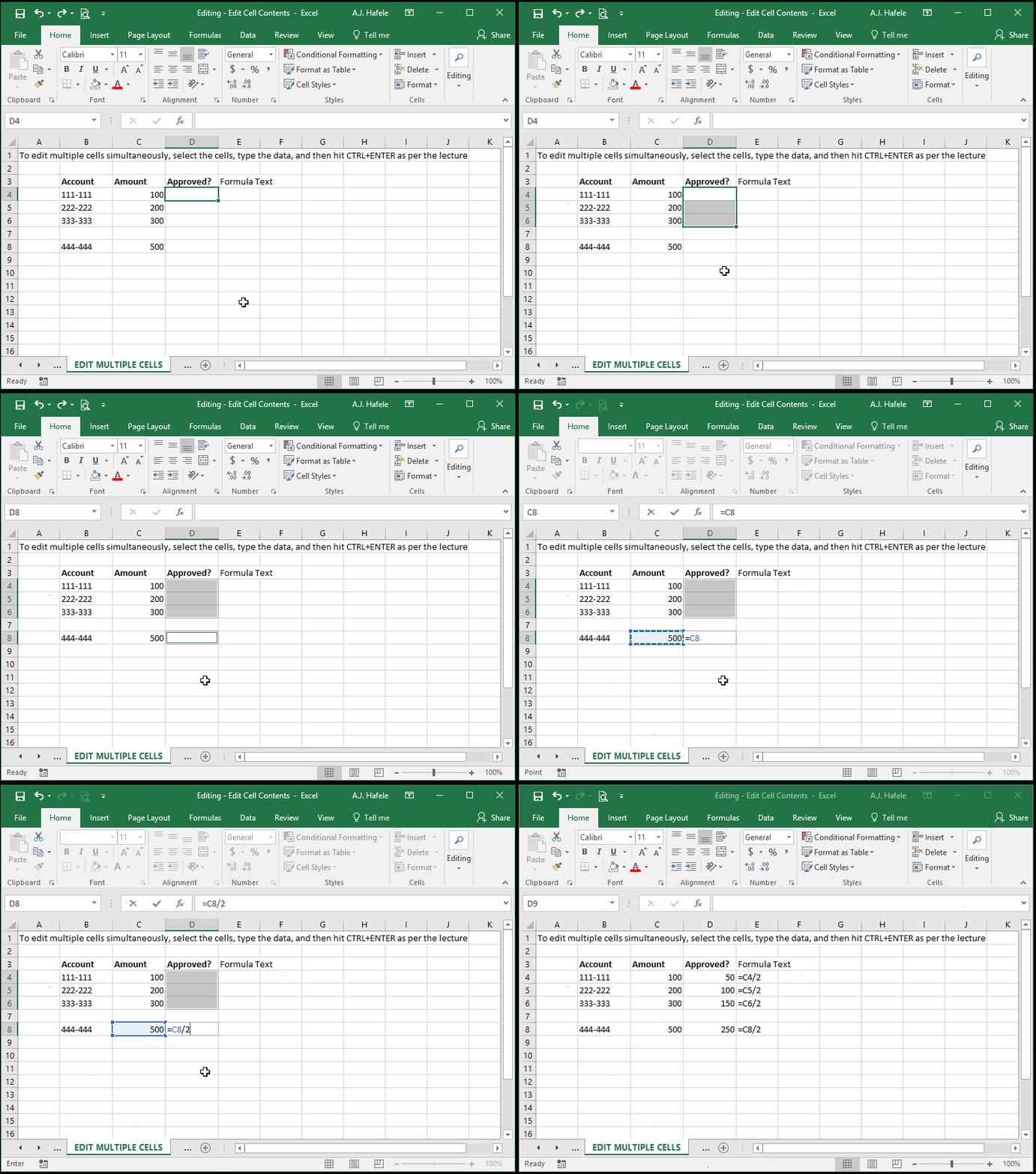
Moreover, Excel accommodates for relative cell references when CTRL+ENTER is pressed, as shown here:
Observe that when CTRL+ENTER is pressed above, each formula references the cell to the left of it
i.e. we just typed =C8/2 only, but the results were =C4/2, =C5/2, =C6/2, and =C8/2 in cells D4, D5, D6, and D8, respectively
Jump To Next Line Within A Cell
In a word processor (such as Microsoft Word), you can skip to the next line in your document by pressing ENTER
How can we do this within a cell in Excel?
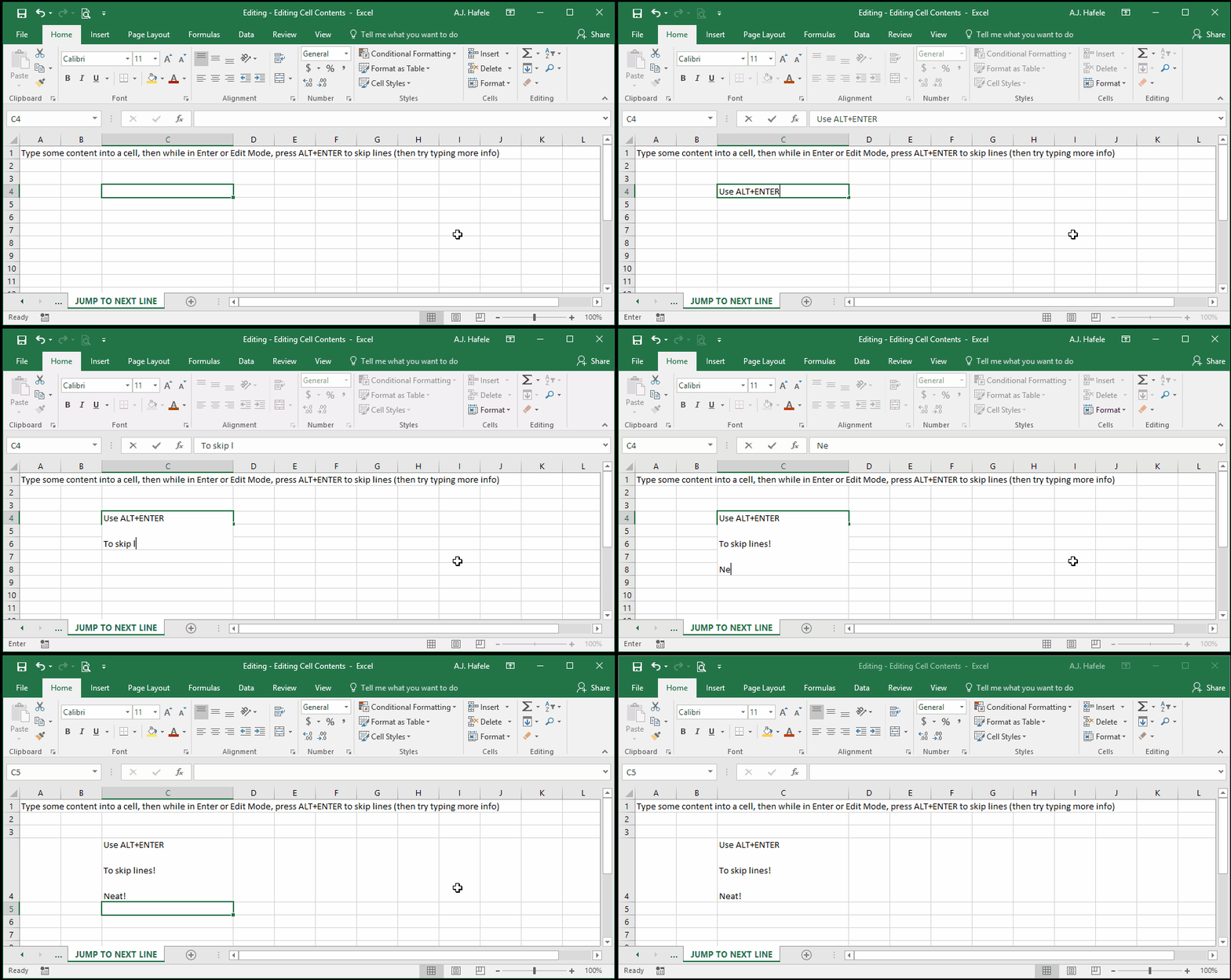
Easy! Simply press ALT+ENTER after typing your cell contents to jump to the next line within a cell:
If you need to enter numbers to be used for calculations into a cell, do not use this methodolgy (enter single numbers in their own individual cells)
Change Cell Selection After Pressing ENTER
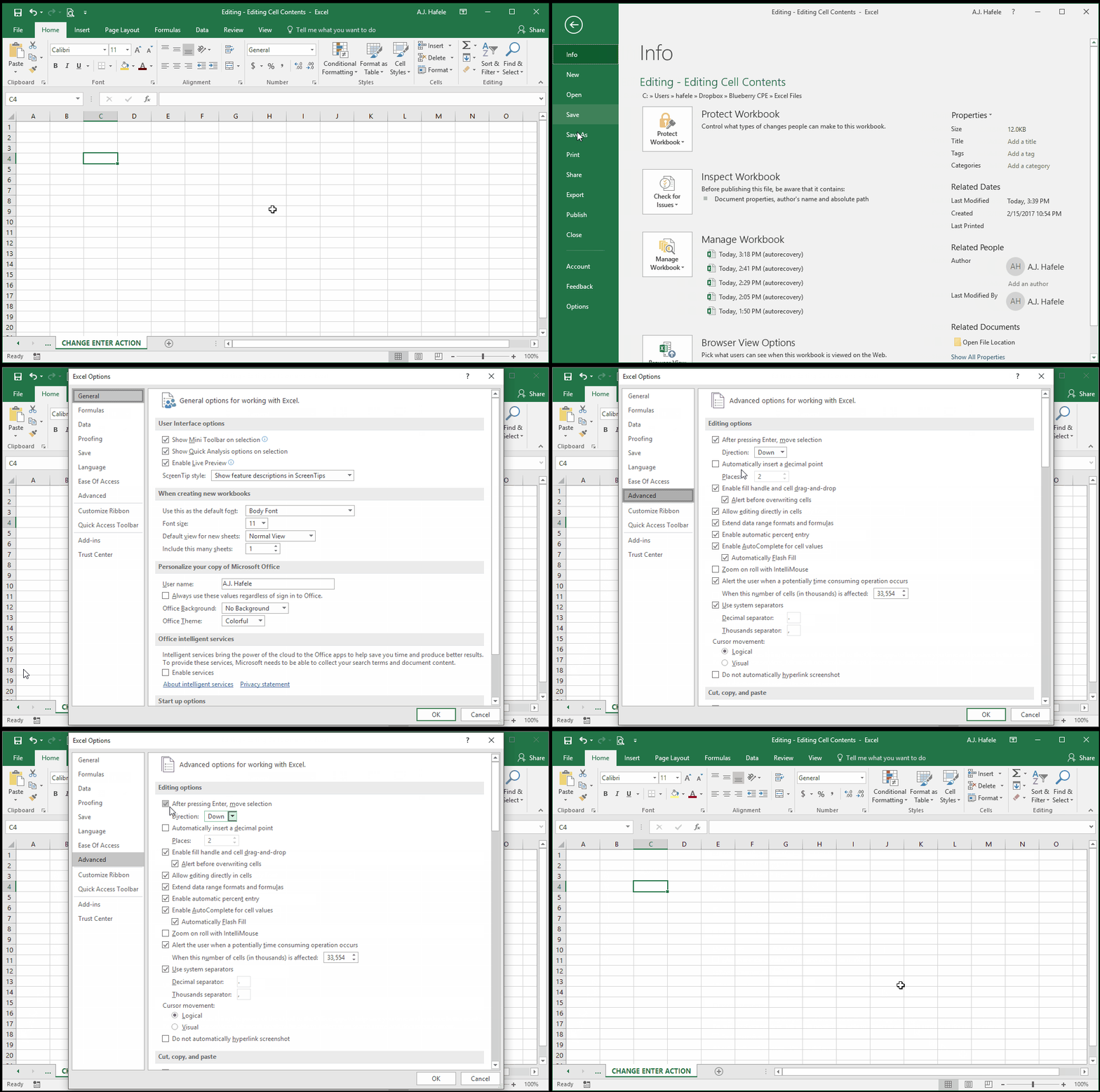
By default, pressing ENTER from Edit or Enter Mode will store content (e.g. in cell B5) and then select the cell immediately below the edited cell (e.g. B6)
But what if we did not want to go down a row, or maybe we want to go up a row instead (or to the left or right)?
This can be changed in Excel Options as shown here:
Select Values from Drop-Down Lists
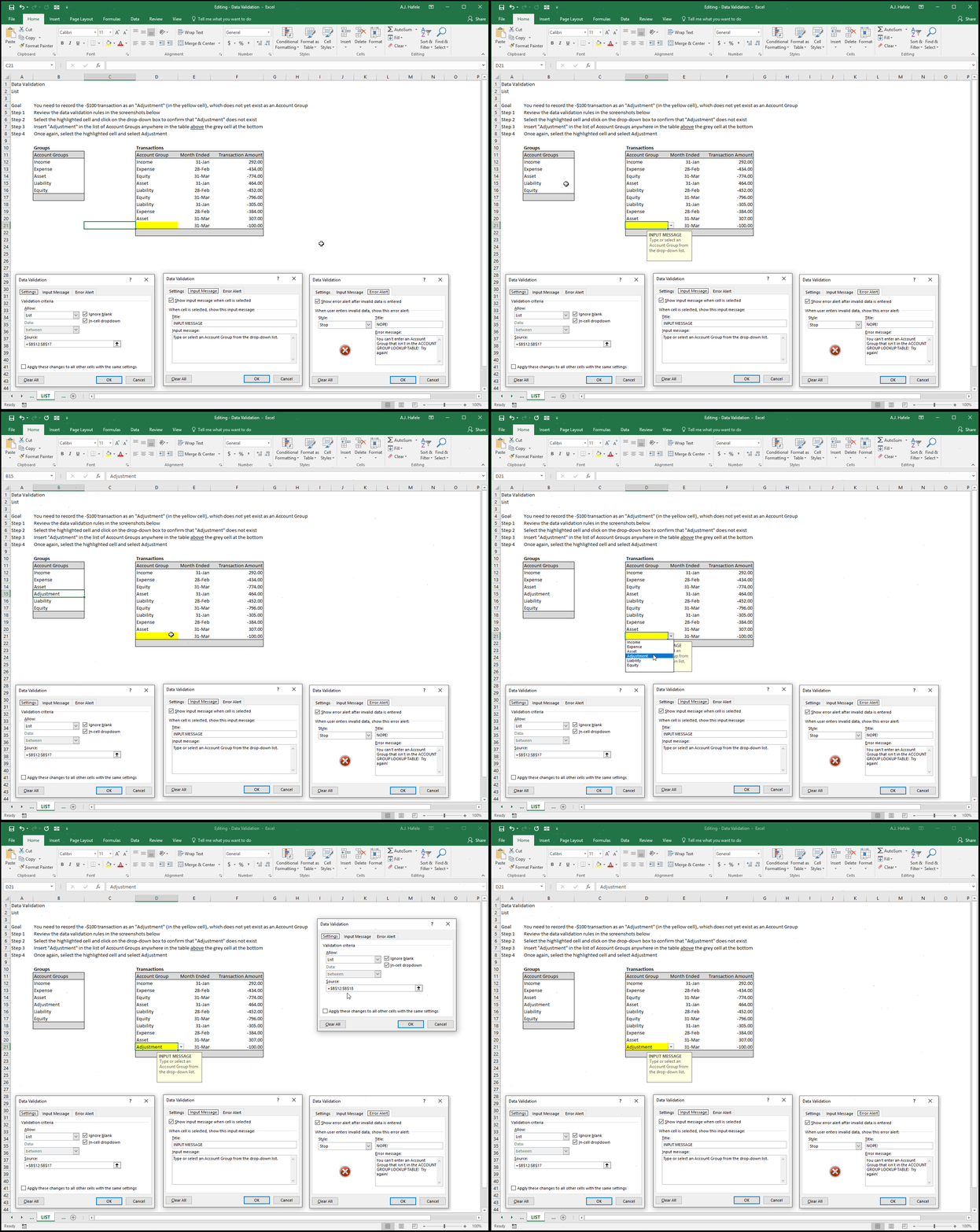
Cells can be configured such that only a value from a drop-down list of values can be selected and stored in those cells
For such cells, a drop-down box is available which allows you to select an appropriate value, as shown here:
Note that the ALT+ARROW DOWN shortcut can be used to select from drop-down boxes
This shortcut will also work in cells that do not contain drop-down boxes as shown above
In those instances, Excel guesses what should be in the list based on surrounding information