Worksheet Tabs
Overview
- This lecture focuses on how to manipulate Excel worksheets in various ways
- All of the actions discussed below are essential in creating clear and well-organized workbooks
Buttons
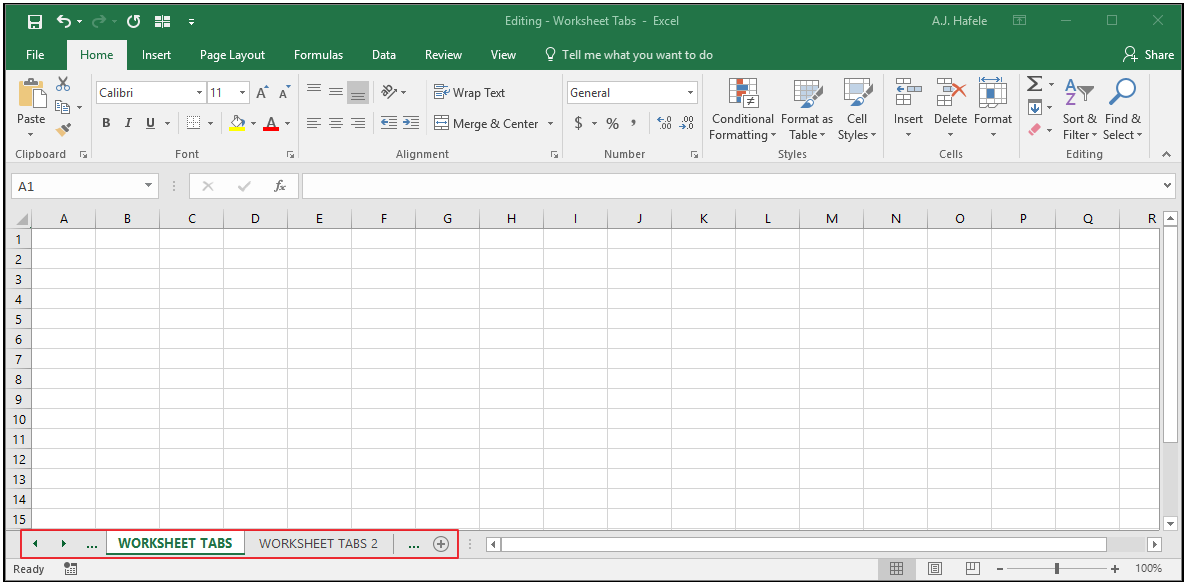
- All worksheet tabs - as well as other relevant buttons - are found at the bottom of the Excel window, here:
- Other relevant buttons can be found in the Cells group of the Home tab
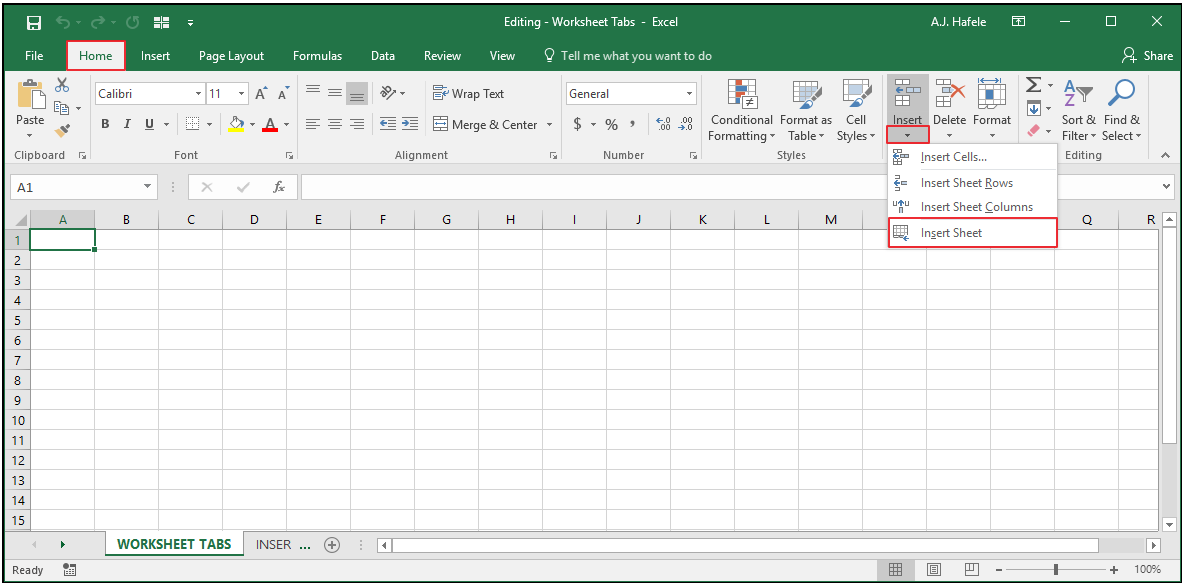
- The button used to insert new sheets is found here:
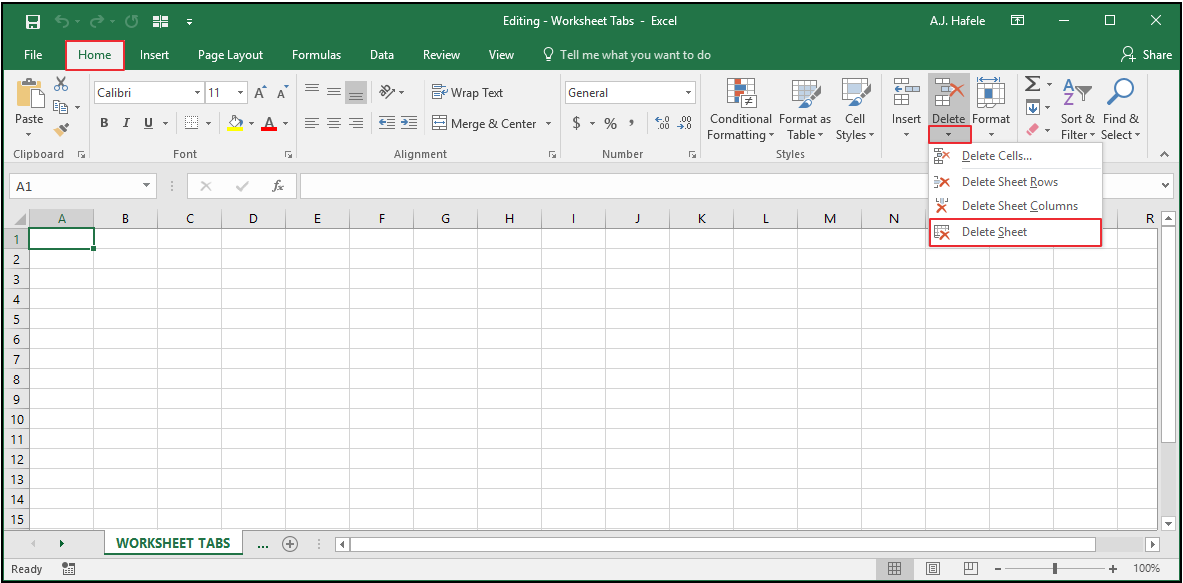
- The button used to delete existing sheets is found here:
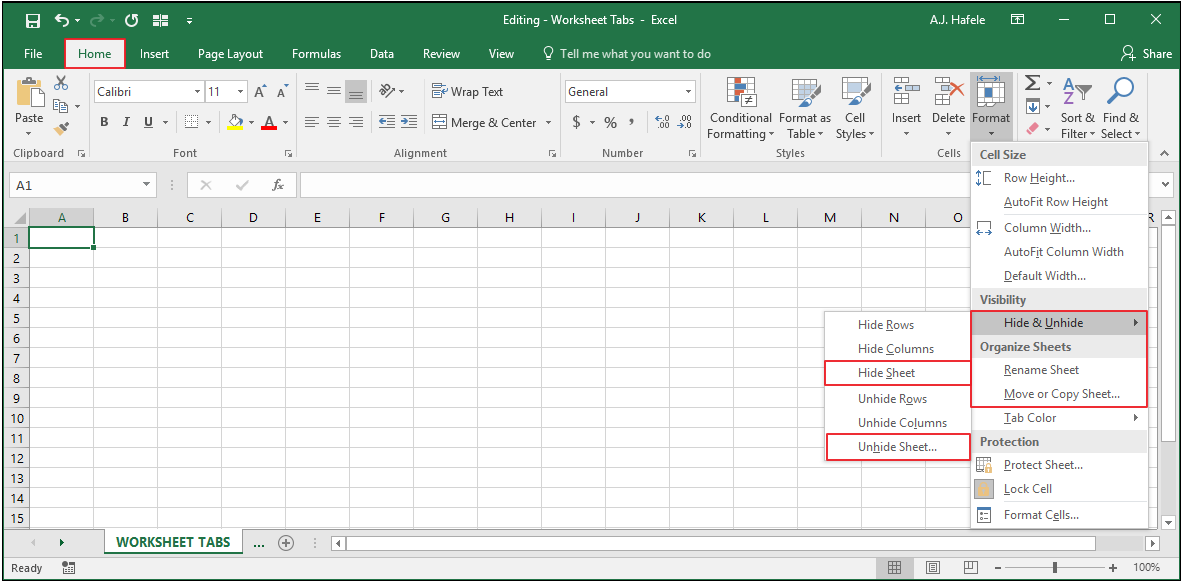
- The buttons used to hide, unhide, rename, move or copy sheets are found here:
Definitions
- Let's briefly review a few relevant definitions
- Active sheet:
- The sheet that is selected and viewable, as indicated by the bold green worksheet tab name
- The active sheet is the sheet that you are currently looking at (at any given time)
- Note that you can select multiple sheets (discussed below), but there is always only one active sheet
- Worksheet, Sheet, or Tab:
- Synonyms which refer to an individual grid of cells in a workbook
- Workbooks can contain multiple worksheets
Insert Sheets
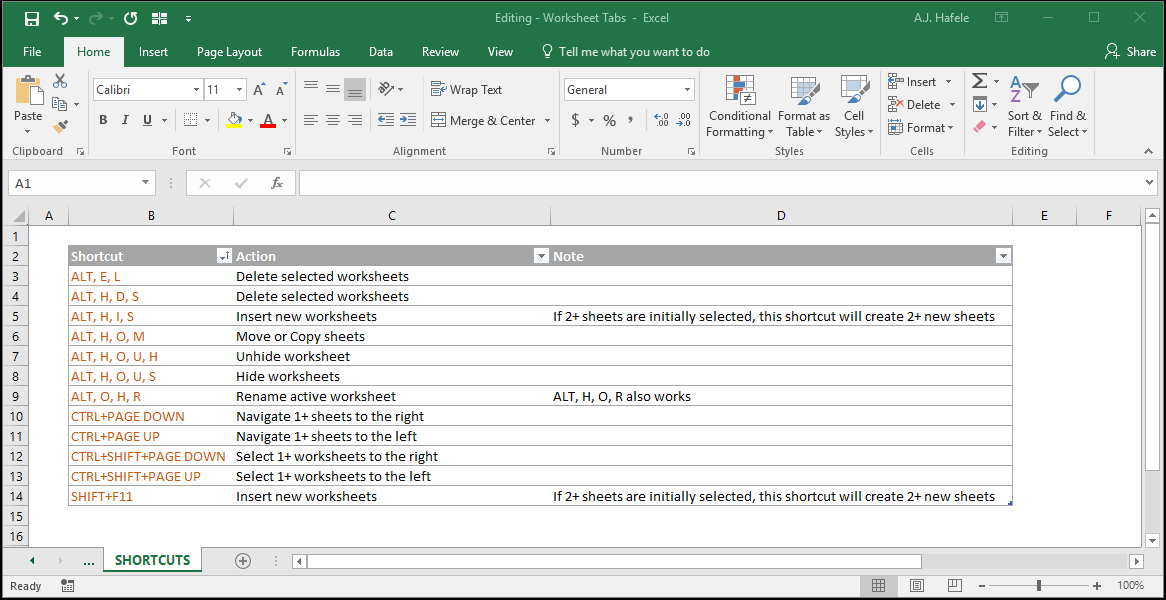
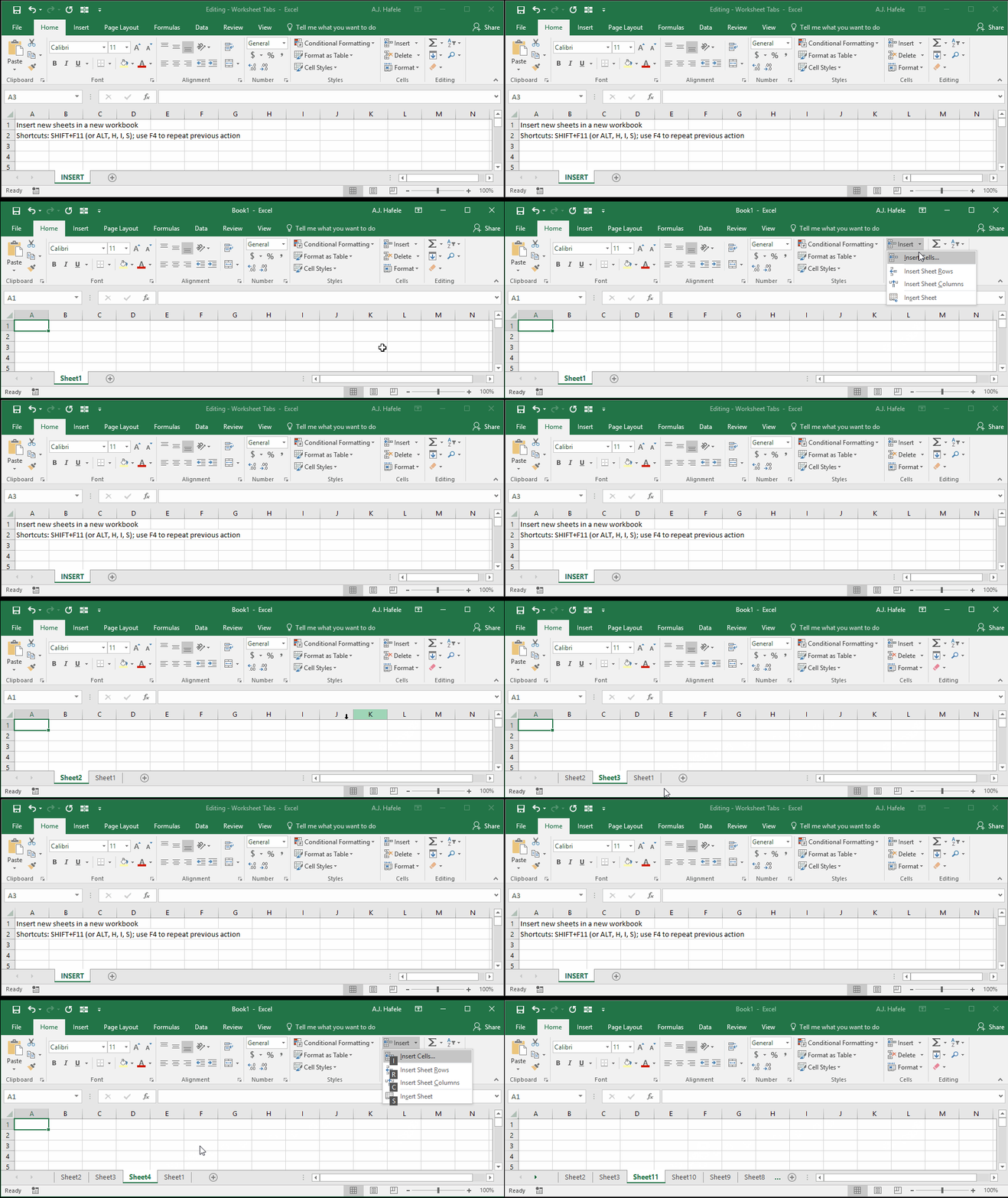
- Observe as we insert new worksheets via a variety of methods (including using the ALT, H, I, S and SHIFT+F11 shortcuts):
- Note that:
- When new sheets are created, they are assigned generic names (like "Sheet1"), so be sure to rename them something more useful and relevant!
- The circle with the "+" symbol at the bottom of the Excel window (used to create Sheet9 above) is a quick way to create new sheets
- You can press F4 or CTRL+Y to redo/repeat a worksheet insertion (we used F4 to create Sheet12 through Sheet15 above)
Rename Worksheets
- By default, worksheet names are generic (e.g. "Sheet1"). Again, to ensure your workbooks are clear and understandable, be sure to give your sheets useful names
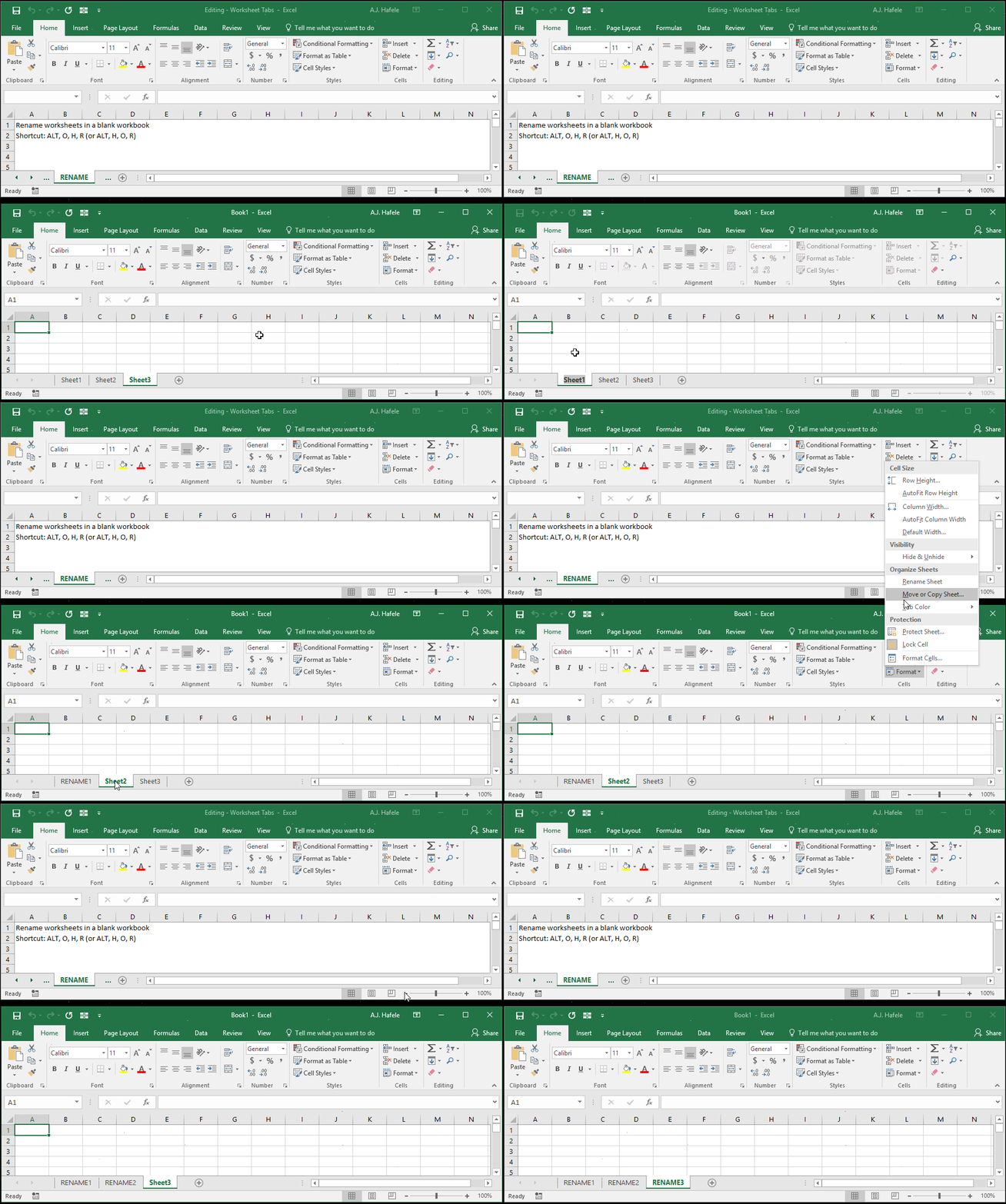
- An easy way to rename a worksheet is to simply double-click the worksheet tab, type the desired name, and press ENTER
- You can also use the Rename Sheet button in the Ribbon, or the ALT, O, H, R shortcut
- Observe as we use all three methods to rename sheets:
Select and Navigate Between Worksheets
- To select a worksheet, simply left-click the worksheet's tab
- Use the arrow buttons to slide the sheets to the left or right
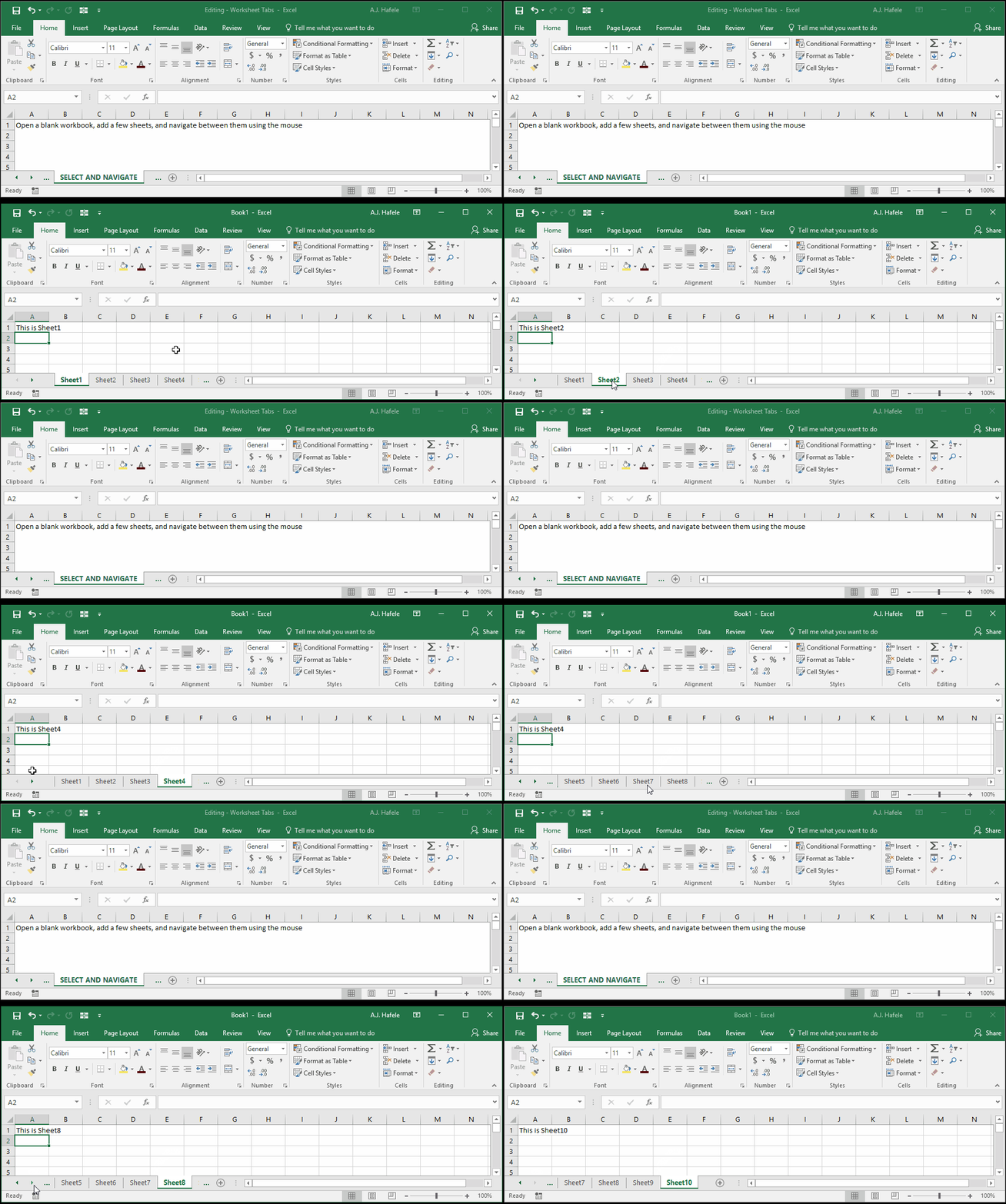
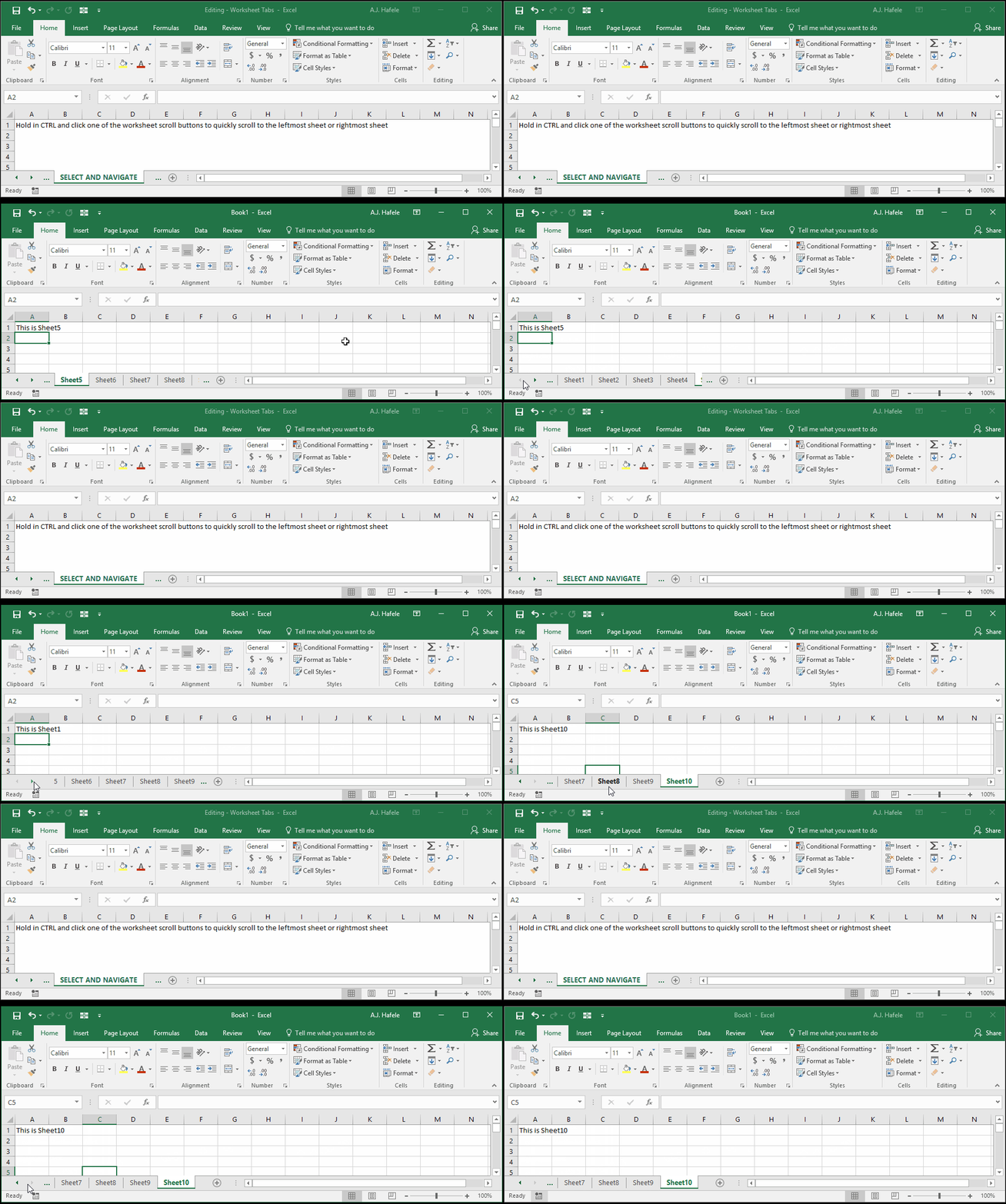
- To quickly jump to the leftmost (first) or rightmost (last) worksheets, hold CTRL and left-click one of the arrows, as shown here:
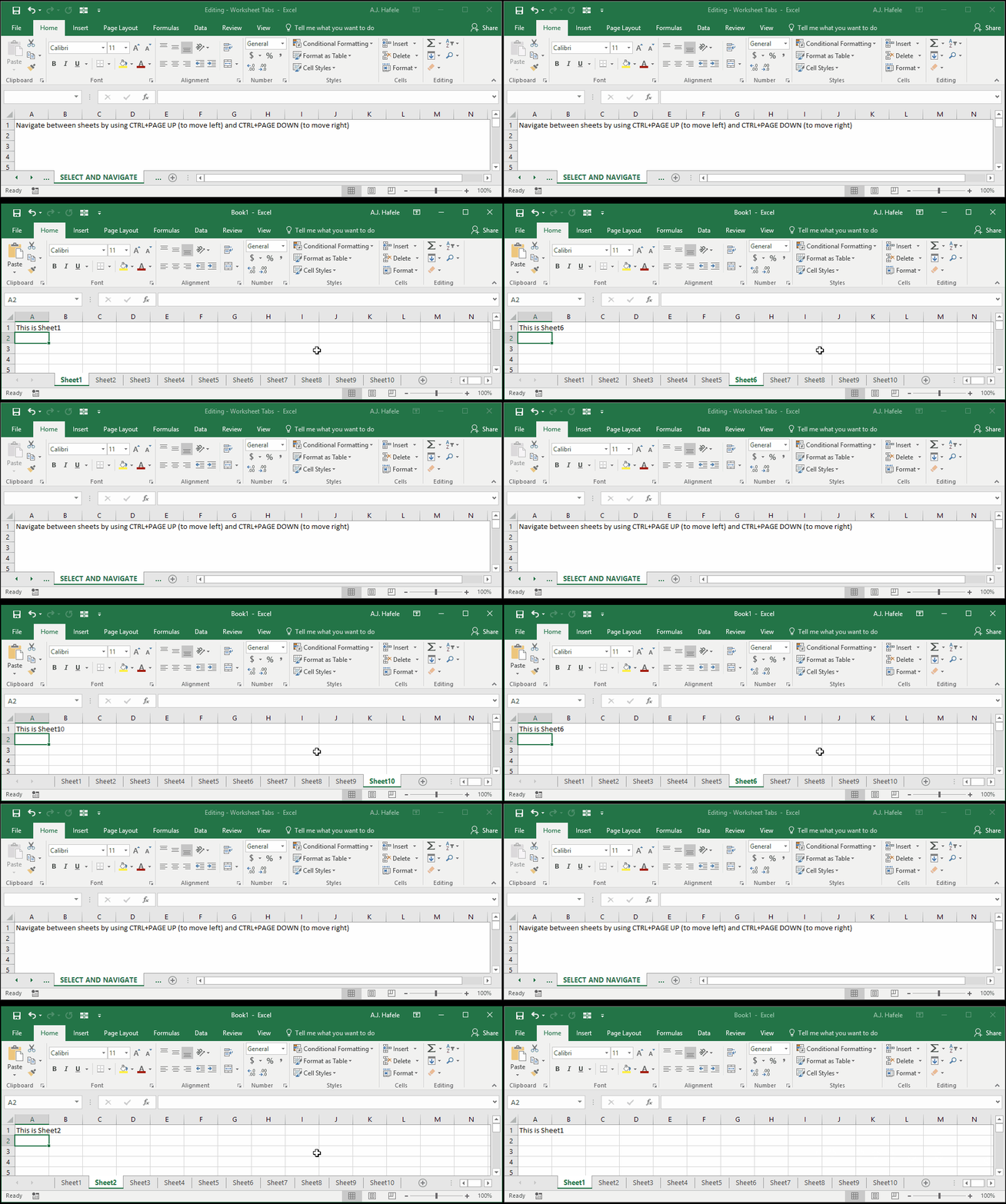
- As an alternative to using the mouse, use CTRL+PAGE UP and CTRL+PAGE DOWN to navigate left and right, respectively:
- To select multiple worksheets, press and hold CTRL and left click all applicable sheets with a mouse, as shown here:
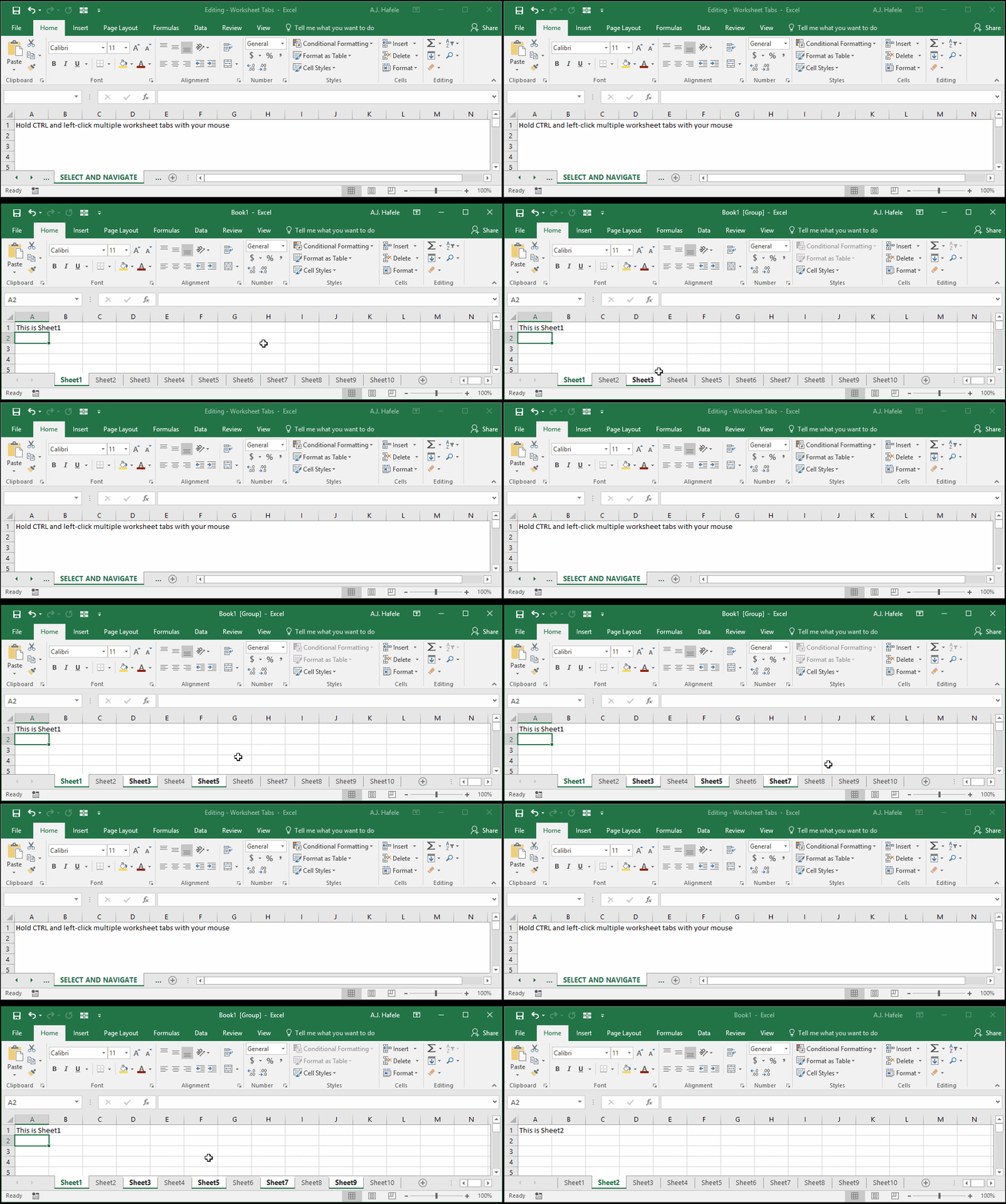
- Notice that:
- We de-selected multiple worksheets by left-clicking a non-selected sheet (Sheet2) without holding CTRL
- By using a mouse, we were able to select a non-contiguous set of worksheets (all of the odd-numbered ones)
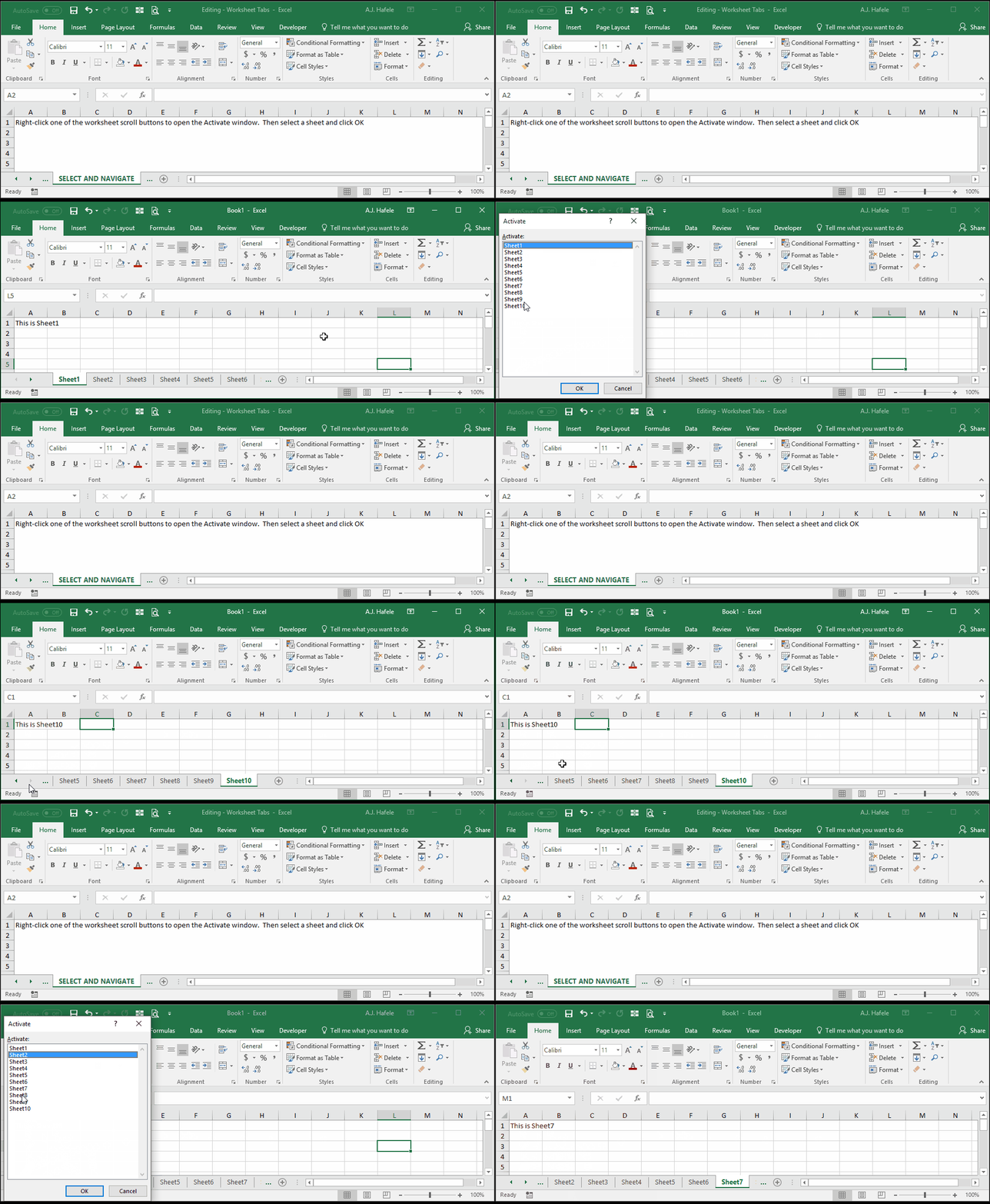
- To jump to a specific sheet, you can right-click one of the worksheet scroll buttons to open the Activate menu. This menu allows you to jump to any sheet that you select, as shown here:
- To select a contiguous set of worksheets, hold SHIFT and left-click the opposite end of the set of sheets you want to select, as shown here:
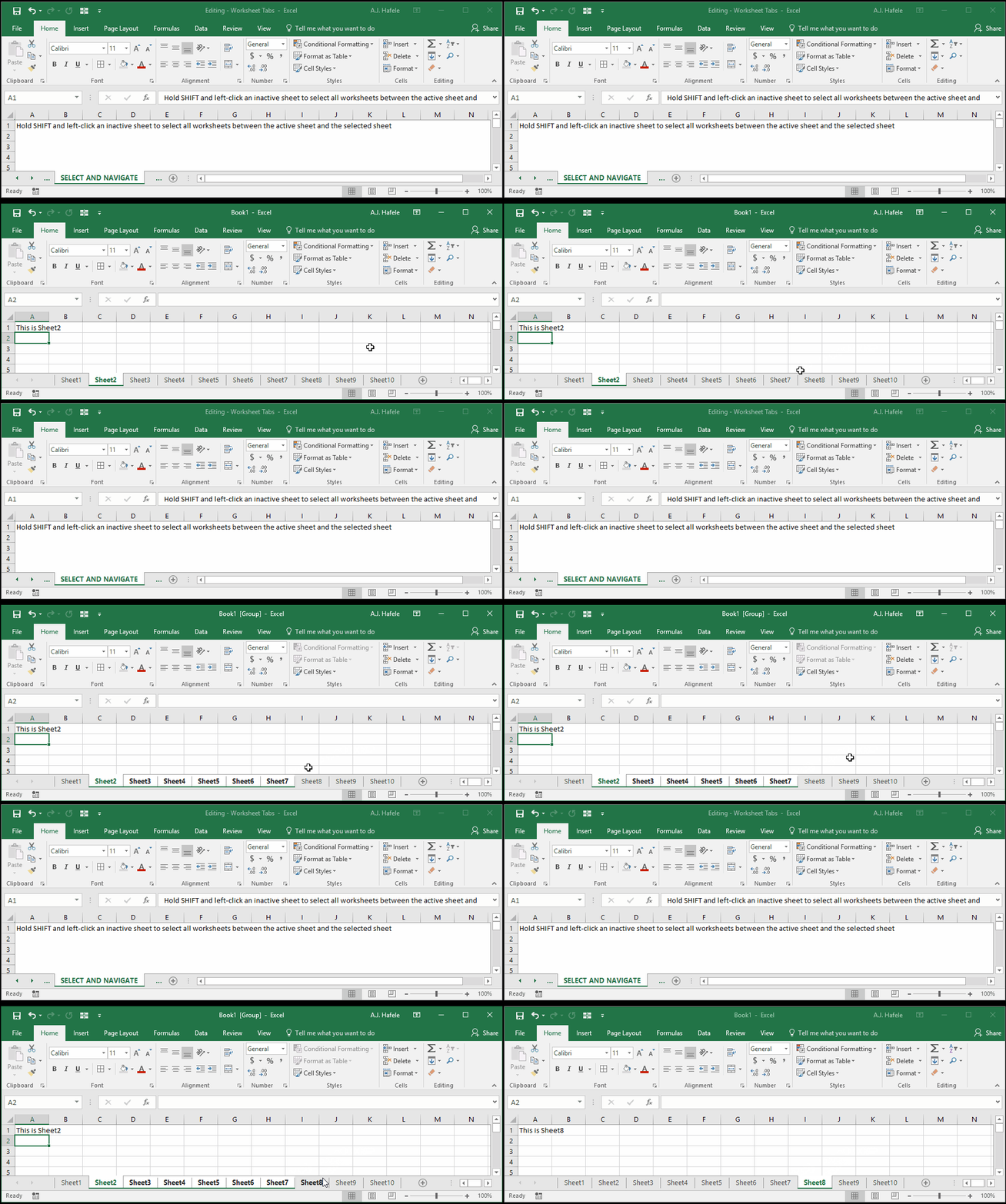
- Notice that we de-selected multiple worksheets by left-clicking a non-selected sheet (Sheet8) without holding SHIFT
- As an alternative, use the CTRL+SHIFT+PAGE UP (and CTRL+SHIFT+PAGE DOWN) shortcut to select all sheets to the left of (and right of) the active sheet, as shown here:
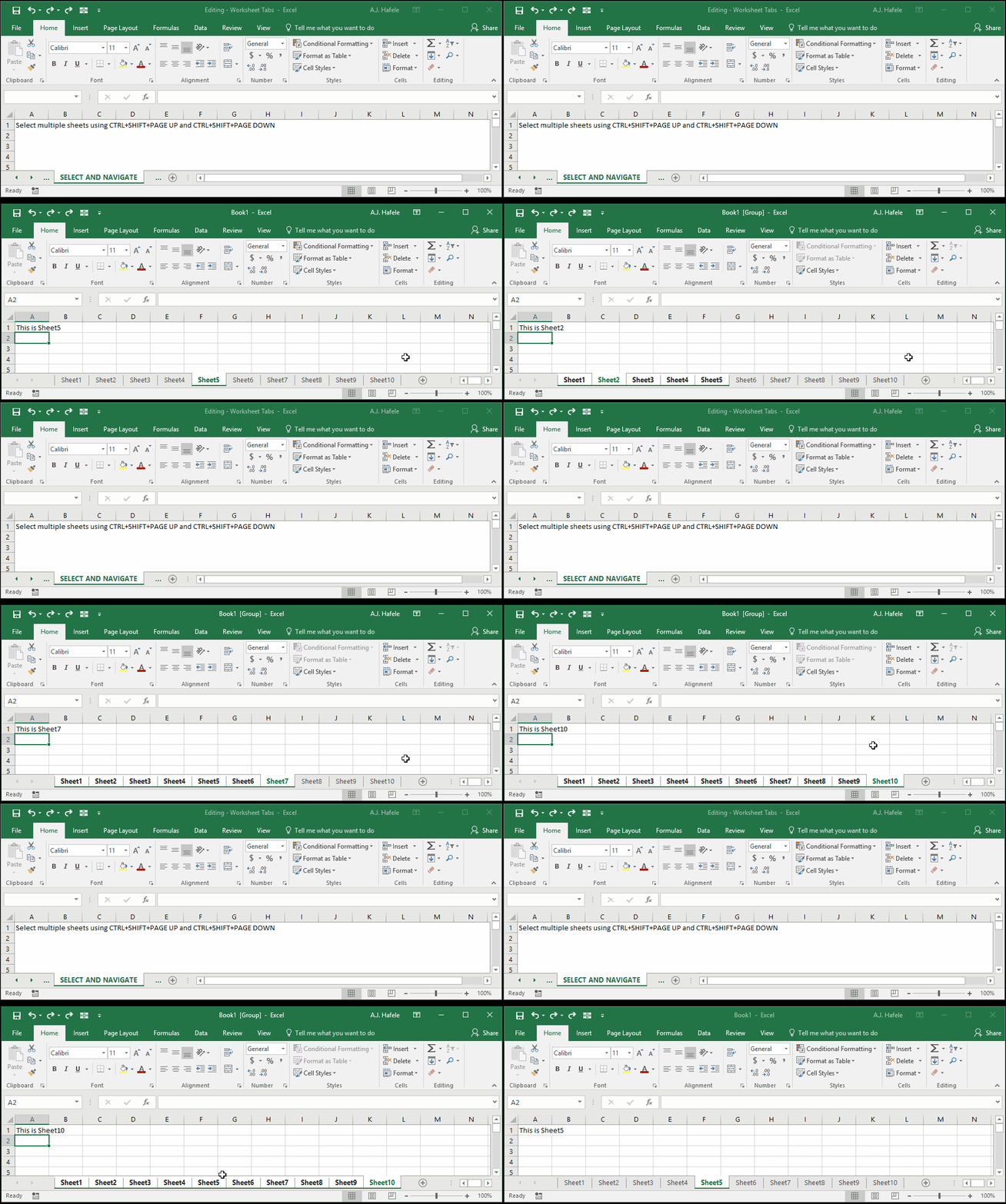
- Notice that:
- You can only select a contiguous set of sheets using these two shortcuts (as with SHIFT and left-click with a mouse)
- If all sheets are selected, you can de-select them by simply left-clicking any worksheet that is not active (or pressing CTRL+PAGE UP or CTRL+PAGE DOWN to move one sheet over)
Edit Multiple Sheets Simultaneously
- From the previous illustrations, you may be thinking: "Why would I ever need to select multiple sheets?"
- Answer: You may need to edit multiple sheets simultaneously!
- Observe as we select multiple sheets and edit them all at once:
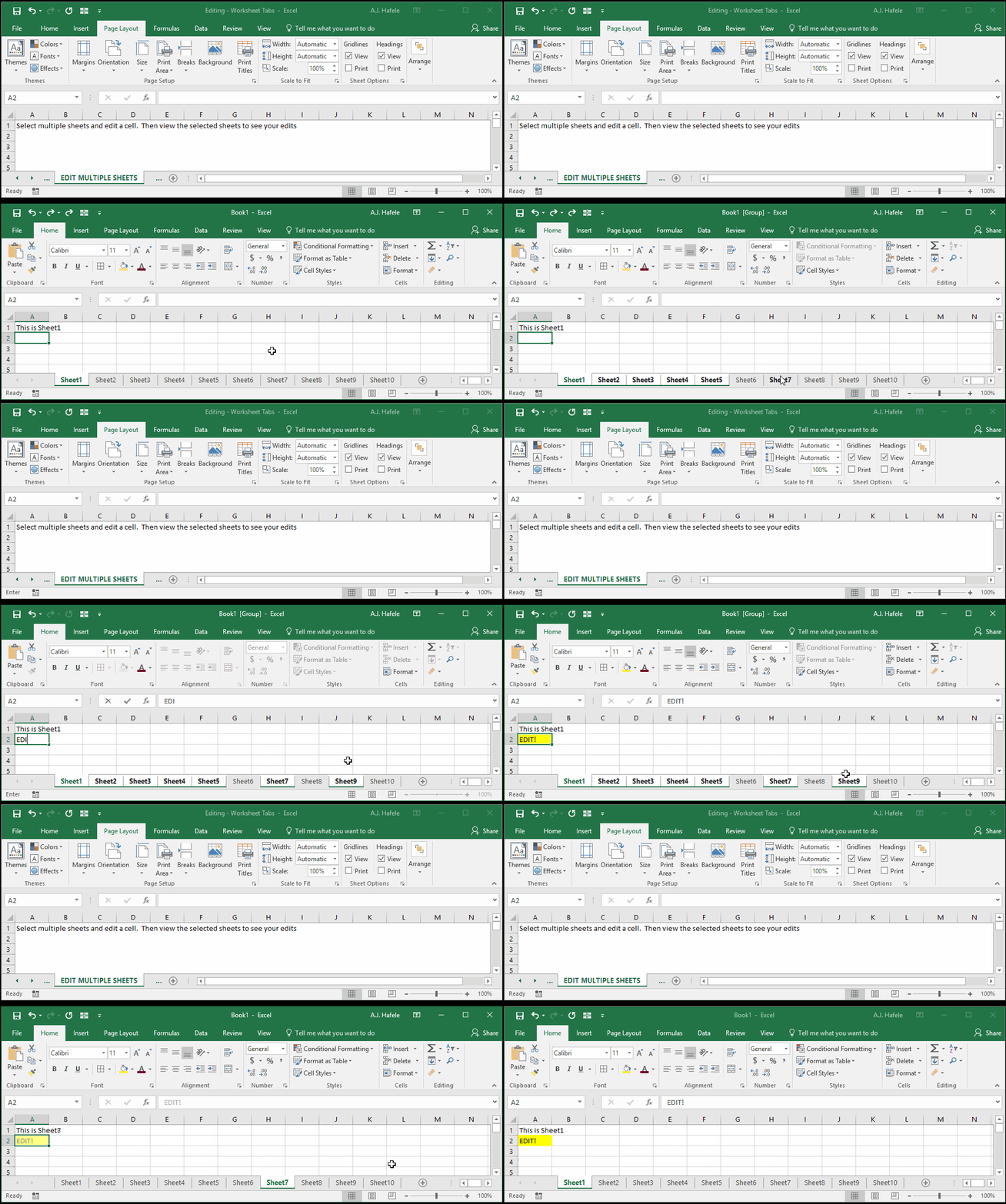
- This can be handy when you need to edit worksheets that are structured in the exact same manner
- However, always be careful when doing so!
- And do not forget to de-select the sheets once you are done!
Hide and Unhide Worksheets
- Sometimes, you may desire to move a sheet completely out of sight
- Perhaps you do not want anyone manipulating the sheet
- Or perhaps the sheet is no longer being used (but it may be used in the future)
- Excel allows you to completely hide worksheets from the list of worksheet tabs
- Observe as we hide multiple sheets, first using the Ribbon, and then by right-clicking the tab and selecting the Hide button:
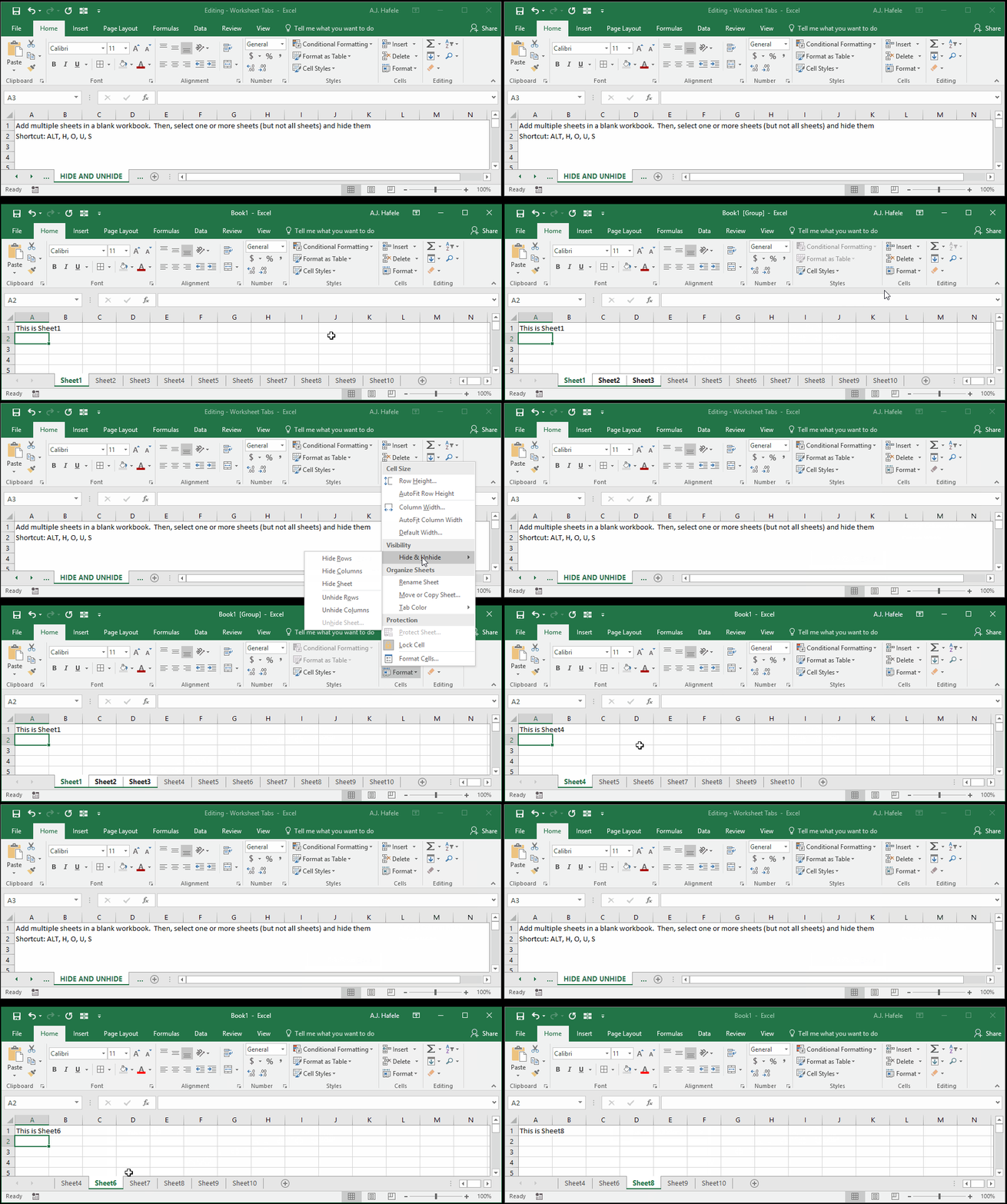
- Hiding sheets does not delete them or alter them in any way. The sheets are still preserved and can still be referenced
- Be sure to try the ALT, H, O, U, S shortcut to hide sheets (not shown above)
- Conversely, you can unhide sheets as follows:
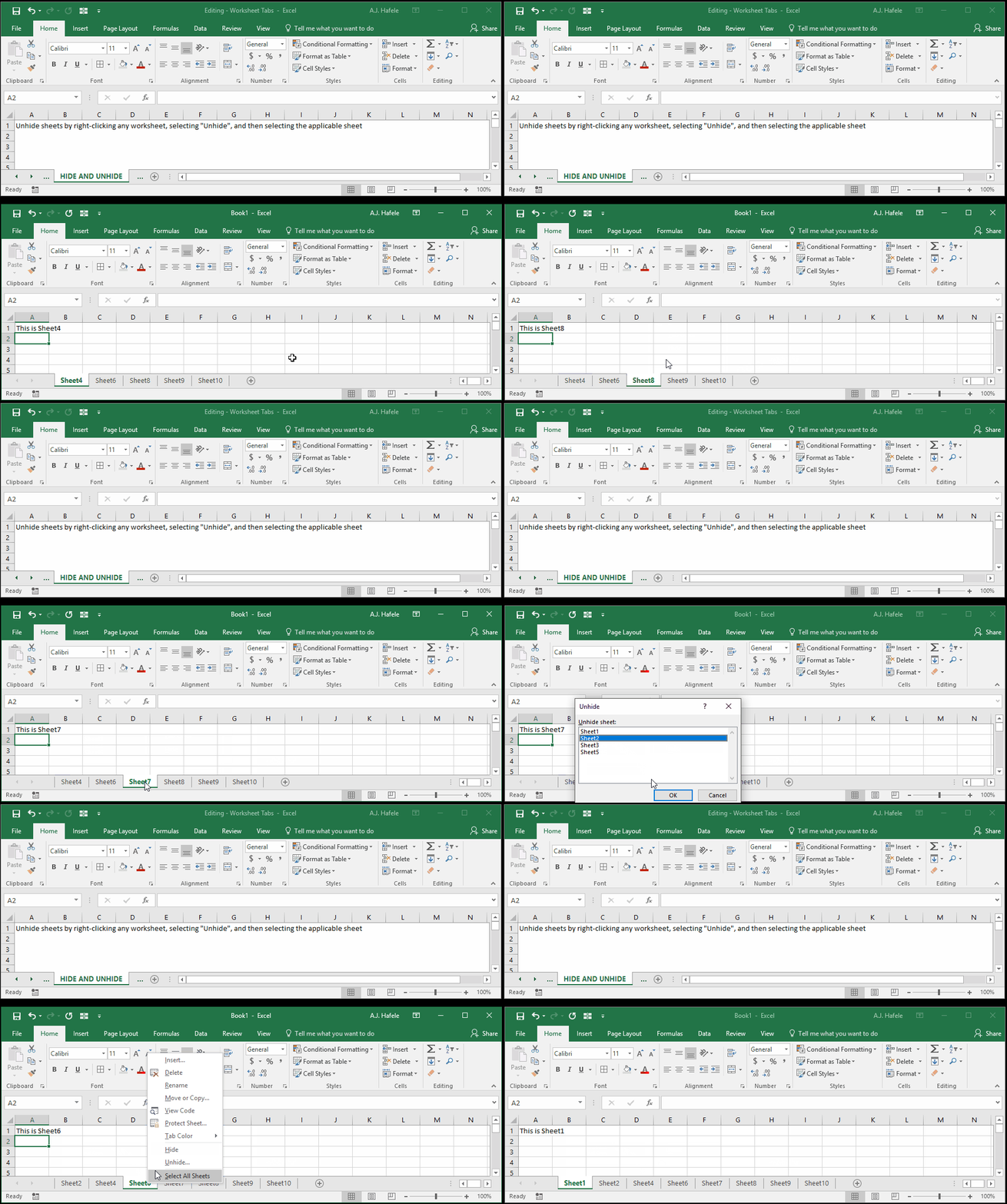
- Note that:
- Sheets that are unhidden are placed back in their original relative position
- In contrast to hiding sheets, you can only unhide one sheet at a time
- The (relatively long) shortcut to unhide sheets is ALT, H, O, U, H
Move Worksheets
- You may frequently have the need to rearrange the order of your sheets (try to arrange them logically!)
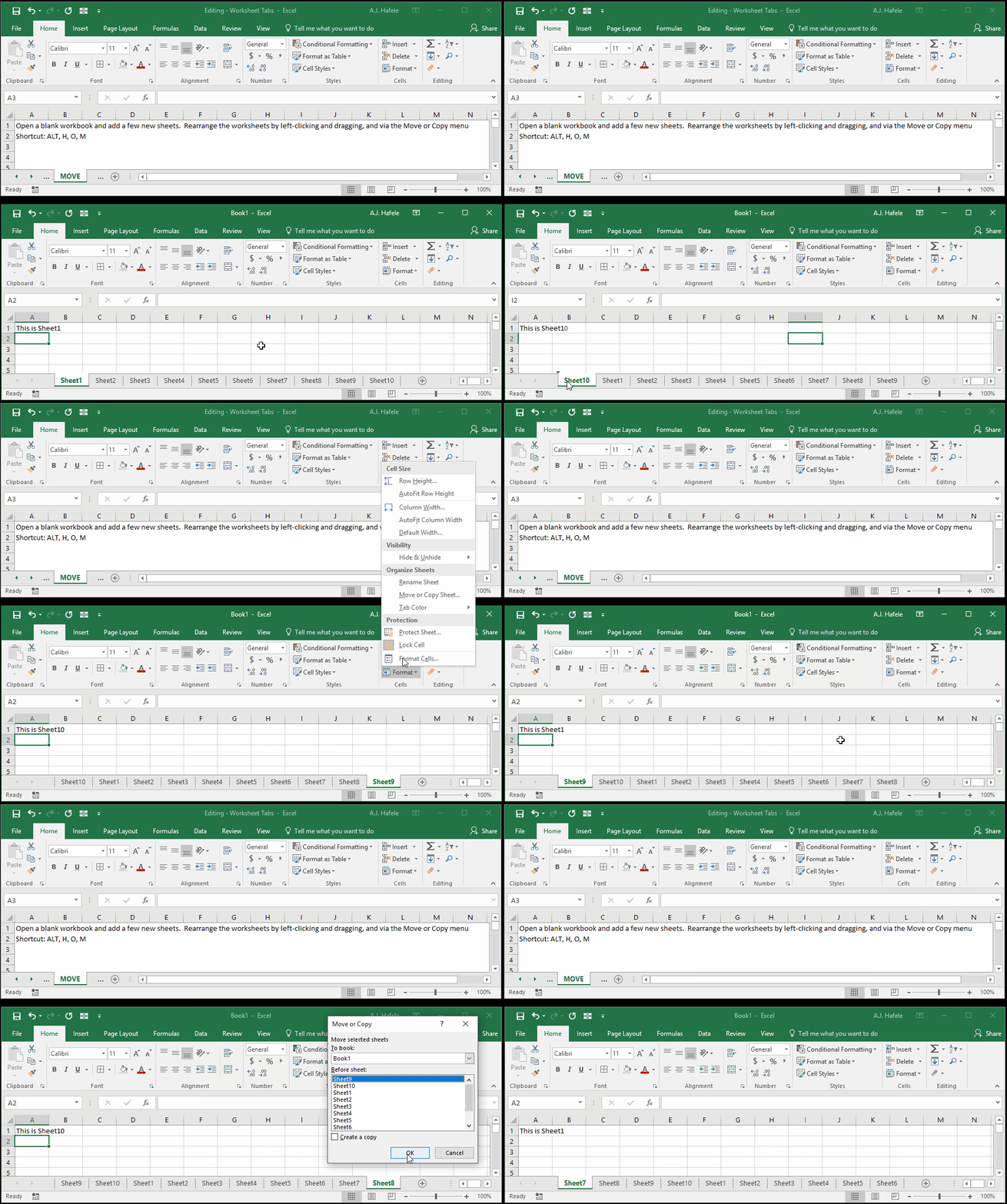
- To do this, simply left-click the sheet in question and drag it to the desired location
- You can also move sheets via the Move or Copy button found in the Ribbon (ALT, H, O, M) or by right-clicking a worksheet tab
- Observe as we move a few worksheets to the very left using all of these methods (including the ALT, H, O, M shortcut):
Copy Worksheets
- Sometimes, you may need to create an exact copy of an existing worksheet
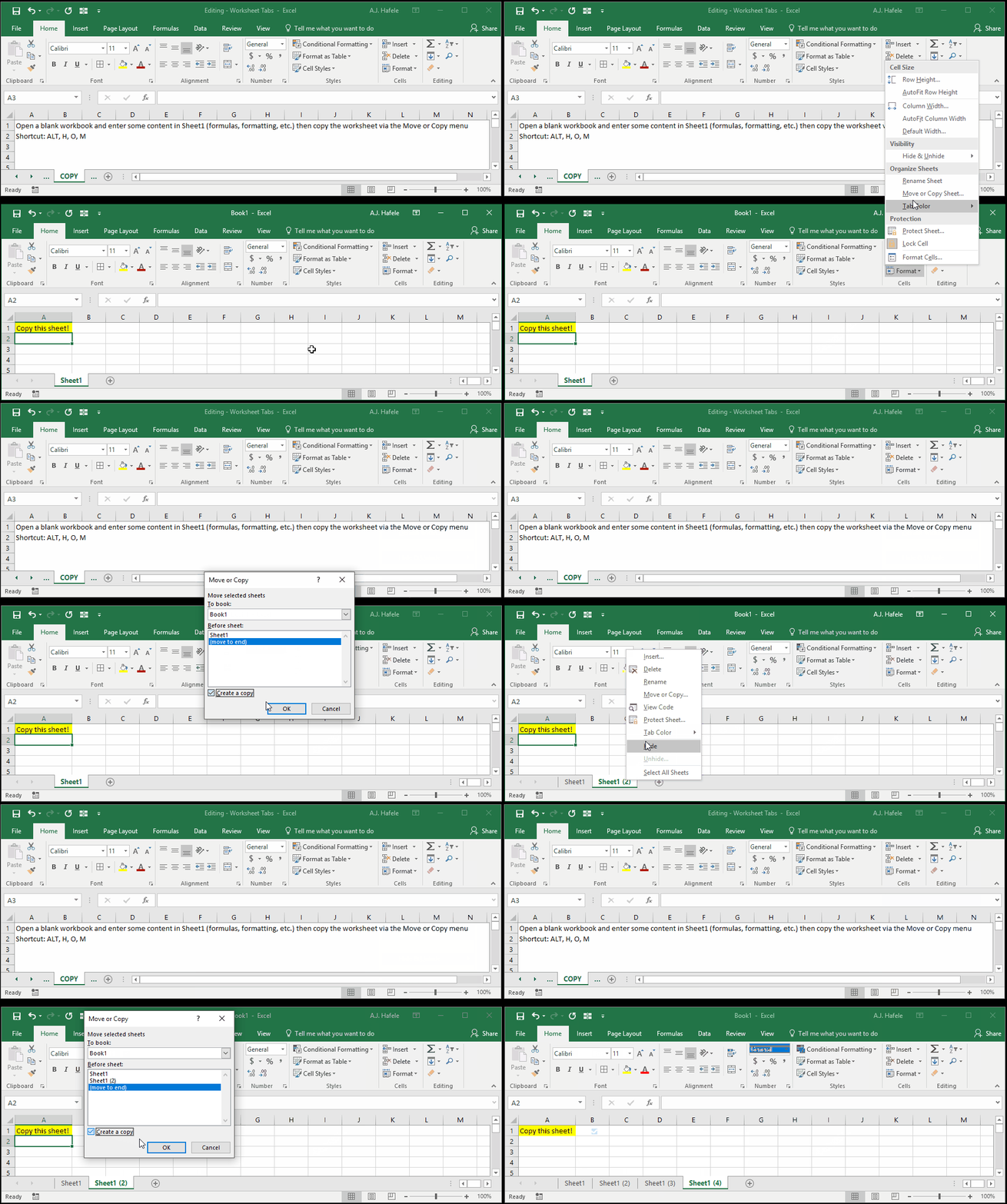
- When sheets are copied, everything is copied (including formulas, constants, formatting, etc.), somewhat like a massive copy and paste
- The exception, of course, is the actual sheet name, since all worksheets must have unique names
- To copy a sheet, you should (once again) use the Move or Copy button (or the ALT, H, O, M shortcut), as shown here:
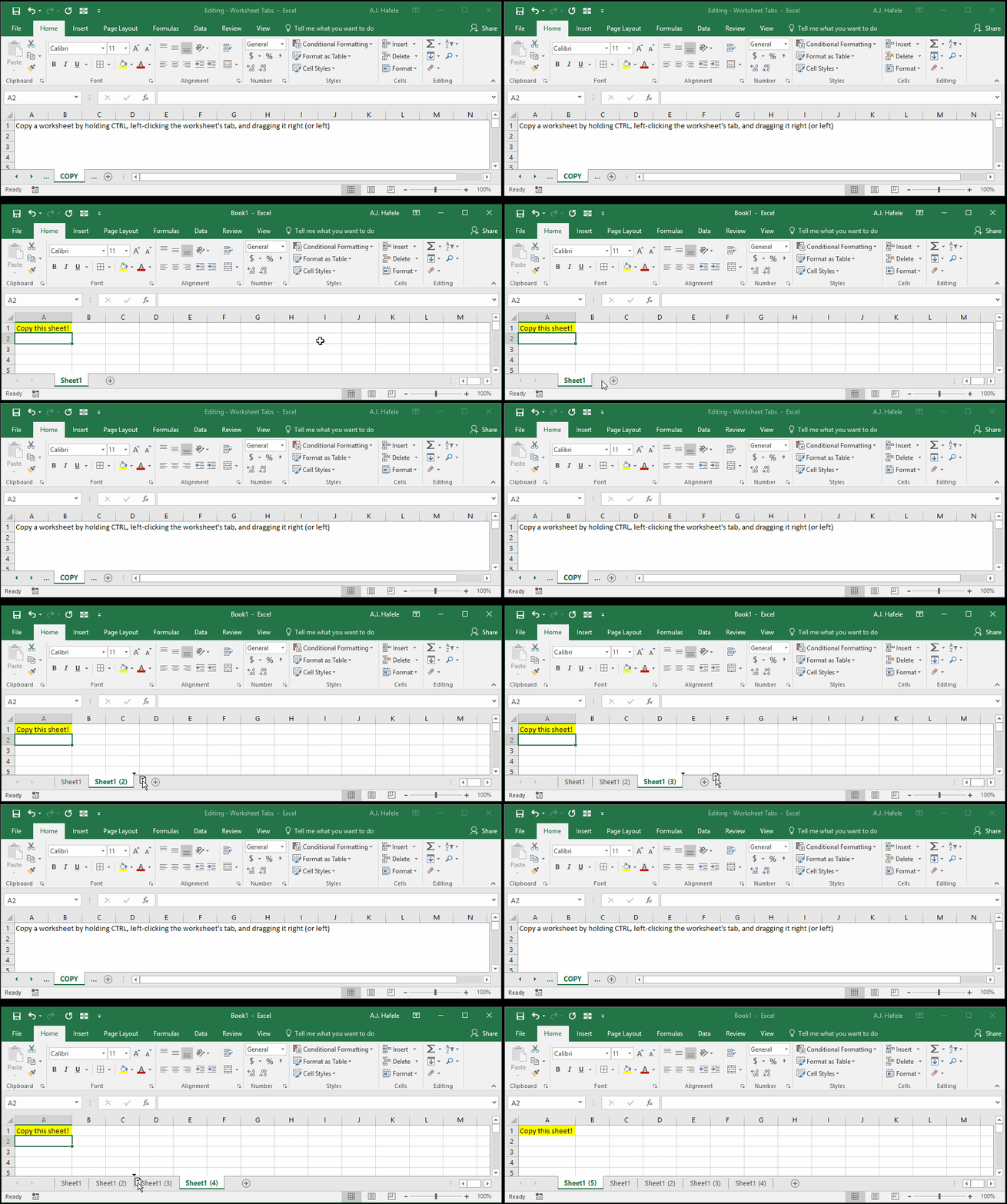
- Alternatively, you can copy sheets via a nice mouse trick (for later versions of Excel): hold CTRL and left-click + drag the target worksheet right, as shown here:
Delete Worksheets
- To delete one or more worksheets, simply select them and either:
- Right-click one of the target sheets and select Delete
- Select the Delete Sheet option in the Ribbon (ALT, H, D, S or ALT, E, L)
- Importantly, note that you cannot undo a worksheet deletion, so be careful (and save often)!
- Observe as we delete a few sheets using these methods:
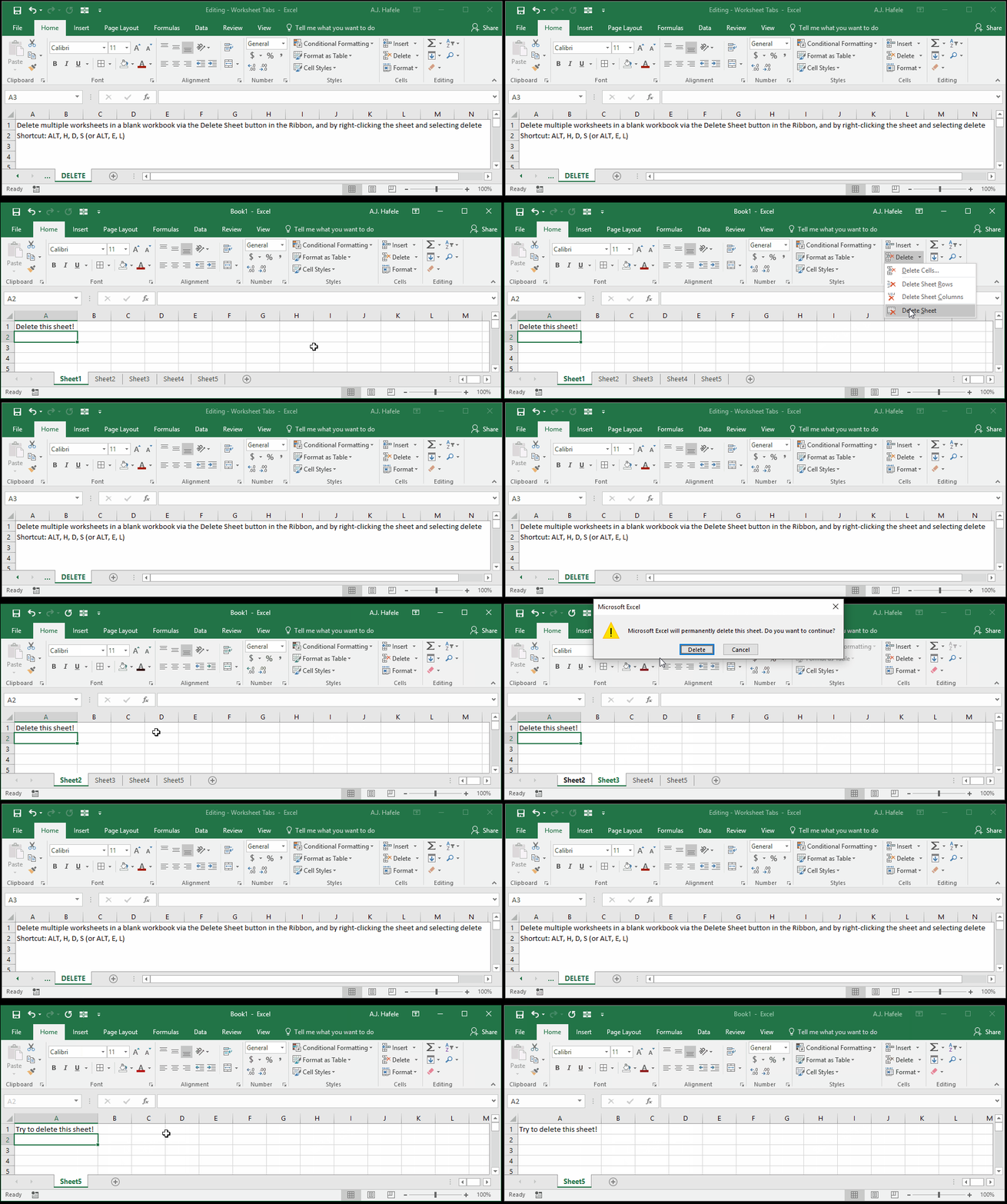
- Notice that we could not delete Sheet5, as there must always be one visible sheet in a workbook
Shortcuts