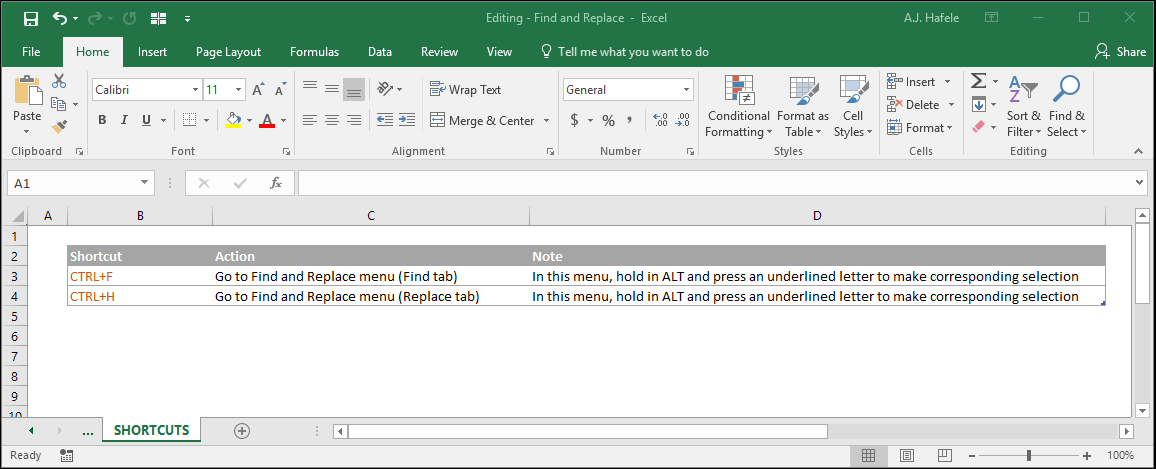
Find and replace functionalities can be extremely useful when working in Excel (as is true with other applications)
The concepts are easy to understand:
Finding: allows you to select cells that meet certain criteria
Replacing: allows you to replace old data with new data within one or more cells
There are a variety of options to choose from when finding and replacing data, which are discussed in detail below
Buttons
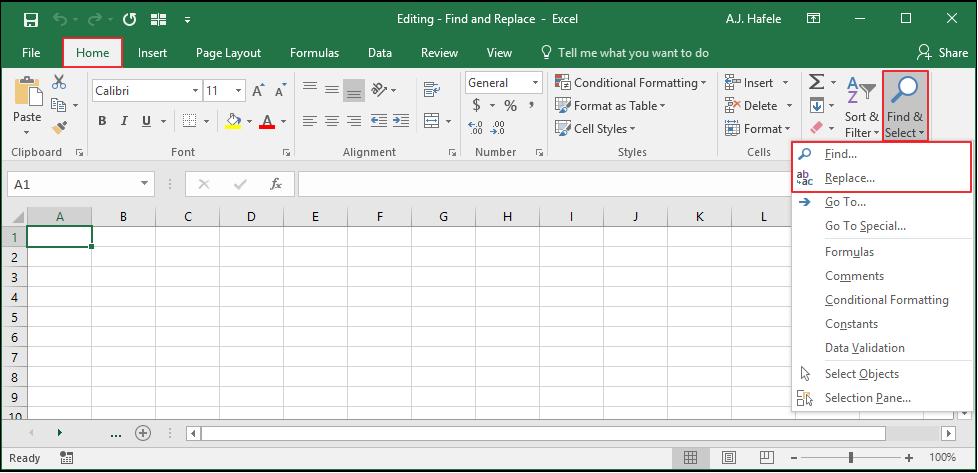
The relevant buttons can be found in the Editing group of the Home tab:
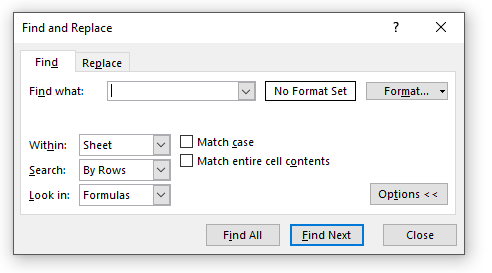
When the Find button in the Ribbon is selected (CTRL+F), the Find tab of the Find and Replace menu appears:
Note that we have unhidden the options by selecting the Options button in the Find menu (near the bottom-right corner)
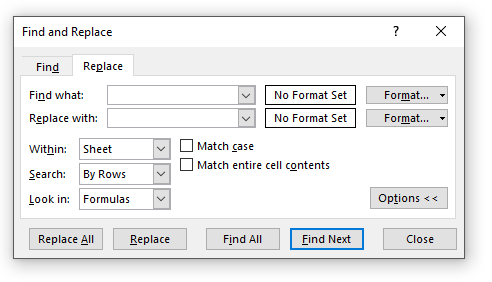
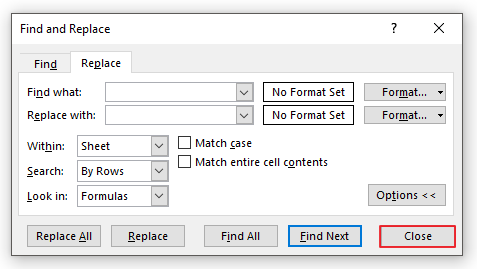
When the Replace tab (in the Find and Replace menu) is selected, or when the Replace button in the Ribbon is selected (CTRL+H), the following menu appears (again, with options unhidden):
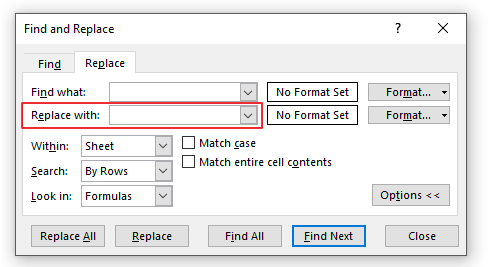
Notice that the Replace menu is almost exactly the same as the Find menu, with the added "Replace with" row (and its corresponding "Format" button, which allows you to select replacement formats)
Find Versus Find and Replace
To be clear, there are two separate things that the Find and Replace menu does - 1) Find, and 2) Find and Replace
Find: allows you to select cells meeting your search criteria (and nothing more)
Find and Replace (or simply Replace): allows you to select cells meeting your search criteria and replace content (and formatting) in those cells. Thus, this does the same as the former, but with the added ability to replace
Find and Replace Menu Options In Detail
Let’s briefly review the various options within the Find and Replace menu
We will focus on the Replace tab of the Find and Replace menu, as the options in that menu are eeactly the same as those in the Find tab (plus additional replacement options)
We will then go through some visual examples later
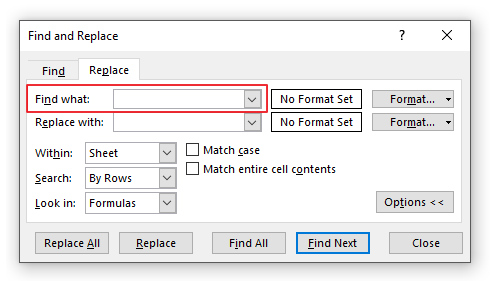
Menu Options: Find What
This is the content that you are searching for
e.g. you would type "hello" in that box if you were looking for the word "hello"
Menu Options: Replace With
Allows you to replace what you found with whatever you enter here
This option does not exist in the Find tab (of course, since that tab is only used to find data)
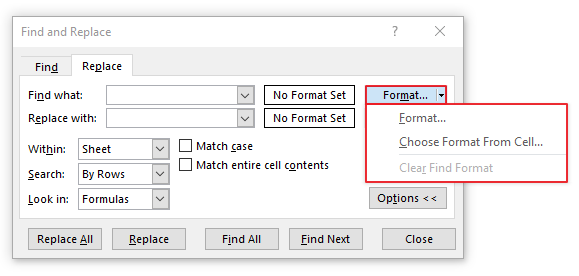
Menu Options: Find Format (The Top One)
If you need to find cells with a specific format, you can specify that format via this button
If you need to find cells only with certain formats (i.e. you do not care about the cells' contents), you do not need to fill out the Find what box
This is useful, for example, if you need to find and replace information in all cells that are highlighted yellow
Note that the "Choose Format From Cell..." button allows you to select a cell in your file with the formatting you had in mind (and that cell's formatting options will be selected in the Find and Replace menu)
Menu Options: Replace Format (The Bottom One)
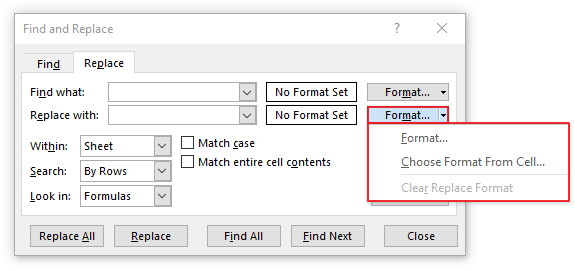
Allows you to replace the format of what you found to whatever format you choose here
For example, if you wanted to highlight blue any cells that you update with Replace, you can specify that via this button
Note that the "Choose Format From Cell..." button allows you to select a cell in your file with the formatting you had in mind (and that cell's formatting options will be selected in the Find and Replace menu)
Menu Options: Within
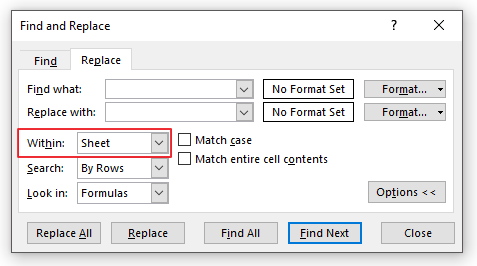
Do you want to find information (and/or replace) within this worksheet only, or do you need to find information (and/or replace) within the entire workbook?
This drop-down box gives you the option to do either
Note that if "workbook" is selected, only unhidden worksheets are in-scope, as you cannot find and replace information in hidden worksheets
Menu Options: Search
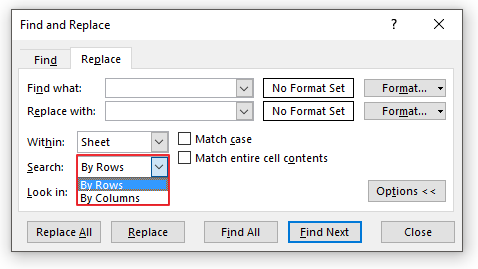
The Search option allows you to determine the order in which Excel will search for data
"By Rows" means Excel will skim an entire row from left to right, and then move down to the next row (and repeat)
"By Columns" means Excel will skim an entire column from top to bottom, and then move to the next column to the right (and repeat)
Menu Options: Look In
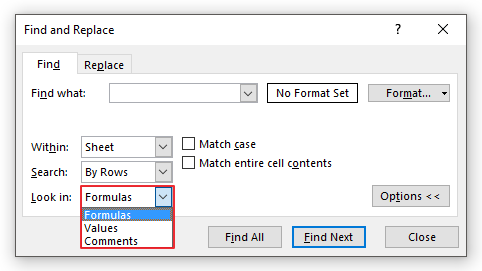
The Look In option allows you to determine where Excel should look to find the target data
Let's quickly review the options to choose from:
Formulas: Excel will search within the data that you see in the formula bar (which can be constants or formulas)
This option is also available in the Find tab
Values: Excel will search within the resulting values (or output) of each cell (i.e. what you see in the cell itself)
This option is only available in the Find tab
Comments: Excel will look within cell comments
This option is only available in the Find tab
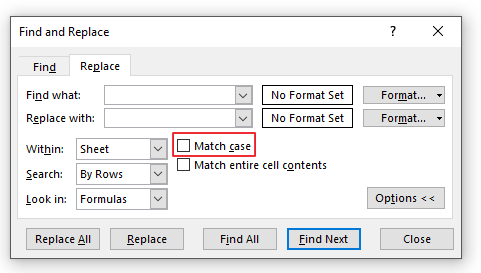
Menu Options: Match Case
If selected, your search will be case-sensitive
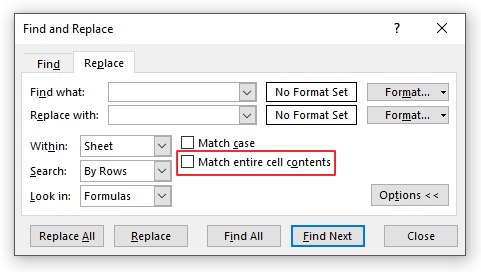
Menu Options: Match Entire Cell Contents
If selected, Excel will find cells that contain exactly what you are looking for (in the Find with box)
For example, if you need to find the exact number 123, check this box
Otherwise, Excel will also include cells whose values are 1234, 12345, 123456, 999123999, AAA123BBB, etc. since "123" is contained somewhere within those cells
Note, however, that the exact match does not have to be case-sensitive
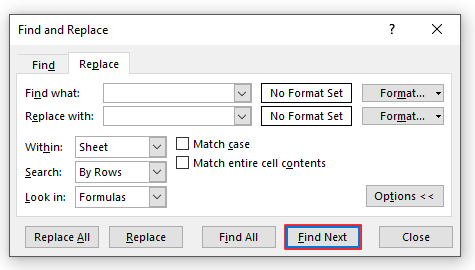
Menu Options: Find Next
This will select the next single cell containing data you are looking for
If pressed again, the active cell will move to the next cell that contains the data you are looking for
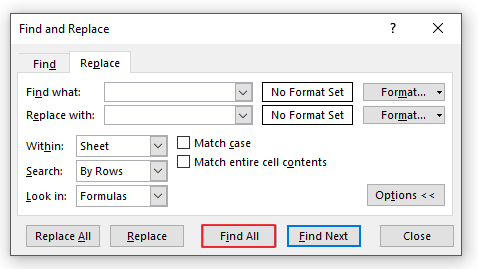
Menu Options: Find All
Using the Find All button will expand the Find and Replace menu to show a list containing cell references of all cells that were found (demonstrated below)
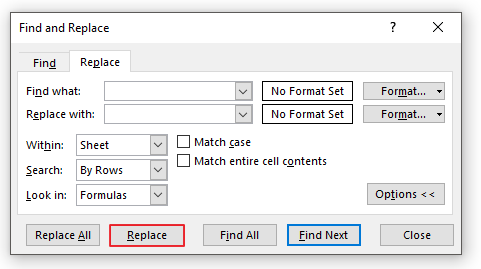
Menu Options: Replace
Replaces the next instance of found data, and then jumps to the next found cell (if one exists)
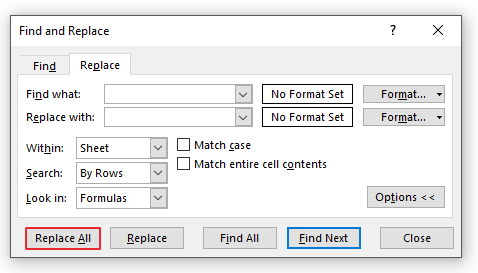
Menu Options: Replace All
Replaces all instances of found data
If multiple cells are selected, Replace All works only on those selected cells
If a single cell is selected, Replace All will apply to either the entire sheet or entire workbook (based on the Within parameter selection)
Menu Options: Close
Closes out the Find and Replace menu
Example 1: Find by Looking In Formulas
This example and the ones to follow cover most (but not all) of the options available in the Find and Replace menu. We highly recommend utilizing this lecture's Excel file for practice
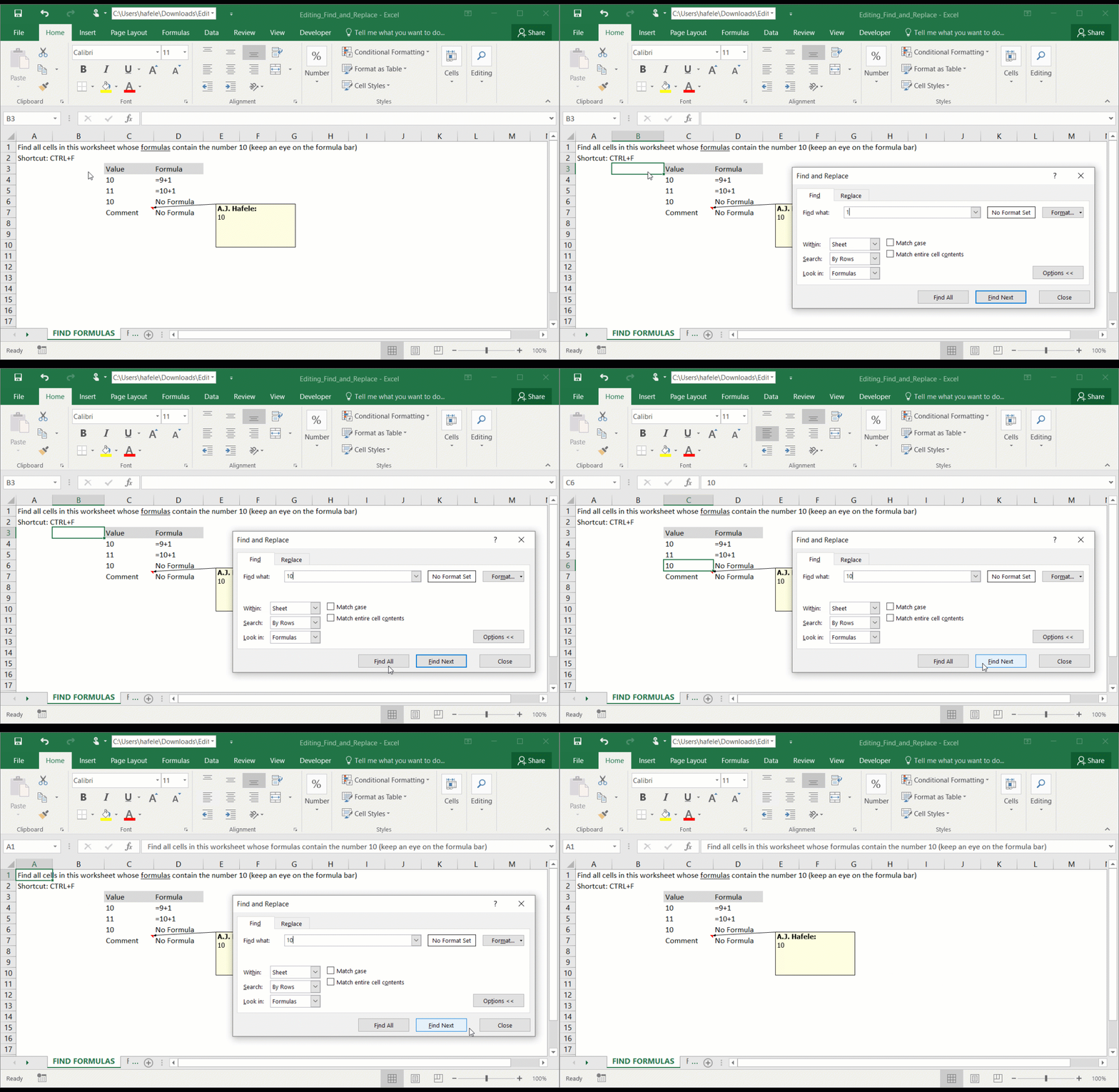
Observe as we use the Find tab to search for a value (Look in: Formulas):
Notice that:
Cell C4 was not found because the formula (=9+1) did not contain the number 10
Cell C7 was not found because we did not Look in Comments (we looked in Formulas)
Cell D5 was not found because it contains a formula which does not have "10" in it (despite the cell output showing 10)
Example 2: Find by Looking In Values
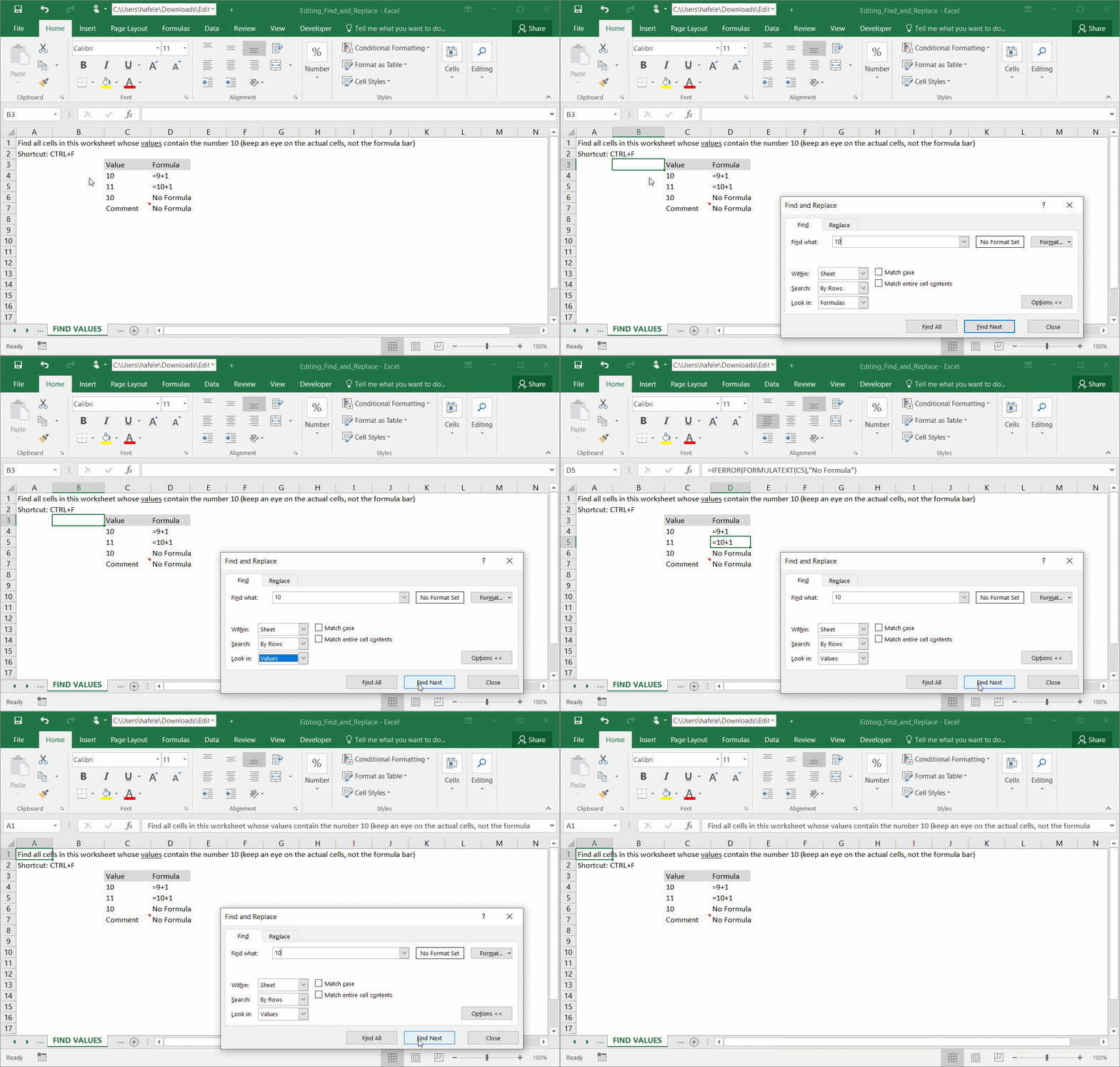
Observe as we use the Find tab to search for a value (Look in: Values):
Notice that:
Cell C5 was not found, even though the formula contained the number 10 (the value shown in the cell was 11)
Cell C7 was not found because we did not Look in Comments (we looked in Values)
Example 3: Find All by Looking In Cell Comments
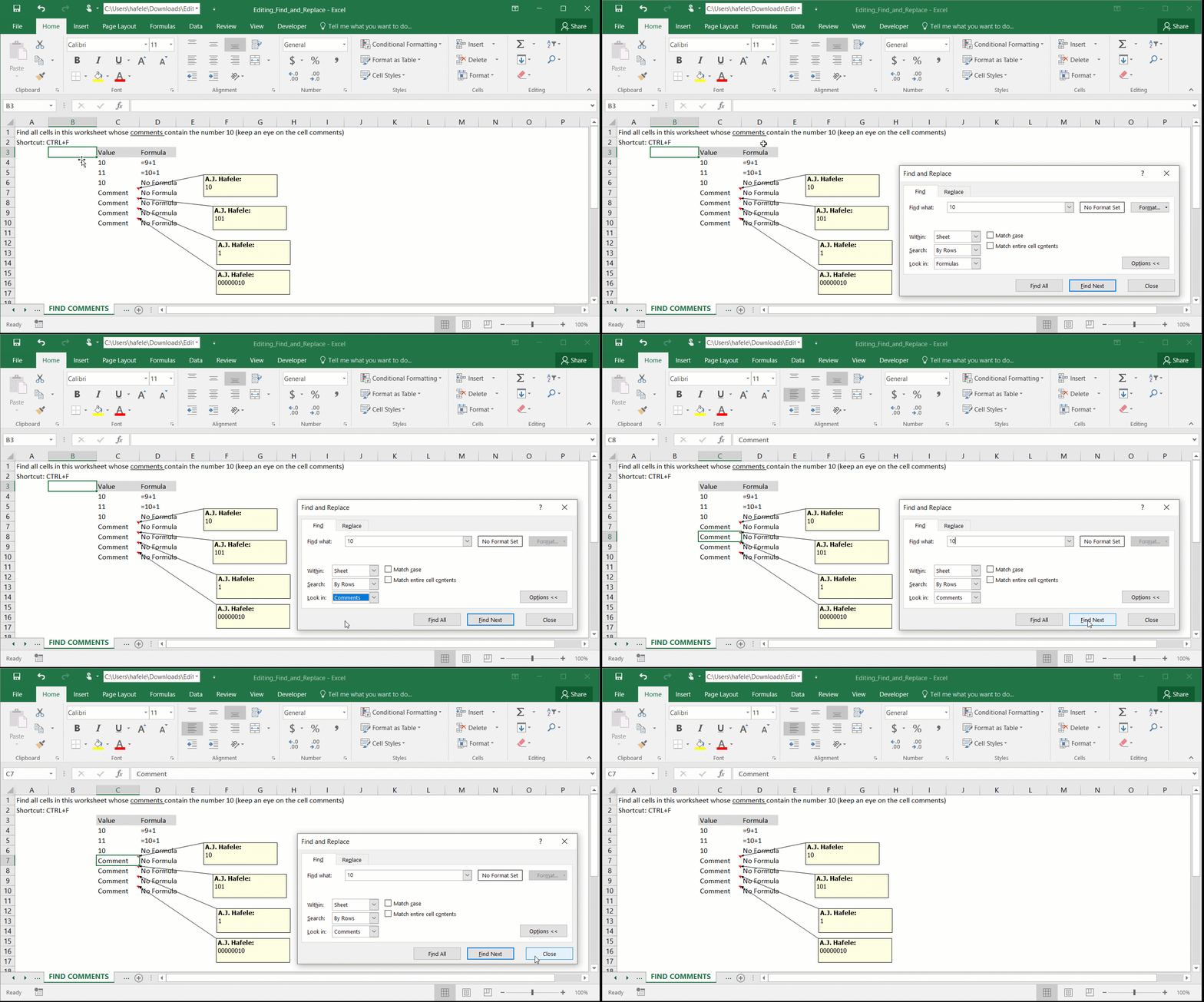
Observe as we use the Find tab to find all values contained within cell comments (Look in: Comments):
Notice that:
The Find All button brings up a list of all cells meeting our search parameters
Only cells whose comments contained 10 were found (cell values and formulas containing 10 are completely ignored)
Example 4: Find Cells With Specific Formats
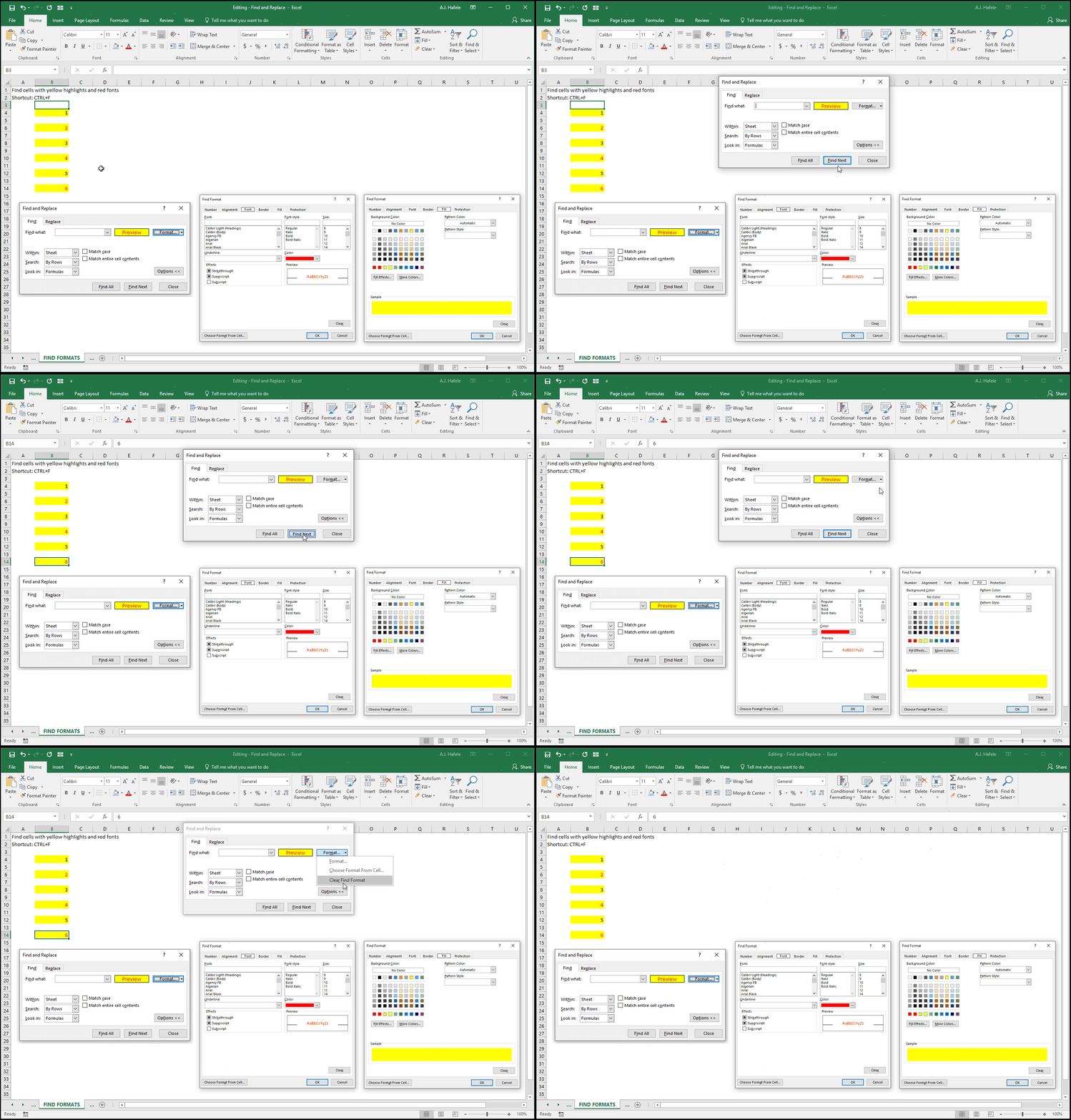
Observe as we use the Find tab to find all cells containing a specific cell format (setup screenshots are provided for reference):
Notice that:
Cell contents are ignored, since the Find what parameter is blank
We are able to clear the search format by using the Clear Find Format button at the end of the illustration
Example 5: Search Entire Workbook and Match Case (Case-Sensitive)
Observe as we search for a case-sensitive term across the entire workbook (Within: Workbook):
Note that we hid all other worksheets when performing the above illustration, so the scope of the find was limited to those two sheets
Example 6: Search by Rows and Match Entire Cell Contents (Not Case-Sensitive)
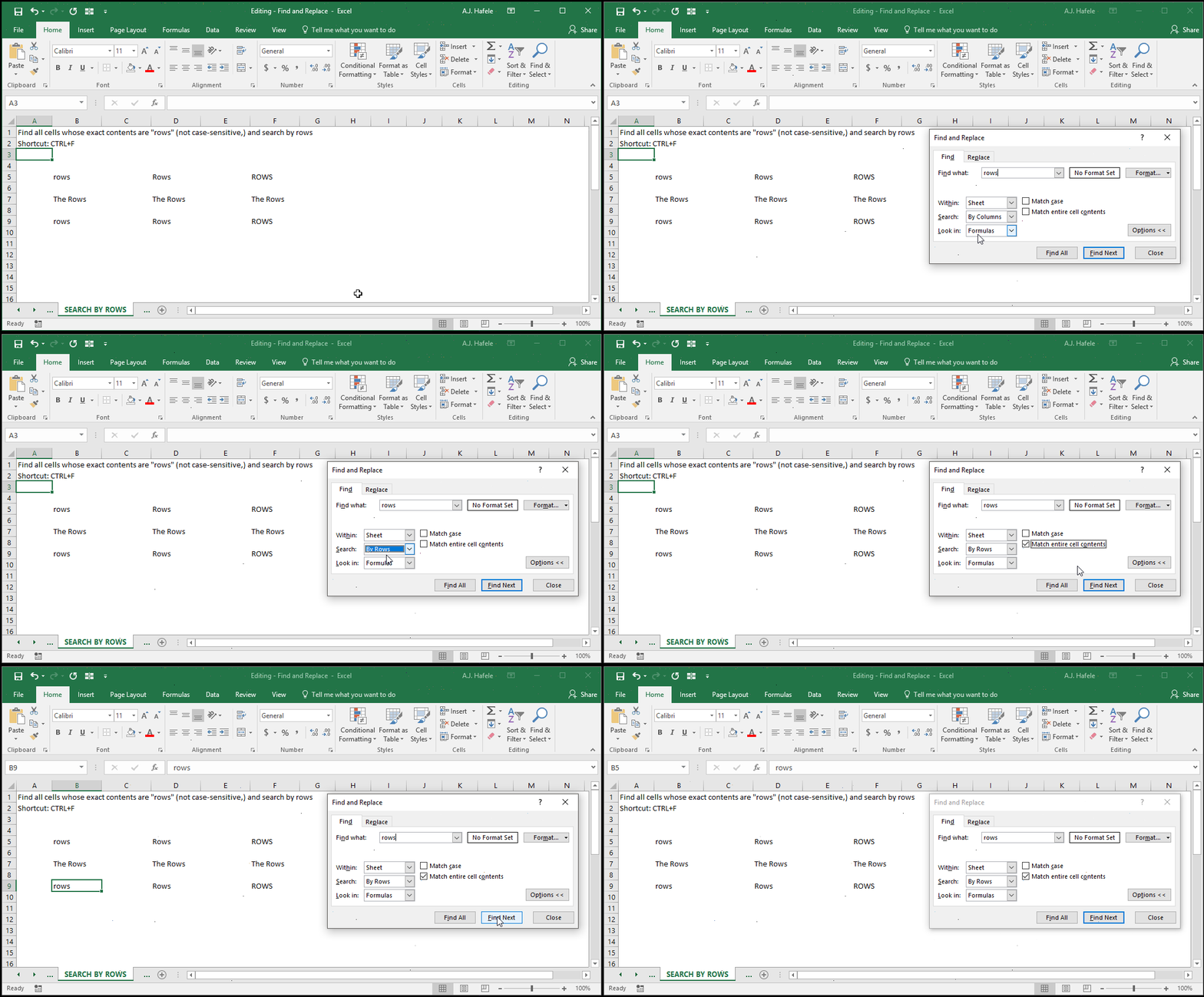
Observe as we search for a non-case-sensitive term (Search: By Rows), matching entire cell contents:
Notice that:
Searching By Rows will move to the next found cell from left to right, and from top to bottom
The search is not case-sensitive, so "ROWS", "Rows", and "rows" are all found
The cells containing "The Rows" were ignored, since those cells do not contain exact matches
Example 7: Search by Columns and Match Entire Cell Contents (Not Case-Sensitive)
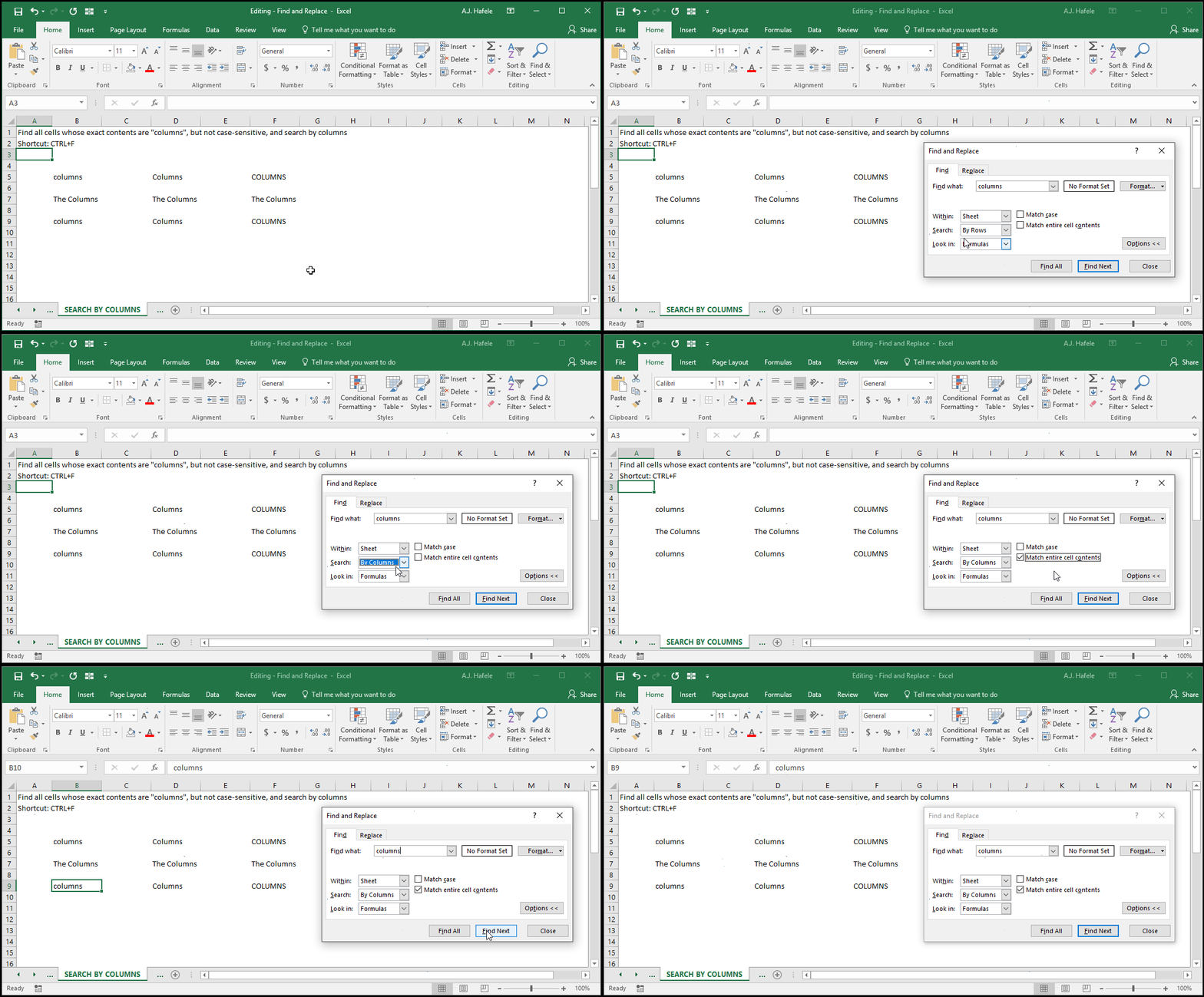
Observe as we search for a non-case-sensitive term (Search: By Columns), matching entire cell contents:
Notice that:
Searching By Columns will move to the next found cell from top to bottom, and from left to right
The search is not case-sensitive, so "COLUMNS", "Columns", and "columns" are all found
The cells containing "The Columns" were ignored, since those cells do not contain exact matches
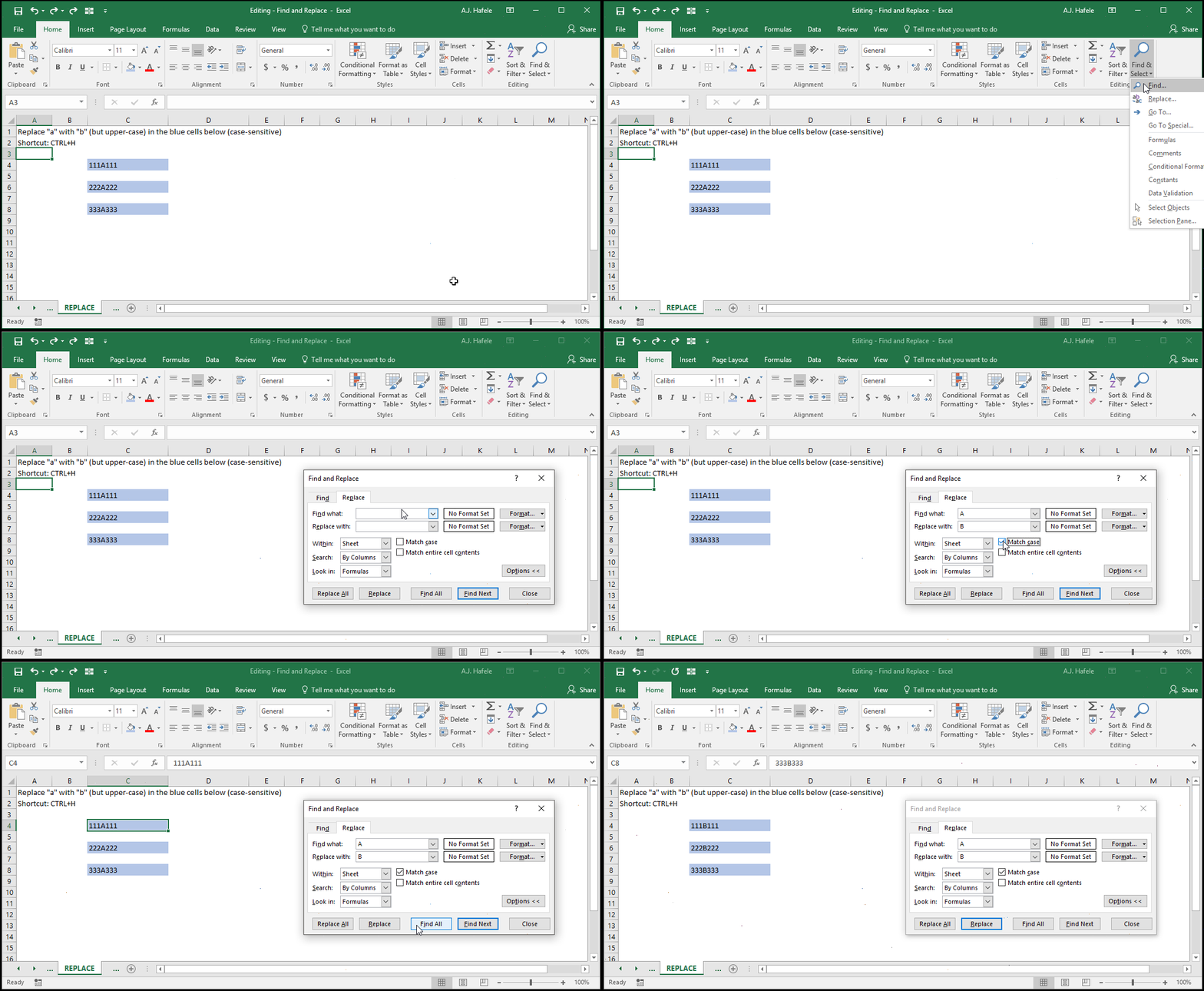
Example 8: Replace (Case-Sensitive)
Observe as we use the Replace button to replace (case-sensitive) content within cells:
Notice that we clicked the Find Next button to jump to the first in-scope cell (you can also press ENTER), and then we used the Replace button (ALT+R) multiple times to replace the content in each blue cell
If no more cells can be found, a message will appear, indicating that no match could be found
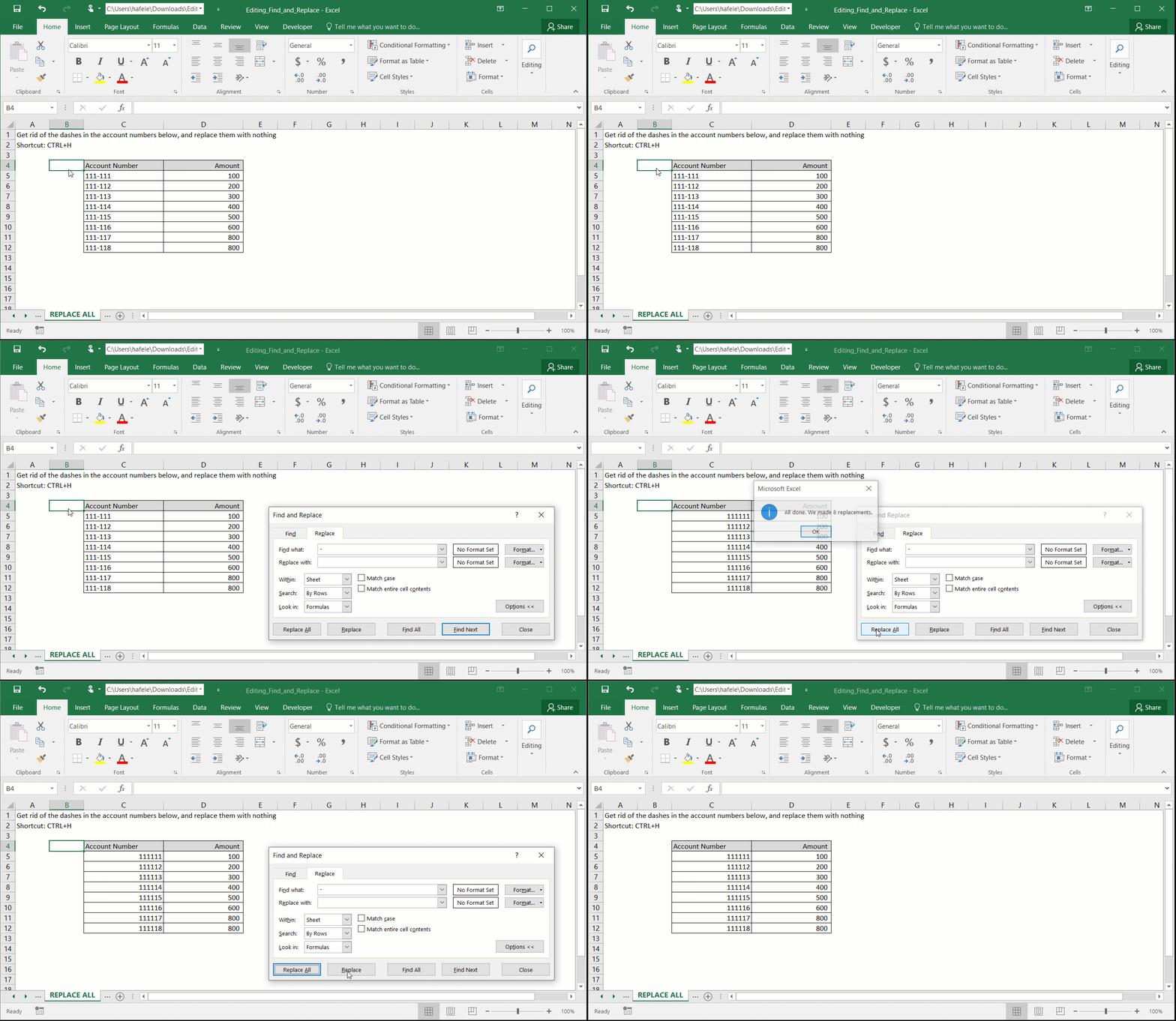
Example 9: Replace All
Observe as we use Replace All to replace all applicable data in a selected range of cells:
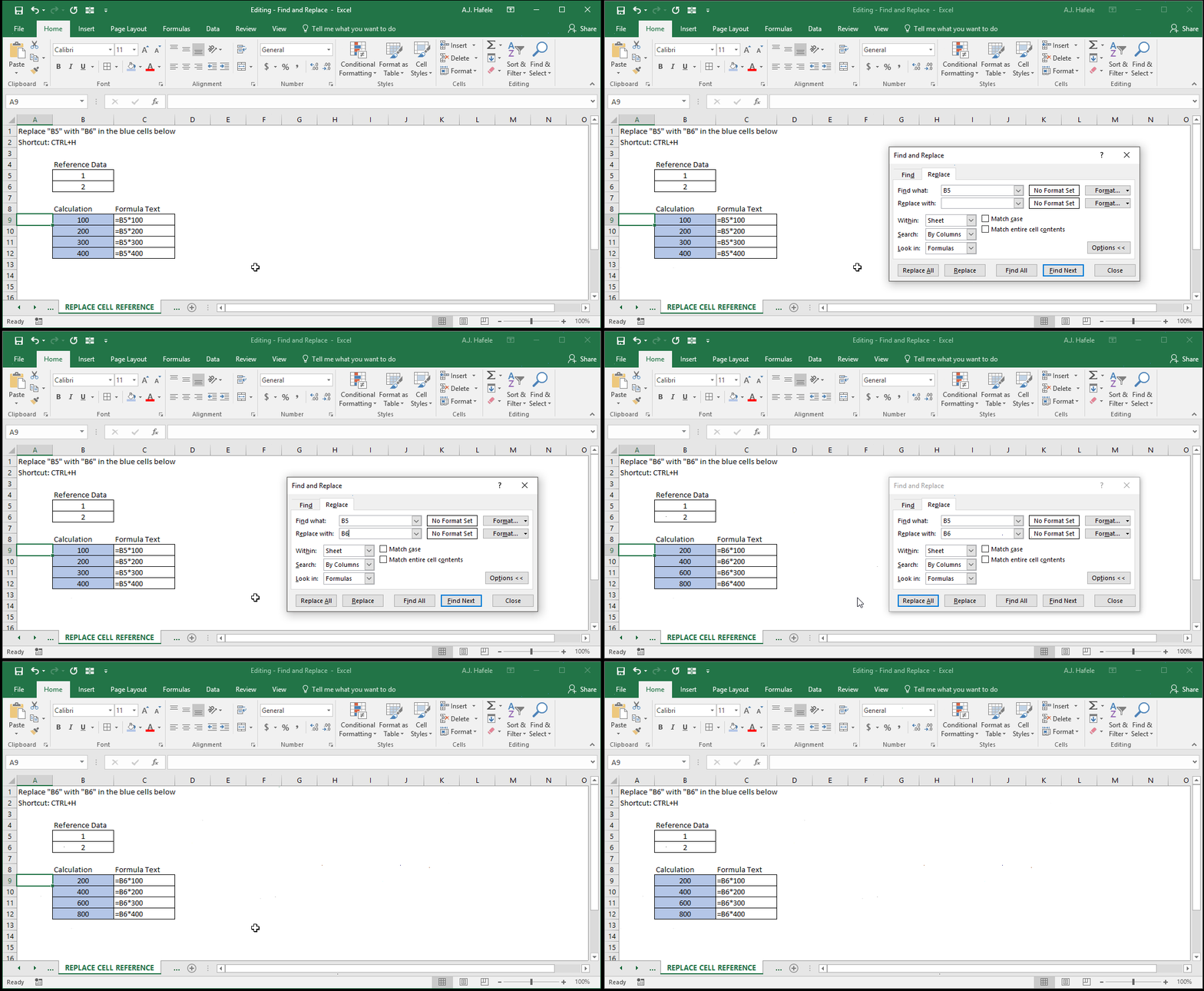
Example 10: Replace Cell References
Observe as we replace a cell reference with another cell reference in multiple cells:
Note that:
We used ALT+A to Replace All in the above example (remember, pressing ALT and an underlined letter in the menu will select the corresponding option)
5 replacements (and not 4) were made! Why, Replace All also captured the term B5 in cell A1 (so be careful when using Replace All!)
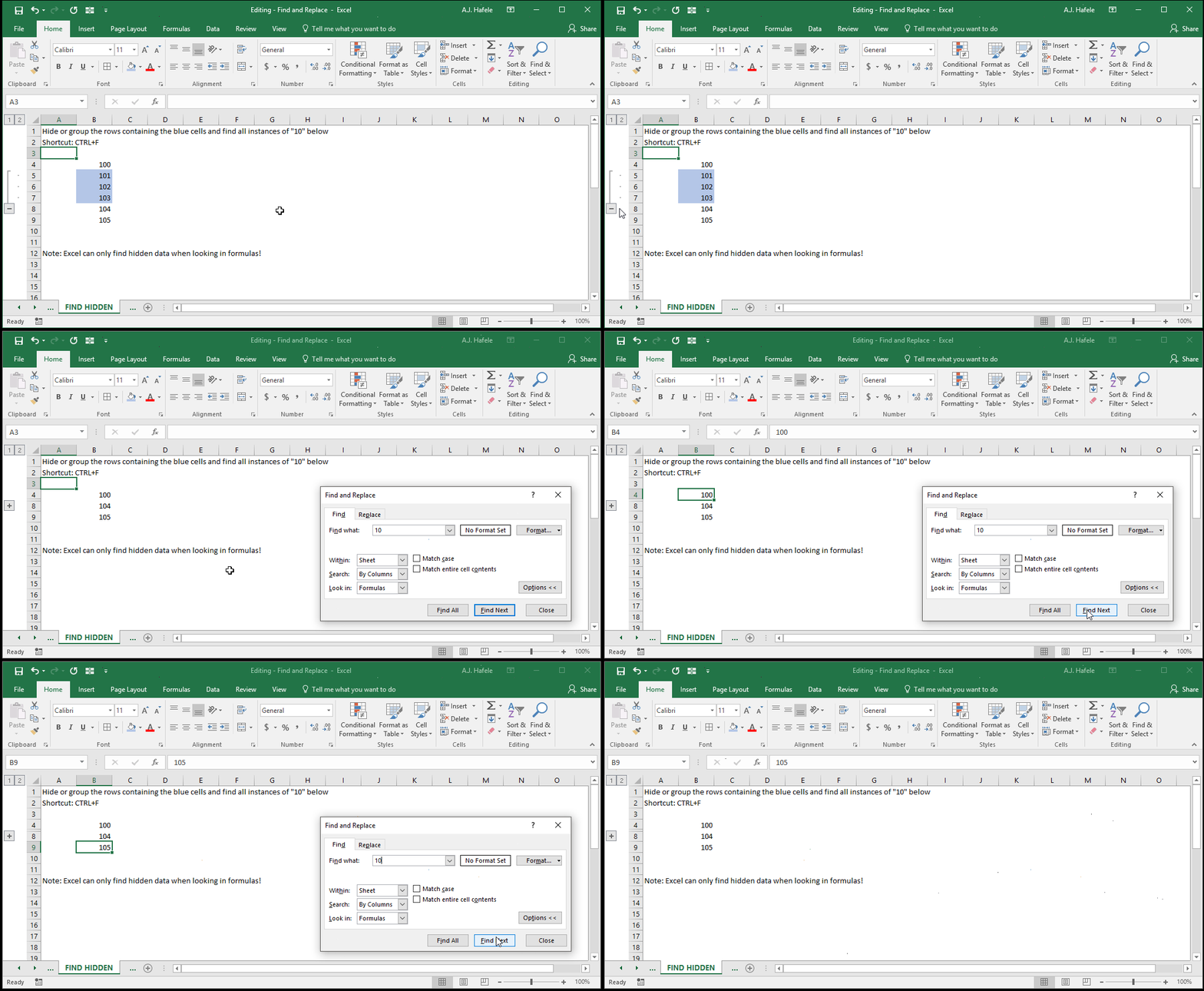
Example 11: Finding Hidden Data
Data in hidden rows and columns can be also be found, as shown here (keep an eye out on the name box and formula bar):
Note that:
To find data in grouped / hidden cells, you must Look in Formulas (looking in Values will not work)
Though not shown, you can also replace data in hidden rows and columns