This lecture covers the operators that can be used in Excel formulas
Additionally, we will discuss the use of quotes in formulas (to read text)
We will also review the use of double unary operators to change TRUE and FALSE data into 1s and 0s
Last, we will briefly discuss the order of operations in Excel
Operators
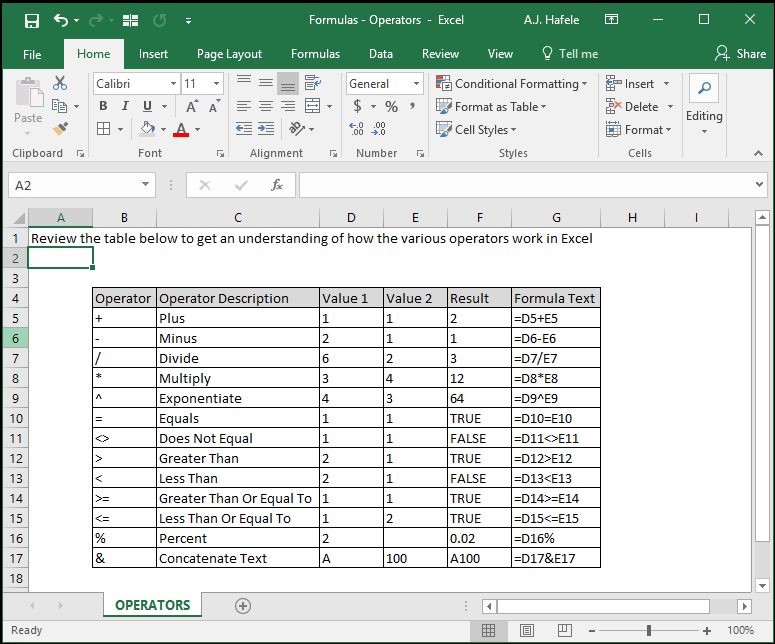
The following is a list of operators used in Excel:
Using Text in Formulas
Text used in formulas must be wrapped in quotes
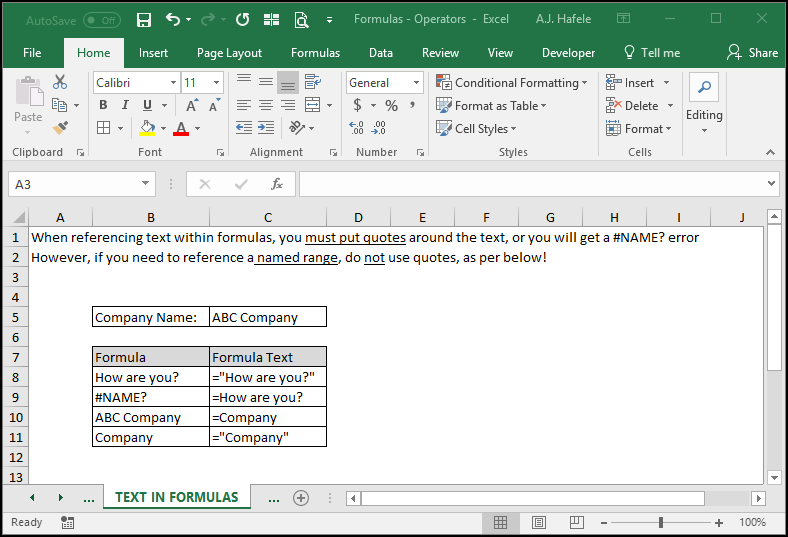
The following screenshot what happens when you do (and do not) include quotes within formulas:
As you can see in the above screenshot, the exception is with named ranges
You must not place named ranges in quotes when referencing them!
When you reference a named range, you are effectively referencing whatever is contained in the cells of the named range (in other words, "ABC Company" is the output when the formula =Company is used)
Double Unary Operator
In some instances, you may need to convert TRUE/FALSE data into numerical data in order to perform certain computations
Behind the scenes, Excel associates:
TRUE with the number 1, and
FALSE with the number 0
However, some functions will not treat TRUE and FALSE explicitly as 1 and 0, respectively
However, by adding two negatives to TRUE and FALSE, Excel coerces TRUE and FALSE to their numerical values
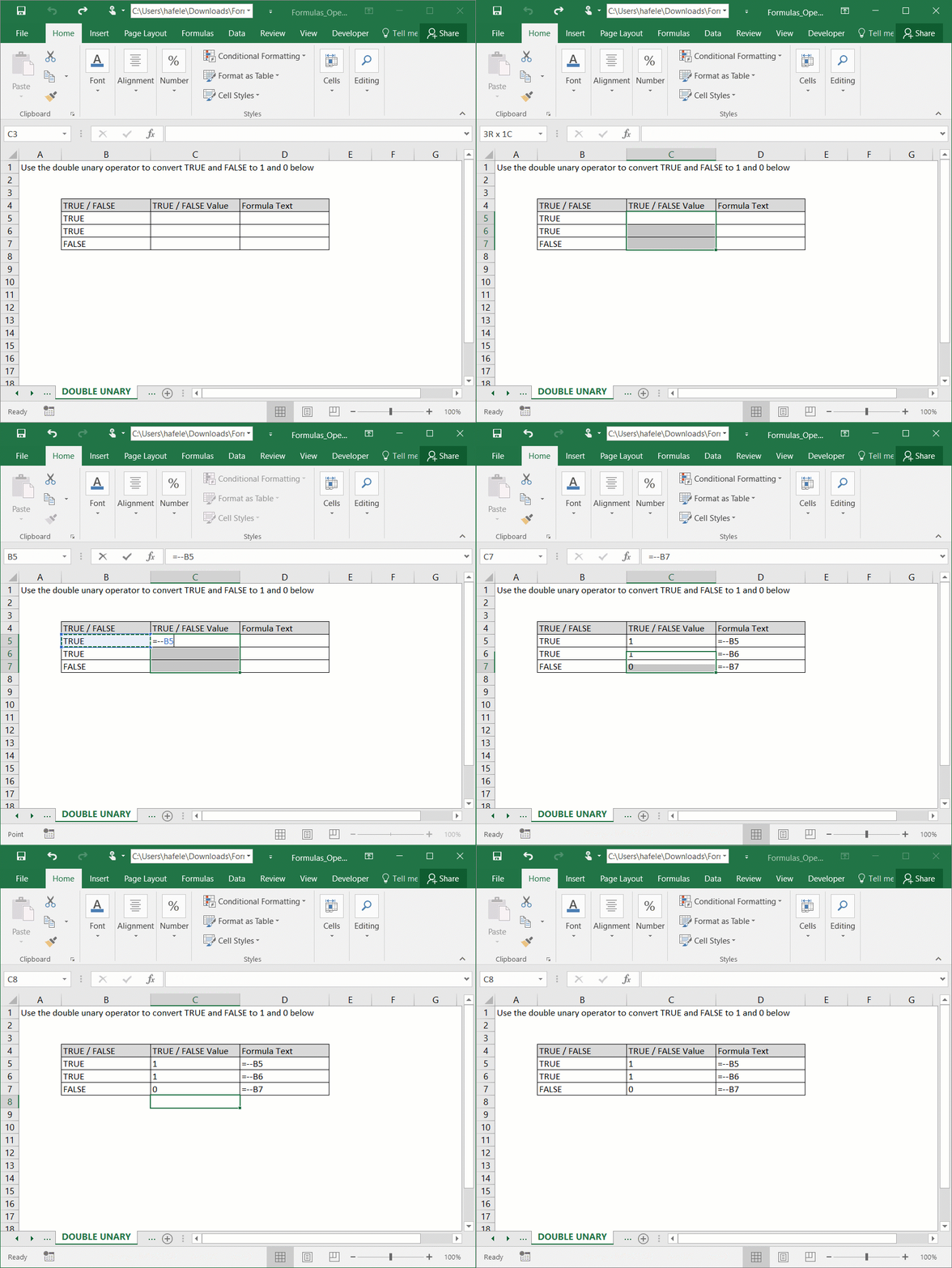
Observe as we use the double unary to convert TRUE and FALSE to their numerical values:
The double unary also serves as a building block for creating more complex formulas
Order of Operations
Excel uses the standard order of operations, as follows:
Parentheses
Exponents
Multiplication and division from left to right
Addition and subtraction from left to right
Within each set of parentheses, the order of operations repeats itself. As such:
Nested parentheses are calculated first, then exponents, then multiplication/division, and finally addition/subtraction
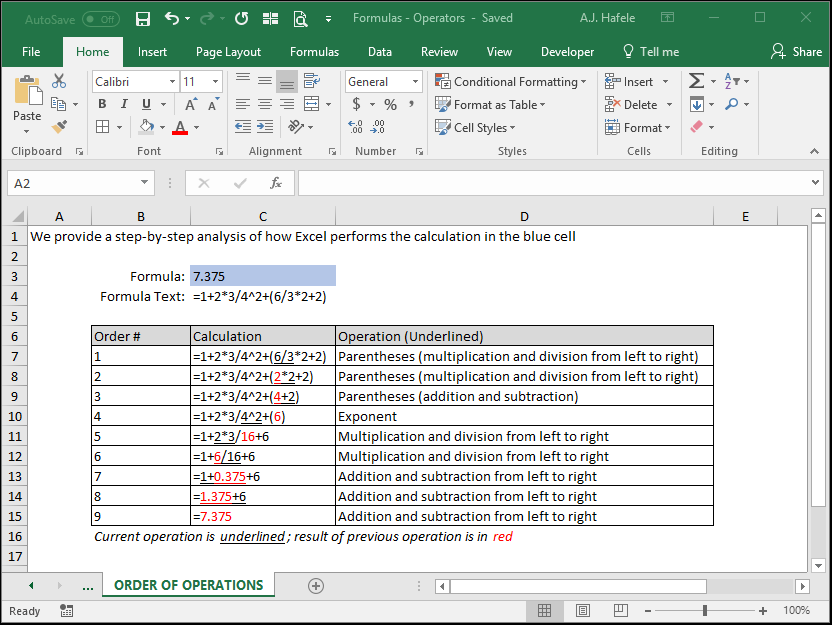
The following screenshot demonstrates Excel's order of operations:
For a good overview of the order of operations, see Microsoft's explanation here