In this lecture, we briefly review circular references
Circular references occur when a cell's formula references itself
For example, imagine if cell A1's formula was =A1 - what should the value be? It does not make much sense!
We will also review the items available to help you resolve circular referencing errors
Buttons
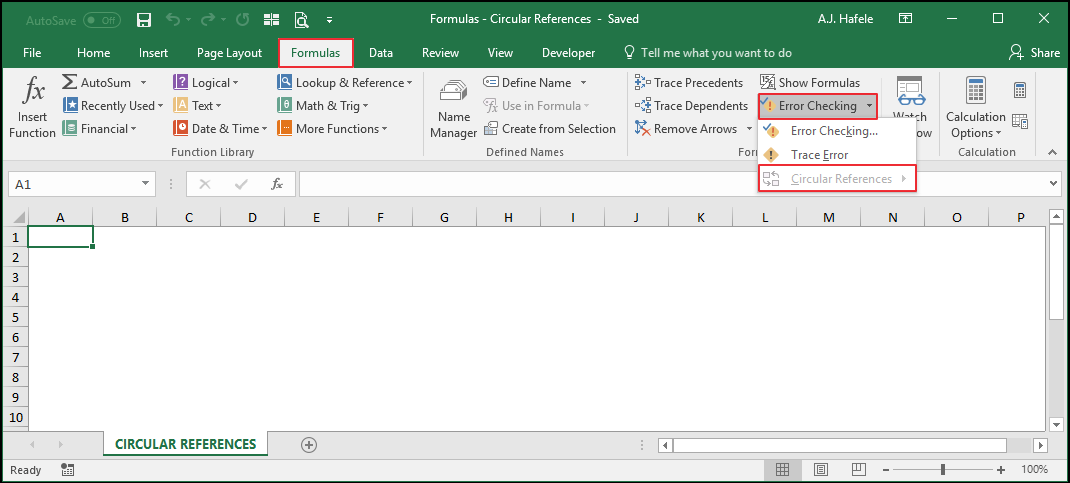
The relevant buttons can be found in the Formula Auditing group of the Formulas tab:
Circular References Explained
Circular references occur when a cell's formula references itself either directly or indirectly
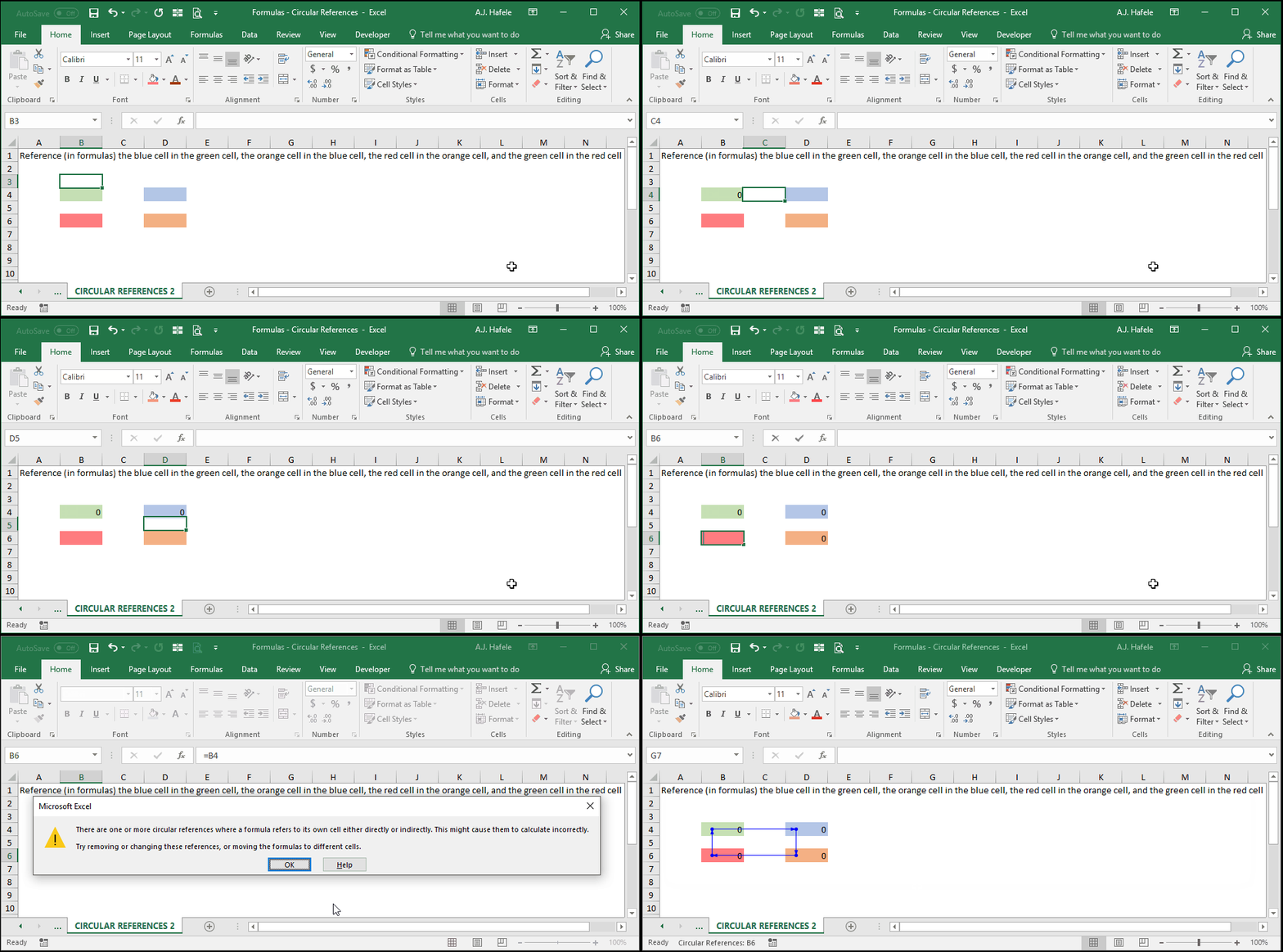
Observe as we create a basic circular reference in the following illustration:
Notice that:
A circular reference was created because B4 is trying to get its value from D4, and D4 is trying to get its value from B4!
After entering =B4 in cell D4 and hitting ENTER, a warning message appeared indicating that a circular reference was created
Be aware, however, that this message does not always appear when circular references are created!
Blue lines were generated, which trace the circular references between the relevant cells
After the circular reference was created, the bottom-left corner of the Excel window indicates that a circular reference exists (observe the text "Circular References: D4")
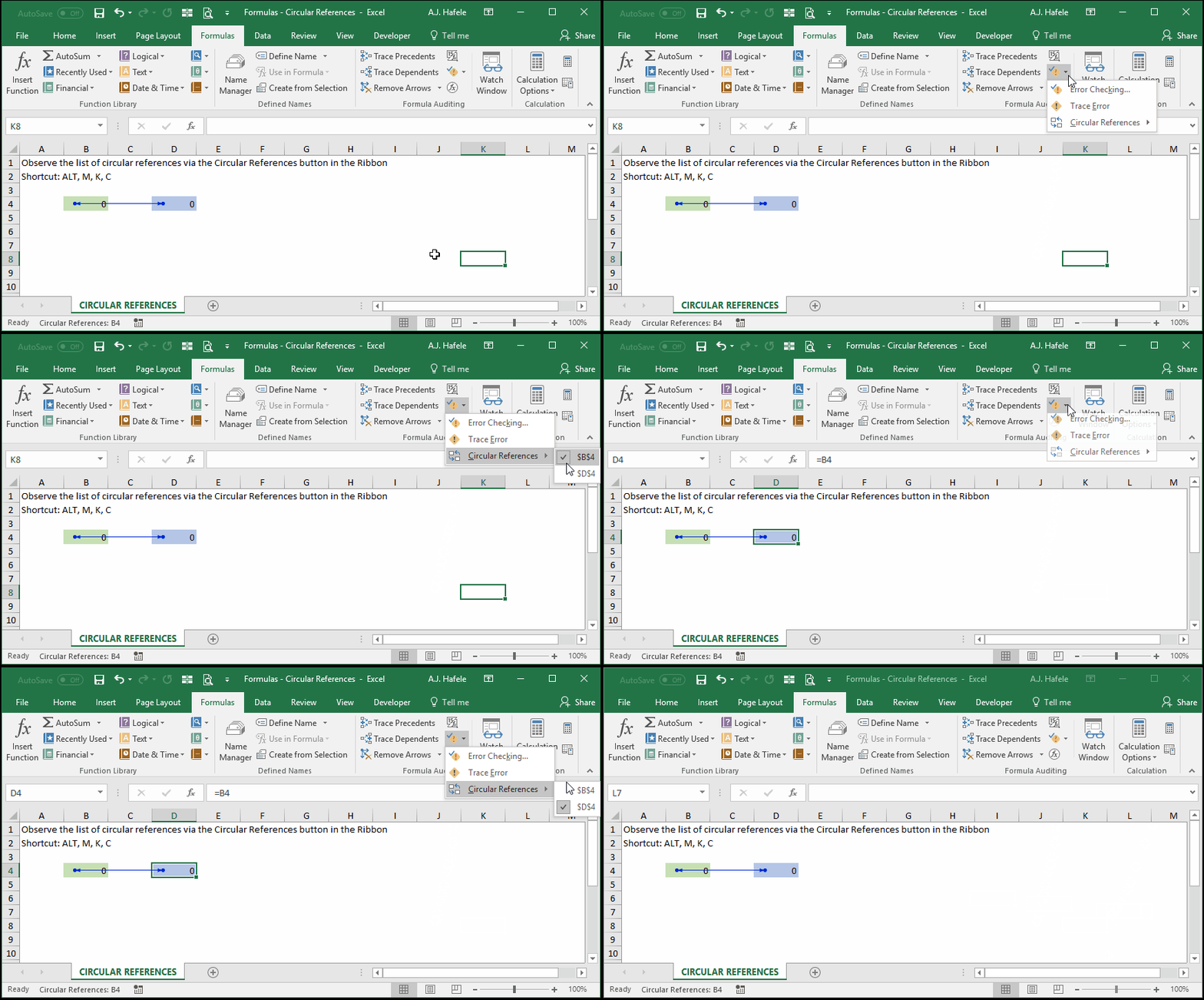
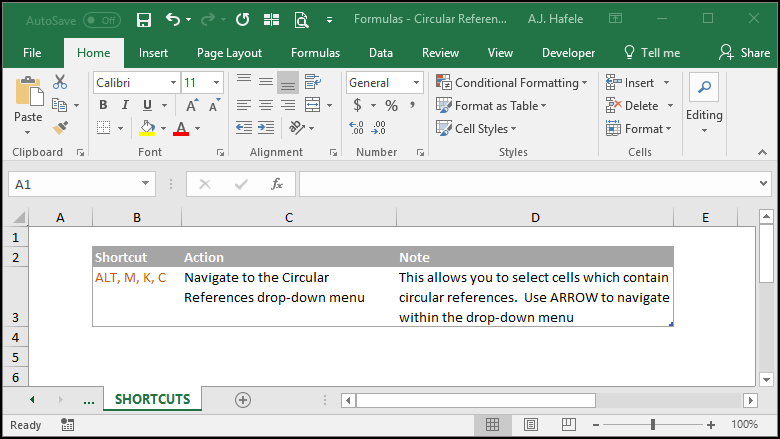
To quickly jump to a cell containing a circular reference, use the Circular References button/drop-down in the Ribbon, as shown here:
Importantly, we find that this button does not always display all circular references within a workbook, so you may need to do a bit of research if you notice you have a circular reference in your workbook
It is probably easier to address any circular reference errors immediately after they occur (e.g. when you see the warning message pop up after creating a circular reference)
In the above illustrations, the circular references were pretty straight forward, but you could come across circular references that are less direct. For example:
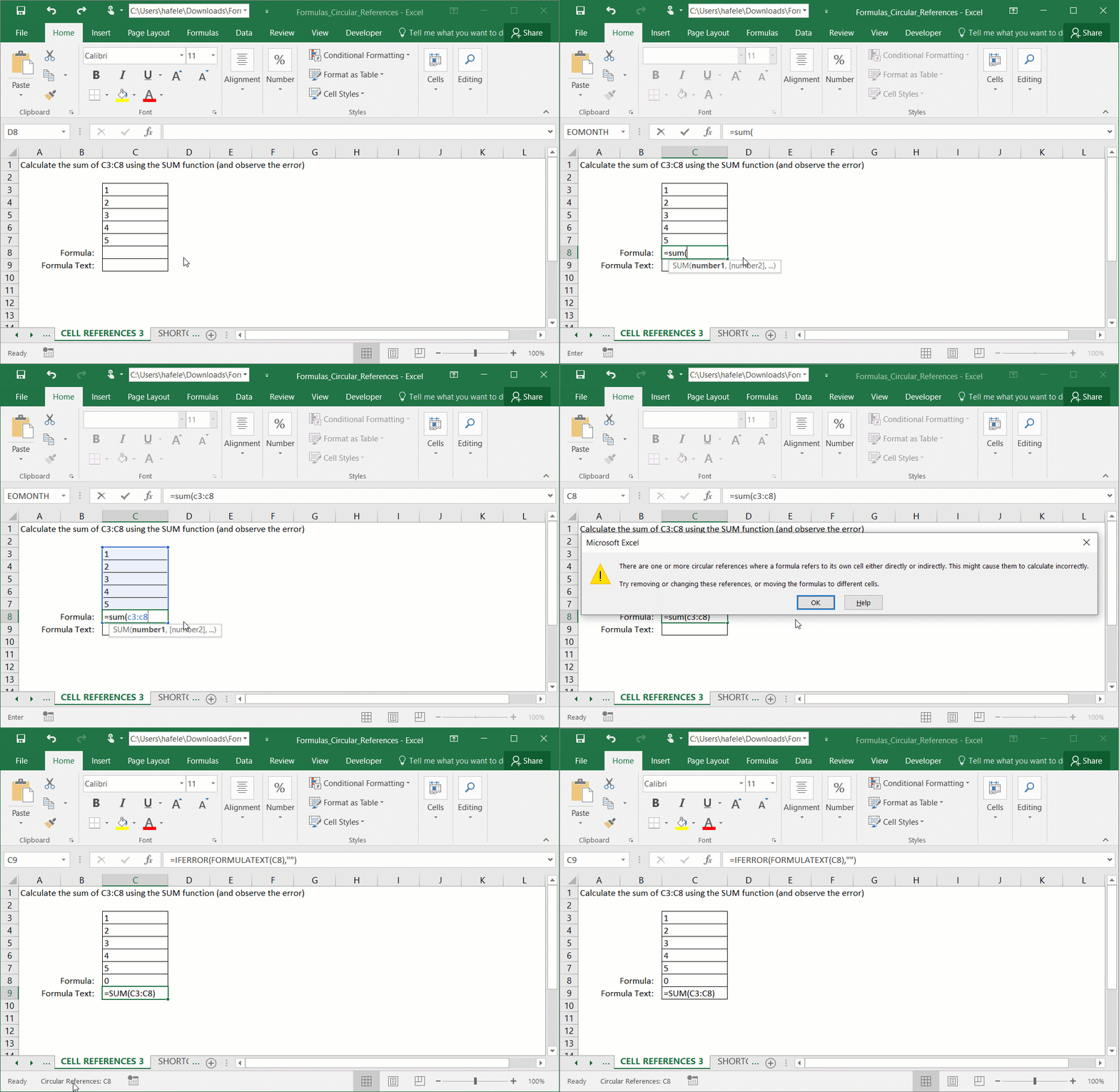
Or, your formula may accidentally be covering the cell itself (a direct circular reference), as shown here:
Notice that:
The circular reference warning message did not appear after creating the formula!
The presence of a circular reference in cell C9 was indicated in the bottom-left corner of the Excel window
The SUM result (0) makes no sense!
Removing Circular References
Removing a circular reference is pretty straightforward - you must simply cut off the circularity
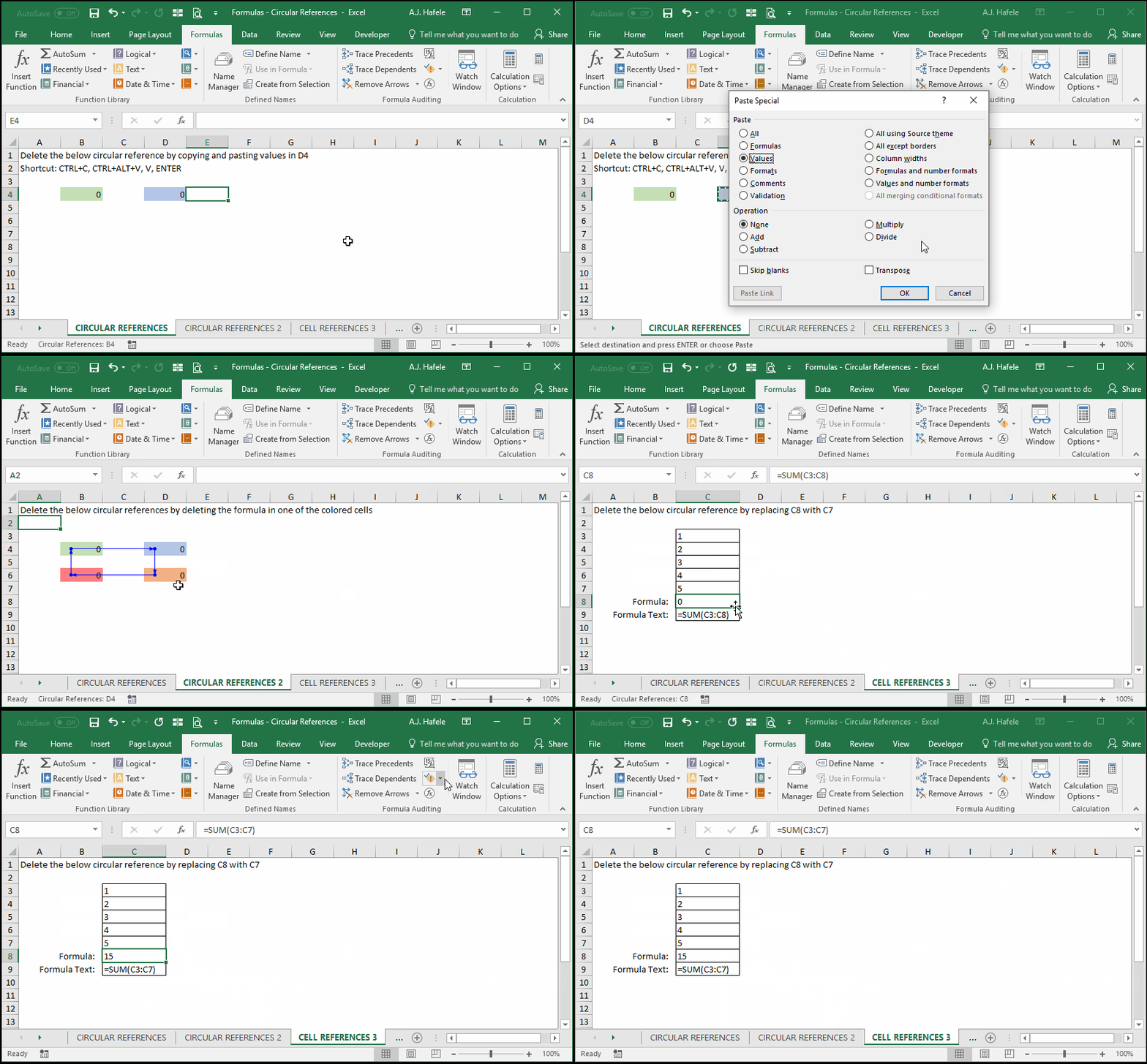
Observe as we remove all circular references previously created in the above illustrations:
Notice that:
We were able to remove circular references by effectively cutting of the circularity in each sheet (via copy/paste values, deleting cells, and modifying cell references in formulas)
After all circular references were removed, the "Circular References" indicator in the bottom-left corner of the Excel window disappeared, and the Circular References button in the Ribbon was greyed out
Tips
In limited circumstances, the creation or existence of a circular reference can be a good thing (oddly enough)
For example, in finance, when creating a financial model which incorporate balance sheets, the creation of a circular reference in your model may indicate that all of your financial statements are consistent
Nevertheless, you may want to find a workaround to remove the circular references, as they are typically unstable (though, again, this may not always be the case)