By default, Excel will display the results of formulas in cells
Sometimes, however, you may want to look at the formulas themselves
Excel makes it easy to toggle between showing formulas and showing the results of formulas
Let's review how this can be done
Buttons
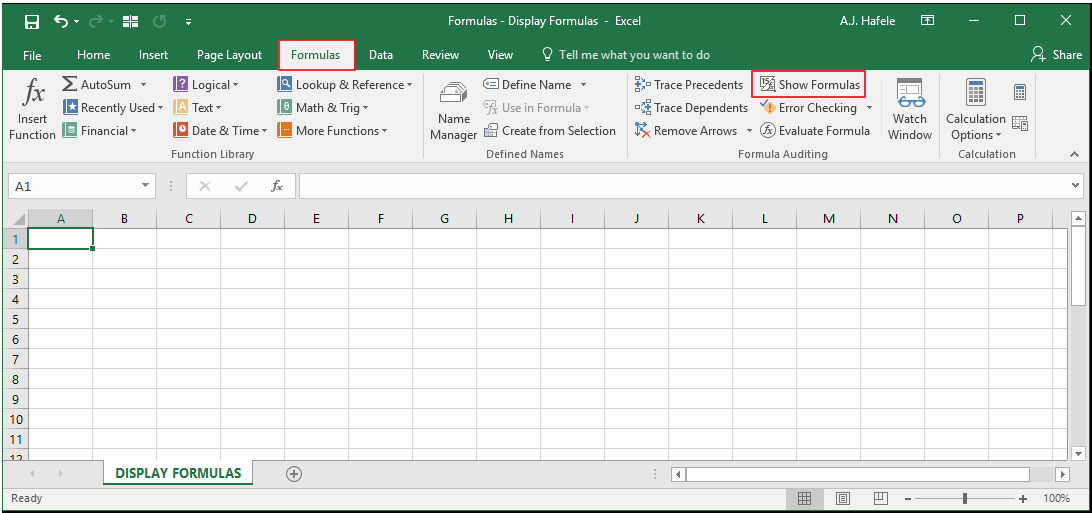
The relevant button can be found in the Formula Auditing group of the Formulas tab:
Examples
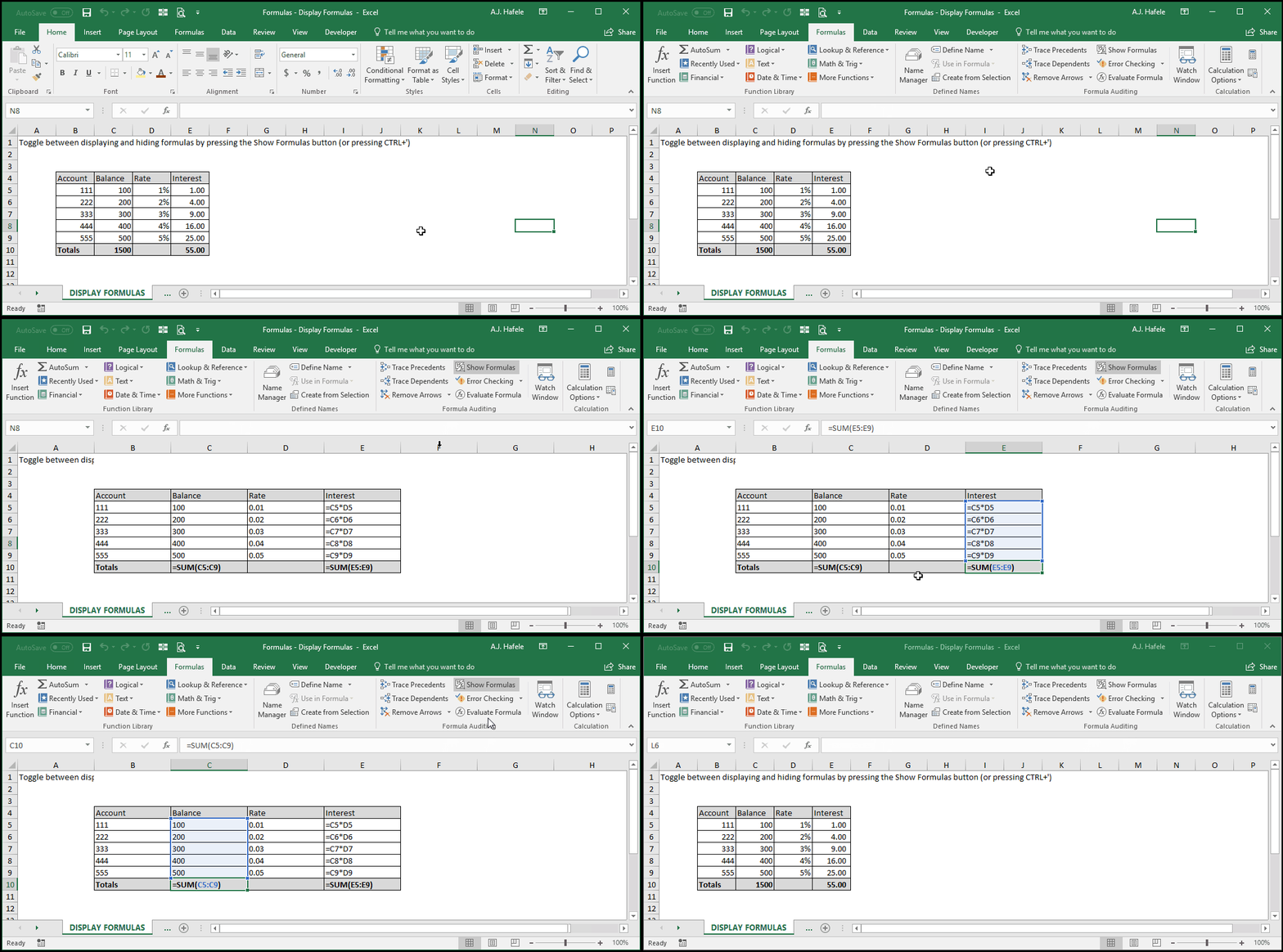
Observe how we can toggle between displaying and hiding the formulas by pressing the Show Formulas button:
Notice that:
When you click the Show Formulas button, the column widths expand in order to help you see the formulas more easily
When a cell with a formula containing a cell reference is selected, the referenced cells are color-coded (as if you were in Enter/Edit mode); this can be helpful when trying to understand how a certain formula works
When clicking the Show Formulas again, the column widths revert back to their original size
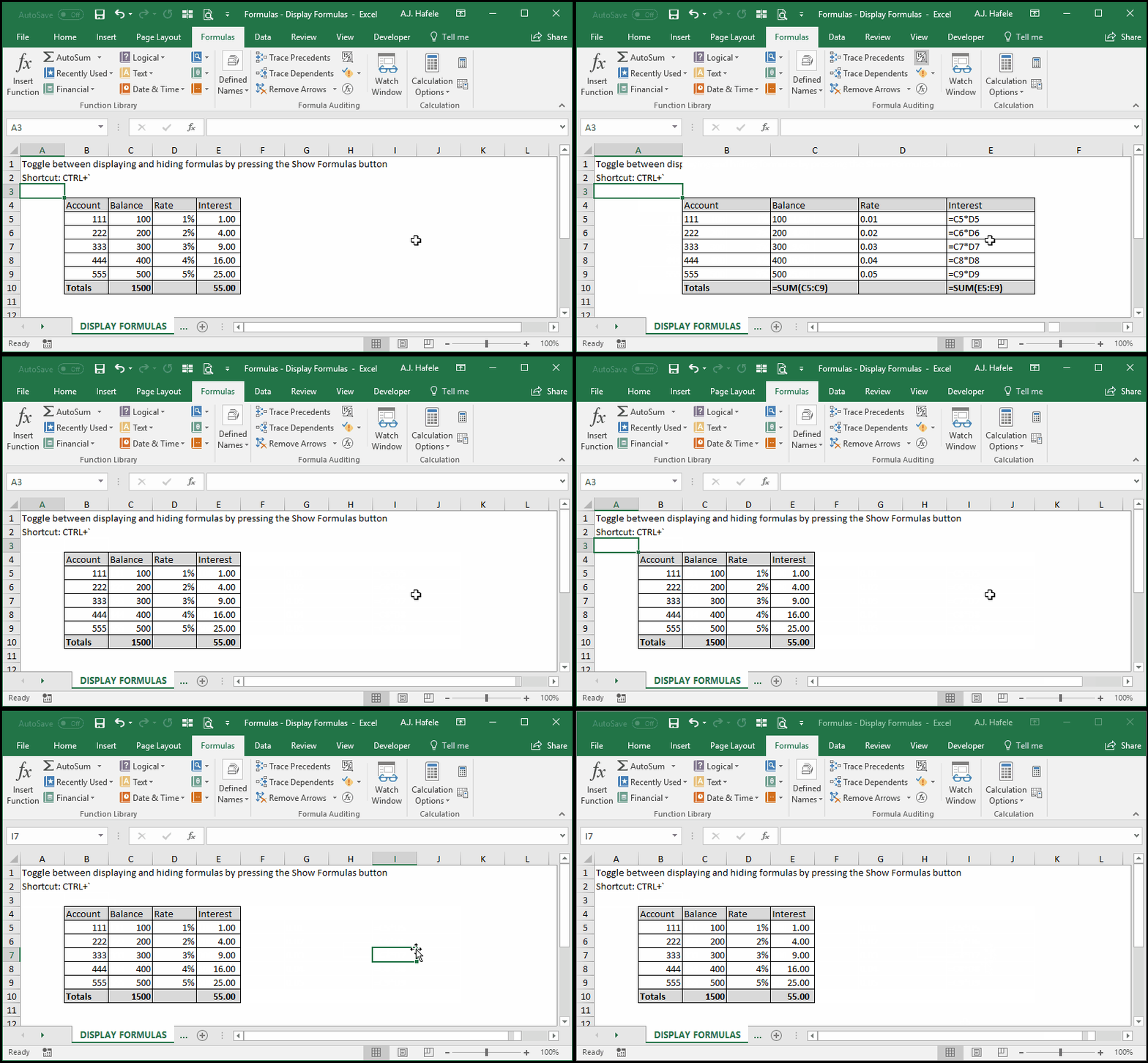
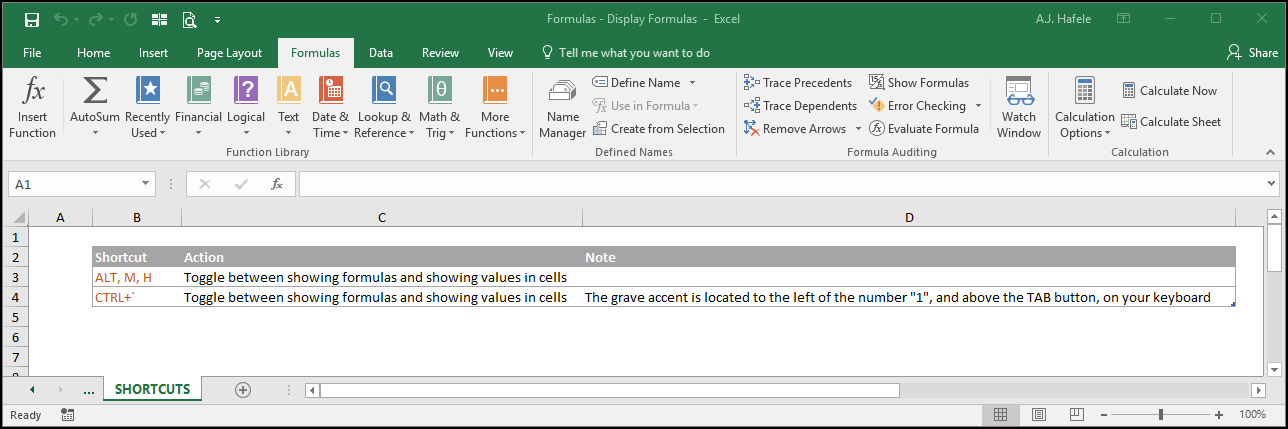
Instead of using the Show Formulas button, we can do the same more quickly with CTRL+' as shown here: