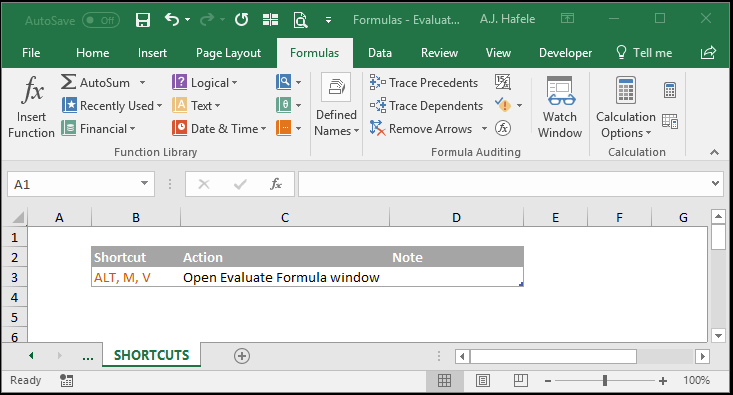
Sometimes it can be difficult to understand how a formula returned a certain result, especially for complex formulas containing multiple functions
Luckily, Excel has the Evaluate Formula feature, which provides a step-by-step visual of how a formula result is calculated
Buttons
The relevant button can be found in the Formula Auditing group of the Formulas tab:
Examples
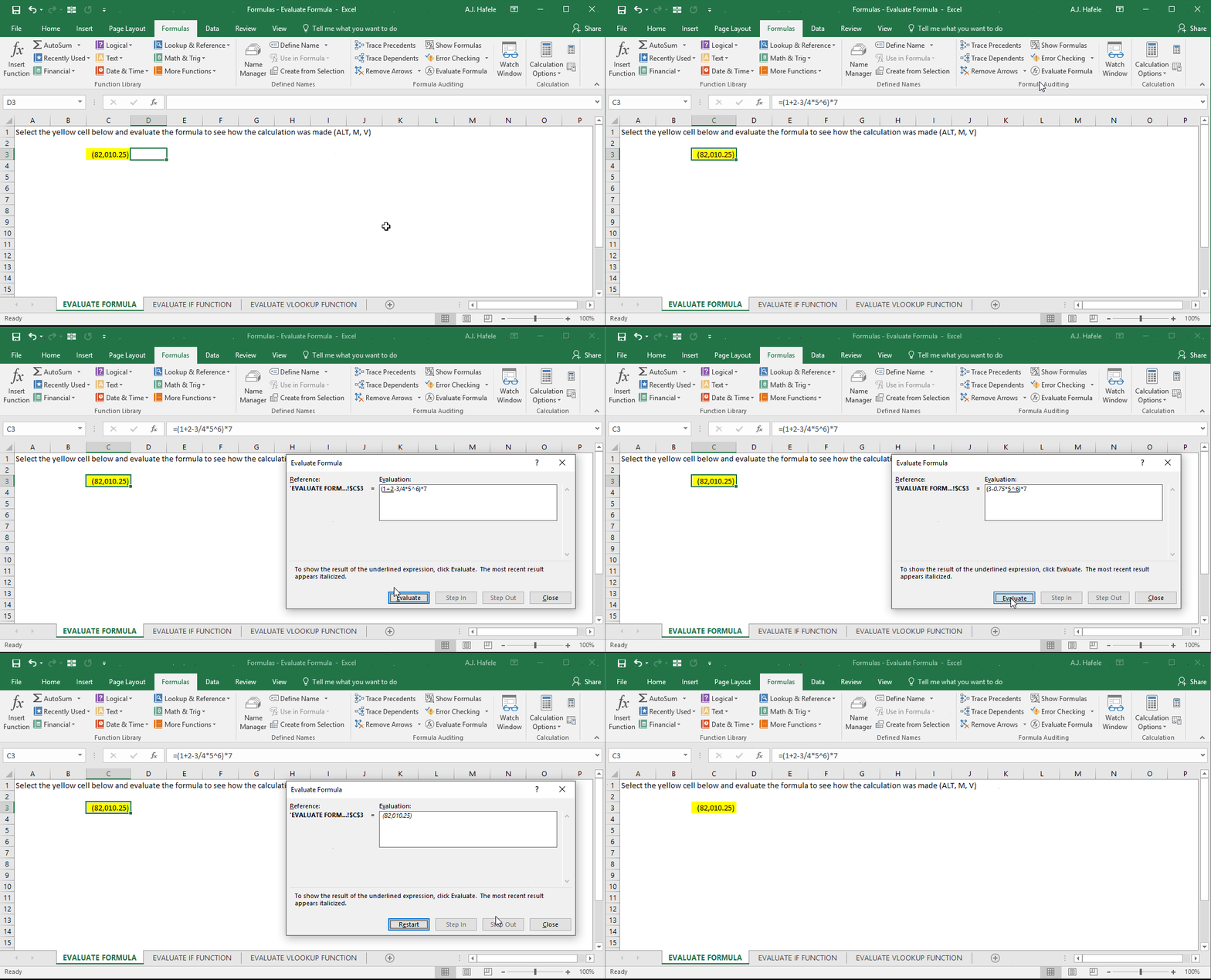
Let's start with a simple example of a formula containing no cell references:
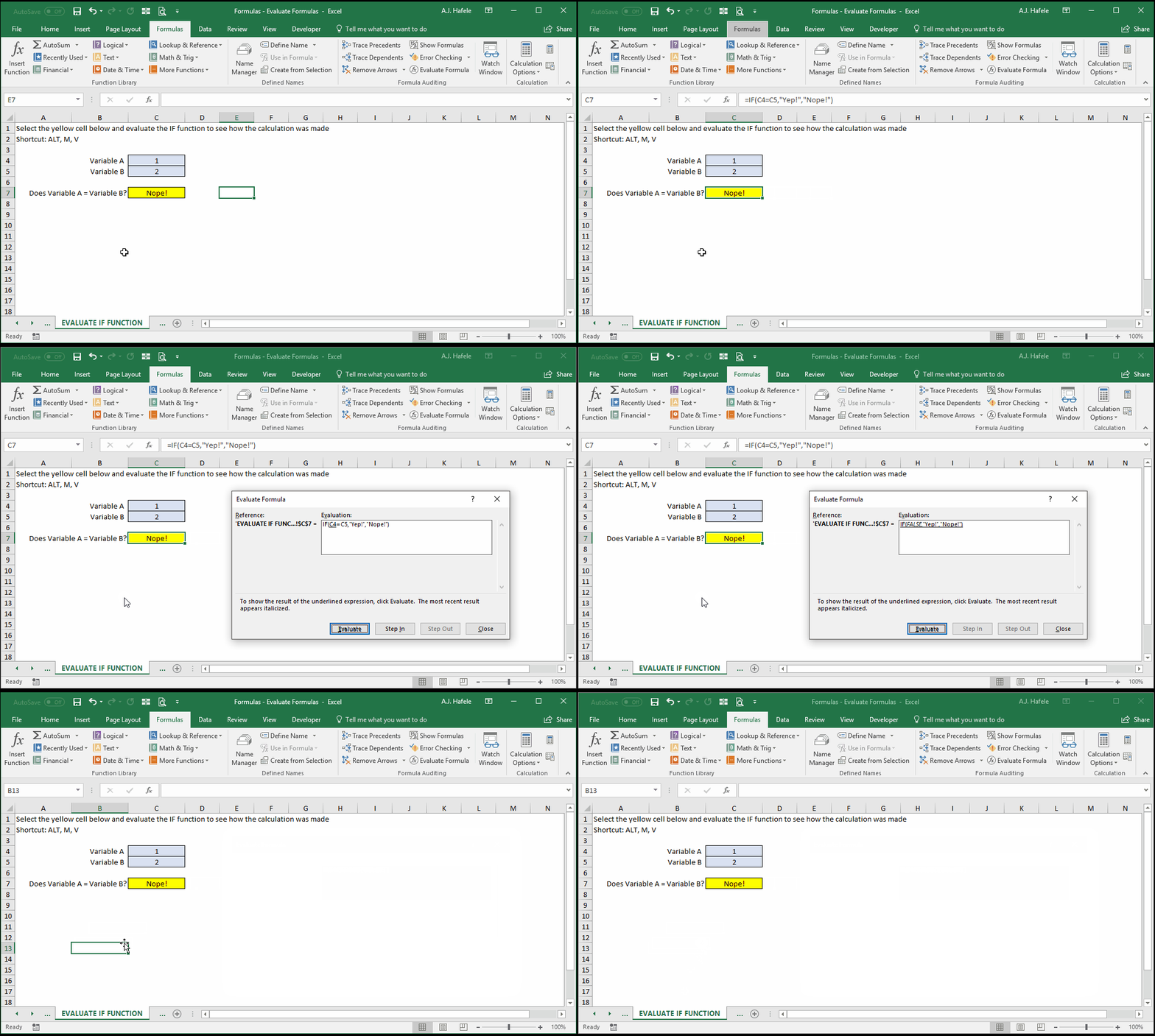
Next, let's evaluate a simple IF function (using the ALT, M, V shortcut this time):
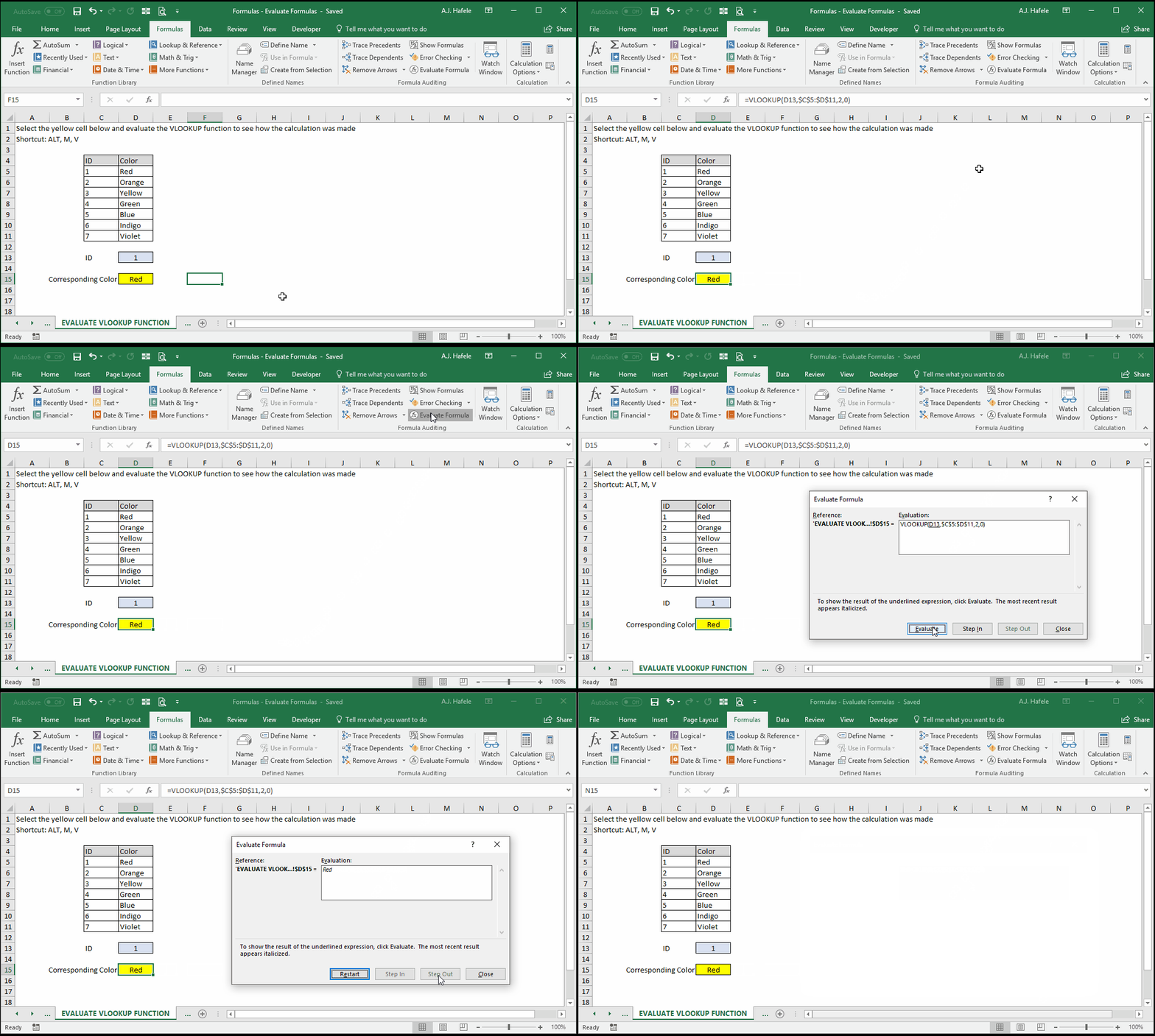
Sometimes, the Evaluate Function feature does not go into as much detail as you may like, as with the VLOOKUP function here:
Why doesn't Evaluate Formula help much here?
If you think about it, it would be somewhat difficult to provide any more detail when evaluating VLOOKUP, using this type of framework
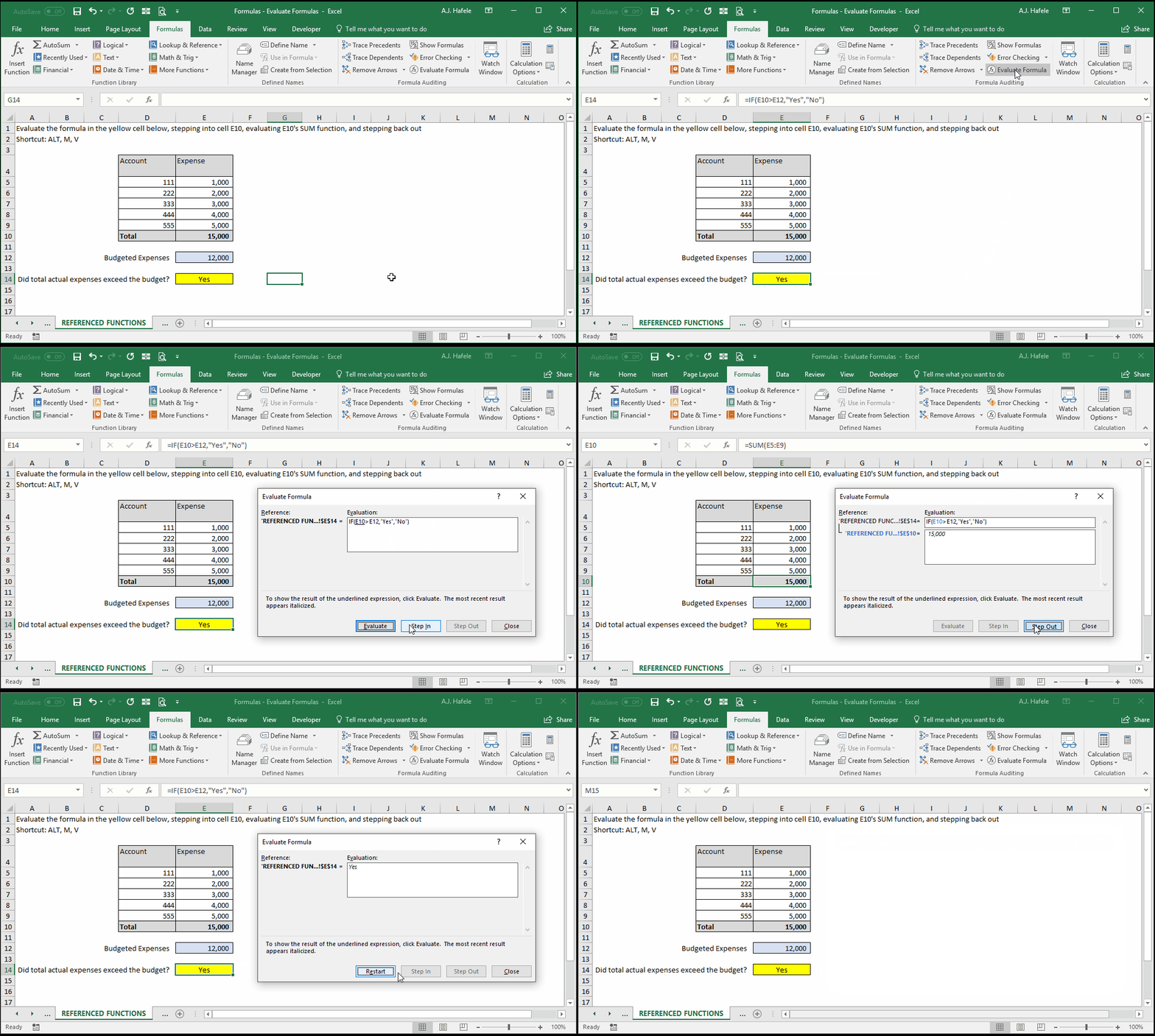
Moving on, a formula being evaluated references a cell which contains a formula, you can "step into" the referenced cell's formula and evaluate it separately, and then proceed to evaluate the primary function afterwards
This is best shown with an illustration (in which cell E10 has a SUM function which we step into when evaluating the yellow cell):