Trace Precedents and Dependents
Overview
- Sometimes, it is useful to see (visually) which cells are used as inputs into other cells' formulas
- The Trace Precedents and Trace Dependents features can point you in the right direction - literally!
- Trace Precedents will point you to your selected cell's inputs
- Trace Dependents will will point you to outputs (that your selected cell feeds)
Buttons
- The relevant buttons can be found in the Formula Auditing group of the Formulas tab:
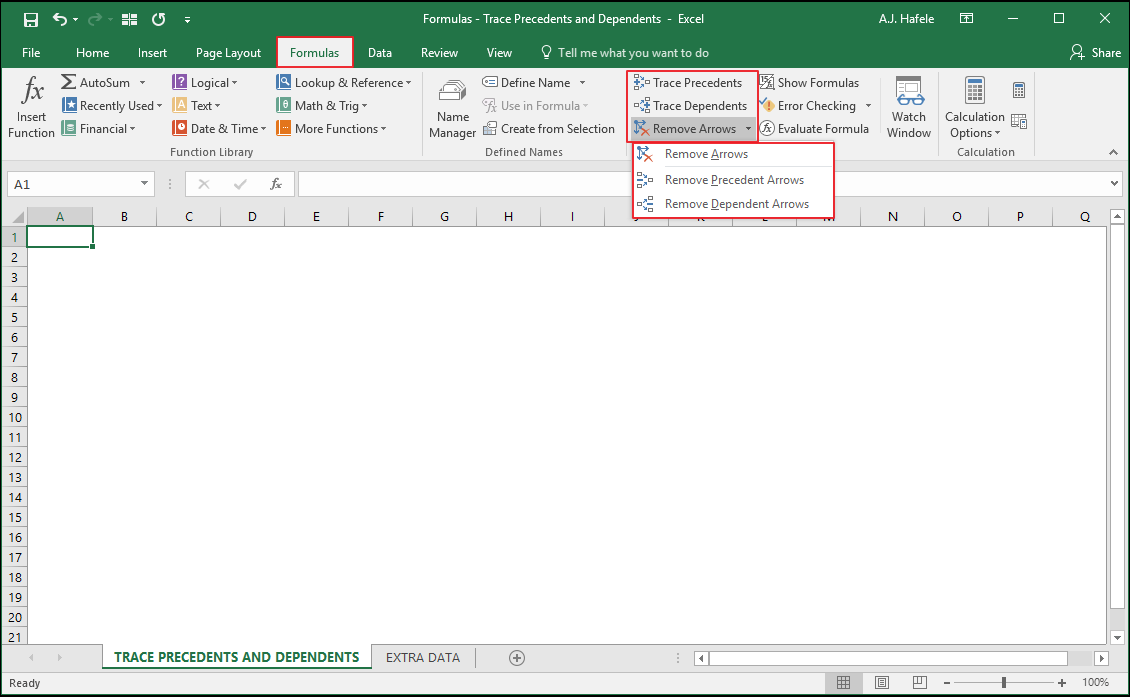
Trace Precedents
- Tracing precedents enables you to visually see what cells are inputs of the cell you select
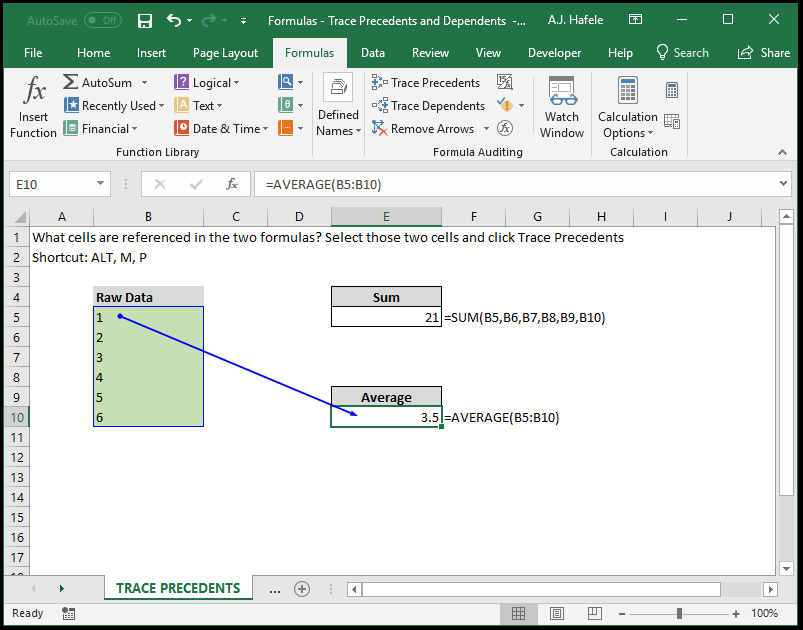
- For example, tracing precendents on Cell E10 indicates that the green cells (boxed in blue) are referenced (and summed, in this case):
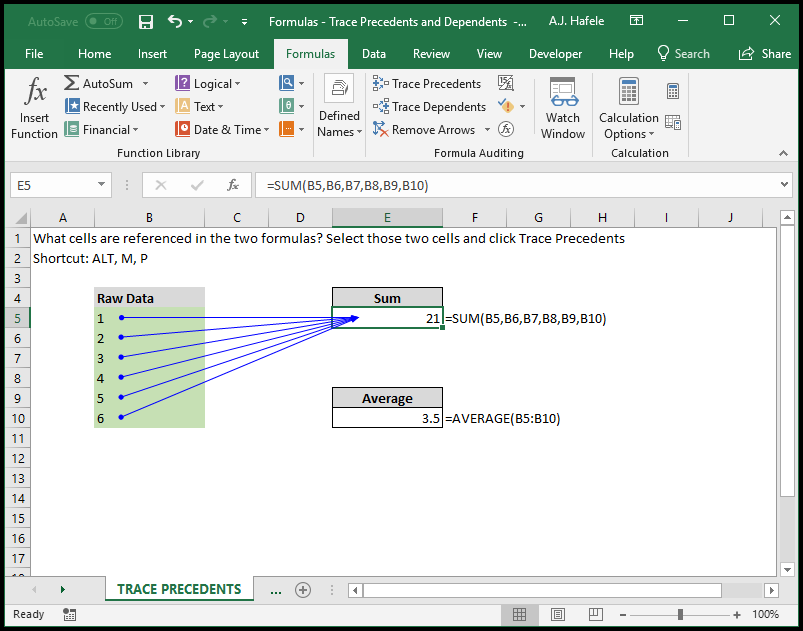
- If individual cells are referenced, rather than a range, arrows will be shown from each individual input cell
- If precedents are on another page, a small table icon will appear, like you see around cell D4 in this screenshot:
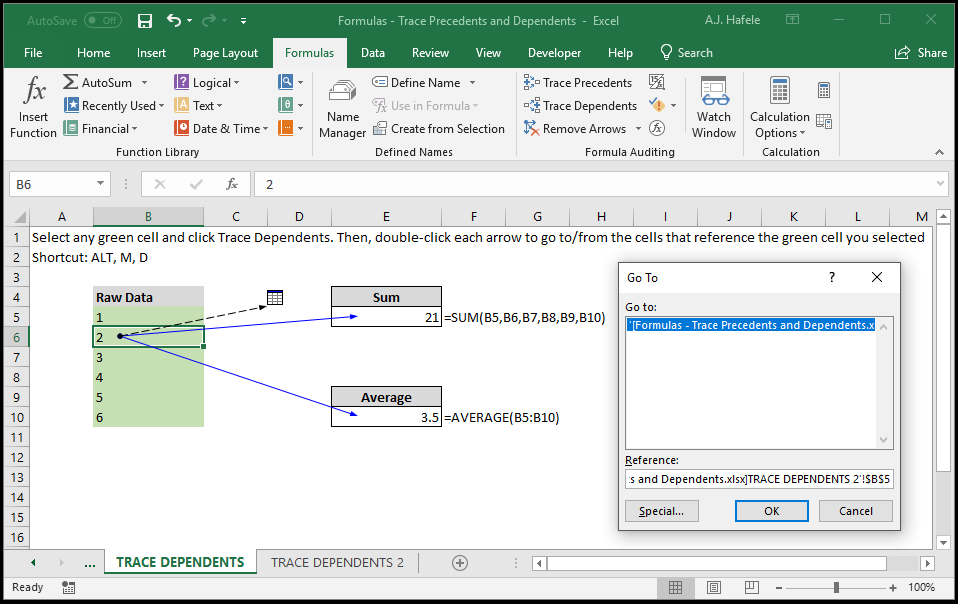
- Upon double-clicking the dotted line, the Go To menu opens and we can select a range to go to in another sheet
Trace Dependents
- Tracing dependents is the opposite of tracing precedents
- When a cell is selected and Trace Dependents is used, arrows will point you to the outputs that the cell feeds
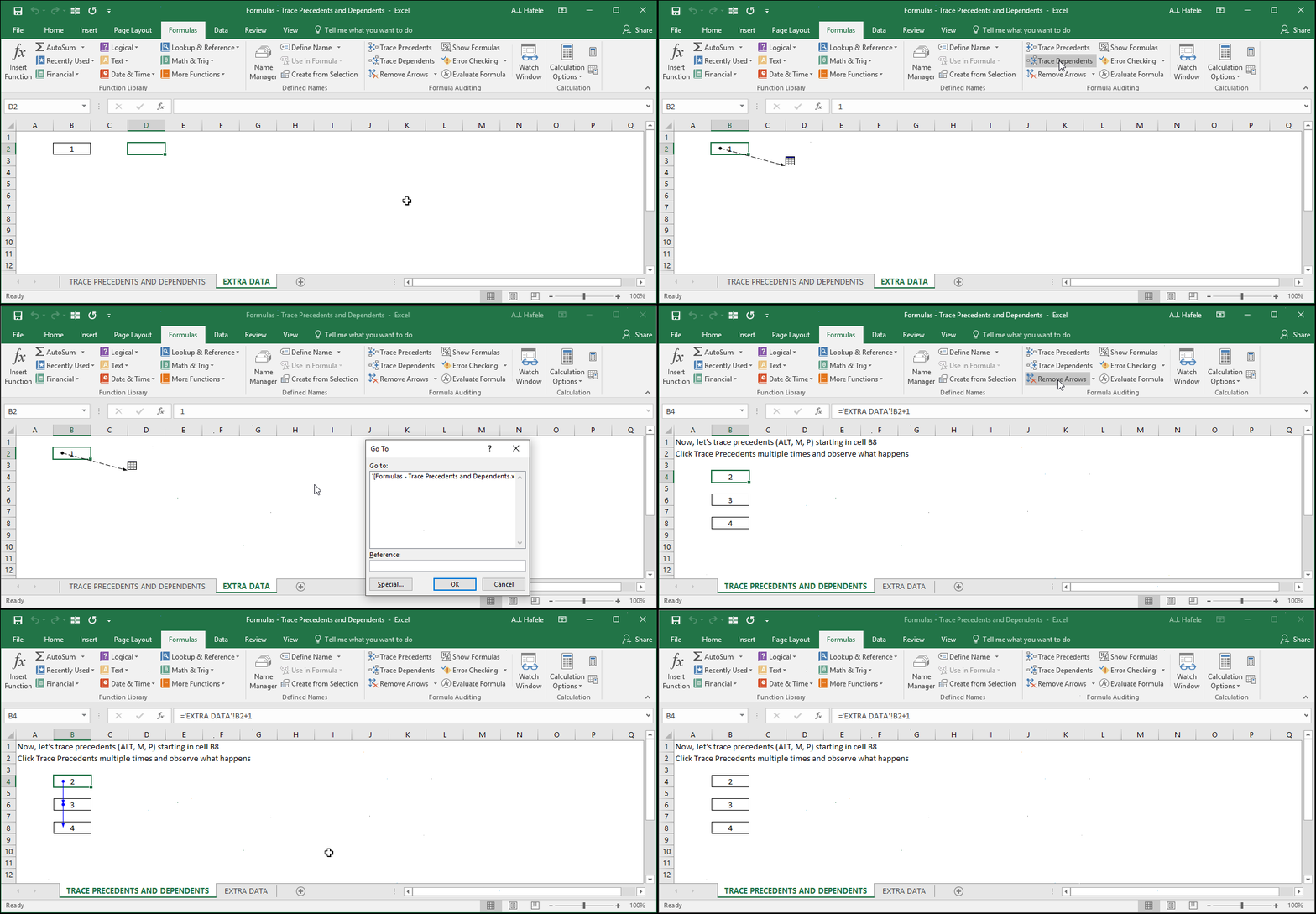
- Upon double-clicking an arrow, we are toggled between the endpoints of the arrow (the dependent and precedent cells)
Tips
- In the above examples, the formulas in question were pretty straightforward
- In practice, of course, Trace Precedents and Trace Dependents can be helpful in examining more complicated formulas
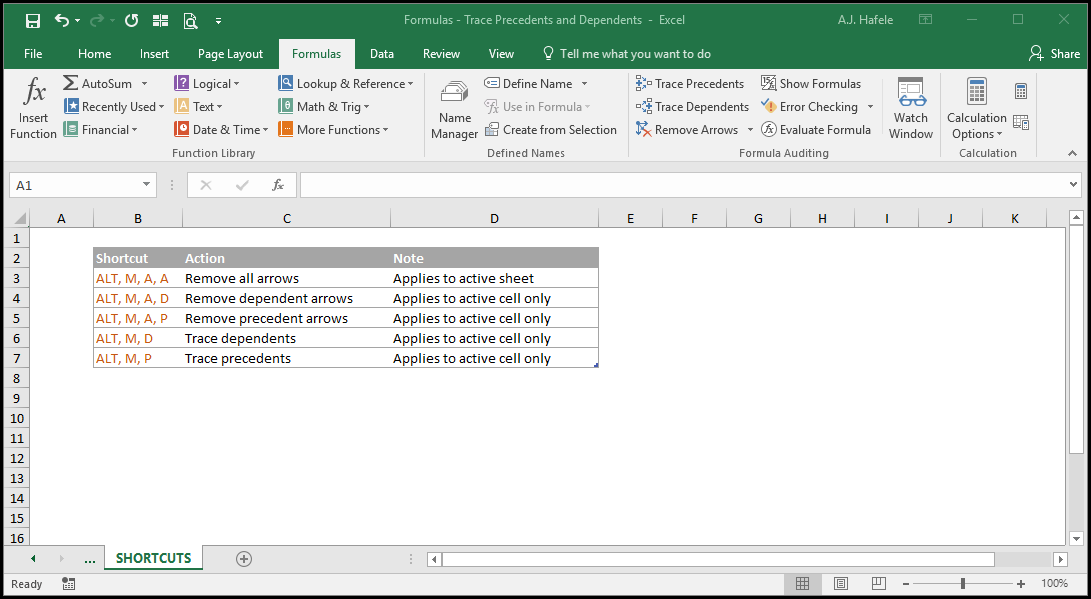
Shortcuts
Practice
External Links
