The Watch Window in Excel allows you to keep an eye on specific cells contained in any sheet in any open workbook, regardless of what worksheet or workbook you are currently viewing
The Watch Window can be handy when you need to see a formula result as you are manipulating inputs from different sheets/workbooks
Buttons
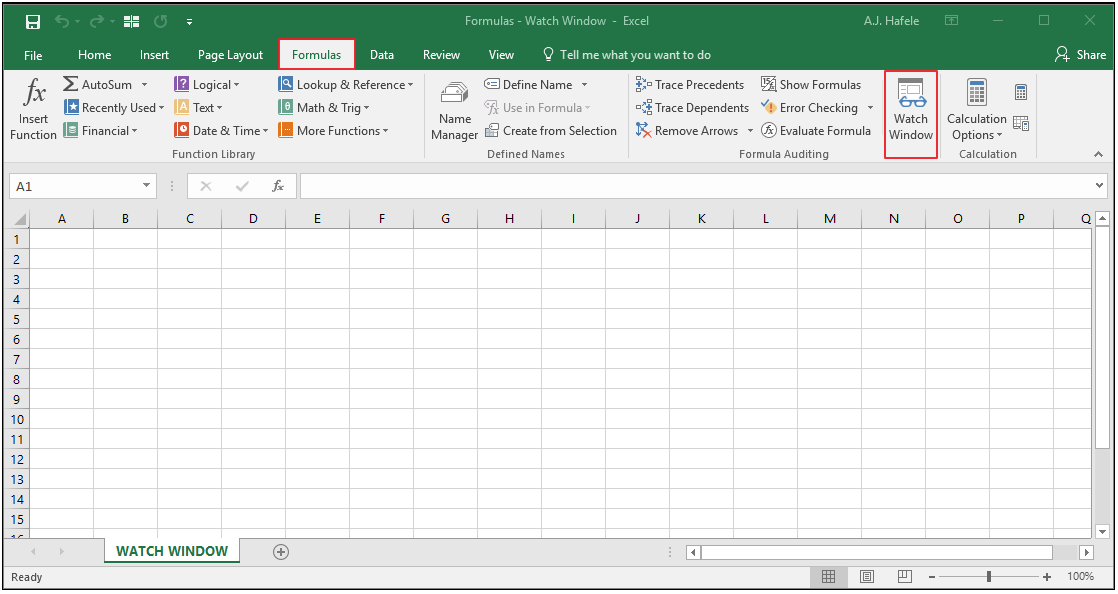
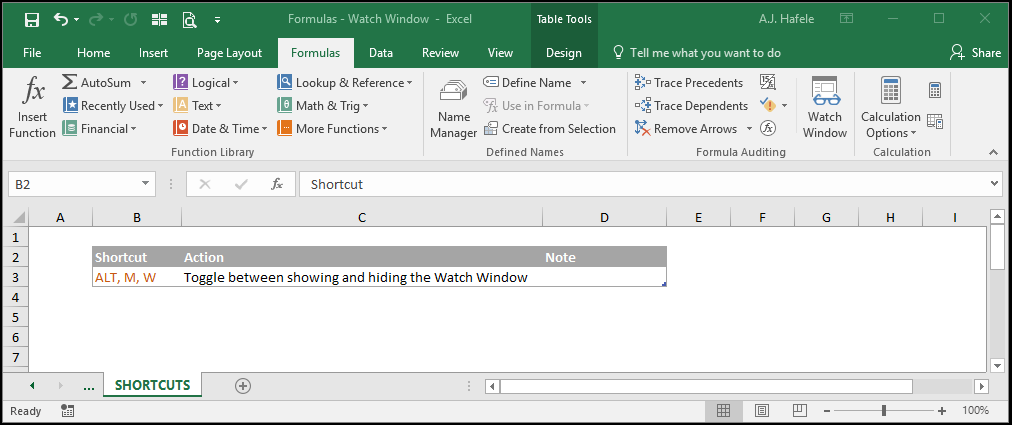
The relevant button can be found in the Formula Auditing group of the Formulas tab:
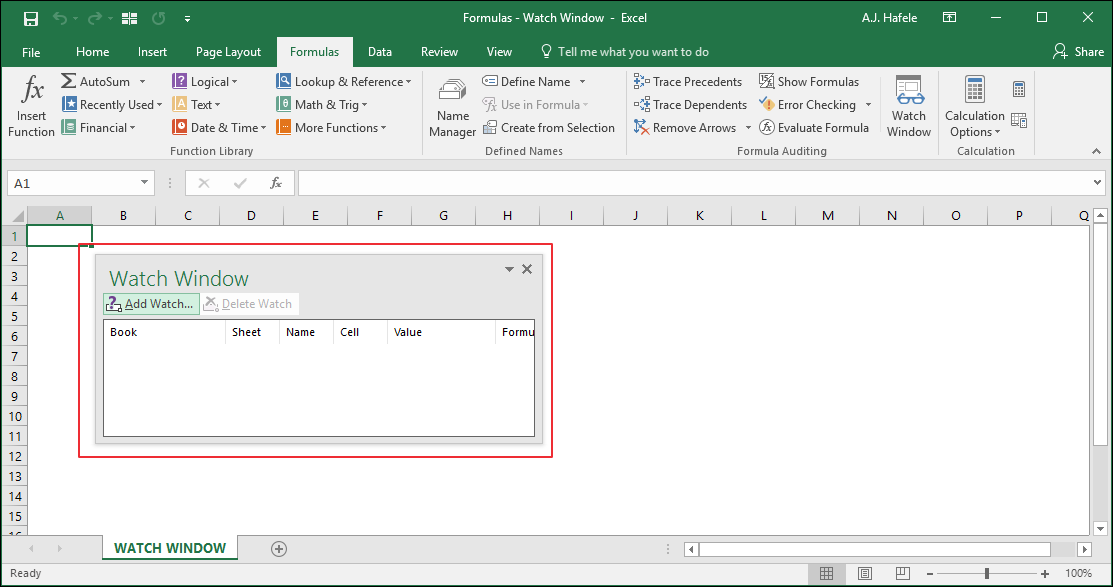
When the Watch Window button is clicked, the following window pops up:
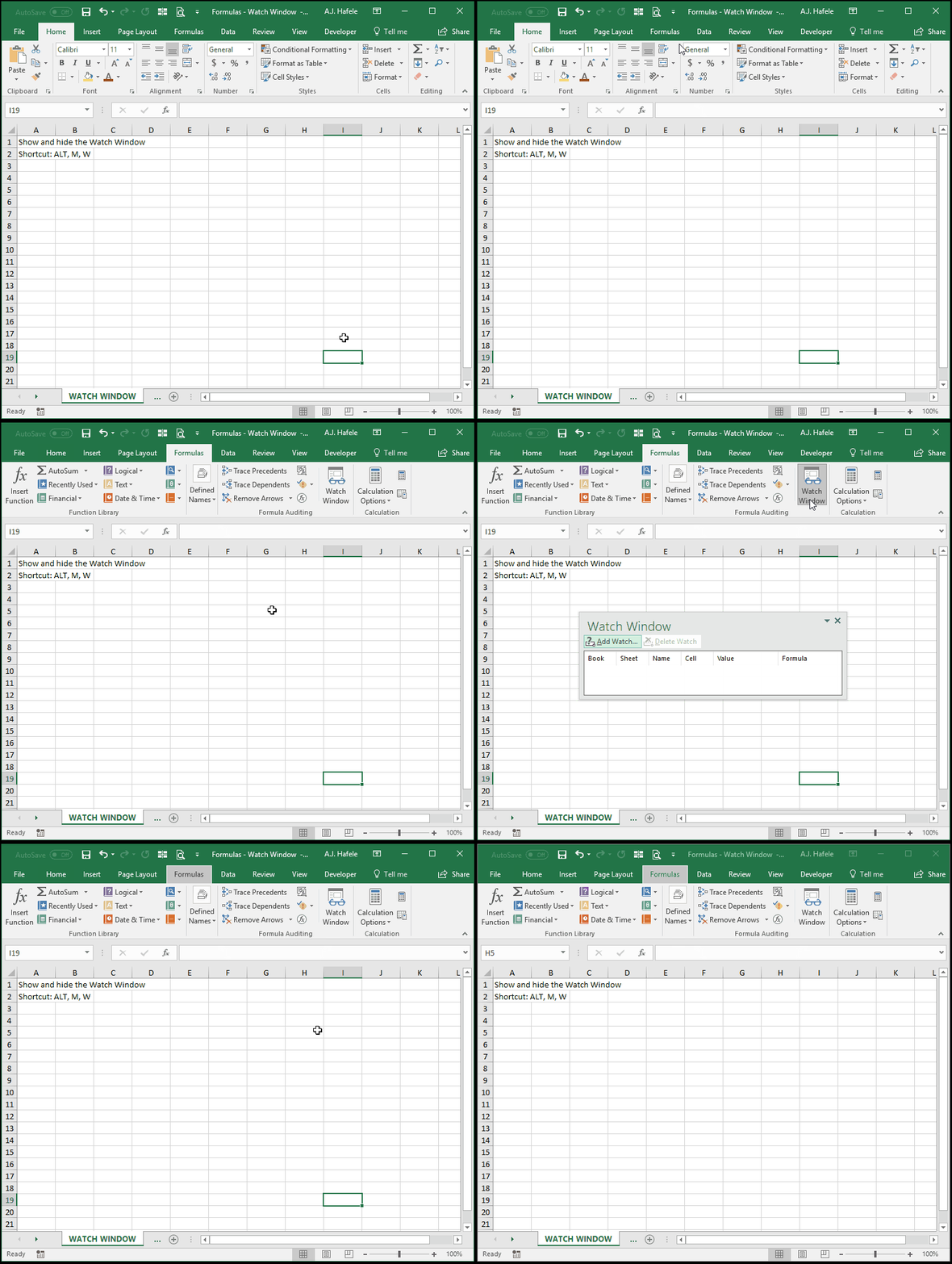
Show, Hide, and Position the Watch Window
To show (or hide) the Watch Window, simply press the Watch Window button (ALT, M, W)
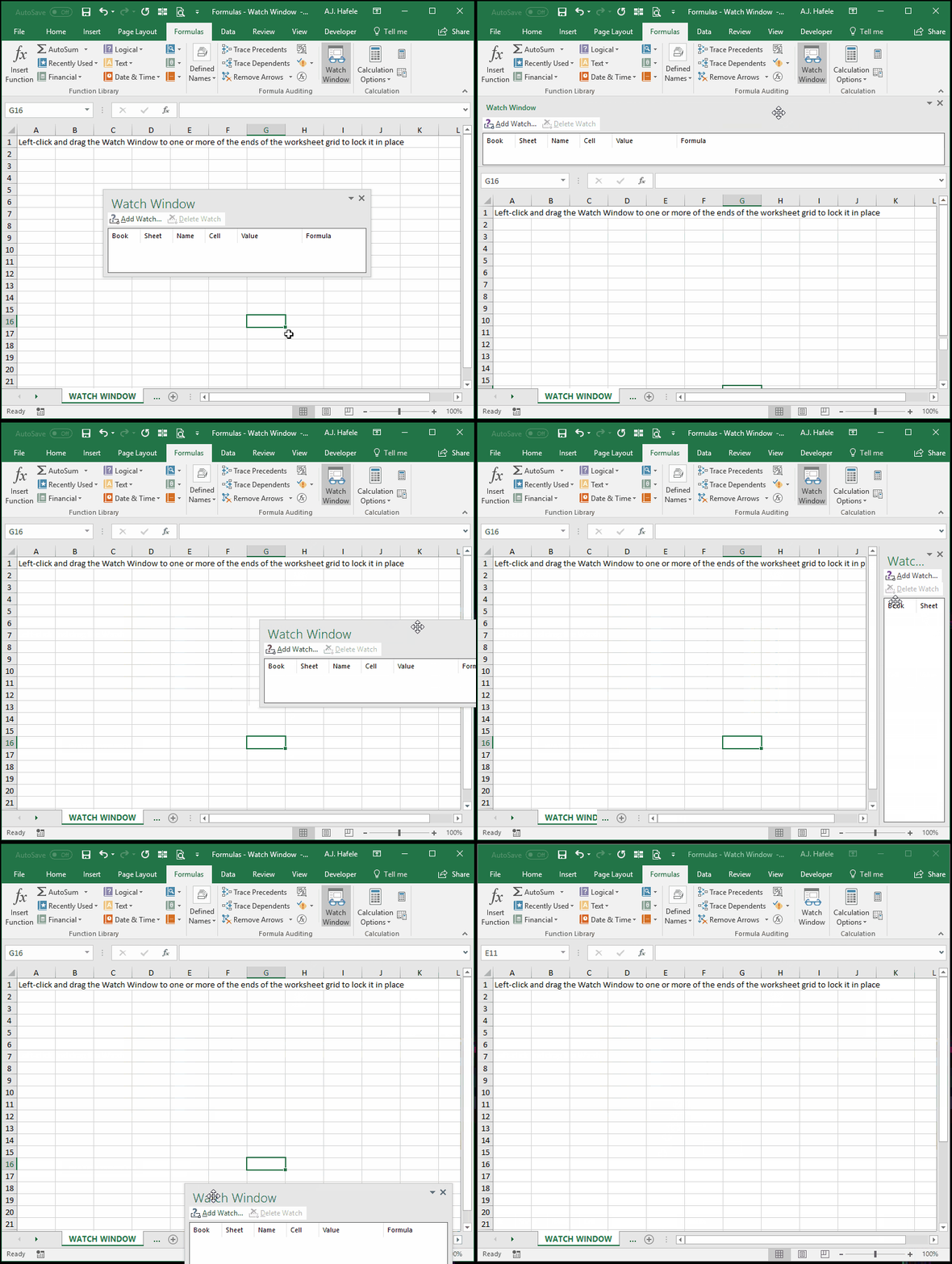
Note that you can position the Watch Window such that it is locked on one of the sides of the worksheet grid, as shown here:
Adding Cells To Watch Window
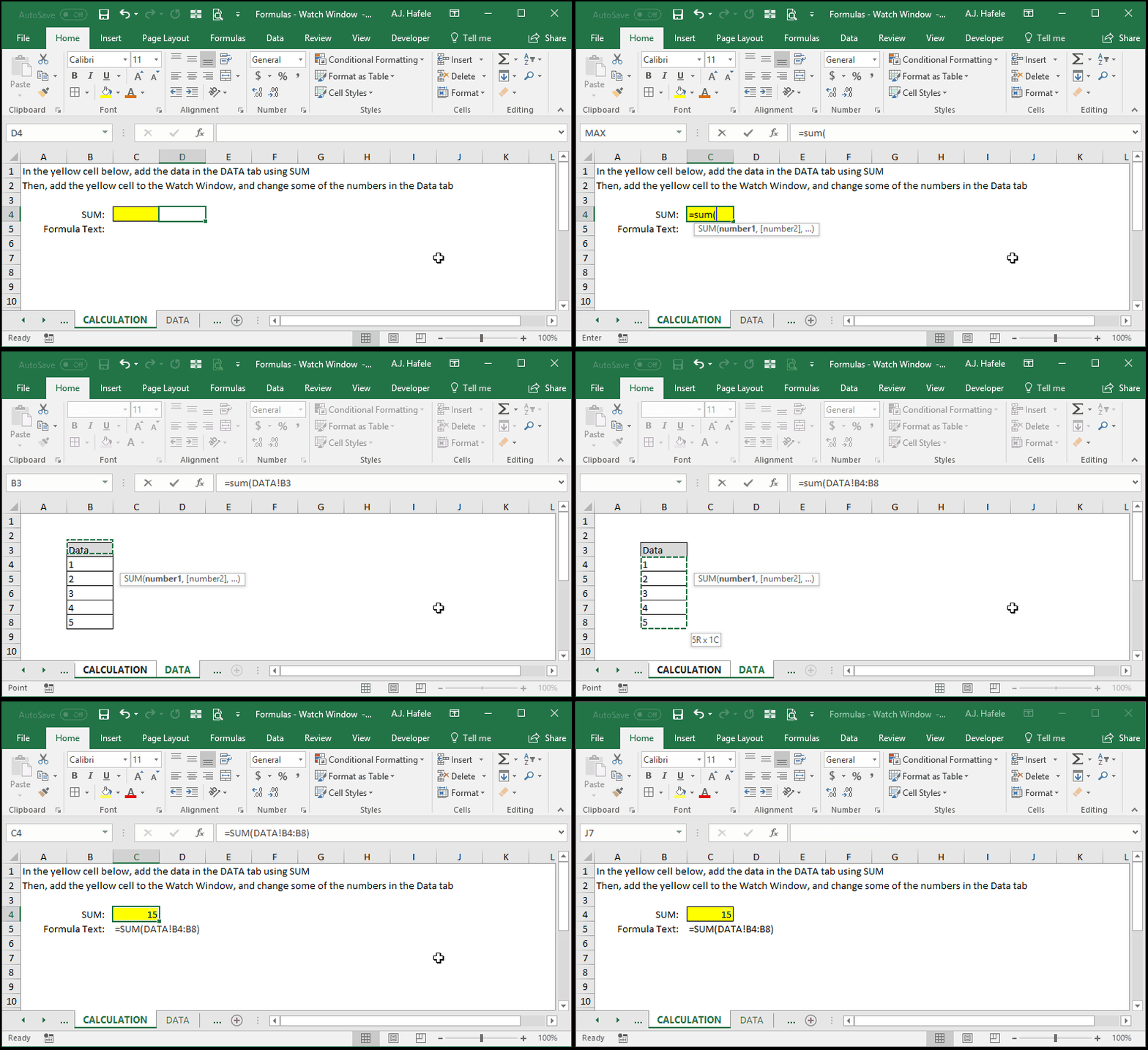
To set up our illustration, we will enter the SUM function in one worksheet (the CALCULATION sheet), which will add a few numbers in another worksheet (the DATA sheet):
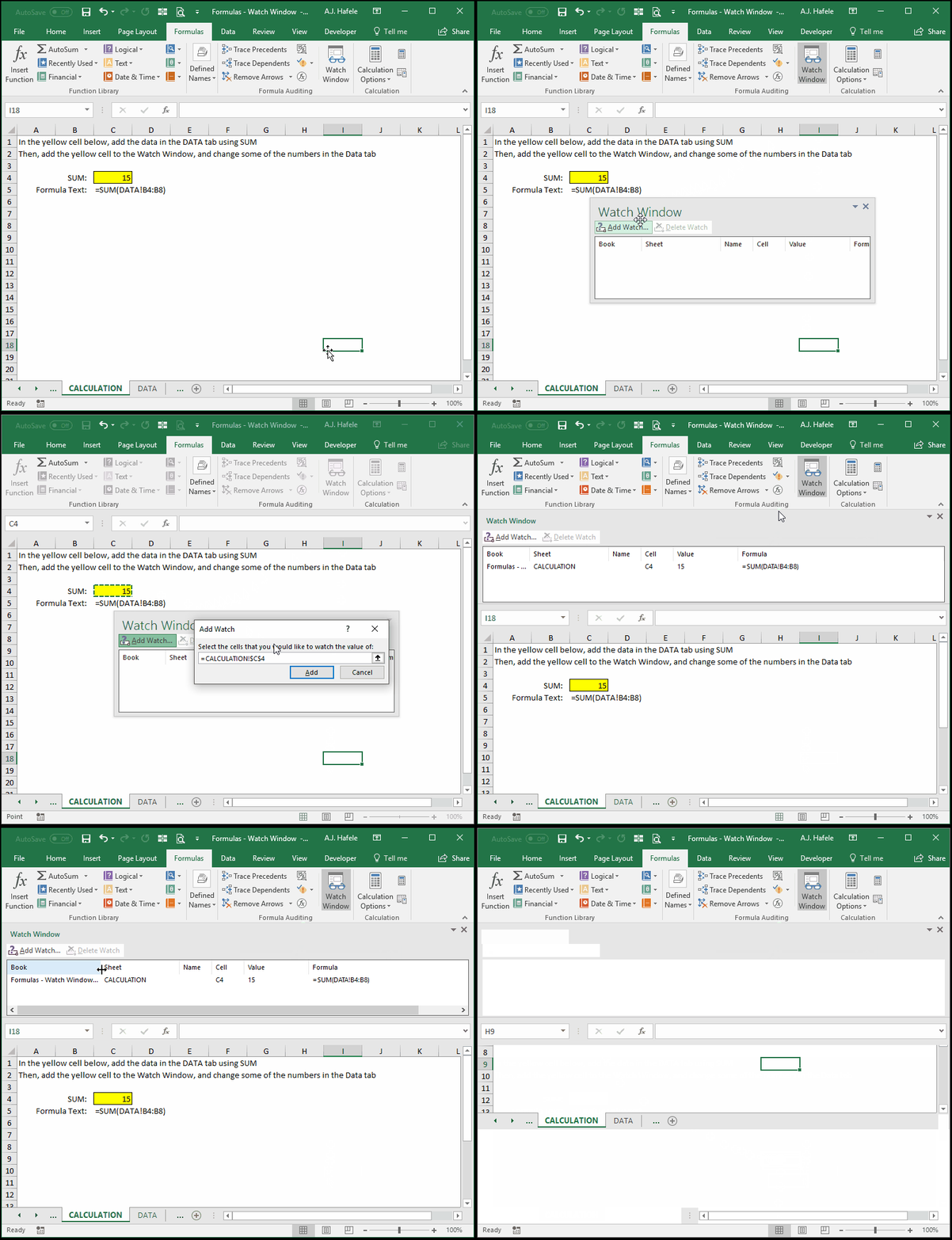
Now, let's add the yellow cell to the Watch Window:
Though not shown above, you can also select multiple cells at once to watch
Also, you can add more new cells to the Watch Window at any time
Using The Watch Window
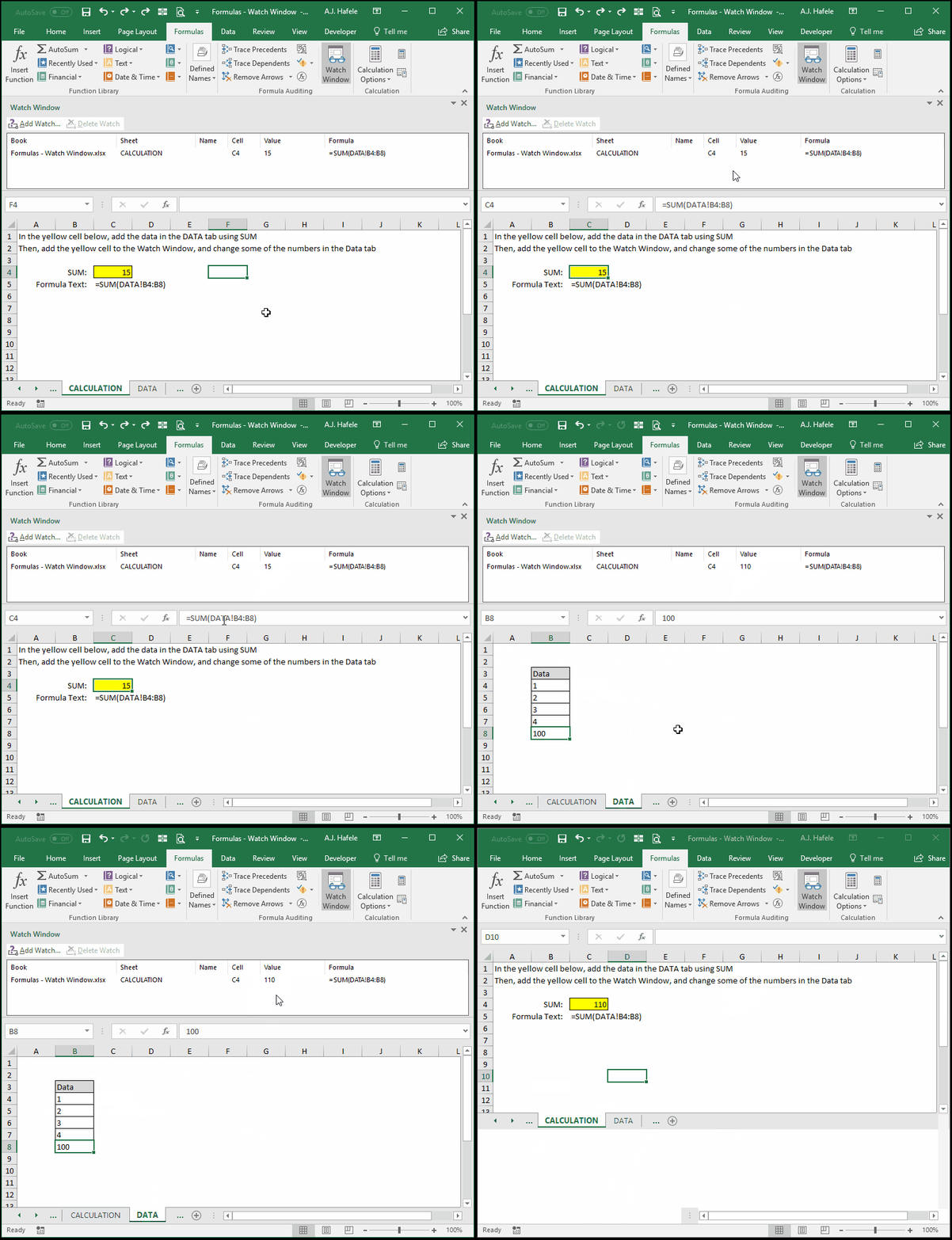
Now, let's change some of the numbers in the DATA tab, and observe the results of the Watch Window:
Though not shown above, the cell will remain in the Watch Window, even if you are currently viewing a new workbook
Removing Cells From Watch Window
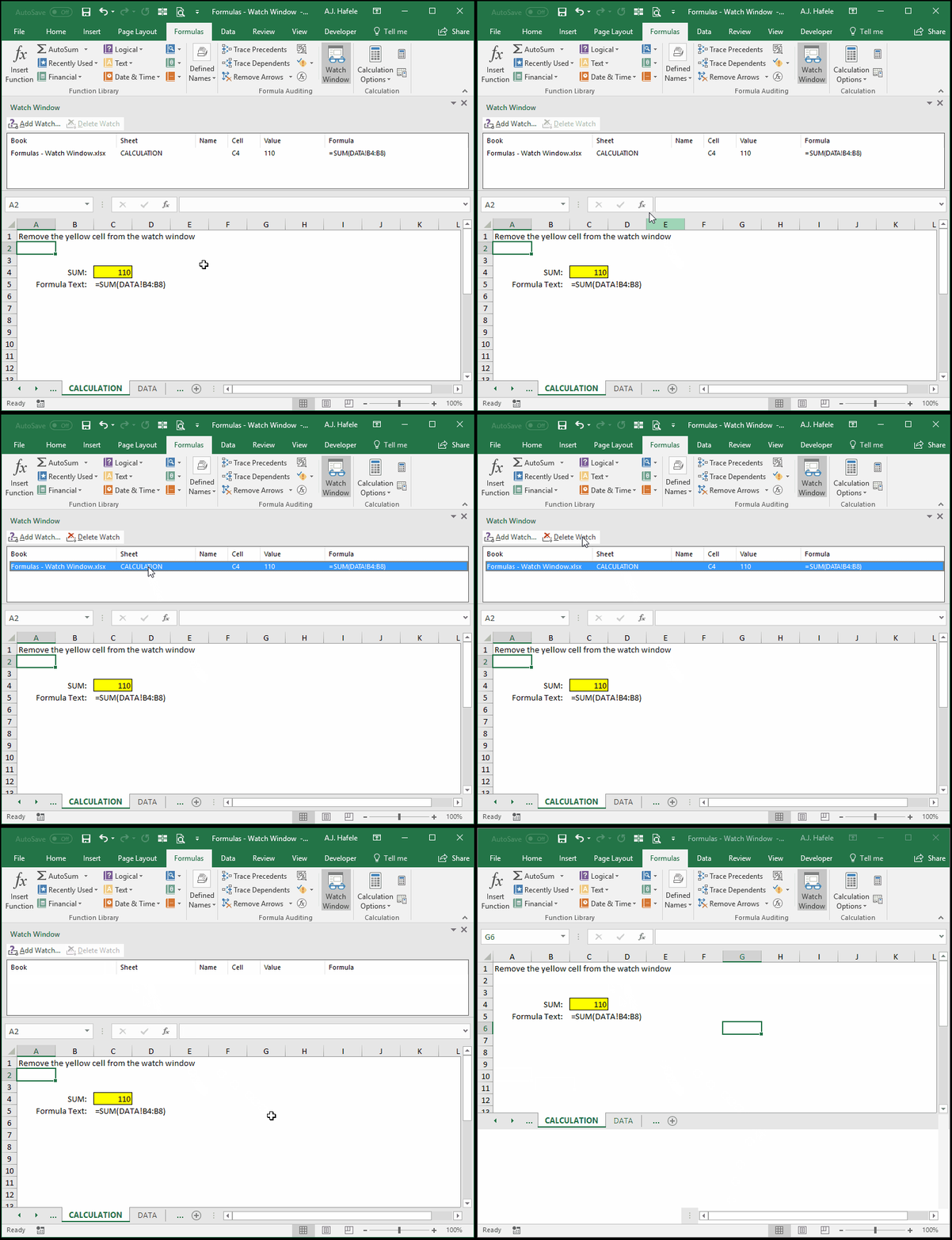
Removing cells from the Watch Window is easy, as shown here: