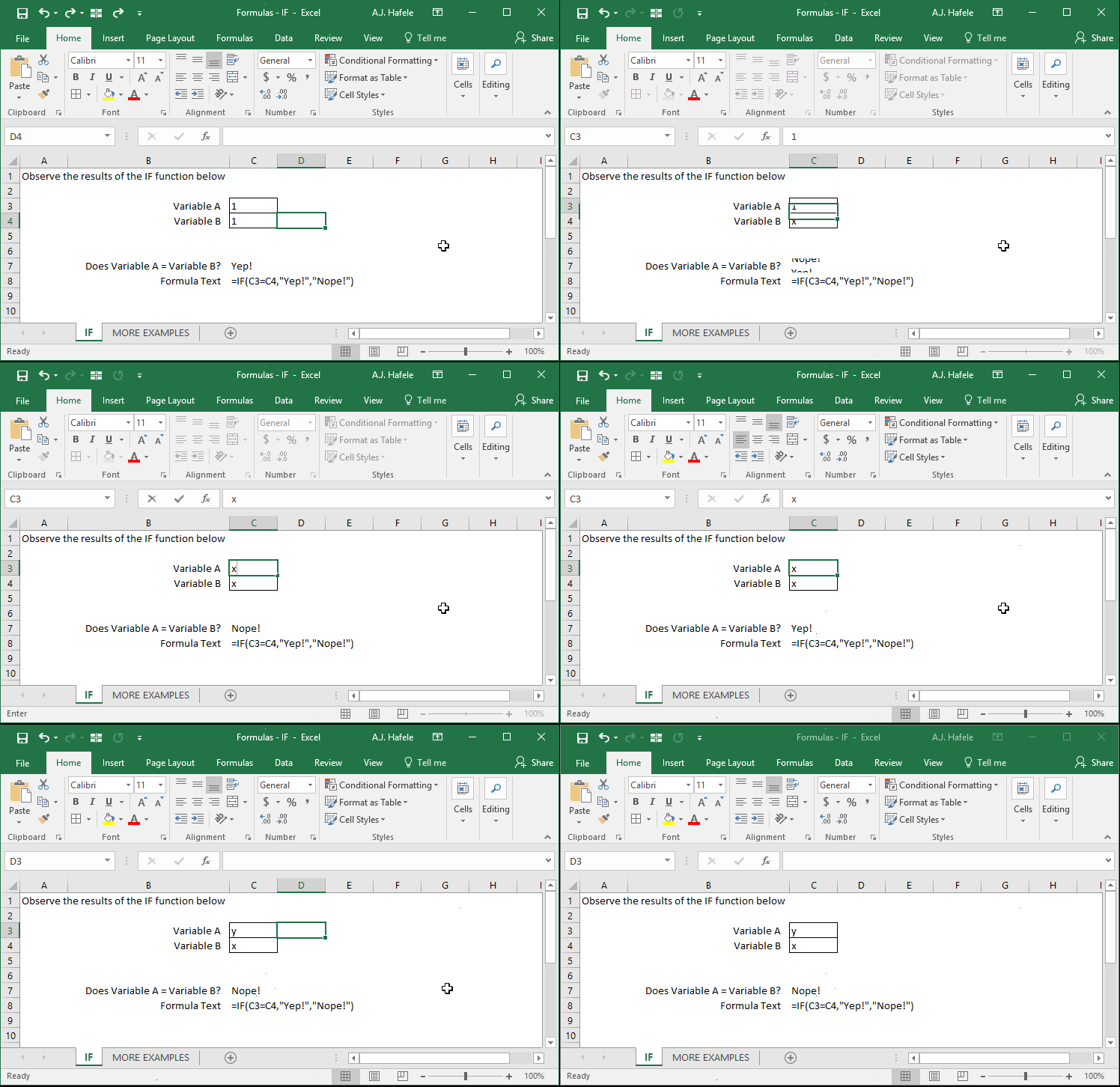
First tests an equation or inequality, and then returns 1 of 2 possible user-defined values, depending on whether the test result is TRUE or FALSE
Example
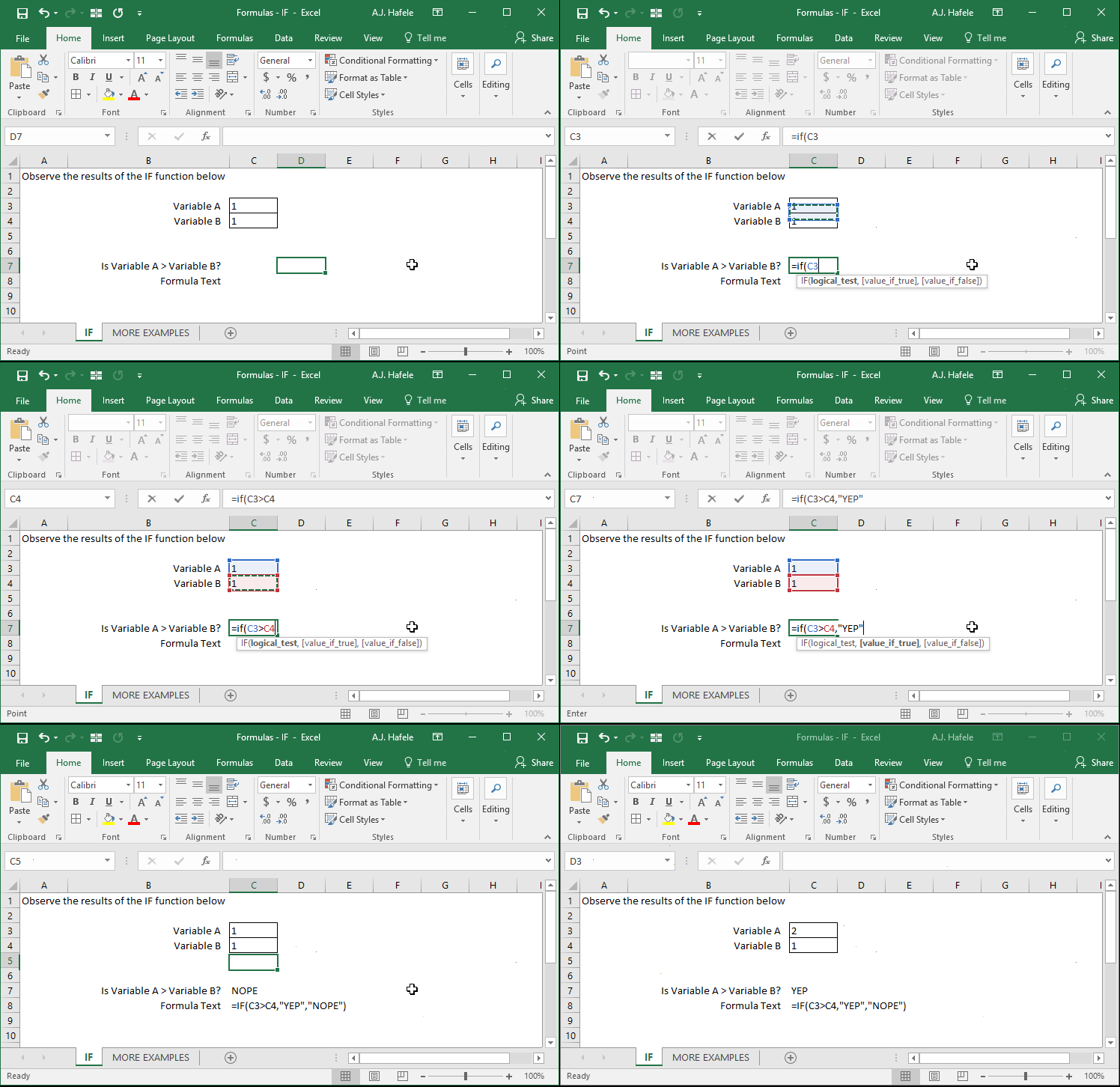
The next example shows the use of an inequality in the logical test of the IF function:
Syntax
=IF(logical_test, value_if_true, value_if_false)
Arguments
logical_test
This is the equation or inequality you are testing, the result of which can either be TRUE or FALSE
Examples:
1+1=2 (this test result will always be TRUE)
"A"<>"B" (this test result will always be TRUE)
A1>=B1 (this test result may be TRUE or FALSE depending on the values in cells A1 and B1)
Note one quirk: you can omit the next two arguments if desired, but you must always add a comma after the first argument
value_if_true [optional]
If the logical_test result is TRUE, the value in this argument will be returned
If omitted, and the logical_test is TRUE, the result will be 0
value_if_false [optional]
If the logical_test result is FALSE, the value in this argument will be returned
If omitted, and the logical_test is FALSE, the result will be FALSE
Tips
If two possible choices are not enough (i.e. there are more than 2 possible end results), consider using more IF functions within your IF function (this is referred to as "nesting" functions, which we discuss in later, here)
Alternatively, consider using the IFS function (for Excel 2016 and above, however)
Regardless of what you decide to do, if you have to build out a complex formula with multiple contingencies, we highly recommend that you take a moment and map out the logic, perhaps via a diagram, as shown here (this scenario would require 3 IF functions within a formula):
Once your desired logic is mapped out, you will be able to build your formula more quickly and accurately