Returns the mode (most frequently occurring number) of a set of numbers
If no mode exists, the #N/A error is returned
If more than one mode exists, the first mode in the set of numbers is presented
As such, this function is not always accurate
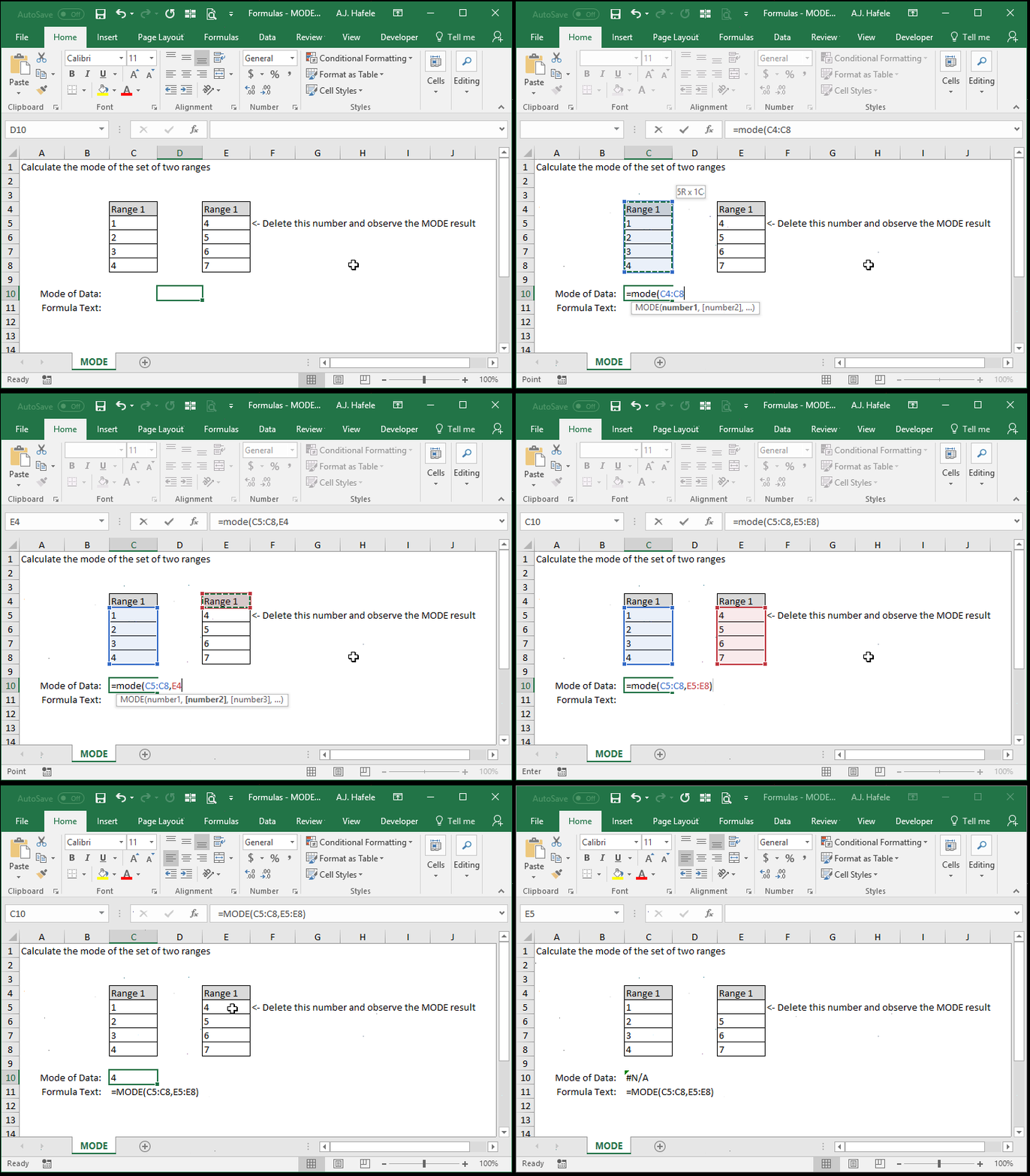
Example
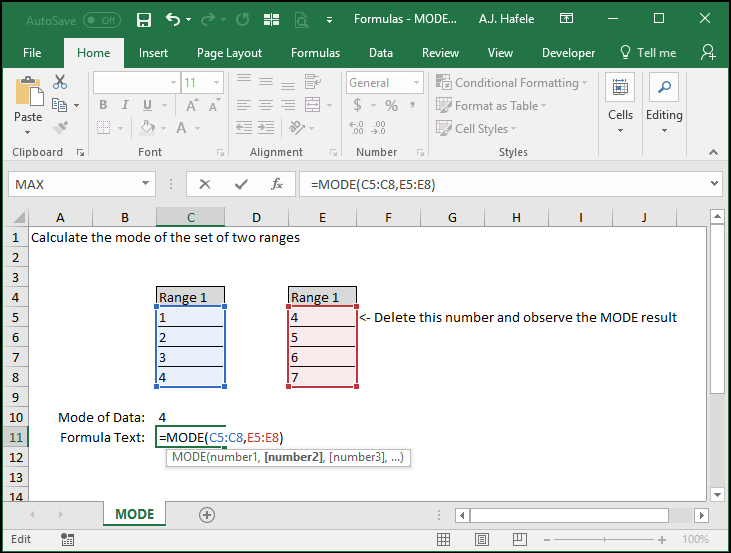
Here is a screenshot, for reference:
Syntax
=MODE(number1, number2, etc.)
Arguments
number1
This is the first set of data from which the mode will be determined
This can be a hard-coded number, (single or multiple) cell range, or calculation
number2 [optional]
This is the second set of data from which the mode will be determined
This argument has the same properties as number1
The pattern continues (up to 255 numbers for later versions of Excel)
All future arguments are optional
All future arguments have the same properties as number1
Ranges With Multiple Modes
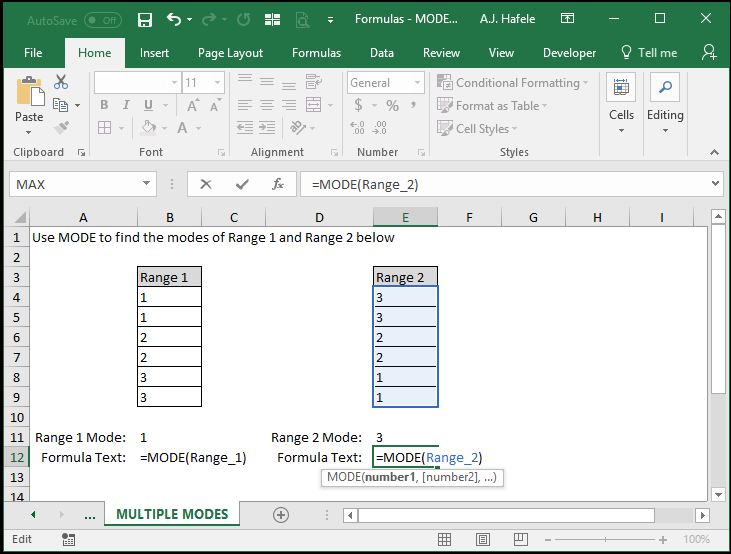
Unfortunately, if more than one mode exists, the MODE function will only return the first mode (i.e. the first mode Excel finds, searching from top to bottom, and left to right), as shown here:
Here is a screenshot, for reference:
Notice that:
Range 1 and Range 2 contain the numbers 1, 2, and 3 twice, but they are sorted differently
Since 1 is present first in Range 1, the MODE output is 1
Since 3 is present first in Range 2, the MODE output is 3
As such, be careful when using the MODE function
If it is possible that more than one mode exists, we recommend using the MODE.MULT function instead