To avoid double counting, the SUBTOTAL function will ignore other cells whose formulas also use the SUBTOTAL function
Example
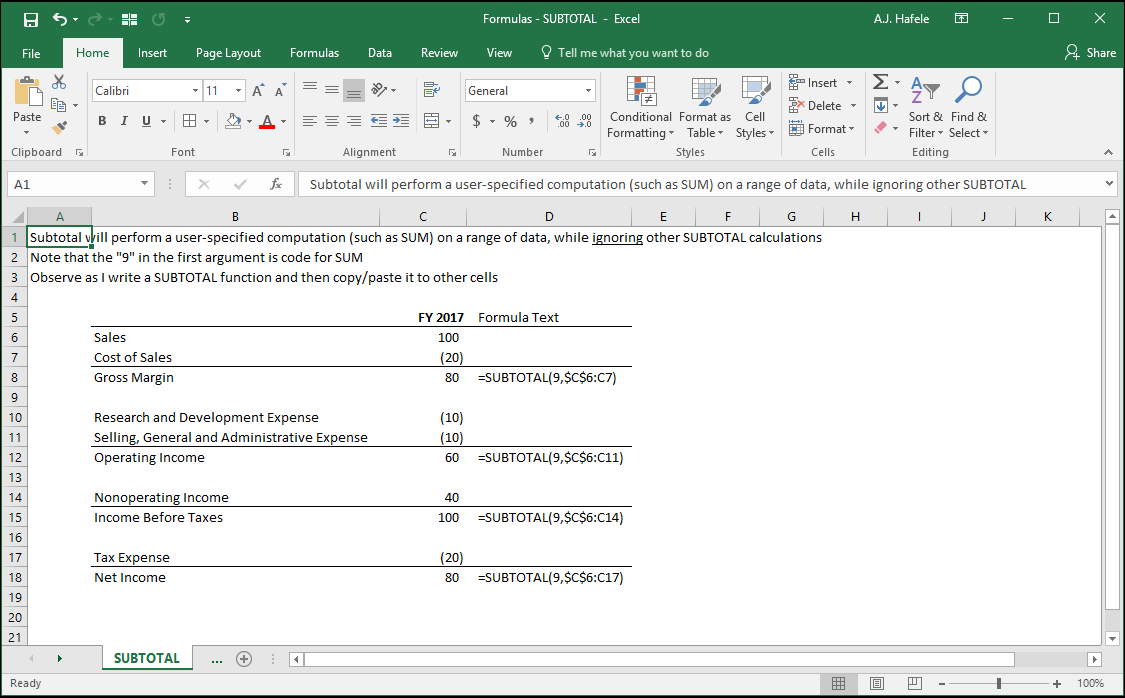
In the following example, let's write the SUBTOTAL function once, and then copy and paste it to multiple cells:
Notice that:
The first argument in SUBTOTAL is 9, which indicates that we want to perform addition (more on the arguments below)
In the second argument, we made cell C5 an absolute reference (i.e. $C$5, using the F4 shortcut) so that C5 was always referenced upon copying and pasting our formula
SUBTOTAL completely ignores other cells that also contain the SUBTOTAL function
Carefully review the screenshot of the final result:
Notice that:
Each formula is exactly the same, except the very last cell referenced
If we used the SUM function instead of SUBTOTAL, the formulas in cells C11, C14, and C17 would have been incorrect (SUM functions will add other cells which also use the SUM function)
Using SUBTOTAL here is much faster and elegant than doing separate SUM functions! One formula was written, and then the formula was simply copied and pasted
Syntax
=SUBTOTAL(function_num, ref1, ref2, etc.)
Arguments
function_num
This is a number which represents the calculation that you want to make
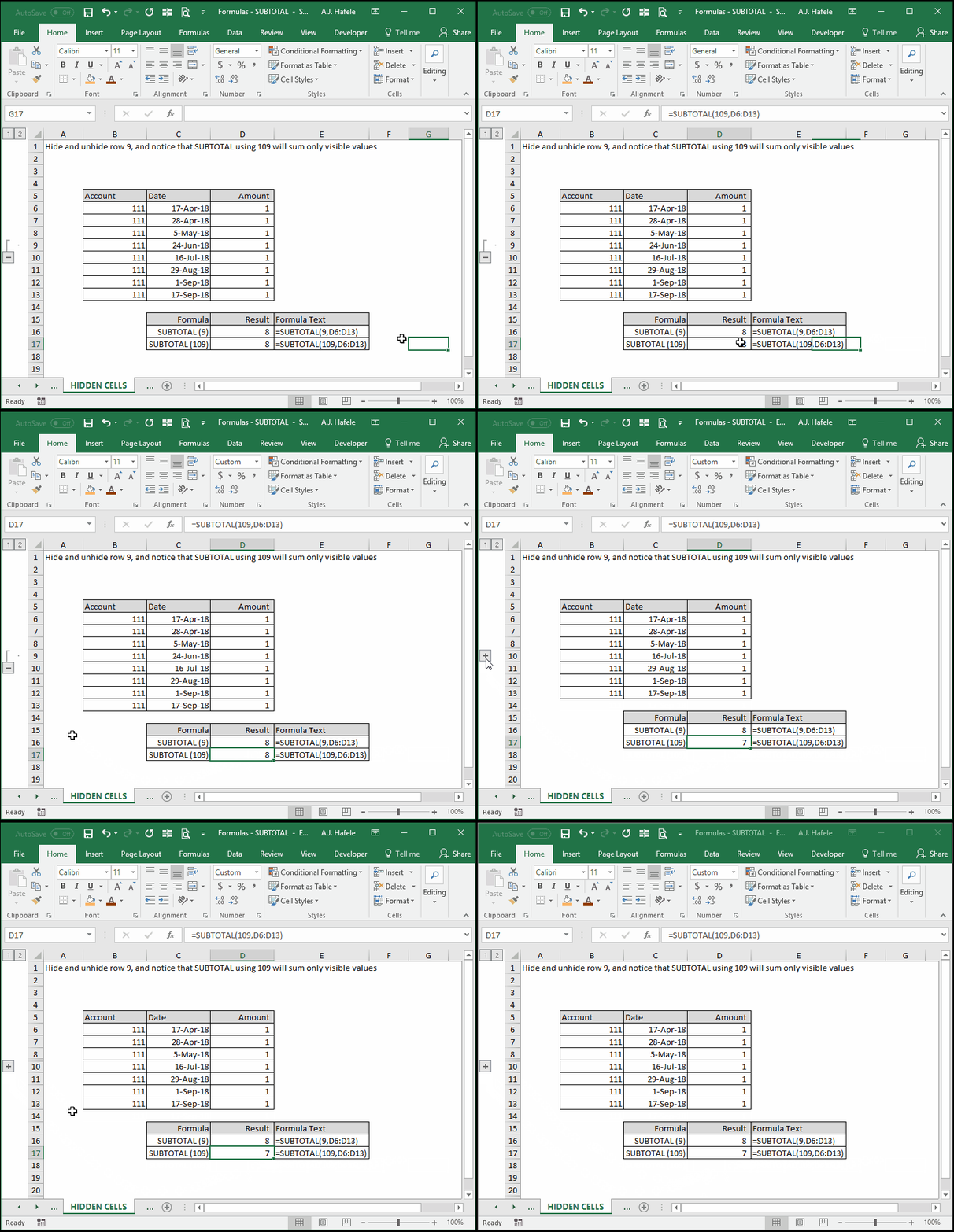
All numbers less than 100 will include hidden rows in the SUBTOTAL result
All numbers greater than 100 will exclude hidden rows in the SUBTOTAL result
The numbers you can choose from include the following, with the corresponding functions and calculations:
1 or 101: AVERAGE - calculates an average
2 or 102: COUNT- counts all cells containing numbers
3 or 103: COUNTA - counts all non-blank cells
4 or 104: MAX - calculates a maximum value
5 or 105: MIN - calculates a minimum value
6 or 106: PRODUCT - multiplies all numbers in the range
7 or 107: TDEV - calculates a sample standard deviation
8 or 108: STDEVP - calculates a population standard deviation
9 or 109: SUM - calculates the sum (used in the above illustration)
10 or 110: VAR - calculates a sample variance
11 or 111: VARP - calculates a population variance
See the illustration in the Tips section below to observe the difference between using 9 and 109 as the 1st argument
ref1
This is the 1st range of values that you want to include in the subtotal calculation
This can be a hard-coded number, (single or multiple) cell range, or calculation
ref2 [optional]
This is the 2nd range that you want to include in the subtotal calculation
This range has the same properties as ref1
The pattern continues - you can add up to 254 ranges in the latest versions of Excel
All remaining arguments have the same properties as ref1
Tips
The SUBTOTAL function is intended to be used on vertical (not horizontal) ranges of data
To re-emphasize, SUBTOTAL will ignore other cells containing the SUBTOTAL function, so you avoid double-counting
As mentioned above, by selecting a function_num greater than 100, you can ignore hidden cells, as shown here: