Looks up a user-defined value in the topmost row of a range of data, and provides a corresponding data point in a user-defined row within that same range of data
HLOOKUP (horizontal lookup) is essentially the same function as VLOOKUP (vertical lookup), except it is conceptually flipped on its side
Example
In this example, we use the following 3 named ranges:
account (cell F9)
rownum (cell F10)
data (cells F3:I6)
Additionally, we added conditional formatting in the "data" range to show you exactly which value is being looked up (the highlighted figure)
Here is a screenshot, for reference:
Notice that:
The value in the 4th row (Monthly Change) in the column corresponding to 333A is 25 (the two highlighted figures)
When we change one of the two blue inputs, a new number is looked up
Essentially, HLOOKUP finds the value in your table of data (2nd argument) that is at the intersection of:
The column corresponding to the 1st argument (account)
The row number you provide in the 3rd argument (rownum)
This is the value that you would like to look up in the table_array
table_array
This is a contiguous range of data
The topmost row should contain the data corresponding to the lookup_value
This can be a hard-coded value (text or number), cell reference, or calculation
row_index_num
This is the row number of the table_array range selected which contains the desired resulting value
Note that the topmost row in the table_array is row 1
This can be a hard-coded number, cell reference, or calculation
range_lookup [optional]
Only omit this value (or enter TRUE, or 1) when the lookup_value is numerical and you are okay with finding a resulting value approximately corresponding to your lookup_value
If omitted, TRUE, or 1, Excel will find the value closest to the lookup_value (by always rounding down to the nearest lookup_value) in the table_array and return the resulting value that is located in the row_index_num
If you need to omit or use TRUE for this argument, the data must be arranged from left to right in ascending order (e.g. 1 to 10)
If FALSE or 0, Excel will only return the value in the row_index_num if the topmost row contains the exact lookup_value
Approximate Matches (range_lookup is TRUE)
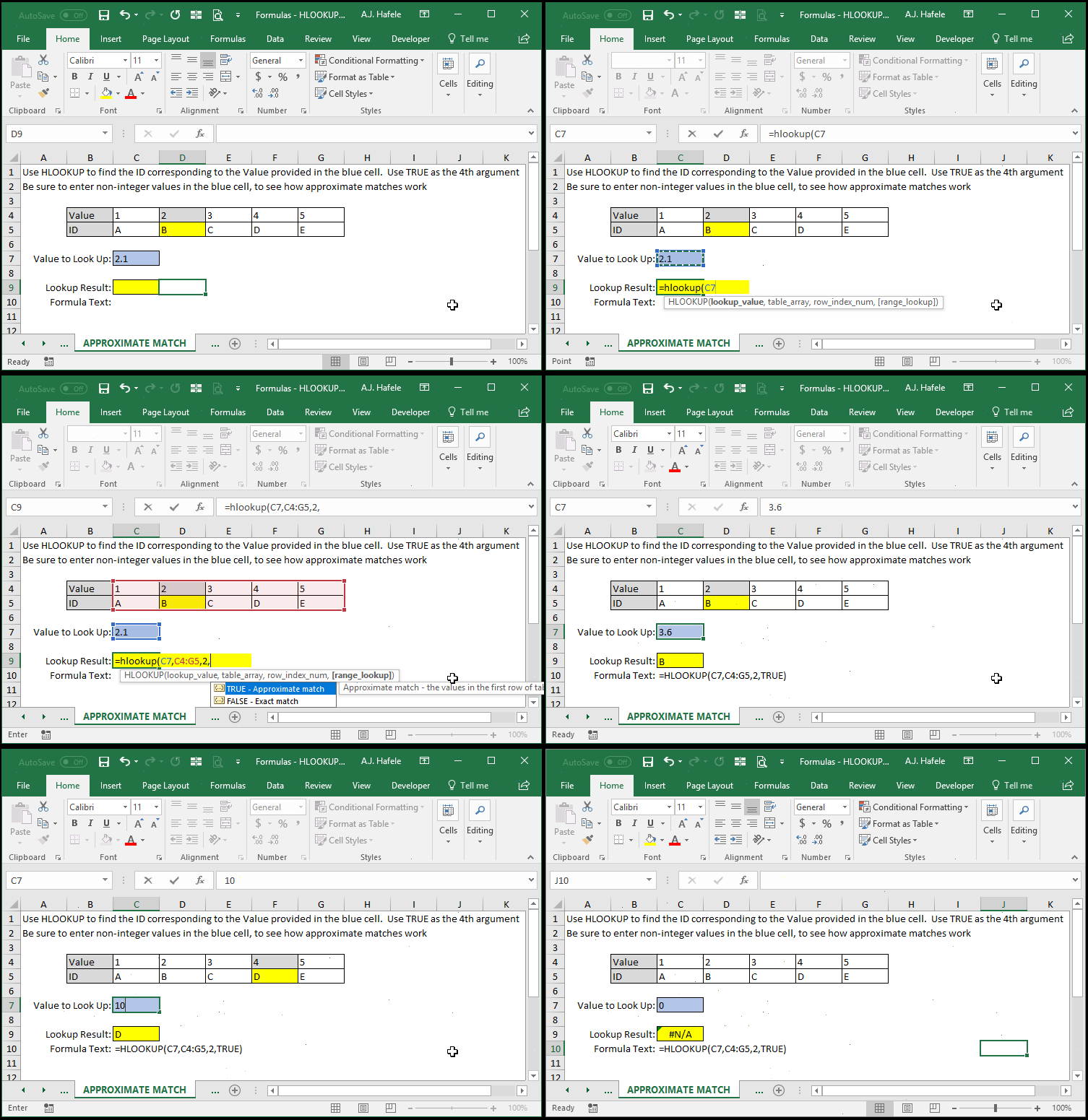
What if we need to get approximate matches when looking up numerical values? How does HLOOKUP work?
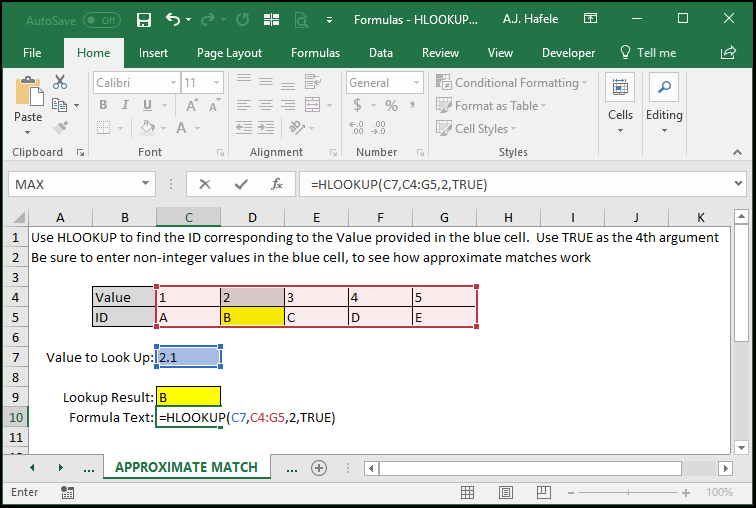
As mentioned above, HLOOKUP will essentially round the lookup_value down to the closest lookup value, as shown here:
Here is a screenshot, for reference:
Note that:
Regardless of the decimal, all numbers are rounded down
In the above example, the closest match to 2.1 when rounding down is 2
If the number 2 were not in the table_array at all, 2.1 would then round down to 1
If the lookup_value entered is lower than the lowest value in the table_array, the #N/A error is returned
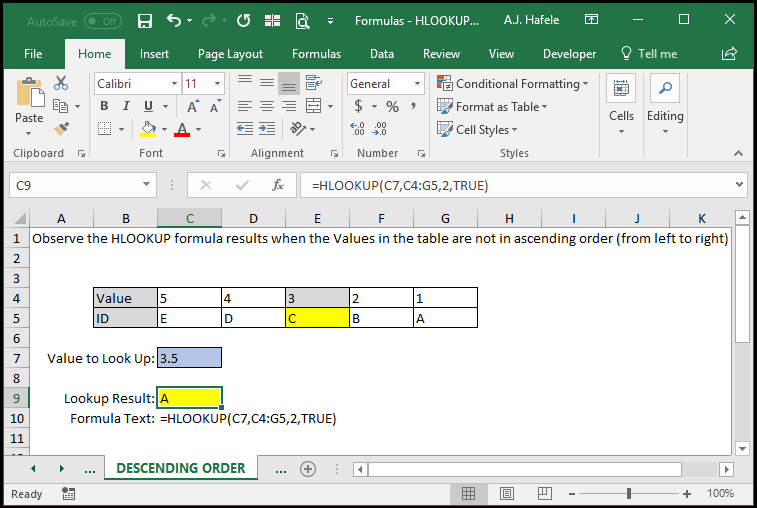
To reiterate, if you are using HLOOKUP with approximate matches, you need to be sure the leftmost data in the table_array is sorted left-to-right from smallest to largest
Tips
As per the Number and Text Formats lecture, you should recognize that numbers formatted as Text may not be properly referenced using HLOOKUP when the lookup_value is formatted as a number, but the topmost row in the table_array contains data formatted as Text, or vice versa
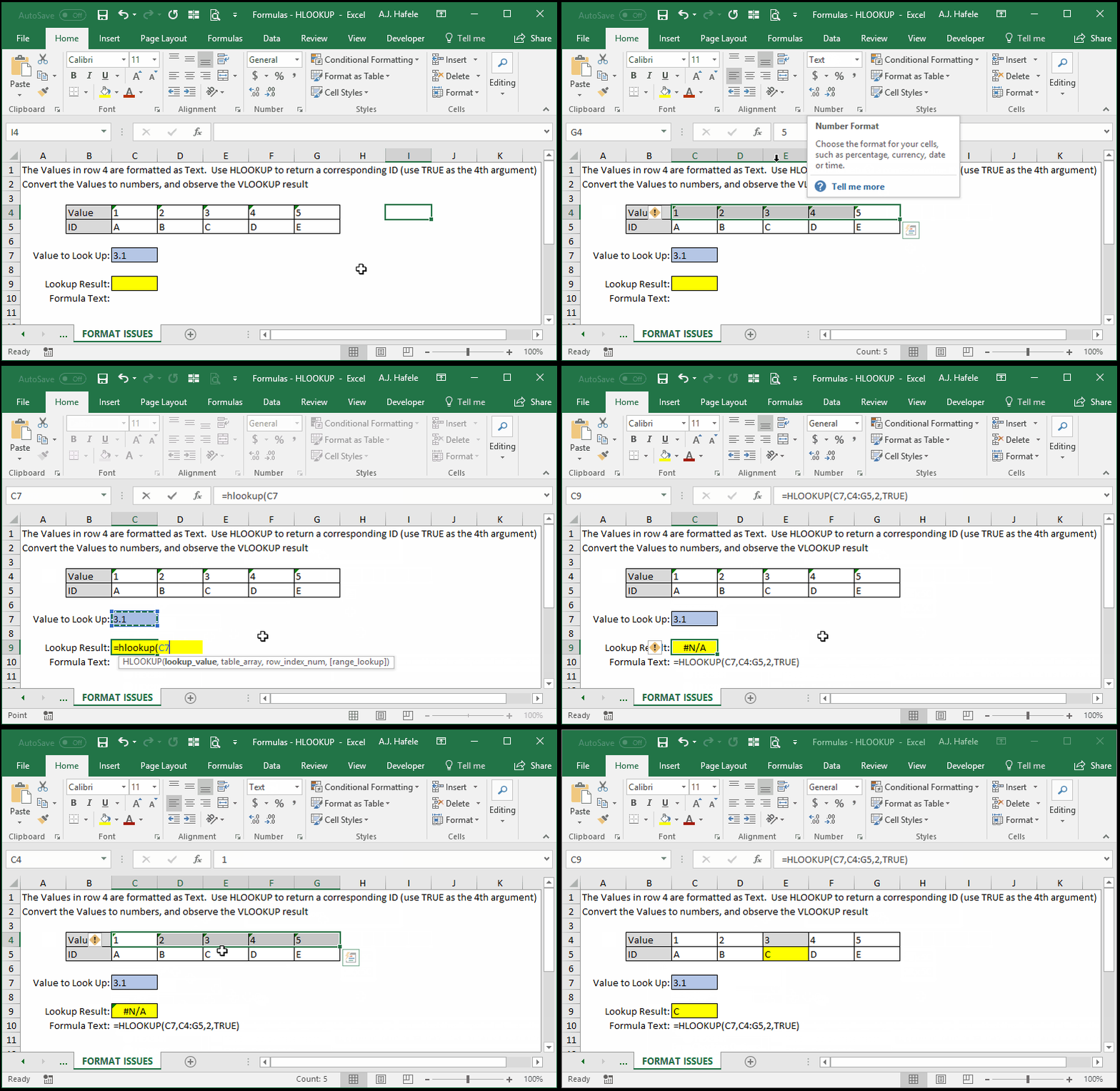
The following illustrates what happens when this occurs:
Notice that:
The #N/A error initially occurred because the lookup_value was interpreted by Excel as a number, but the Values in the table_array were formatted as Text
Once the Values in the table_array were converted to numbers (consistent with the format of the lookup_value), the error went away
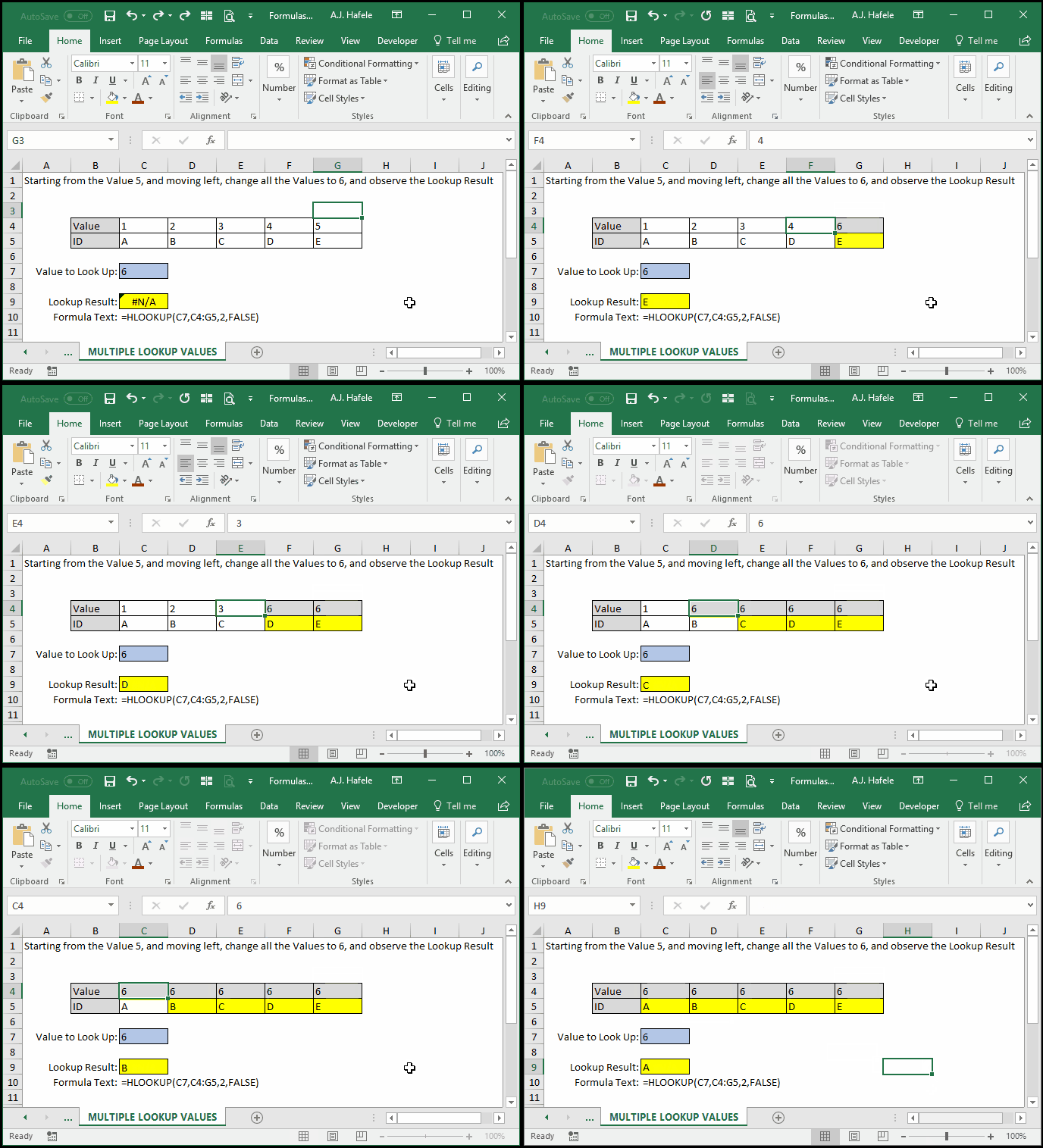
Last, be careful when the lookup_value is found multiple times in the table_array, as shown here:
As you can see, when we are trying to get an exact match (range_lookup is FALSE), the leftmost column containing the number 6 is used to return the output
This may not be desirable, and as such, HLOOKUP may not be useful in such situations