
INDIRECT
Purpose
- Converts a text string into a cell or range reference
Examples
- The first example illustrates how INDIRECT can be used to reference single cells:
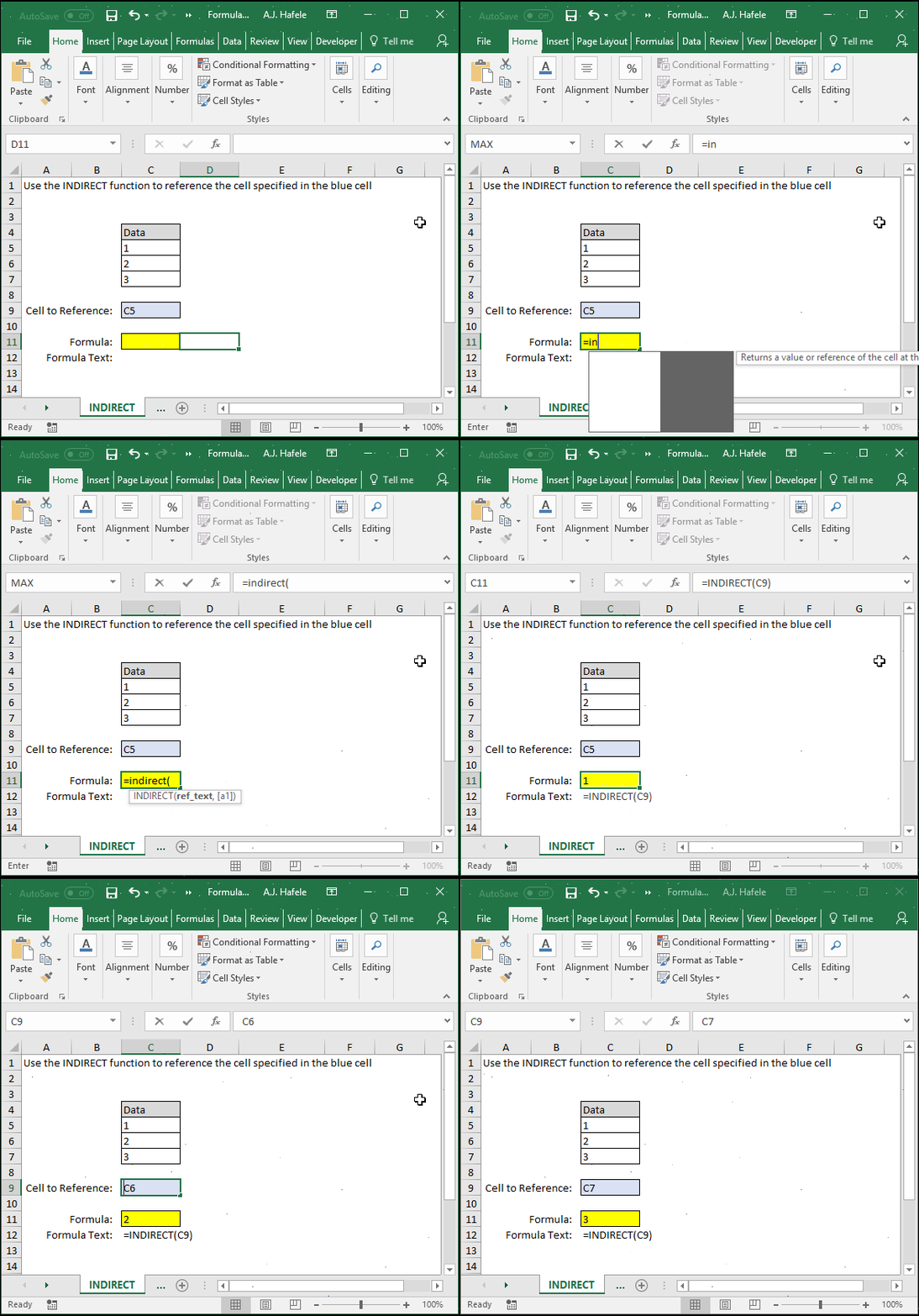
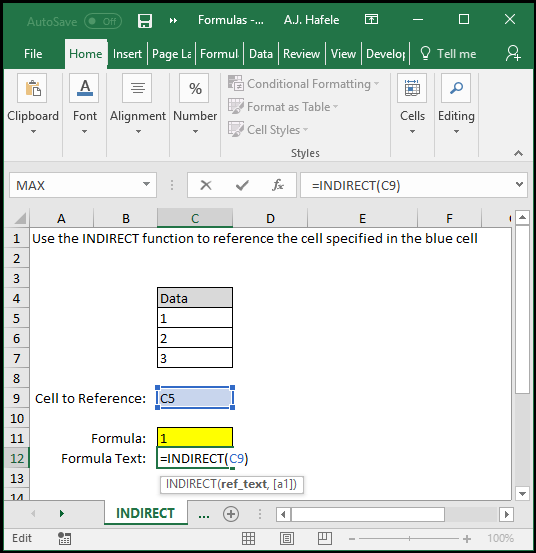
- As you can see, INDIRECT indirectly references the values contained in C5, C6, or C7
- Here is a screenshot, for reference:
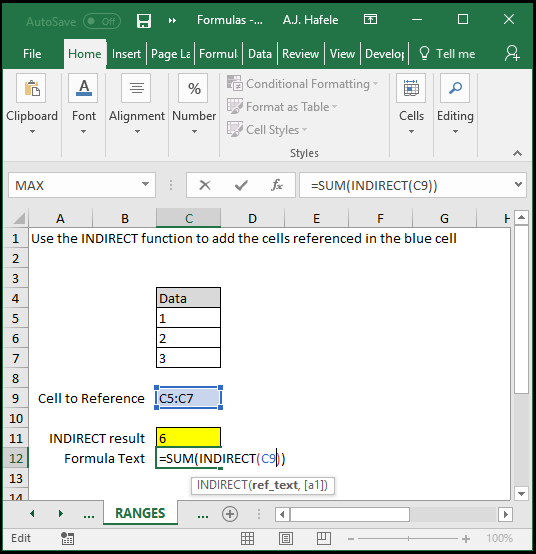
- The next screenshot illustrates how INDIRECT can be used to reference a range (in the SUM function):
-
As demonstrated above, INDIRECT can also reference ranges (C5:C7, in this case)
-
In this case, INDIRECT was nested in the SUM function, which basically means that INDIRECT was within one of the SUM function arguments
-
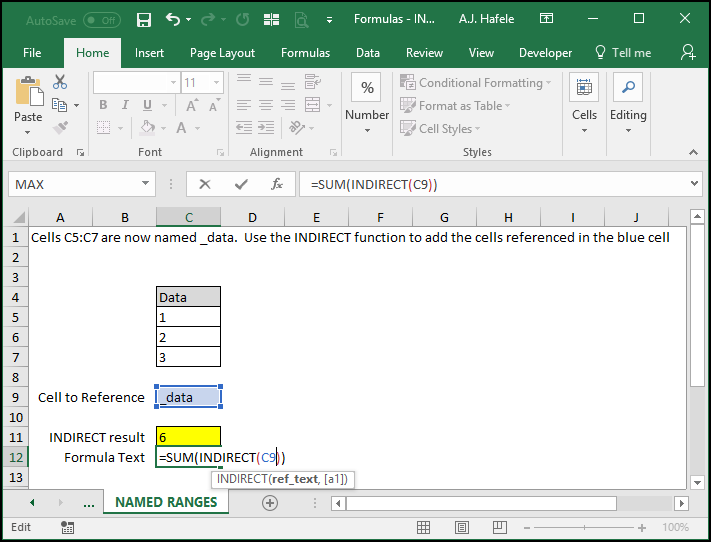
The last example illustrates how INDIRECT can be used to reference a named range:
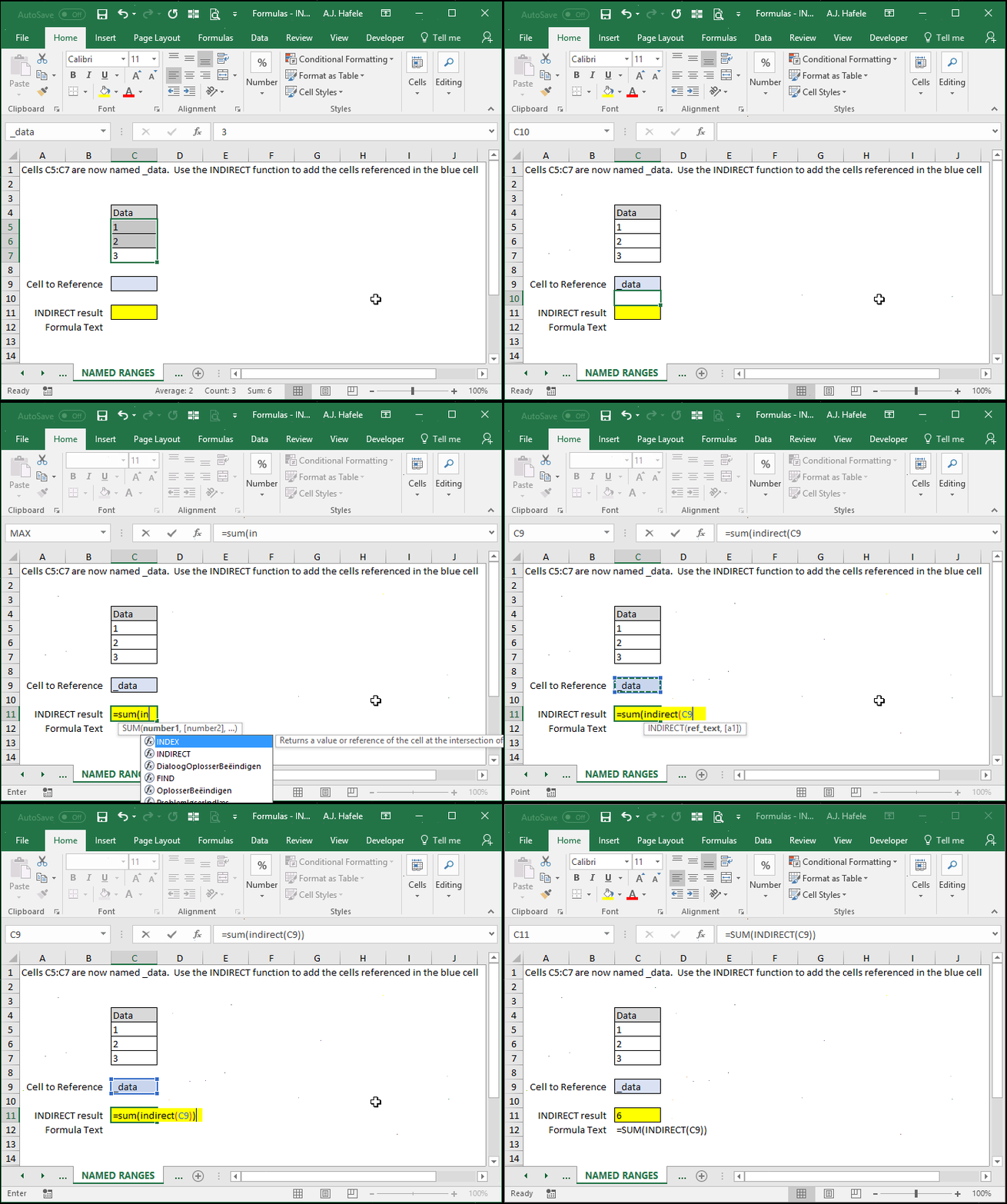
- As demonstrated above, INDIRECT can also reference named ranges (_data, in this case)
- Here is a screenshot, for reference:
Syntax
=INDIRECT(ref_text, A1)
Arguments
- ref_text
- This is the text string which will be converted into a cell or range reference
- As a simplistic example, if
=INDIRECT("A1")is entered, the cell will return whatever is in cell A1 - This argument can be a hard-coded reference, cell reference (to another cell which contains a cell reference or named range), or a reference resulting from a calculation
- A1
- This is essentially the reference style used in the INDIRECT function
- TRUE (or omitted) will utilize the standard style of cell referencing (e.g. A1, A1:Z100, etc.)
- FALSE will utilize the R1C1 style of cell referencing, which is beyond the scope of this course
- As such, do not worry too much about using this argument