Returns the contents of a cell (or range of cells) in a position relative to another cell
Example
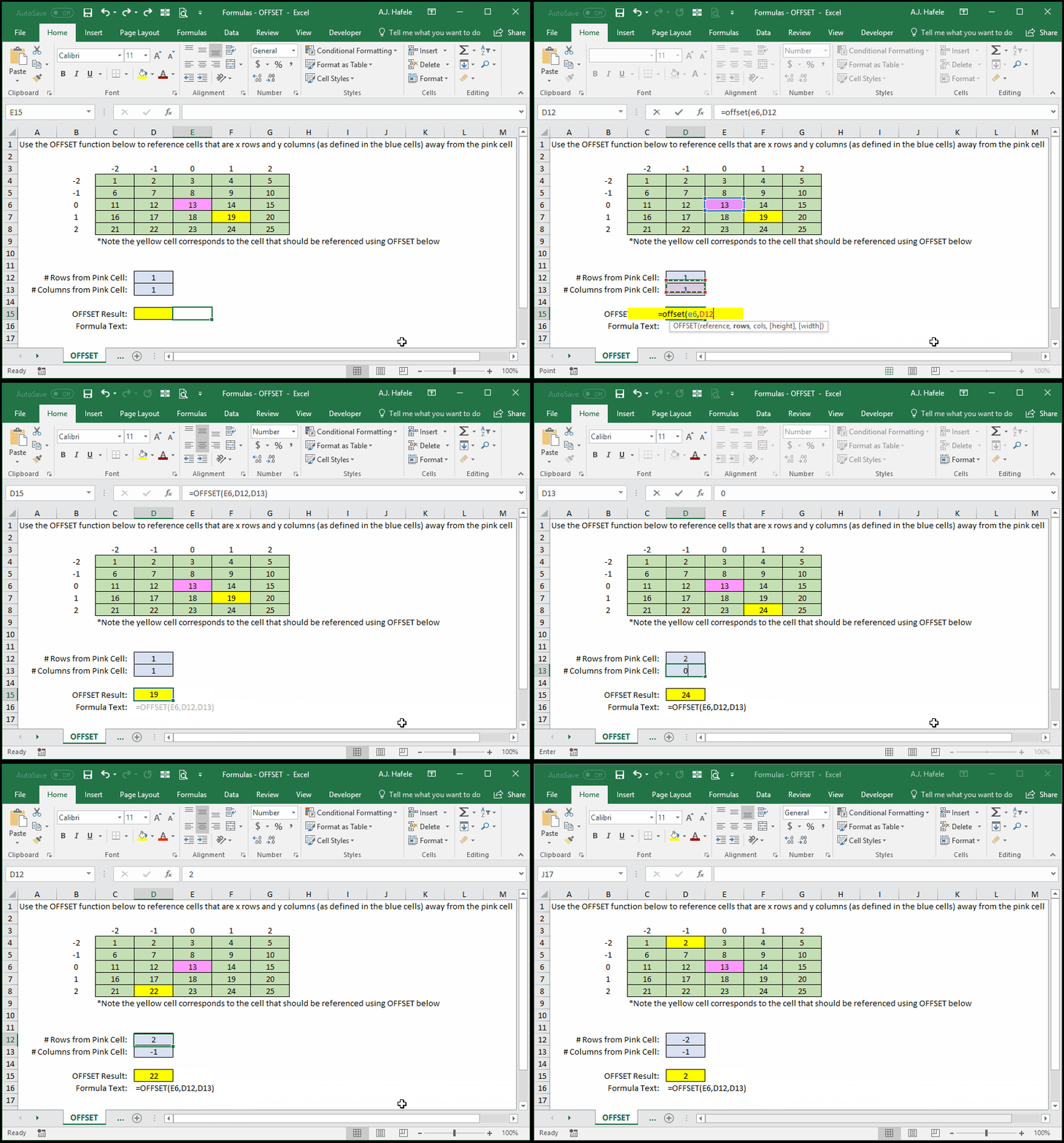
In the following example, we use conditional formatting (for yellow cell highlights within the table of cells) to help you see how the function works:
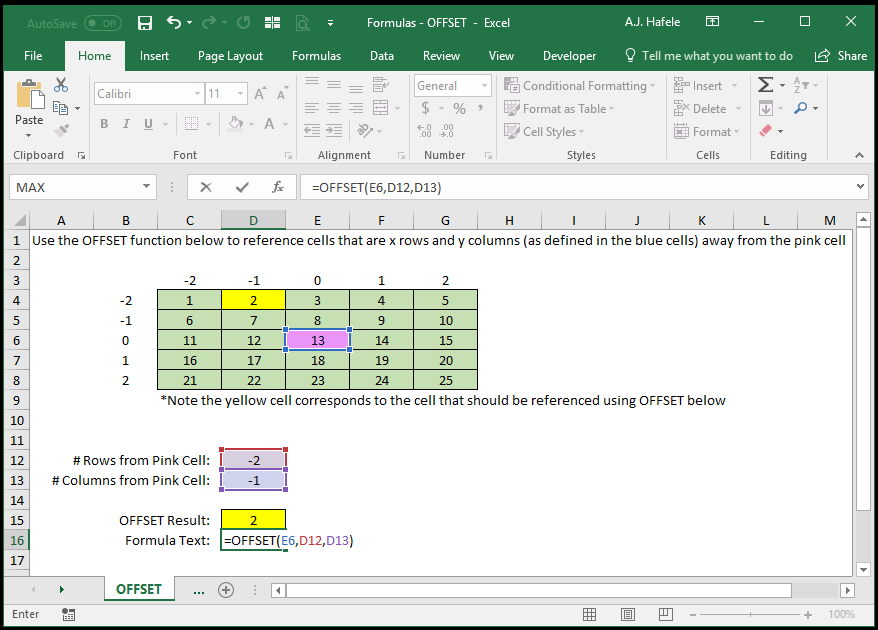
Here is a screenshot, for reference:
Notice that the number of rows and columns specified (in the blue boxes) refers to how many rows and columns away from the pink cell the resulting cell (referenced) will be
Syntax
=OFFSET(reference, rows, cols, height, width)
Arguments
reference
This is the cell or range that serves as the basis, or starting point, of the OFFSET function
Think of this as your starting point in referencing another cell or range of cells
rows
This is the number of rows your target cell or range is away from your reference cell or range
A positive number refers to rows below the reference
A negative number refers to rows above the reference
This can be a hard-coded number, cell reference, or calculation
cols
This is the number of columns your target cell or range is away from your reference cell or range
A positive number refers to columns to the right of the reference
A negative number refers to columns to the left of the reference
This can be a hard-coded number, cell reference, or calculation
height [optional]
This is the number of rows you want the resulting reference to be
This must be a positive number
If omitted, this will default to the same height as the reference range
This can be a hard-coded number, cell reference, or calculation
width [optional]
This is the number of columns you want the resulting reference to be
This must be a positive number
If omitted, this will default to the same width as the reference range
This can be a hard-coded number, cell reference, or calculation
Using OFFSET with Pro Forma Statements
Let's quickly examine a real-life situation in which OFFSET would be useful
When building financial models, it is typical that historic, hard-coded data are next to pro-forma, formulaic data
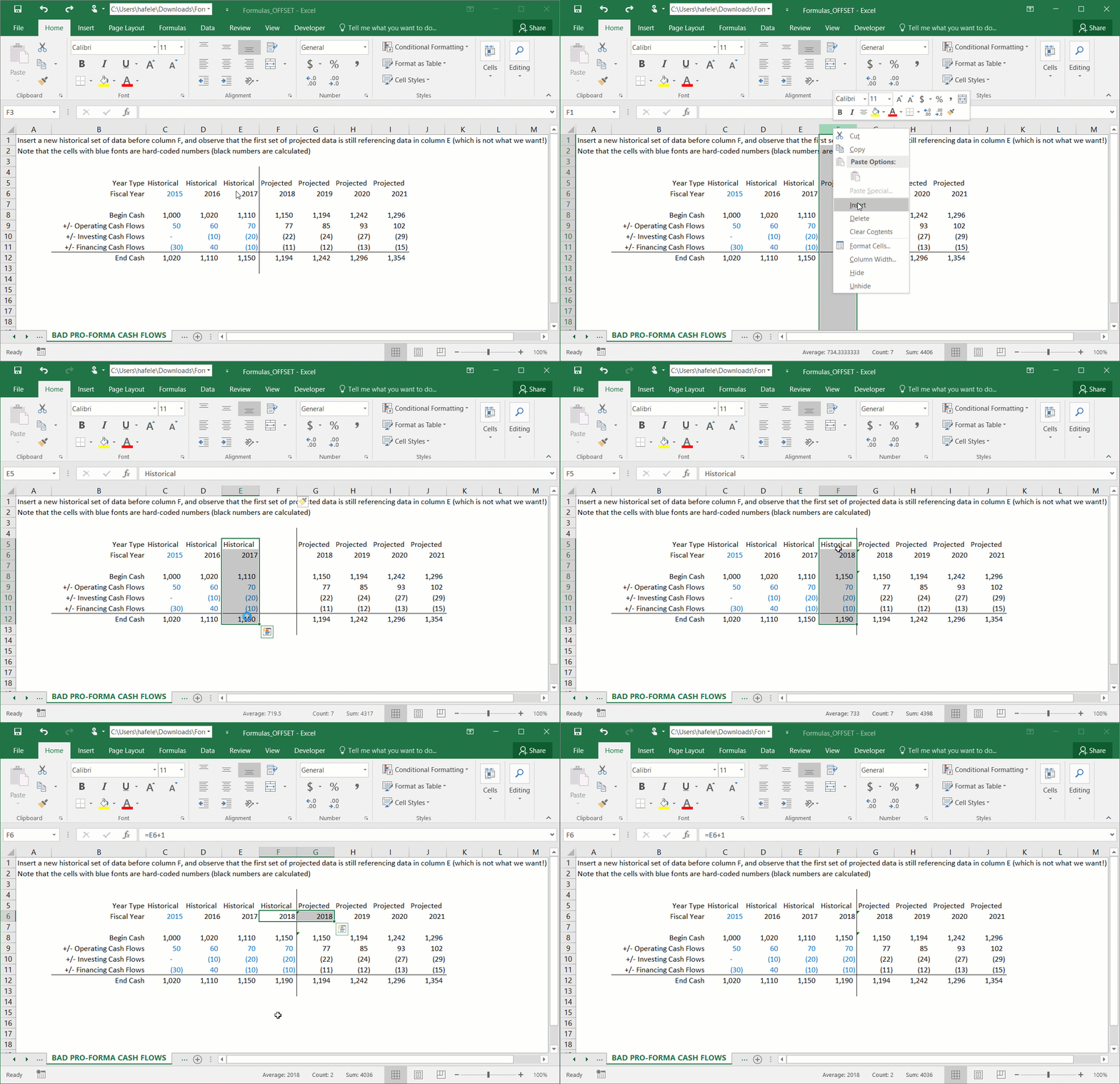
Inserting a new column of historic data can prove to be challenging when using direct cell references, as shown here:
Notice that:
The first projected set of data is still referencing column E!
Column F has essentially been skipped! The first projected year is 2018 again!
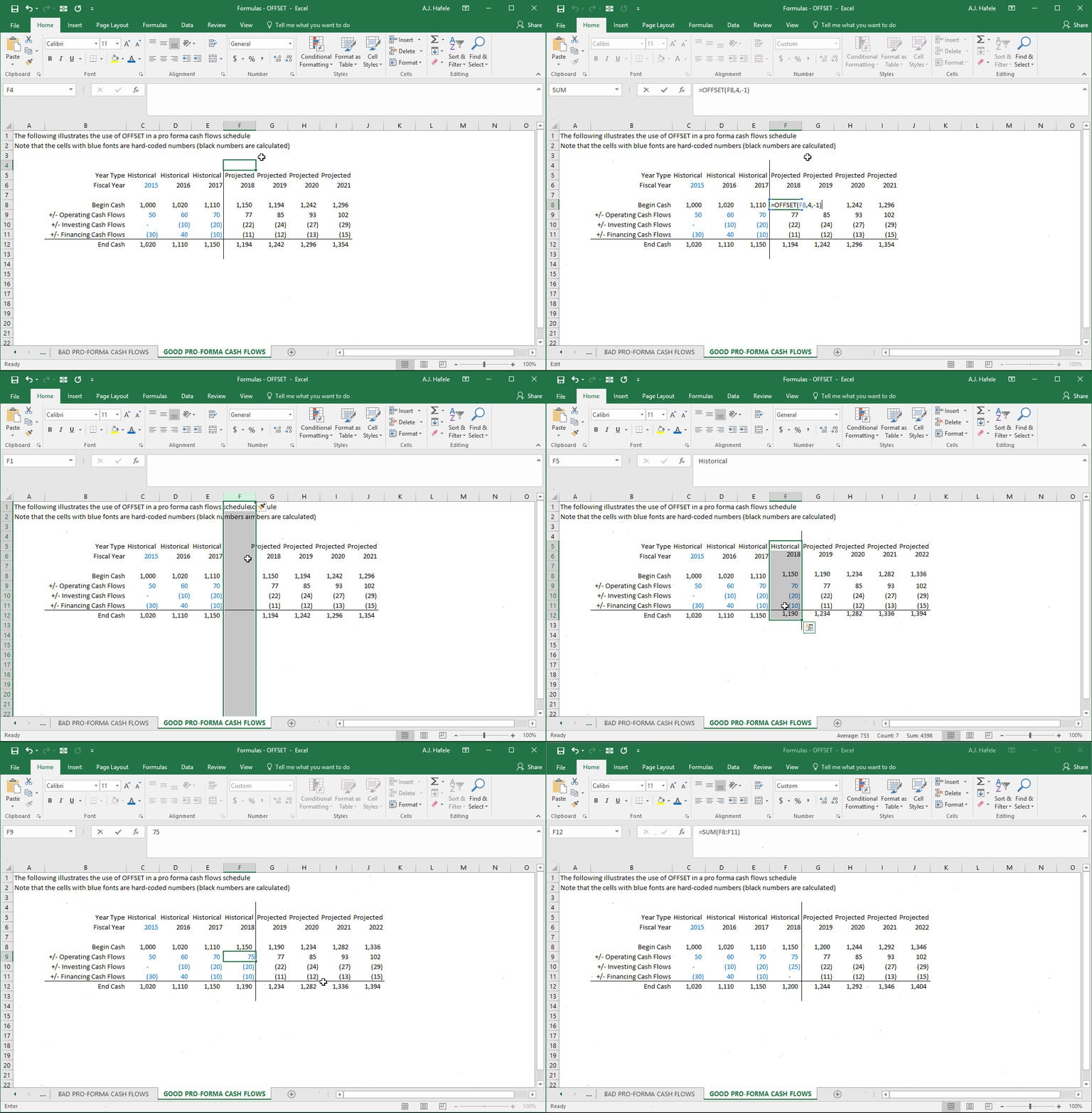
The solution? Use OFFSET (of course!), as shown here: