Joins separate strings and/or ranges of text into a single text string
CONCAT is better than CONCATENATE since you can easily concatenate ranges of text!
Example
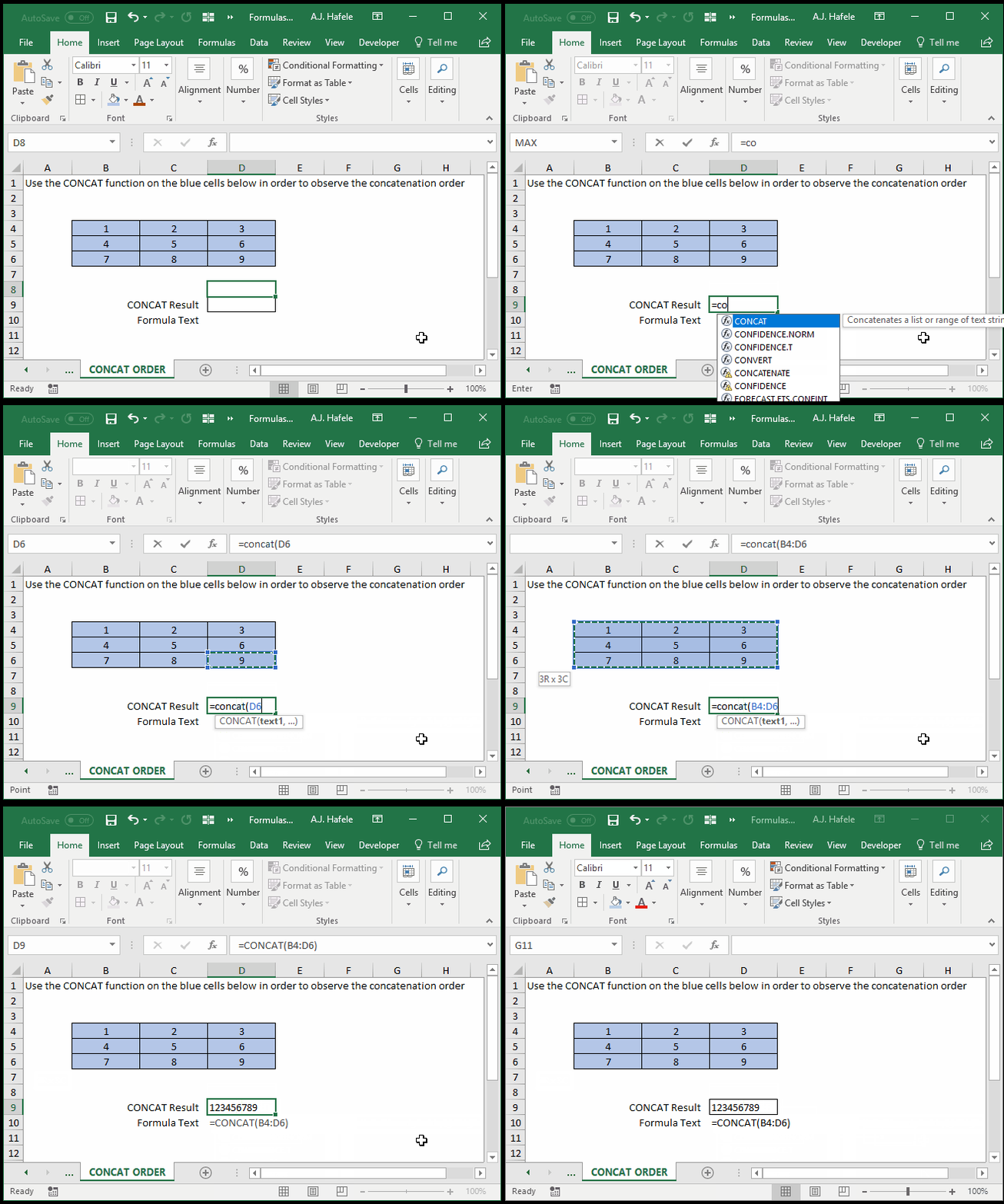
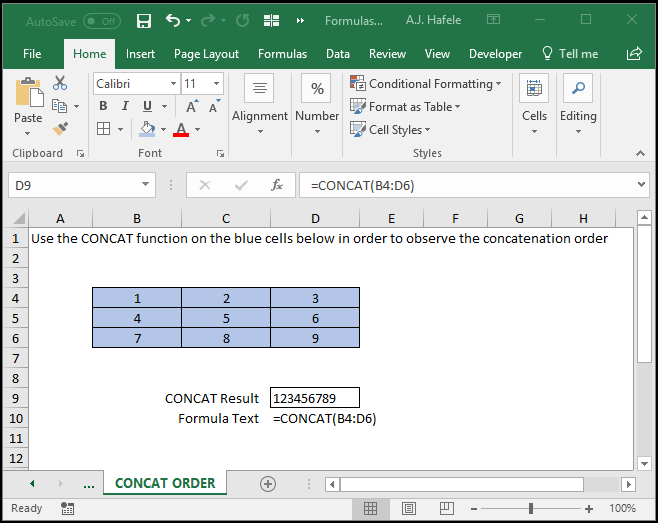
Note the order in which the values are concatenated:
Starting at the top-left of the range
Moving from left-to-right in a row
Moving down to the next row, and moving left-to-right again
Here is a screenshot, for reference:
Syntax
=CONCAT(text1, text2, etc.)
Arguments
text1
This is the first string of text which will be concatenated
This can be hard-coded text, a single or multiple cell range, or text resulting from a calculation
text2 [optional]
This is the second string of text which will be concatenated after text1
This argument has the same properties as the text1 argument
The pattern continues for up to 254 separate text arguments
All future arguments have the same properties as the text1 argument
Tips
If you need to include a delimiter between concatenated text (e.g. dashes between each component making up a full account number), use the TEXTJOIN function instead