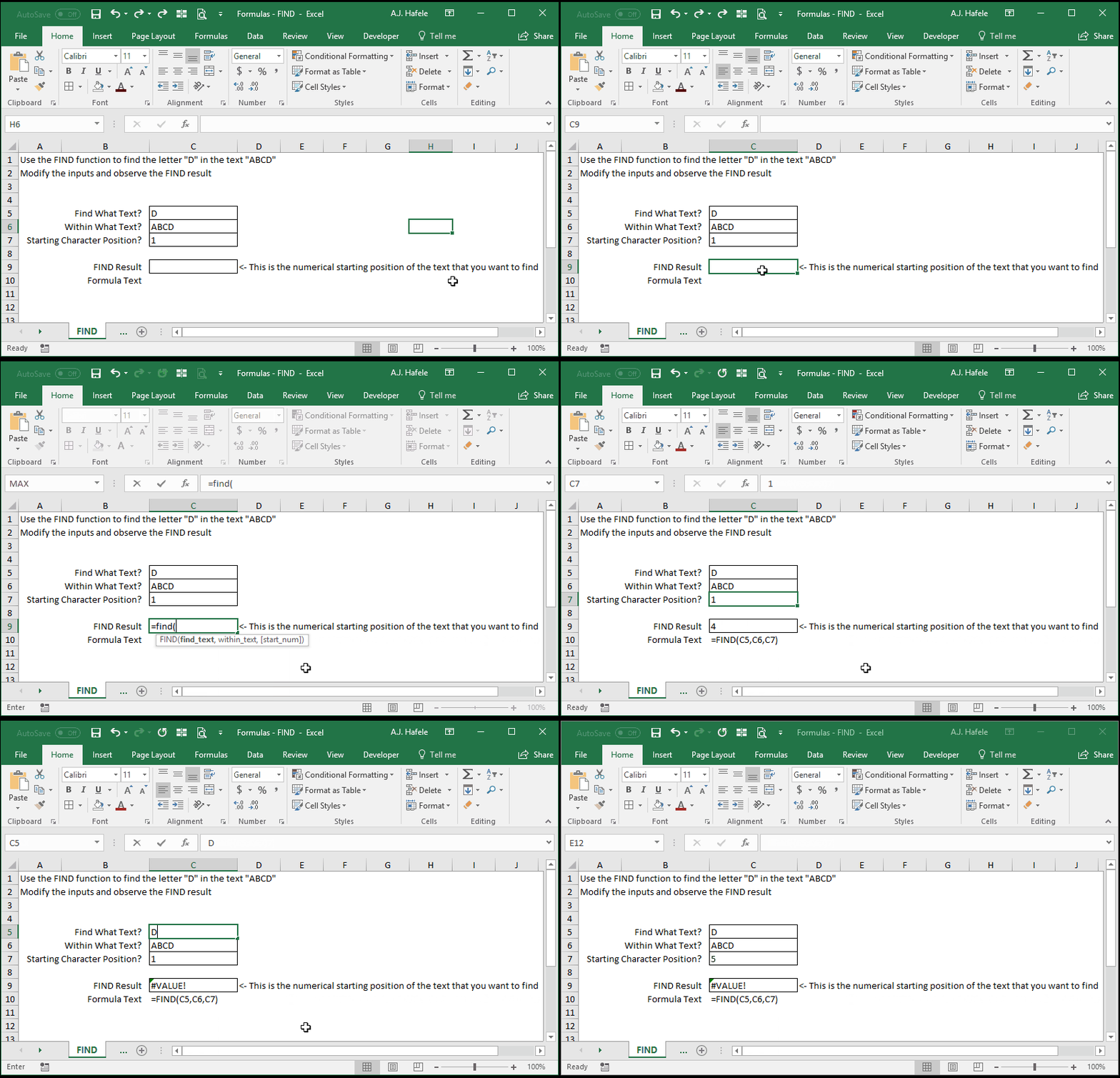
Finds the (numerical) starting position of a case-sensitive text string within another text string
You have the ability to specify where to start searching within the text string in question
Example
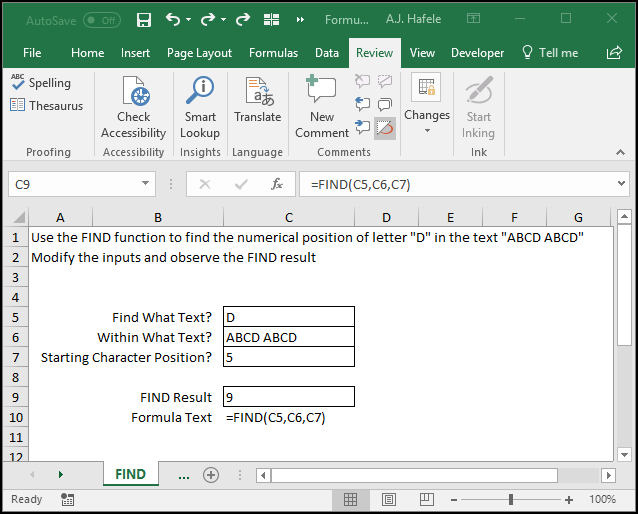
Here is a screenshot, for reference:
Notice the following:
FIND will provide you with the numerical position of the first instance of the text found, given a user-defined starting position
For example, when you want to find "B", starting from position 1, 2 is returned, even though "B" is in both position 2 and position 7
However, when you want to find "B", starting from position 5, 7 would be returned
FIND is case-sensitive!
The function returned an error when searching for "d" within "ABCD ABCD"
If what you are looking for does not exist on or after your starting position, an error is returned
Syntax
=FIND(find_text, within_text, start_num)
Arguments
find_text
This is the case-sensitive text string that you are searching for
This can be hard-coded text, a cell reference, or text resulting from a calculation
If this text is not found in the within_text argument, an error is returned
within_text
This is the text string that may (or may not) contain the text string (find_text) you are looking for
This can be hard-coded text, a cell reference, or text resulting from a calculation
start_num [optional]
You can specify which numerical text position within the within_text argument that you want to start the search
This can be a hard-coded number, cell reference, or calculation
The default is position 1 (the first character)
For example, if you enter 5 in this argument, FIND will scan the within_text argument for the find_text string, starting from position 5 of the within_text argument