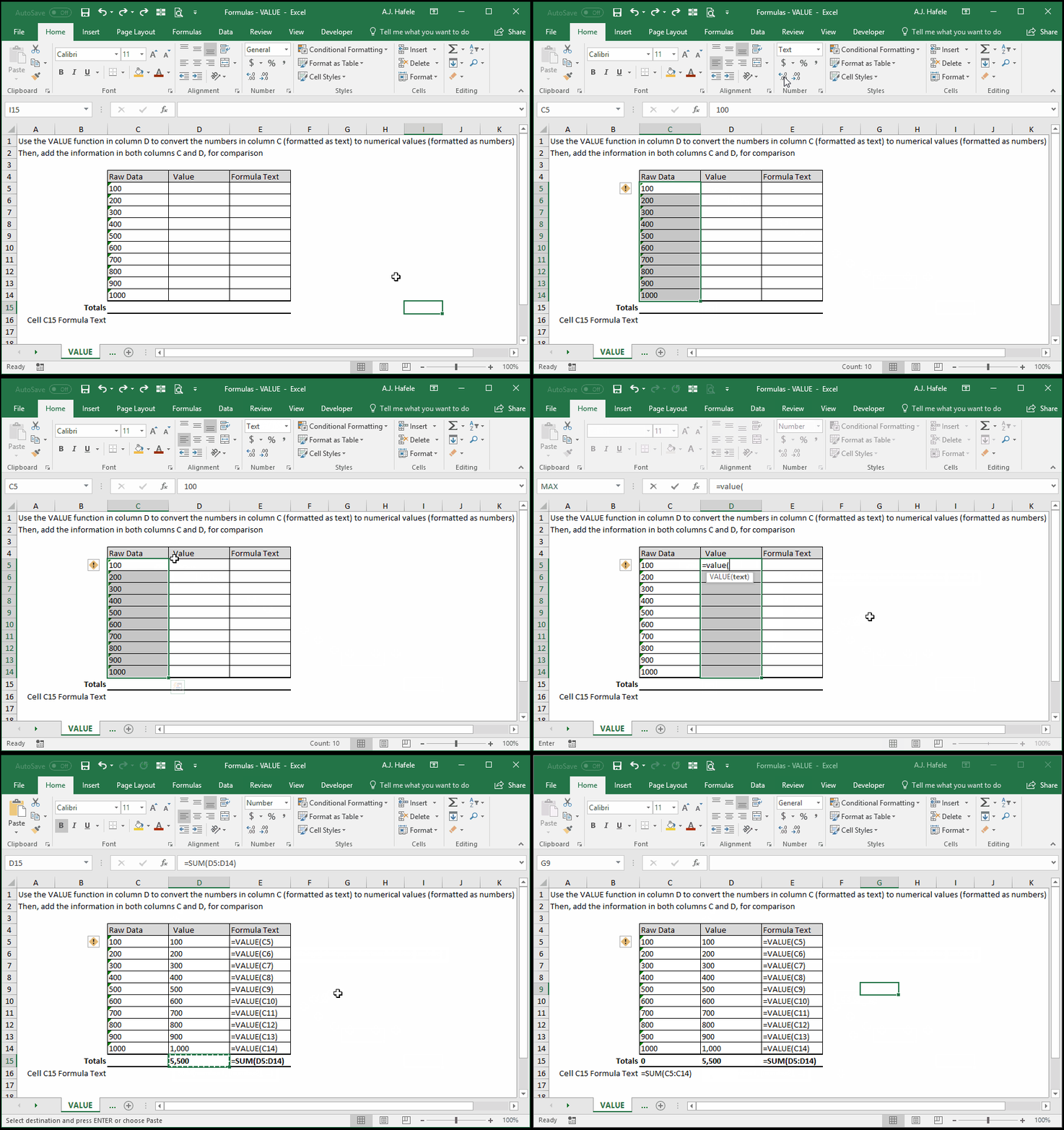
Converts numerical data formatted as text (e.g. 00123, which behaves exactly like non-numeric text) into numerical values (e.g. 123) which can be used in numerical calculations
Example
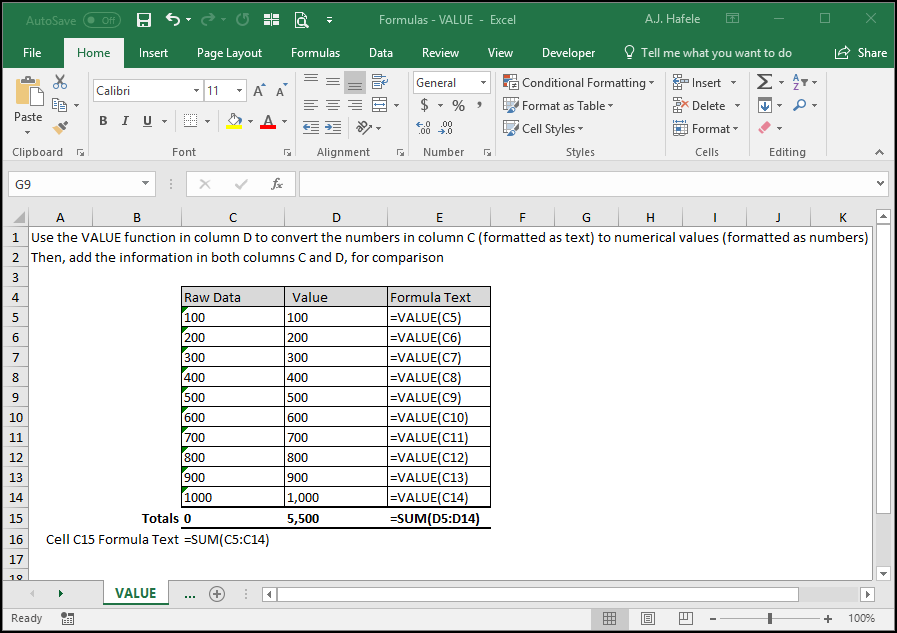
Here is a screenshot, for reference:
Notice that:
We cannot use SUM to add the data in column C, since it is formatted as Text (that is why the SUM result in cell C15 is 0)
We can use SUM to add the data in column D, since we used VALUE to coerce the numbers in column C to numerical values (the SUM result in D15 is 5,500)
If you ever see green flags at the top-left corner of numbers, it could be that the numbers are being read as text, as in the above example (in column C)
This illustration highlights the importance of knowing how your numbers are formatted
If you need to use numbers in calculations, be sure they are formatted as numbers, or use VALUE to coerce them to numbers
Syntax
=VALUE(text)
Arguments
text
This is the text that will be converted into (and thus read as) a number
This can be hard-coded text, a cell reference, or text resulting from a calculation
If the text cannot be converted into a number (for example, if the text says "hello"), then a #VALUE! error occurs
If the text can be converted into a number, then it can now be used in numerical calculations
Tips
In practice, numbers are usually formatted as text when they are extracted from external data sources, so the VALUE function is typically used to convert that raw data into Excel-useful data
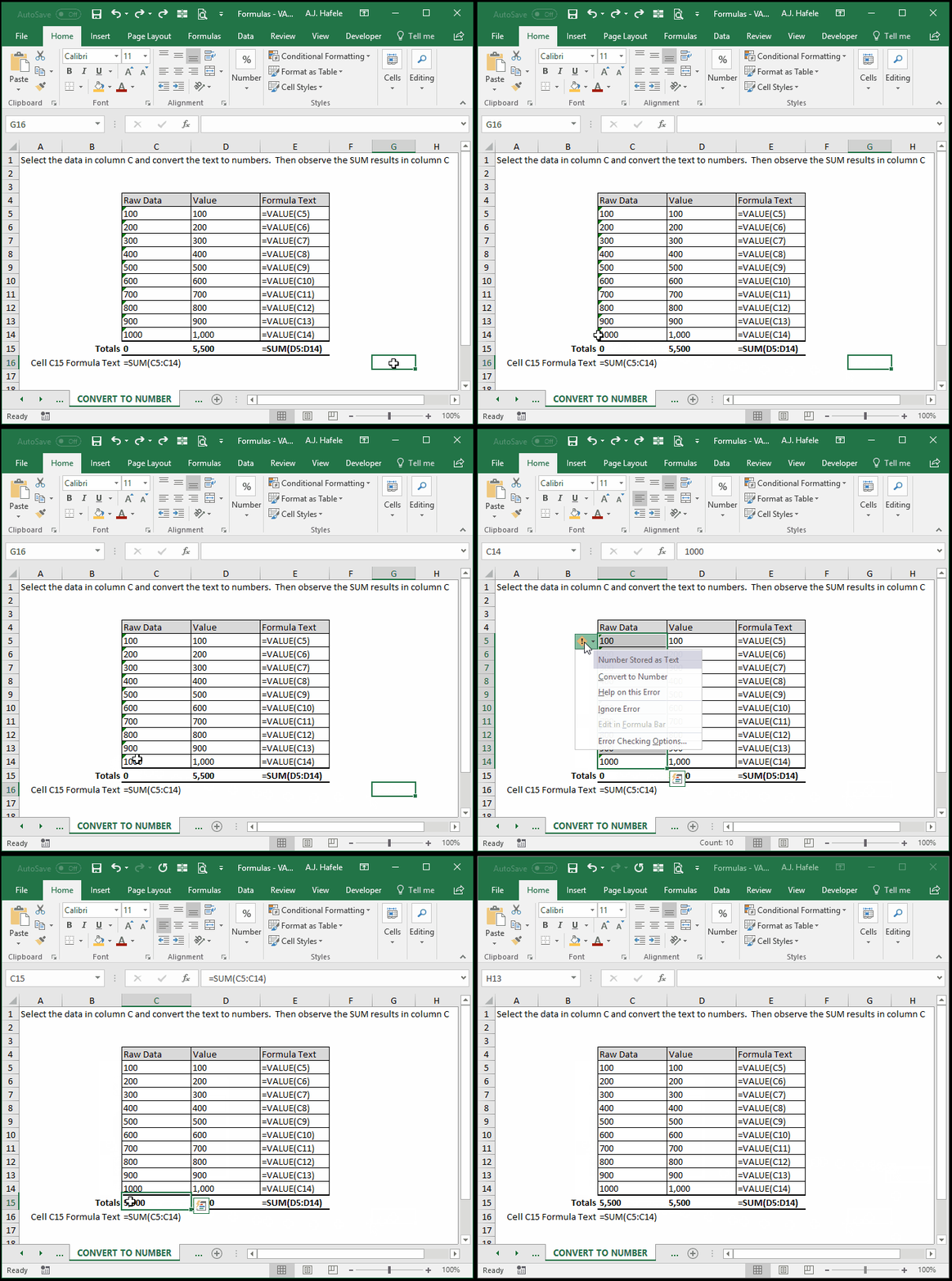
An alternative to using the VALUE function is to simply convert the formatting of the text cells to numbers, as shown here:
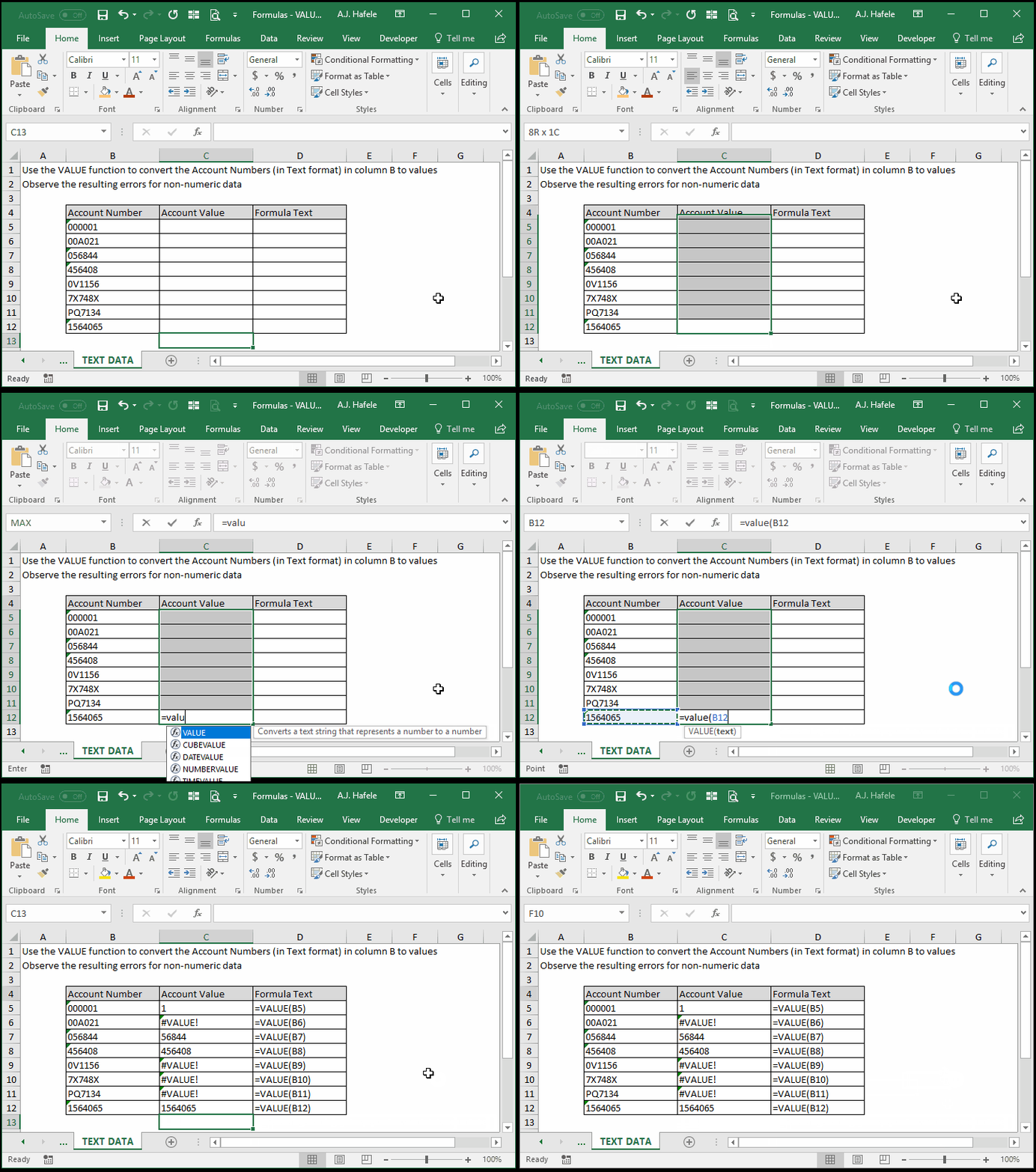
Note that the VALUE function will not convert non-numeric text (e.g. "hello", or "123ABC") to a value - an error will be returned instead, as shown here:
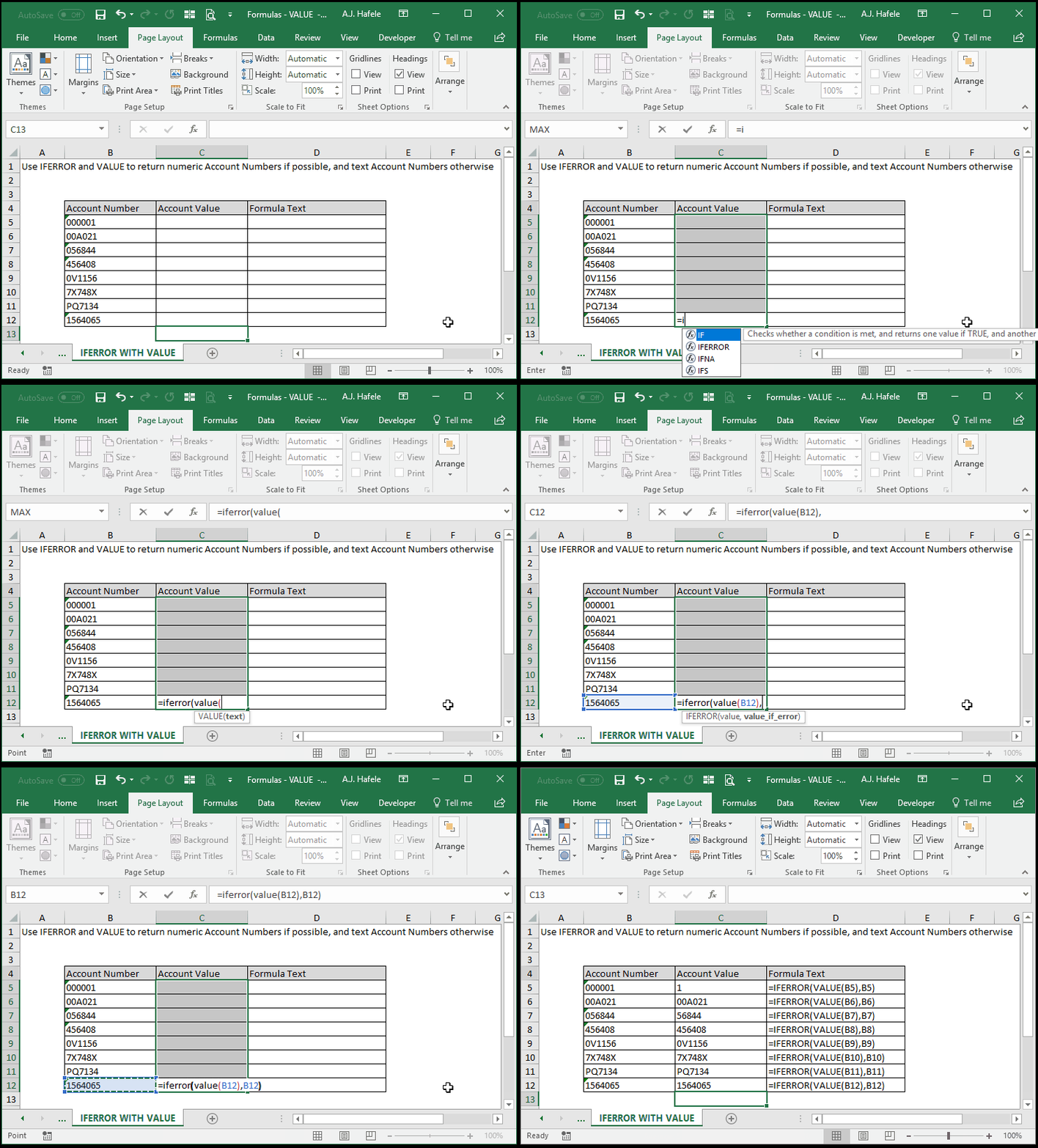
An easy alternative (to avoid these errors) is to nest your VALUE function in the IFERROR function, as shown here: