
Fonts
Overview
- By default, Excel uses a pretty standard font and font size (e.g. Calibri, size 11), but the font characteristics can be easily changed if desired
- In this lecture, we will review how to modify fonts, including the default font used when a new workbook is created
Buttons
- The relevant buttons can be found in the Font group of the Home tab:
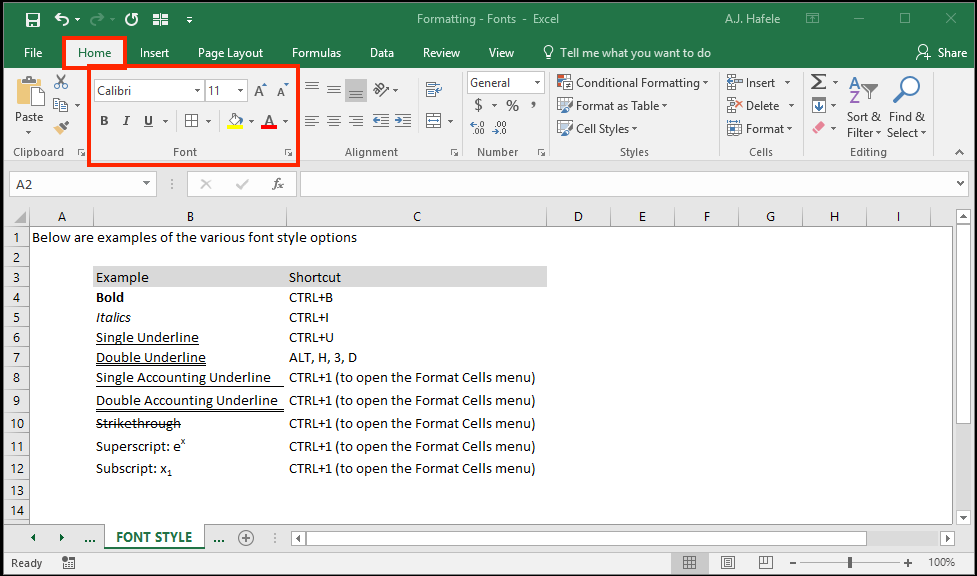
- We will go through the various Ribbon options in detail below
- Additionally, pressing the Font Settings button in the Ribbon (or pressing CTRL+1) will bring up the Format Cells menu, which contains more relevant font-related buttons
- Let's briefly open up that menu to take a peek:
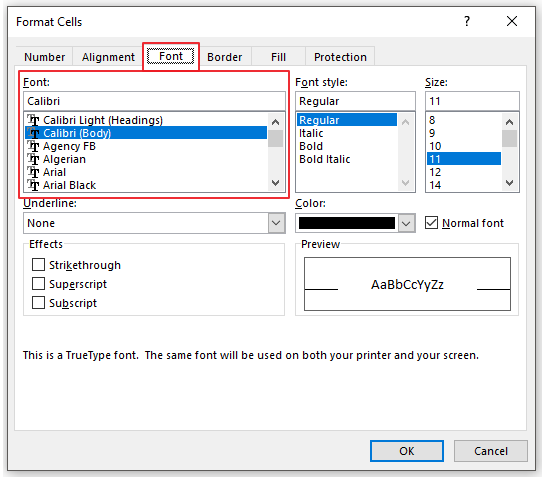
- As you can see, many of the options in this menu are also in the Ribbon, but the Ribbon is much more convenient to use
Font Type
- The "font type" refers to the font used in a set of cells (e.g. Times New Roman)
- The font type options can be found on the Ribbon here:
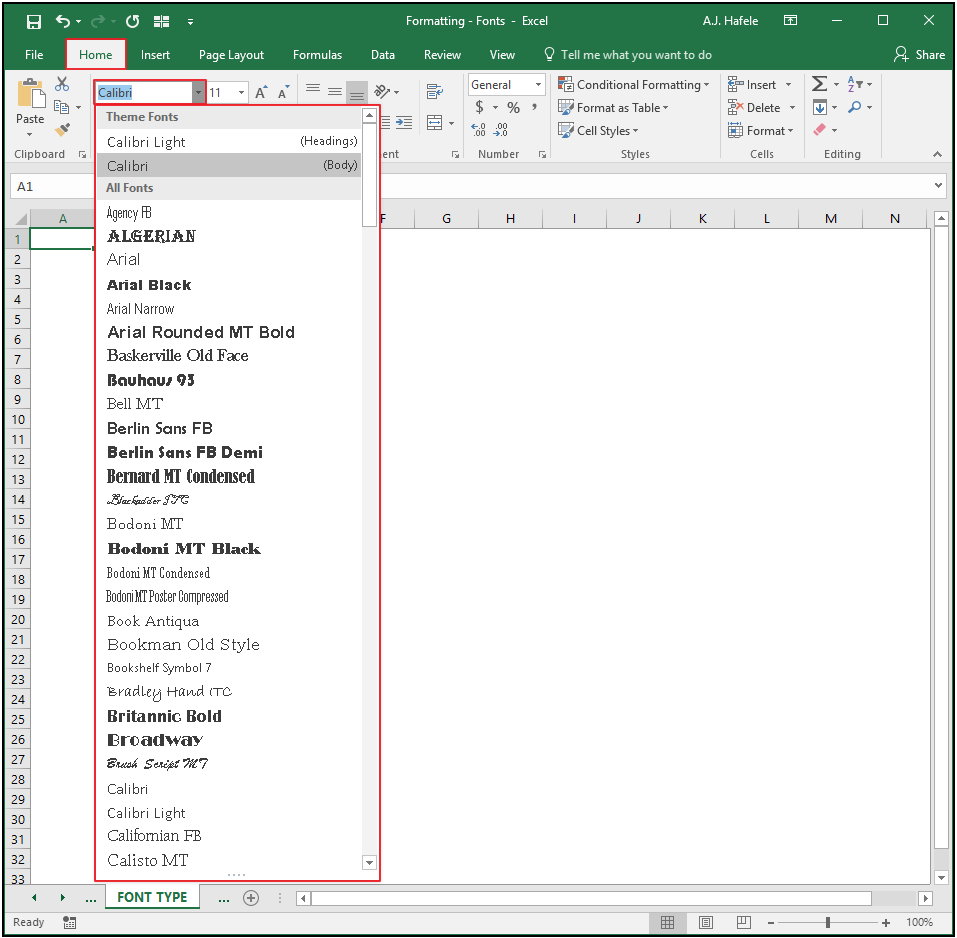
- In the above example, cell A1's current font type is Calibri, as indicated by "Calibri" appearing in the font type box in the Ribbon (boxed in red at the very top of the screenshot)
- To change the font type for a range of cells, first select those cells, and then make one of the above font type selections
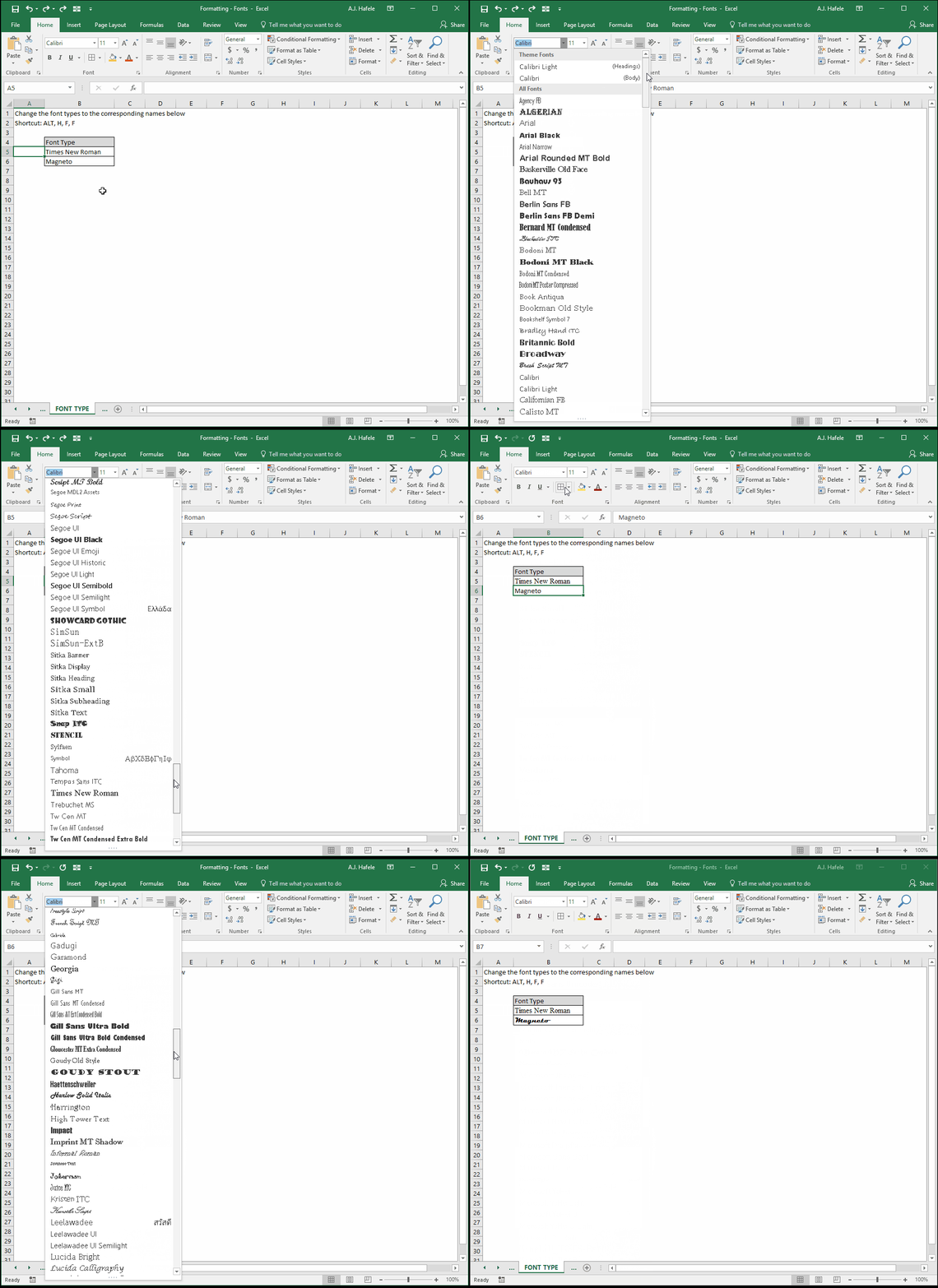
- If you know the name of the font type, simply select the font type box in the Ribbon, type the name of the font type, and press ENTER (use ALT, H, F, F to go straight to the font type box), as shown here:
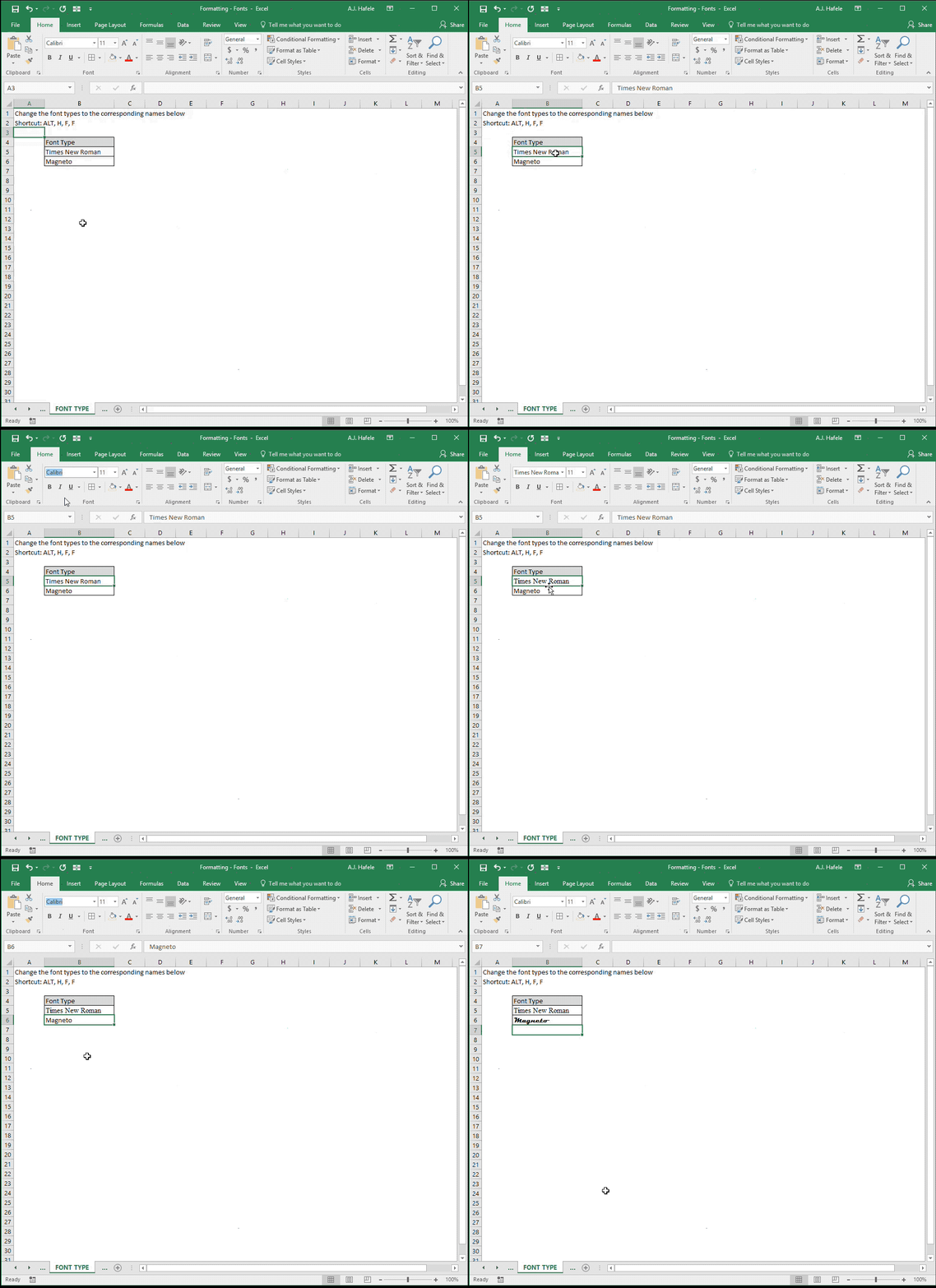
- You can also use the drop-down box, as shown here:
- Last, though not as convenient, the font type can also be changed via the Format Cells menu (CTRL+1), here:
- Observe as we use this menu to change the font type (via CTRL+1):
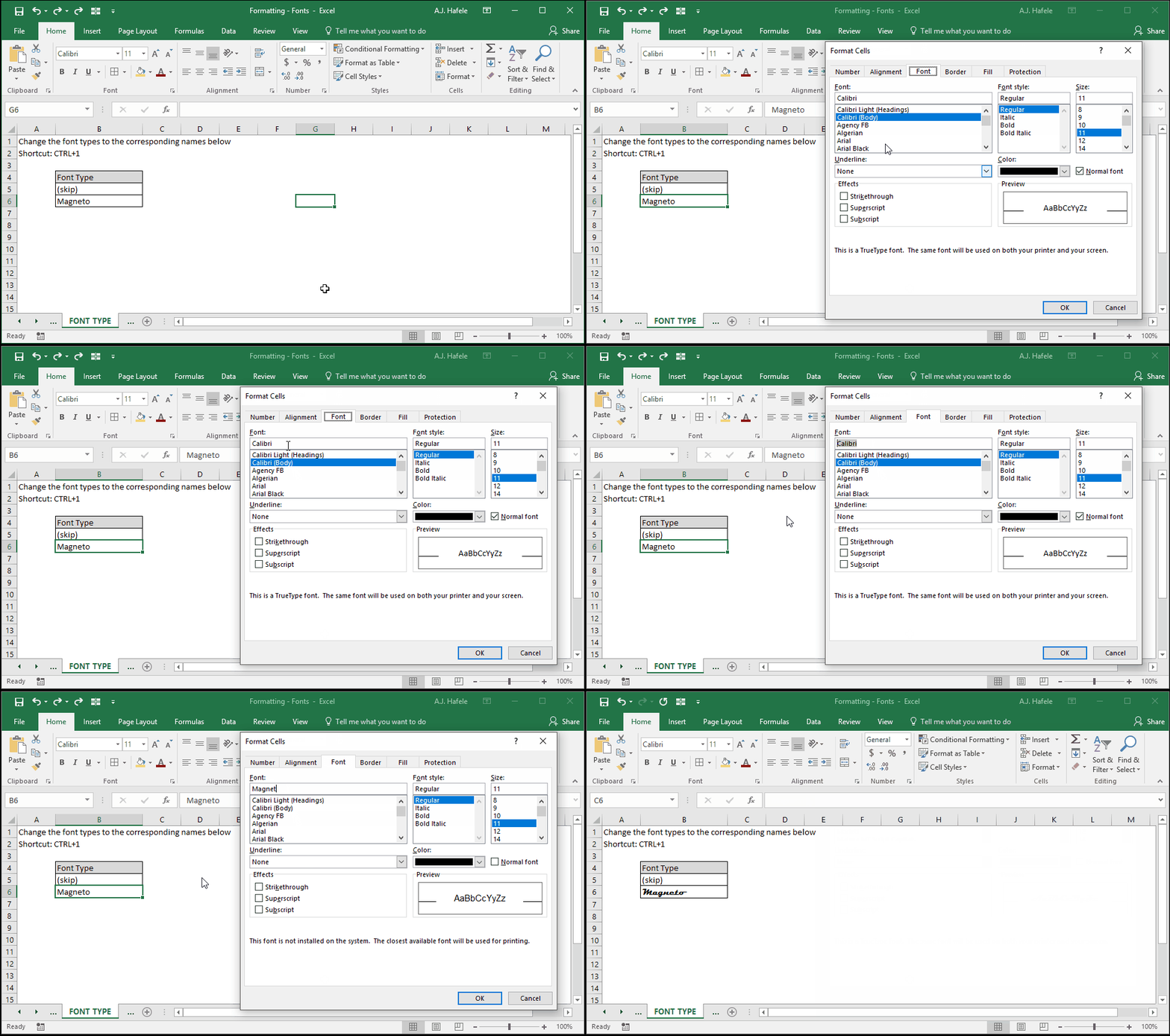
- Using the Format Cells menu is pretty straightforward but is less efficient, so we will stick with using the Ribbon in future illustrations
- We just want you to be aware that this menu exists and does essentially the same thing as the Ribbon buttons
- Last, though not shown above, font changes can be made to any range of selected cells (contiguous or non-contiguous)
- This is true for all options described in this lecture
Font Size
- "Font size" refers to the size of the text
- Observe as we change the font size 1) to a specific size (number) (ALT, H, F, S), and 2) incrementally (ALT, H, F, G, and ALT, H, F, K):
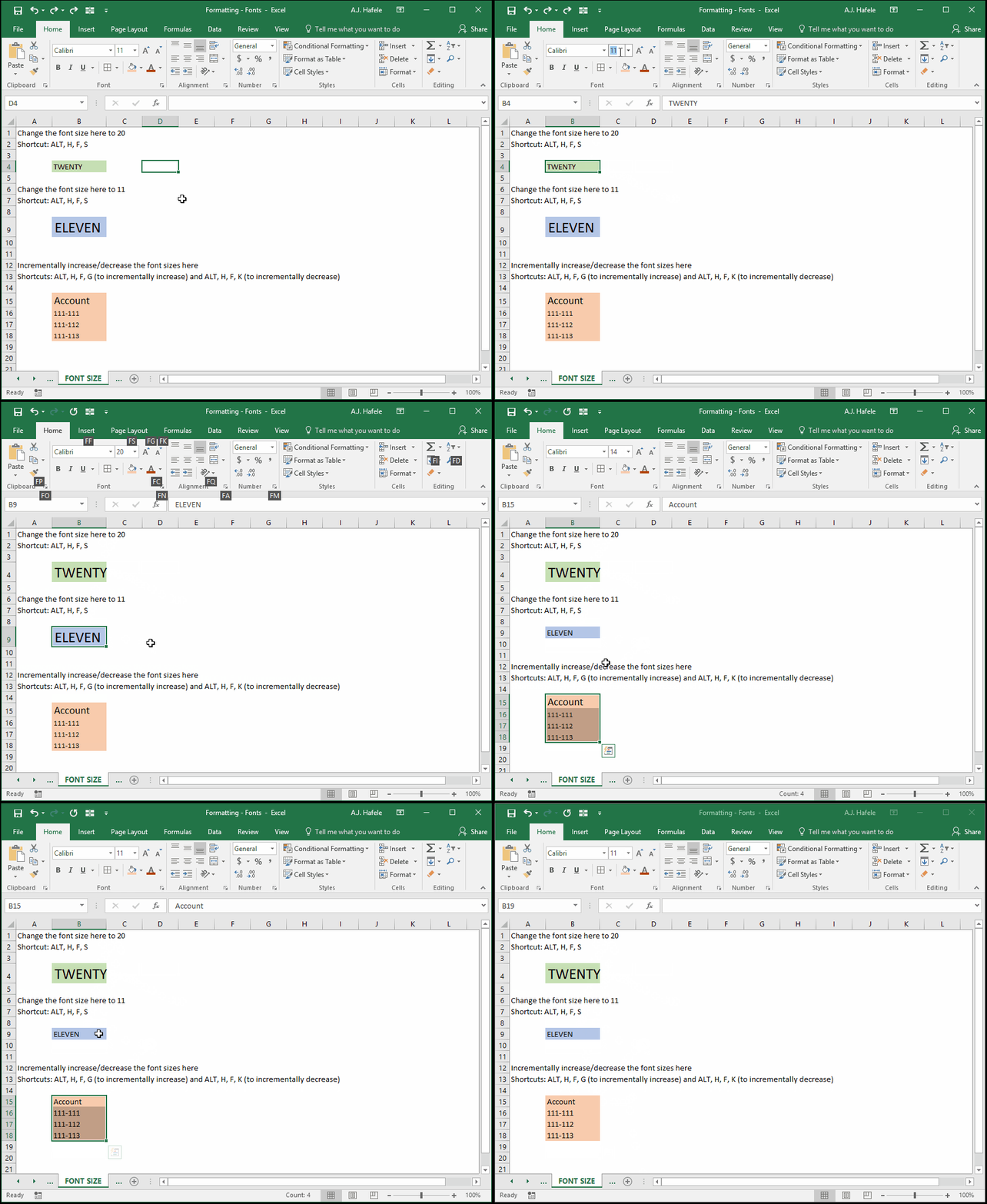
- Notice that when incrementally increasing/decreasing the size, all of the font sizes of the selected cells equalize (ending at a font size of 11)
- Font size can also be changed via the Format Cells menu (CTRL+1)
Font Color
- "Font color" refers to the color of text contained within cells
- Observe as we change a few font colors in the following example (ALT, H, F, C, ARROW, ENTER):
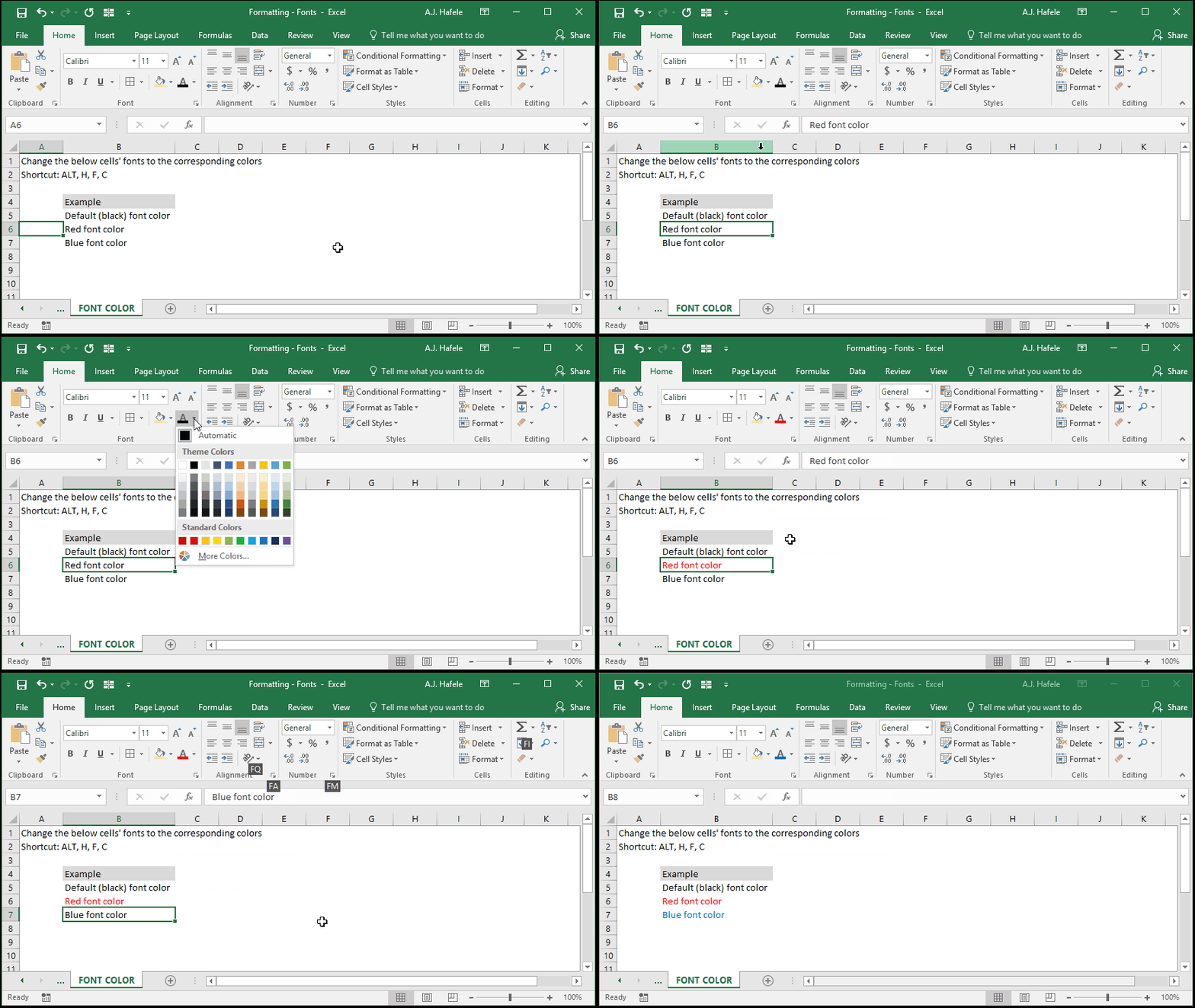
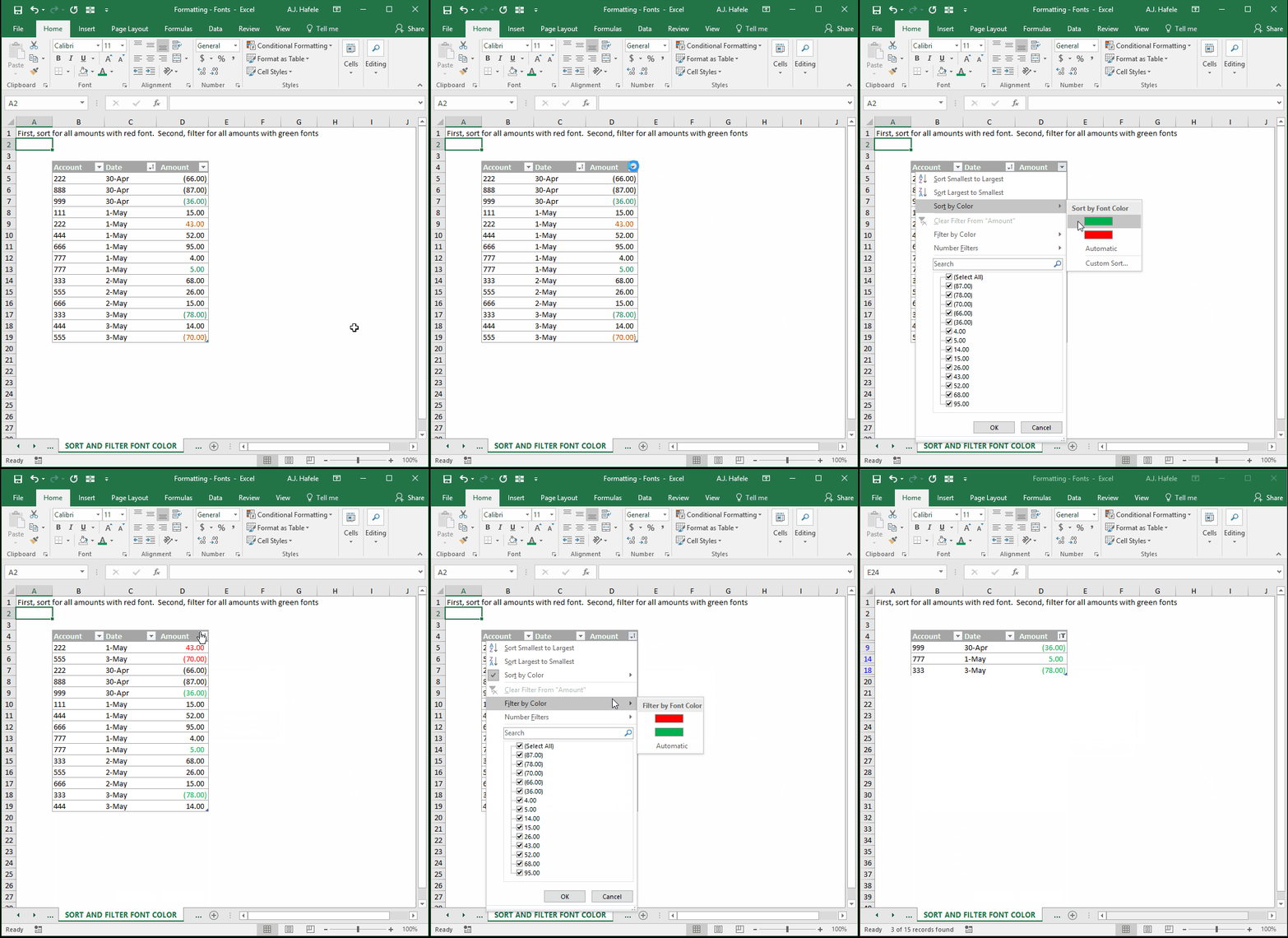
- Note that you can sort and filter cells with different font colors, as shown here:
- Font colors can also be changed via the Format Cells menu (CTRL+1)
Font Style And Effects
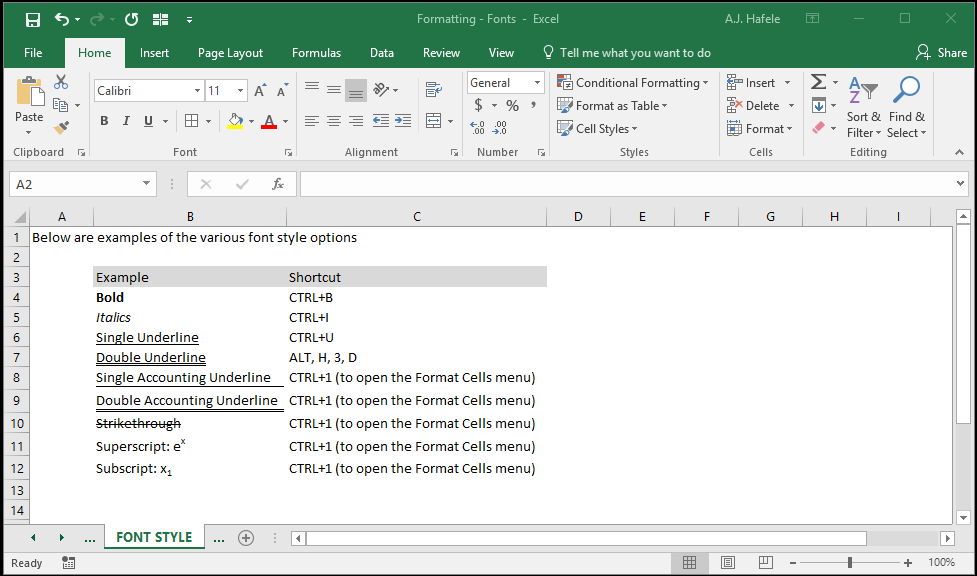
- "Font style and effects" refers - generically - to bolding (CTRL+B), italicizing (CTRL+I), and/or underlining text (CTRL+U), as well as making other related modifications to text
-
These styles can be added via the Ribbon (on the Home tab) or Format Cells menu (CTRL+1)
Changing Font Characteristics Within Single Cells
- In addition to being able to apply font changes to entire cells, you can change font characteristics to specific text within cells
- Observe as we change the font color in a portion of a cell's text:
Change Default Font Type and Size
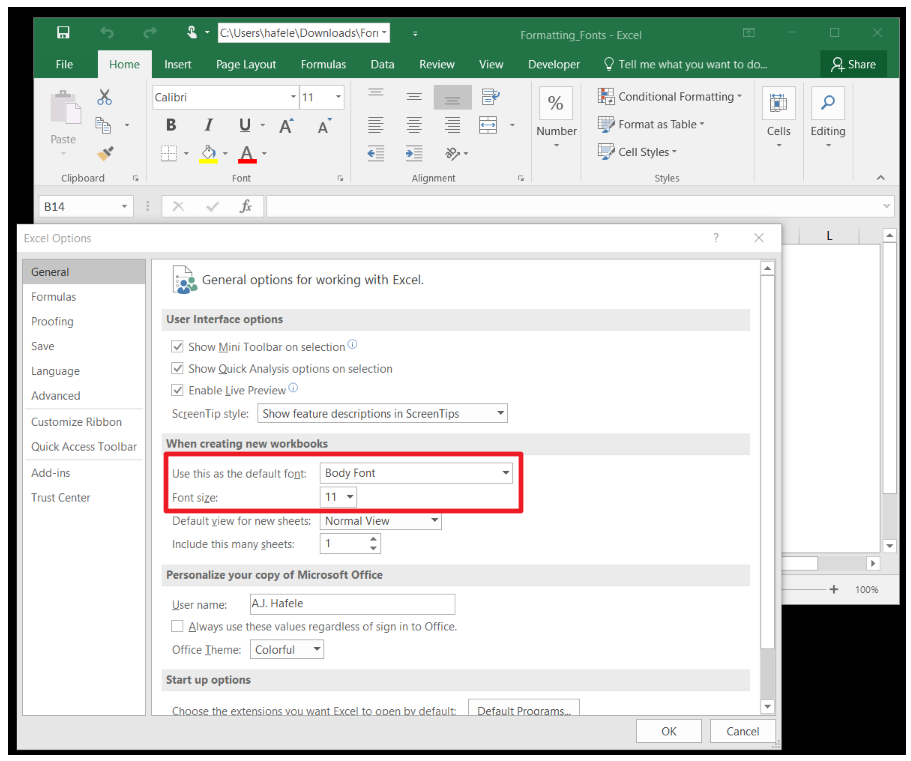
- Note that you have the option to change the default font type and size (i.e. the font used when you open a new workbook)
- These changes are made in Excel Options (ALT, F, T, in the General section), as shown in this screenshot:
Tips
- Where possible, do not bother with modifying fonts!
- Modifying fonts can make files more cumbersome to manage and keep consistent
- Use the defaults to save time, and to focus on more important issues
- Font changes are typically only necessary for presentation or reporting purposes
- e.g. creating financial statements that require Times New Roman font
- e.g. using underlines or bolding for summary information
- For those who may have difficulty reading, font sizes do not necessarily have to be increased
- Instead, try zooming in on the worksheet/s (discussed later, here)