This lecture is dedicated to showing you how to change cell highlights
The term "cell highlights" (also referred to as "fill colors", or "background colors") simply refers to the colors of cells
The default color is clear (which appears white but technically is the absence of any coloring)
Highlights can be used to (literally) highlight items of importance or to color-code data
Buttons
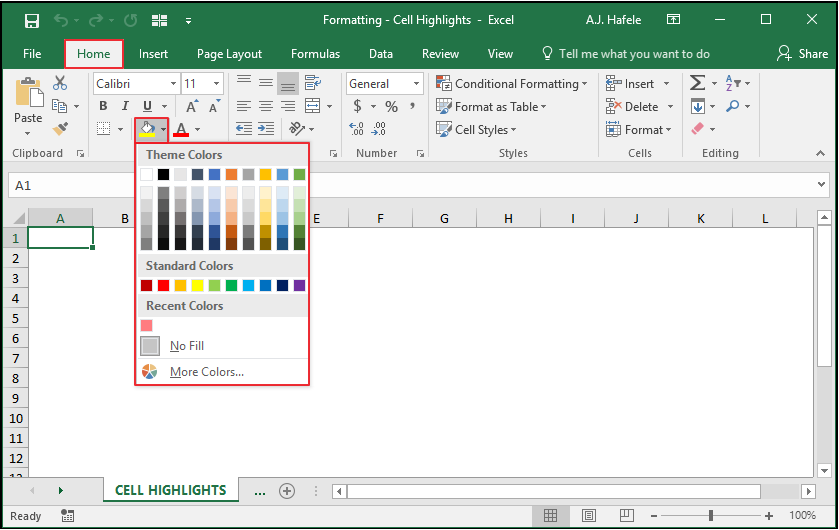
The relevant buttons can be found in the Font group of the Home tab:
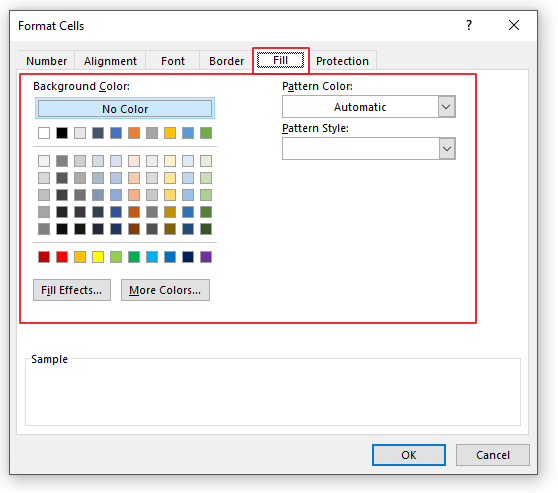
Cell highlights (with additional pattern/color options) can also be found in the Format Cells menu (CTRL+1):
Highlighting Cells
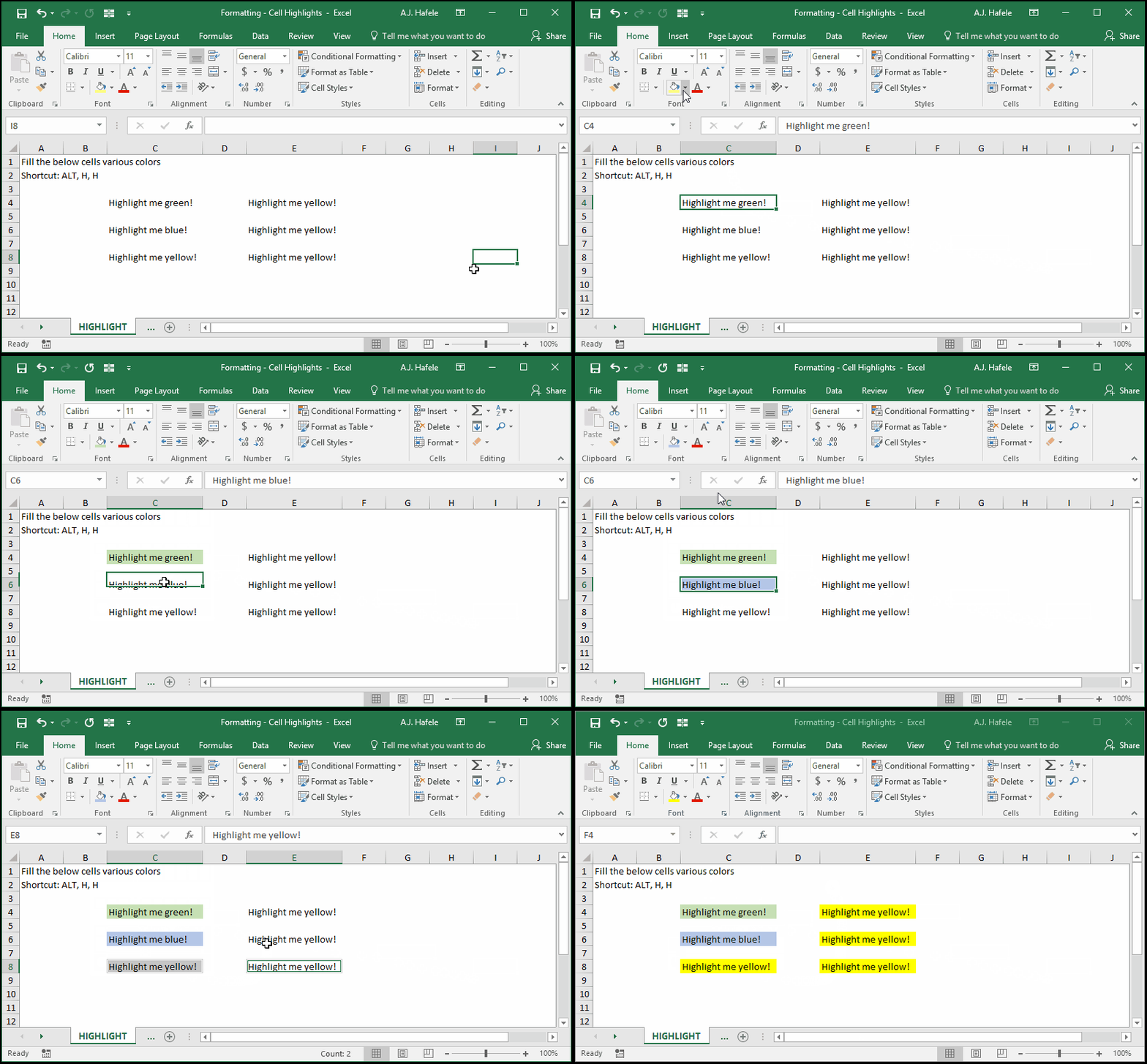
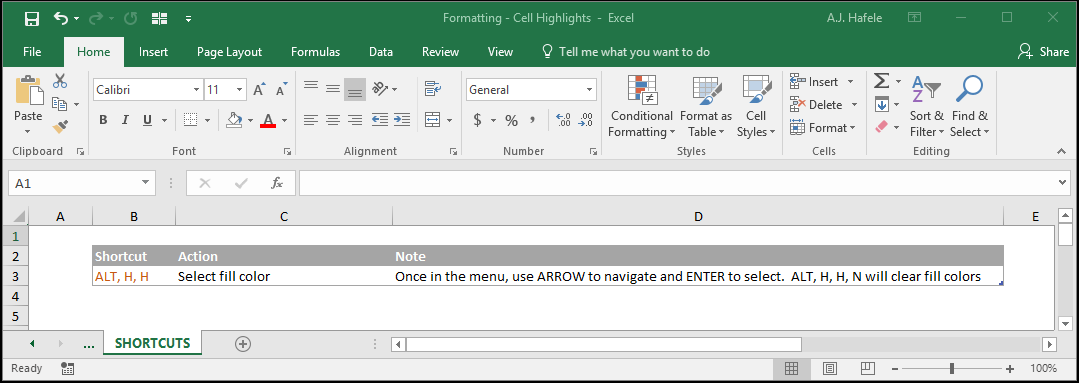
Observe as we highlight a few cells (ALT, H, H, ARROW, ENTER):
As shown above, highlights are applied to all selected cells (and the selected cells can be in non-contiguous ranges)
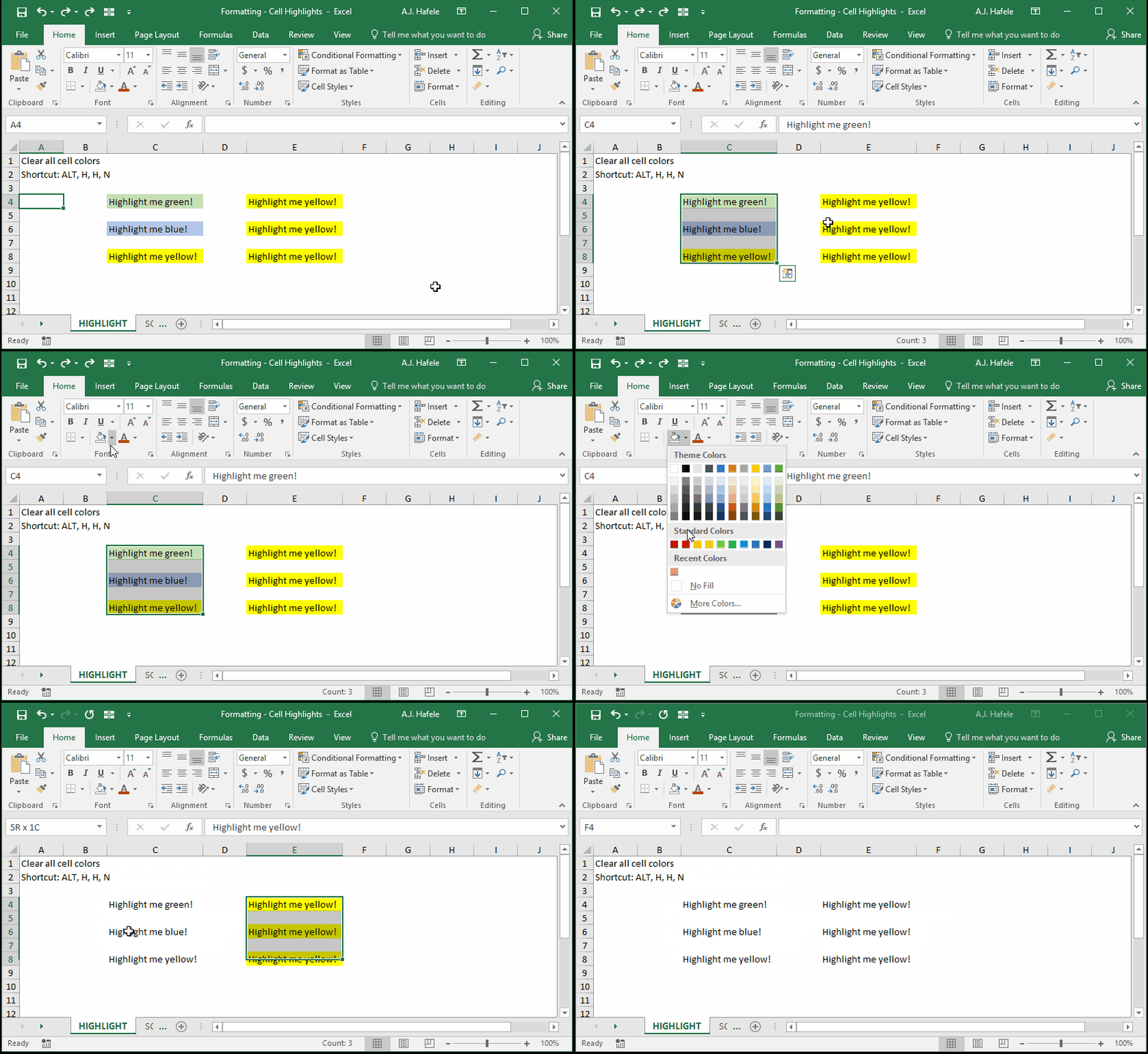
Now, observe as we clear all fill colors (ALT, H, H, N):
Sorting and Filtering Highlighted Cells
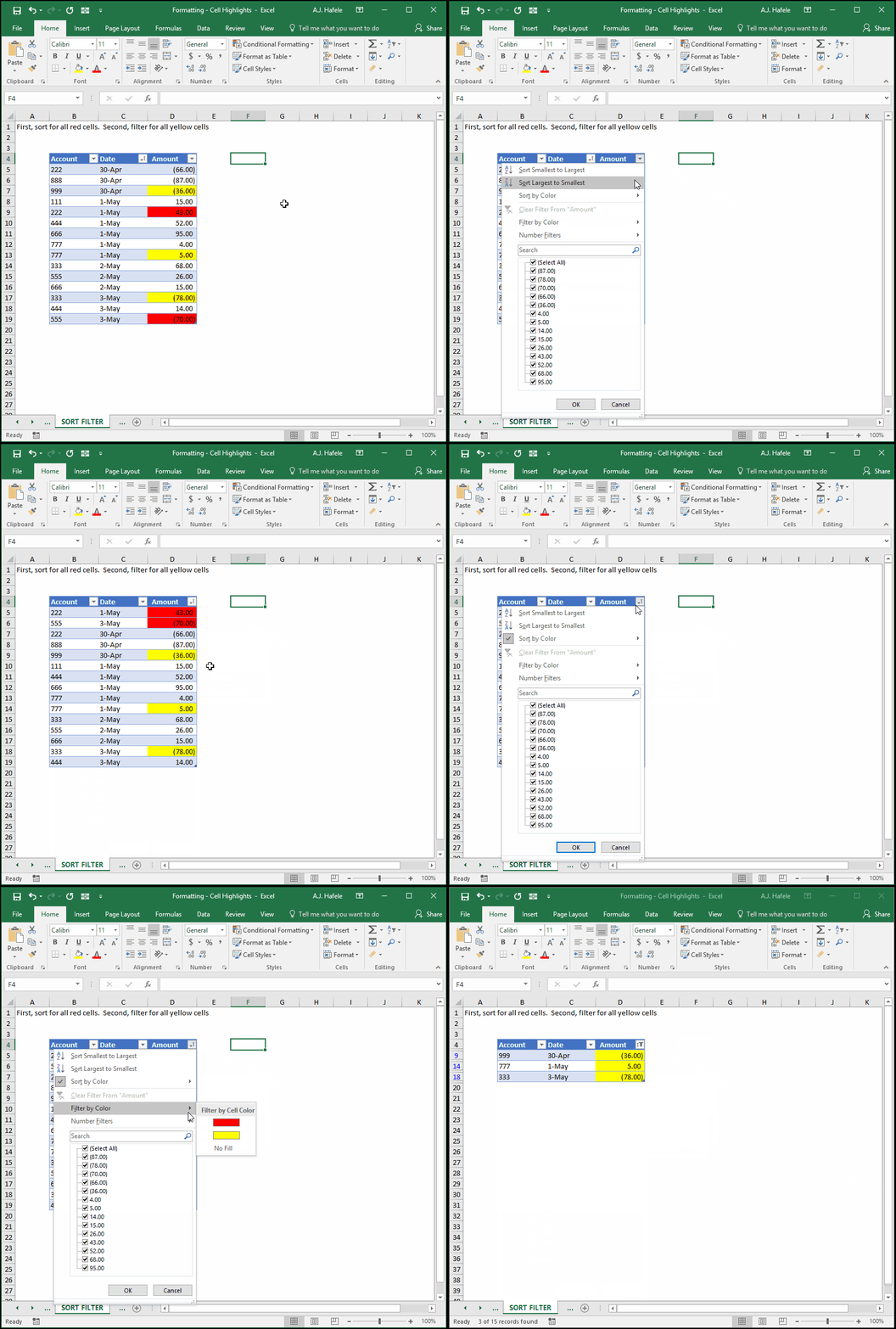
Note that you can sort and filter highlighted cells, as shown here:
Tips
Try not to rely extensively on cell highlights for tracking information - it can get very messy, very fast
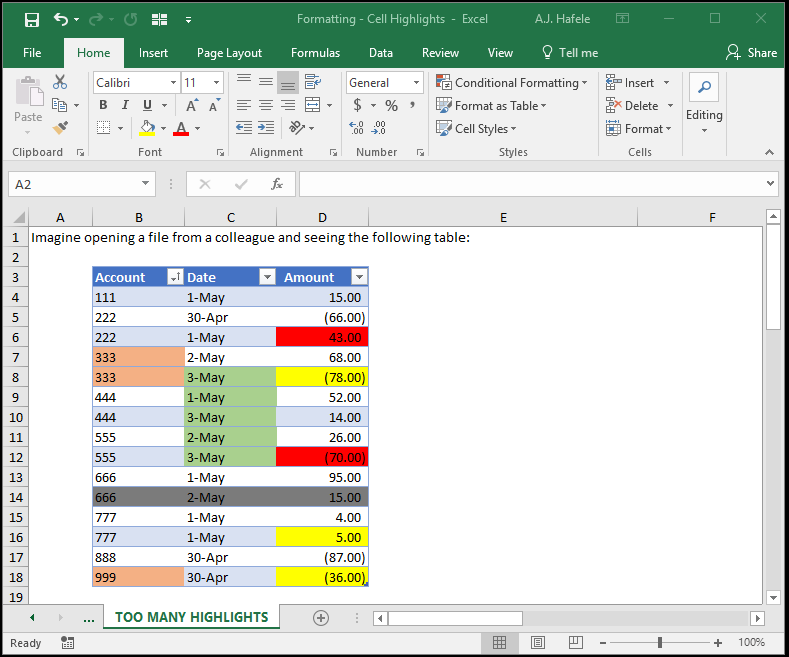
Imagine receiving a file from a colleague (or fellow student) containing the following table:
What do all of these colors mean? This is chaos! Even though the creator of the table (i.e. the one creating the highlights) could easily interpret it, others will have a more difficult time!
Instead, ask yourself whether you should add new fields to capture that information more clearly
See the example in the TOO MANY HIGHLIGHTS tab of the attached file for a continuation (and resolution) of the above example
We recommend using highlights only temporarily (e.g. for sorting, filtering, or addressing temporary anomalies)
If you need coloring to highlight extreme data points, use conditional formatting instead (discussed later, here)
Remember, you may need to share your file with others who may not understand your color coding, so if you must use highlights, create a color legend for others to reference
Last, recognize that more highlights will make your file size bigger (so too many highlights can slow down your file)