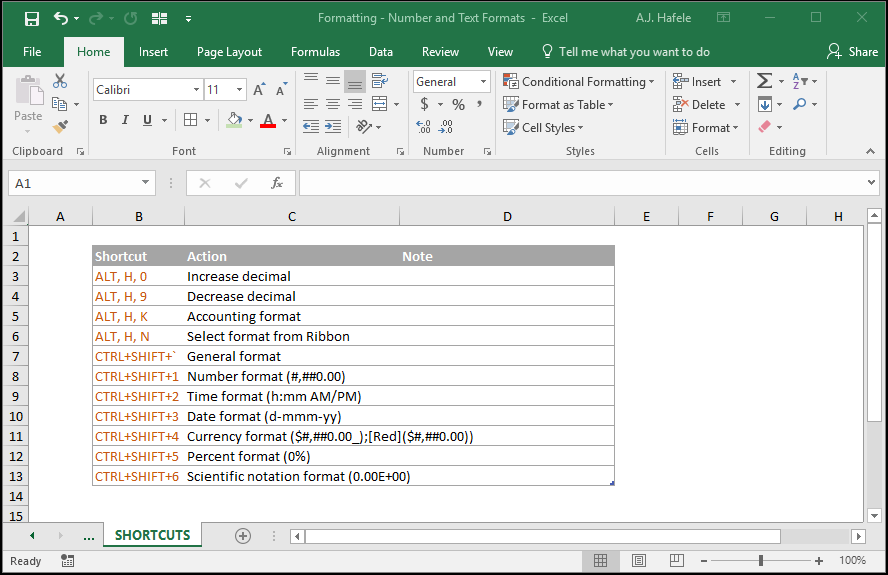
This lecture will cover the various text and number formats available in Excel
As you read through the lecture, pay close attention to the difference between the Text format and the various number formats
We will also briefly look at custom formats (though we recommend visiting the Microsoft link at the end of this lecture for more details)
Buttons
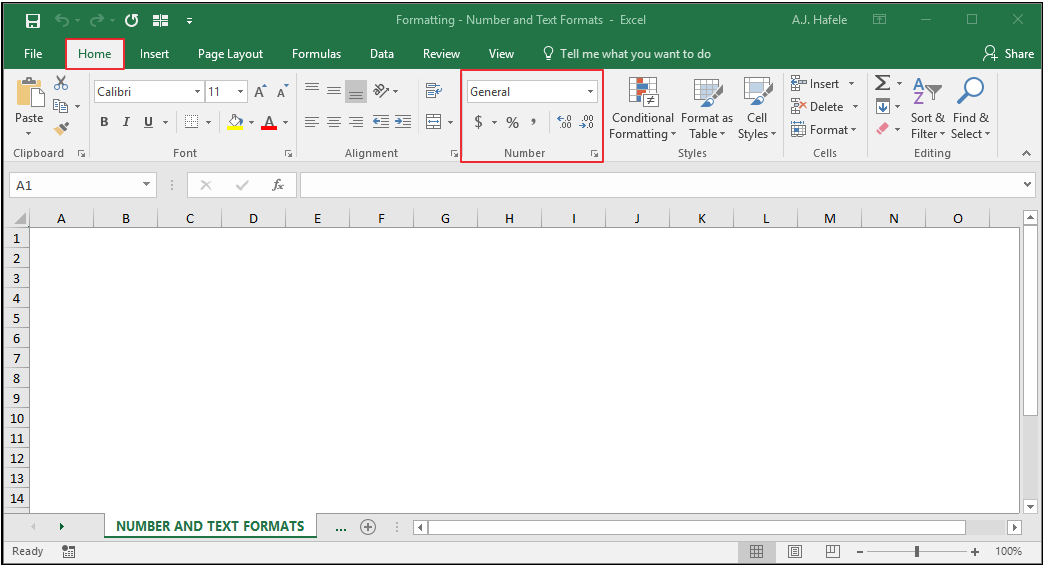
The relevant buttons can be found in the Number group of the Home tab:
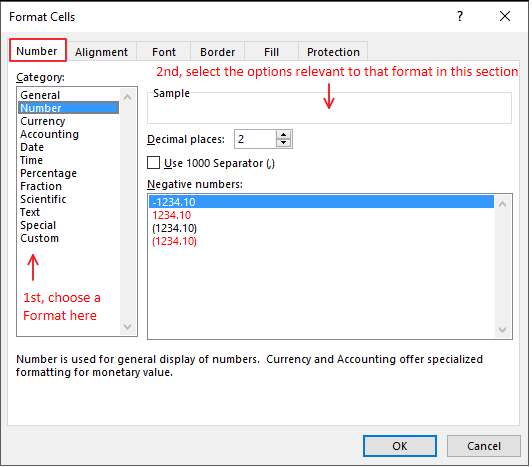
Formats can also be modified (with many more options) in the Format Cells menu (CTRL+1):
Try to become familiar with the options available in the Format Cells menu - it will give you greater flexibility in formatting data in the long run
Modifying Formats
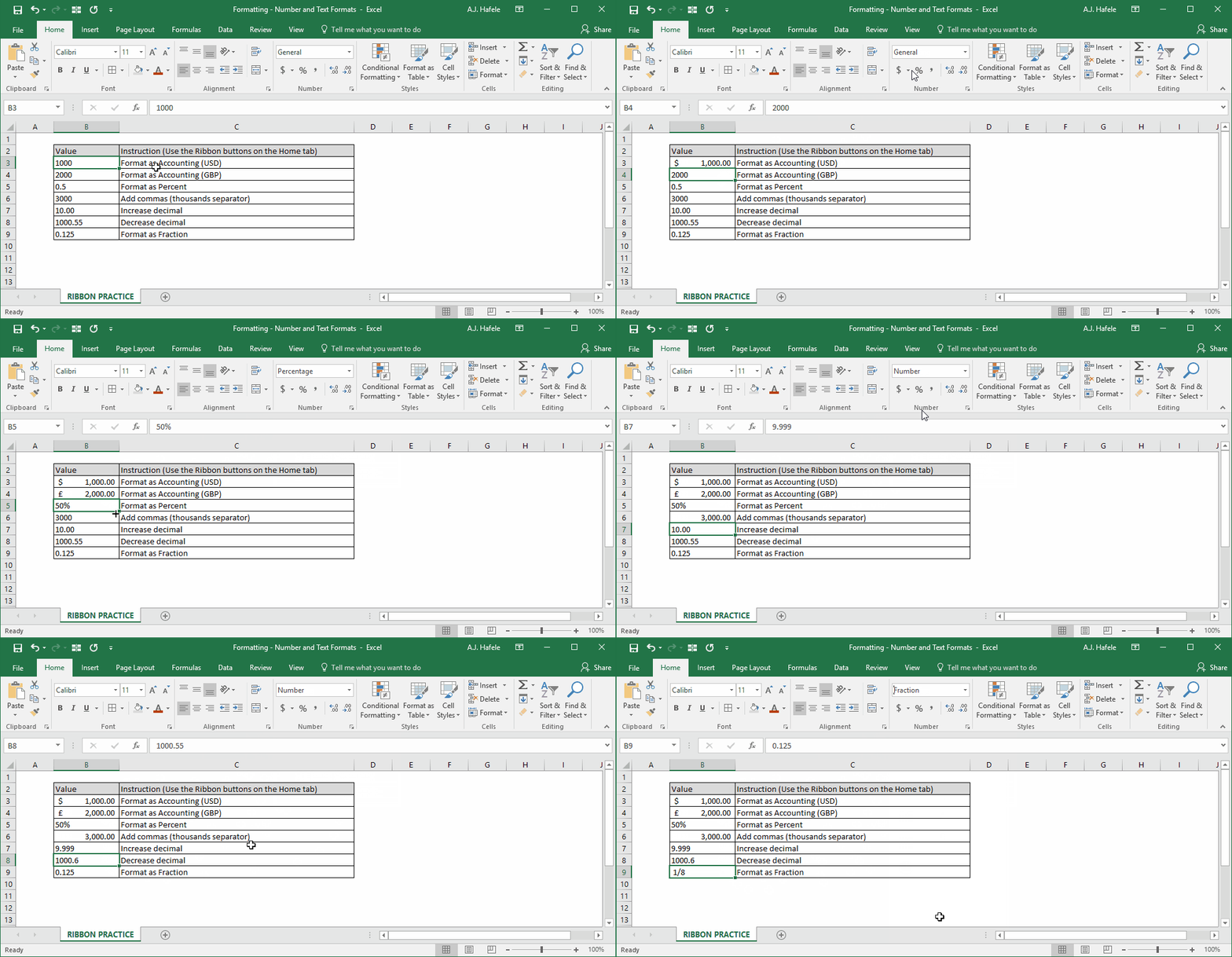
First, observe as we quickly illustrate the use of the Ribbon buttons to modify formats:
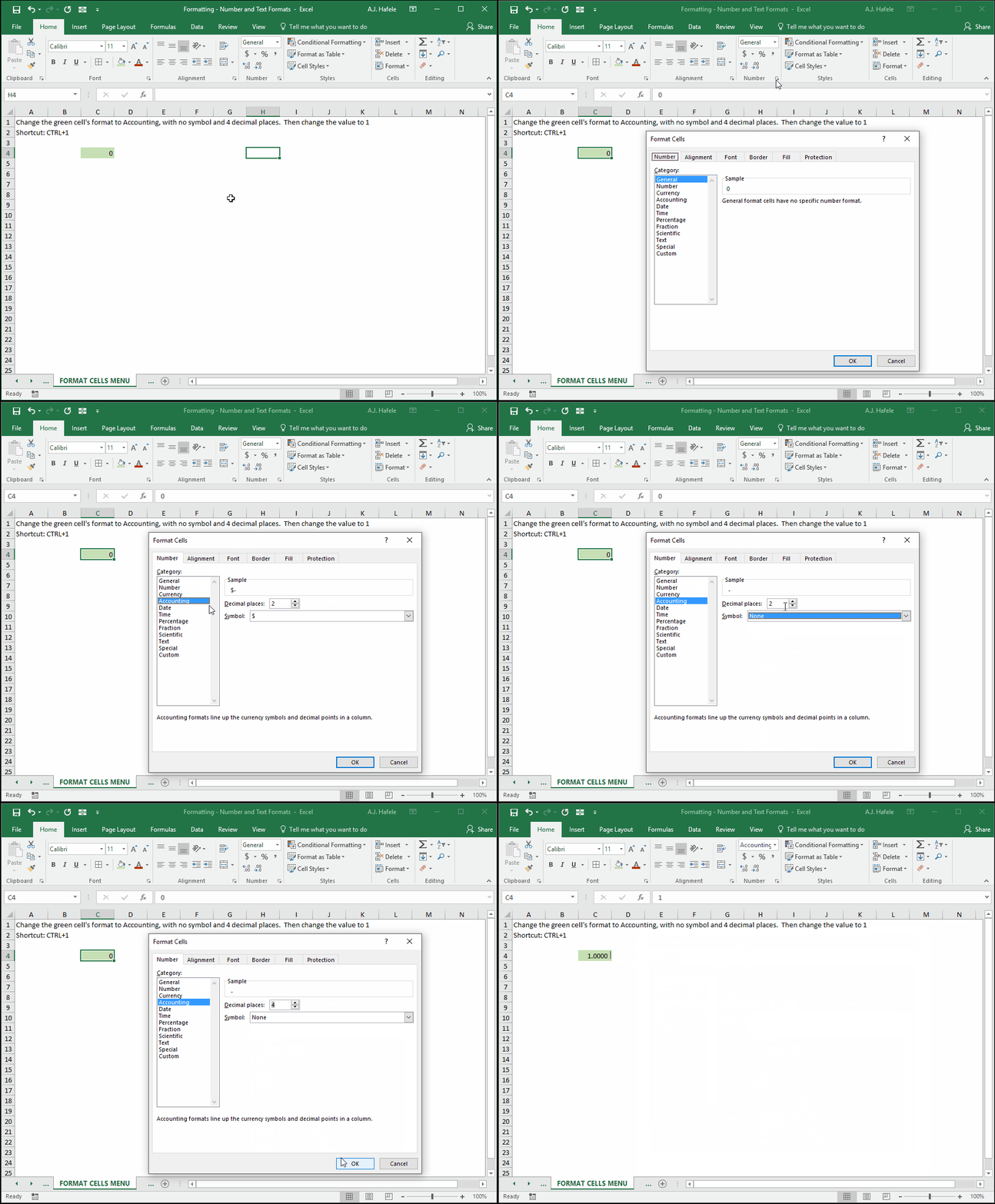
Next, let's modify a cell's format using the Format Cells menu (CTRL+1):
As you can see above, the Format Cells menu previews the format as you make your selections
Now, let's move on to discussing the various formats in more detail, starting with the General format
General Format
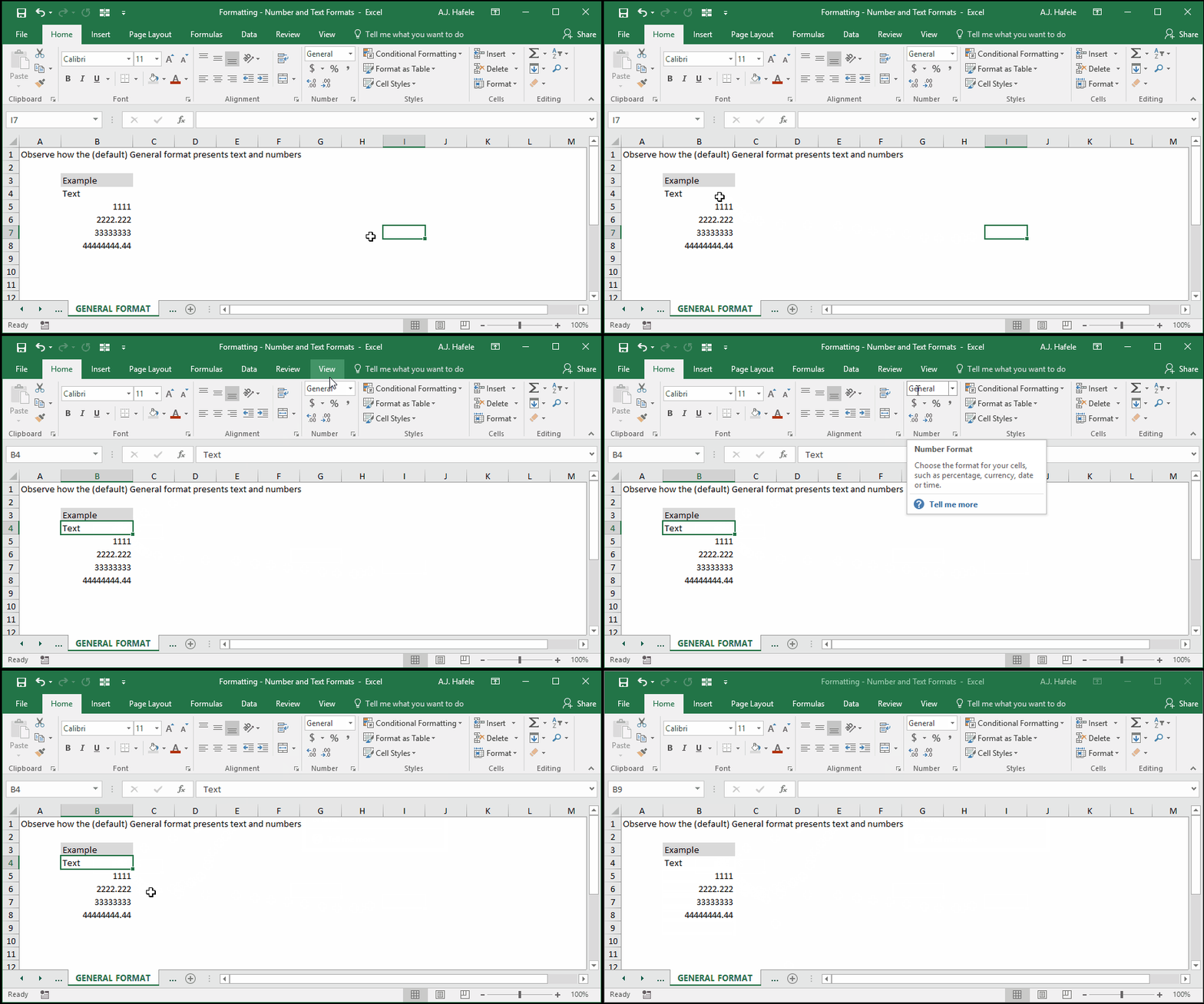
The General format is Excel's default format. It is just that - a general format
Numbers can be presented in the General format, but they will have no thousands separators (e.g. commas), and so they may look a bit ugly and inconsistent
Observe as we as we look through some cells formatted using the General format:
Note that numbers in cells with the General format can be referenced in mathematical calculations
As you will see below, numbers formatted as Text cannot be used in mathematical calculations!
Number, Currency, and Accounting Formats
The Number, Currency, and Accounting formats are commonly-used number formats
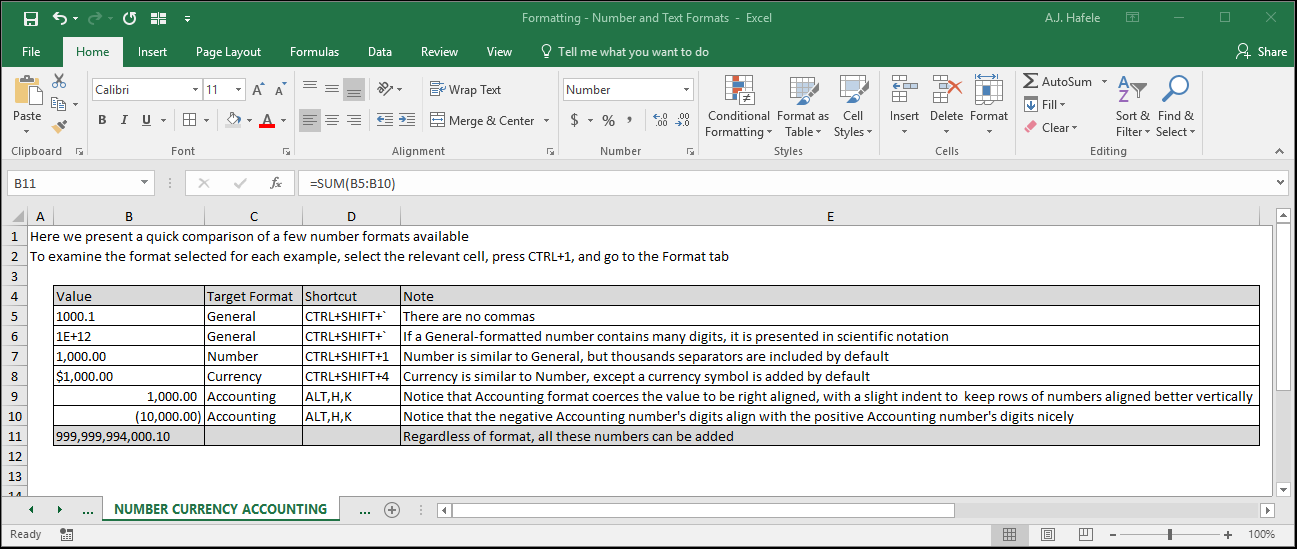
All of these formats are superior to the General format for numerical data, as they have thousands separators
The following screenshot highlights some of the similarities and differences between these format types:
It is important to note that the presentation of numbers in cells is independent of actual calculations made
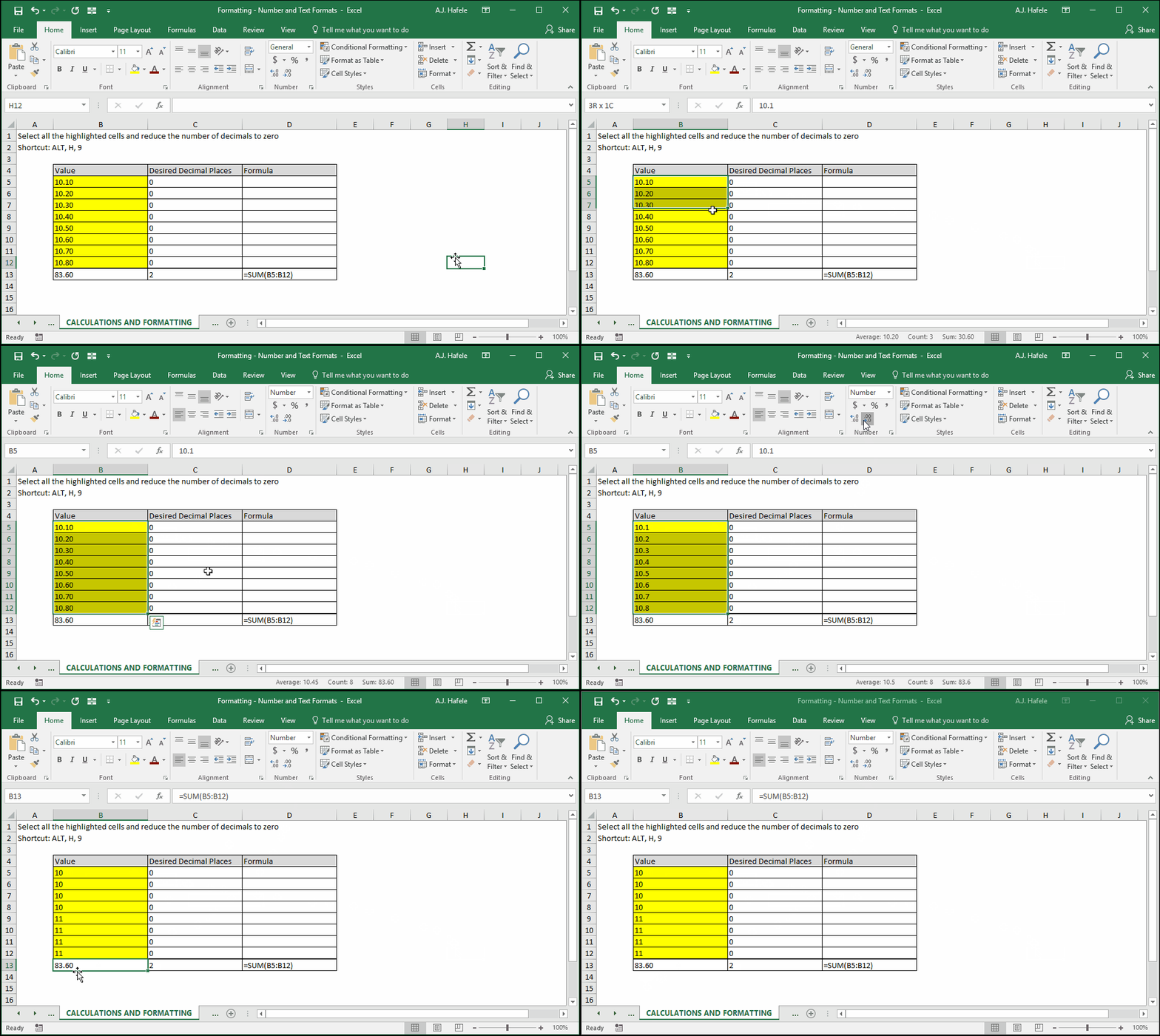
As the next example shows, changing the presentation of numbers (e.g. presenting numbers to the nearest integer) will have no impact on calculations (i.e. unrounded amounts are added):
As you can see, presenting the numbers in the yellow cells as integers does not change the SUM calculation of 83.6
This means that you do not have to worry about your number formatting interfering with your cells' computations
Date and Time Formats
Date and time formats are actually just special number formats
As such, calculations can indeed be made on these types of formats
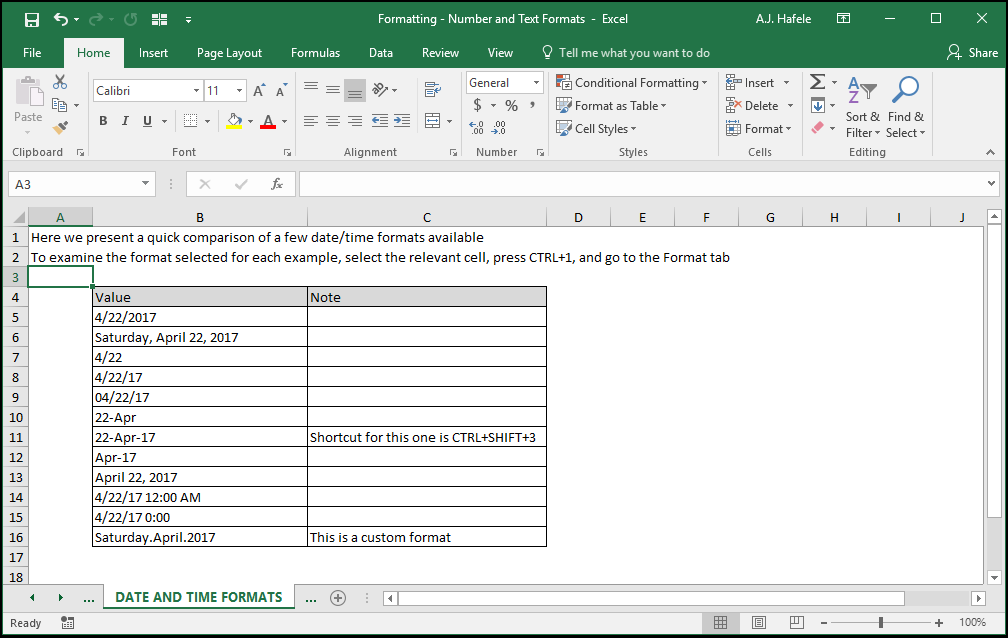
The below screenshot shows presents examples of some date and time formats available:
Percentage and Fraction Formats
Percentage and fraction formats are also number formats with unique formatting
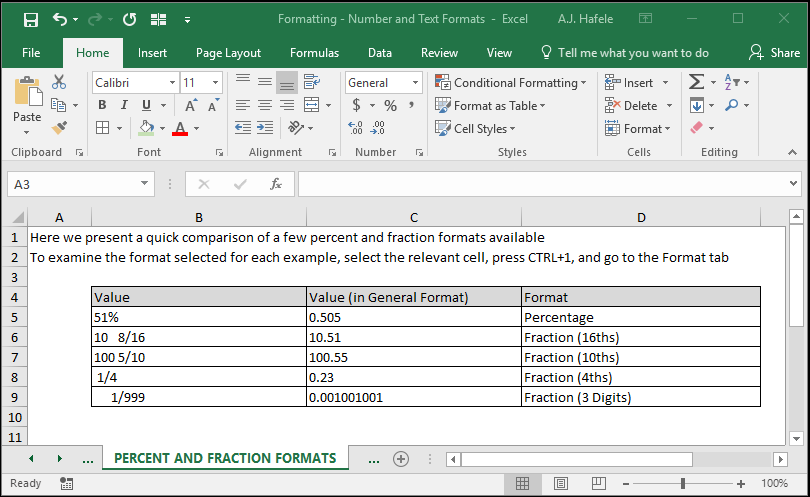
Take a look at the following screenshot for some examples (be sure to look more closely at the selected options in this lecture's Excel file):
Text Formats
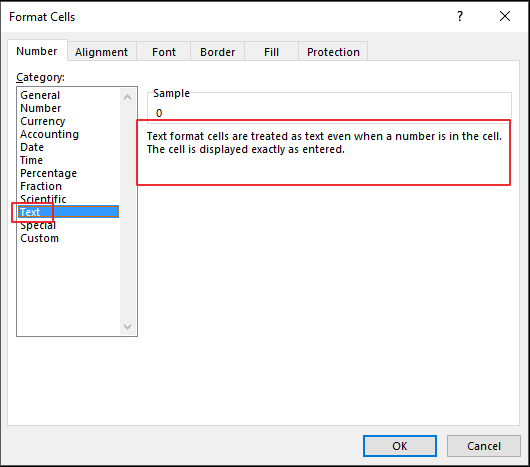
What are Text formats? Microsoft says it best in the Format Cells menu (CTRL+1):
In other words, when numbers are formatted as Text, they are essentially treated as non-numeric characters, and thus they cannot be used in mathematical calculations (addition, multiplication, etc.)
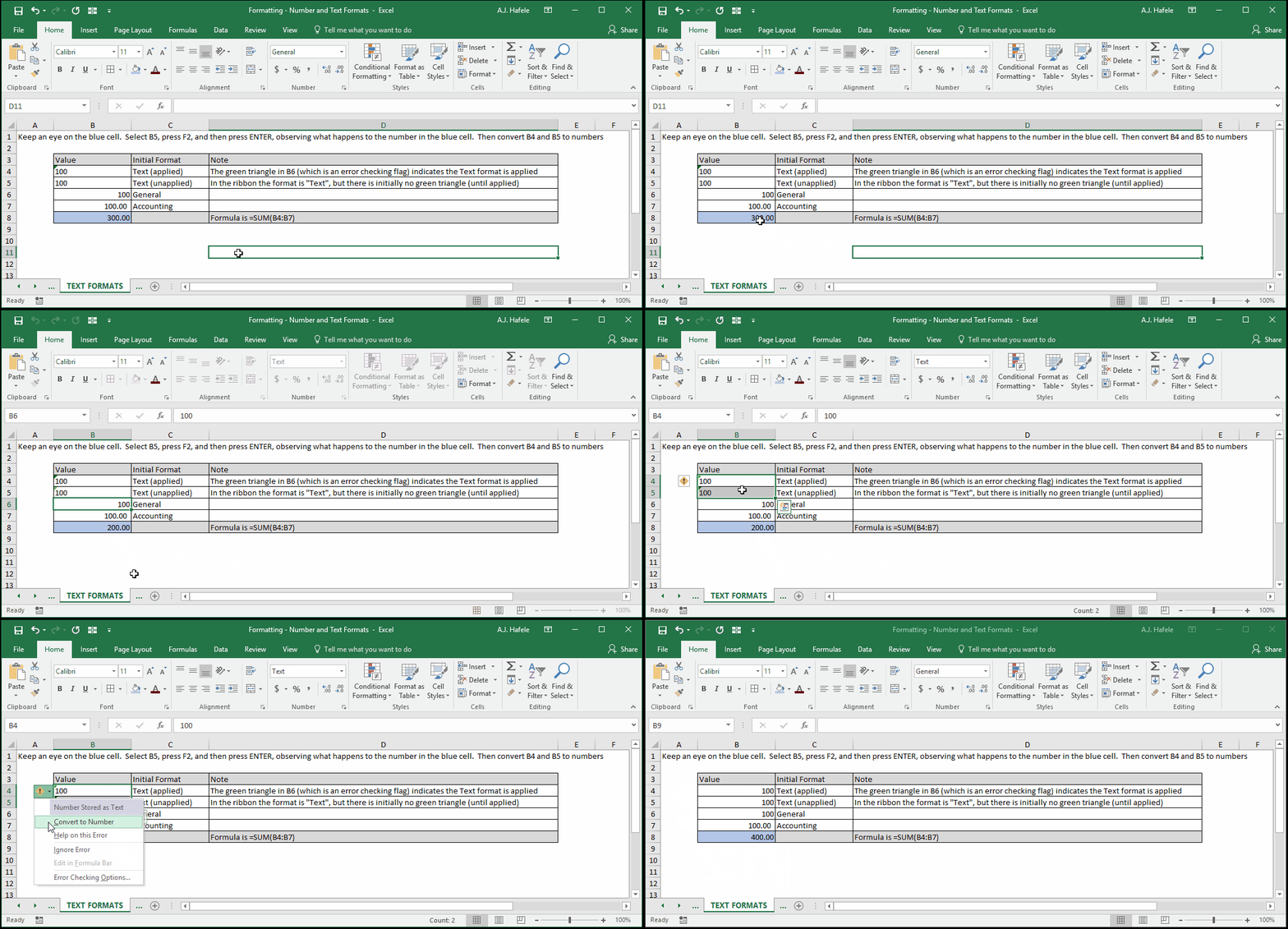
More specifically, this is true only after the Text format is fully applied to the data, as in the following example (watch carefully!):
In the above example, cell B5 was formatted as Text, but the format was not fully "applied" until we pressed F2 and then ENTER
This seems a bit strange, but nevertheless, Excel works in this manner
Why is this example important?
Having numbers formatted as Text can cause calculation errors, since the numbers are no longer treated as such!
Additionally, numbers formatted as Text (or vice versa) may not be properly referenced in lookup functions (more on this later)
Custom Formats
In addition to the pre-defined formats explained thus far, Excel allows you to build custom formats
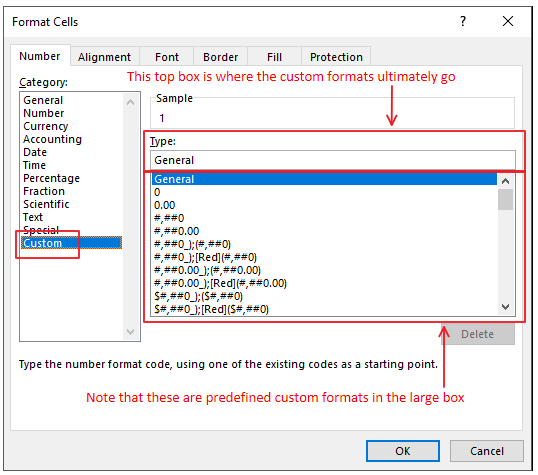
Custom formats are specified in the "Custom" section here:
Creating custom formats can be quite tricky and tedious, so we will not review all the details here
However, Microsoft has a well-written article how to create them in the link at the end of this lecture
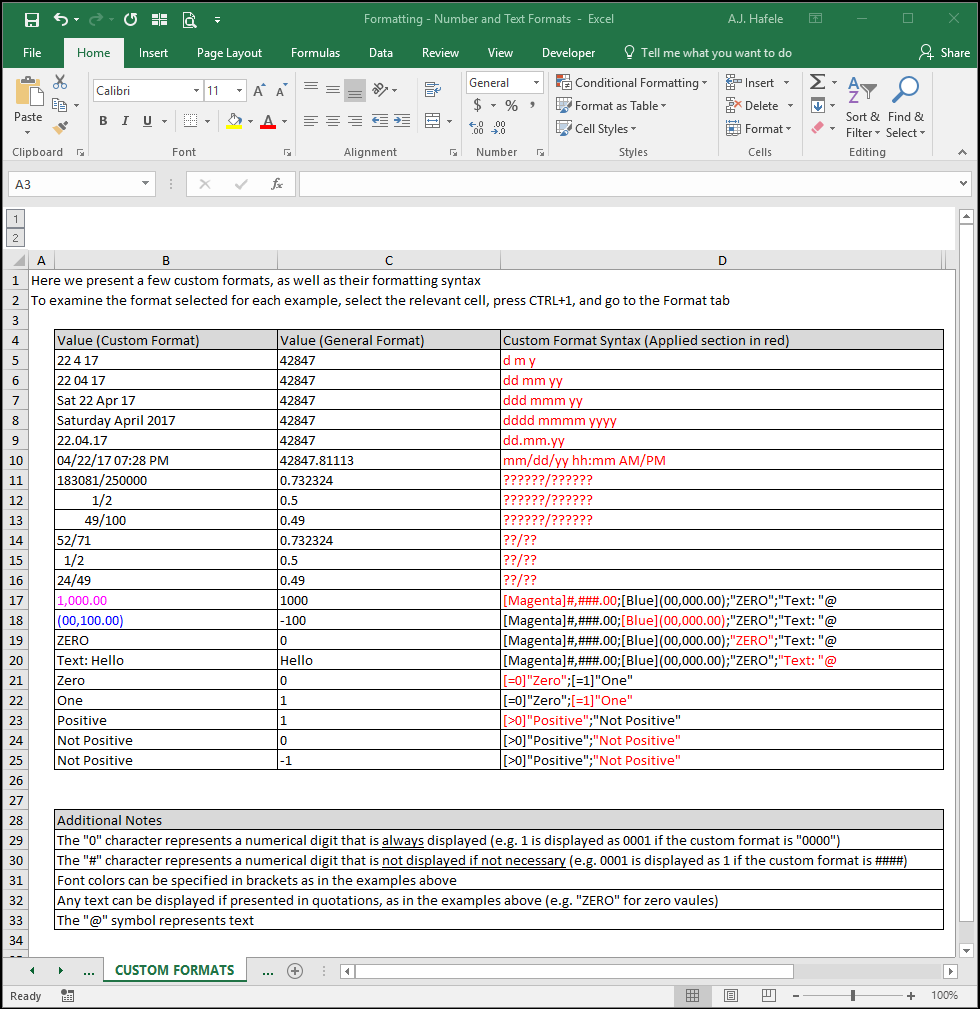
Nevertheless, we want to provide a few examples to illustrate how custom formatting works
The following screenshot presents a few custom formats (column B) as well as the formatting syntax used (column D):
Tips
The accounting format (without currency symbols; ALT, H, K) is a very clean format to use for monetary figures, particularly because 1) zero values are nicely presented as "-", and 2) the digits are nicely aligned
However, in some instances, one may prefer to have the ability to change the alignment of the numbers, which would necessitate using a different predefined format
Alternatively, the following custom format is the same as the Accounting format, but it allows you to change the alignment (simply copy and paste this into the Custom section in the Number tab of the Format Cells menu):
(#,##0.00);((#,##0.00);("-"??);(@_)
As mentioned earlier in the lecture, be mindful of numbers that are being (or not being) presented as Text. This can throw off reference formulas (like VLOOKUP) or result in calculation errors