This lecture covers the various methods of merging cells
The basic idea of merging cells is that you can literally combine groups of cells into giant cells
For example, you can select cells A1:B2 (4 total cells) and merge them to create a single cell spanning that entire range
Merged cells are often used with the intention of making worksheets look better visually
However, we urge you not to merge cells where possible! There are better alternatives!
We discuss problems associated with merging cells toward the end of this lecture
Buttons
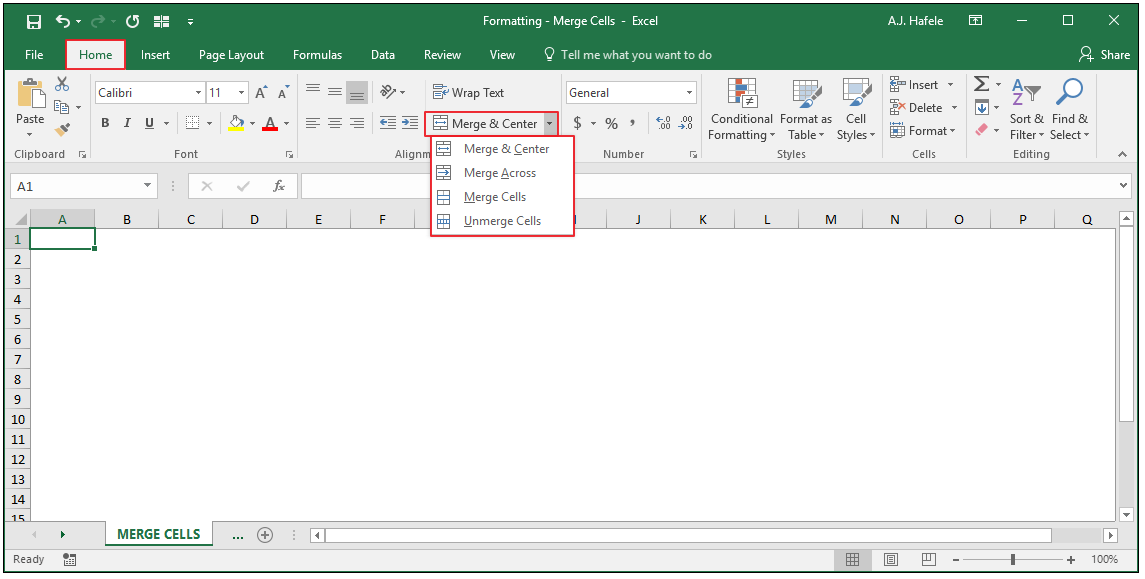
The relevant buttons can be found in the Alignment group of the Home tab:
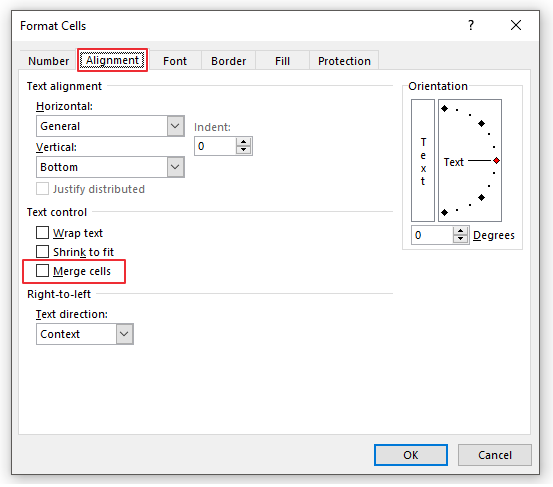
Cells can also be merged in the Format Cells menu (CTRL+1):
We will not focus much on the Format Cells menu in this lecture, as the Ribbon options are much easier to use
As such, let's now review merging cells using the Ribbon options
Merge Cells
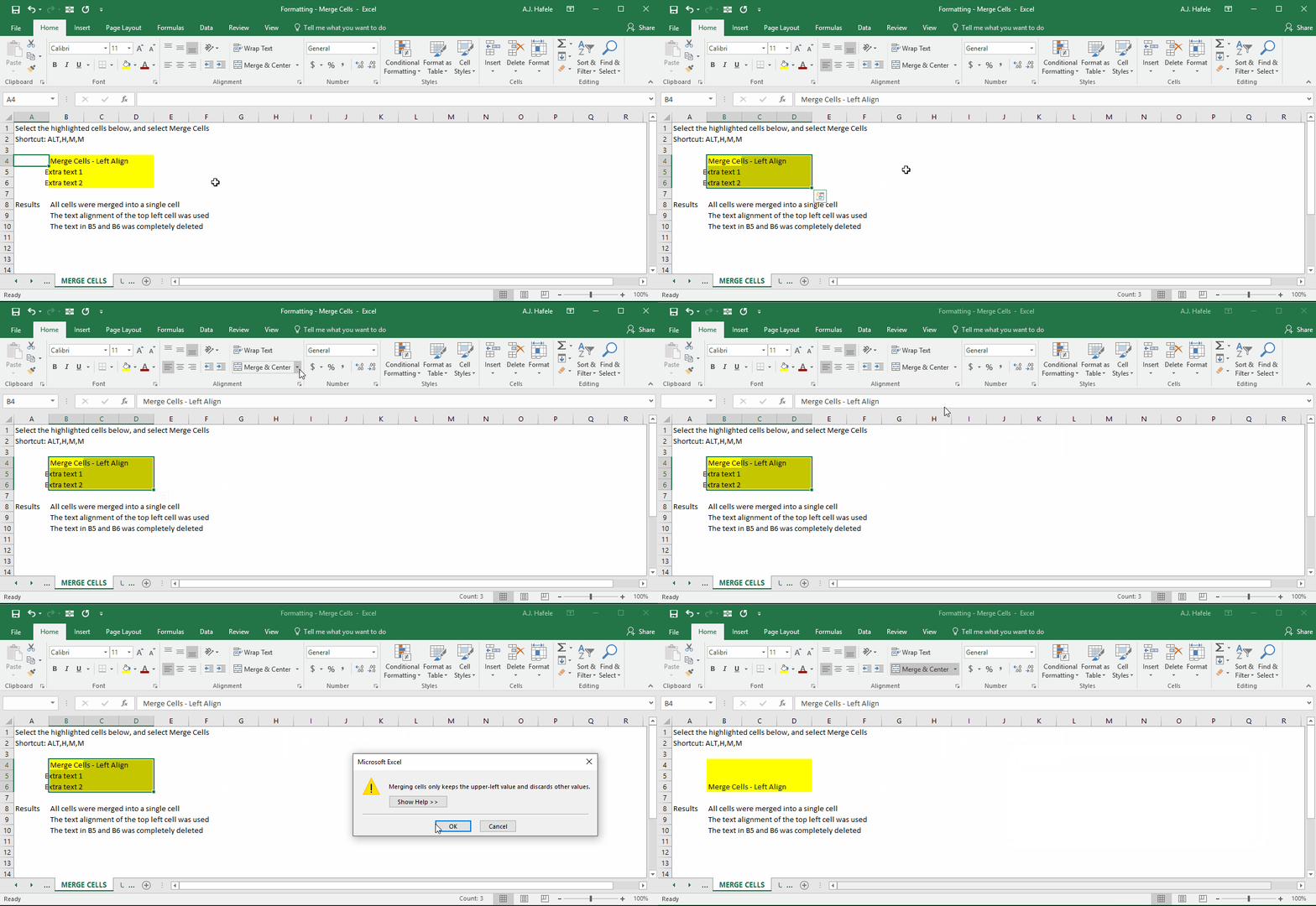
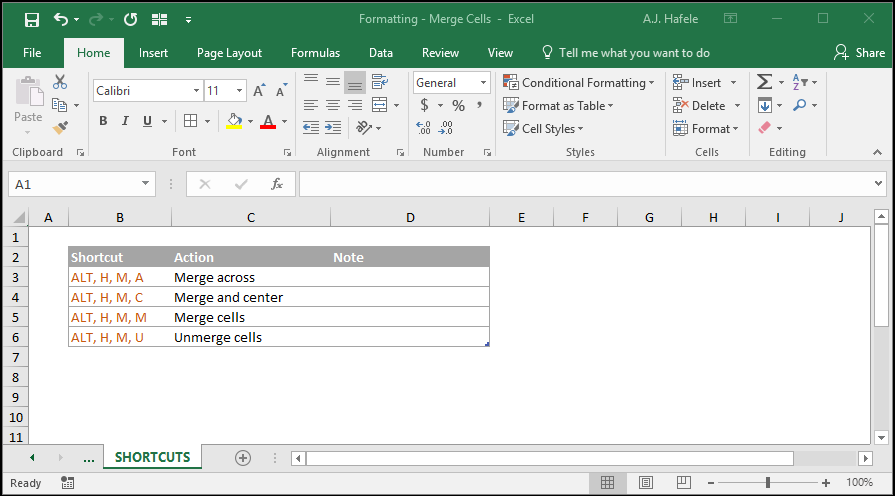
Observe as we merge two ranges of cells using Merge Cells (ALT, H, M, M):
Notice that:
All cells were merged into a single cell, and we can no longer select the individual component cells (e.g. cell C5)
The text alignment of the top left cell was used (left and top alignment)
Only the upper-leftmost text of the merged range was kept (the other information was deleted)
If cell C4 contained the upper-leftmost text and cell B4 was blank, C4's contents would have been kept instead
Merge and Center
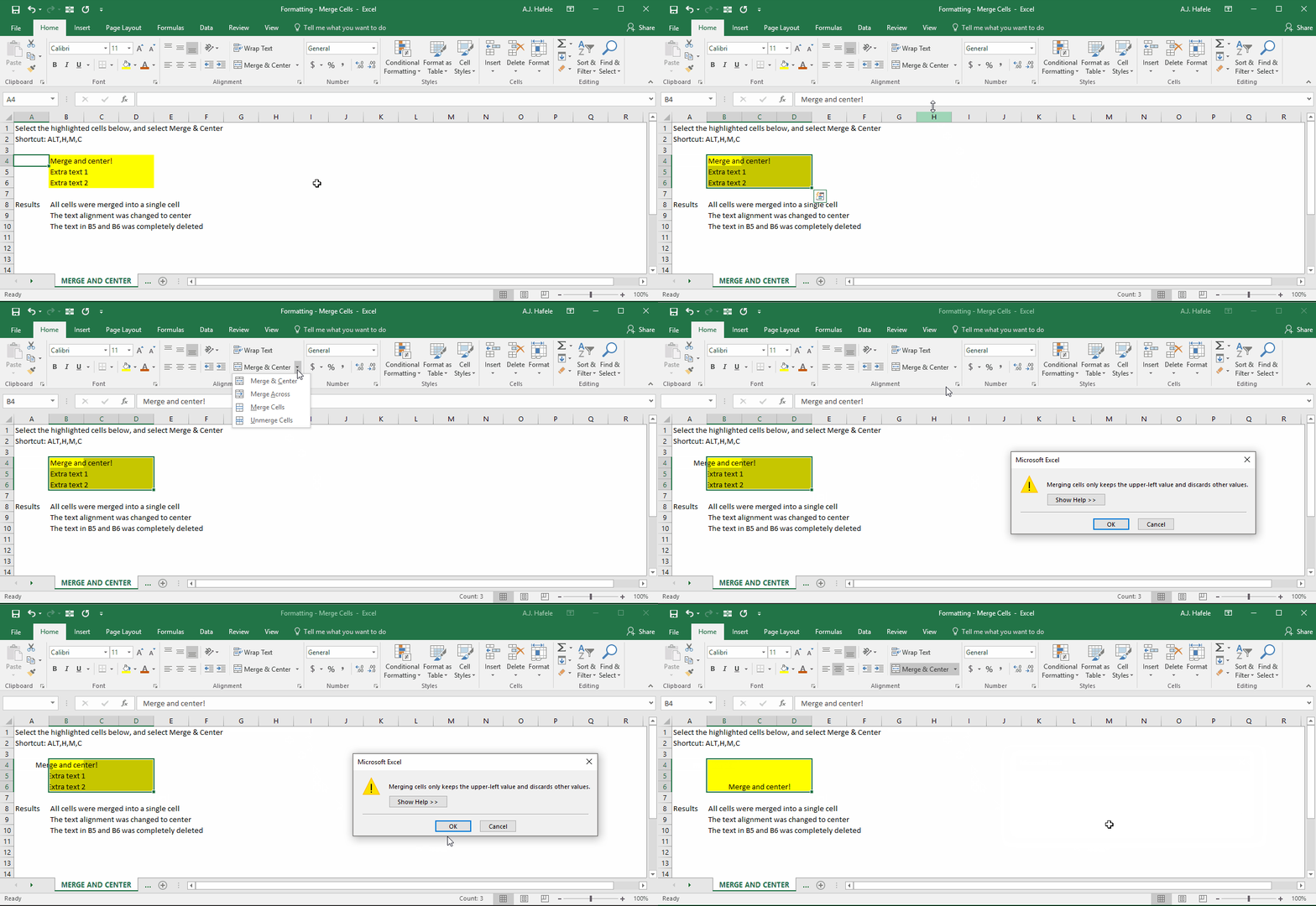
Observe as we merge and center a range of cells using Merge and Center (ALT, H, M, C):
Notice that:
Merge and Center worked on a non-contiguous range of cells
This is true for all functionalities discussed in this lecture
All contiguous cells were merged into single cells, and we can no longer select the individual component cells (e.g. cell C5)
The horizontal text alignment was changed to Center (and the vertical alignment is the same as the top-left cells in each contiguous range)
Only the upper-leftmost text of the merged range was kept (the other information was deleted)
Merge Across
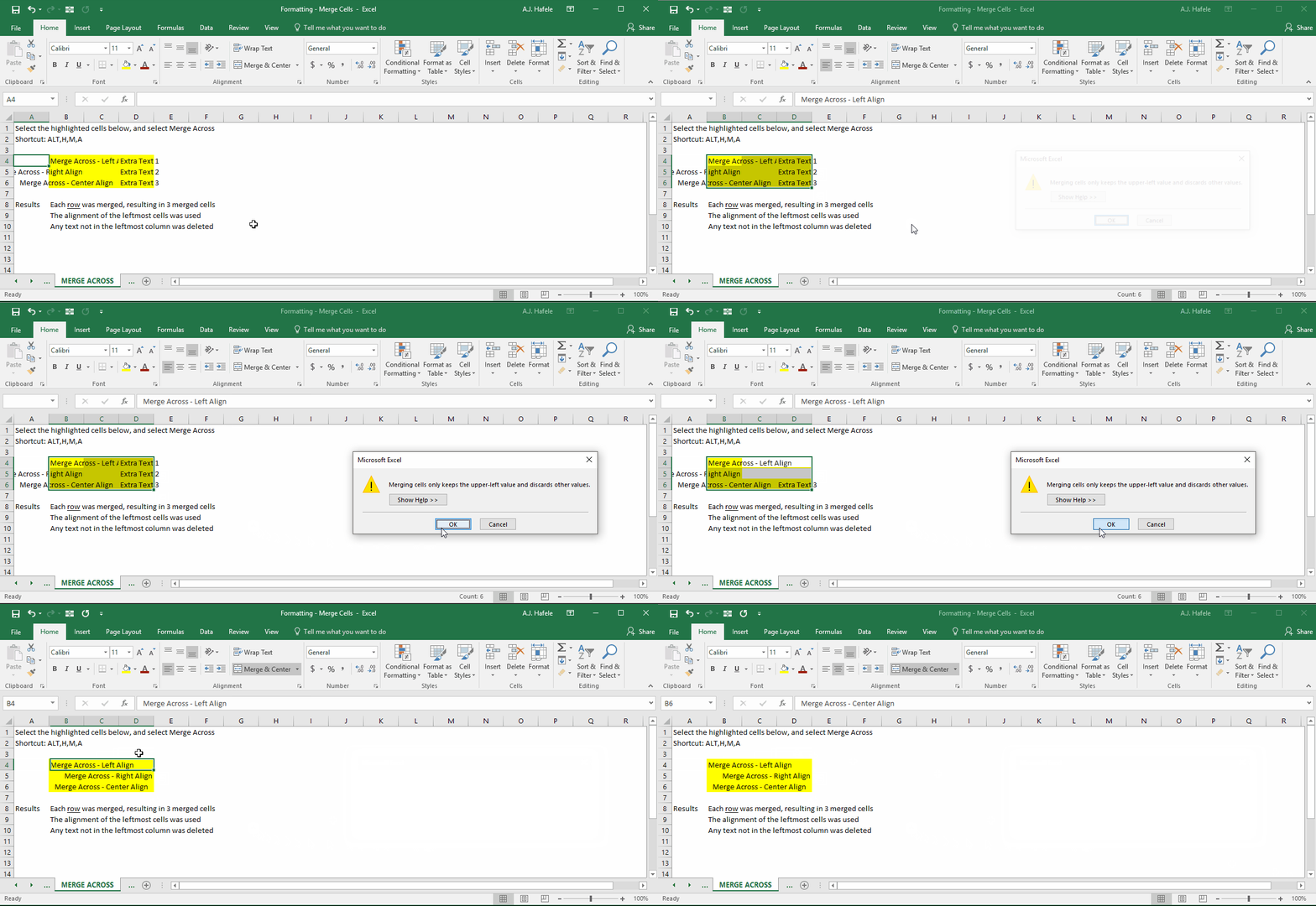
Observe as we merge a range of cells using Merge Across (ALT, H, M, A):
Notice that:
Each row was merged, resulting in 3 merged cells, and we can no longer select the individual component cells (e.g. cell C5)
The text alignment of the leftmost cells were used
Only the leftmost text of the merged range was kept (the other information was deleted)
Unmerge Cells
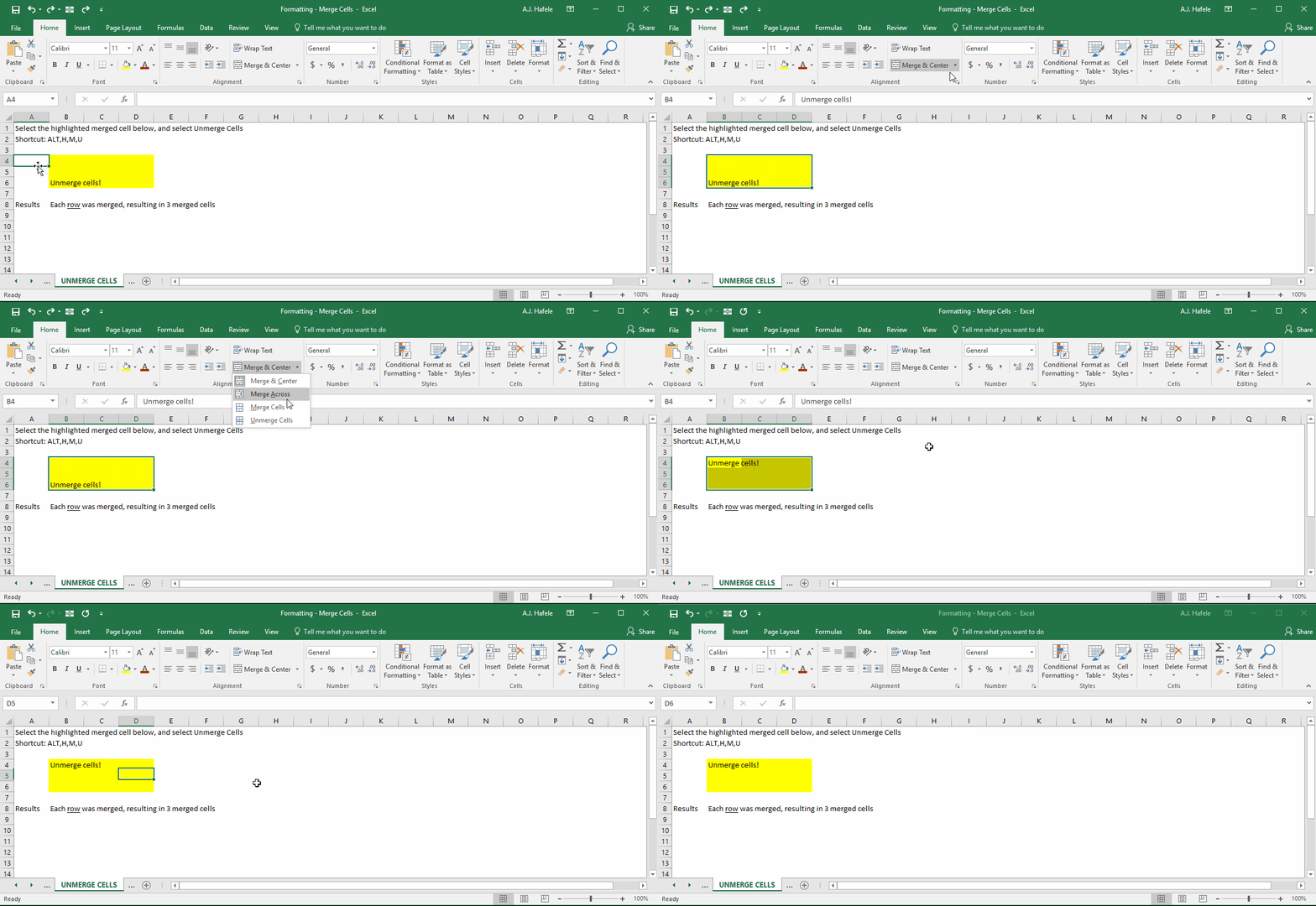
Observe as we unmerge a range of cells using Unmerge Cells (ALT, H, M, U):
Notice that unmerging cells will get us back to where we started (there are no more giant, combined cells)
Problems With Merging Cells
There are a number of problems associated with merged cells, including (but not limited to):
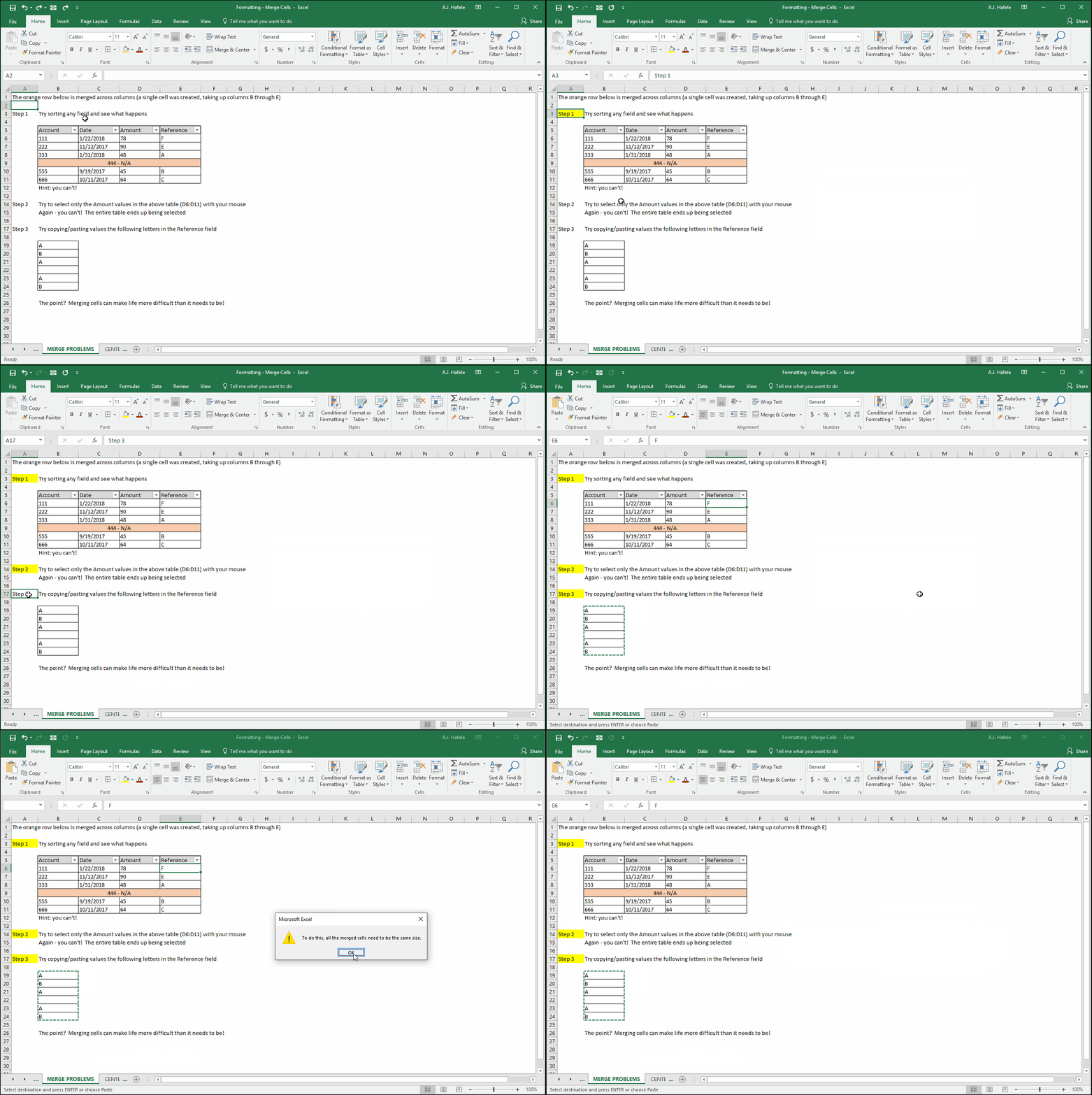
The inability to select specific rows, columns, and cells
The inability to sort data when columns are merged
Limitations of using certain formulas
Copy and paste issues
Here is a brief example of some of these issues (the orange cells are merged):
Solutions to Merged Cells
The best solution to the problems described above is to simply avoid merging cells!
Moreover, if you need to merge and center data, instead use Center Across Selection
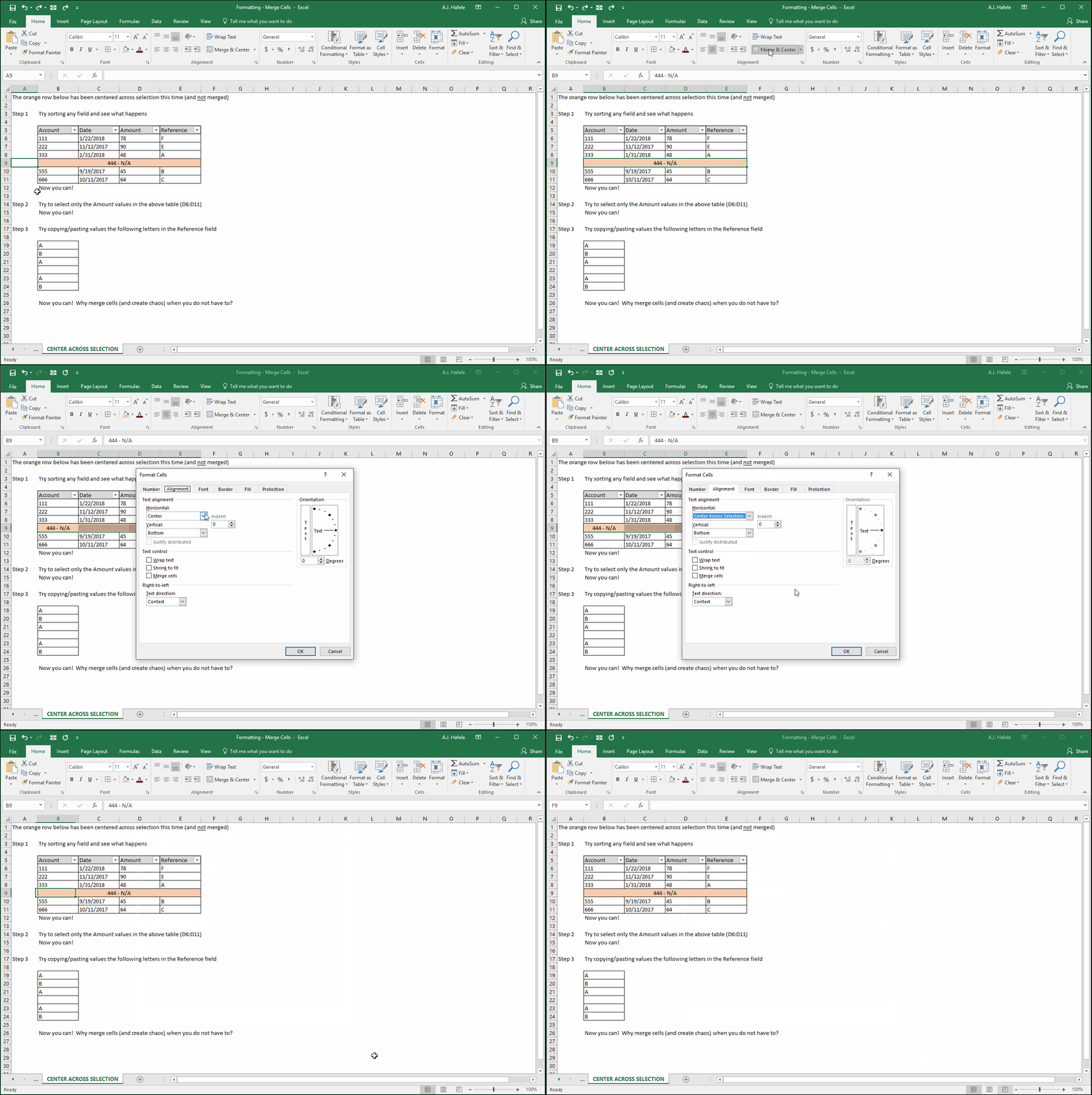
Continuing with the last example, let's unmerge the orange cells and then Center Across Selection:
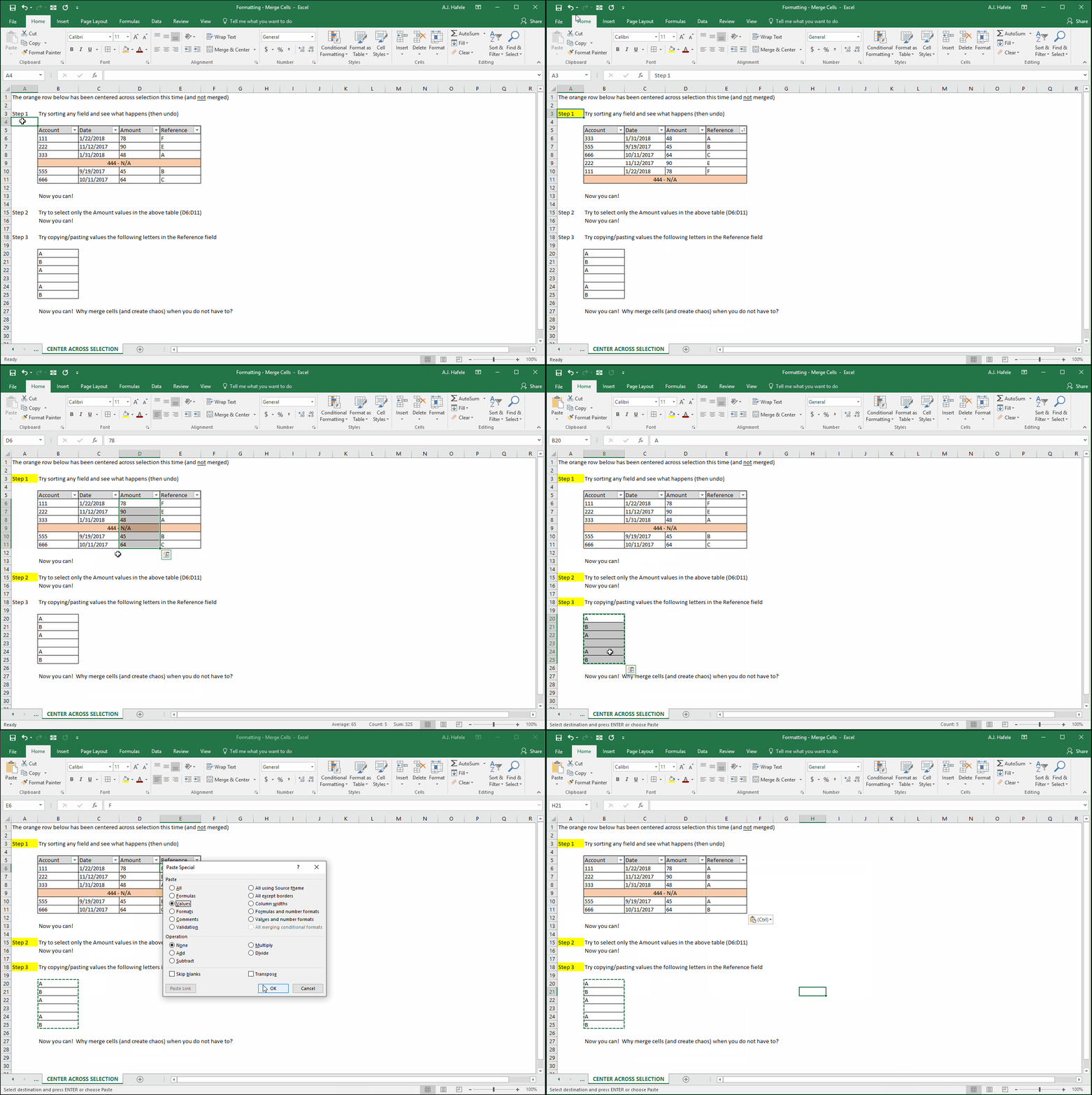
Now let's re-perform the same 3 steps with the cells unmerged:
Note the one minor issue in step 1 above: the border format is retained in row 9 (some borders in that row are missing after sorting).
The best way around this is to avoid using Merge & Center and Center Across Selection (neither are actually needed in that table, really), or to avoid using border formatting
Tips
The absolute best advice we can give is simple: avoid merging cells as much as possible!
Use Center Across Selection instead of merging and centering!
You may typically encounter merged cells in Excel files received that are formatted as reports
In this case, if you must perform calculations with the file, try to obtain CSV versions of the file (or tabular versions) instead - they're much easier to work with
if you cannot obtain a file with a more clean format, it may be best to unmerge all cells and extract the data in to a new, separate Excel file (but it really depends on your specific situation)