Wrap Text is a method of managing the presentation of text
Wrap Text will wrap text to the next line within a cell (holding the cell width constant)
We will also briefly review Shrink to Fit, which will make the font size smaller to fit the text within the cell
As with other formatting options, all applicable cells must first be selected before applying Wrap Text (and Shrink to Fit)
Buttons
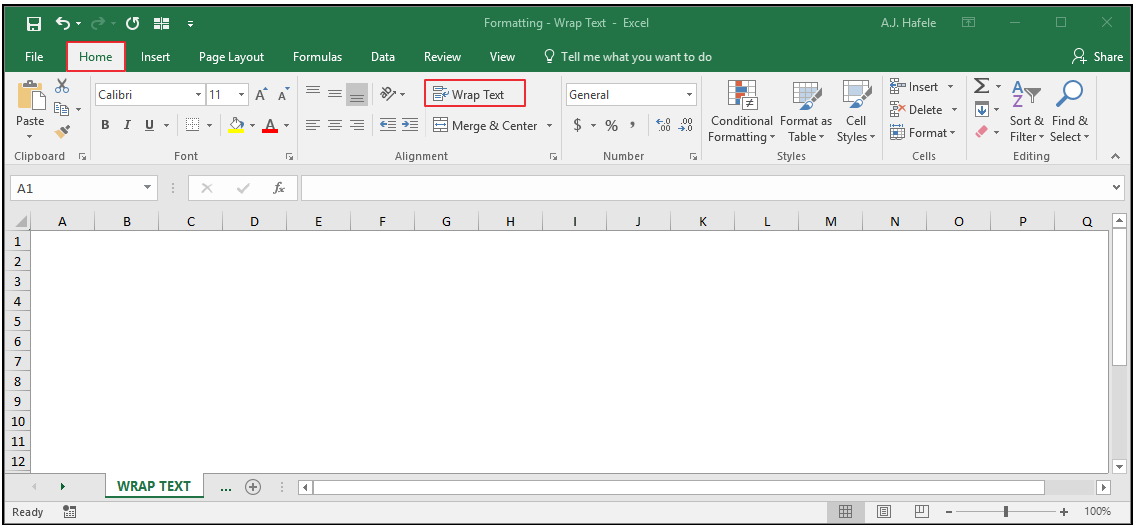
The relevant button can be found in the Alignment group of the Home tab:
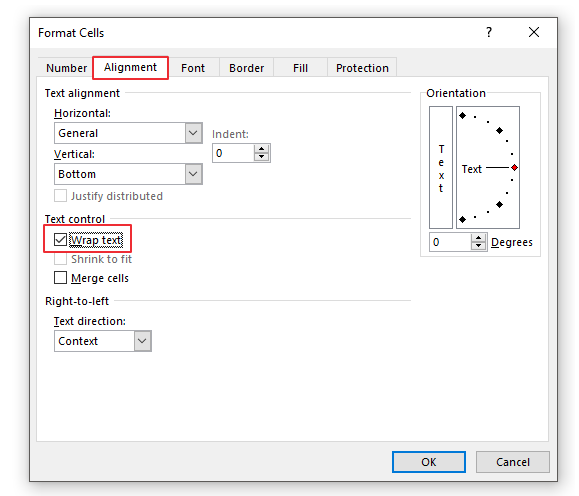
Wrap Text can also be selected in the Format Cells menu (CTRL+1):
Given that the Ribbon is easier to use than the Format Cells menu, we will focus on the Wrap Text button in the Ribbon in the below discussion
Wrap Text
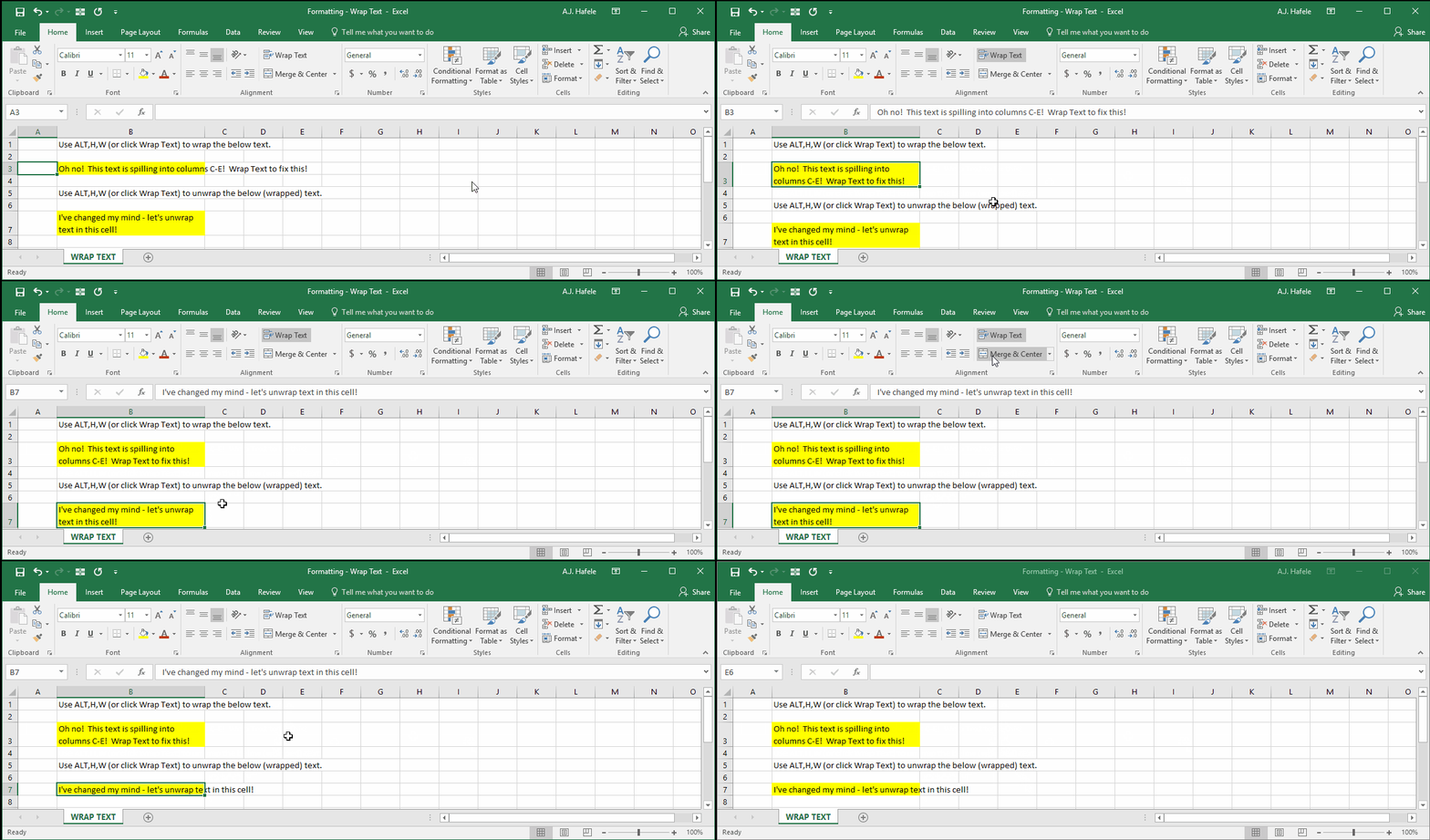
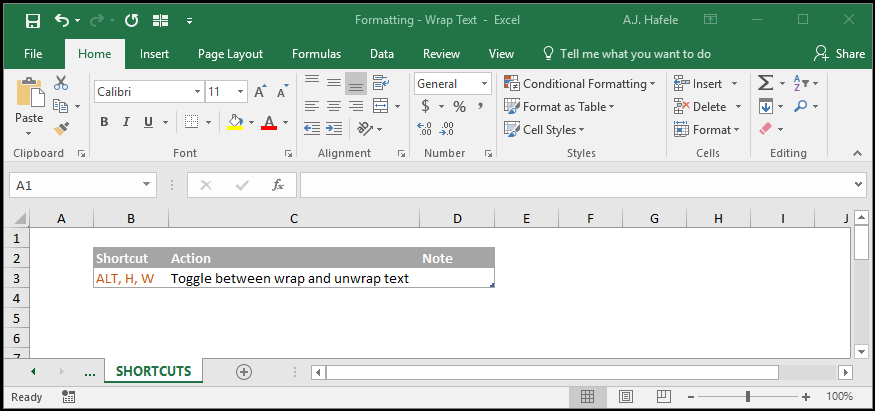
Observe as we wrap and unwrap text (toggle wrap and unwrap with ALT, H, W):
As you can see, wrapping text can increase row heights (and vice versa when unwrapping text)
Shrink to Fit as a Wrap Text Alternative
One alternative to using Wrap Text is Shrink to Fit
Instead of wrapping text to a new line, Shrink to Fit (unsurprisingly) shrinks text to fit within the cell
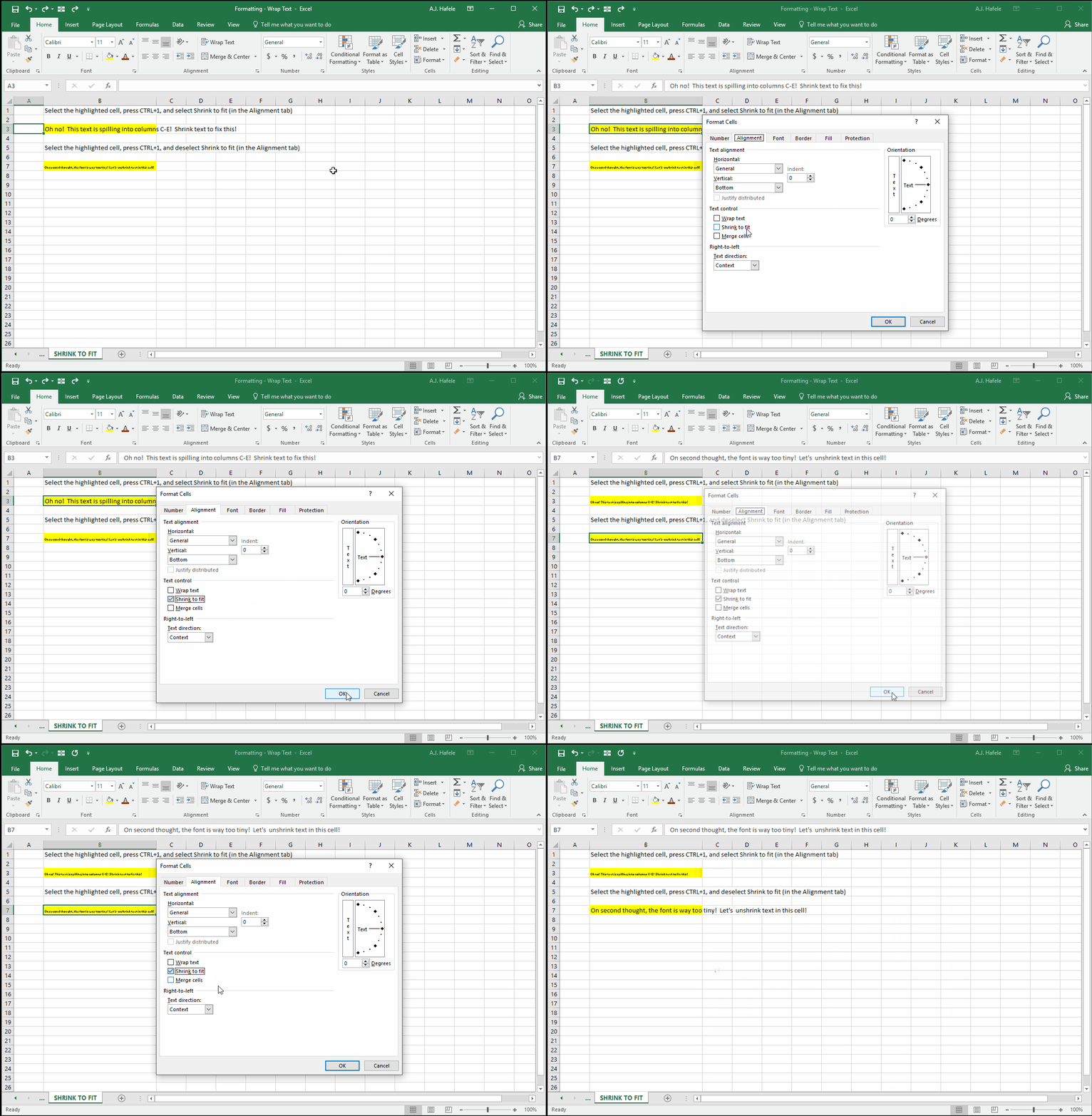
Observe as we use Shrink to Fit in the following example (CTRL+1:
As you can see, Shrink to Fit is not necessarily a great alternative, since too much text can result in extremely tiny text (that is unreadable)
Nevertheless, we wanted you to be aware that this alternative exists
Using Shrink to Fit can be useful when cell contents are always nearly the same width
Tips
Using Wrap Text is, for the most part a judgement call; using it really depends on how you want to look at your data
One subtle disadvantage of using Wrap Text is that, if the vertical alignment of cells is different upon using Wrap Text, viewing the data can be a bit messy
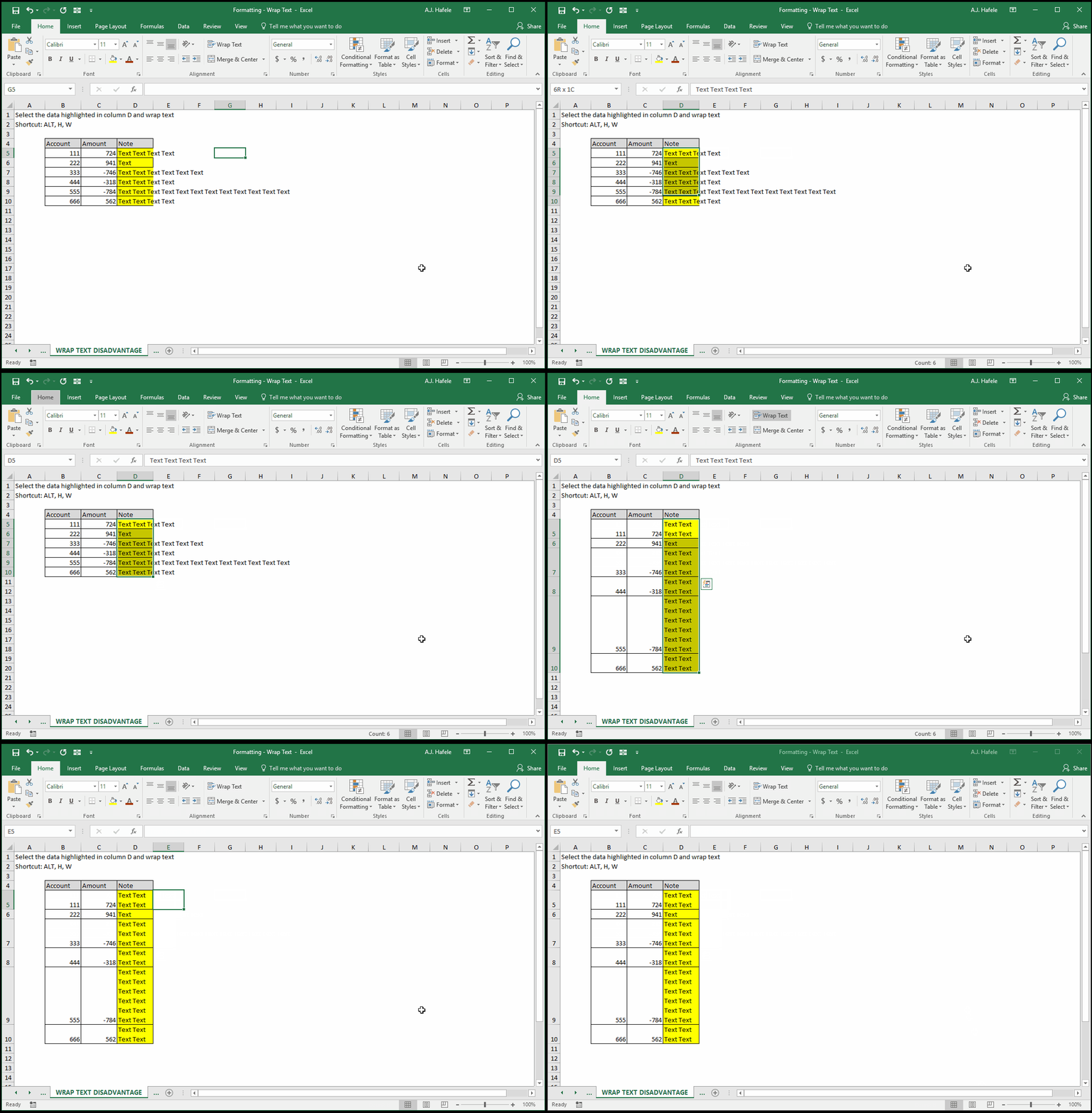
Here is an example, for illustration (using ALT, H, W):
Notice that the table is a bit difficult to process visually, since the row heights are not the same
Possible solutions to this issue include the following:
Simply avoid wrapping text by expanding column widths
Force all row heights to be the same
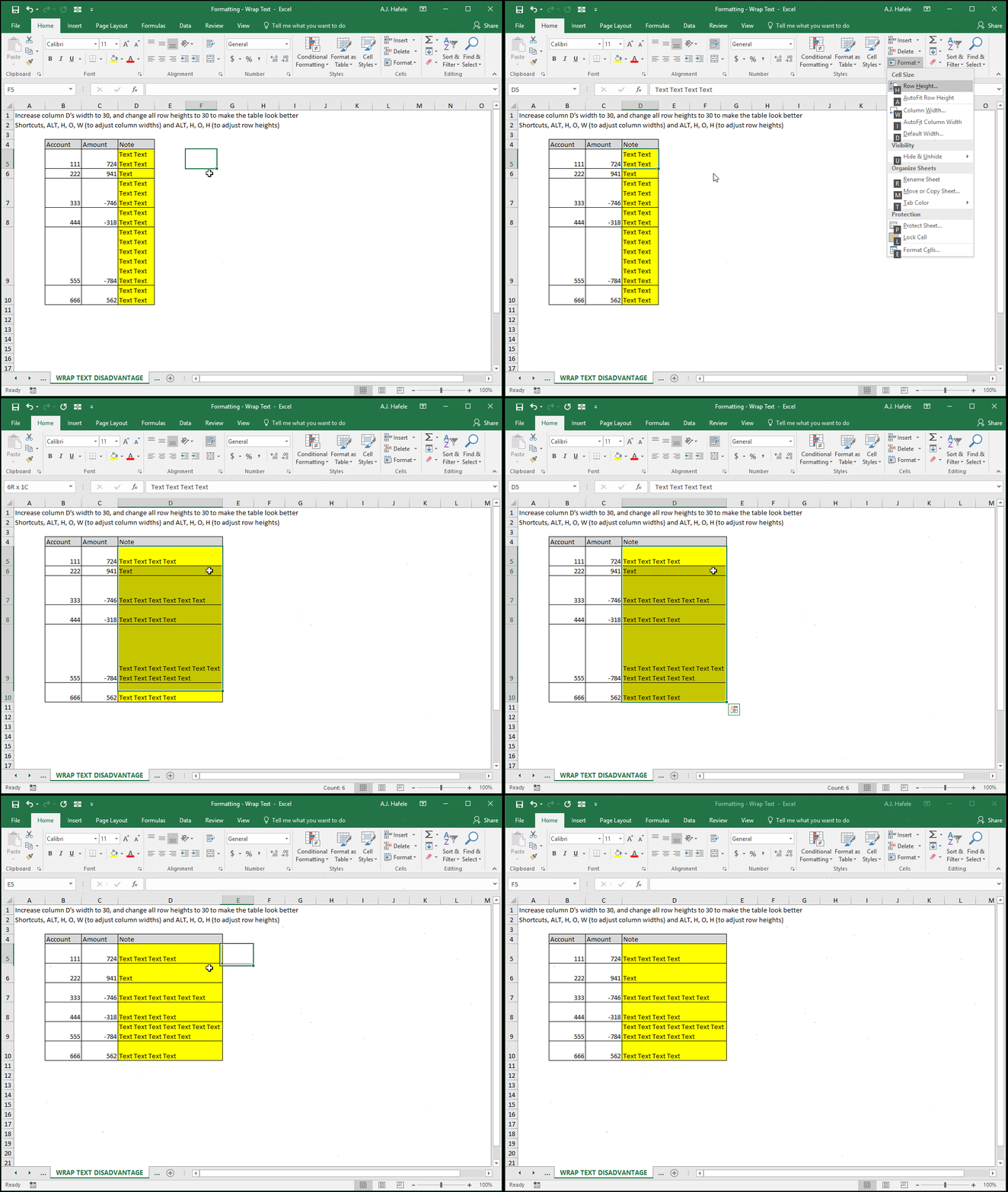
Continuing with the above example, we use both of these two solutions to make the data look better (using ALT, H, O, W and ALT, H, O, H to adjust cell heights and widths):
With wider columns and even row heights, the table is much easier to read