Hide Rows and Columns
Overview
- This lecture covers how you can go about hiding (and unhiding) rows and columns
- "Hiding rows and columns" refers (literally) to hiding rows and columns from view
- When rows and columns are hidden, they still exist, but they are simply not viewable until they are unhidden
Buttons
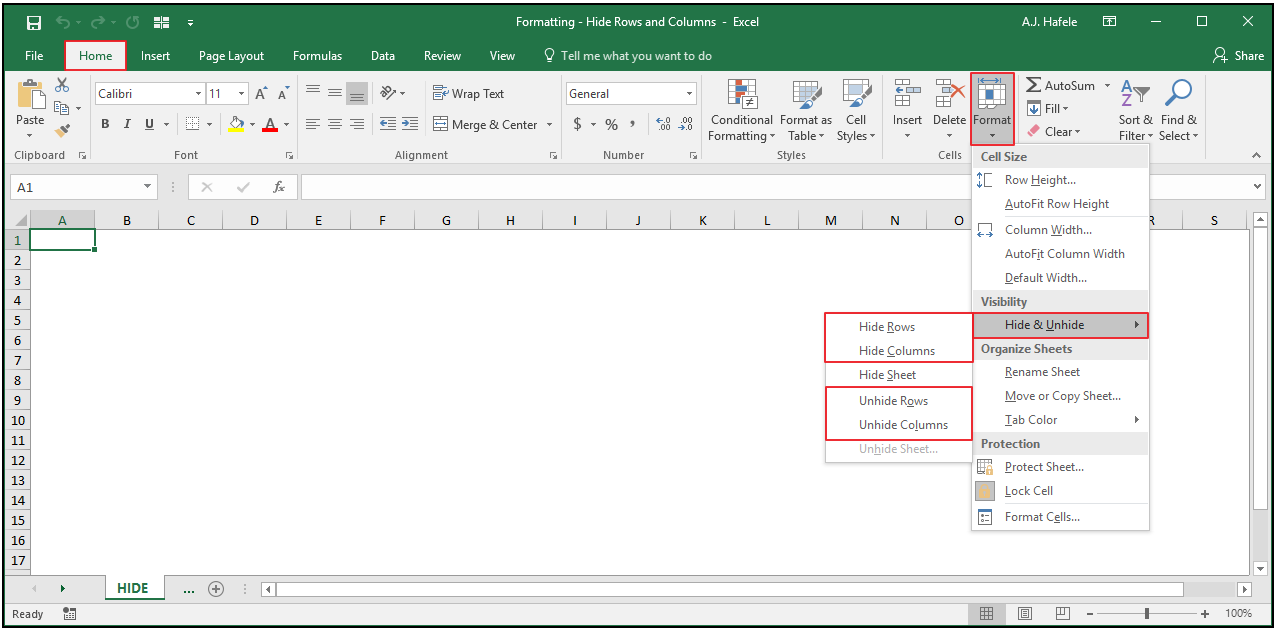
- The relevant buttons can be found in the Cells group of the Home tab:
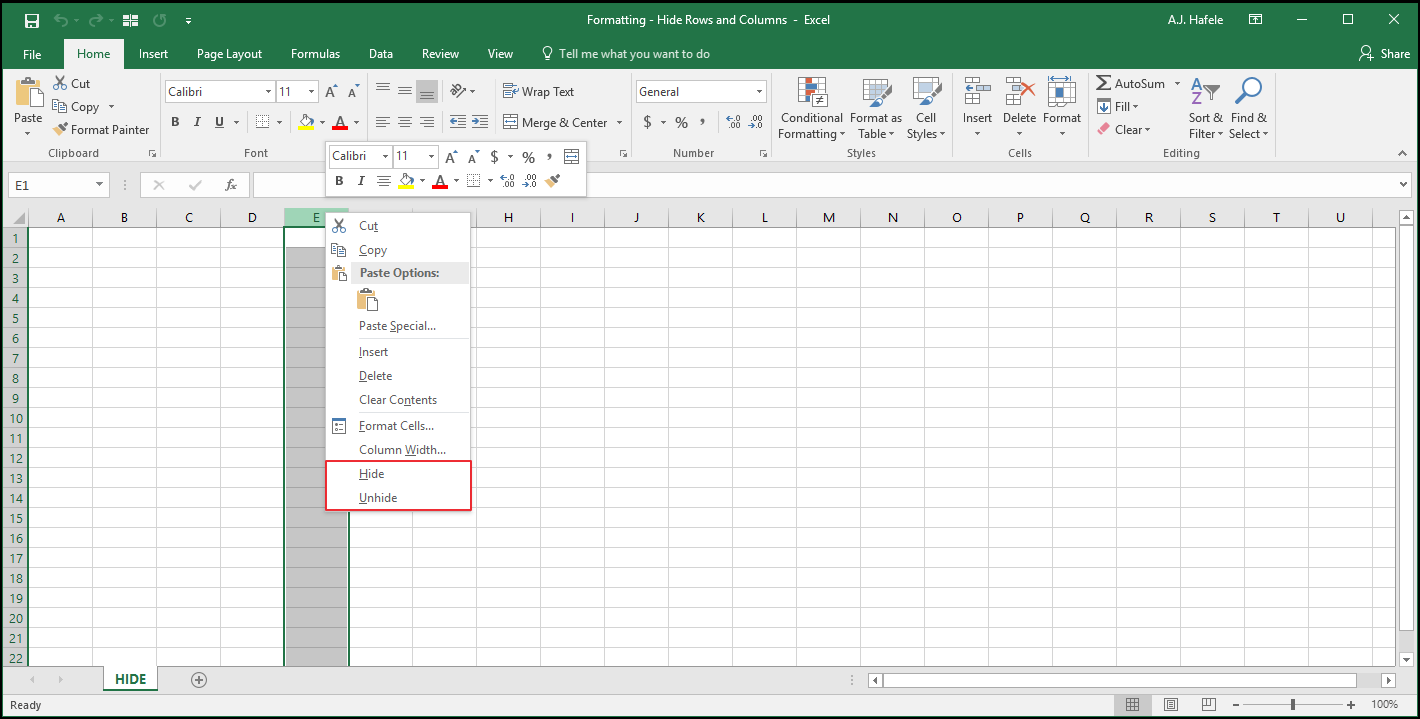
- You can also select the applicable columns or rows and right-click the Hide or Unhide buttons, as shown here:
Hide and Unhide Columns
- Observe as we hide columns (CTRL+0) in a variety of ways:
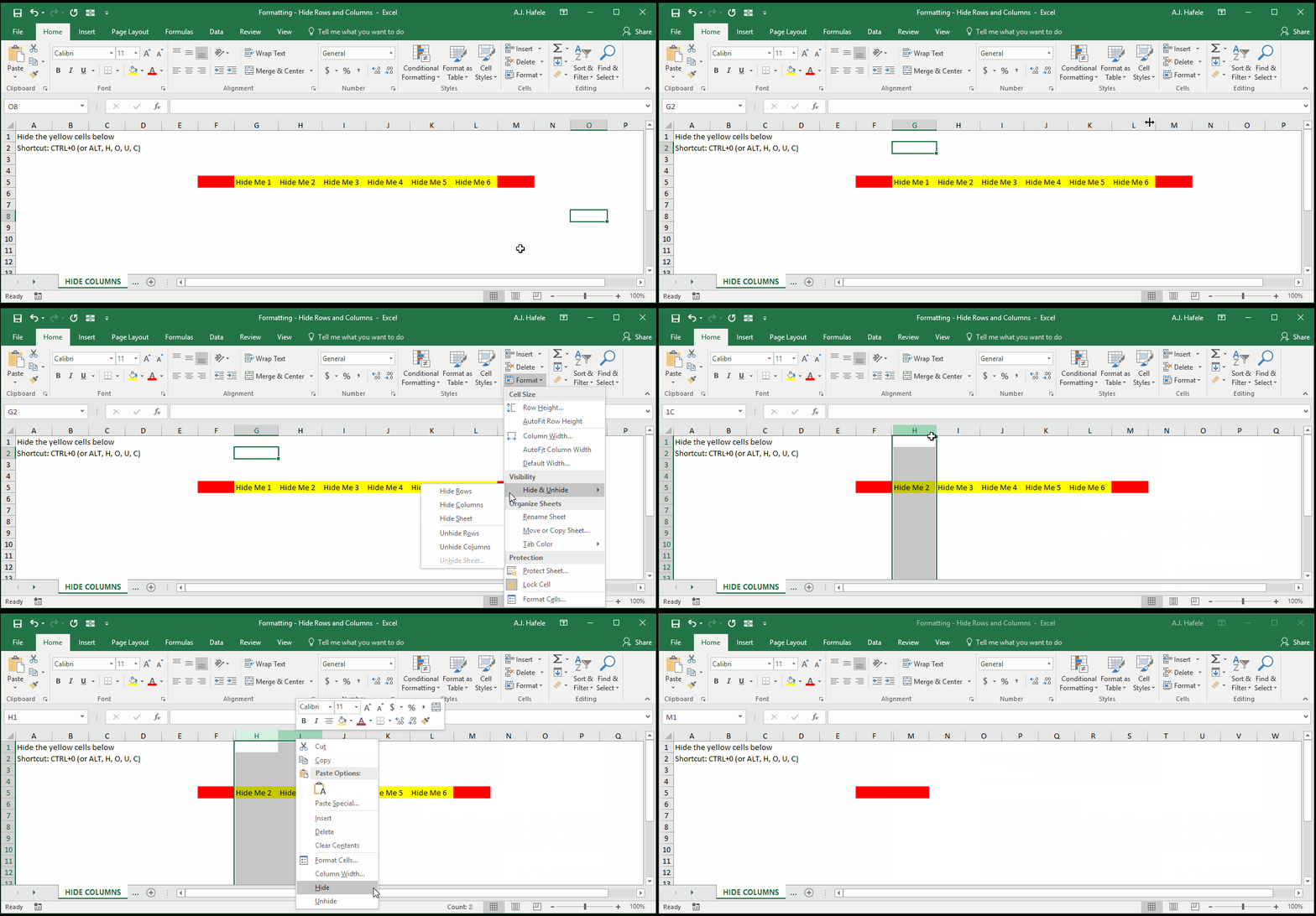
- Note that we use CTRL+0 to quickly hide columns J, K, and L at the end of the above illustration
- Observe as we unhide columns (ALT, H, O, U, L):
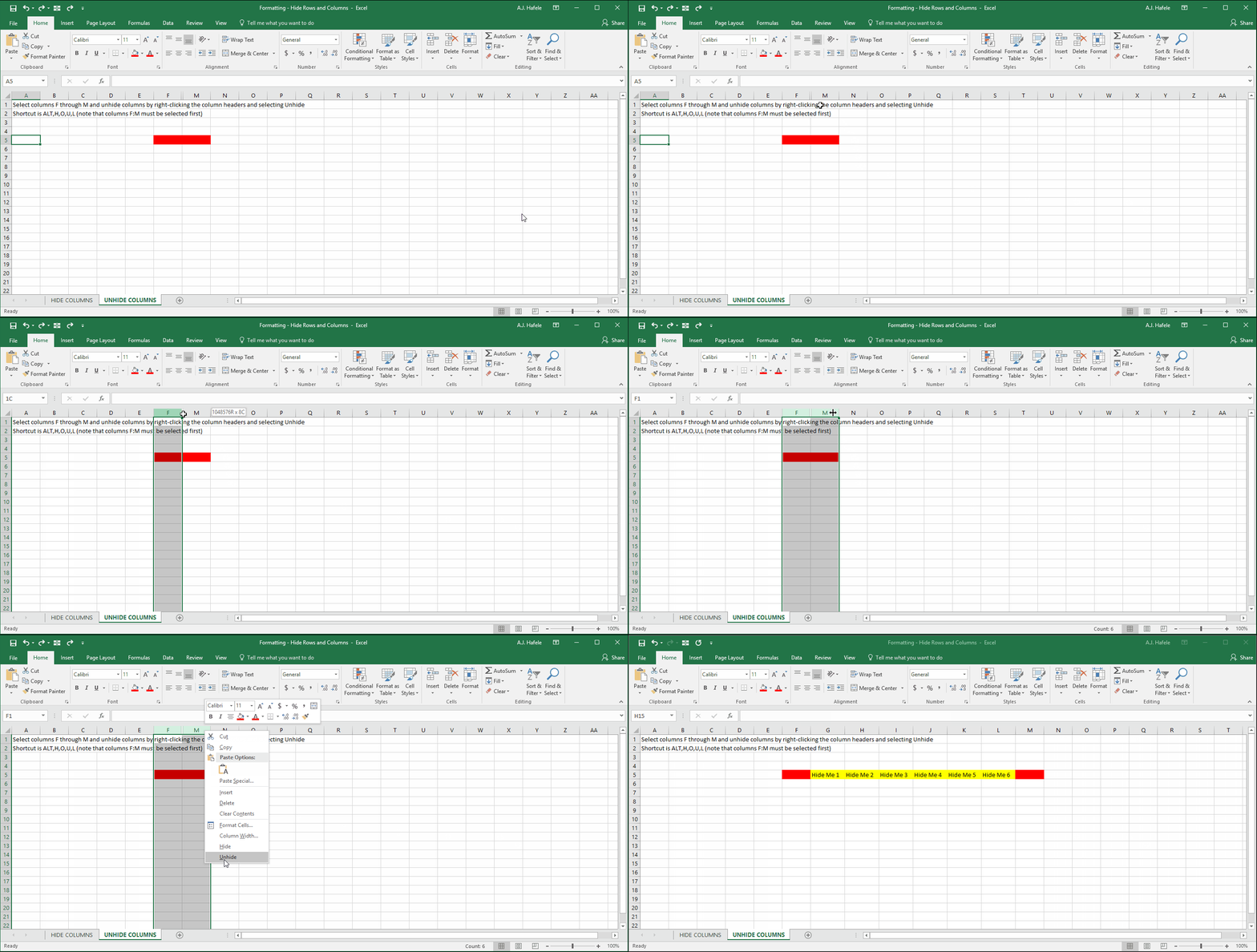
- Notice that we had to select columns F and M before unhiding columns G through L (you must do this in order to unhide columns)
Hide and Unhide Rows
- Observe as we hide rows (CTRL+9) in a variety of ways:
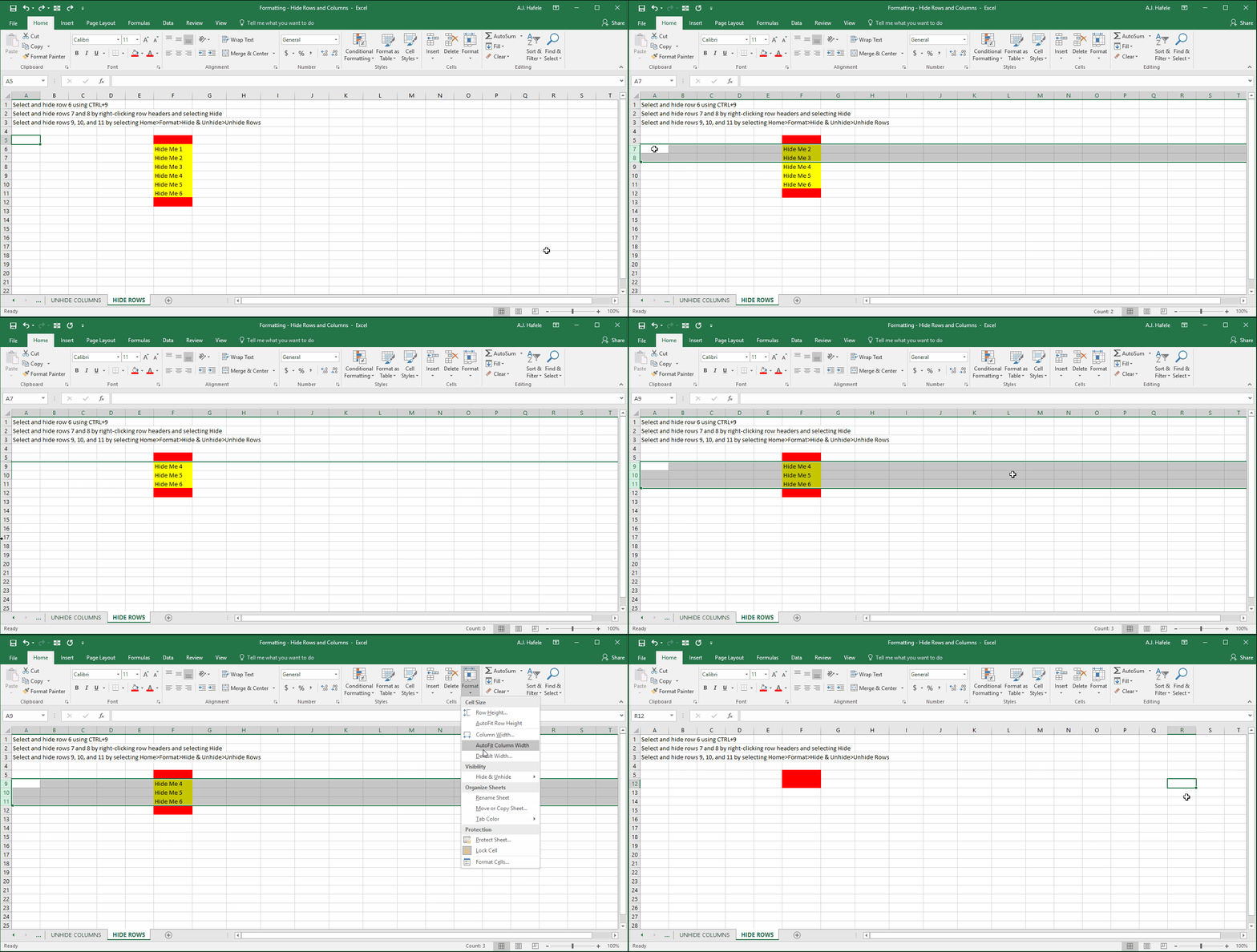
- Note that we use ALT, H, O, U, R to quickly hide rows 7, 9 and 10 at the end of the above illustration
- As you can see, you can hide non-contiguous ranges of rows (the same applies to columns, as well as to unhiding rows and columns)
- Also, the CTRL+9 shortcut is probably easier for most people, however
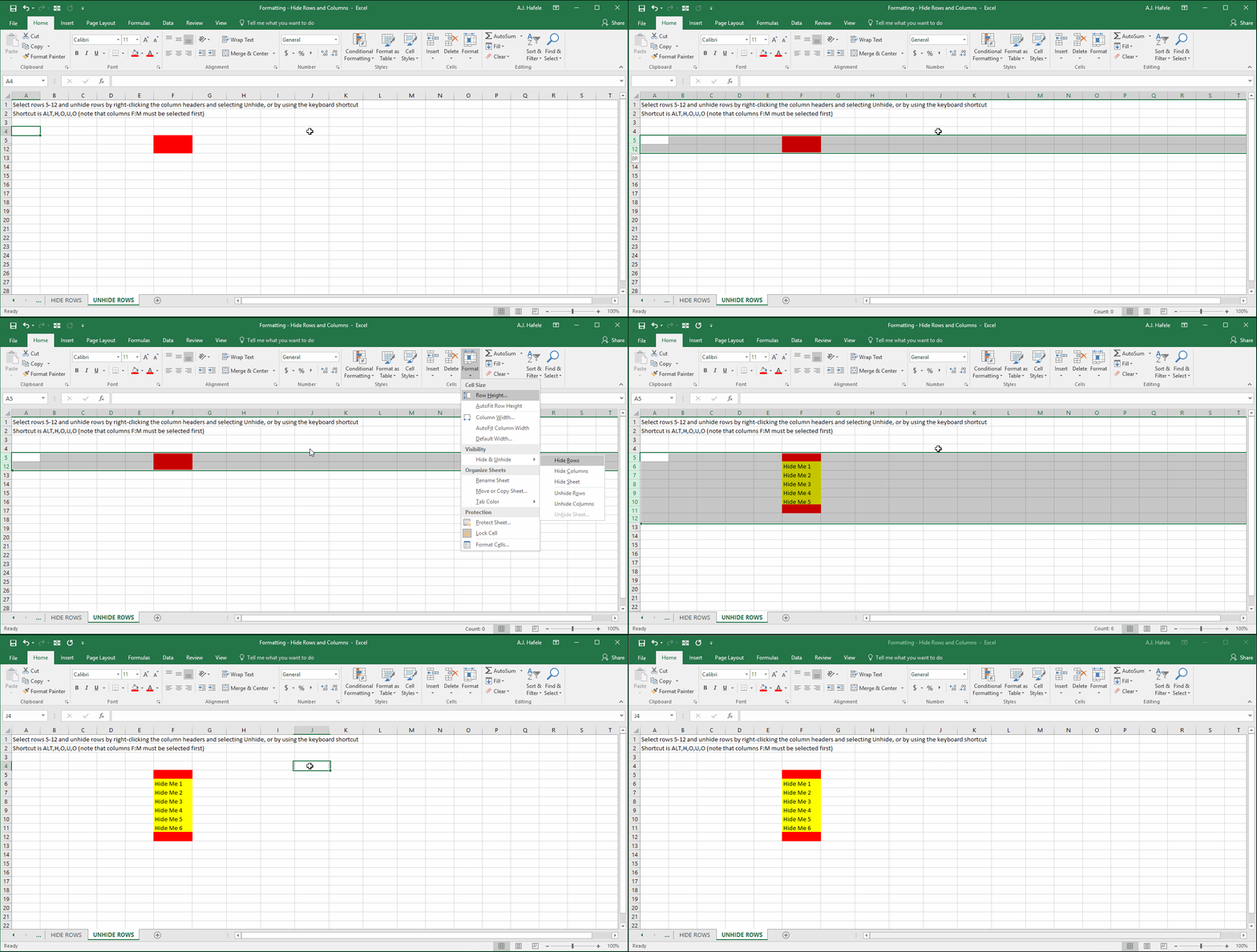
- Observe as we unhide rows (ALT, H, O, U, O):
Tips
- Avoid hiding rows and columns if possible!
- Why? You may forget data are hidden, leading to numerous issues, including calculation errors!
- Instead, group rows and columns (as discussed in the Group Rows and Columns lecture here)
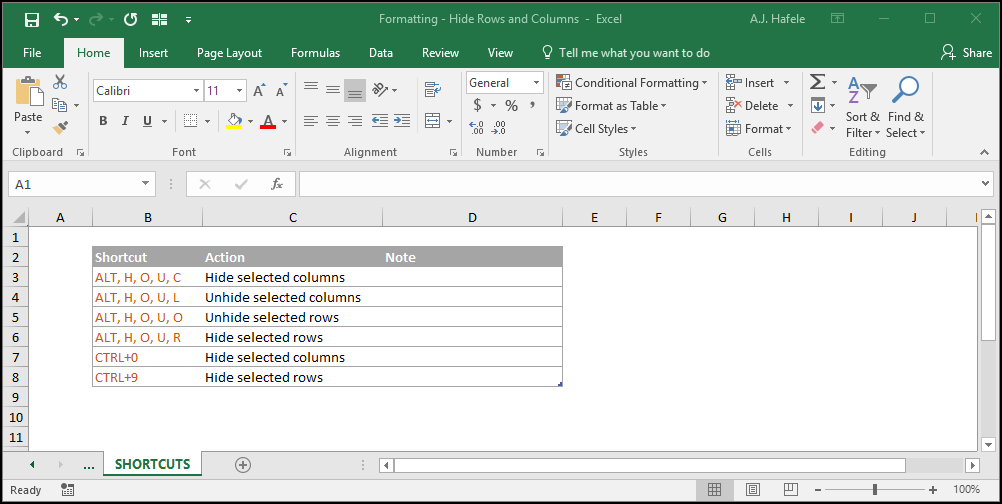
Shortcuts
Practice
External Links
