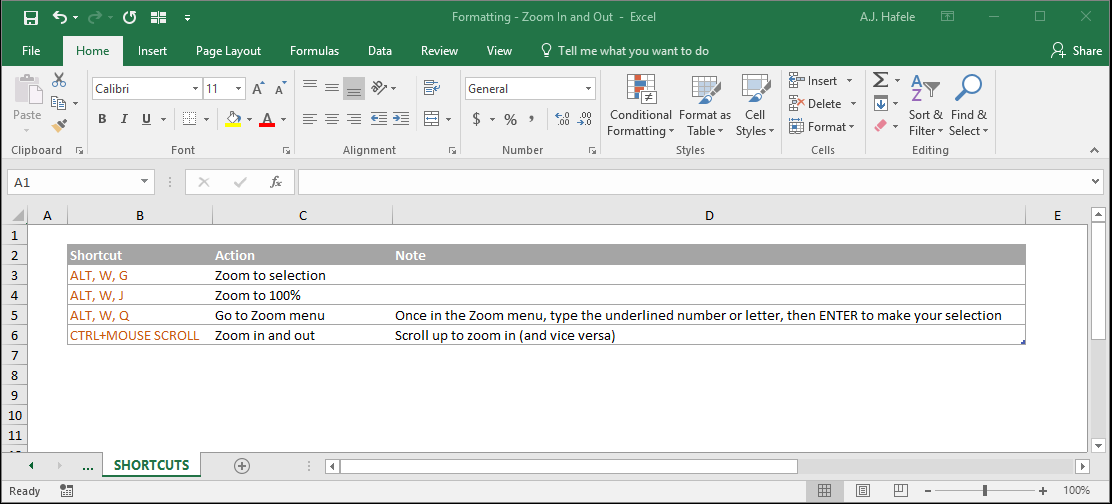
This lecture covers the various methods of zooming in and out
Zooming in and out refers to changing the worksheet size of one or more worksheets (but not the surrounding menus and buttons)
Zooming in makes the worksheet content larger, but less of the worksheet will fit on your screen
Zooming out makes the worksheet content smaller, but more of the worksheet will fit on your screen
Buttons
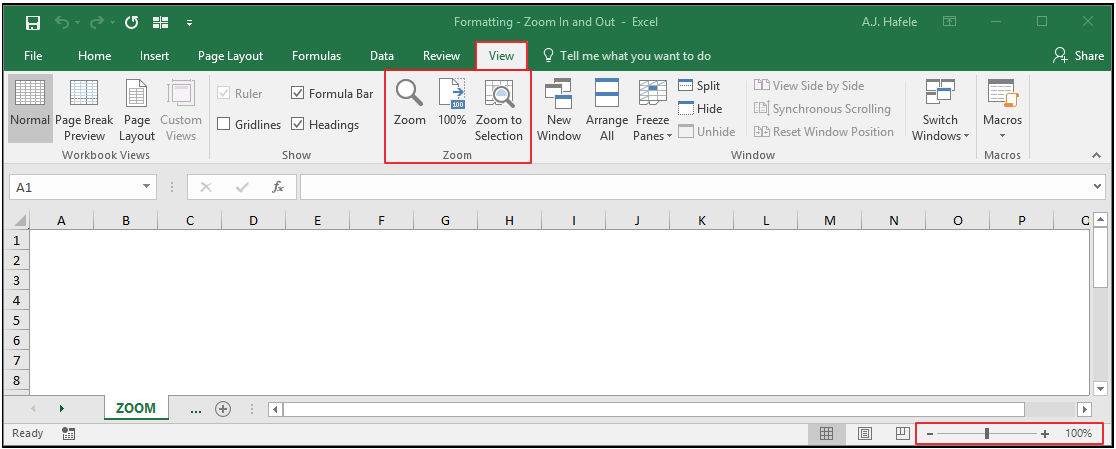
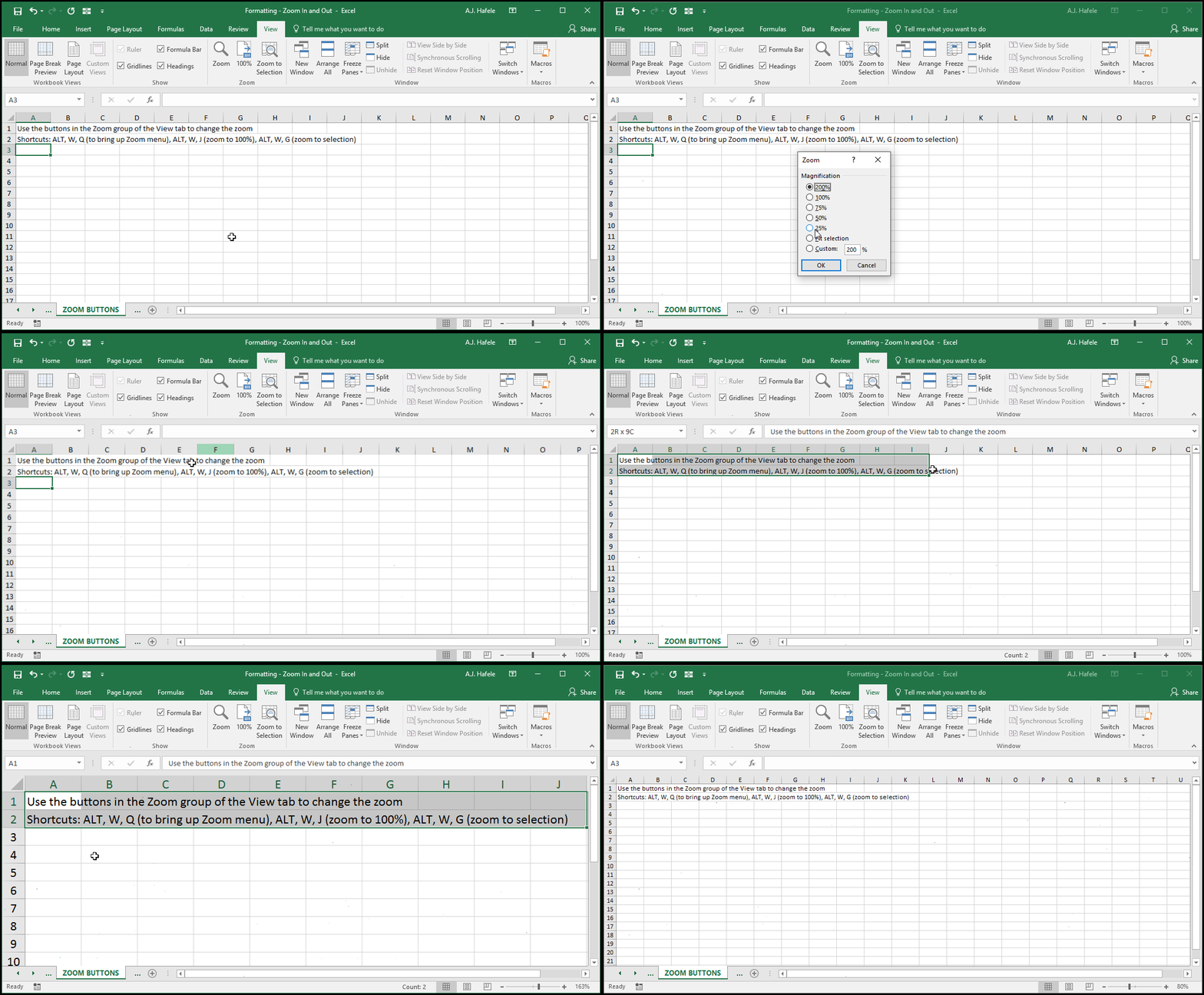
The relevant buttons can be found in the Zoom group of the View tab, as well as at the bottom-right of the Excel window (regardless of which Ribbon tab is selected):
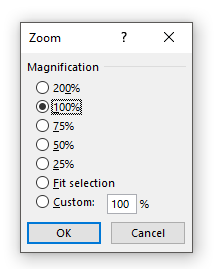
When the Zoom button in the Ribbon is selected, or when the zoom percentage button in the very bottom-right corner of the Excel window is selected, the following Zoom menu appears (which enables you to select an appropriate zoom percentage):
When this menu appears, pressing any k corresponding to the underlined numbers or letters will make that selection (e.g. pressing the "f" key will select the "Fit selection" option)
Zoom With Scroll Wheel
One quick and easy way to zoom in and out is to use your mouse's scroll wheel
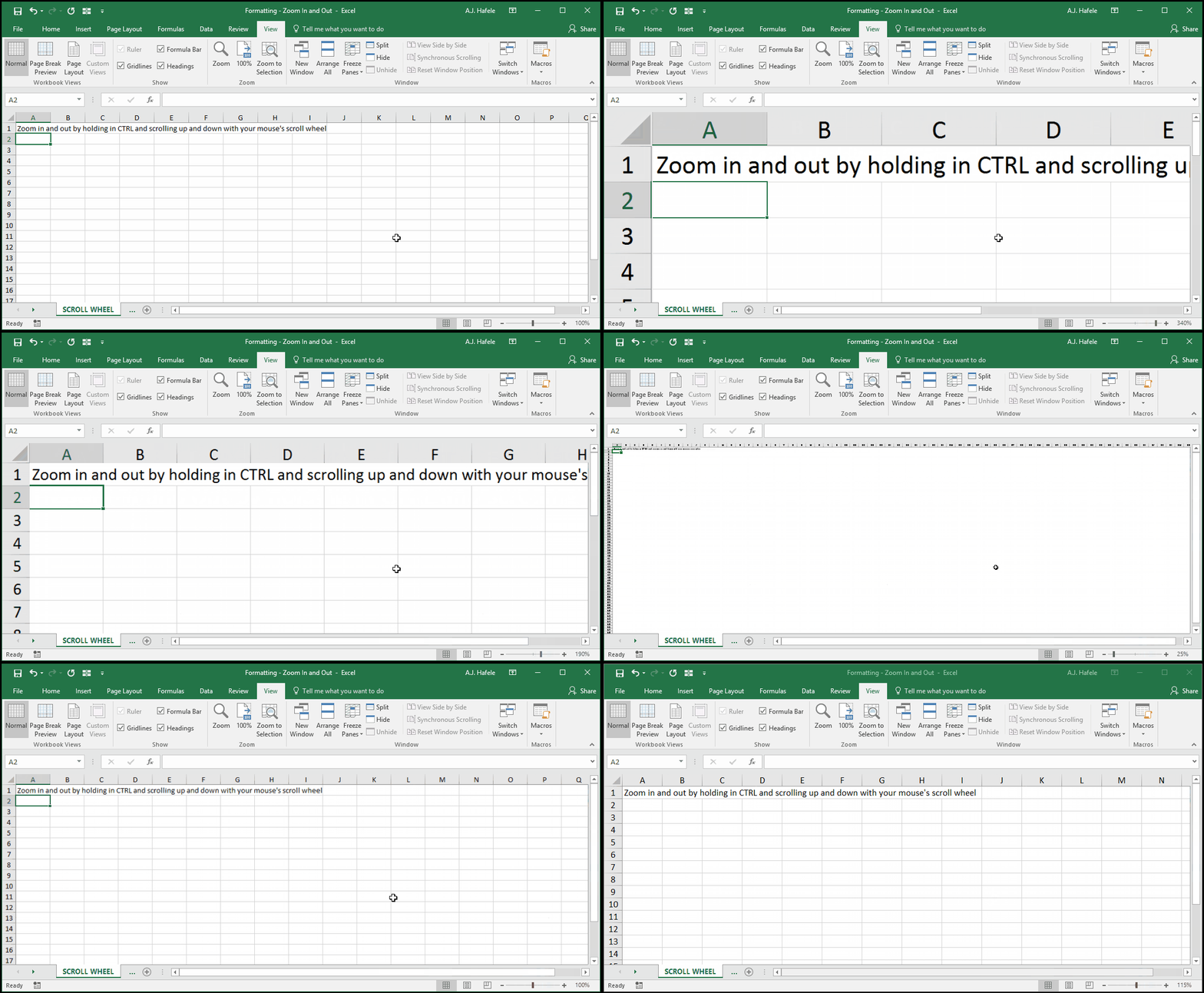
The following illustrates the use of the CTRL+SCROLL WHEEL shortcut to zoom in and out:
Zoom With Zoom Slider
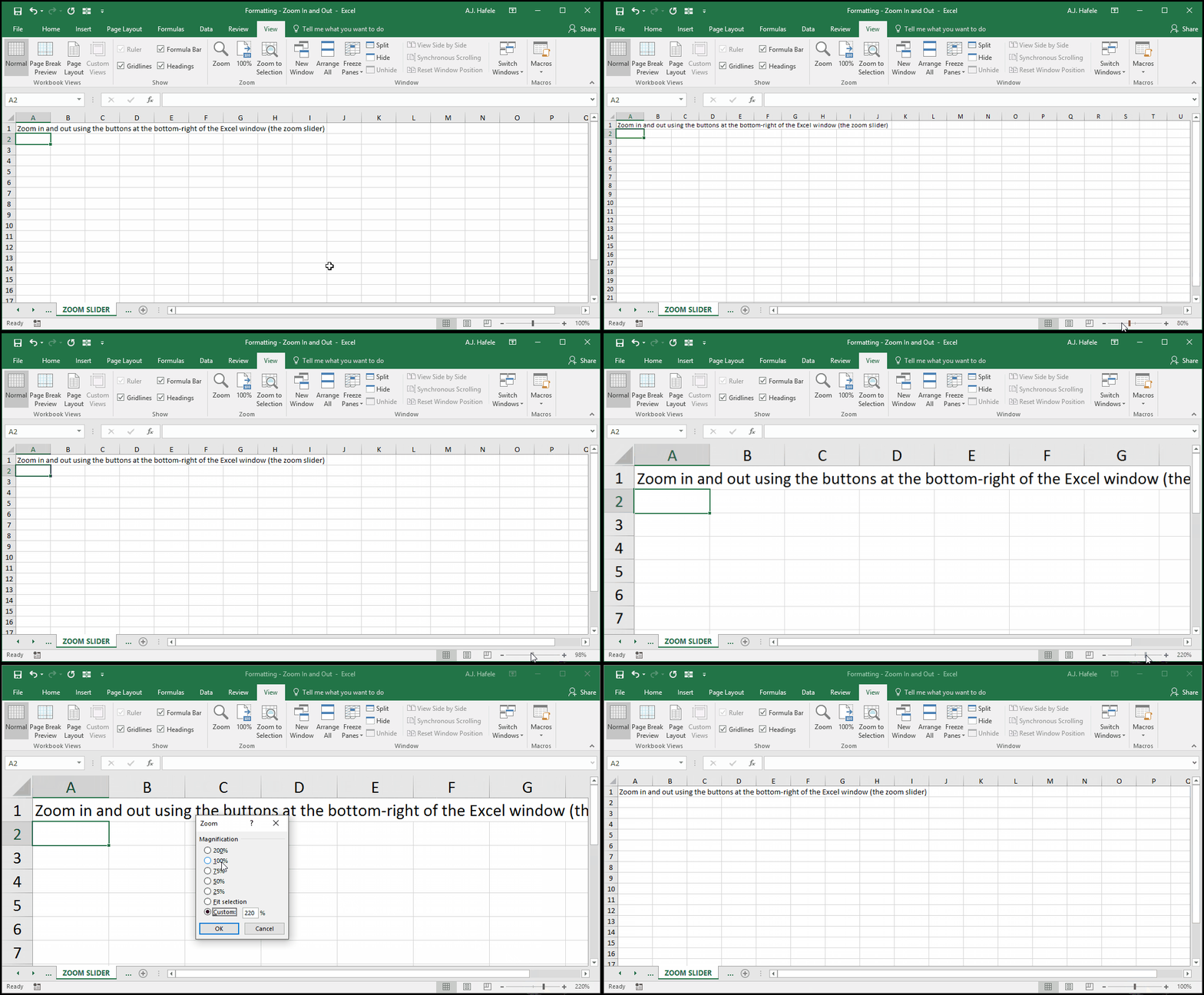
The following illustrates how to zoom using the buttons at the bottom-right of the Excel window (referred to as the zoom slider):
Notice that only the worksheet area changes size, and not the various menu options (e.g. the Ribbon, the buttons at the bottom of the Excel window, etc.)
Zoom With the Ribbon
The following illustrates the use of the buttons located in the Zoom group of the View tab:
Tips
Make sure all your sheets are zoomed to the proper percentages
We recommend using the same zoom percentage for all worksheets, for visual consistency
To quickly do this, simply select all sheets and then change the zoom on the active sheet. All sheets' zoom percentages will change as well!
While zooming out will allow more information to be visible in a given sheet, some users may not be able to read it, so keep them in mind when setting your sheets' zoom percentages
Avoid manipulating font sizes, and instead use the zoom features to better visualize your data, unless printing is necessary
Zooming has no impact on the size of printed worksheets