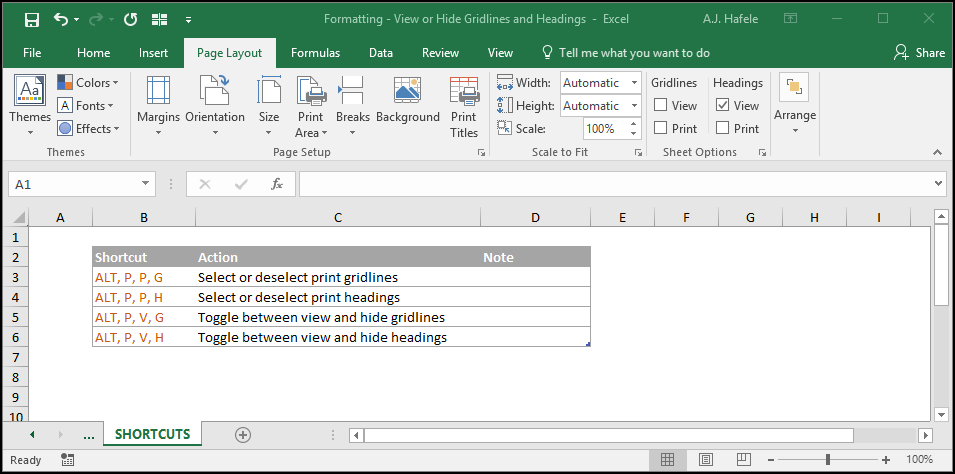
This lecture covers how to view and hide gridlines and (row and column) headings
What are gridlines? These are the faint lines that appear in your Excel file by default (they are not borders)
What are headings? These are simply the row and column headings above and to the left of the worksheet grid (i.e. rows 1, 2, 3, etc. and columns A, B, C, etc.)
Essentially, you can choose to hide these items from view, if desired
Additionally, you can choose to print headings and gridlines if desired (they are typically not set to be printed by default)
Buttons
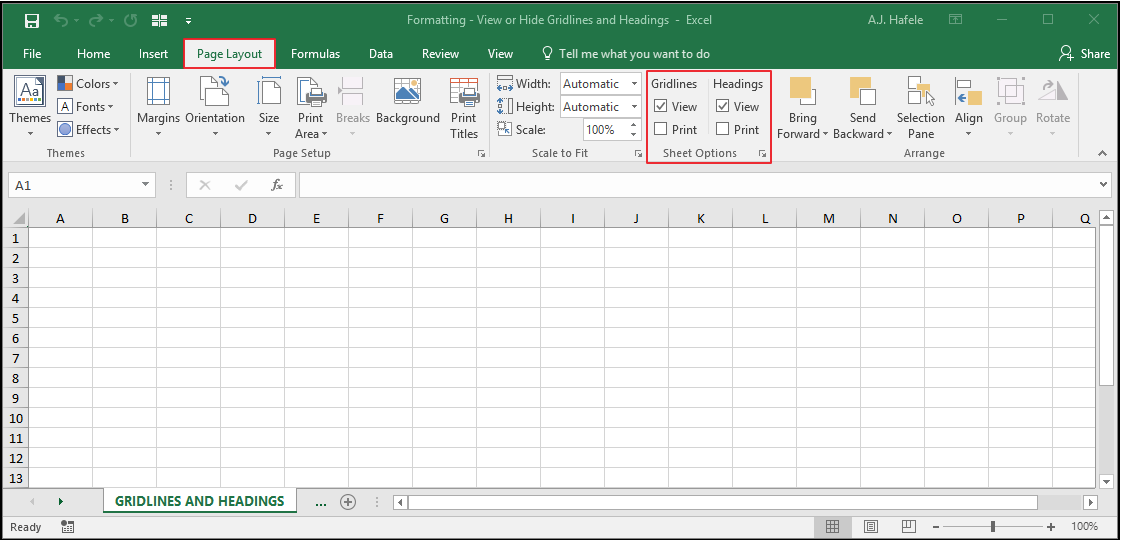
The relevant buttons can be found in the Sheet Options group of the Page Layout tab:
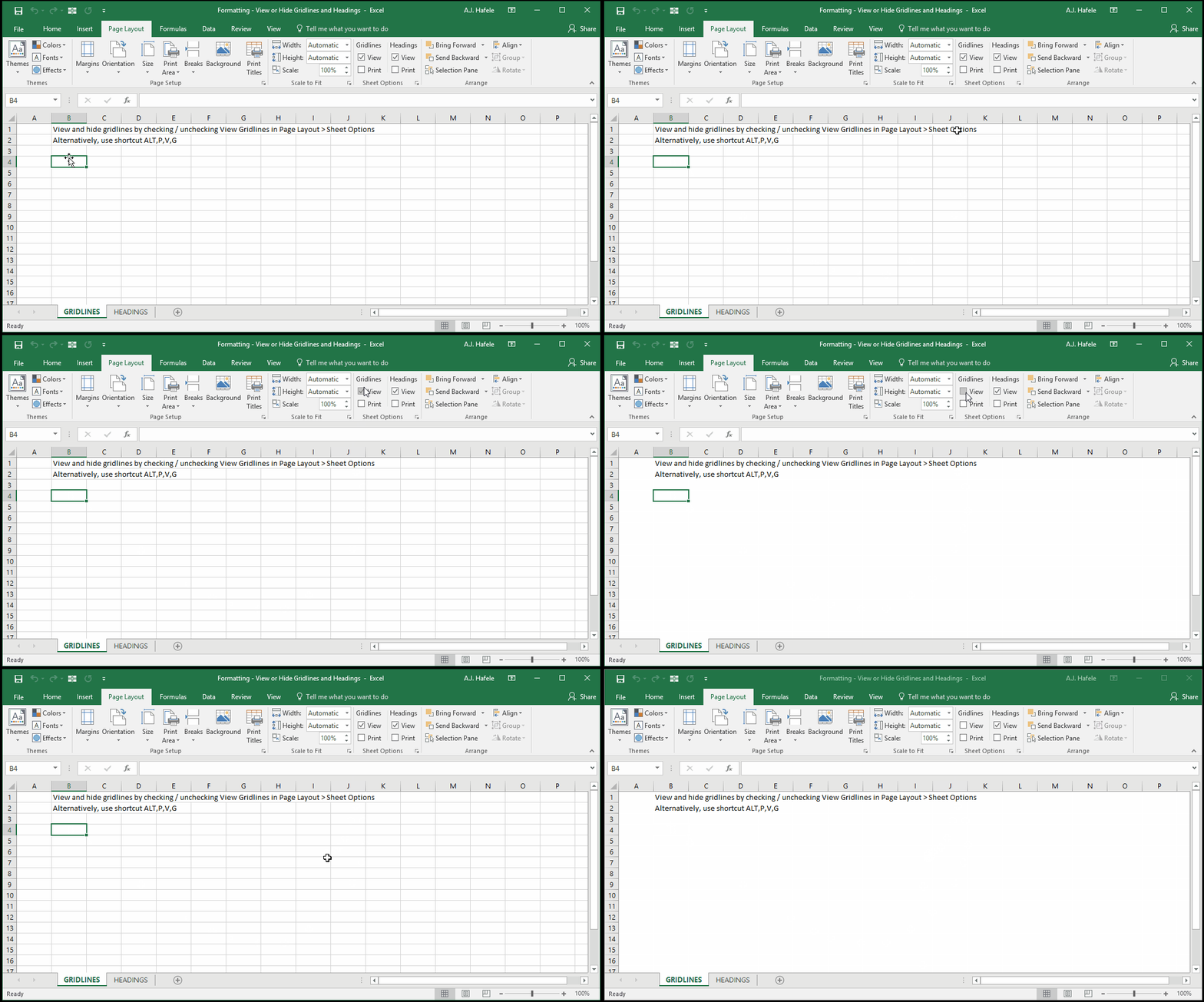
View and Hide Gridlines
The following illustrates how to view and hide gridlines:
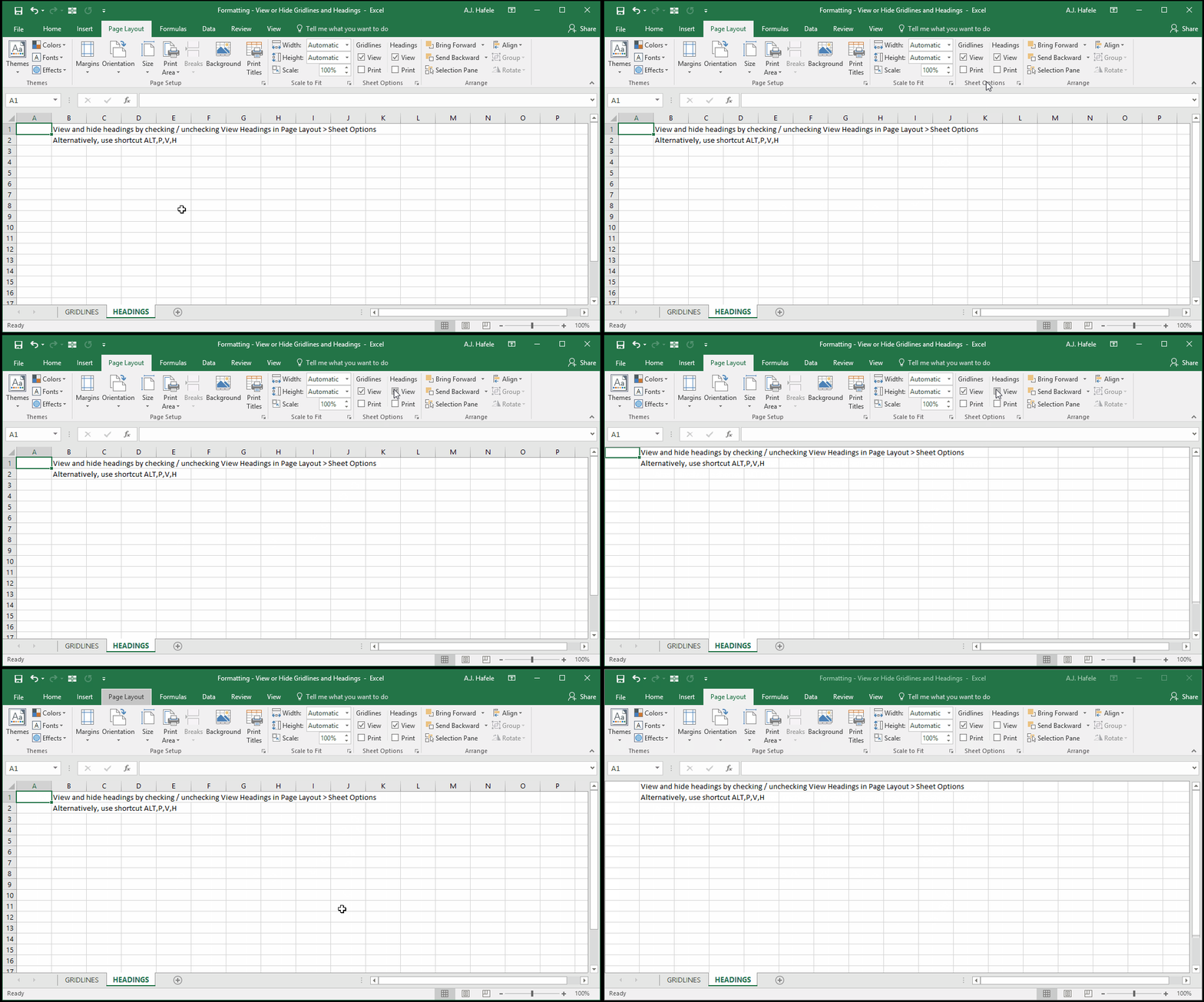
View and Hide Headings
The following illustrates how to view and hide row and column headings:
Print Gridlines and Headings
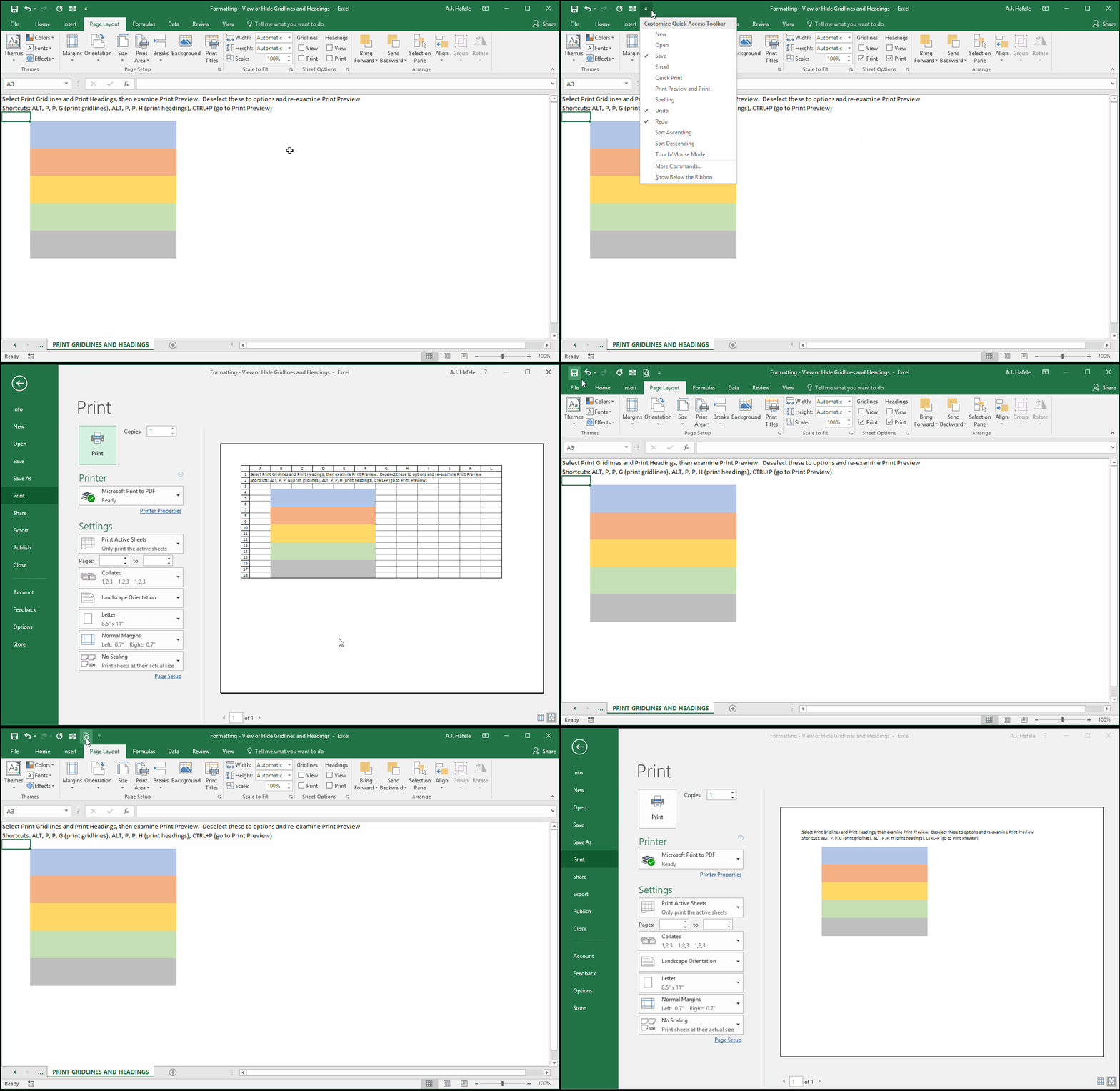
By default, gridlines and headers are not printed, but you can choose to do so if necessary
Observe how the pre-printed sheet will look in Print Preview upon changing the relevant options:
As you can see above, the Print Gridlines and Print Headings options are independent of your decision to view (or not view) them within Excel
Tips
Viewing or hiding gridlines and/or headings are mostly cosmetic decisions
However, note that hiding headings may make it more difficult to reference data when creating workbooks, so you may not want to hide headings until your worksheets are almost finalized