Sometimes, you may have the need to keep certain rows and/or columns of data in sight at all times
For example, imagine that you have a wide table of data (with many columns), requiring side-scrolling, but you always need to see the leftmost column in your table
Or for example, imagine that you have a table with many rows of data, but you always want to see the field headings contained in the topmost row of the table
In these circumstances, Excel's Freeze Panes functionality can be very useful
The term "Panes" in "Freeze Panes" simply refers to rows and columns of data
This lecture covers how to use the various Freeze Panes options
Buttons
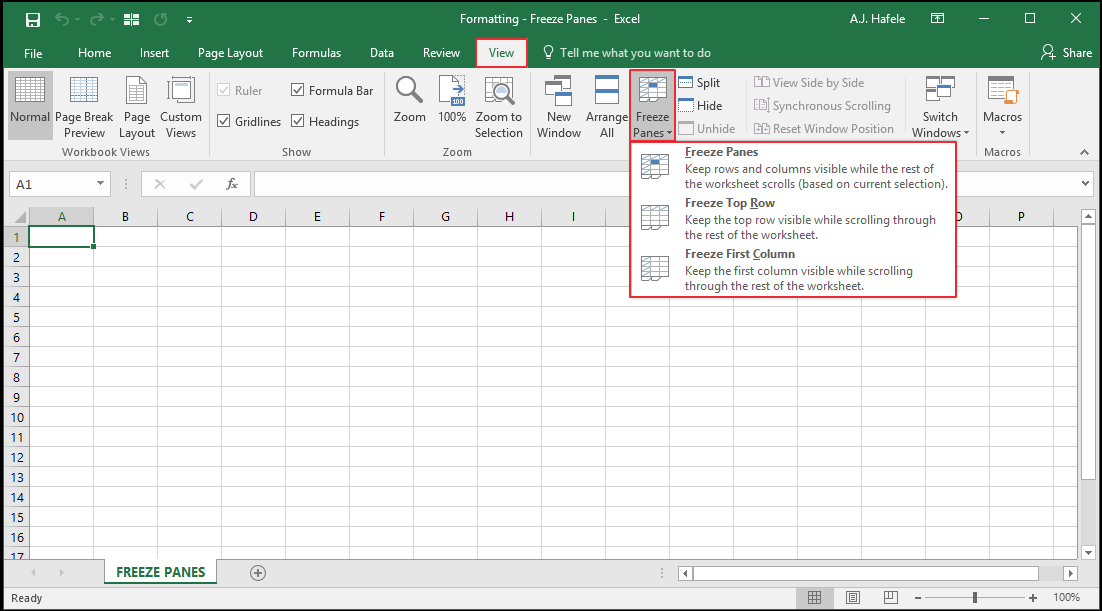
The relevant buttons can be found in the Window group of the View tab:
Freeze and Unfreeze Panes
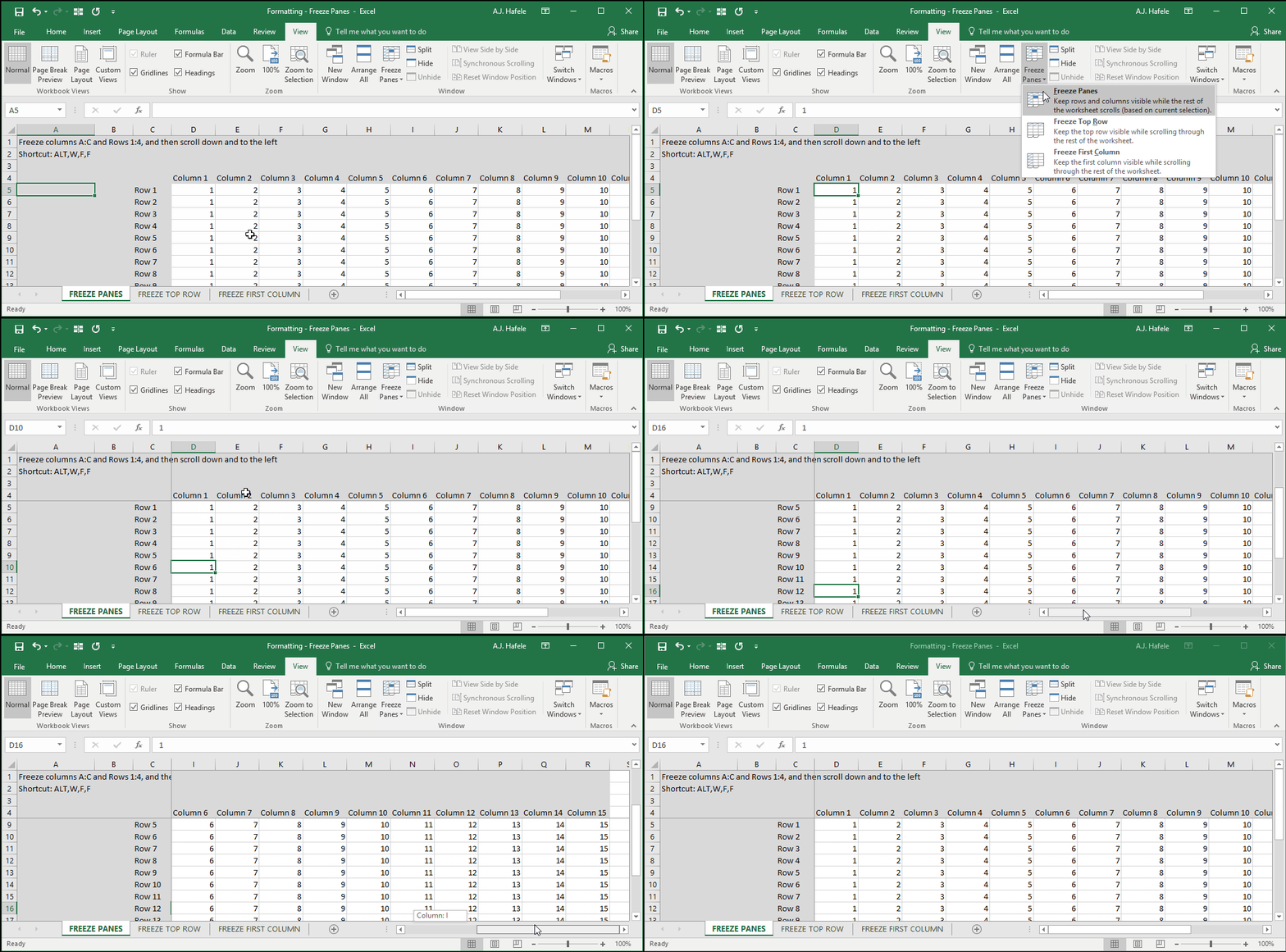
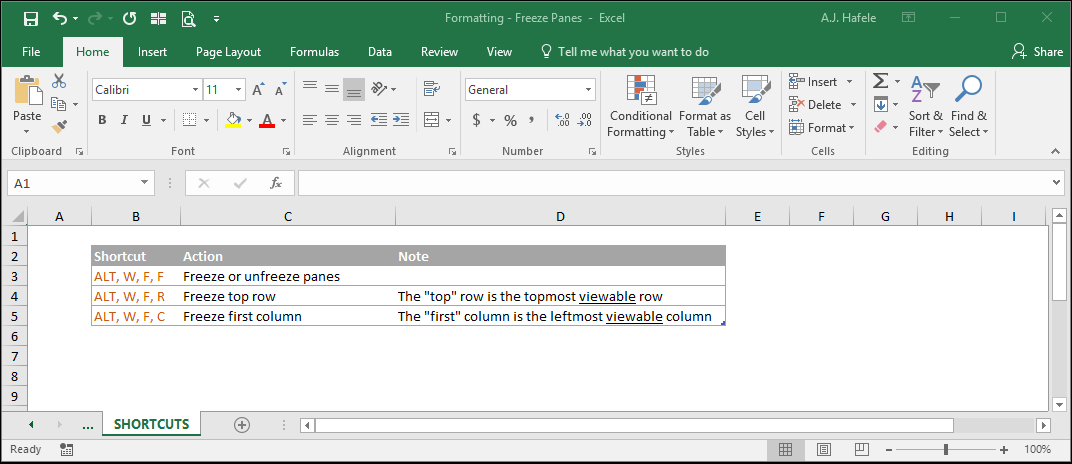
Observe as we freeze both rows and columns (simultaneously) using Freeze Panes (ALT, W, F, F):
Notice that:
All visible rows and columns above and to the left of the blue cell are frozen in place, and are always visible, even when you scroll
The Freeze Panes button becomes the Unfreeze Panes button when frozen panes are present in the worksheet. This button removes all frozen panes in the sheet
As a side note, when we unfroze panes and scrolled down, the field headings (Column 1, Column 2, Column 3, etc.) merged into the headings (B, C, D, etc.)! This happened only because we were using a table, which has a number of special features (this being one of them)
Though not shown above:
Selecting Freeze Panes when any cell in the leftmost visible column is selected will freeze only those rows above the active cell
Selecting Freeze Panes when any cell in the topmost visible row is selected will freeze only those columns to the left of the active cell
Freeze Top Row
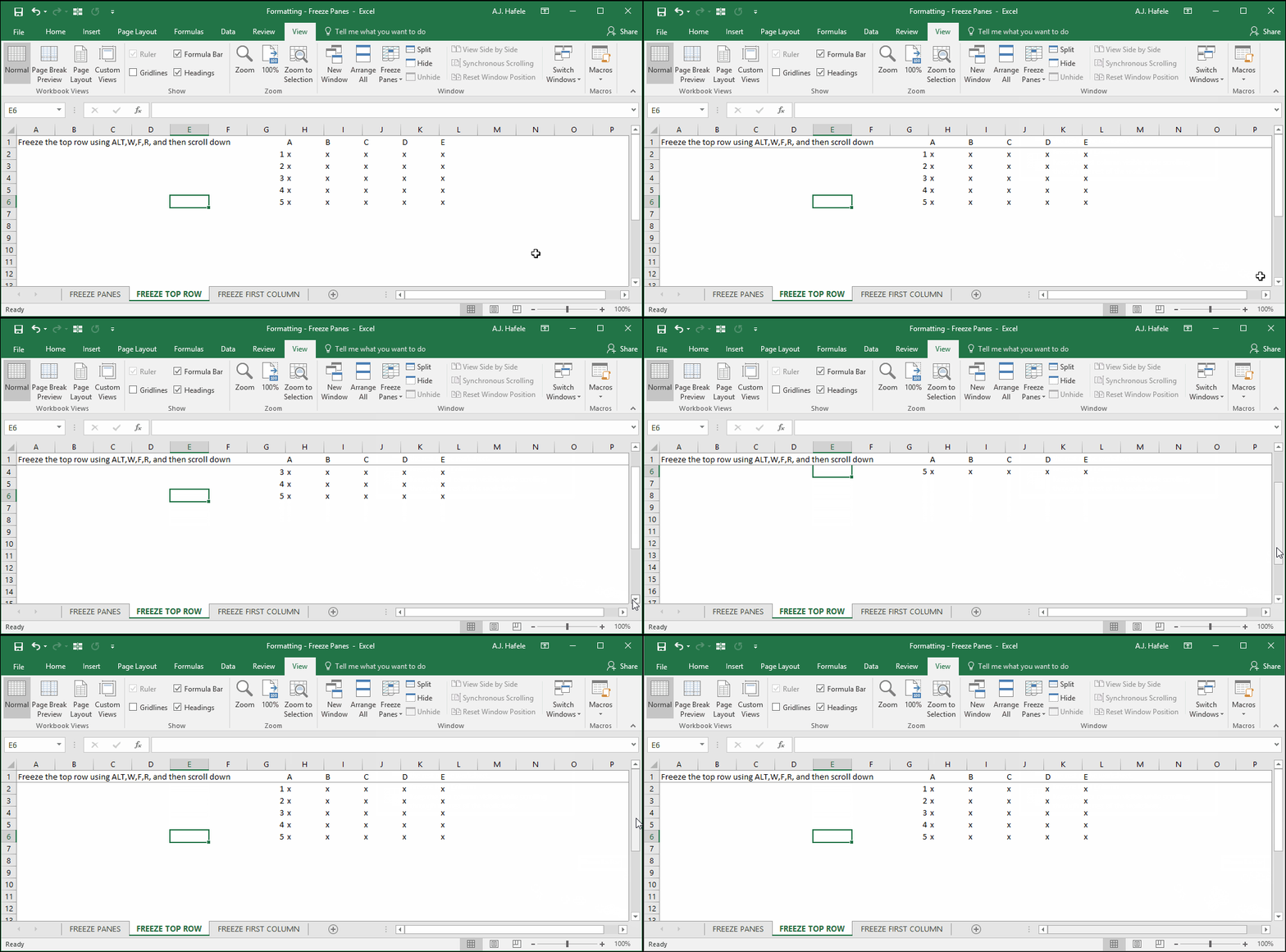
The following illustrates freezing the top row (ALT, W, F, R):
Notice that the top row is frozen regardless of where the active cell is
Freeze First Column
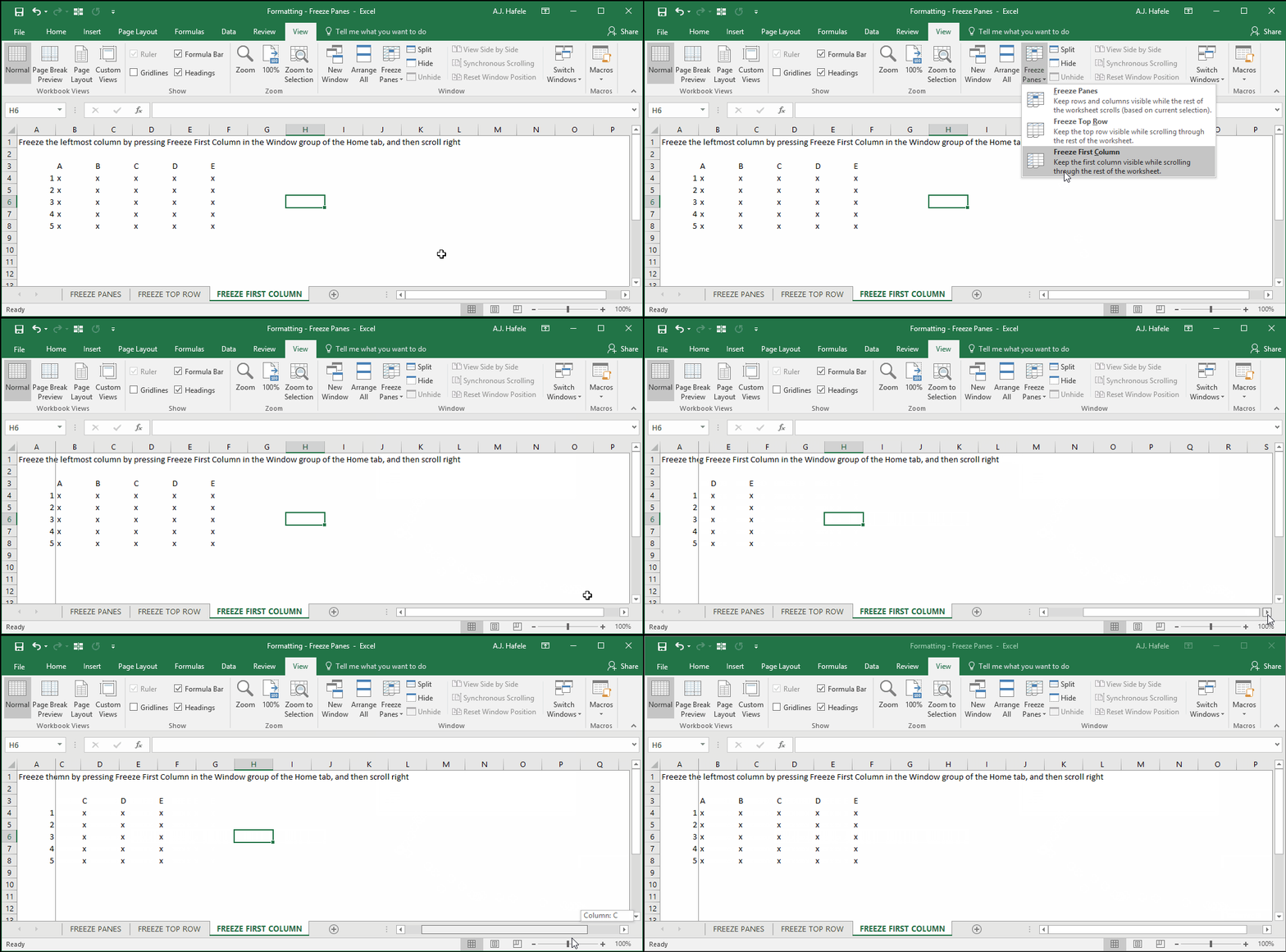
The following illustrates freezing the first column (ALT, W, F, C):
Notice that:
Column B is the first column - not column A - since it is the leftmost visible column
The first column is frozen regardless of where the active cell is
When column B was frozen, we could no longer see (nor side scroll to) column A!
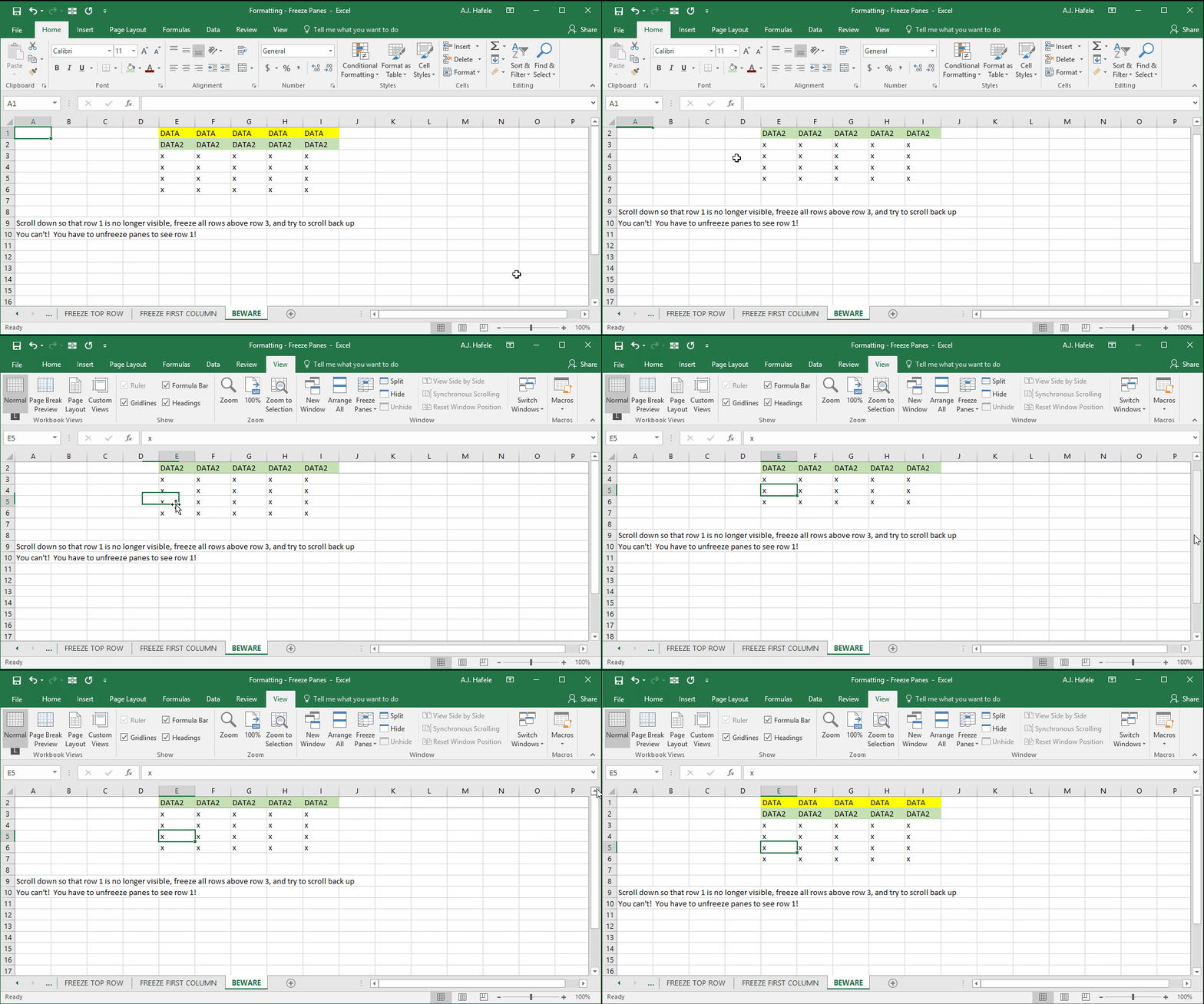
A Minor Freeze Panes Pitfall
The last example above illustrates one minor item to beware of when freezing panes: upon freezing rows (or columns), you cannot see any rows above (or columns to the left of) the topmost frozen row (or leftmost frozen column)
Observe as we freeze a top row, effectively preventing us from seeing any rows above the frozen row:
Freeze panes can be very useful, especially when analyzing large tables of data in which you always need to have certain fields or table headers in view
Just be aware of the minor pitfall described above