Worksheet Tab Colors
Overview
- Previously, we discussed ways to create and manage worksheet tabs
- This lecture covers just one additional item - tab colors
- This is more of a formatting discussion, hence the reason this lecture is in the formatting section of the course
- Users can specify the color of each worksheet tab, which can serve to enhance the organization of your Excel files
- Note that the default tab color is actually no color - not grey!
Buttons
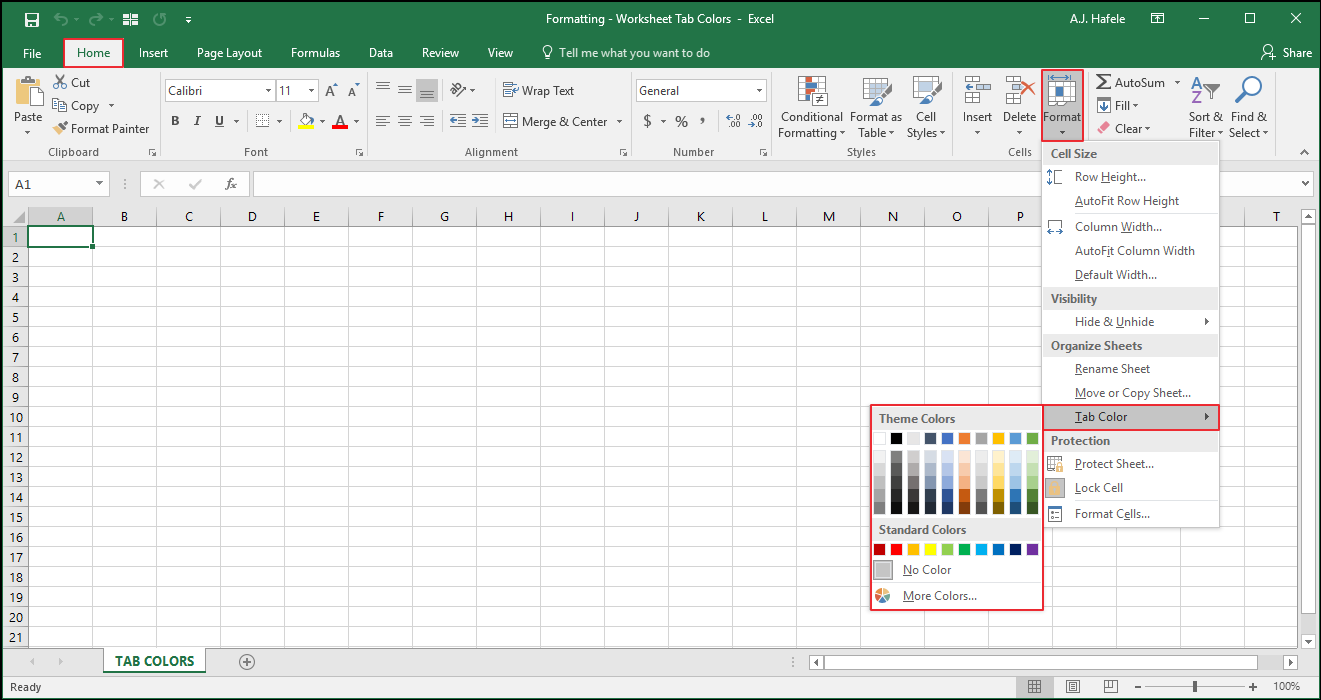
- The relevant buttons can be found in the Cells group of the Home tab:
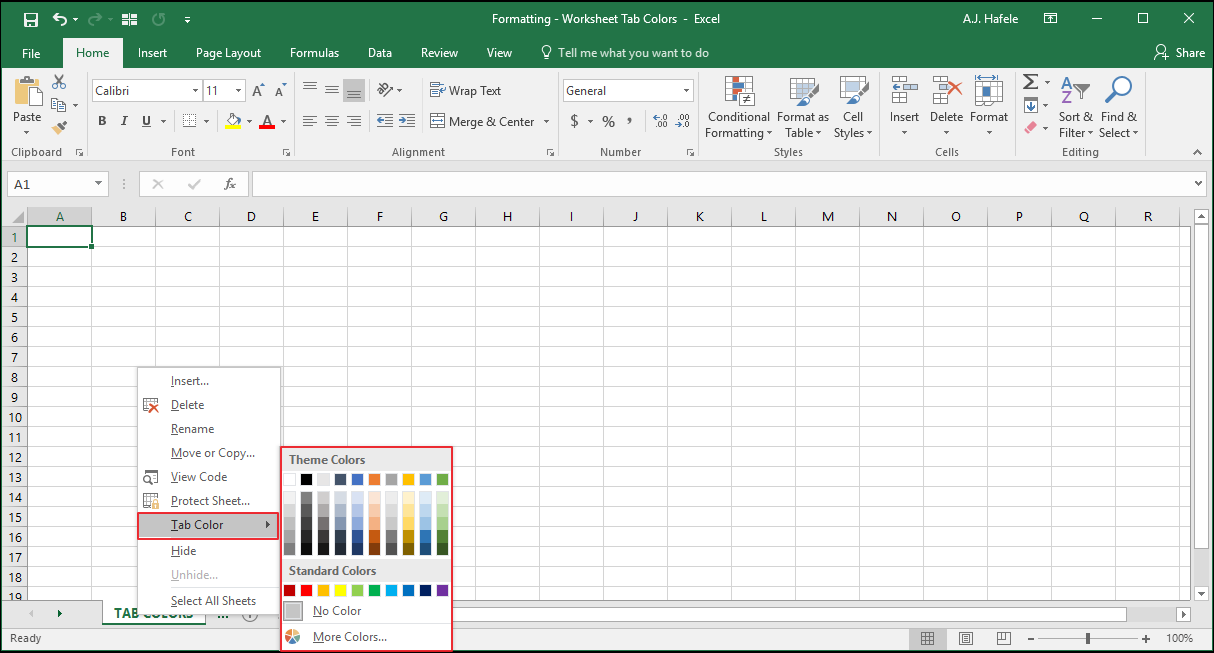
- You can also change tab colors by right-clicking a tab and selecting "Tab Color", as shown here:
Change Worksheet Tab Color
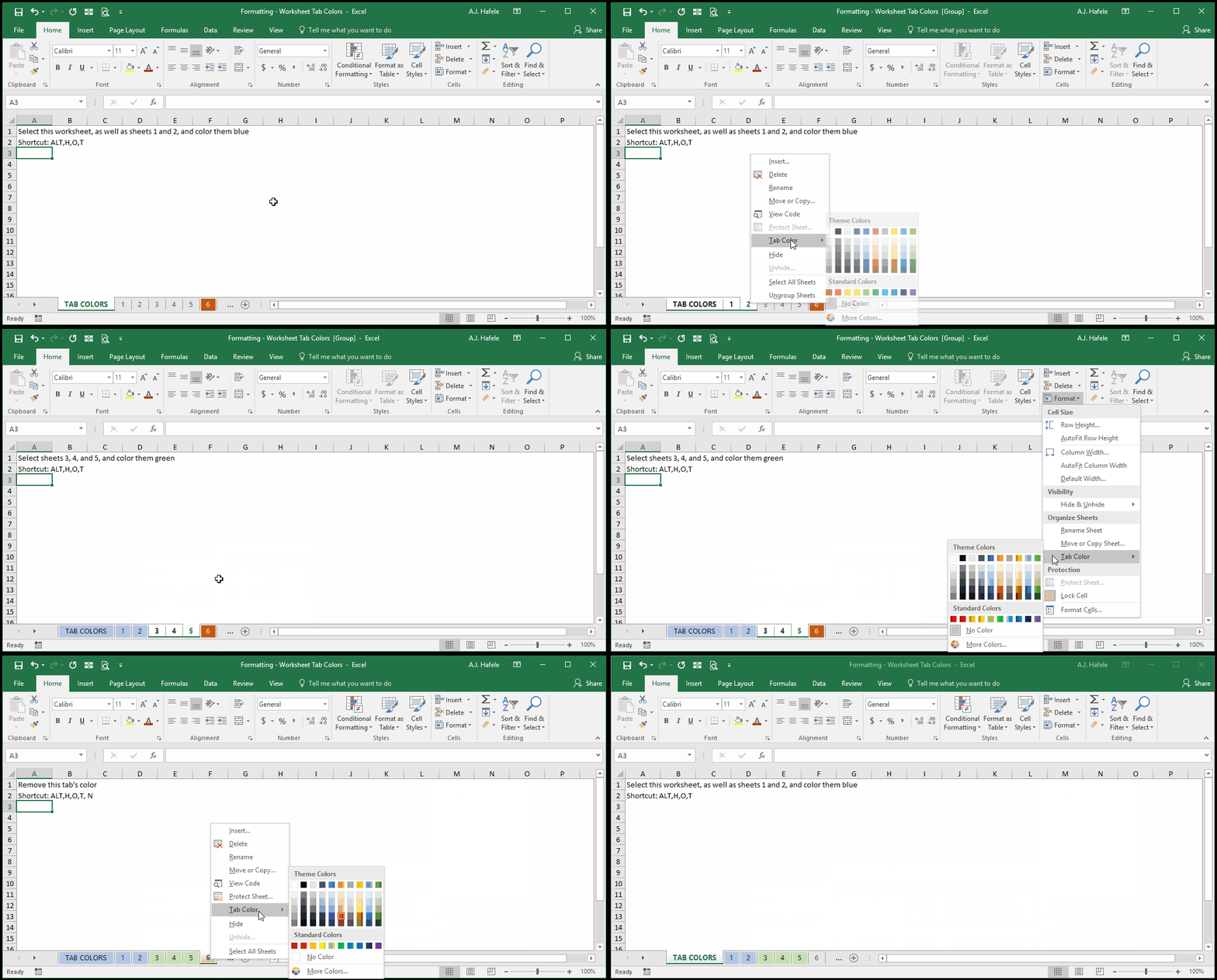
- The following illustrates how to add and remove worksheet tab colors via right-clicking tabs and via the Ribbon:
- Note that:
- You can change tab colors for multiple sheets simultaneously - simply select the sheets that are in-scope, and then select the applicable color
- We used the CTRL+SHIFT+PAGE DOWN shortcut to select sheets 3, 4, and 5 before making their tabs green
Tips
- One way to take advantage of worksheet tab colors is to color-code your tabs in meaningful ways
- For example, you can color-code tabs based on the format of your data, as follows:
- Blue sheets can represent tables of data
- Green sheets can represent PivotTables
- Orange sheets can represent sheets containing non-tabular user inputs
- Or, for example, you can color-code tabs whose data are shared, as follows:
- Blue sheets are tables and PivotTables of data set 1
- Red sheets are tables and PivotTables of data set 2
- Purple sheets are tables and PivotTables of data set 3
- However, do not allow color coding to make your files more confusing or less organized, so use it logically and consistently!
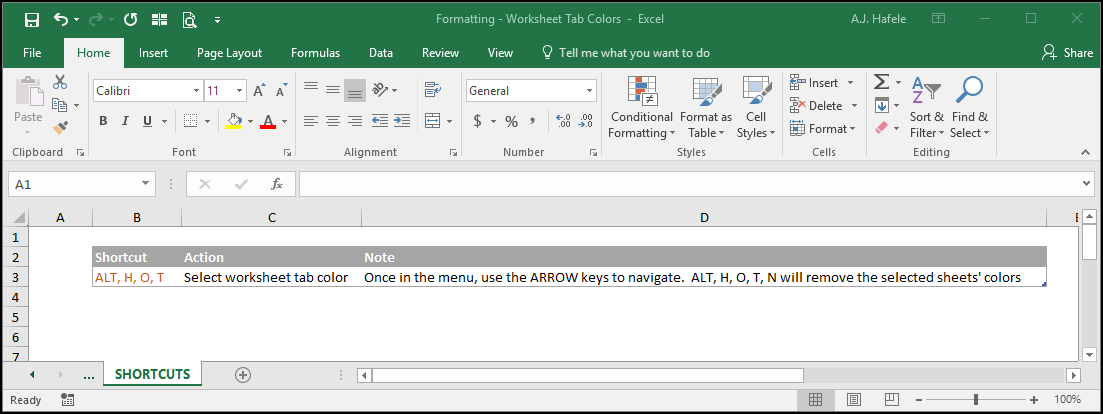
Shortcuts
Practice
External Links
