At some point in the past, you may have received a raw data file that is not in a user-friendly format
For example, the data are in a text file, separated by commas (or some other character) or tabs
Or the data may be aligned by spacing in a raw text file (i.e. the fields in the raw data are of a fixed character length)
Text to Columns allows you to quickly parse this data into multiple columns so that it can be manipulated within Excel
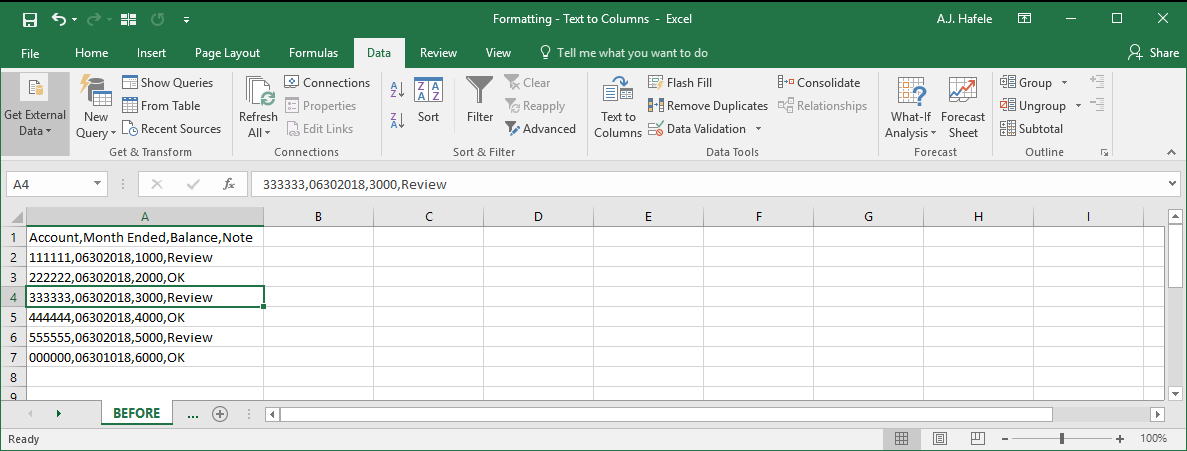
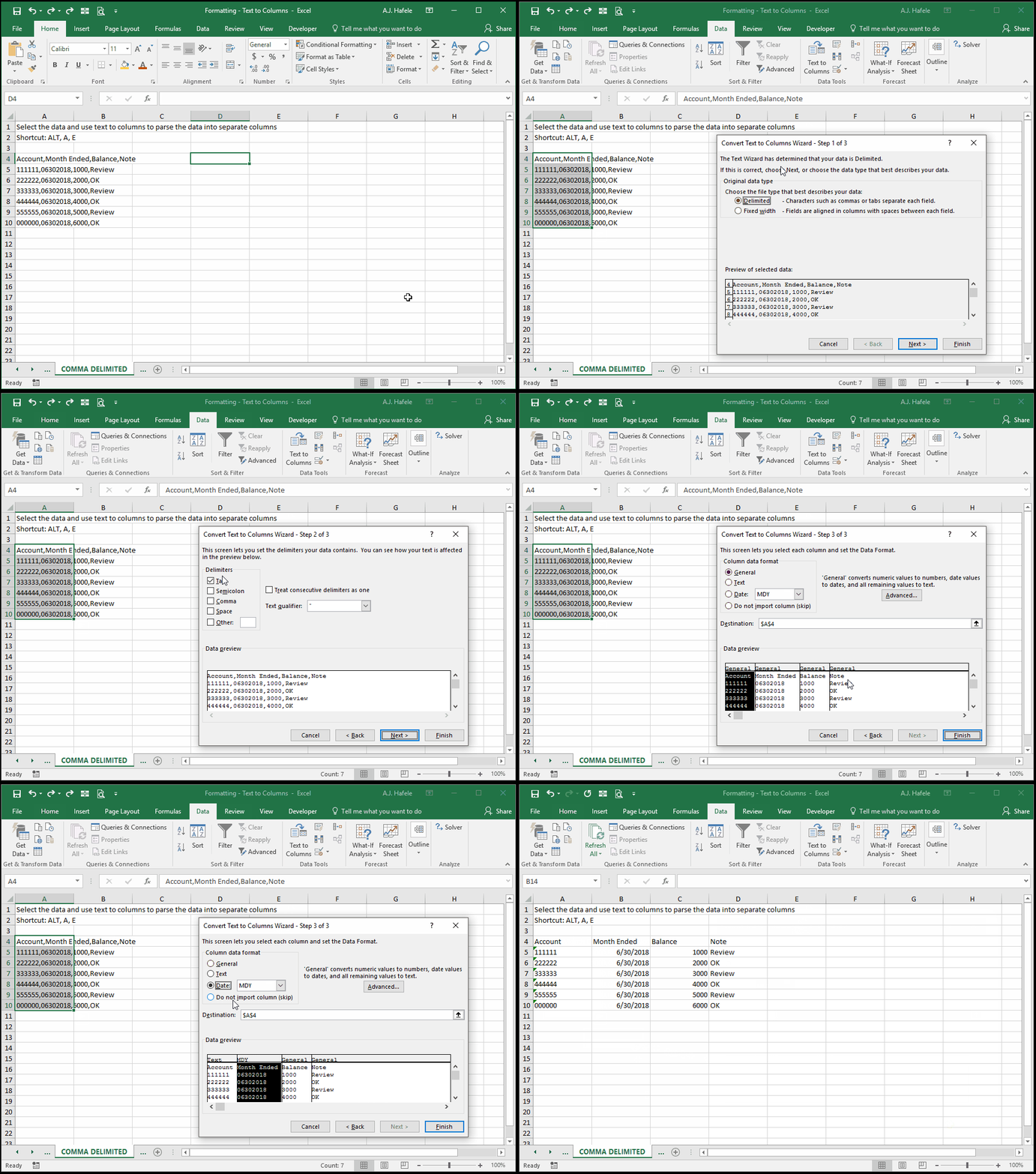
In brief, you can convert this mess of data stuck in column A...
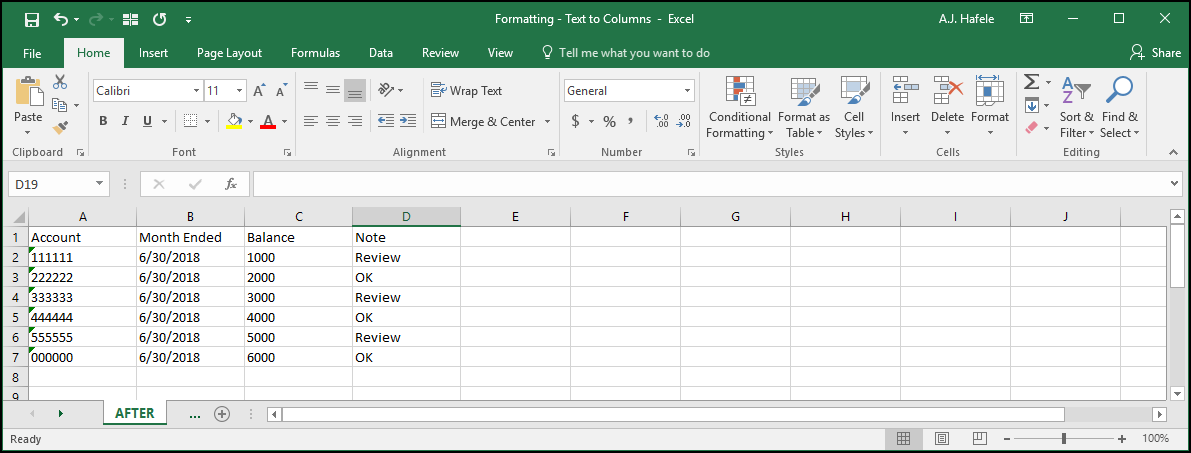
...To this:
As you can see, the data are in their own columns, and can now be manipulated more easily
Buttons
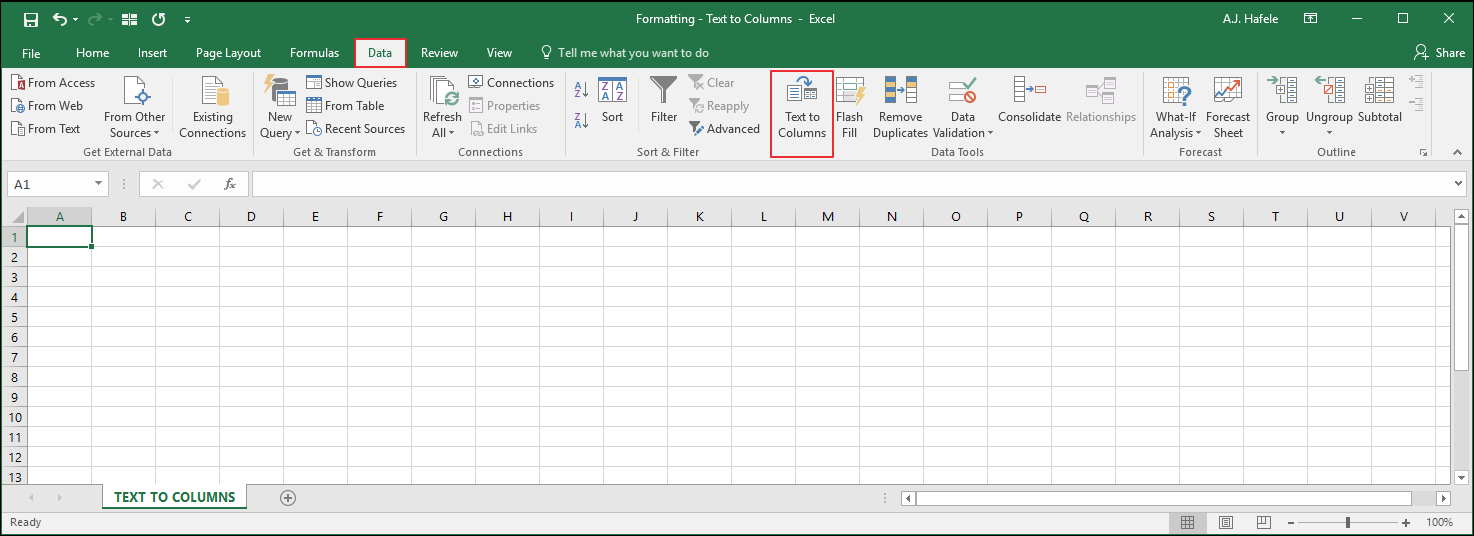
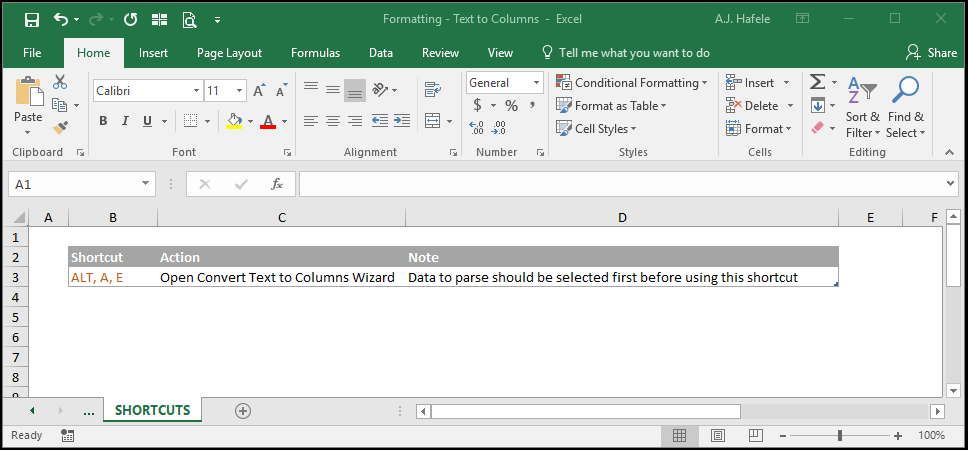
The relevant button can be found in the Data Tools group of the Data tab:
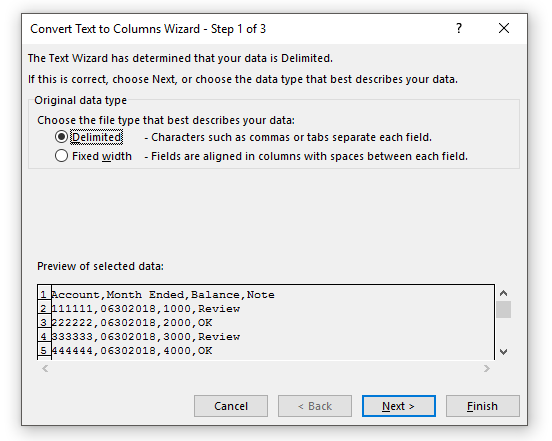
This button brings up the Convert Text to Columns Wizard, which contains 3 steps
Step 1: are the fields delimited (e.g. with a comma or something else), or fixed in width (spacing)?
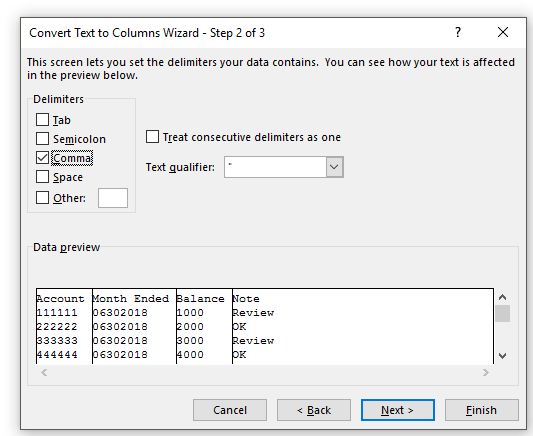
Step 2 (if the data are delimited): How are the data delimited?
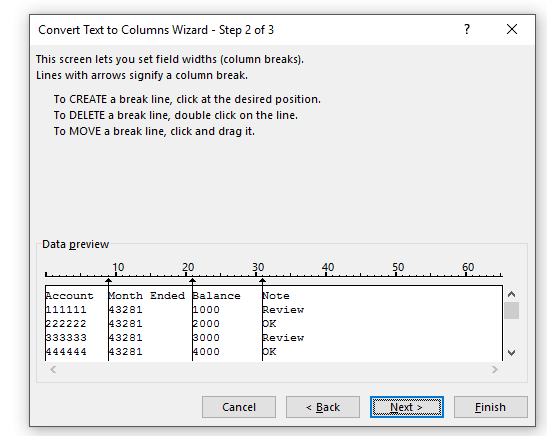
Step 2 (if the data are fixed in width): Where do the columns break?
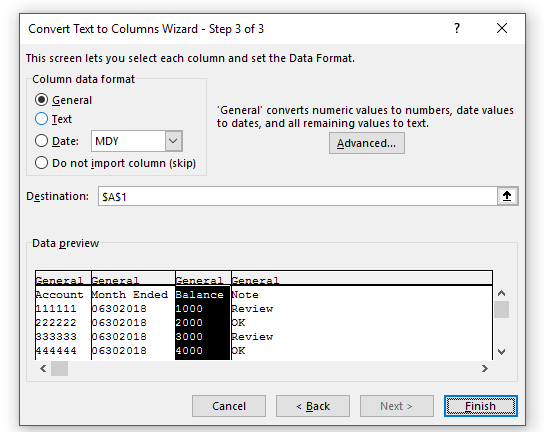
Step 3 (all data types): How should the output be formatted?
We will go into more detail in the examples below
Apply Text to Columns - Delimited Data
The following demonstrates how to split a column of comma-separated (or delimited) data into separate columns:
Notice that
We formatted the Account field as Text
This can be very useful if your account numbers begin with leading zeroes. For example, if you format as General, "000000" will revert to "0"!
We also formatted the Month Ended field as a date
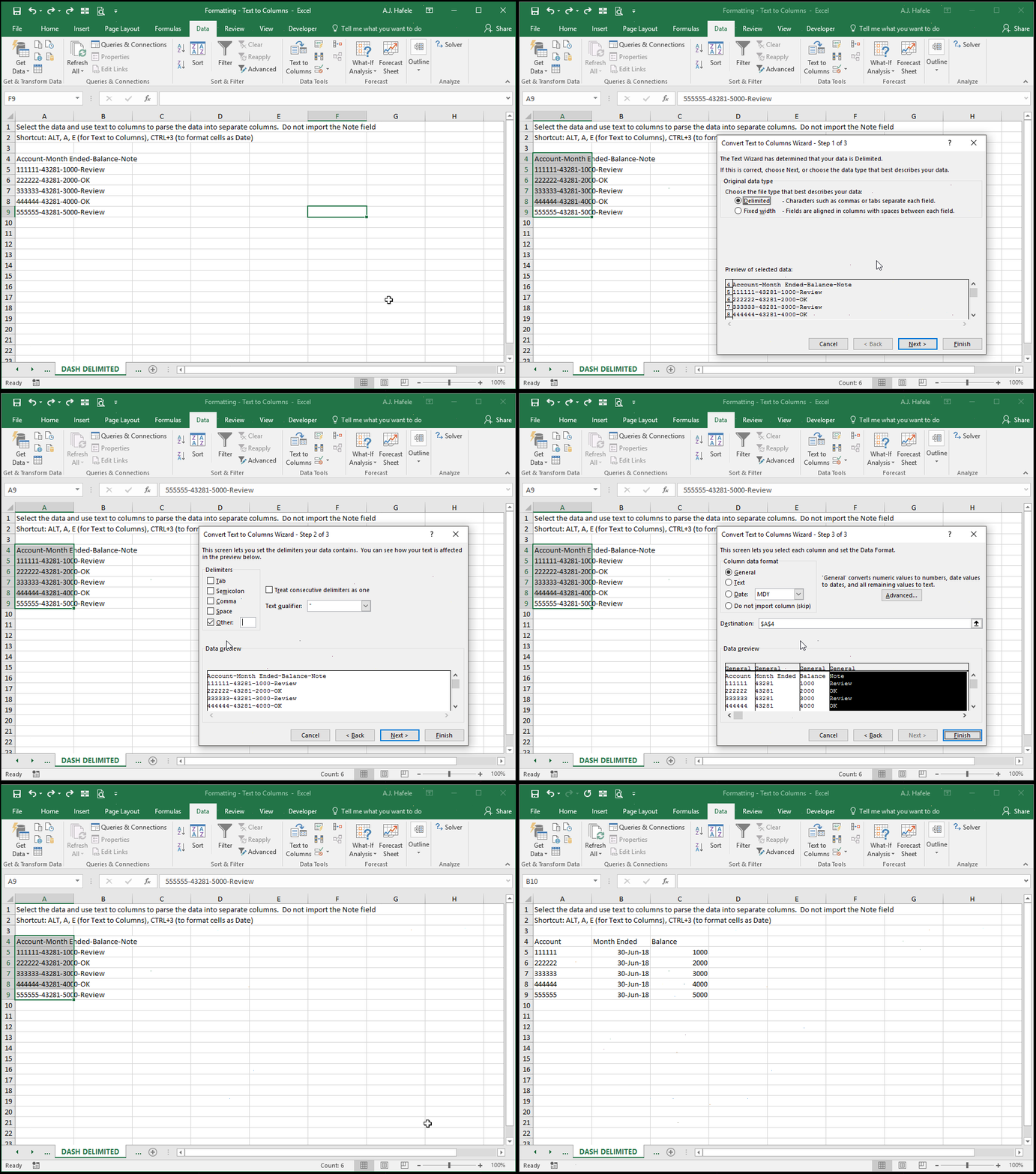
The following illustrates how to split dash-delimited data into multiple columns, as well as how to omit an entire column of data:
Notice that the Note field was completely deleted after we parsed the data
Apply Text to Columns - Fixed Width Data
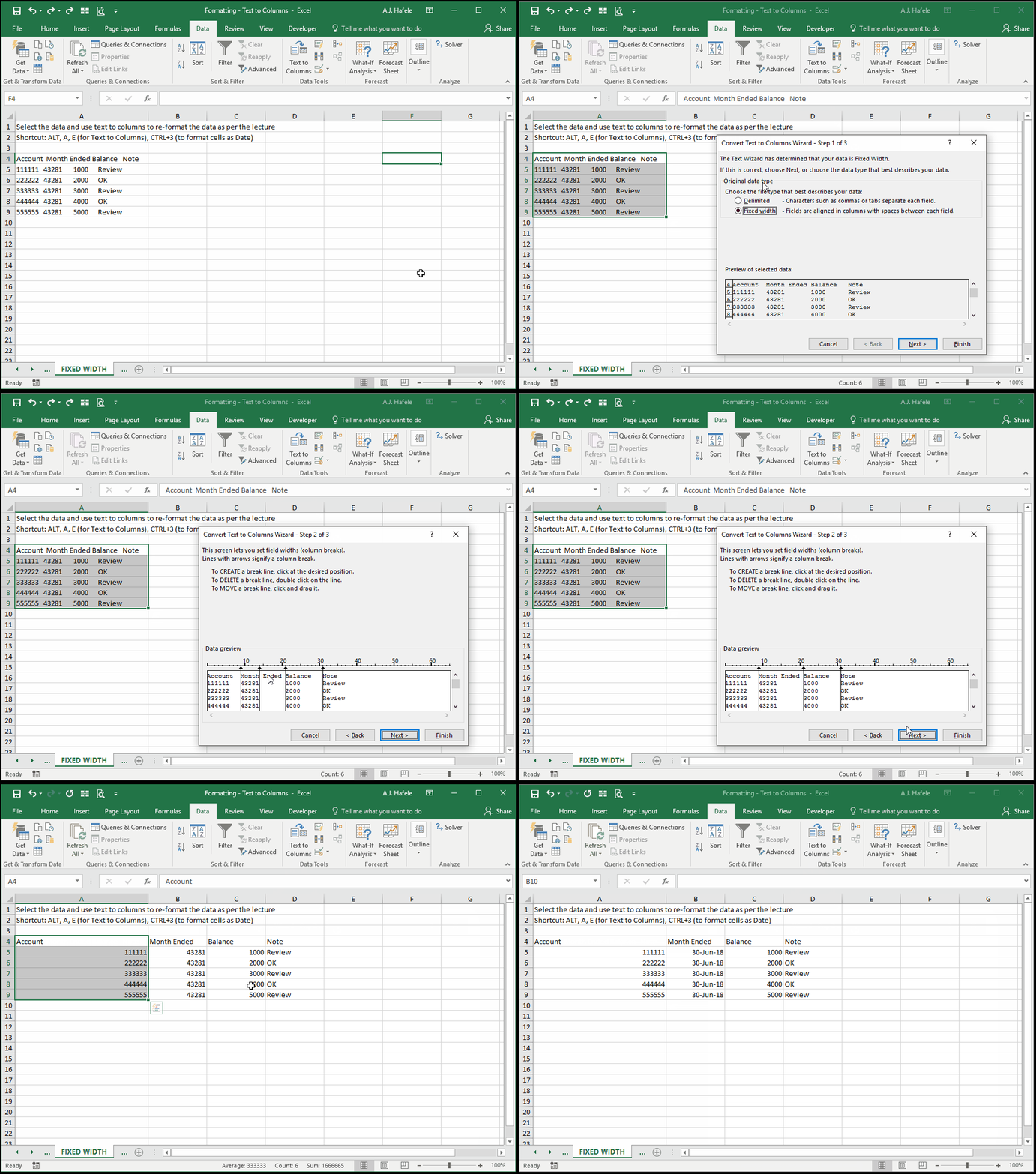
The following illustrates how to split a column of fixed-width data into multiple columns:
Notice that, in step 2 of the Wizard, all lines needed to be directly to the left of the first characters in each column
As a side note, instead of dragging the line over another line (in Step 2 of the Wizard), you can double-click the line to delete it completely
Tips
Remember to convert Account Number or ID fields to a Text format if 1) your field contains values with leading zeros, and 2) you need to keep those leading zeros
If you forget to do this, you may end up trying to use VLOOKUP to find account "000001", but the account is being represented as "1" (and VLOOKUP might not work properly)
If your data do not look right after using Text to columns, simply undo and try again!