If you know what the result of a formula should be, but you do not know what one of the inputs should be in order to get to the result, Goal Seek can help you determine that input
For example, you know that the formula result of =1+A1 is 3. Goal Seek will help you determine that cell A1 must be equal to 2, and as such, Goal Seek will literally change the value in A1 to 2
This is obviously an extremely simple example, but it illustrates how Goal Seek fundamentally works
We will review another example below
Buttons
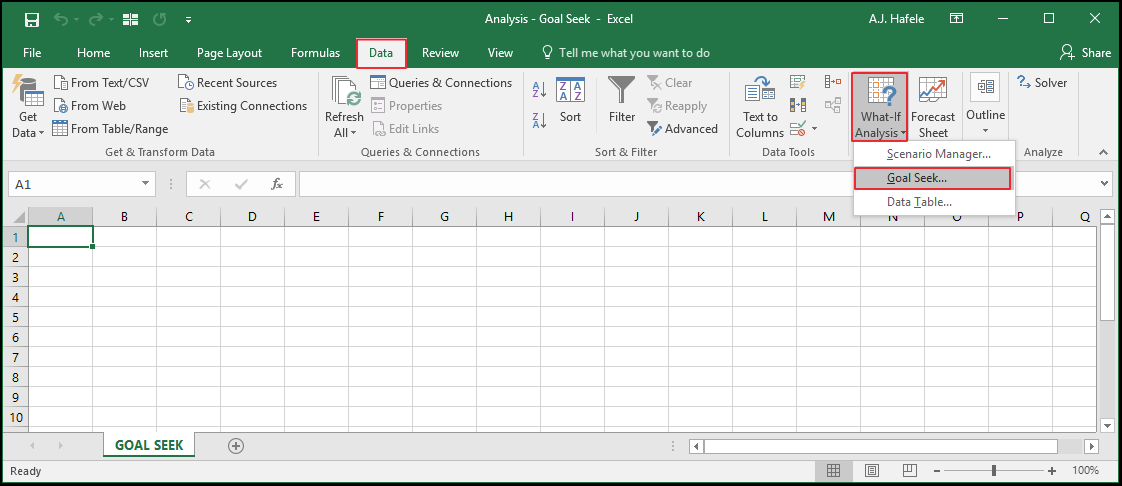
The relevant button can be found in the Data Tools group of the Data tab:
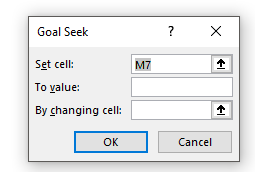
When the Goal Seek button is pressed, the following menu appears:
We will review how this menu works below
Example
Imagine being offered a loan, with the following characteristics:
You will get $1,000 today
You must pay $150 in a year, for 10 years
After the last payment, the loan balance should be $0
What is the annual interest rate required to set the final loan balance equal to $0 after the last payment is made?
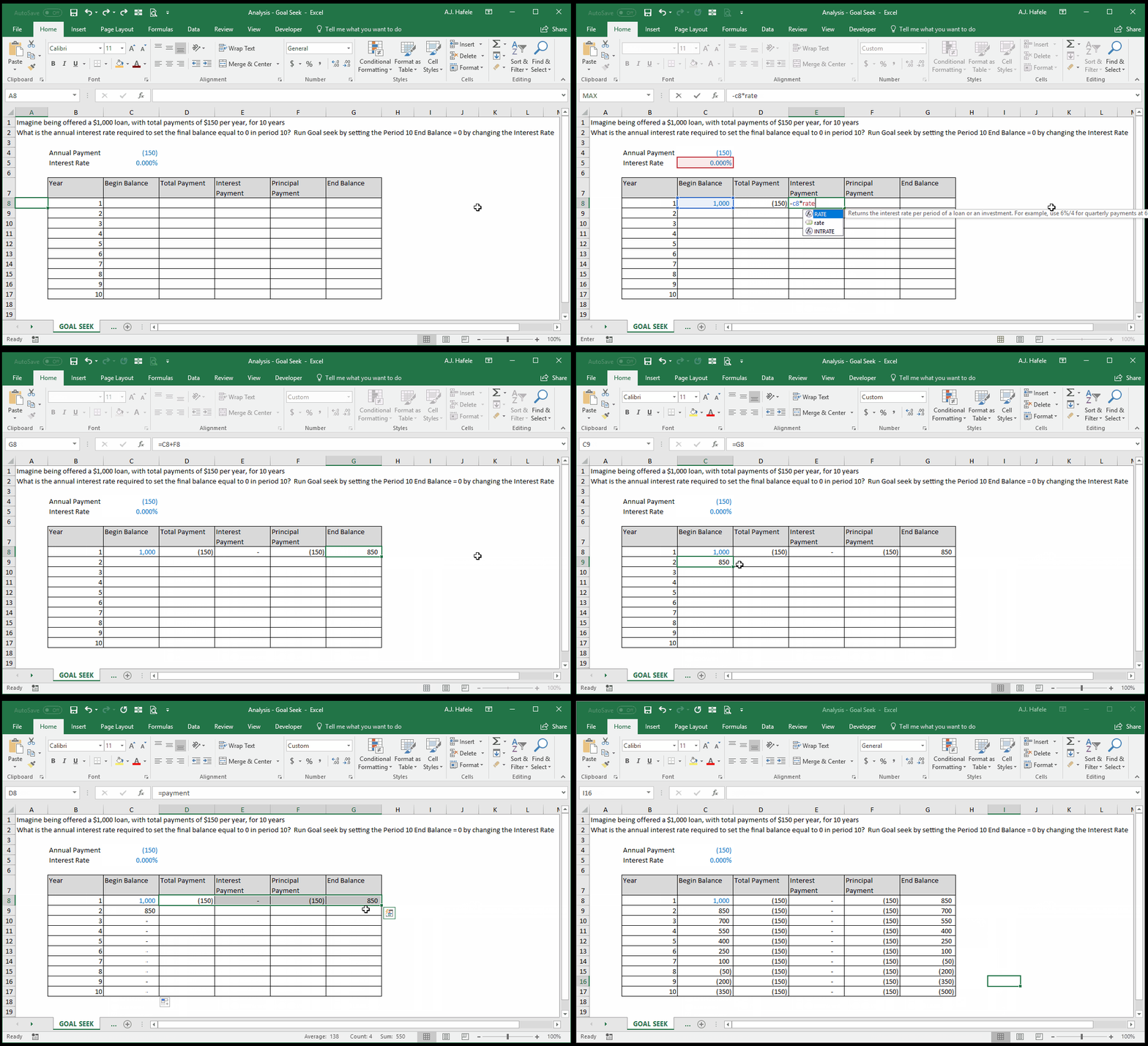
First, let's create a table - known as an amortization table - which will help us calculate the appropriate rate (note that we have named cell C4 "payment" and C5 "rate"):
That was quick! No worries - let's review how each field is calculated:
Begin Balance = Prior month's End Balance (except the 1st Begin Balance is hard-coded at 1,000)
Total Payment = The amount in cell C4
Interest Payment = Begin Balance * the rate in C5
Principal Payment = Total Payment - Interest Payment
End Balance = Begin Balance + Principal Payment (the latter of which is negative)
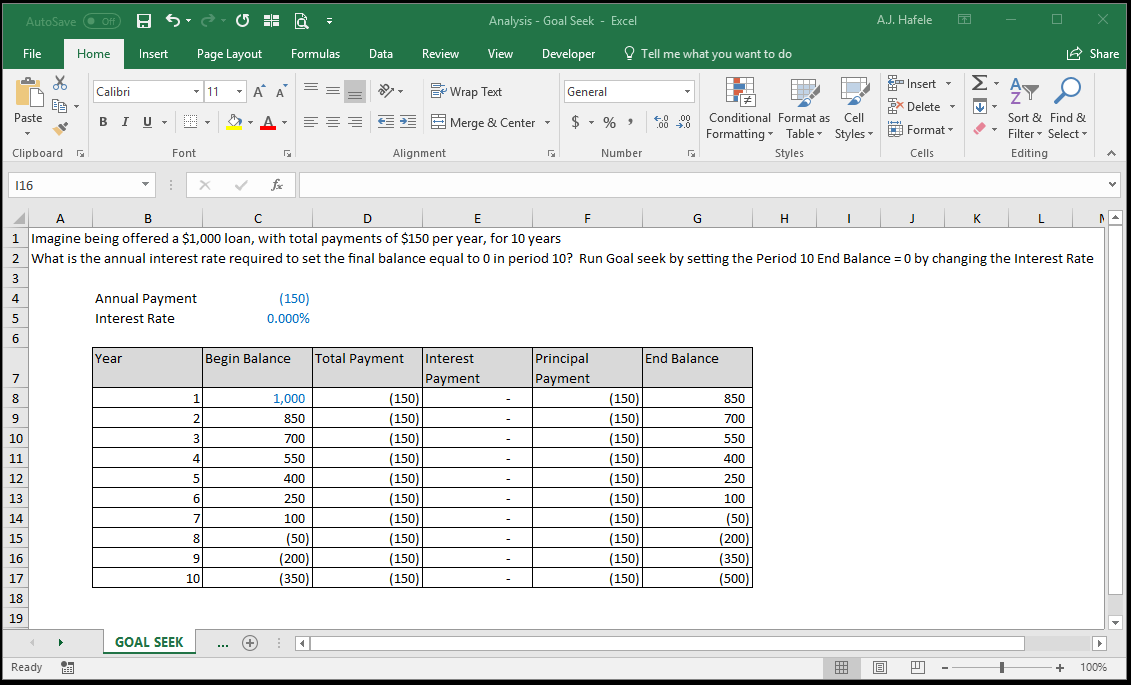
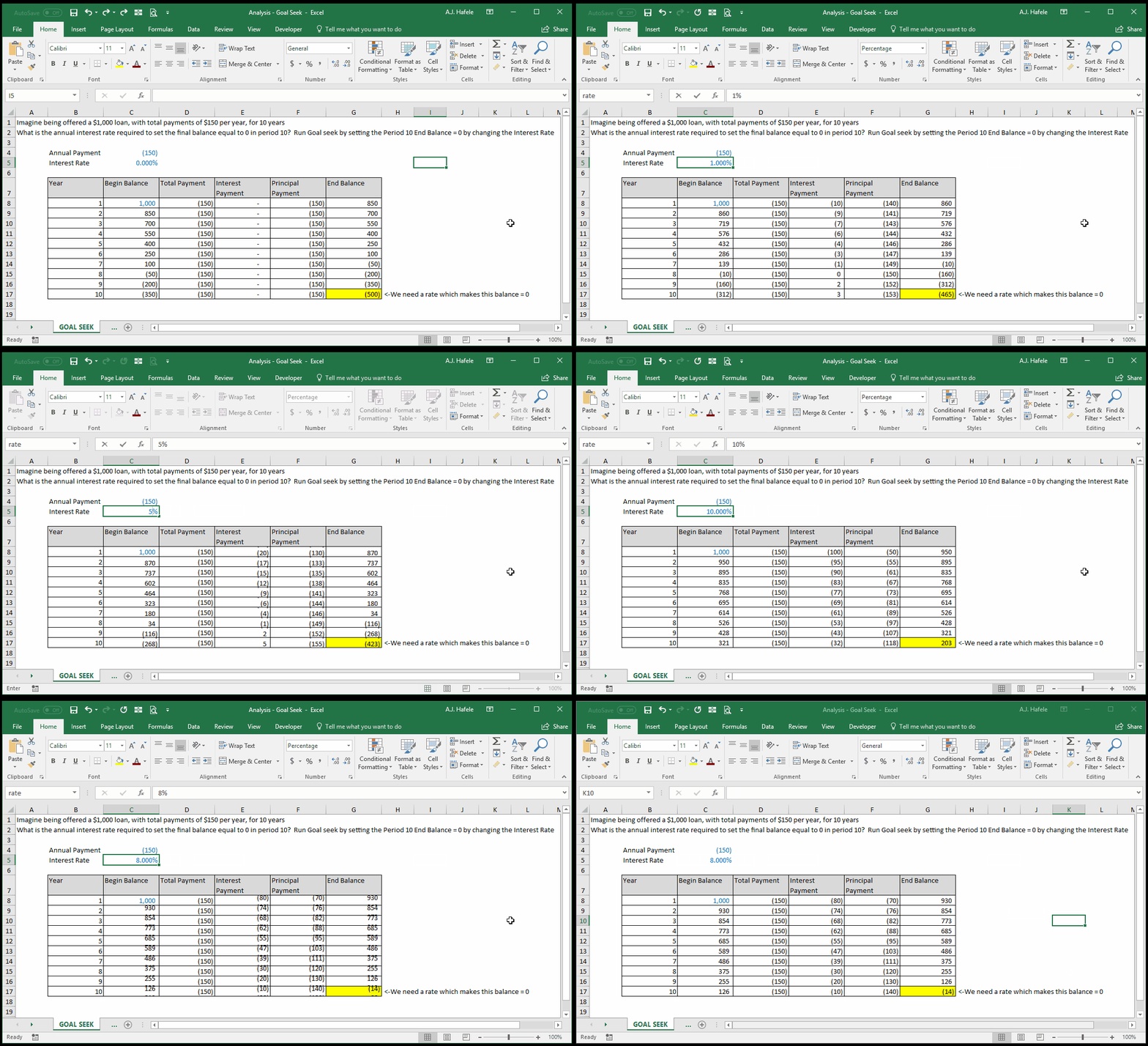
Look at the result of our amortization table in this screenshot, with the interest rate being 0%:
This tells us that, mathematically, the interest rate cannot be 0% (as it is currently set in cell C5)
If the rate were 0%, the ending balance would be -$500, and thus we would have overpaid by $500!
Now, let's guess a few rates, observing how the final balance(highlighted) changes:
8% is close, but it doesn't exactly get us to a ending balance of $0
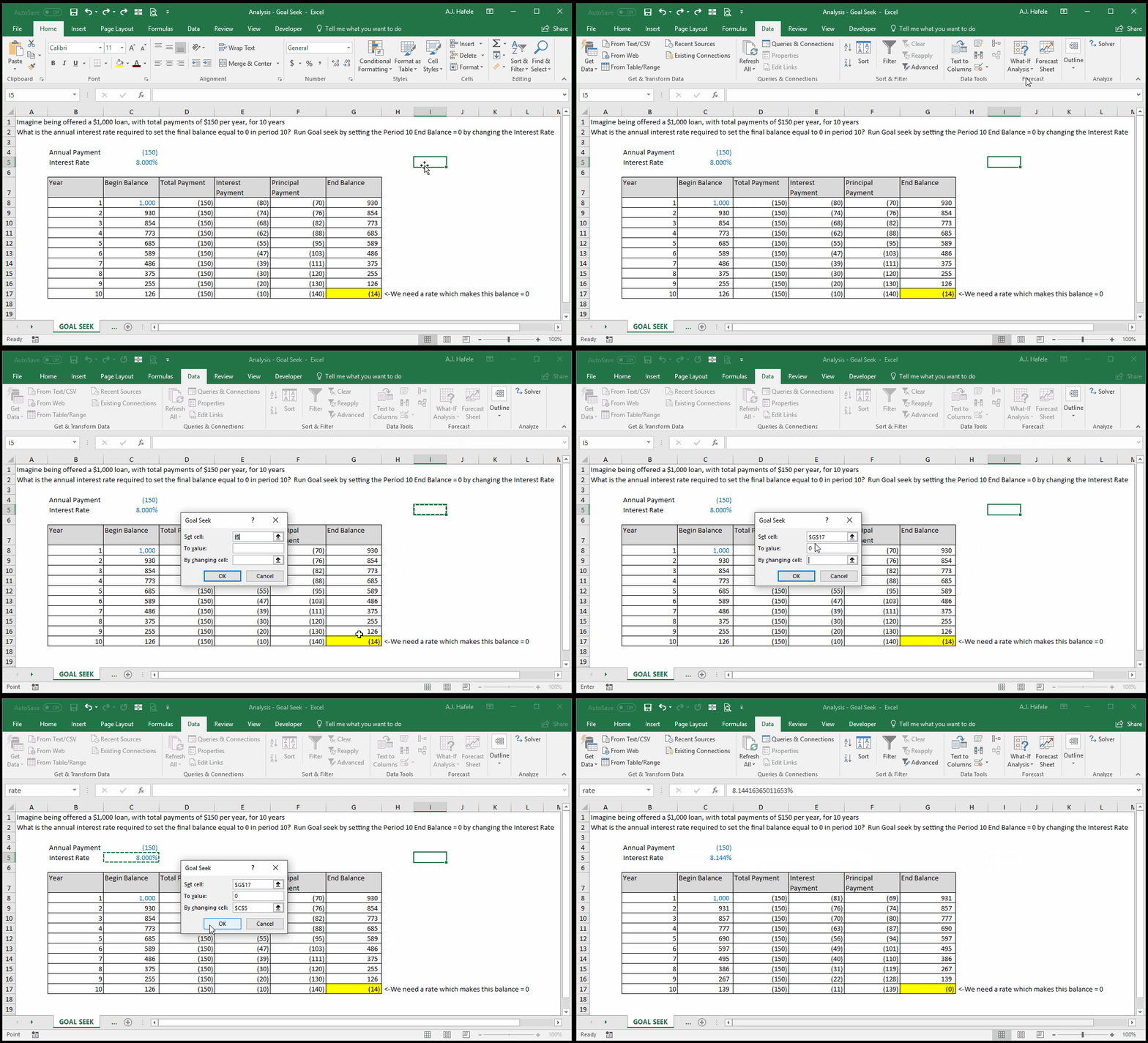
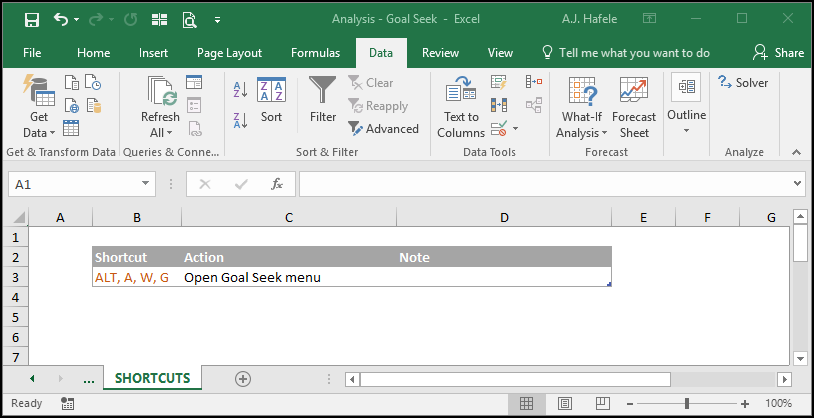
The solution? Goal Seek! Observe (shortcut: ALT, A, W, G):
Notice that:
We set the year 10 Ending Balance in cell G17 equal to 0, by changing the rate in cell C5
The resulting rate of 8.14416365011653% gets us much closer to an end balance of $0, but still not exactly $0. Why?
Goal seek uses a trial-and-error process to guess the rate, and it will stop guessing if 1) a close enough estimate is found, or 2) there is no solution
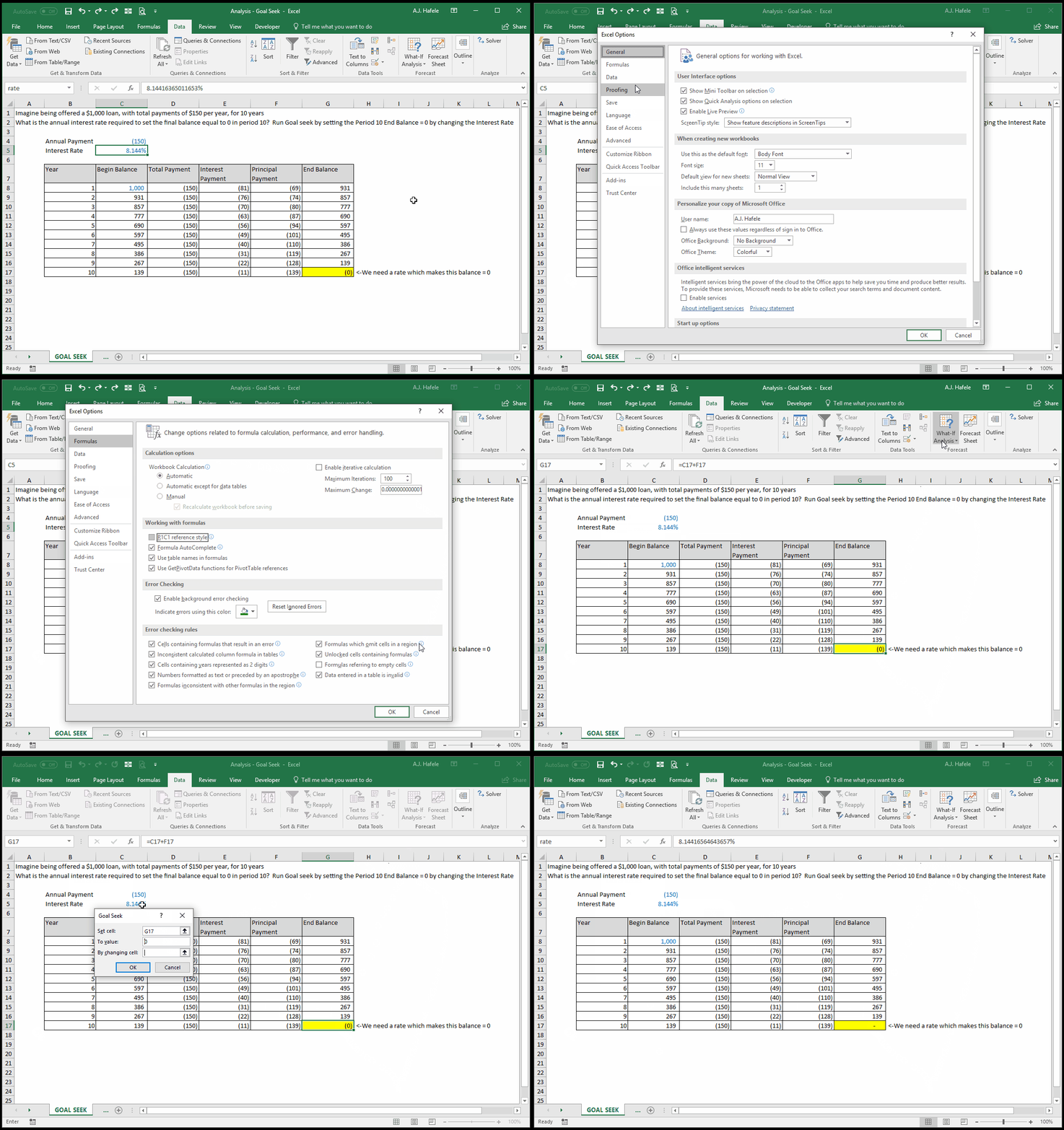
You can change the precision of Goal Seek by adjusting the Maximum Change setting, as shown here:
Notice that:
Upon making the Maximum Change smaller, and then running goal seek again, the rate changes to 8.14416564643657%
This results in the Year 10 Ending Balance getting so close to $0, that Excel effectively treats it like $0
Note: we can check to make sure 8.144% is the right answer by using the RATE function (but this is not shown)
The RATE function gave us the same answer as Goal Seek, so why is Goal Seek necessary? b
Consider what would happen if the annual payments changed over time? Perhaps the total payments start at 100, and then jump to 200
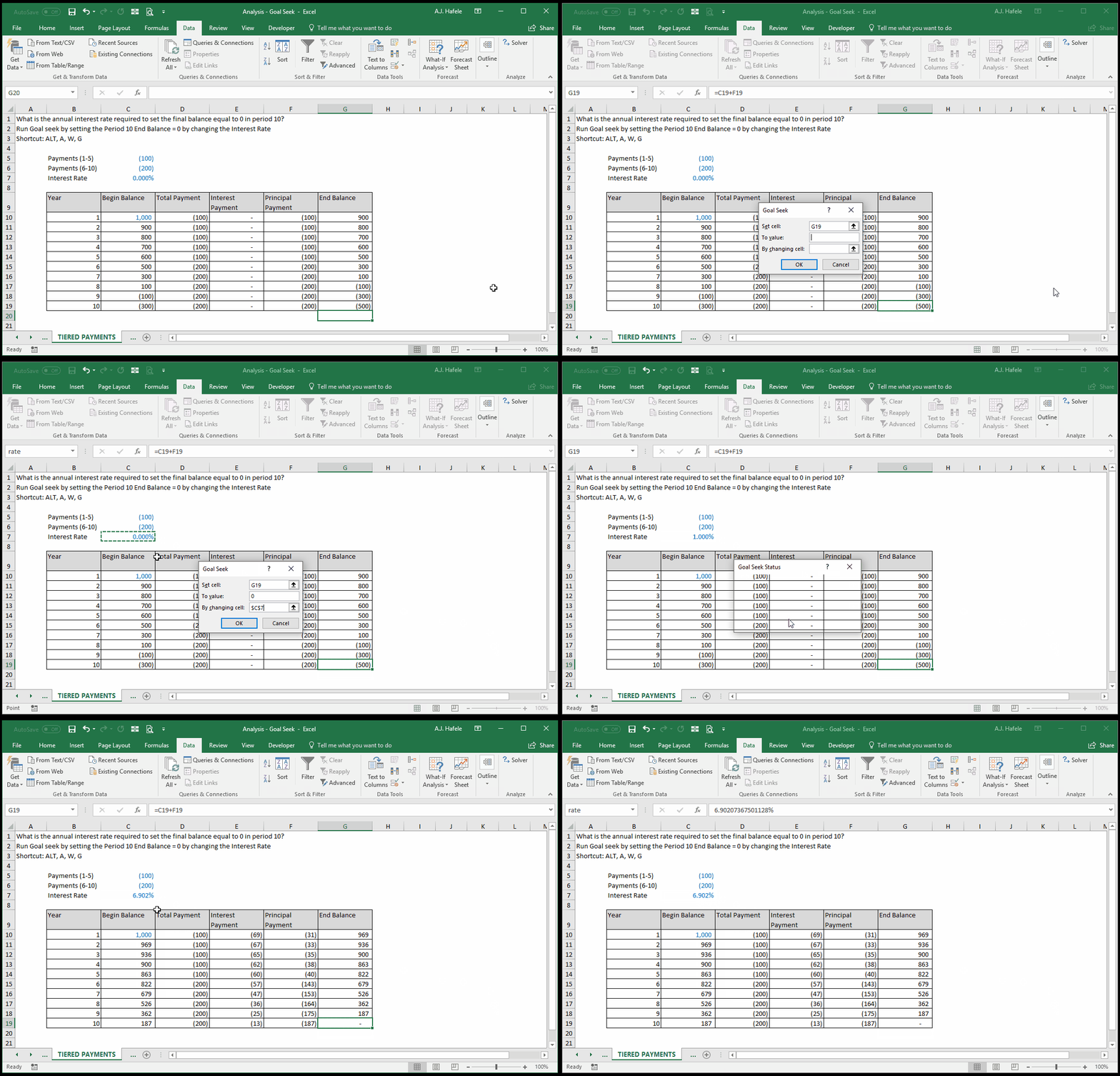
The RATE function will not work in that case, but Goal Seek will! Observe (we'll use the ALT, A, W, T shortcut this time):
Notice that:
This is essentially the same table as the first few illustrations, except the total payments change over the course of the 10 years (they are not $150 per year)
Goal seek nevertheless found a solution
Tips
As is obvious from the above illustrations, only one variable can be changed when using Goal Seek
If multiple variables need to be changed, Solver must be used instead (solver can do the same as Goal Seek, and more)