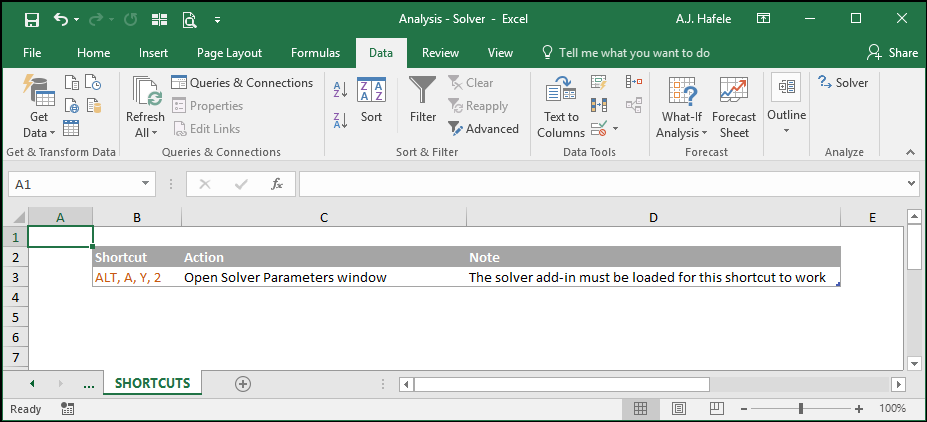
Solver allows you to find a maximum, minimum, or user-defined value subject to user-defined constraints
Solver is essentially Goal Seek, but with much more power and flexibility
In this lecture (which serves as an intro to Solver), we will use Solver to help us pick an optimal mix of projects given a budget constraint
Note that we will not review all the nuances of Solver in this lecture, so please refer to the External Links section for more info
Adding Solver to Excel
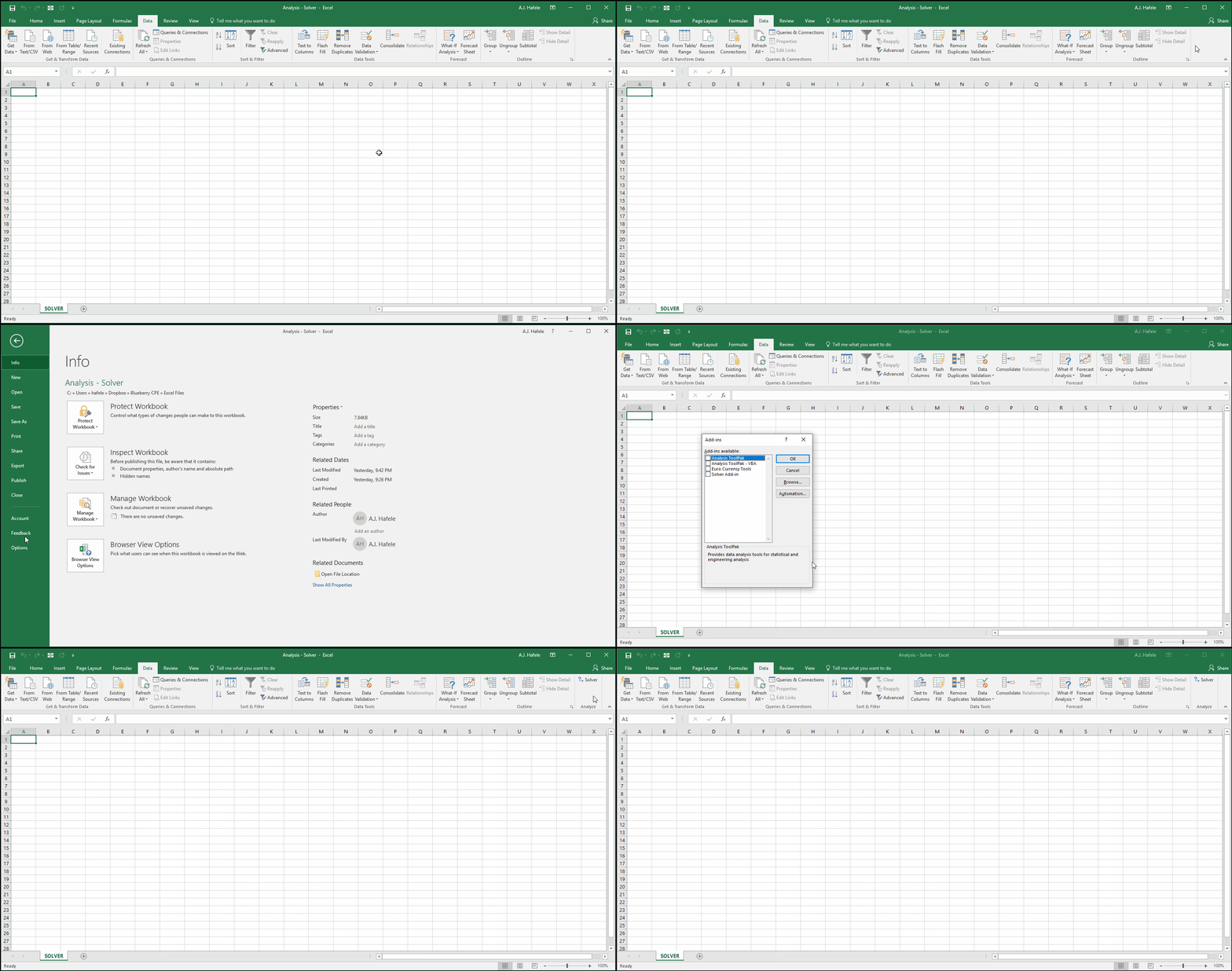
In order to enable Solver functionality to Excel, you must perform the following setup (keep an eye out on the right side of the Data tab on the Ribbon after clicking OK):
Buttons
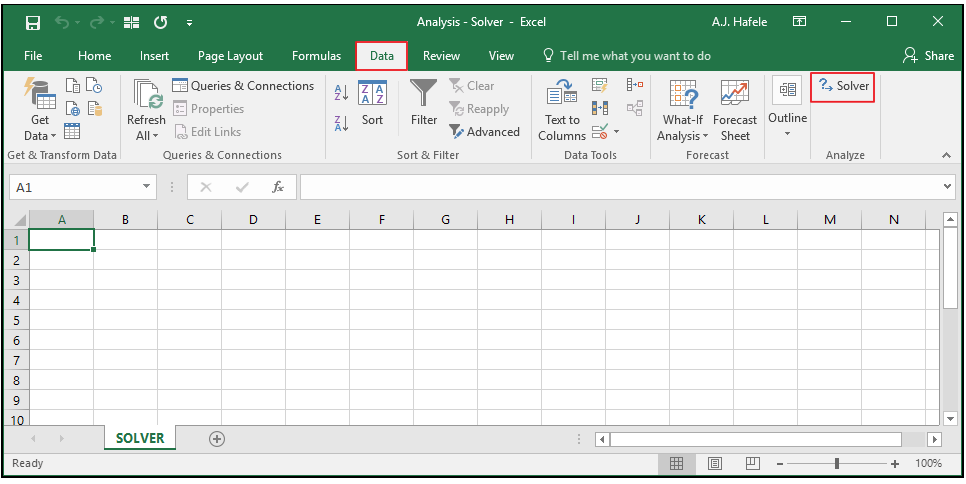
Once Solver is added to Excel, the relevant button can be found in the Analyze group of the Data tab:
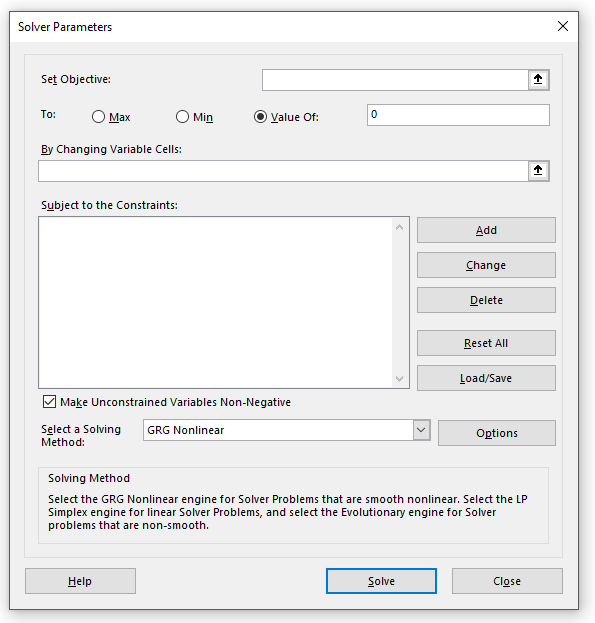
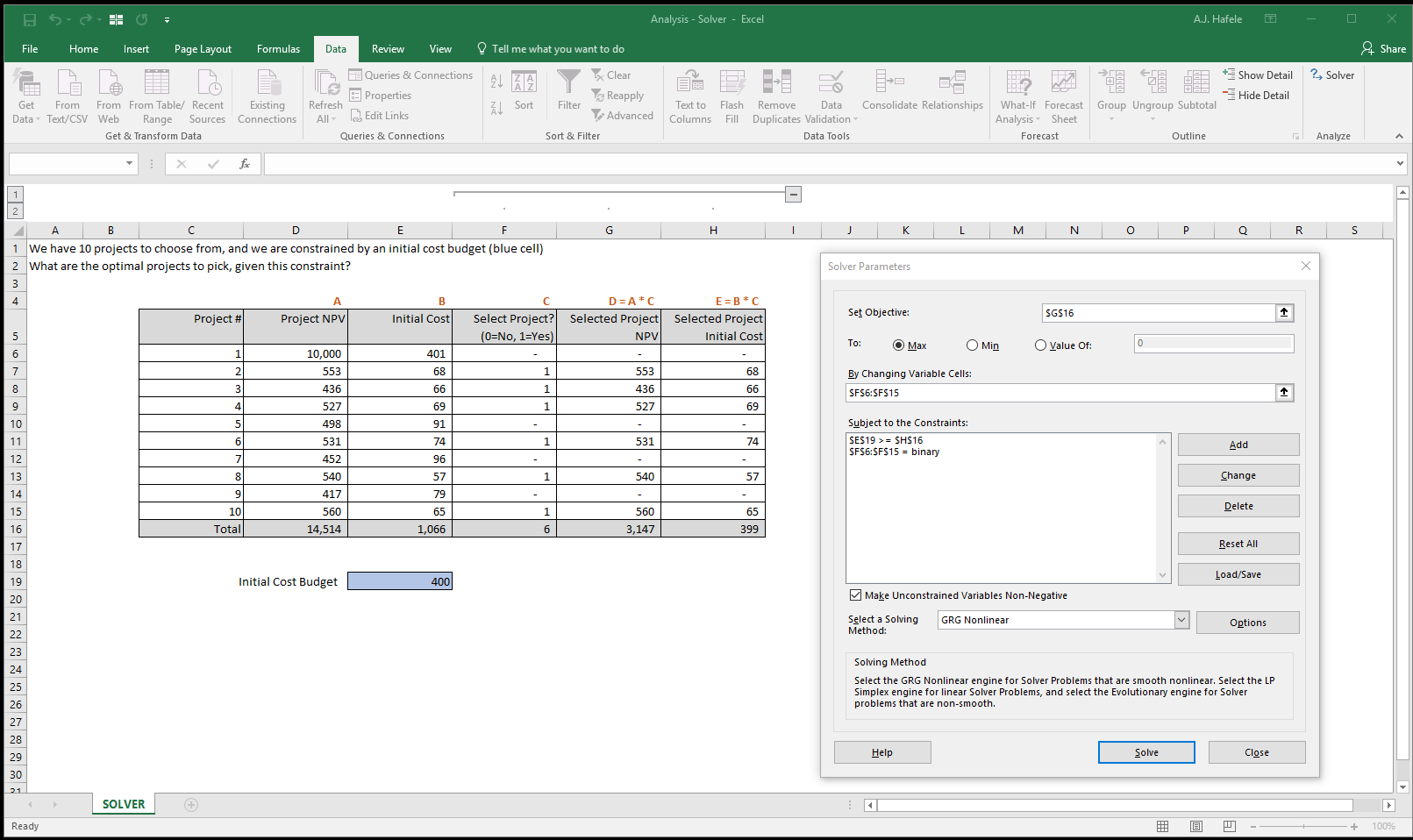
When the Solver button is selected, the Solver Parameters menu appears:
Note that many of these options are beyond the scope of this lecture. The key options we focus on are the top 4 items:
Set Objective
To
By Changing Variable Cells
Subject to the Constraints
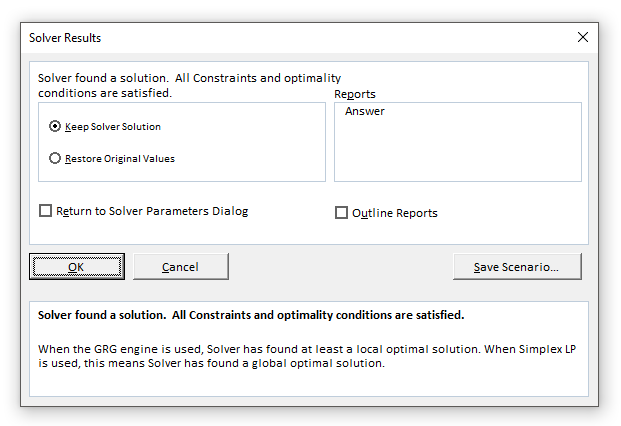
After Solver is run (by pressing the "Solve" button above) and a solution is found, the following menu appears:
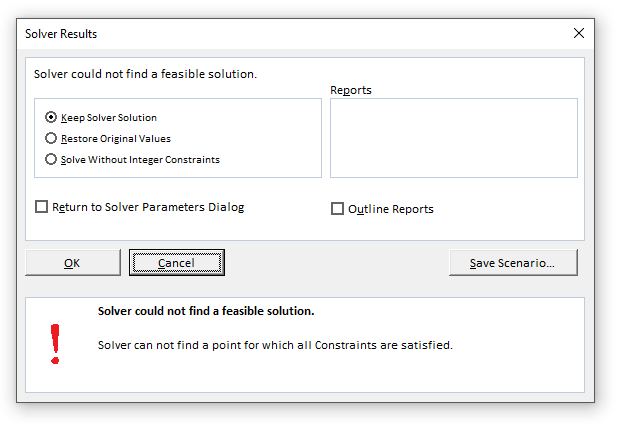
If solver finds no solution, the following menu appears instead:
The options in the Solver Results menu are - for the most part - self-explanatory, except perhaps the Reports section (which we review below)
Example
Imagine that you, as CEO of a company, are examining 10 projects to potentially invest in
You would like to invest in all of them, but you are constrained by a budget - you only have $400 to spend on the initial project costs
Your goal is to maximize the total net present value, or "NPV", of the projects that you can invest in (within your budget)
If you are not familiar with what a NPV is, don't worry! Just know that the higher the NPV, the better
If you are really curious about understanding NPV, this is a good article to read; also, be sure to review our lecture on the NPV function
Assume there are no other future costs, so you are only concerned with the initial cost of the project
Given your budget, which of the 10 projects should you choose to maximize total NPV?
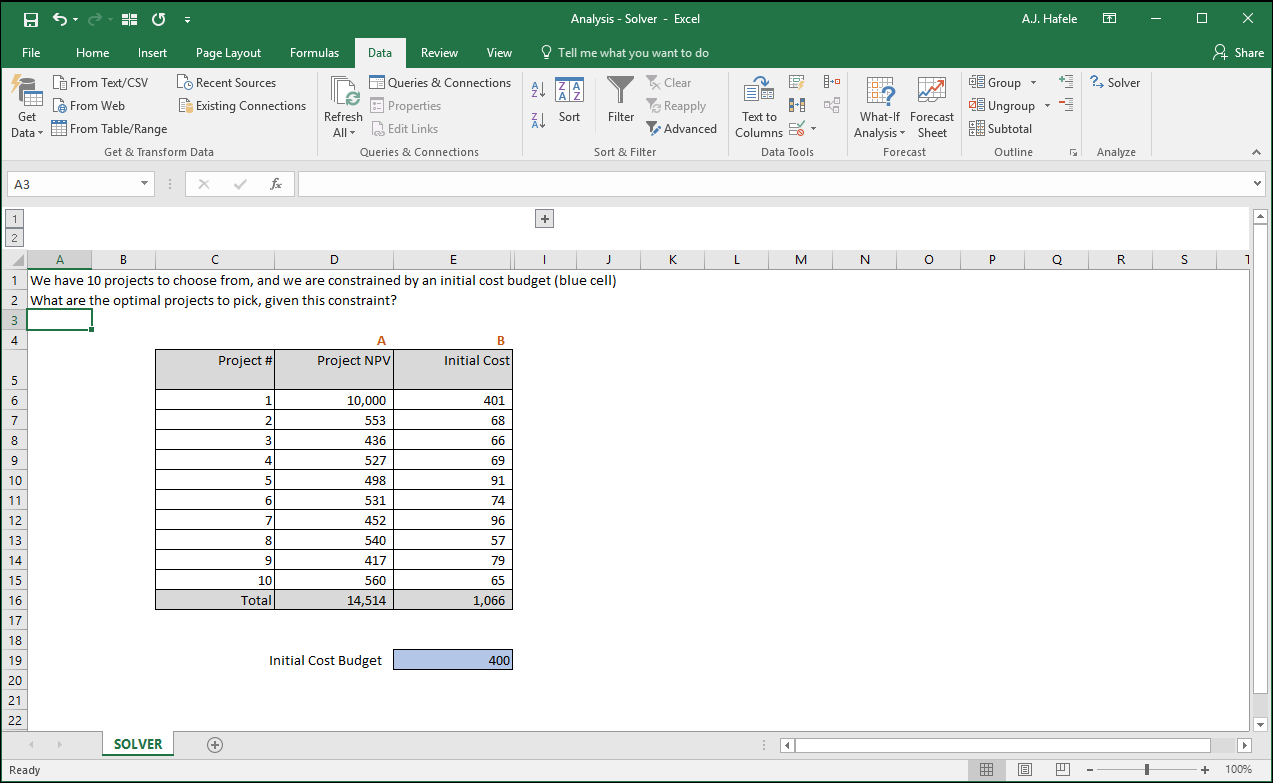
Let's first look at the 10 projects and their associated costs:
Note that the bottom row (row 16) contains SUM functions, adding the totals for each of the 10 projects
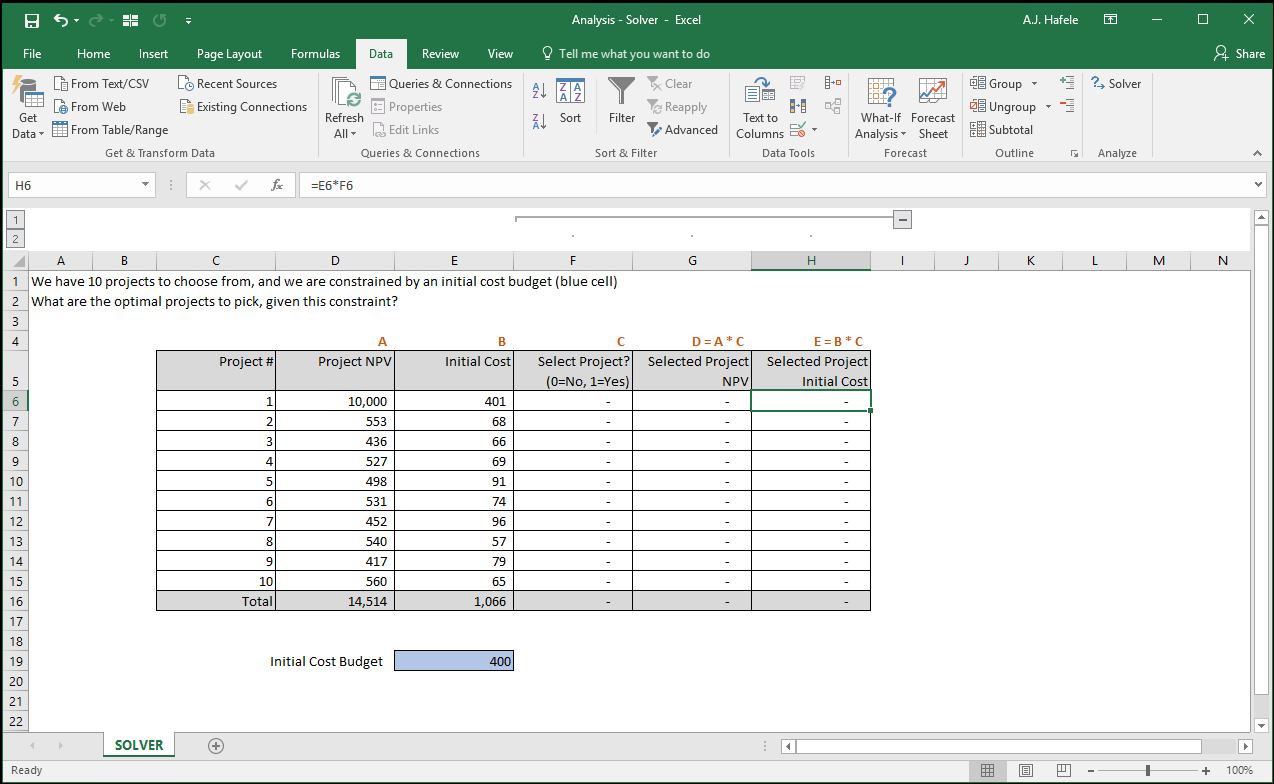
In order to facilitate our analysis, let's add three more fields:
Select Project?: This is a binary field, meaning that 0 = Do not select project, and 1 = Select project
Selected Project NPV: This is the NPV of only those projects selected
Selected Project Initial Cost: This is the total cost of only those projects selected
Remember, the initial cost is constrained by our $400 budget!
Observe our updated file now (the letters in row 4 are intended to help in understanding how the fields are calculated):
Notice that:
The columns G and H are simply calculated as the NPV and Initial Cost, multiplied by either 0 or 1 (that is in column F)
Again, row 16 has a SUM function which adds the totals for each field. This is important because we will reference one of these in our optimization exercise below
Now, we need to determine which projects to mark "1" in column F (i.e. projects we want to select), without exceeding our $400 budget (cell E19)
How can we quickly pick the optimal mix of projects without manual trial and error? Solver!
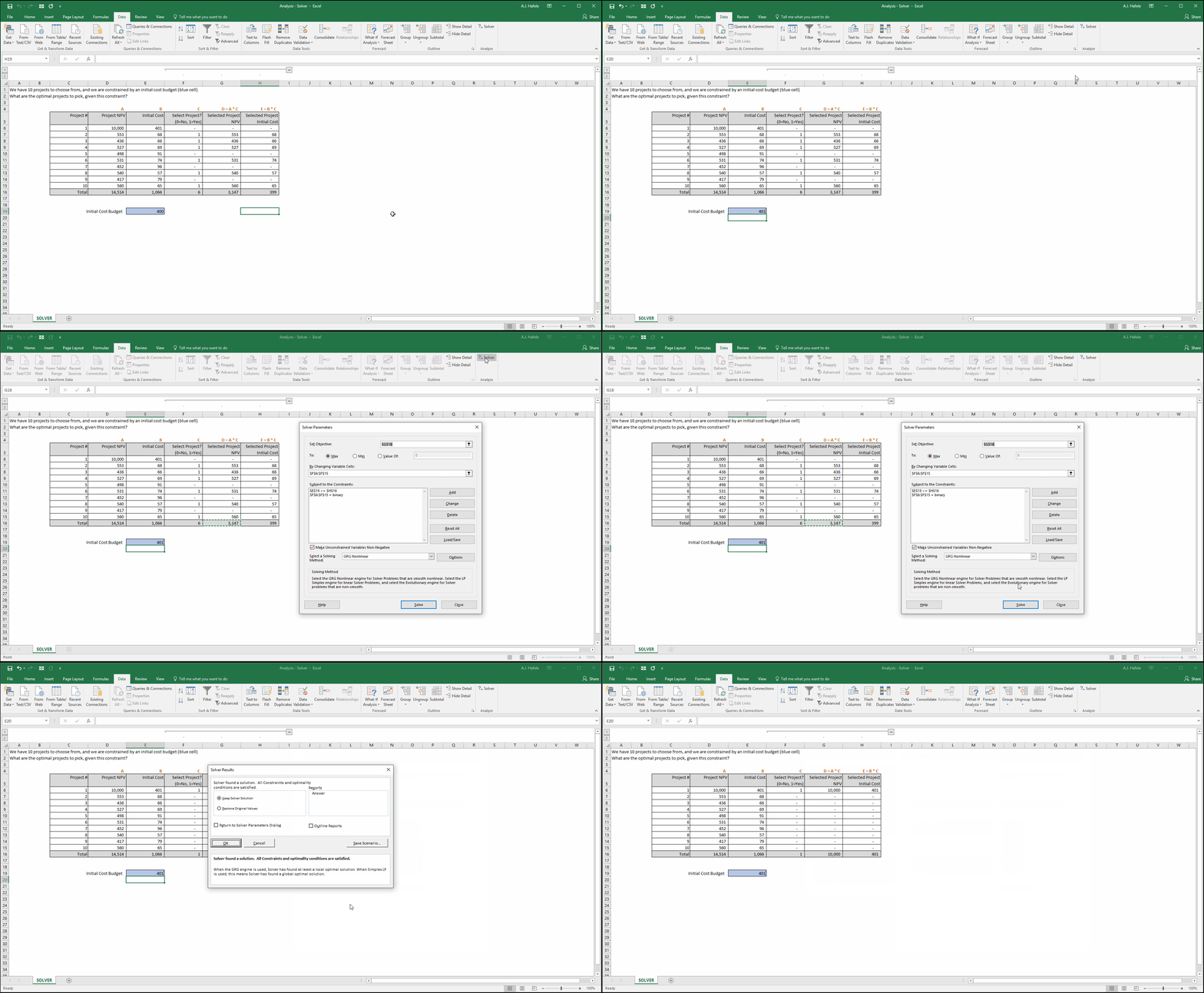
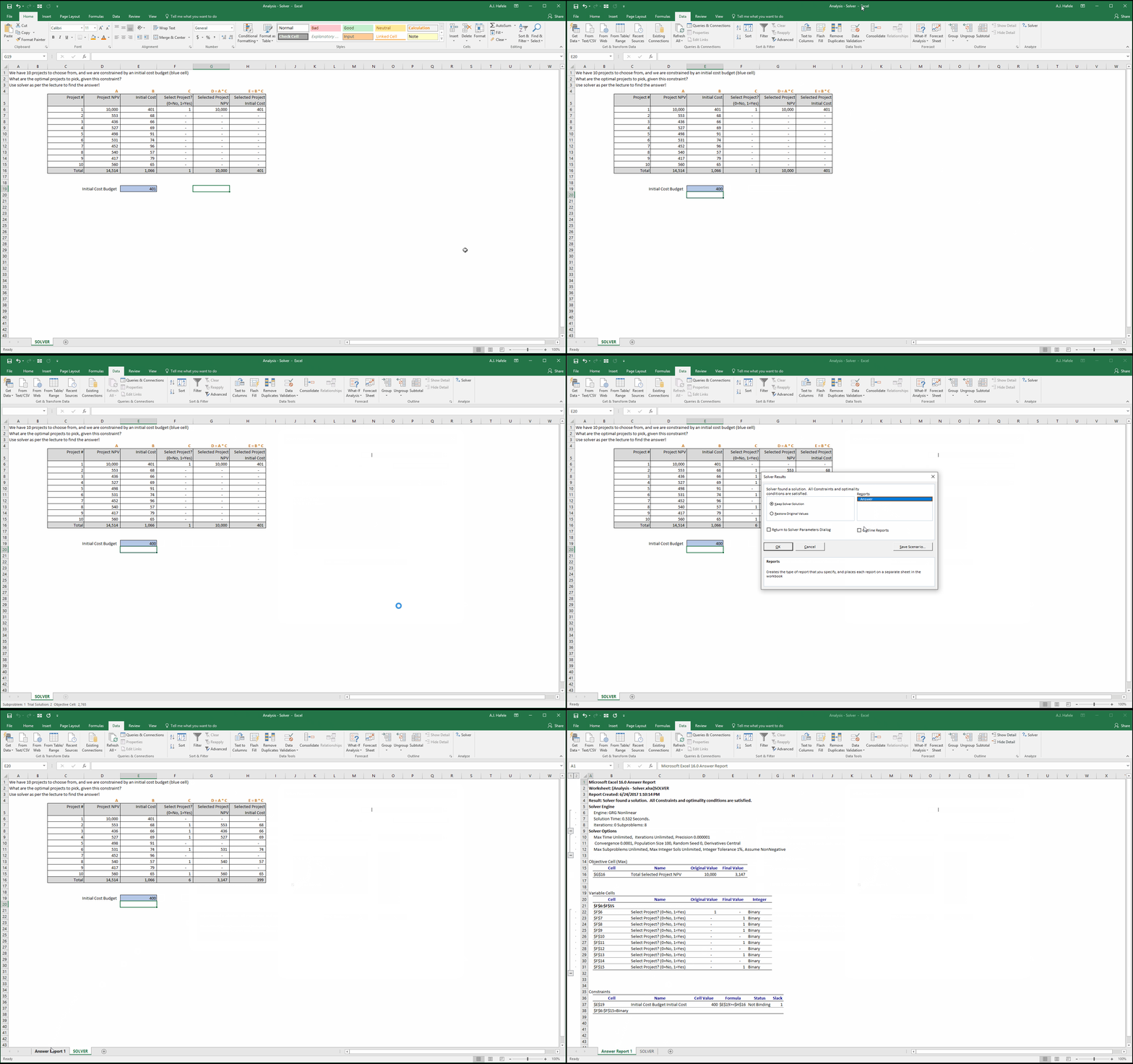
Let's now set up Solver to optimize for us:
That was fast! Let's analyze the Solver inputs (and the output) more closely in the below screenshot:
Mathematically, we want to maximize cell G16 (the sum of the NPVs of selected projects) by changing certain cells in column F to "1"
Our 2 constraints that we entered in the Solver Parameters menu are that:
E19 (the blue cell representing our total budget of $400) is greater than or equal to the total of our selected project costs (cell H16)
The cells in column F are binary (i.e. either 0 or 1)
Notice that Solver optimized for us! It tells us that:
We should choose projects 2, 3, 4, 6, 8 and 10
Our total NPV is maximized at $3,147
The total cost is $399, just $1 under our budget
Too bad we did not have a budget of $401, because Project 1's NPV is 10,000!
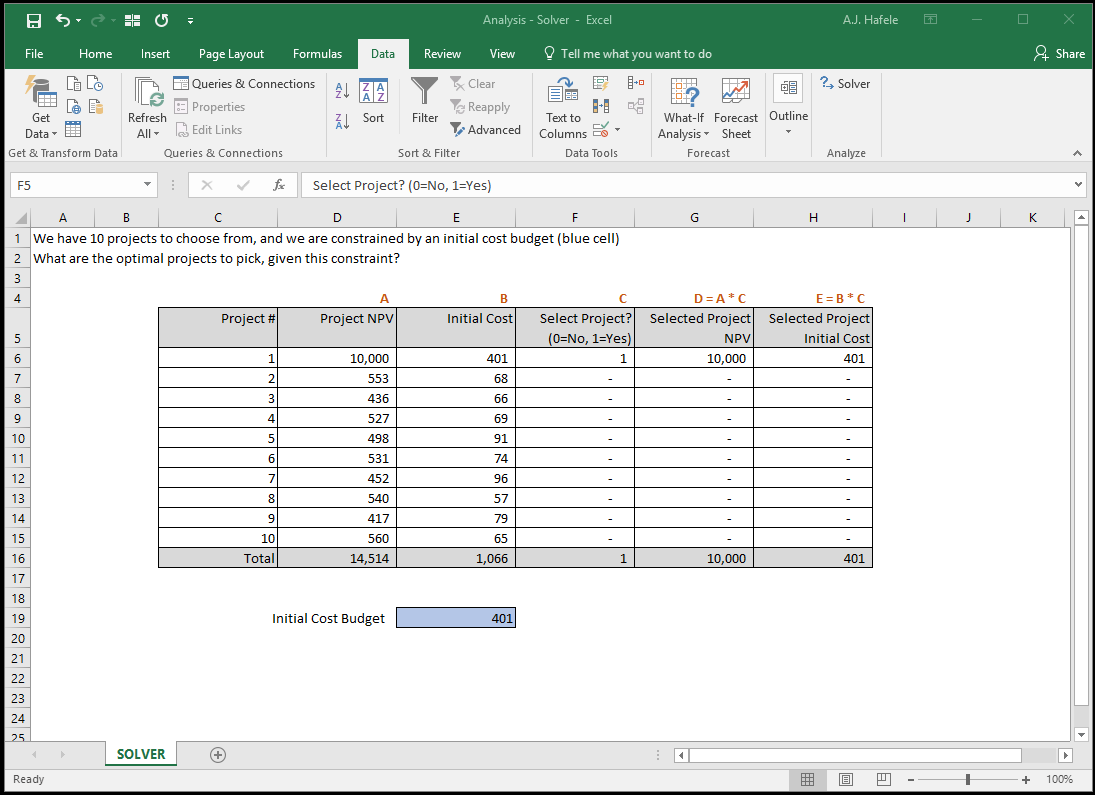
Let's update our budget to $401 and run Solver again to see what happens (note that we do not need to change any of the Solver inputs):
Here is a screenshot of the final result:
Since we can now afford to pay for Project 1, it is clearly the best choice - we should fully invest in only that project to maximize our total NPV!
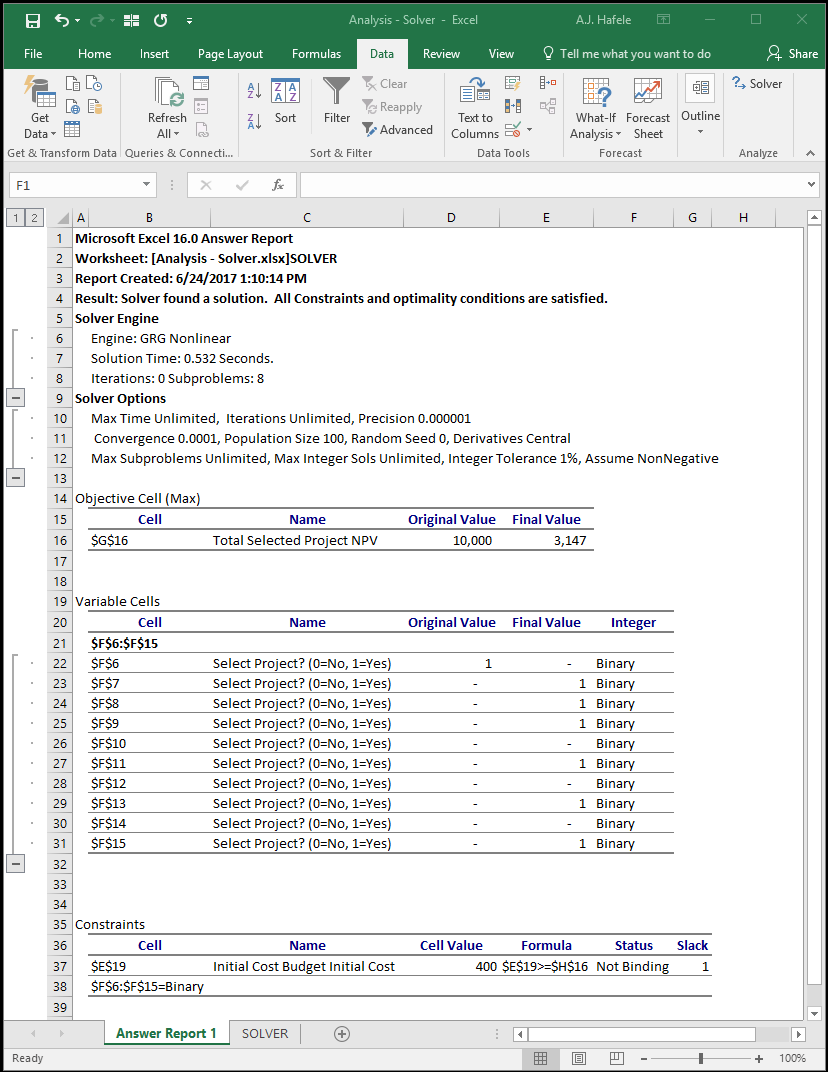
Last, let's revisit the initial example (when we had only $400 to spend), but let's run a report after running Solver (again, no need to change the inputs):
Here is a screenshot, for reference:
The report provides us with details about what Solver did, such as:
The initial and final values of the inputs and output
The Solver options selected
Whether or not the constraints were binding (including the slack)
Etc.
As a minor side note, checking the Outline Reports box simply adds groups to the resulting report