In the below discussion, we use Microsoft Access to illustrate how certain functionalities work
If you do not have the Microsoft Access application, do not worry about replicating the examples, but please still read through the material
For those who do have Microsoft Access, please feel free to leverage the Access database file attached above
Overview
One powerful (yet perhaps under-utilized) aspect of Excel is the ability to link up and retrieve data from external sources
This can be extremely useful when, for example, you need to use the same (master) table of data in multiple files
Creating such linkages avoids having to re-create the same tables over and over again, or having to copy/paste from one source table to the next over and over again
In this lecture, we will demonstrate how to pull data into Excel from two sources:
Another Excel file
Microsoft Access
Note that you can pull in data from a wide variety of sources (more than just these two), but those are beyond the scope of this lecture
Also, note that we will be pulling data from tables, rather than ranges of cells in the examples to come (tables are much better to use than normal ranges!)
Buttons
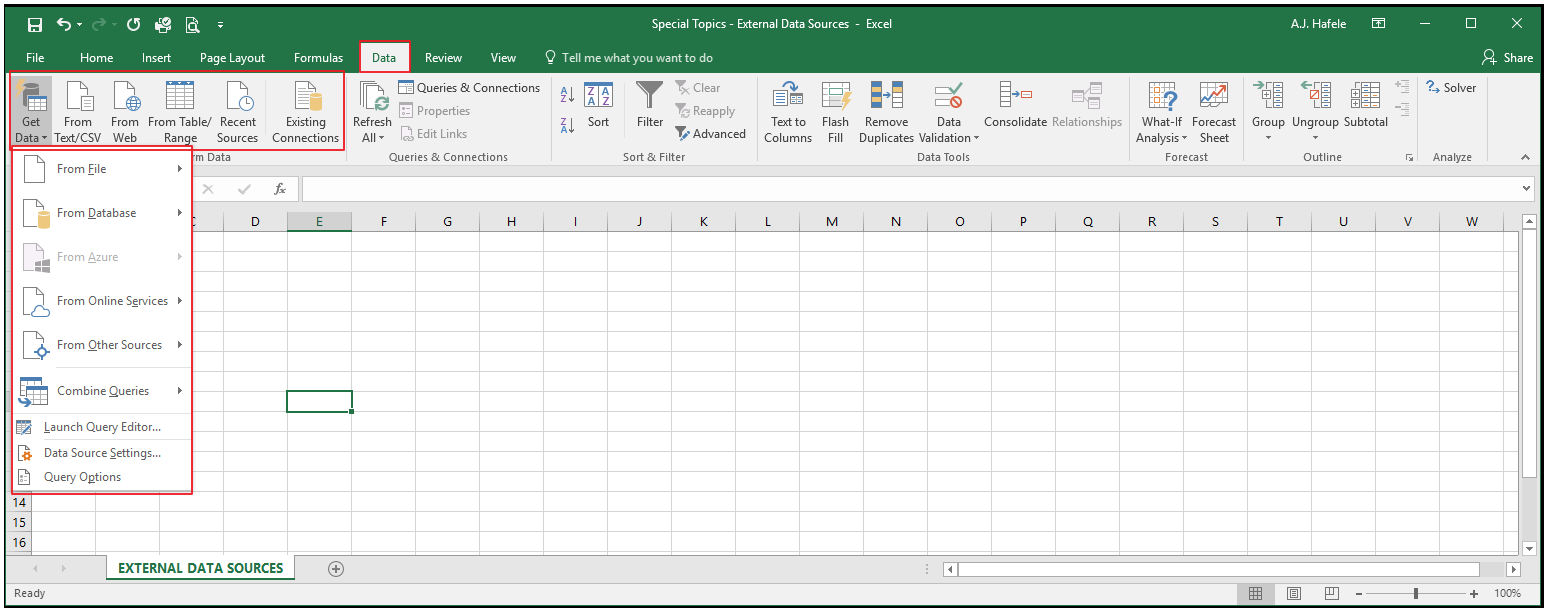
The relevant buttons can be found in the Get & Transform Data group in the Data tab:
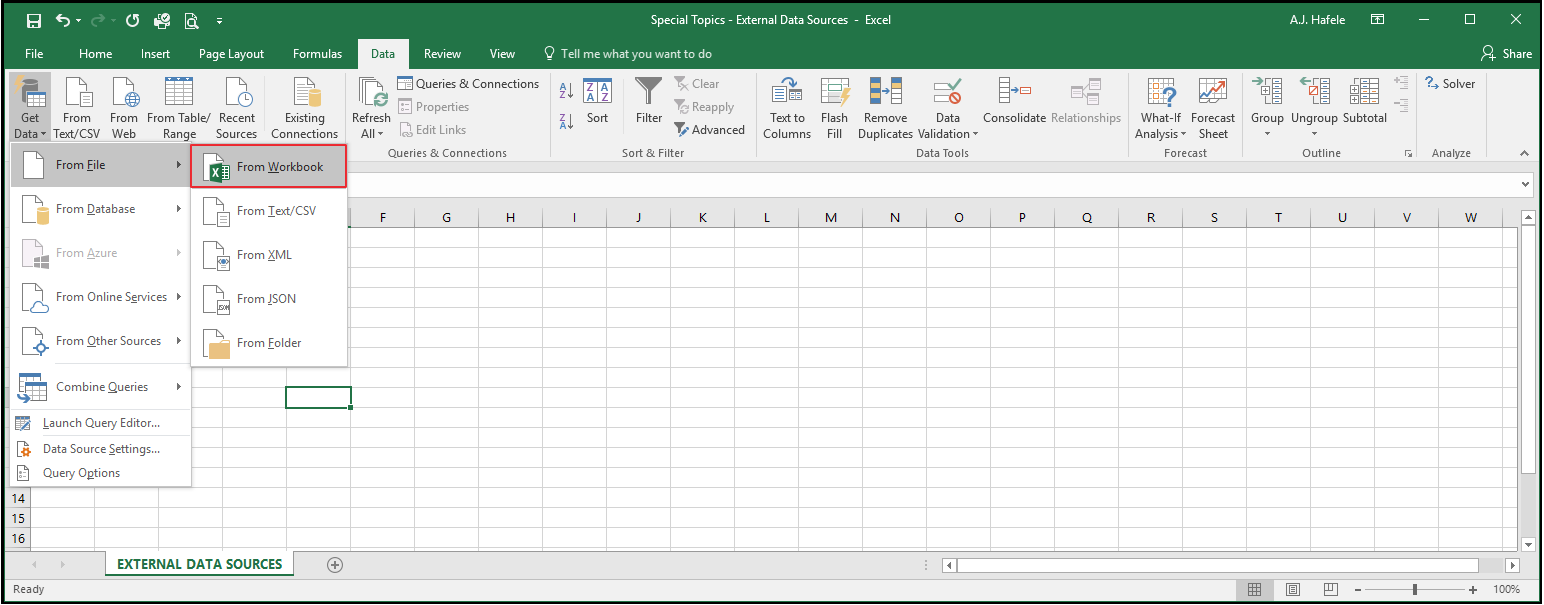
Our focus will be on two buttons, the first of which can be found here:
This option allows us to pull in data from other Excel files
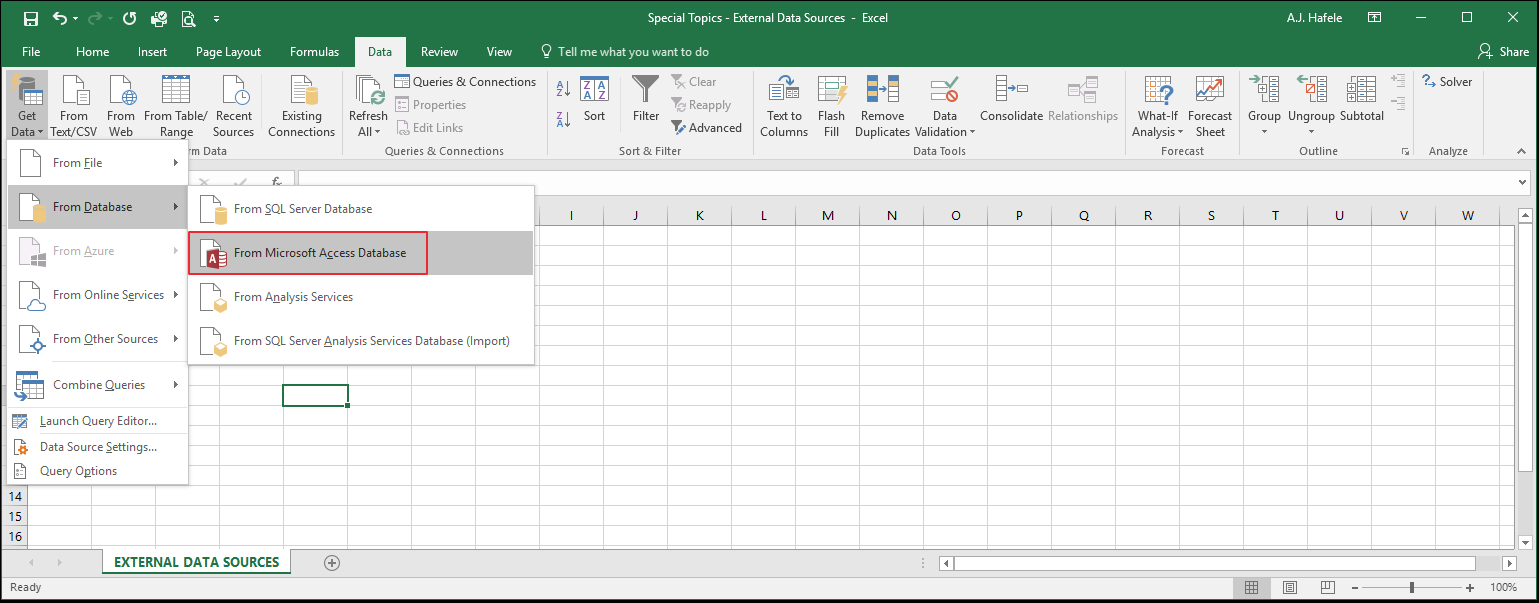
The second button we will discuss is located here:
This button allows us to pull data from an Access database
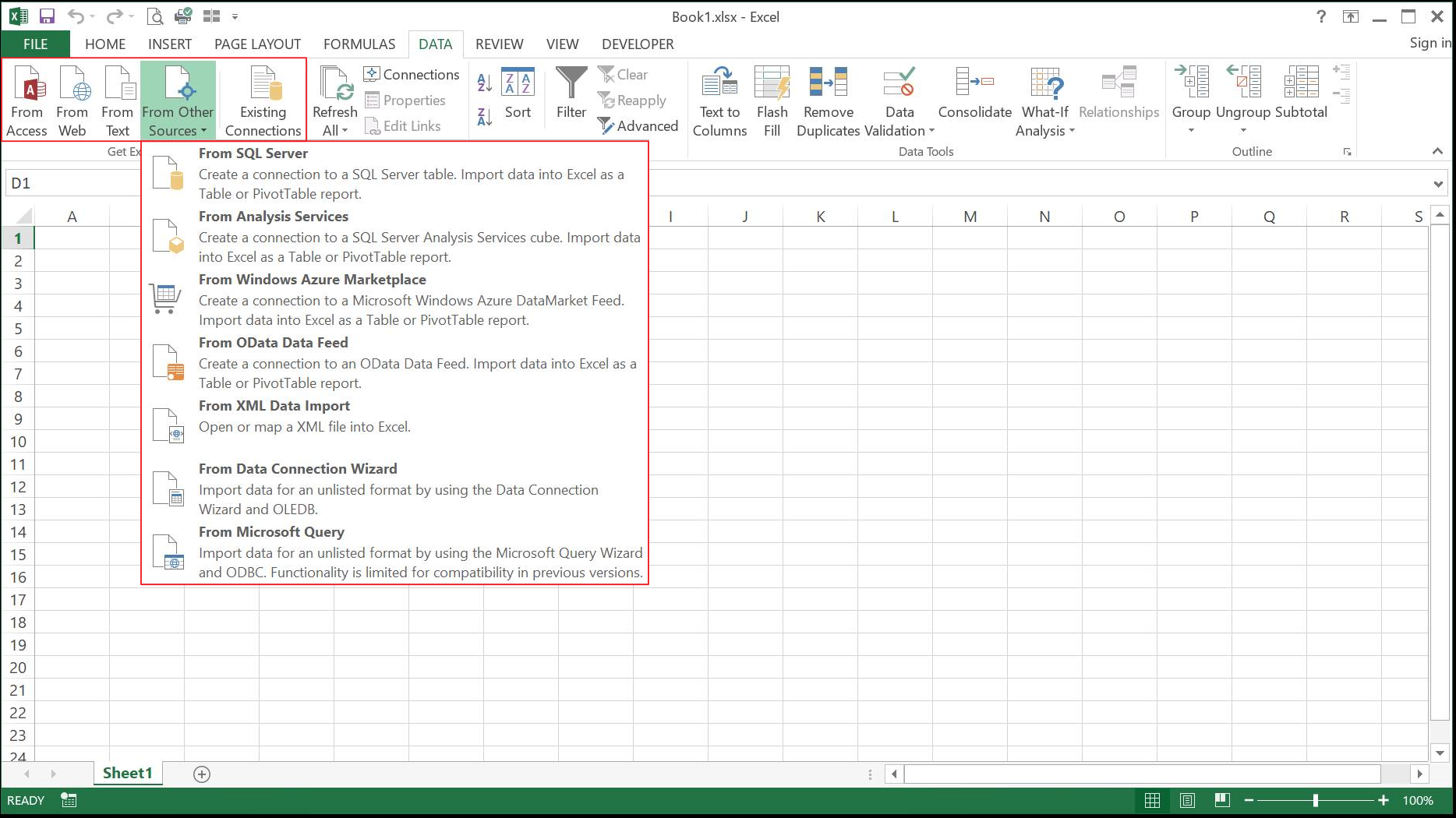
Note that the Data tab in Excel 2013 is slightly different from the information above, as shown here:
Get Data From Excel
Imagine the following scenario:
You - as owner of a business - have a master table of accounts saved in a workbook
All of your 10 employees need to use that master table to do their work (the work is different from person to person, but they still need to use the same table of accounts, for consistency)
To maximize efficiency, you want all of your employees to reference this single table, so that they are not duplicating work, or having to copy/paste from your master table (which can cause unintended errors)
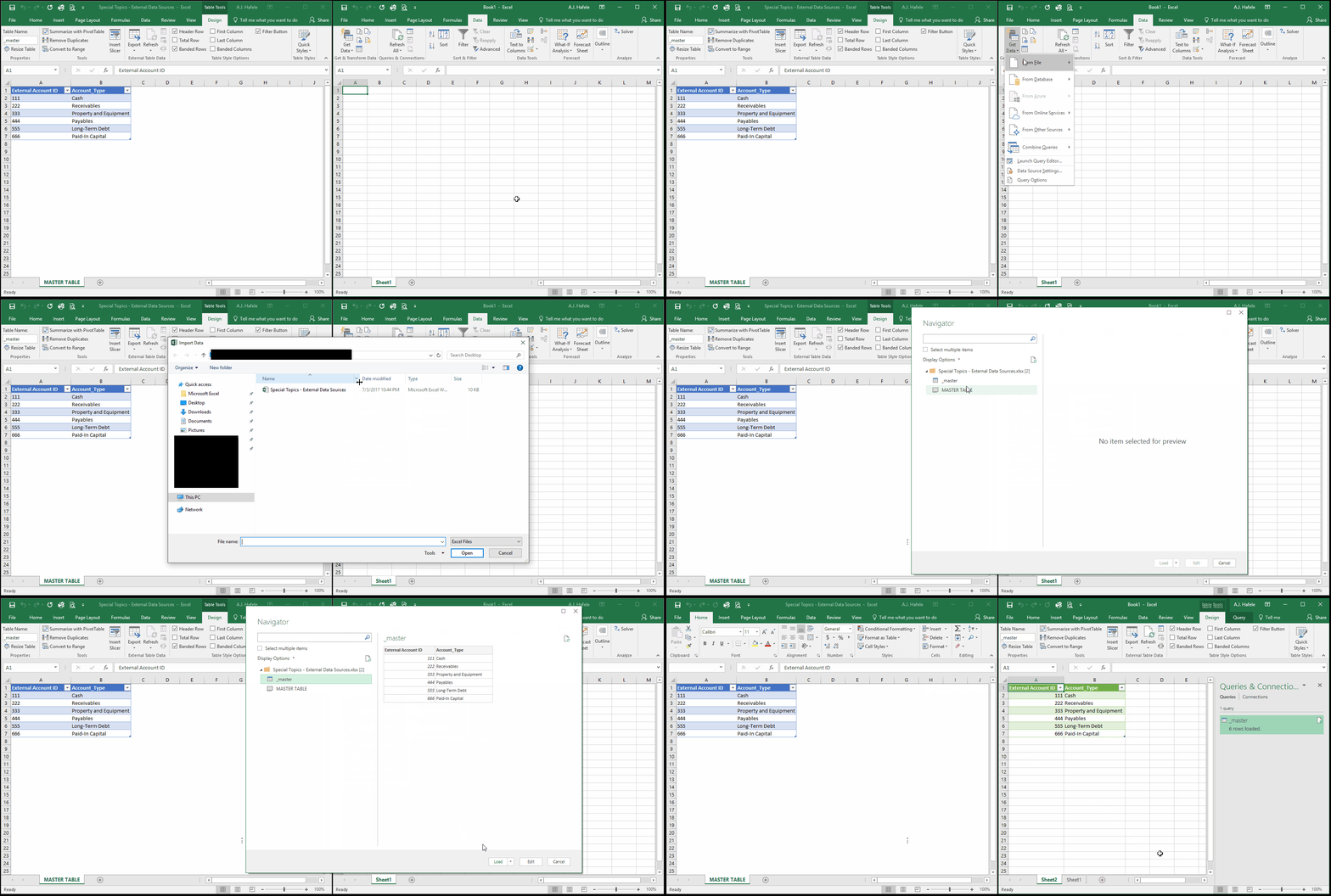
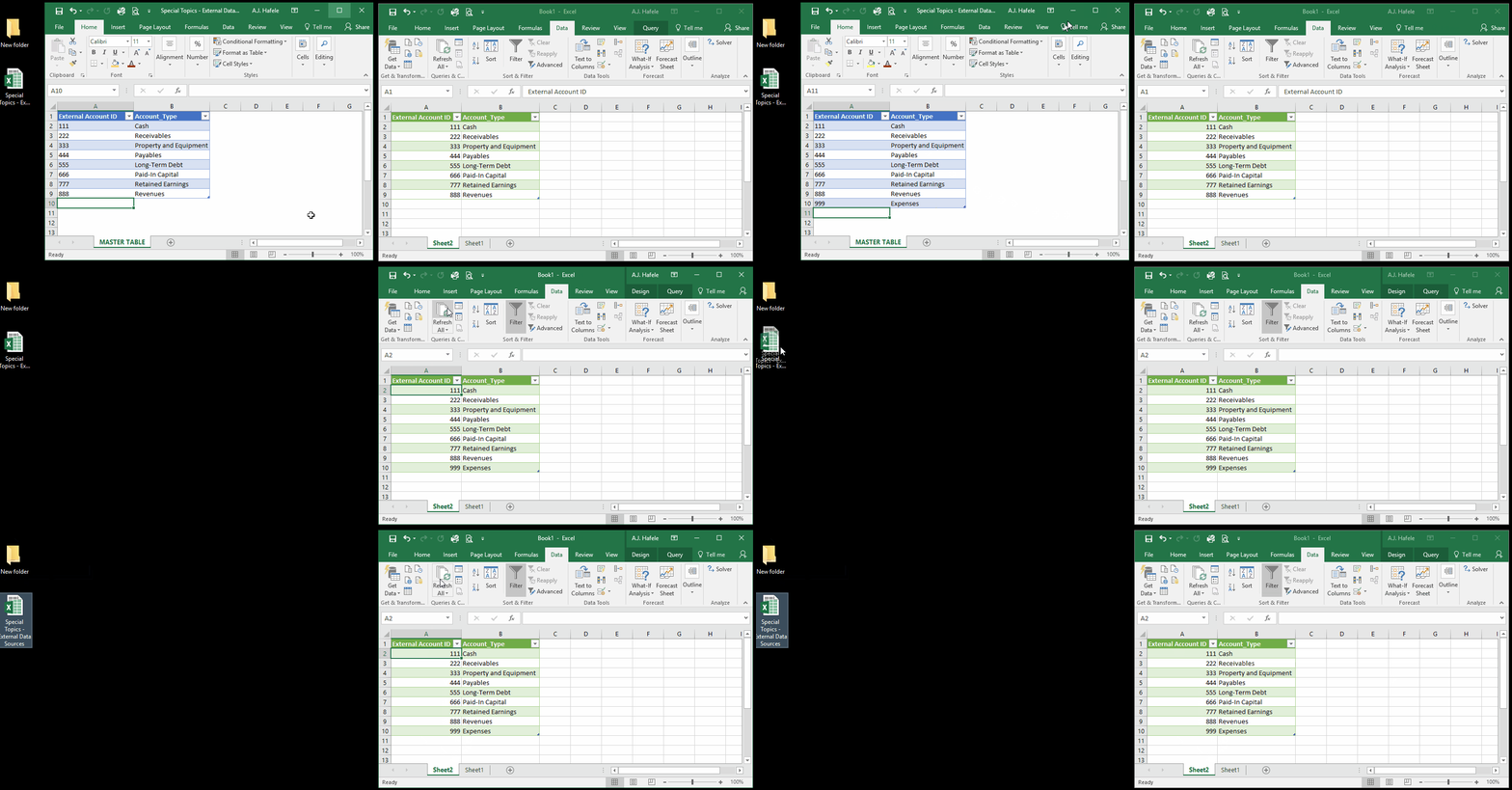
To illustrate how to do this, let's open a new workbook and then pull in the master table into that workbook:
Note that Excel versions prior to 2016 utilize different menus/windows for creating connections, so if you are not using Excel 2016 or later, please refer to the links at the end of this lecture for detailed instructions on how to get data from another Excel file
The good news is that the paradigm discussed is substantively the same regardless of what version of Excel you are using
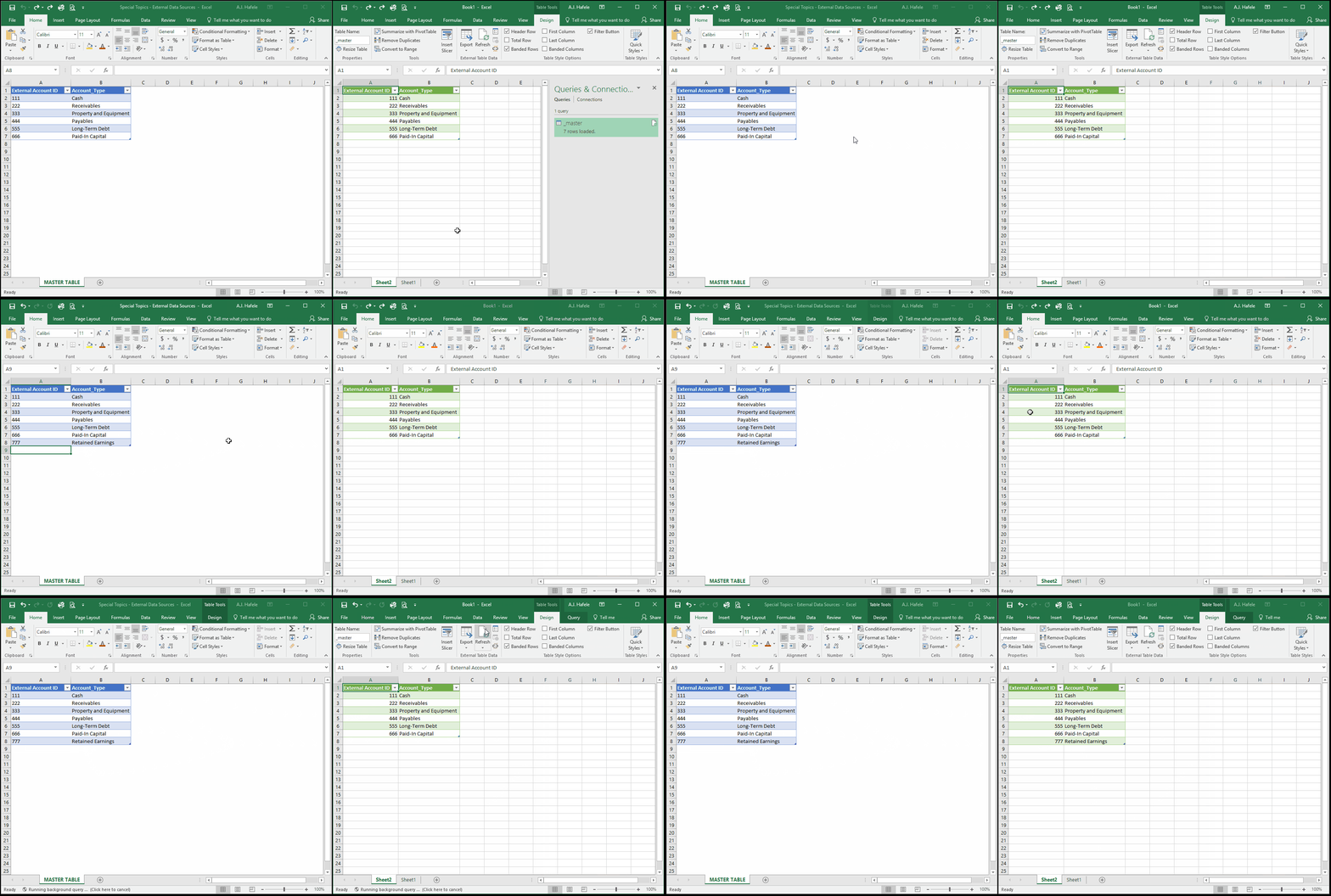
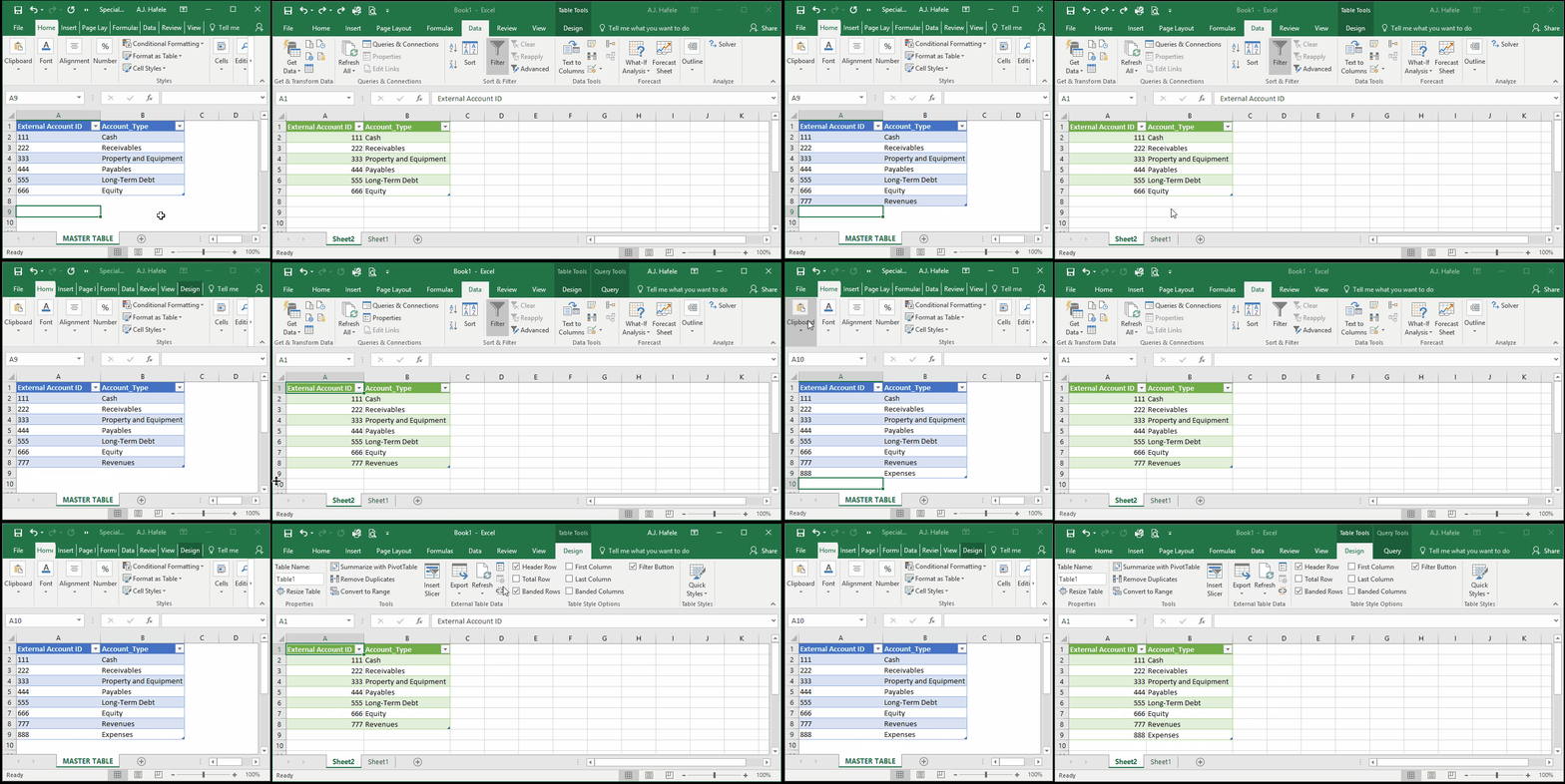
Observe as we update the source (master) table and save the file, and then refresh Book1 (side note: we also get rid of the pop-up menu in Book1, though this is just a cosmetic change):
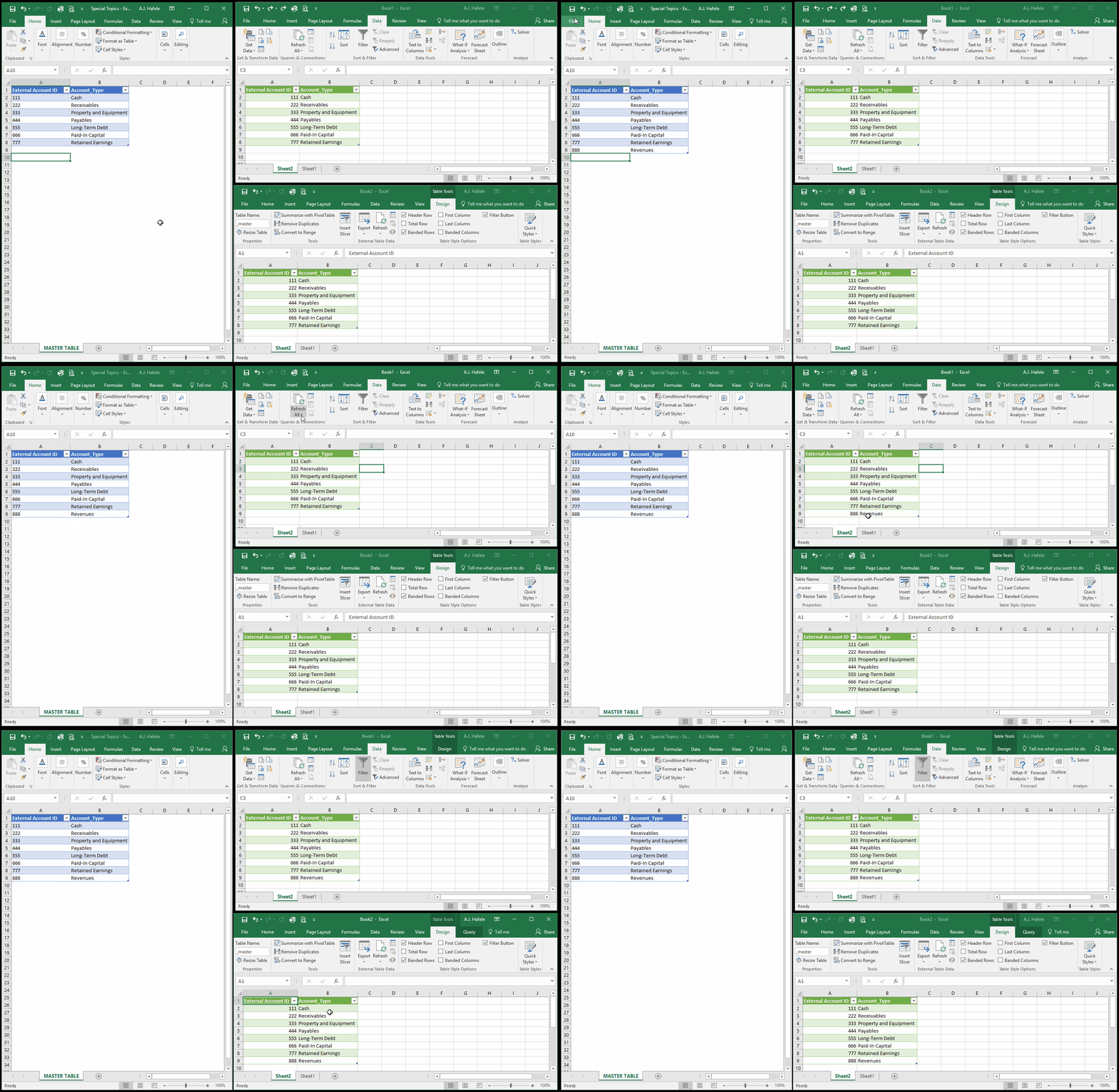
We can actually link up the master table (on the left) to multiple workbooks, thus ensuring that all the workbooks are consistent, as shown here:
Notice above that you can refresh the linked (green) tables via either the Data tab or the (table) Design tab
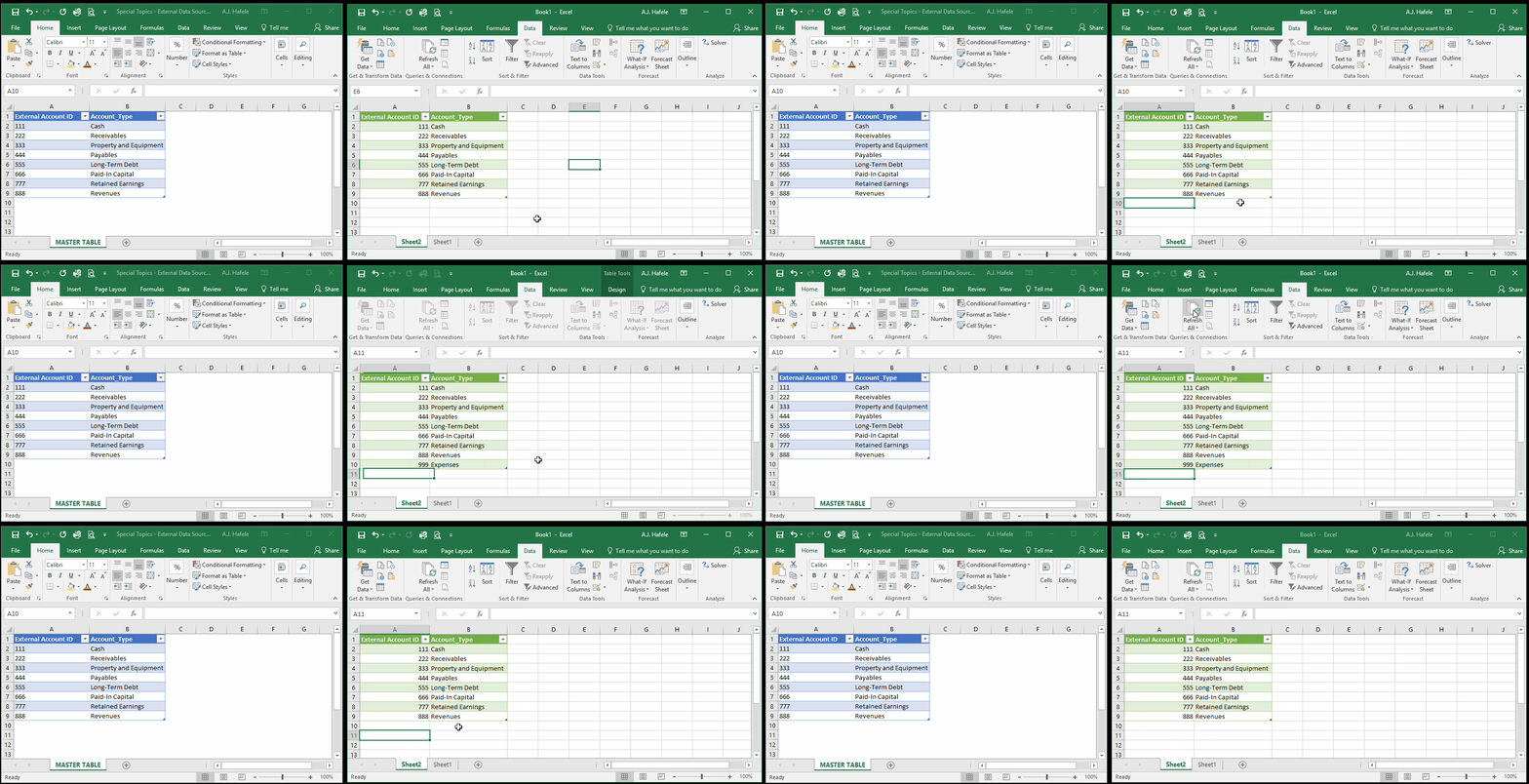
Additionally, note that only the table in the master file can be updated/modified; any updates to the linked tables will not be saved, as shown here:
We tried adding account 999 to the linked table, but it was subsequently deleted upon refresh!
This helps reinforce the idea that a single table should be maintained
Last, one important warning! If you change the file path of your master file, your links will break! Observe as we do just that:
To avoid such errors, be sure to place the file in a "stable" location on your server / computer
Get Data from Microsoft Access
Maintaining source / master data in an Access database is another useful way to streamline processes and reduce redundancies
Linking to a database works very much the same as linking to Excel
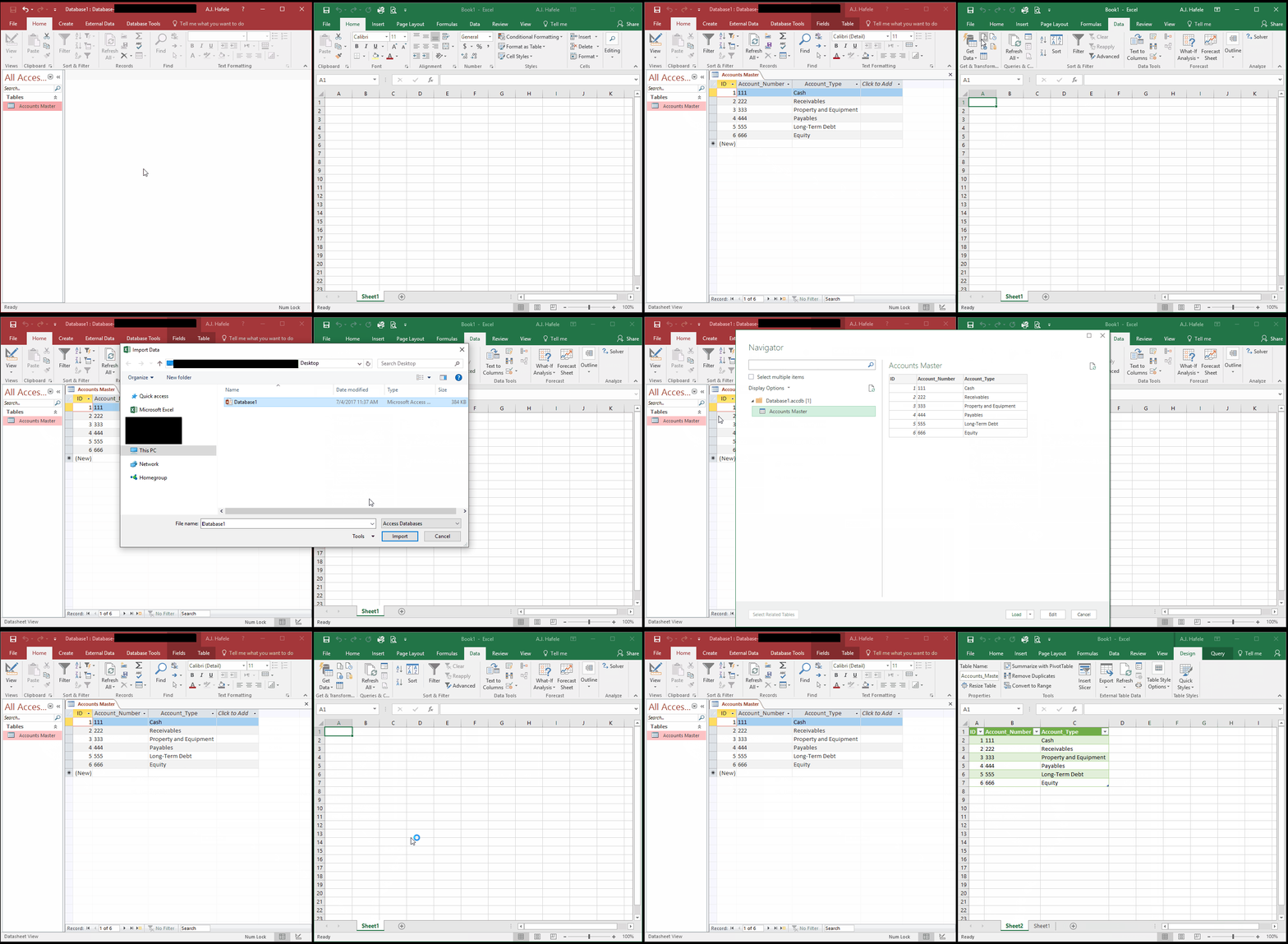
Observe as we create a linked table in Excel from a table within an Access database (the Accounts Master table):
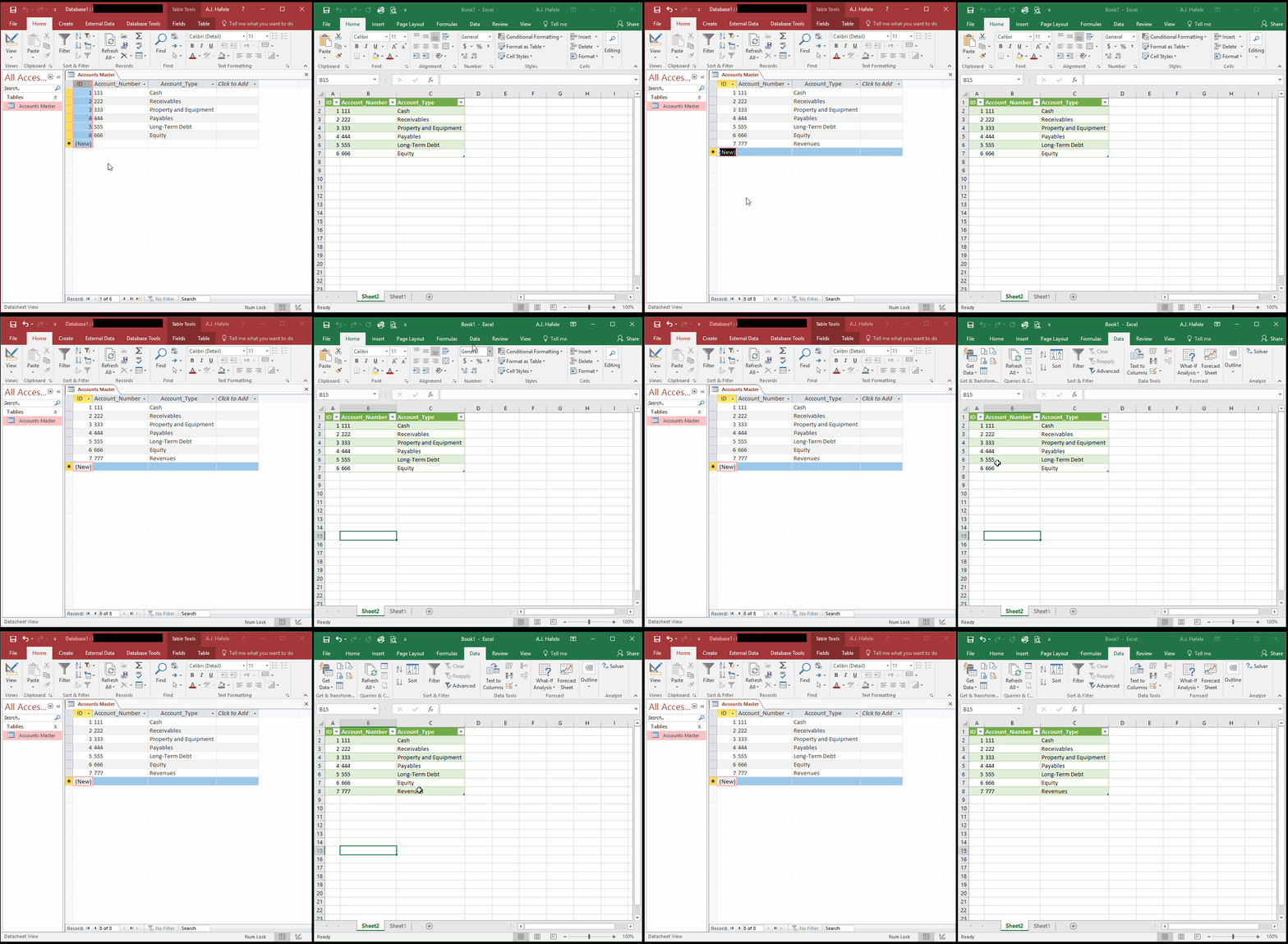
Now observe as we update the database, and then refresh the Excel file (there is no need to worry about saving the table in the database - it saves updates automatically!):
Once again, all updates must be made in the table within the database (the source table); any updates to the linked tables will be reversed upon refresh, as shown here:
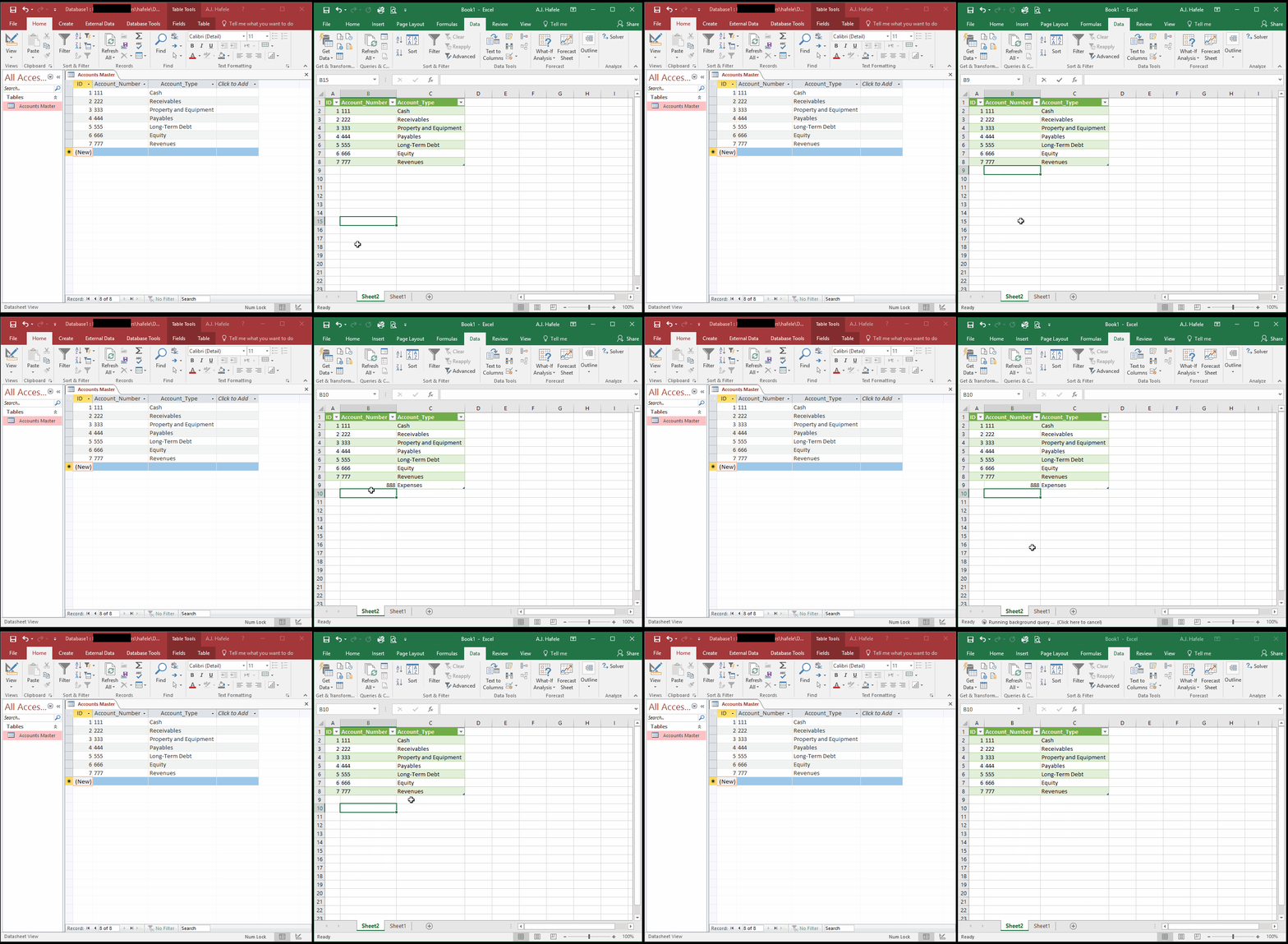
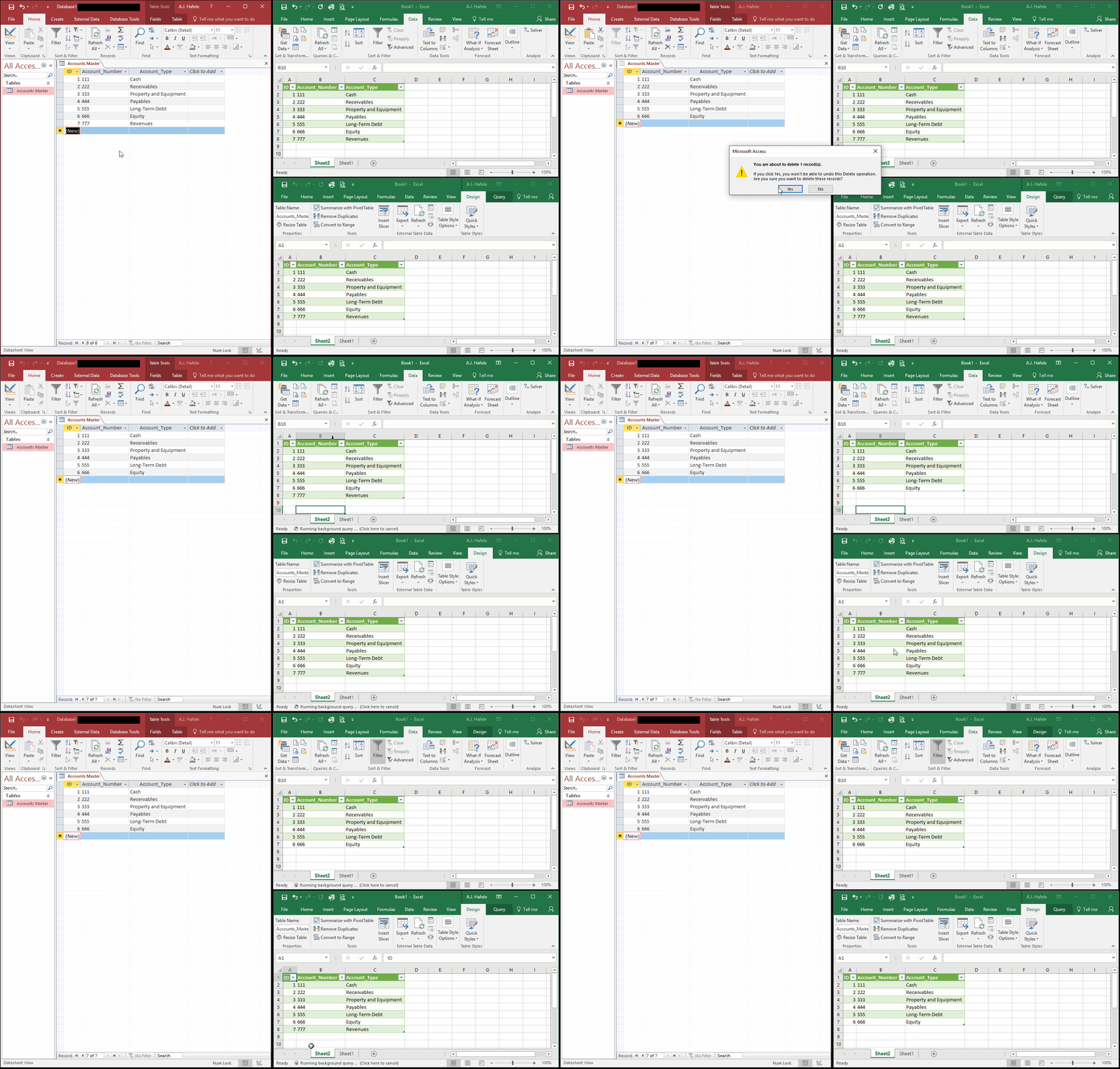
And once again, multiple Excel files can be linked to the same table within Access, as shown here (let's delete an account this time, and then refresh the Excel files):
Again, notice above that you can refresh the tables via either the Data tab or the (table) Design tab
As with Excel files, we want to reemphasize that if you change the file path of your database, your links will break!
Last, when you link a database to an Excel file as we have done, the Excel file is opened behind the scenes
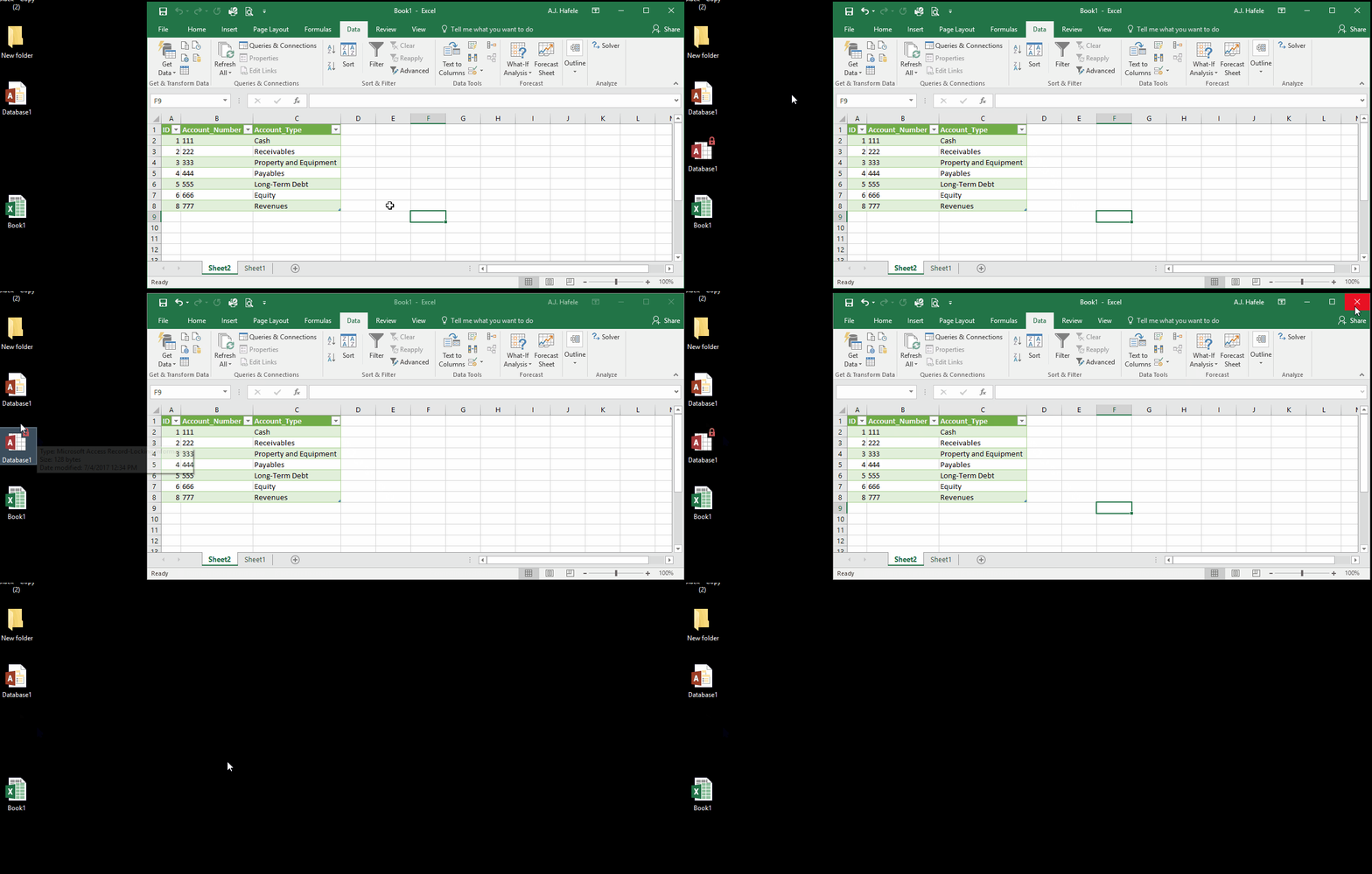
As shown in the following illustration, refreshing the table in Book1 will actually open up the Access file, as evidenced by the temporary Database file (with the lock on it):
The significance of this is that the Access database may not be fully modifiable
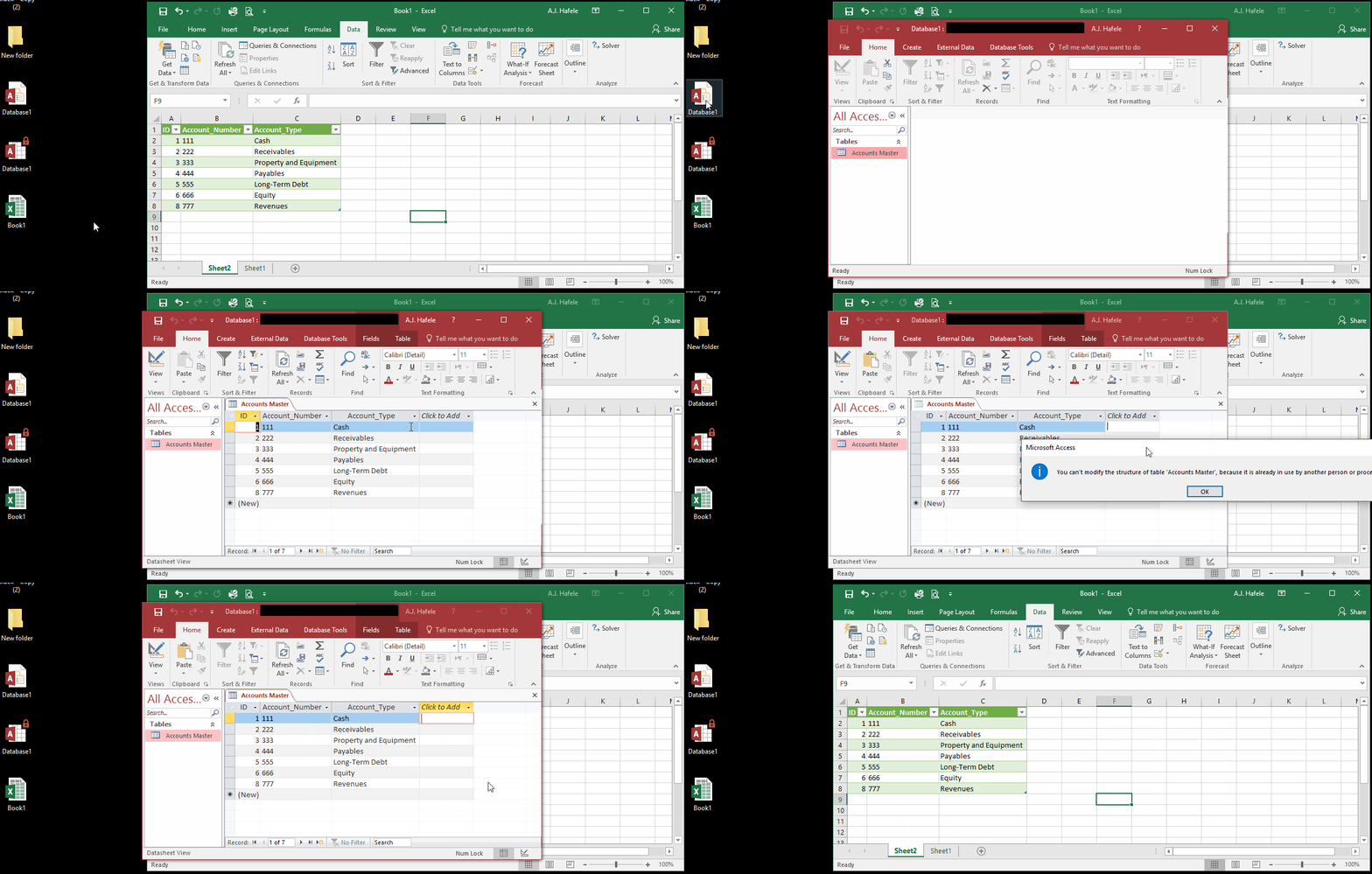
You can add, delete, or modify records of data (e.g. account numbers), but you cannot modify the structure of the database (and table) itself. For example, observe as we open Access and try to add a new field to the Accounts Master table:
Here is a screenshot of that error message:
To modify the Access database, everyone must close out of their Excel files that are linked to the database
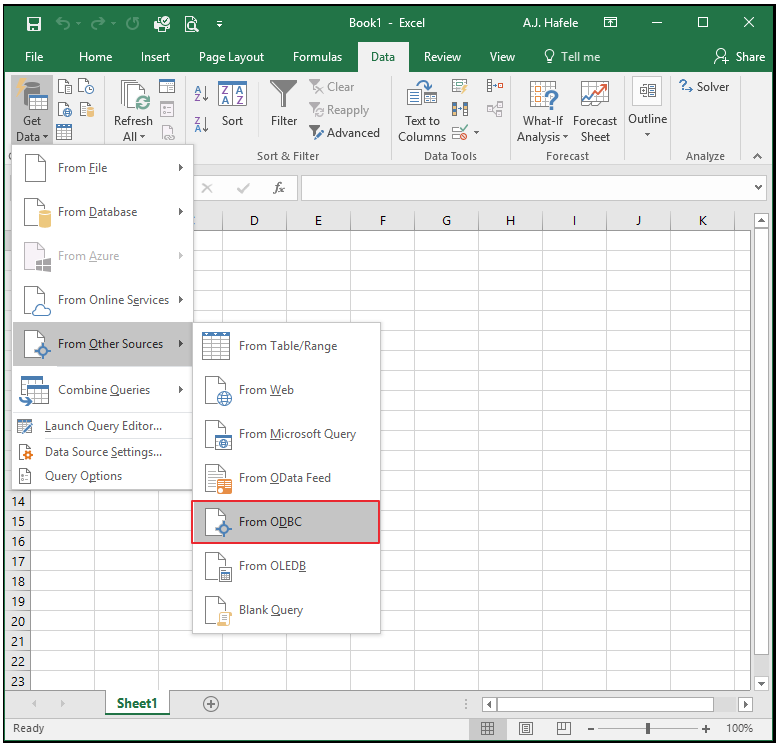
If you require the flexibility to modify the structure of the database while others are in linked Excel files, consider linking your Excel files to Access via an ODBC connection:
Creating such a connection is beyond the scope of this lecture, so we recommend working with an IT professional in your organization to get this set up
Refreshing Linked Data
It is absolutely critical that users keep their data refreshed as frequently as possible
We demonstrated in the illustrations above how to refresh linked tables, but to reiterate, you can use the refresh buttons on the Data tab or the Design tab (when the table is selected), as shown here:
Note that all linked tables can be refreshed with one click by selecting Refresh All as shown above (we only have one linked table, of course); this will refresh all PivotTables as well!
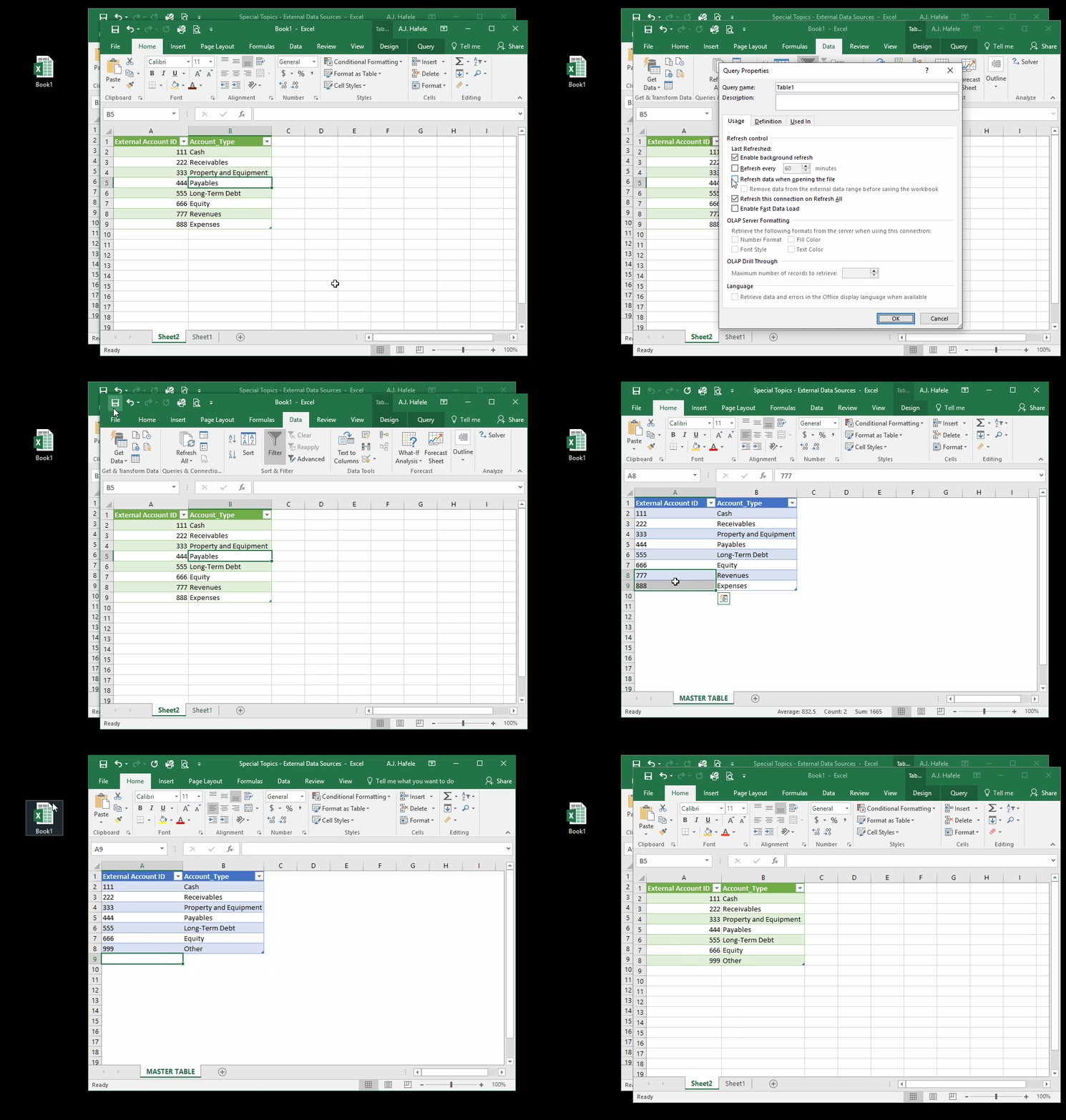
If you want to be extra cautious in ensuring your data are refreshed, you can opt to refresh the table when the Excel file opens, as shown here:
Tips
Excel is a flat file database, and thus it is not typically the best file type to store raw data in
This is especially true when managing extremely large volumes of data
Excel's speed can be reduced significantly when large quantities of data are in a single file
Instead, consider storing raw data in relational databases, and where necessary, link the database data to Excel