This is a special lecture on how to perform a reverse Pivot
In brief, a reverse pivot allows you to transform a grid of data it in order to make it more dynamic and flexible
Performing A Reverse Pivot
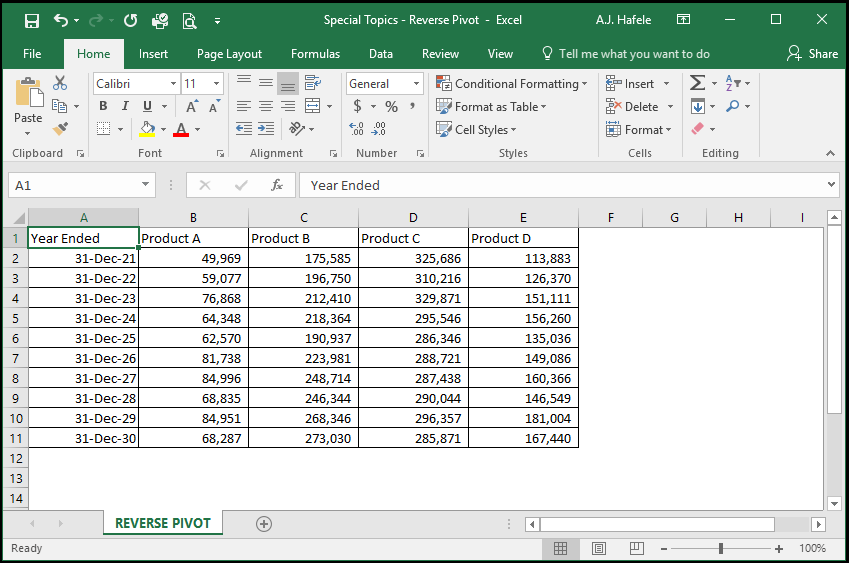
Have you ever been in a situation in which you need to analyze a table of data formatted as follows:
While this table looks good as-is, it is actually very inflexible. For example, you cannot easily manipulate this table in a PivotTable
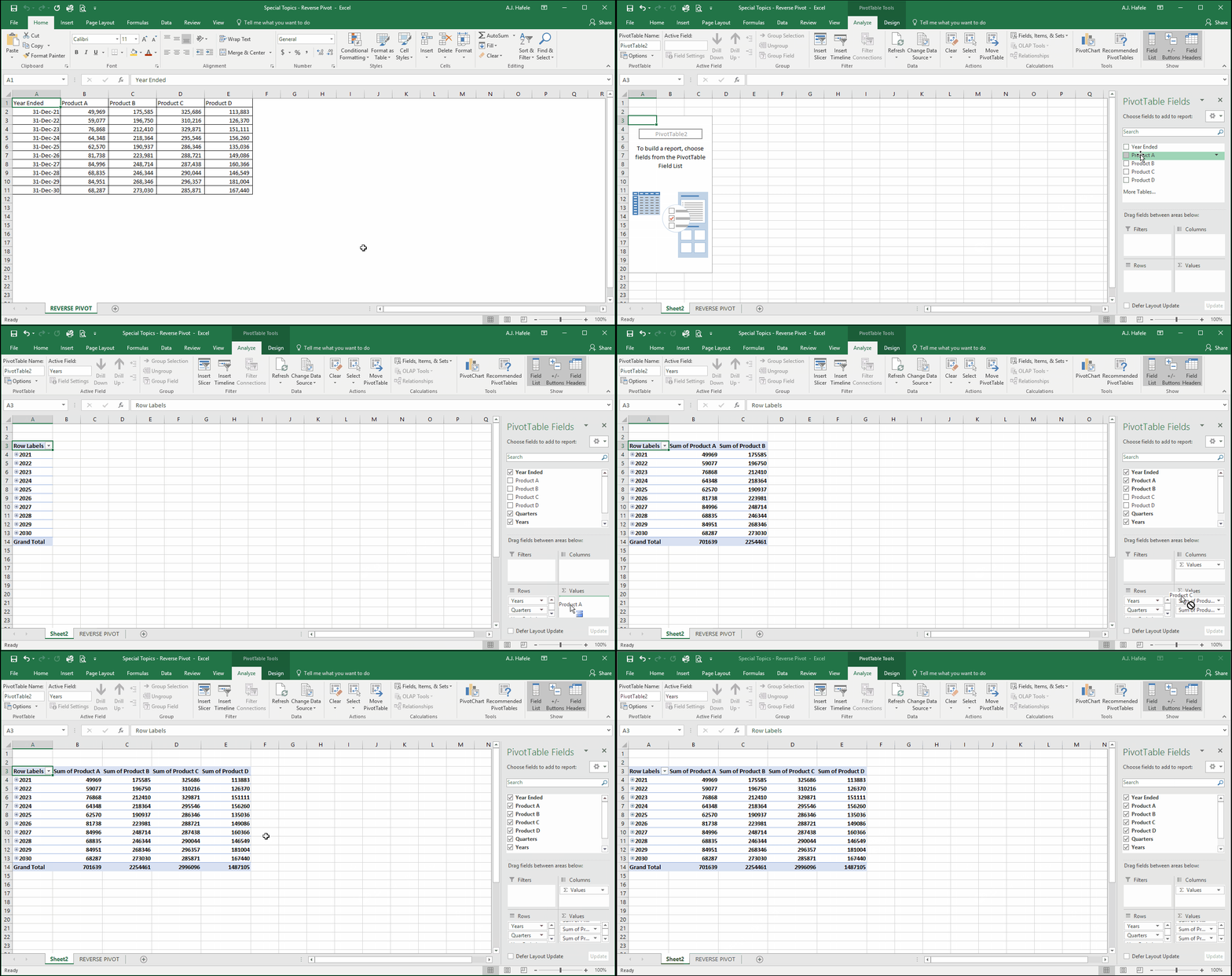
Placing this table in a PivotTable does not add any flexibility to our initial table, as shown here:
Notice that the resulting PivotTable is nearly exactly the same as the initial table! And we don't even have the ability to see the grand total across all years and products
Why? This is because the values are spread across multiple fields
The solution is to get the data in a tabular format, in which the value is in a single field
But how can we do that? We will use a reverse Pivot, of course!
The procedure is a bit strange, so follow along closely!
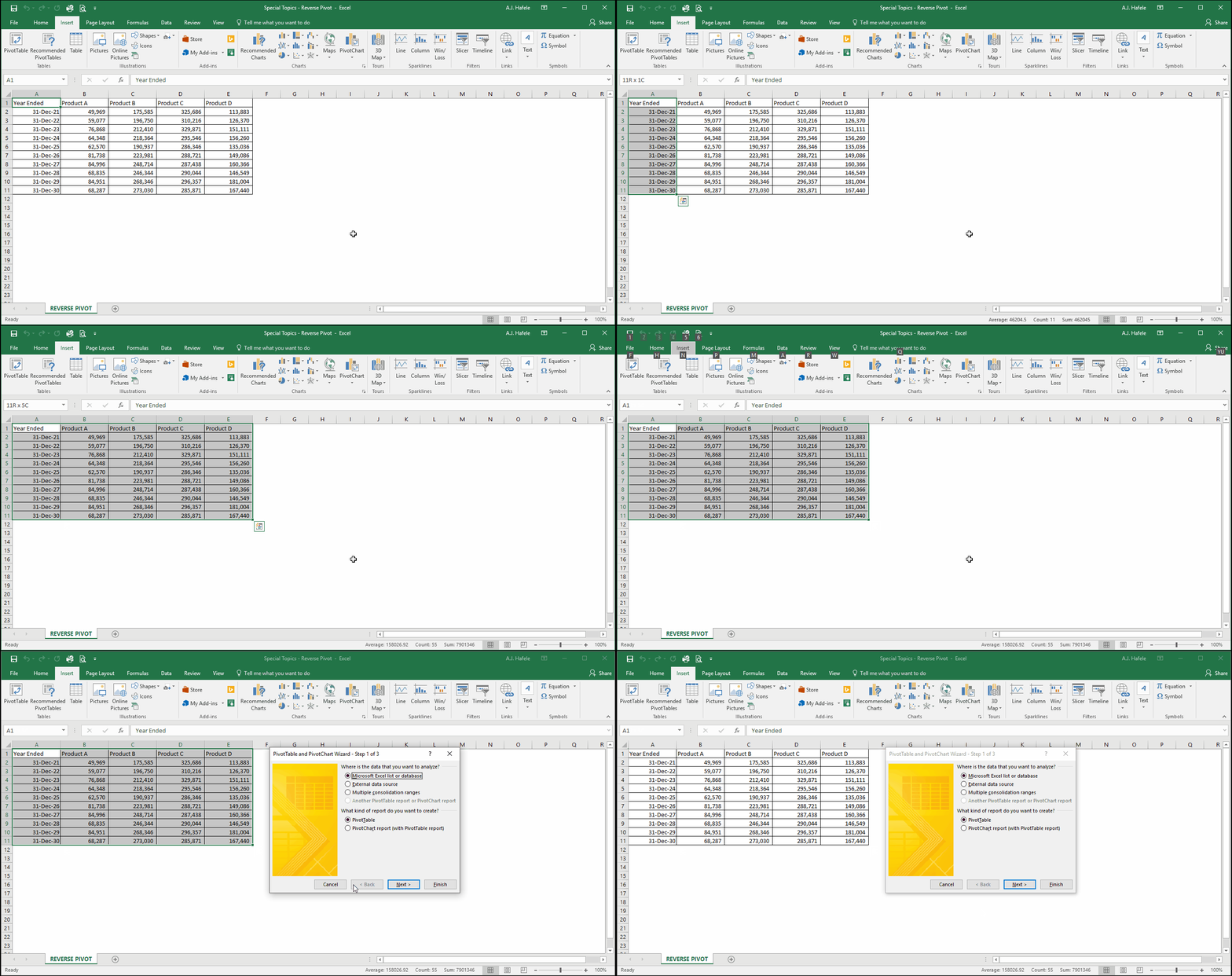
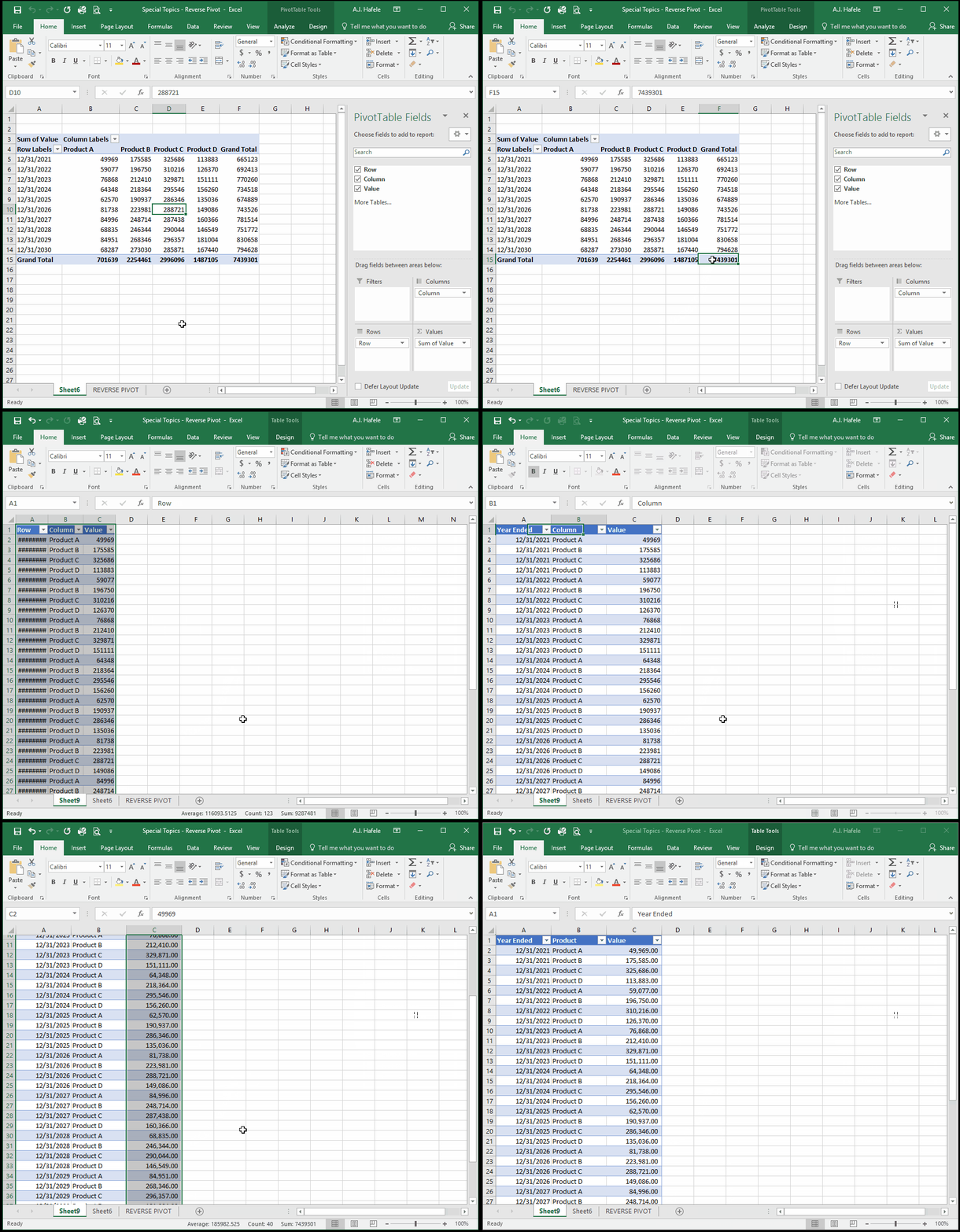
First, select the entire range of data, including row and column headings, and press ALT, D, P, as shown here:
As you can see, this brings up the PivotTable and PivotChart Wizard
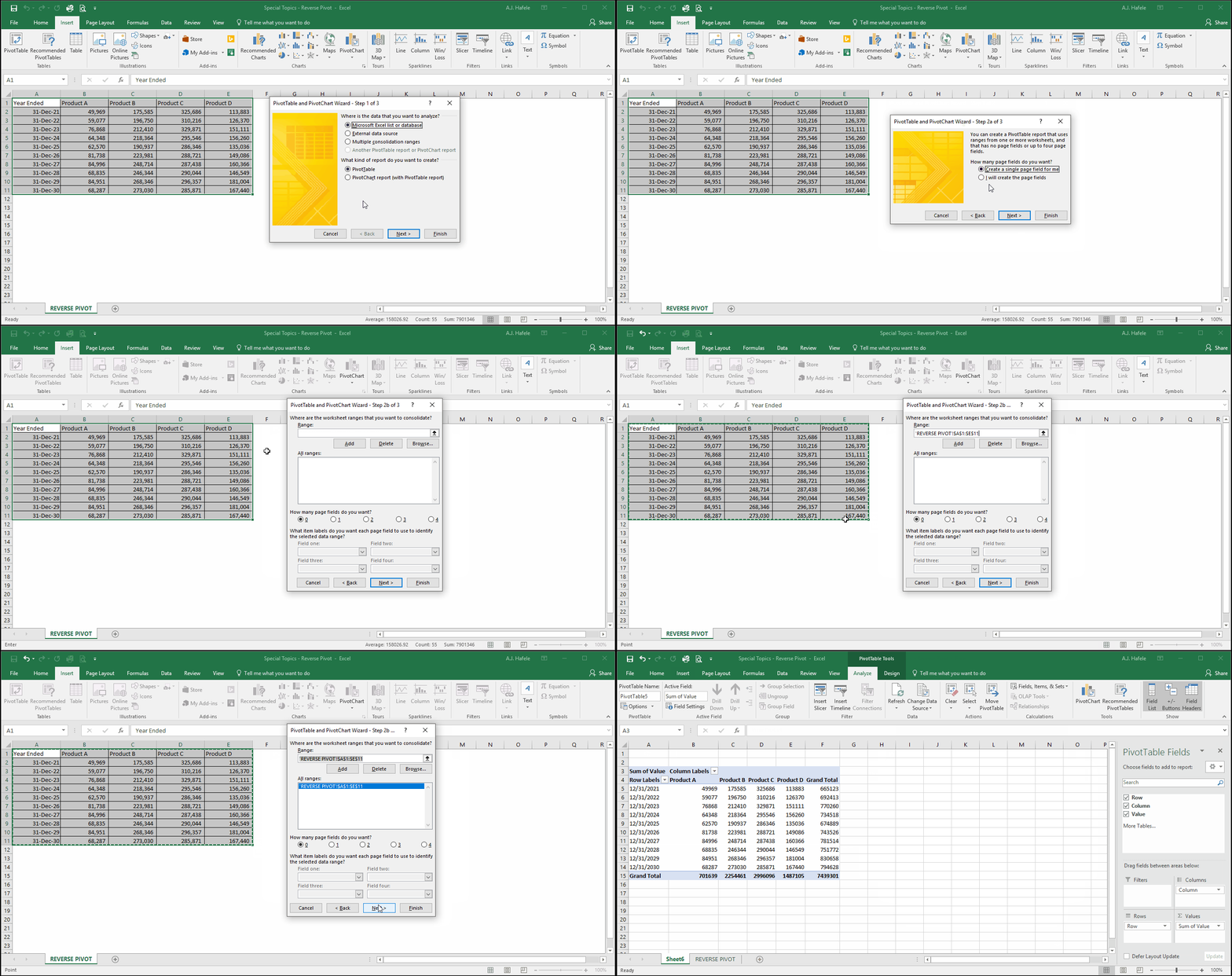
Select the following options (each time you create a reverse Pivot, again selecting the entire range including row and column headers in step 2b):
Note that:
In step 3 of the Wizard, you could have chosen to place the PivotTable in the existing worksheet if desired
Next, double-click the bottom-right cell in the resulting PivotTable (where Grand Total row and Grand Total column intersect), rename the resulting fields as appropriate, and clean up the formatting, as shown here:
Importantly, notice that the data is now in a tabular format! This significantly enhances our ability to slice and dice the data via a PivotTable
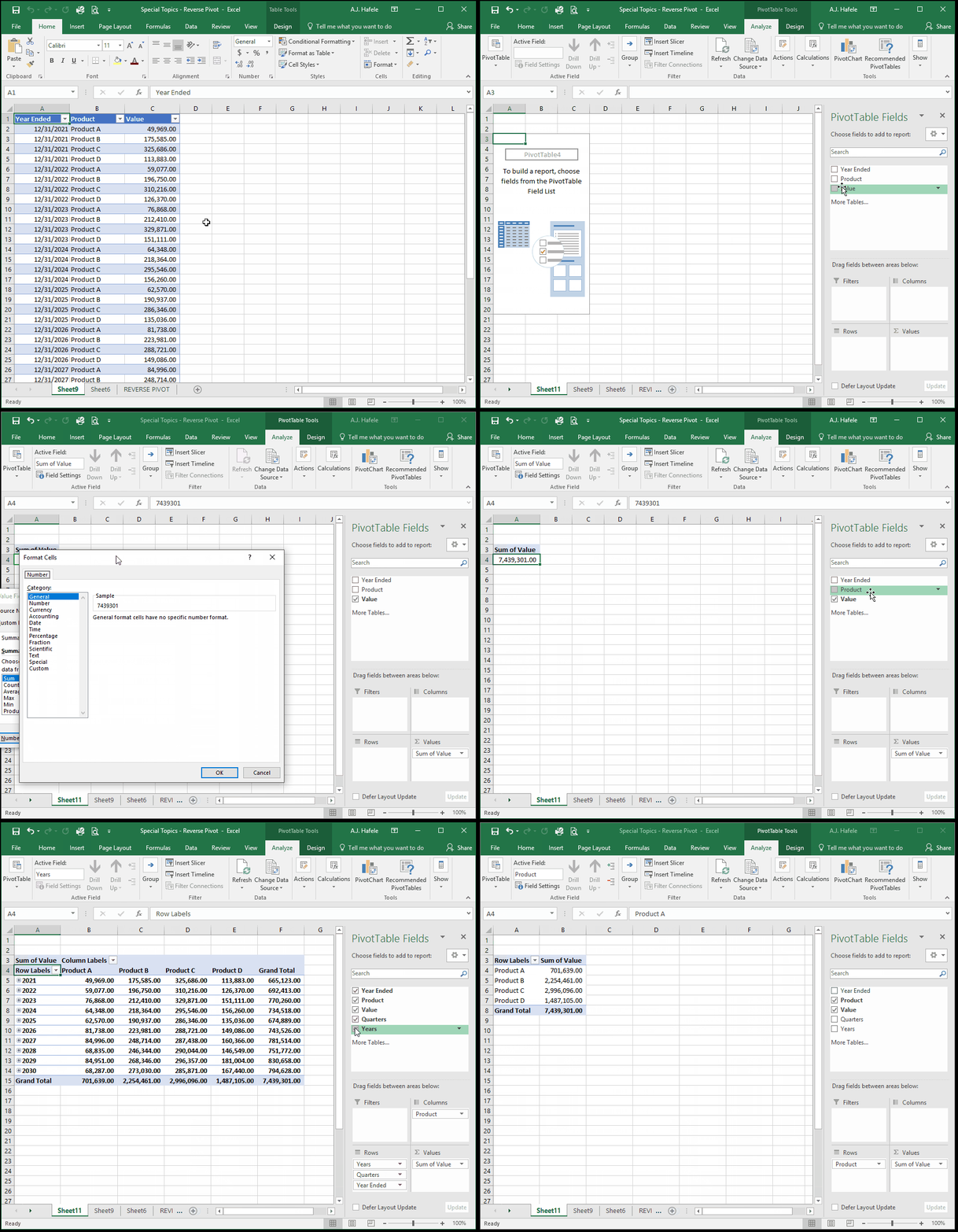
Let's now create a PivotTable and slice and dice the data in multiple ways:
Notice that the PivotTable can present the data the way we initially had it (years in rows, products in columns), but it can also do a lot more! The key is getting the data in a tabular format!
Reverse Pivot Macro
As an alternative to doing the reverse Pivot manually, macros (using VBA) are available that do the exact same thing
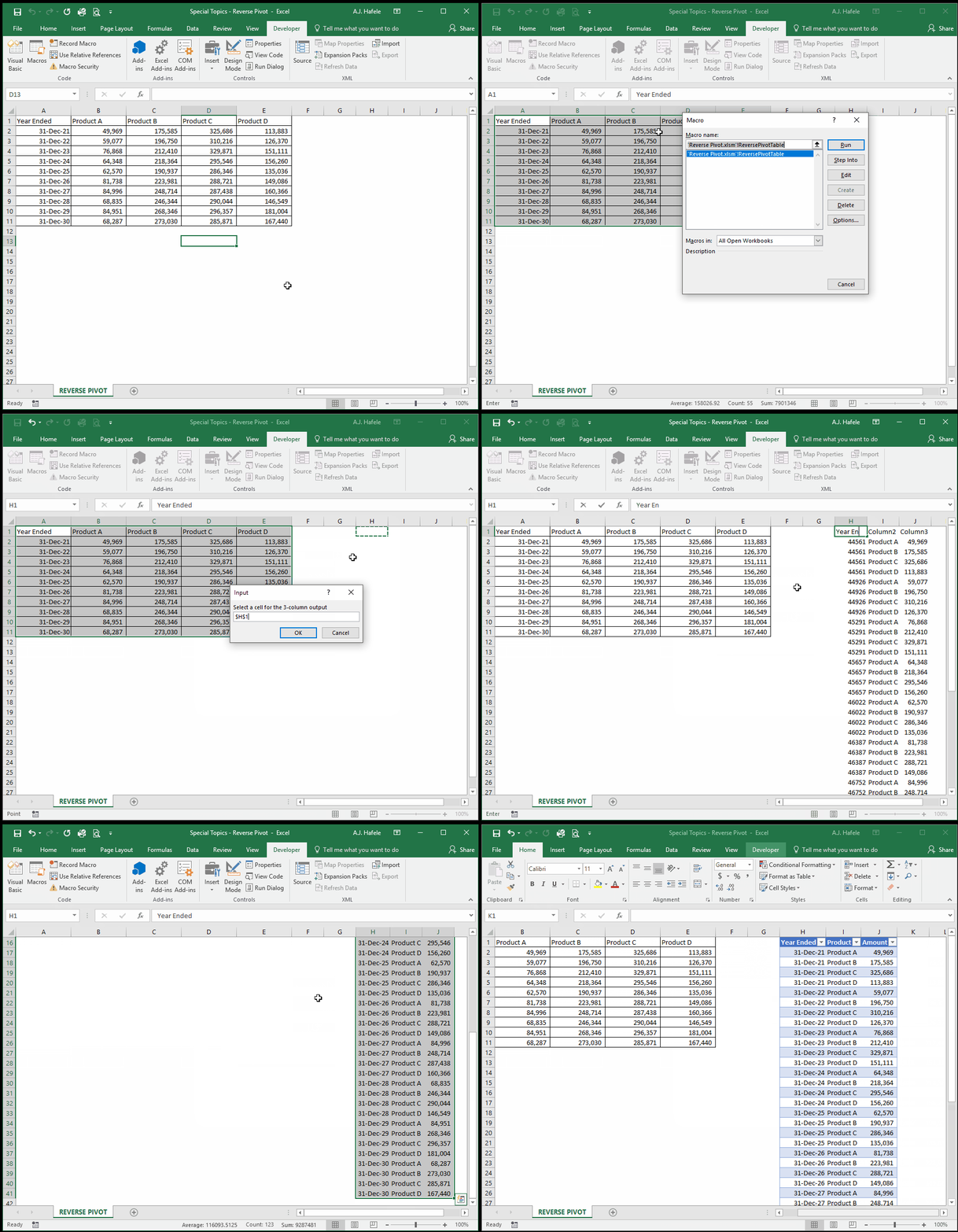
Observe as we run a macro to quickly transform our table:
To replicate this, follow these steps:
Save down the Special Topics - Reverse Pivot Macro.xlsm file to your computer and then open it
Save and open the Special Topics - Reverse Pivot.xlsx file (so now you have 2 workbooks open)
Replicate the steps shown in the above example
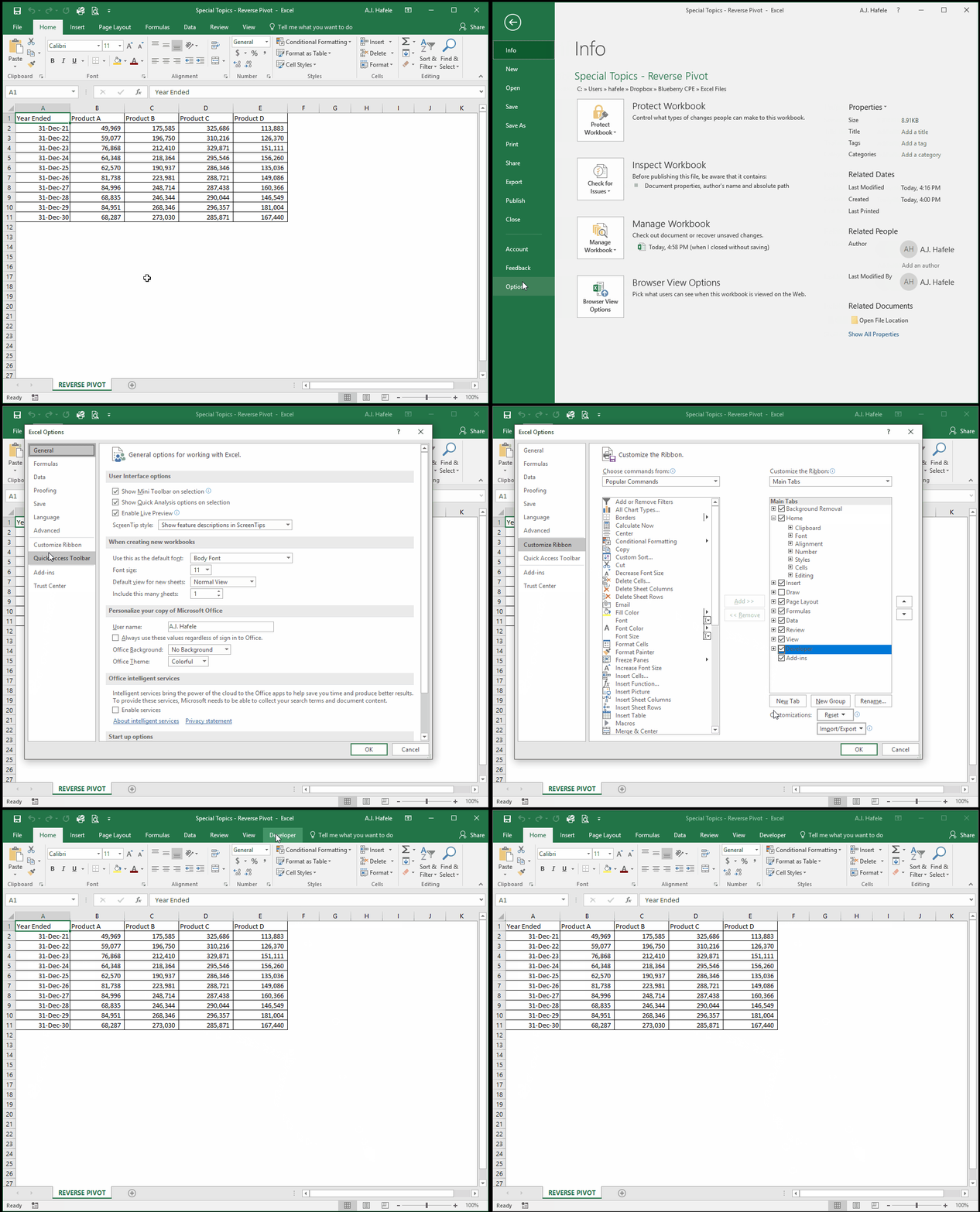
If you do not see the Developer tab, add it by doing the following: