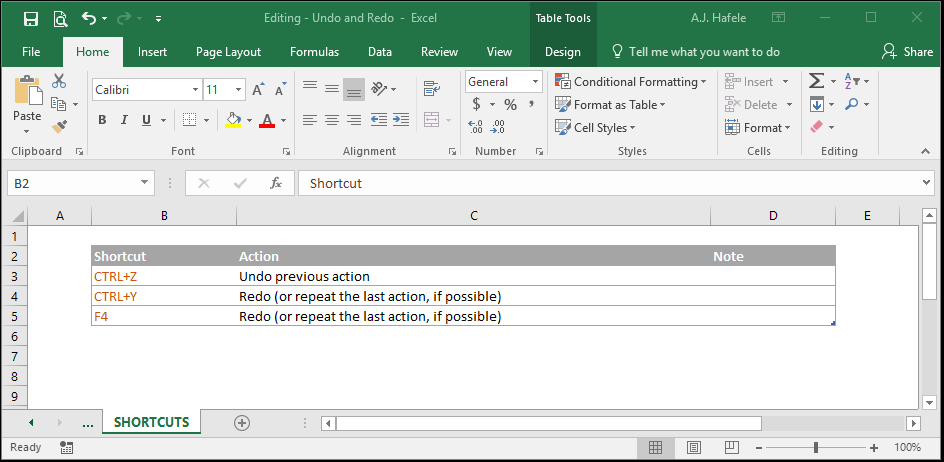
As you edit, format, and perform other updates, Excel tracks nearly all the actions you perform. As a result, you are able to reverse actions that you previously performed. That is, you can "undo" previous actions
After you undo actions, you can also redo them if necessary
To understand how undo and redo work, imagine that performing a series of actions in Excel is like building a new road
Undo allows you to hit reverse and go back to part of the road you were previously on
Redo allows you to go forward on the road that you already created
But if you undo (go in reverse) and then perform a new series of actions, that is equivalent to building a new offshoot road
Caution! Once you go down a new path/road, you can never get back to the original road! Thus, if you undo 5 actions, redo 2 actions, and then enter new content, you can never redo the remaining 3 actions
Buttons
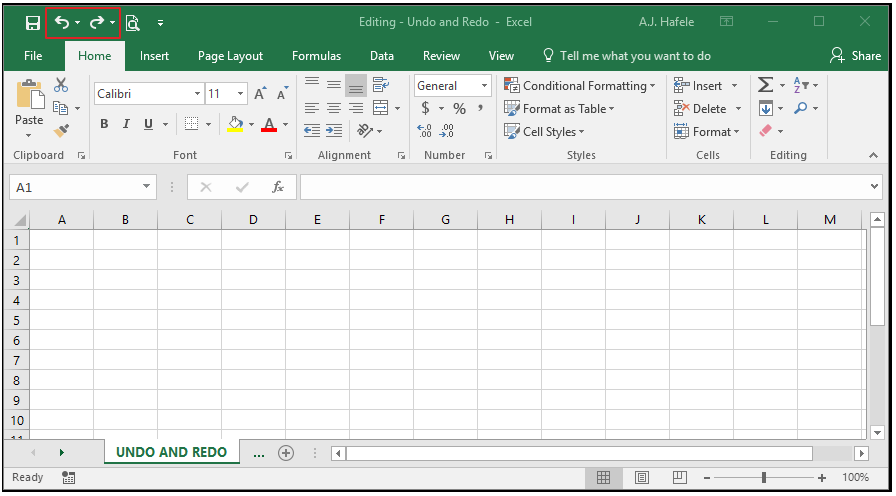
The relevant buttons (Undo and Redo) can be found in the Quick Access Toolbar:
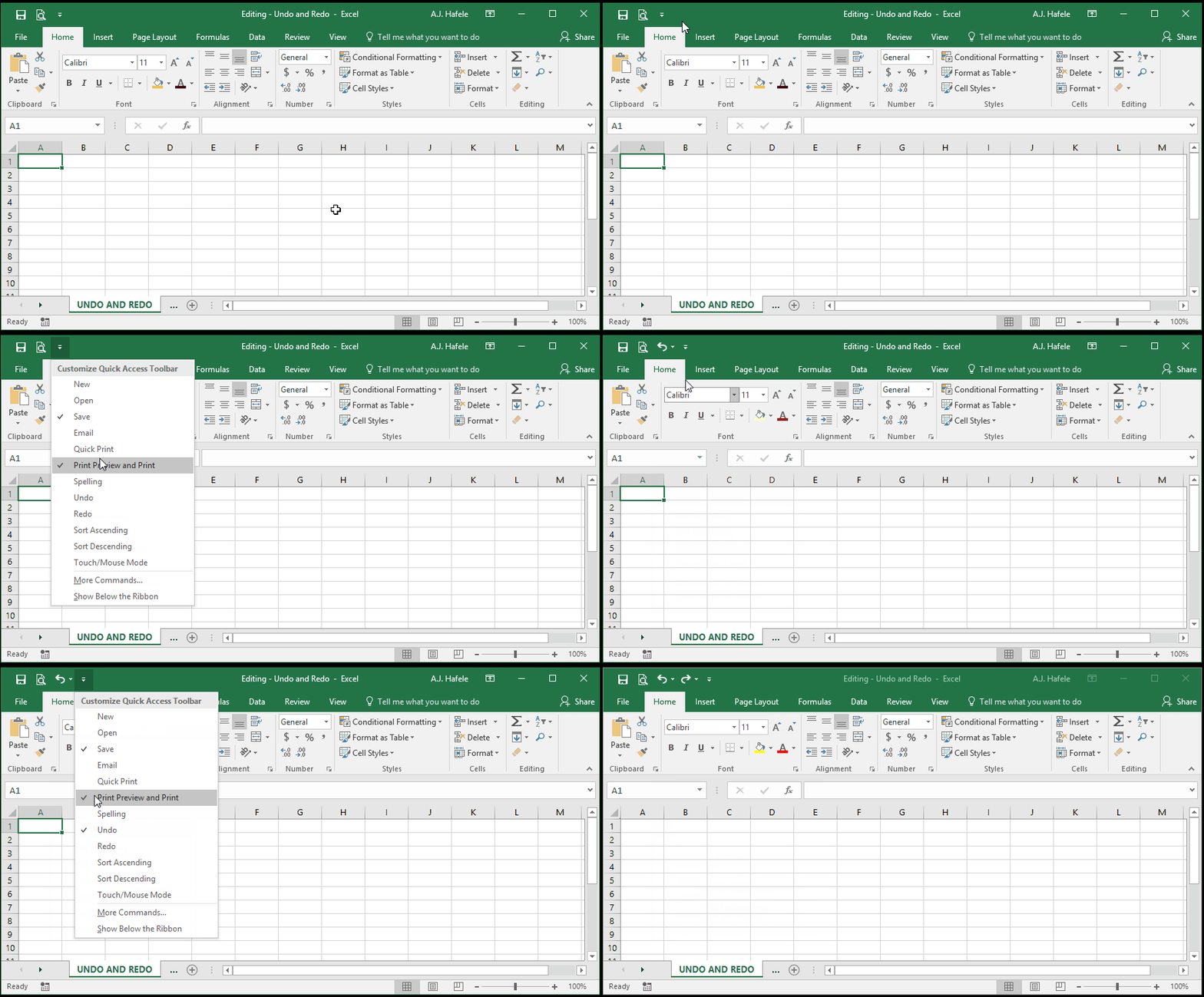
If these buttons are not available, you can add them as follows:
Undo
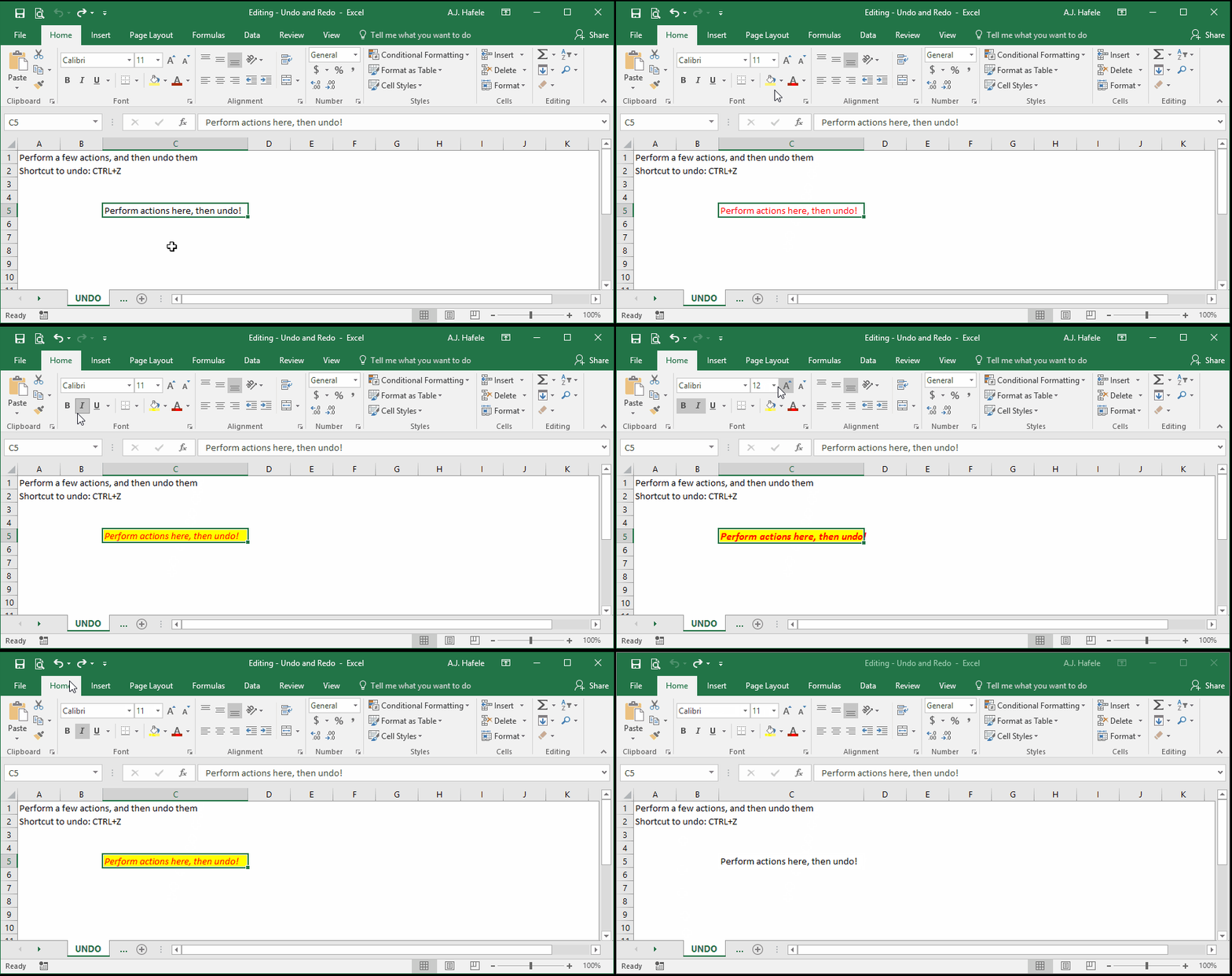
Observe as we perform a few formatting actions, and then undo them using the Undo button in the Quick Access Toolbar:
Notice that, by using the tiny drop-down box, we were able to undo multiple options at once
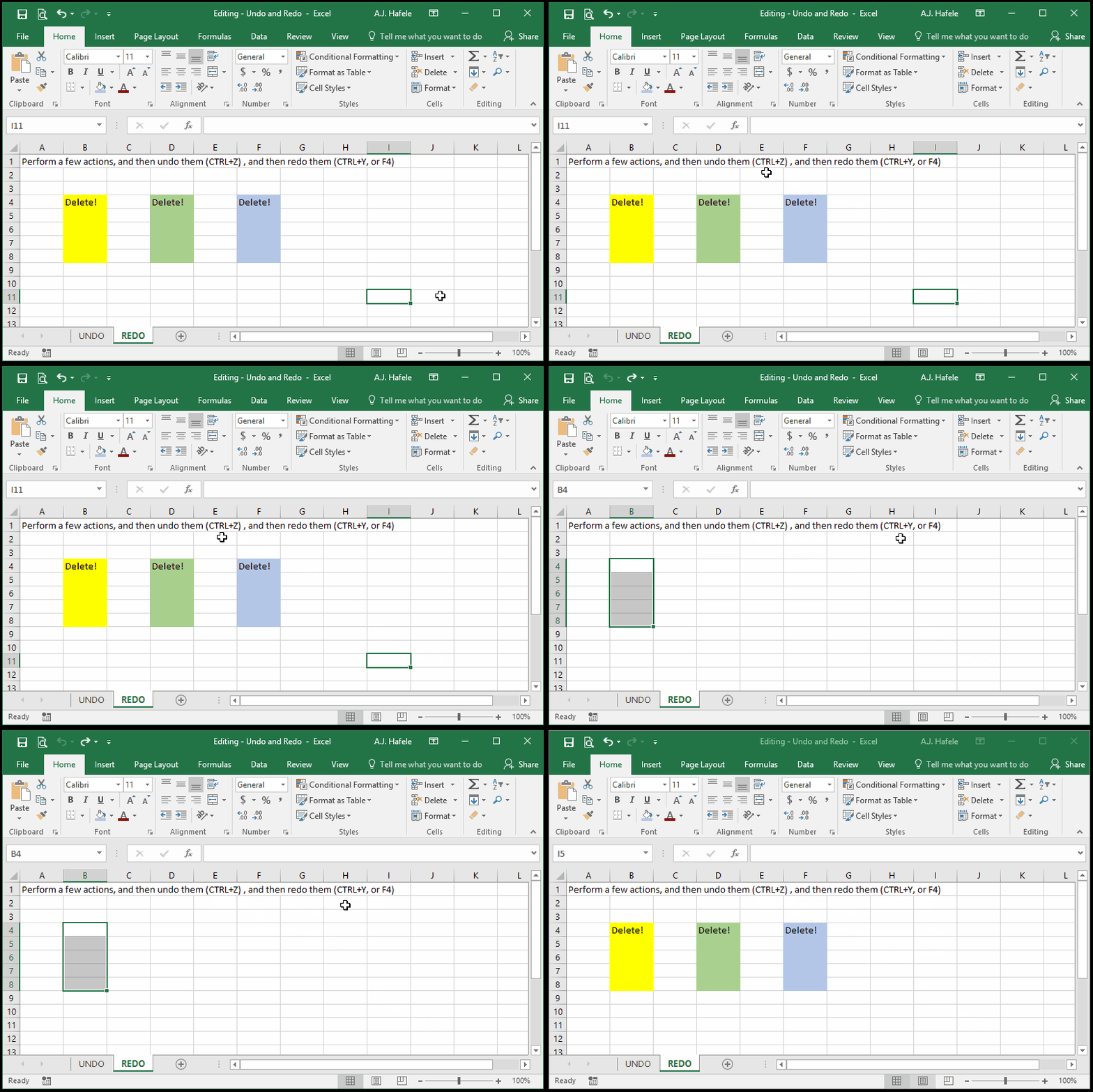
Let's perform and undo some more actions, except this time we will use the CTRL+Z shortcut to undo :
You can undo a wide variety of actions, including (but not limited to) the following:
Enter content into cells
Format cells
Insert and delete columns
Cut, copy and paste
Etc. (there are too may to list!)
However, you cannot undo certain actions, including:
Save a file
Add or delete worksheets
Rename worksheets
Moreover, be aware of the following:
If you close out of an Excel file and reopen it, you are only able to undo future actions - not pre-close actions
Redo is the opposite of undo. That is, if you change your mind about undoing something, you can redo it
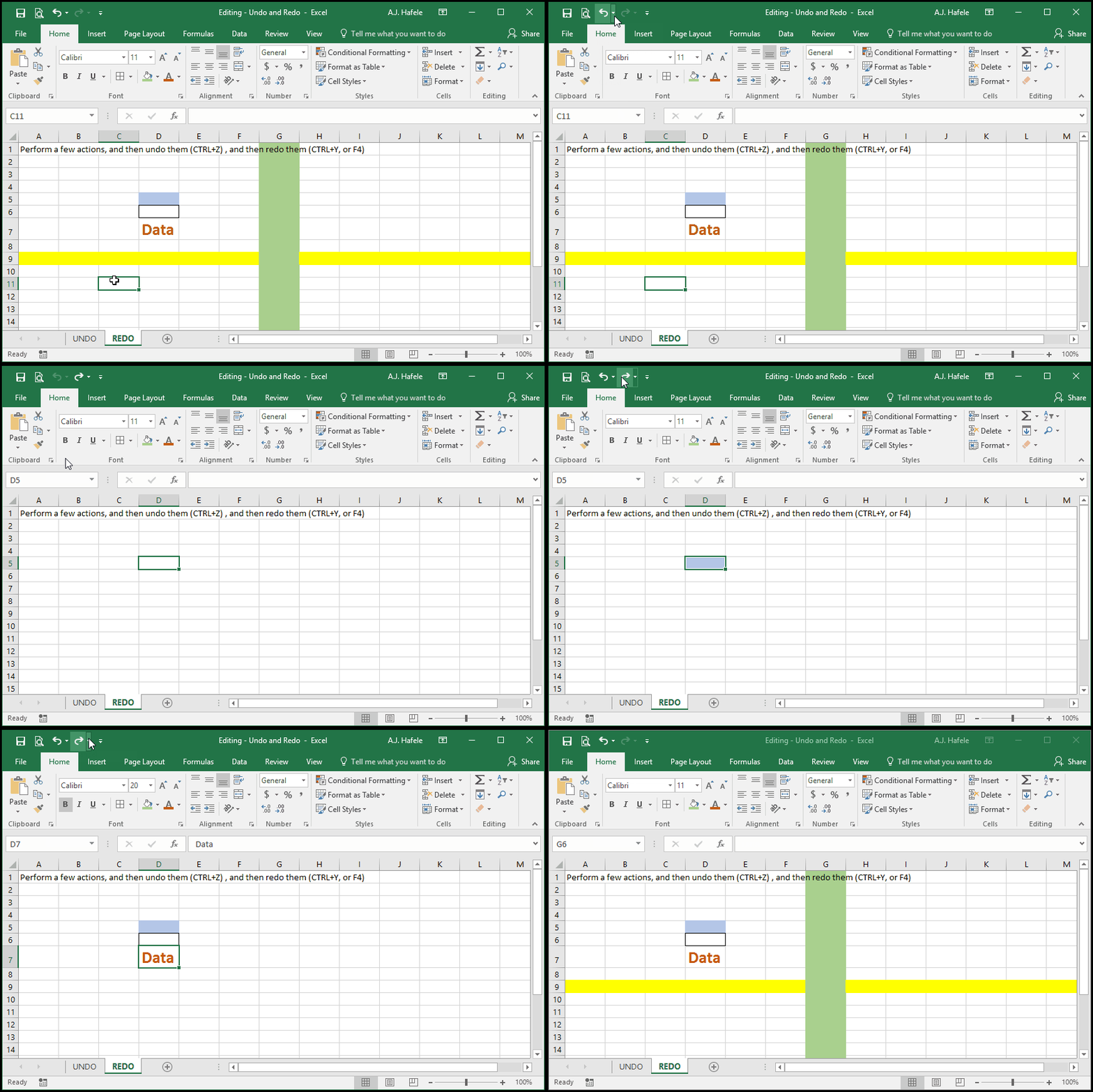
Observe as we undo a few formatting actions, and then redo them using the Redo button in the Quick Access Toolbar (note that we performed the actions before recording the illustration):
Let's redo some more actions, except this time we will use the CTRL+Y (or F4) shortcut to redo (note that we performed the actions before recording the illustration):
To reiterate, remember the road analogy in the overview: once you go down a new path, there's no getting back to the original path!
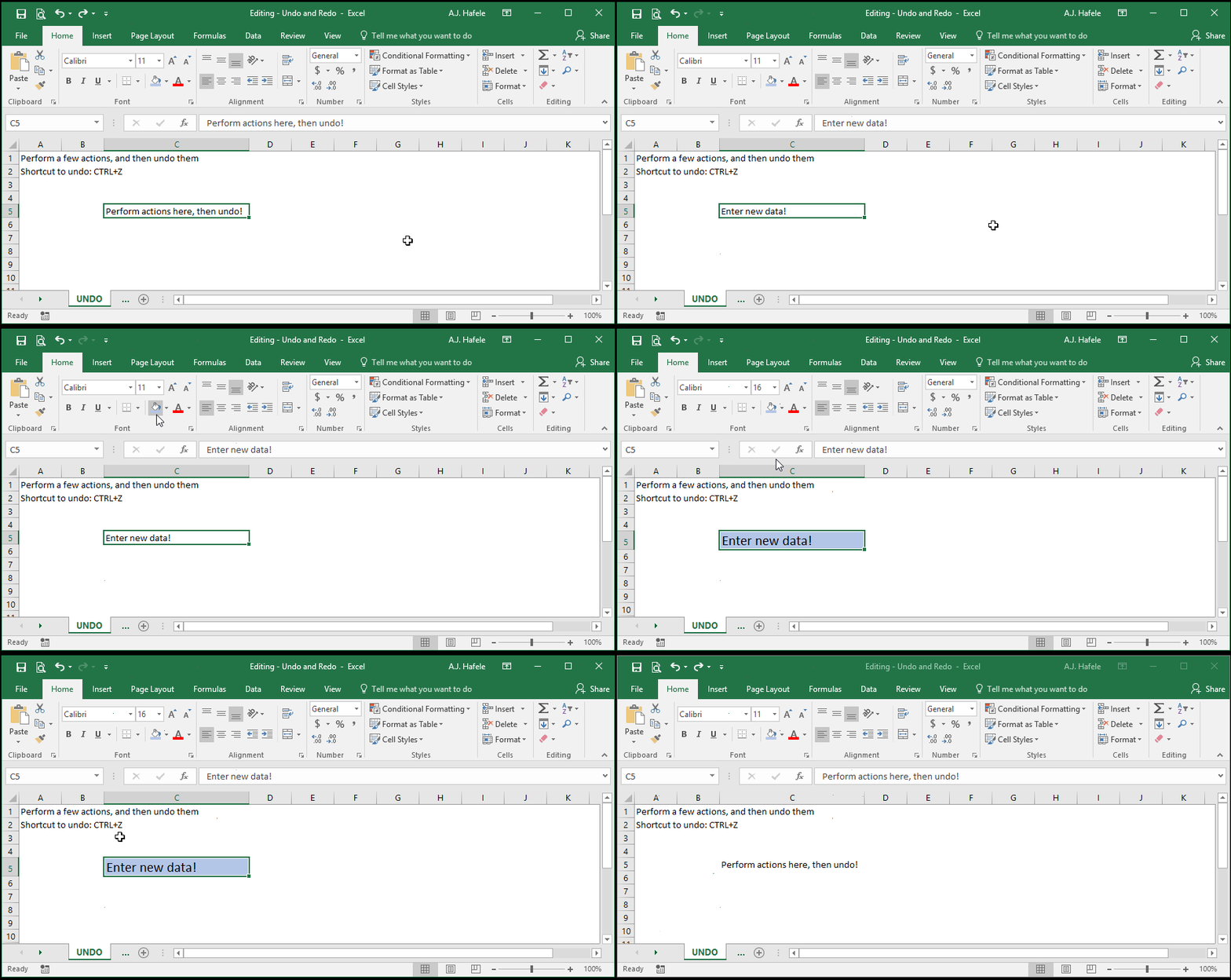
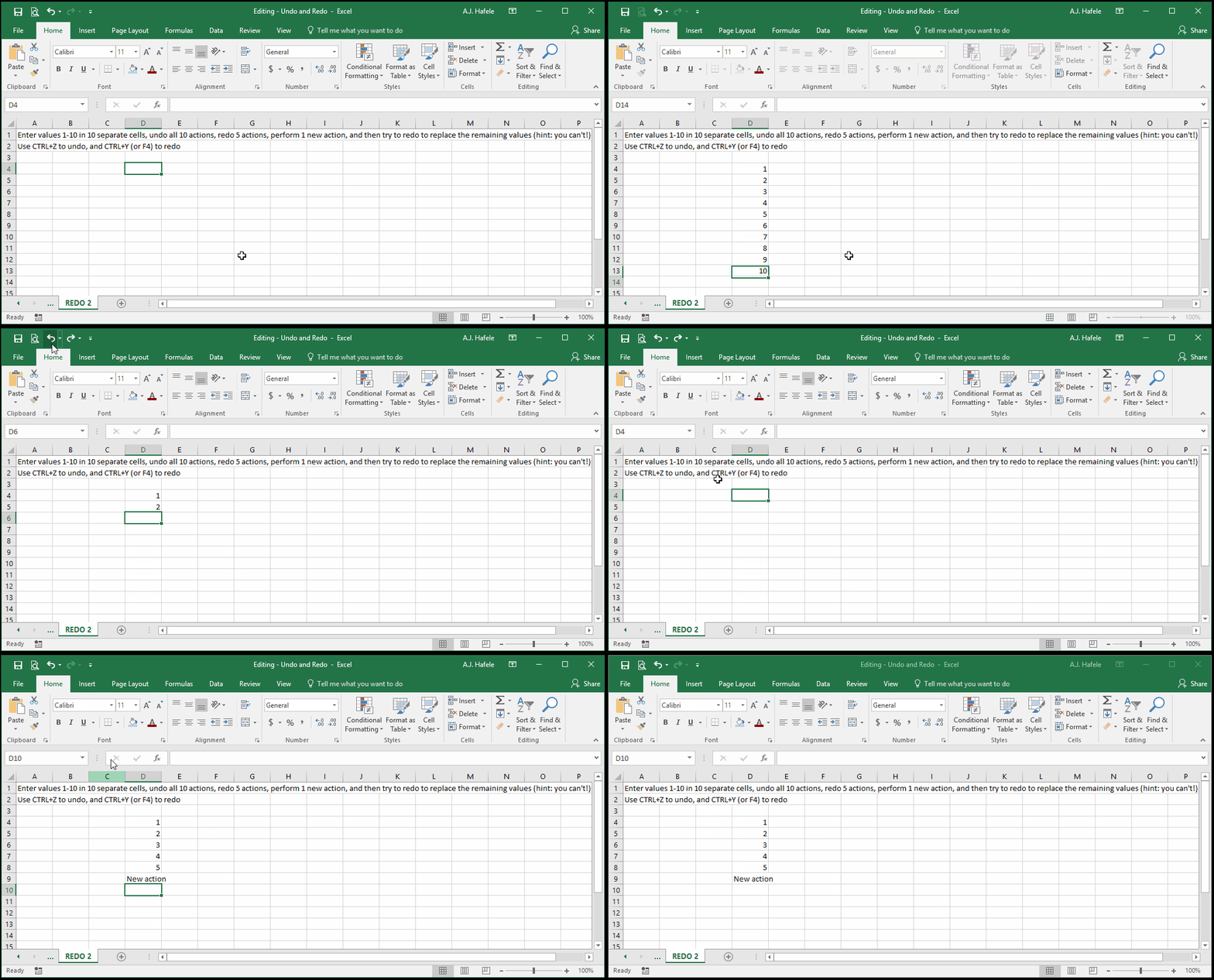
Observe as we undo some cell content entries, then redo some of those actions, type some new data, and then try to redo:
After we entered "New action" in cell D9 above, we were no longer able to redo the entry of numbers 6, 7, 8, 9, and 10!
Undo and Redo With Multiple Files
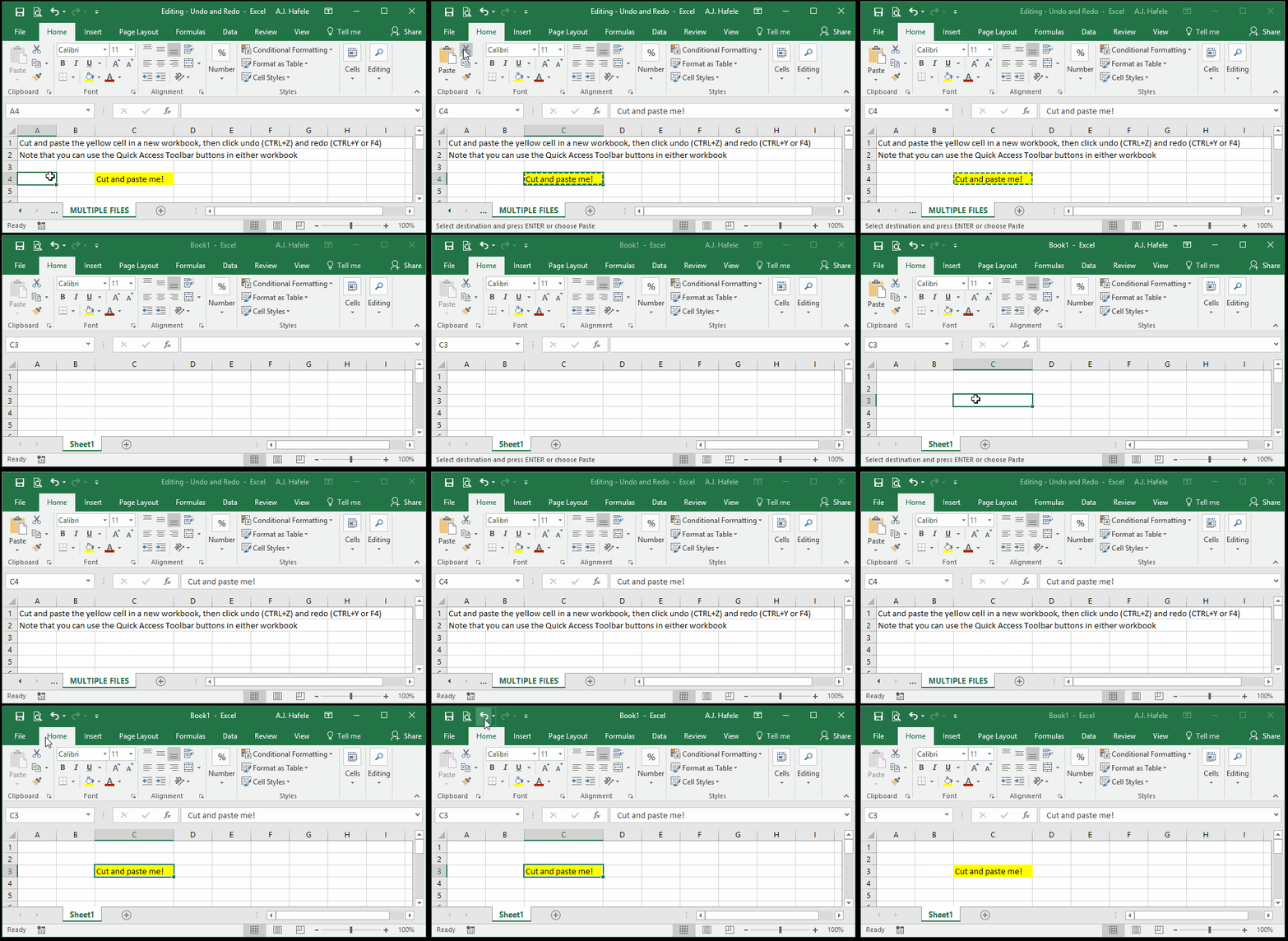
Note that undo and redo will still work when interacting between multiple Excel files
Observe as we cut and paste into a new workbook, and then undo and redo (a couple times):