Repeat Previous Action
Overview
- Repeat Previous Action is a command that does exactly as it sounds - it repeats the last action you performed
- This is extremely useful when you need to do repetitive work, particularly with formatting
- However, note that there are some actions which cannot be repeated (we will outline them below)
Buttons
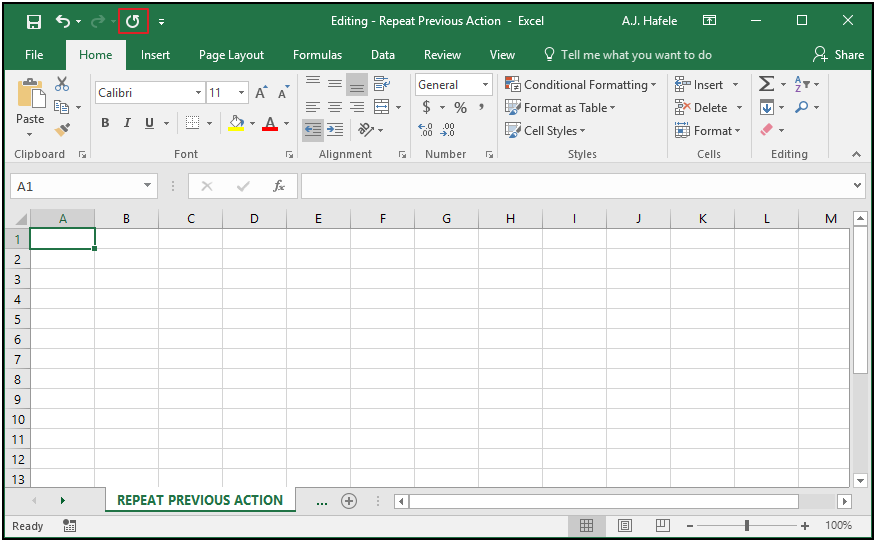
- The relevant button (Repeat) can be found in the Quick Access Toolbar:
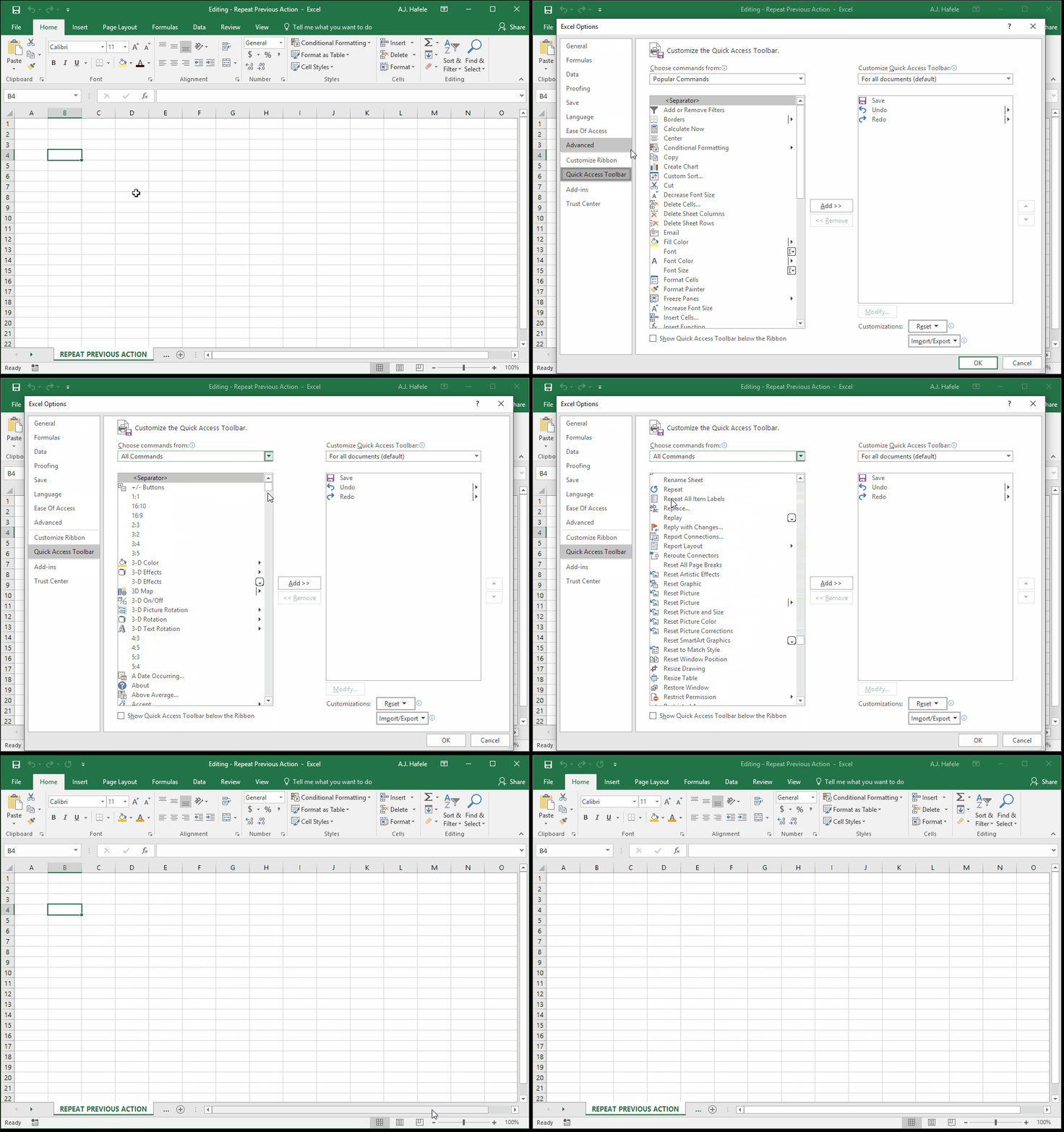
- If you do not see this button in the Quick Access Toolbar, you can add it as follows:
Repeat Previous Action
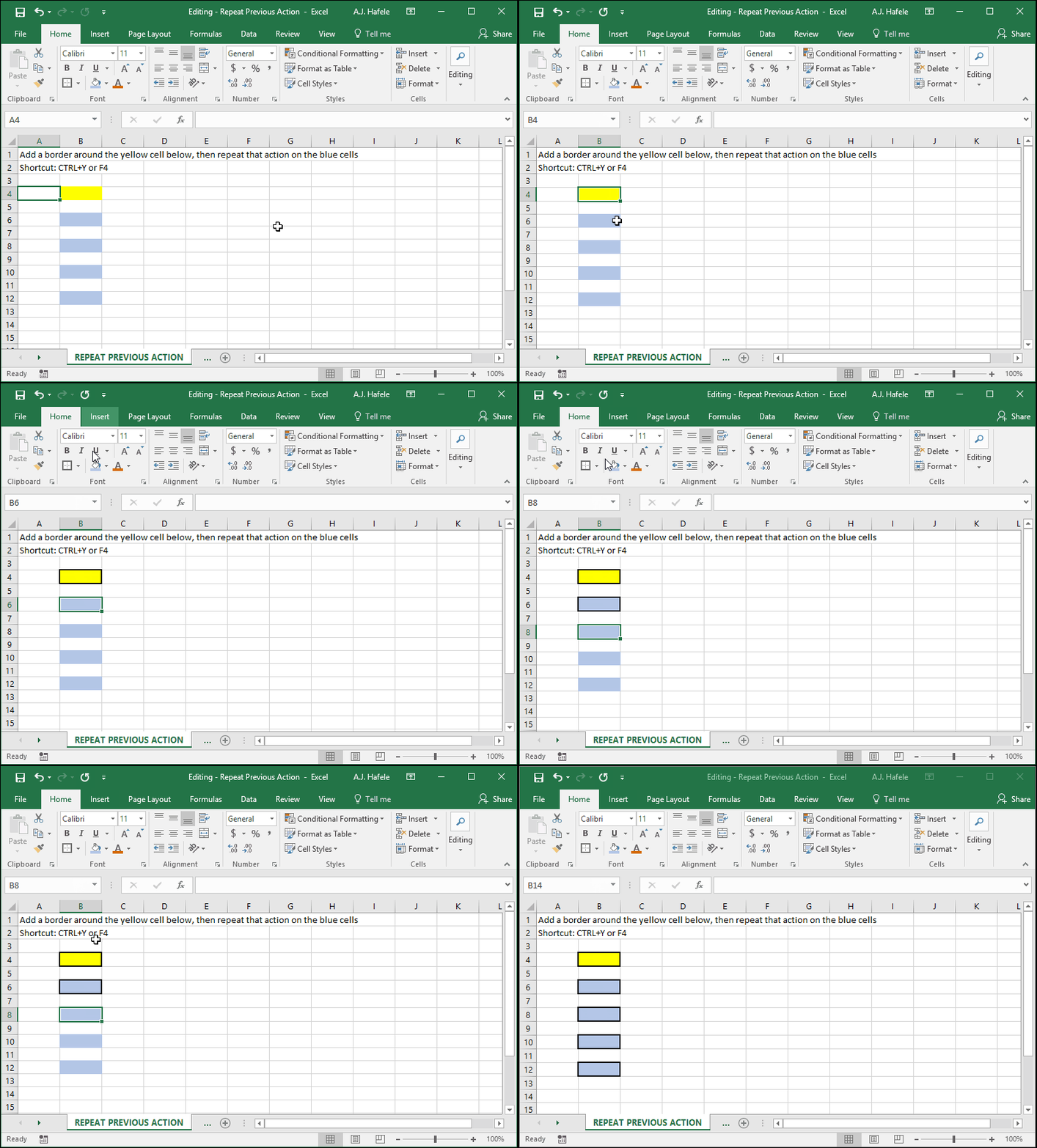
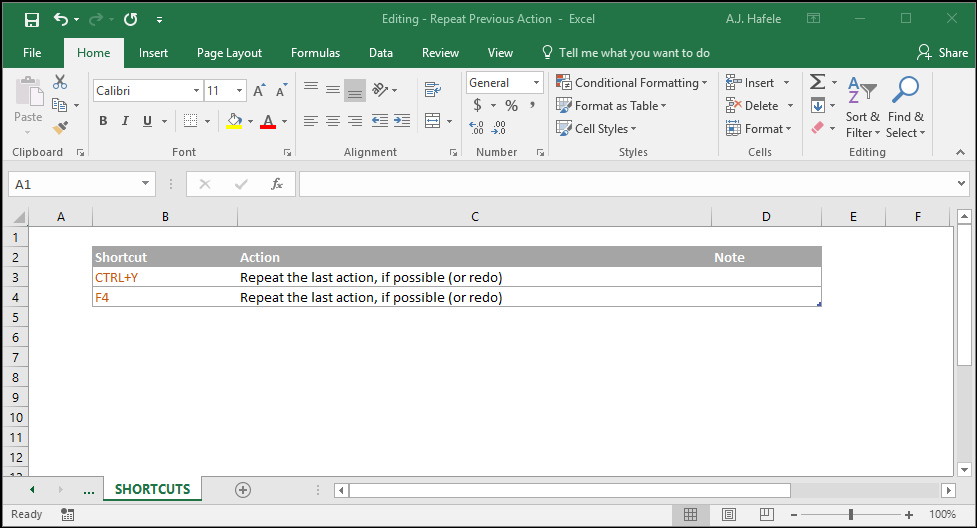
- To repeat a previous action, simply perform an action, then select the target cell/cells and press F4 (or CTRL+Y)
- This is the exact same shortcut as redo
- Many, but not all, actions can be repeated, including:
- Various cell formatting actions (add borders, highlights, etc.)
- Insert or delete rows and columns
- Paste copied data
- Strangely, a normal paste of copied data (i.e. using CTRL+V) can only be repeated once
- However, you can use paste special (all) as an alternative (CTRL+ALT+V, ENTER), and then repeat that action as many times as you want
- Etc.
- You cannot repeat other actions, including:
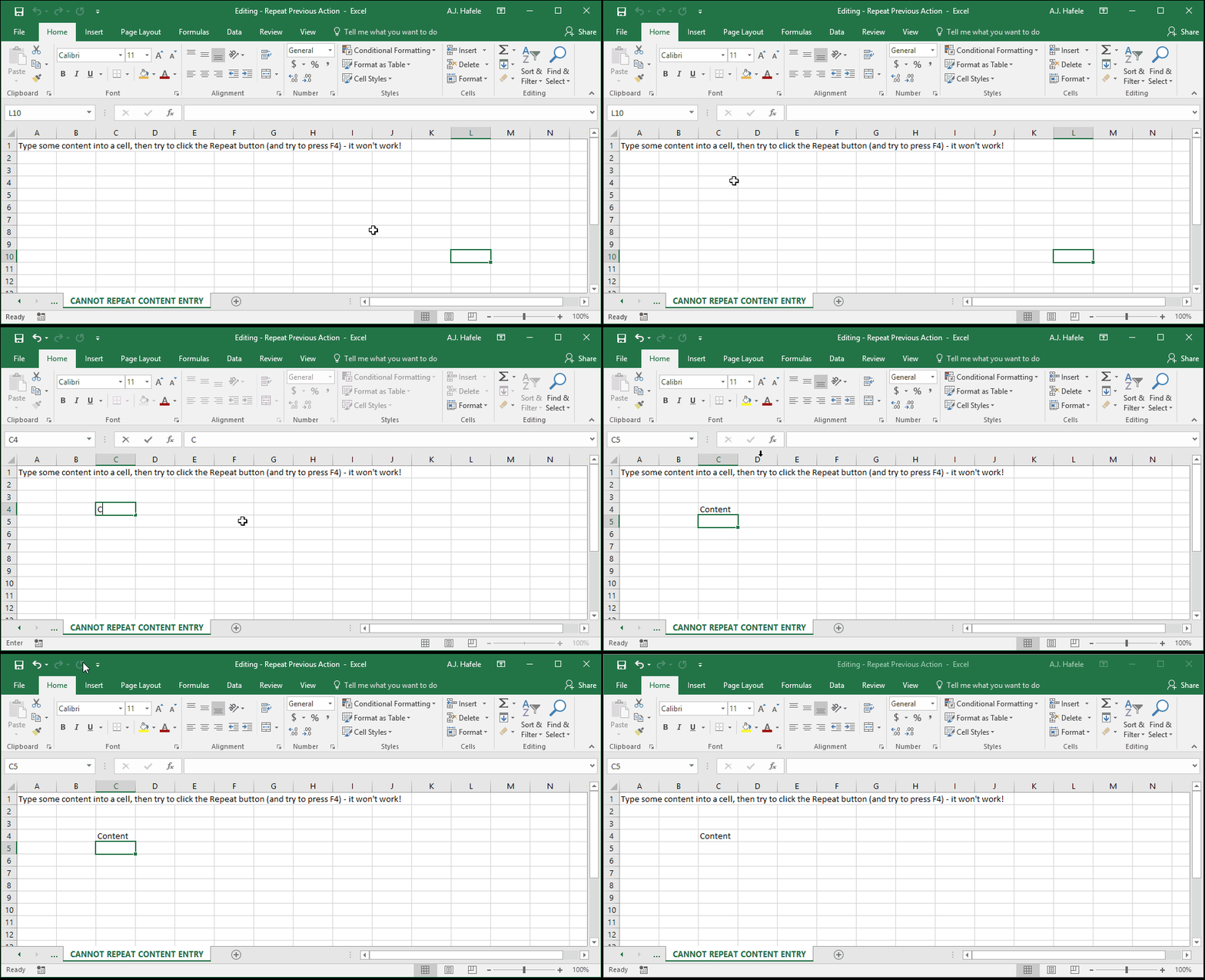
- Cell content entry (just use copy and paste instead!)
- Saving, closing, and opening files
- Paste cut data
- Create tables (tables are discussed later here, but no need to skip ahead!)
- Etc.
- Be sure to get used to the F4 (or CTRL+Y) shortcut to repeat, as it can make life much easier (so practice!)
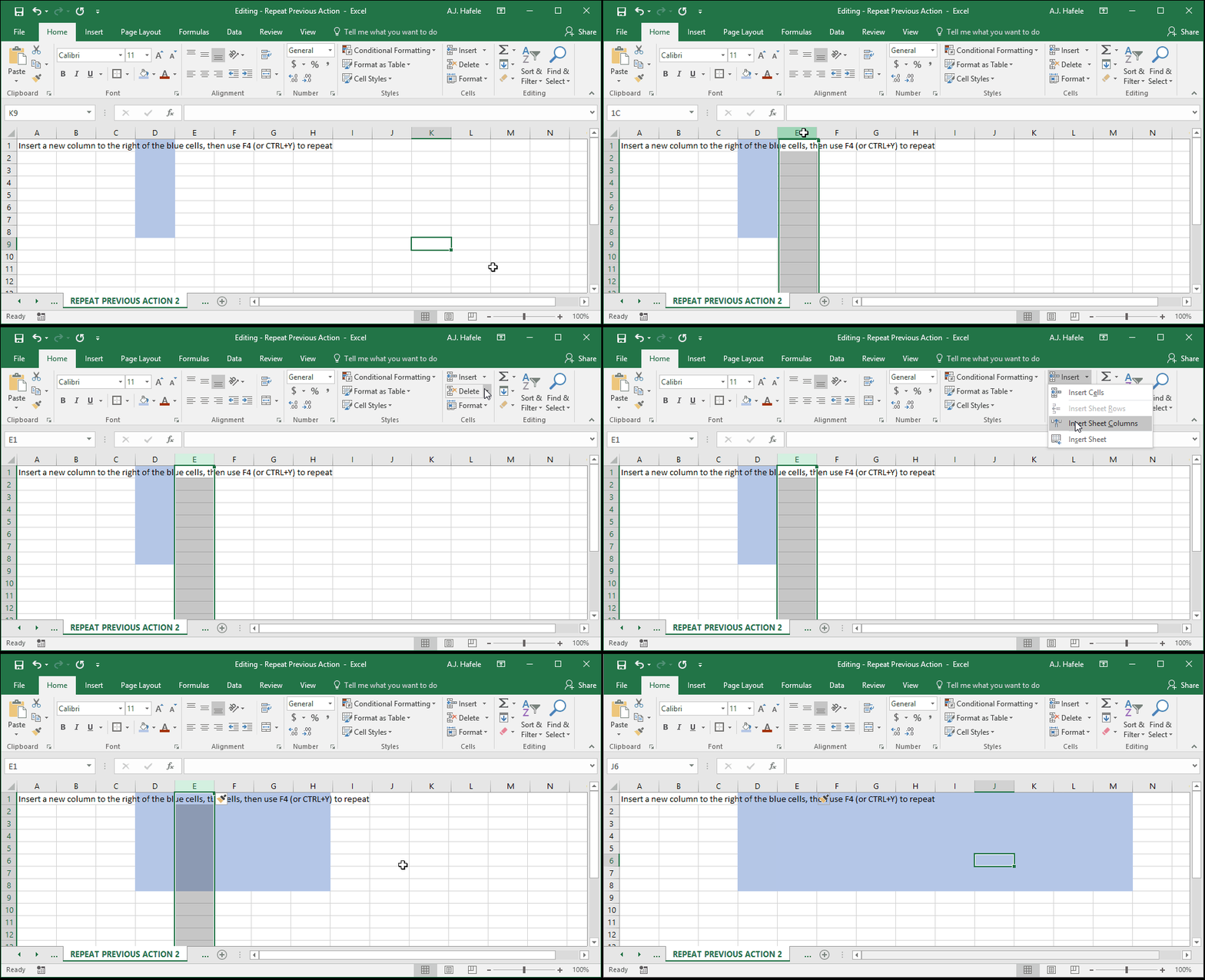
- Let's use F4 to quickly repeat a few more actions (this time inserting new columns):
- To reiterate, you cannot repeat certain actions, such as cell content entries, as shown here:
Shortcuts
Practice
External Links
