In this lecture, we will review how to add, edit, and delete cell comments
We will also discuss the options you have to show and hide cell comments
Cell comments are handy for annotating individual cells in Excel
However, they are not the same as entering content in cells
They have no impact on the actual contents of your cells
Buttons
The relevant buttons can be found in the Comments group of the Review tab
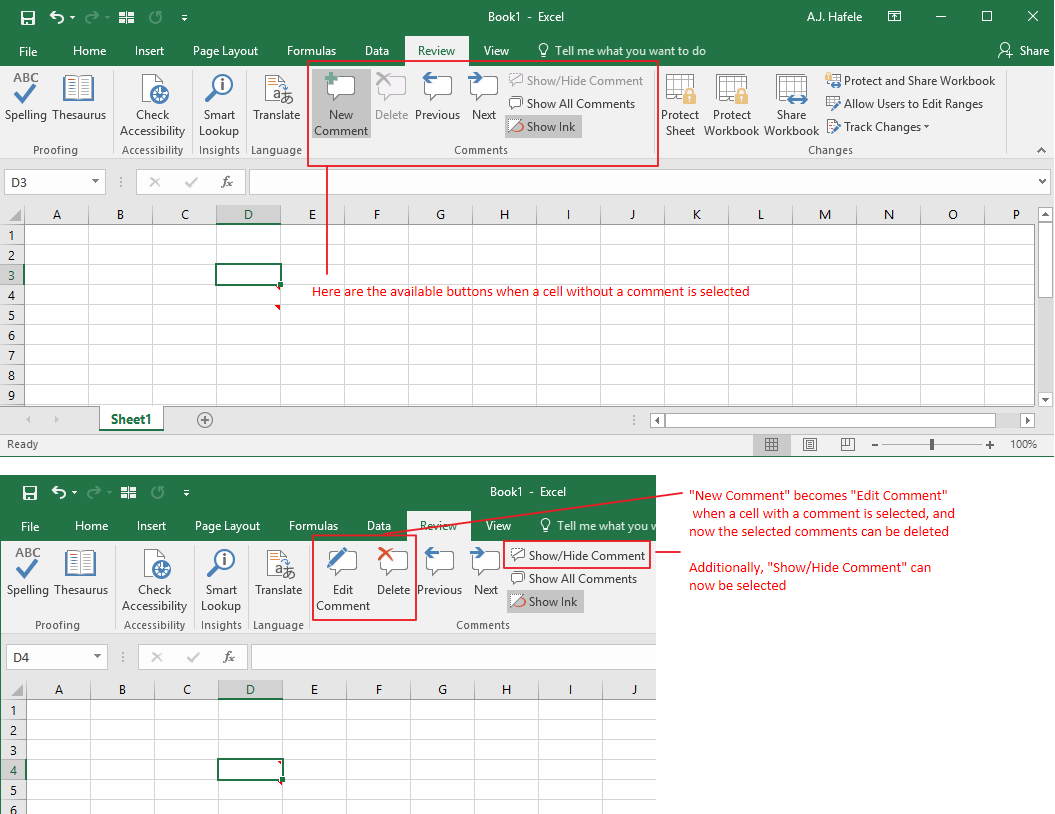
Note that different buttons are available, depending on whether or not the active cell contains a comment, as shown here:
What Are Cell Comments?
Cell comments are text boxes that are linked up to individual cells and are used to make notes
By default, no cells contain cell comments initially - you must add them if you want them
The existence of a comment in a cell is indicated by a little red triangle at the top-right corner of the cell (see image above)
Comments allow you to provide data entry instructions, questions, reminders, or other commentary
Unlike the cells themselves, cell comments cannot perform calculations!
Also, cell comments are not actually stored within the cells themselves (i.e. where constants and formulas are stored)
To analogize, think of cell comments as Excel's equivalent of sticky notes
If typing on your computer is equivalent to entering content into a cell, placing a sticky note on your monitor is equivalent to adding a cell comment
The comment does nothing to the data within your computer
Add Comments
To add a cell comment:
Select a cell
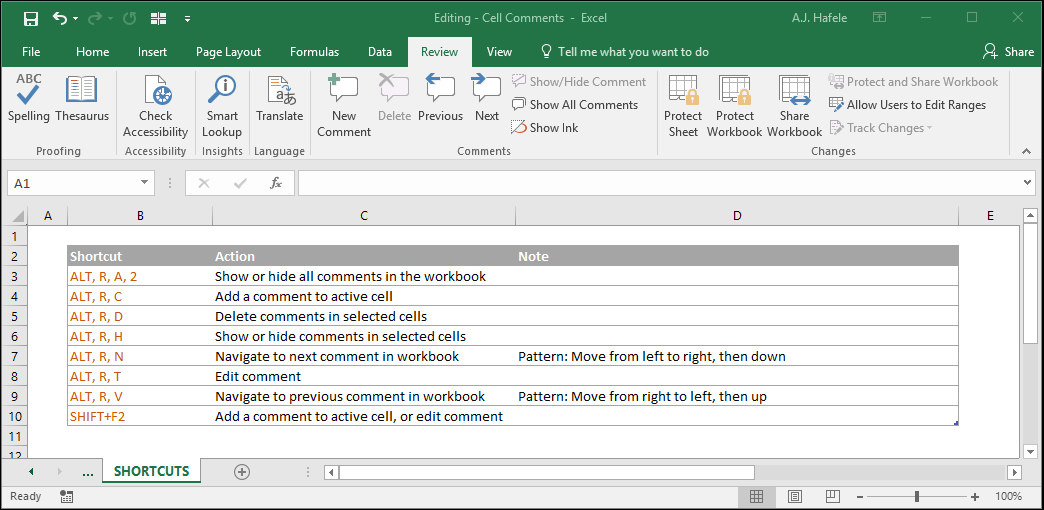
Press the Add Comment button in the Ribbon (or use the ALT, R, C or SHIFT+F2 shortcuts),
Begin typing the comment
Click any cell in the worksheet or press ESC, ESC to exit from the comment
To view a comment once it has been created, simply hover over the cell with your mouse (again, as shown above)
Note that comments are added only to the active cell (and not all selected cells)
However, you can copy and paste comments if necessary (paste shortcut: CTRL+ALT+V, C, ENTER)
Show or Hide Comments
By default, comments are hidden, meaning that you can only see them once you hover over the commented cells with a mouse
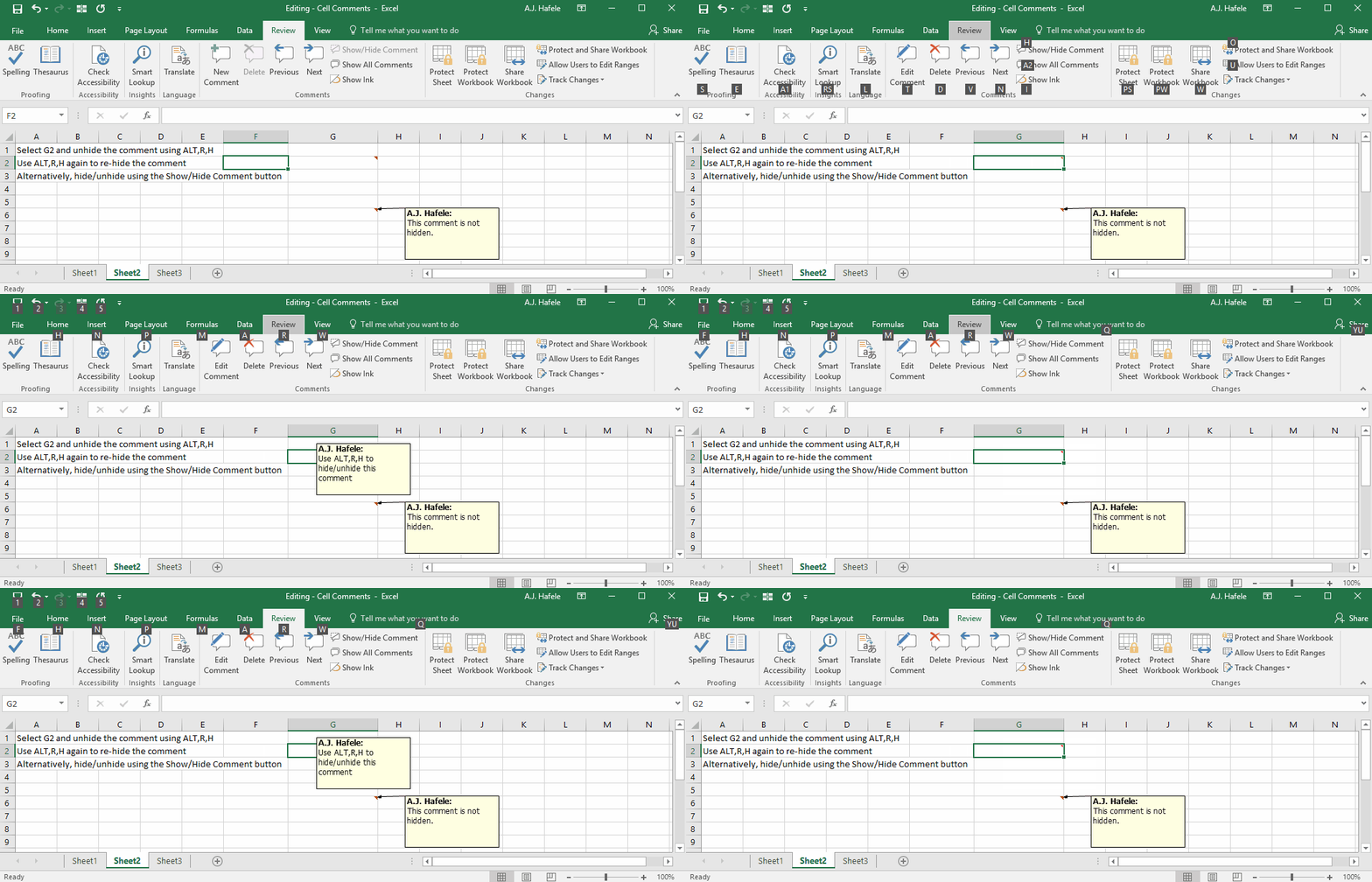
However, you can opt to show (or "unhide") comments if you choose, by toggling the Show/Hide Comment button (or ALT, R, H), as shown here:
Again, this button (and the ALT, R, H shortcut) toggles between hiding and unhiding the active cell
As you can see from the above illustration, after showing the comment, it will be visible, even if:
You do not hover over the cell with your mouse
You click off of the cell containing the comment
One limitation to showing and hiding comments in this manner is that it only works on active cells (and not selected cells)
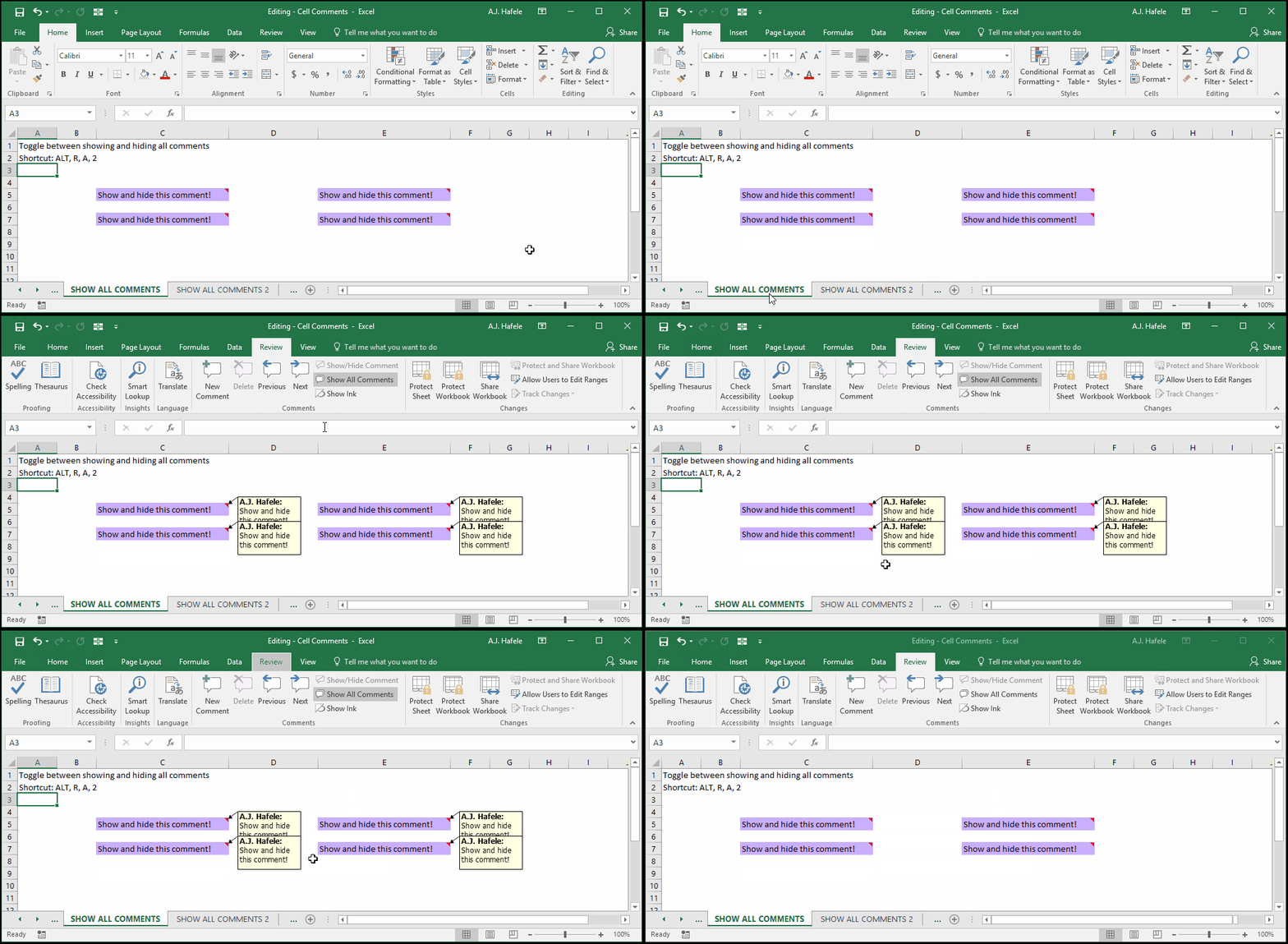
As a possible workaround, you can hide or show all cell comments in the entire workbook with a single press of a button (or shortcut: ALT, R, A, 2), as shown here:
Edit Comments
You can also edit comments that already exist
First select the relevant cell containing a comment
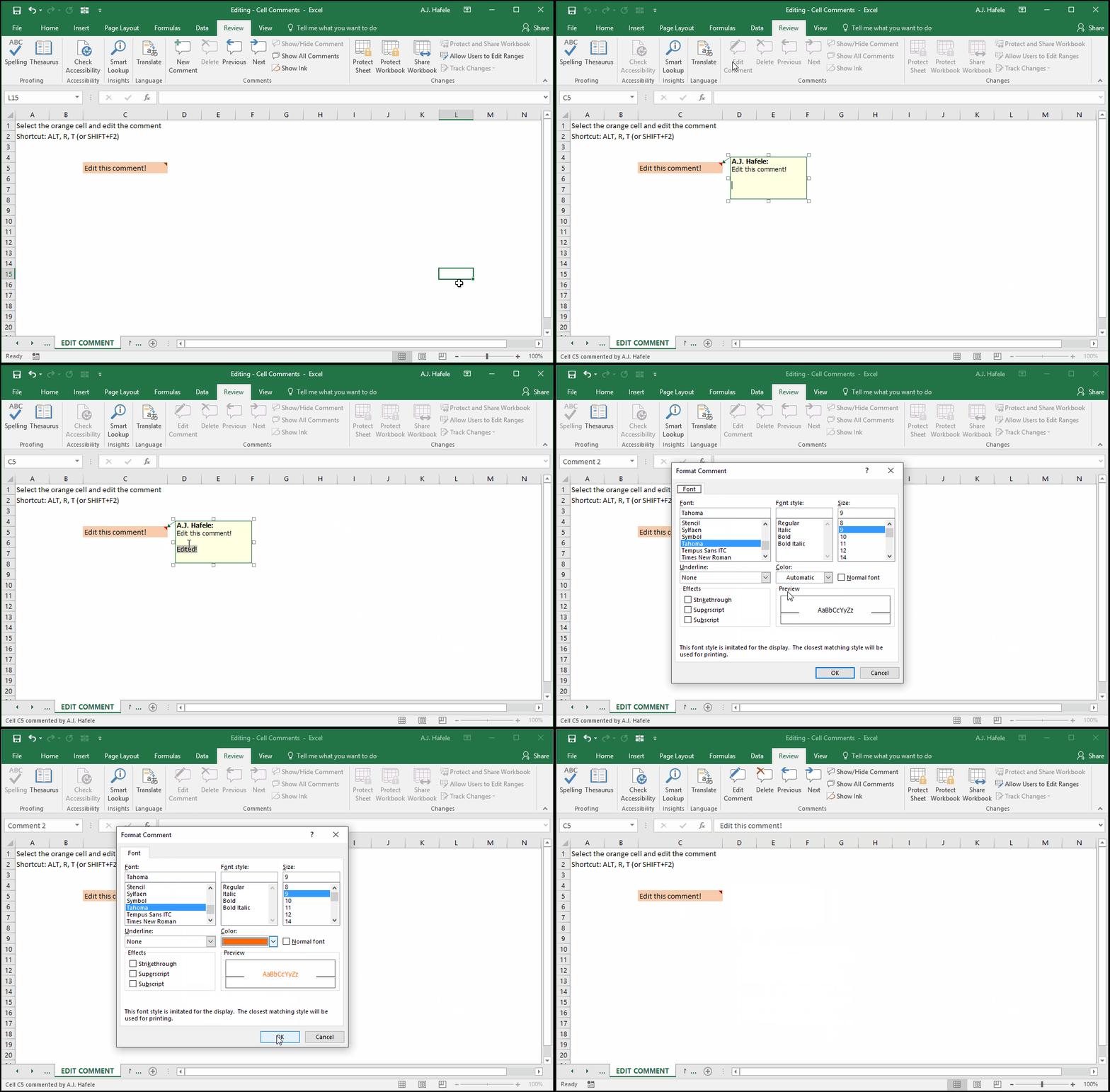
Then press the Edit Comment button in the ribbon (or use ALT, R, T or SHIFT+F2)
We were able to format (i.e. add orange font to) the comment by right-clicking inside the comment and clicking the Format Comment... button
Though not shown above, while editing a cell comment, you can also simply navigate to the Font group of the Home tab in the Ribbon to change some formats (such as font type and size)
Remember, press ESC, ESC or click anywhere in the worksheet to exit from editing the comment
Navigate Between Comments
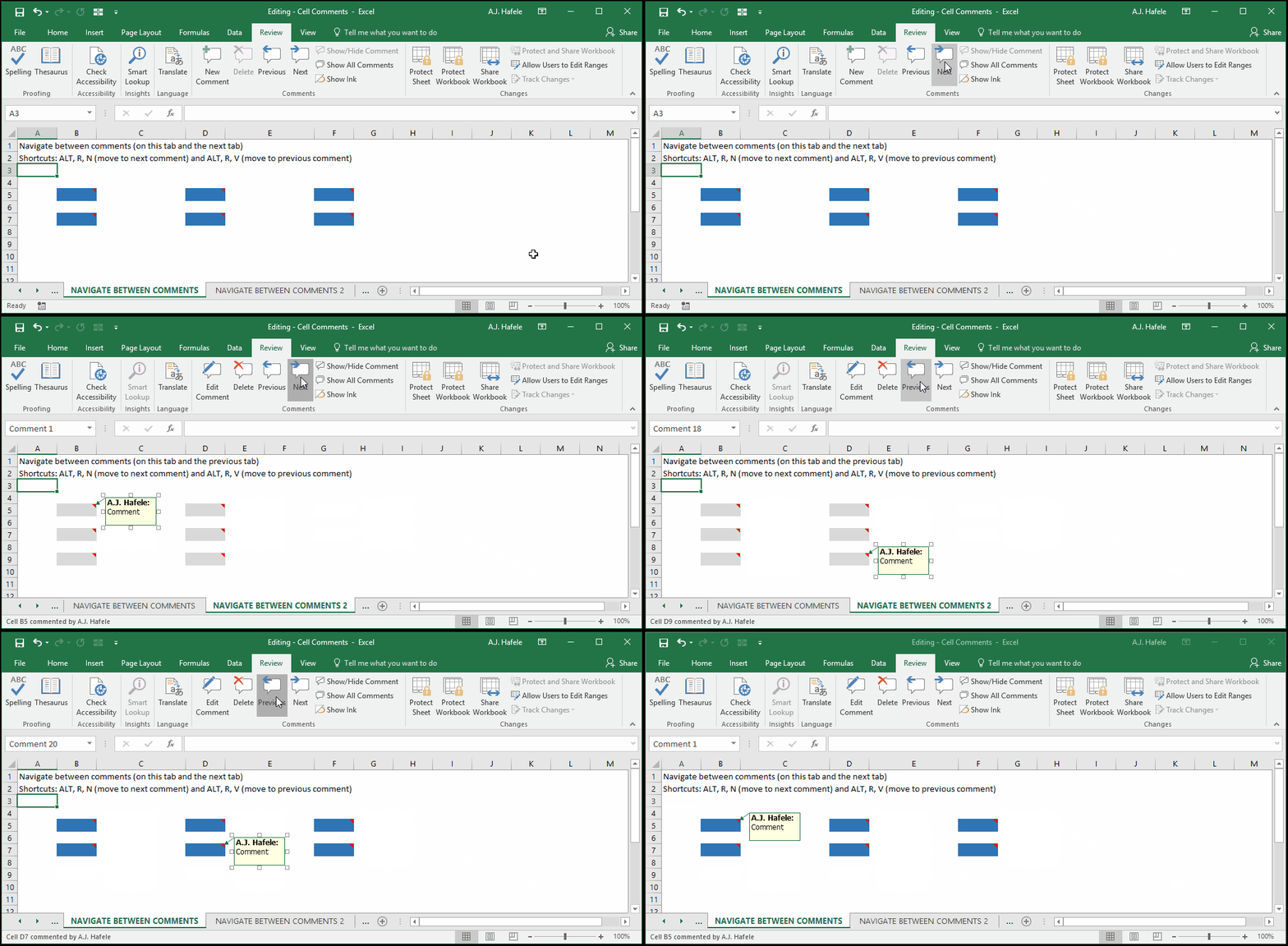
To navigate between comments, use the Next or Previous buttons (or use the ALT, R, N or ALT, R, V shortcuts, respectively), as shown here:
Delete Comments
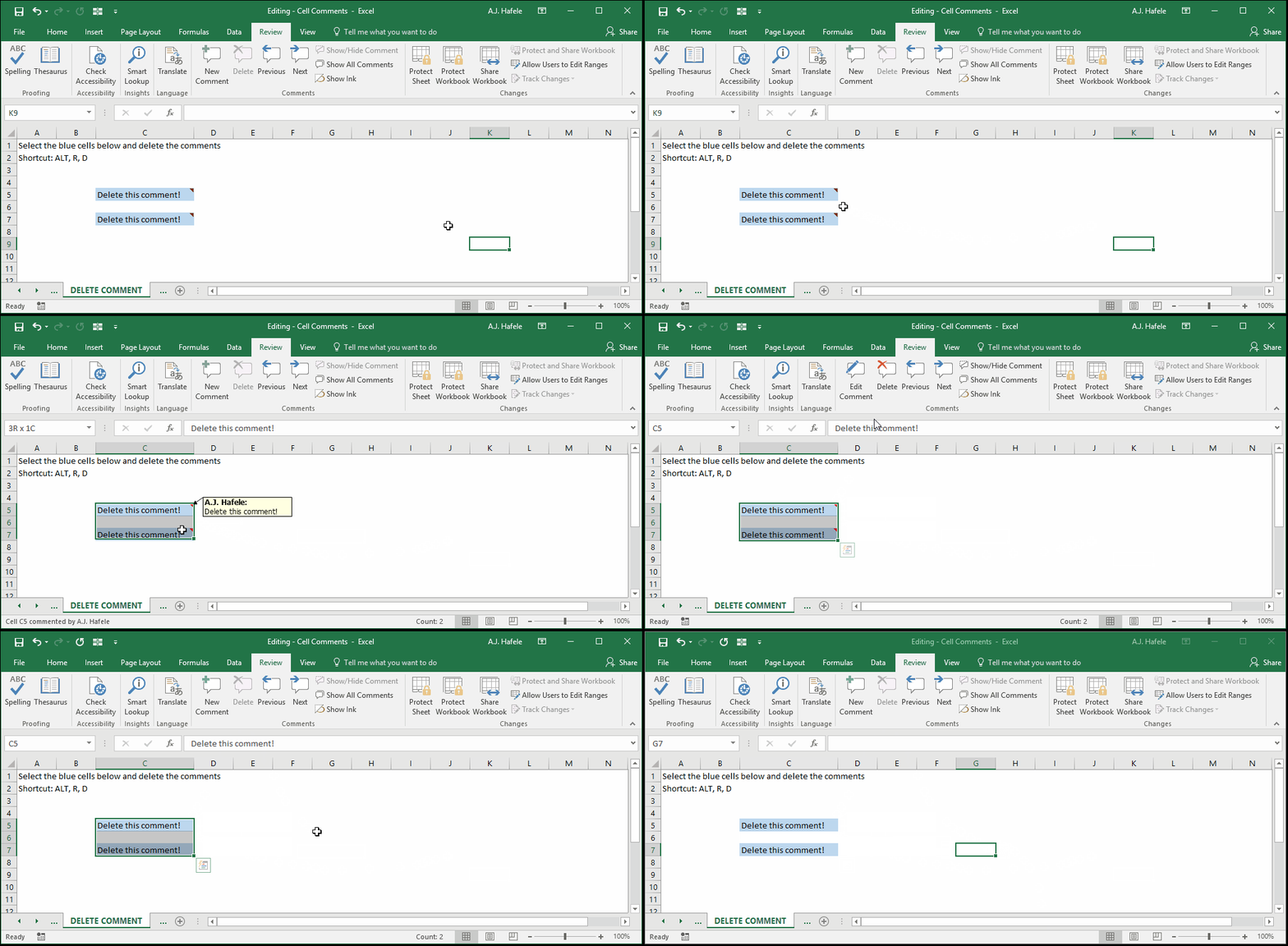
To delete cell comments, select all applicable cells and press the Delete button in the Ribbon (or use ALT, R, D), as shown here: