Formula Basics
Overview
- In Excel, hard-coded values or formulas can be stored in cells
- Let's now turn to the fundamentals of formulas and functions
- Formulas are expressions which return output after being provided with inputs, and they always start with
=
- Functions are pre-defined calculations used inside of functions. Categories of functions include:
- Statistics
- Trigonometry
- Geometry
- Financial
- Logical
- Date/Time
- Text Manipulation
Definitions
- Let's start by clarifying a few key terms
- Formulas: expressions containing user-provided inputs to compute outputs
- Formula inputs can be hard-codes, cell references, or functions
- Hard-codes (or constants): raw numbers, dates, and/or text
- Examples: the number 5, the date 12/31/2025, or the text "Bacon"
- Cell references: references to addresses of cells or cell ranges
- Functions: pre-defined formula which perform a multitude of calculations
- Examples:
=SUM(A1:A100), AVERAGE(100,200,B1)
Buttons
- The relevant buttons can be found in the Function Library of the Formulas tab
- There are also three buttons on the formula bar which allow you to cancel, enter, and insert a function:
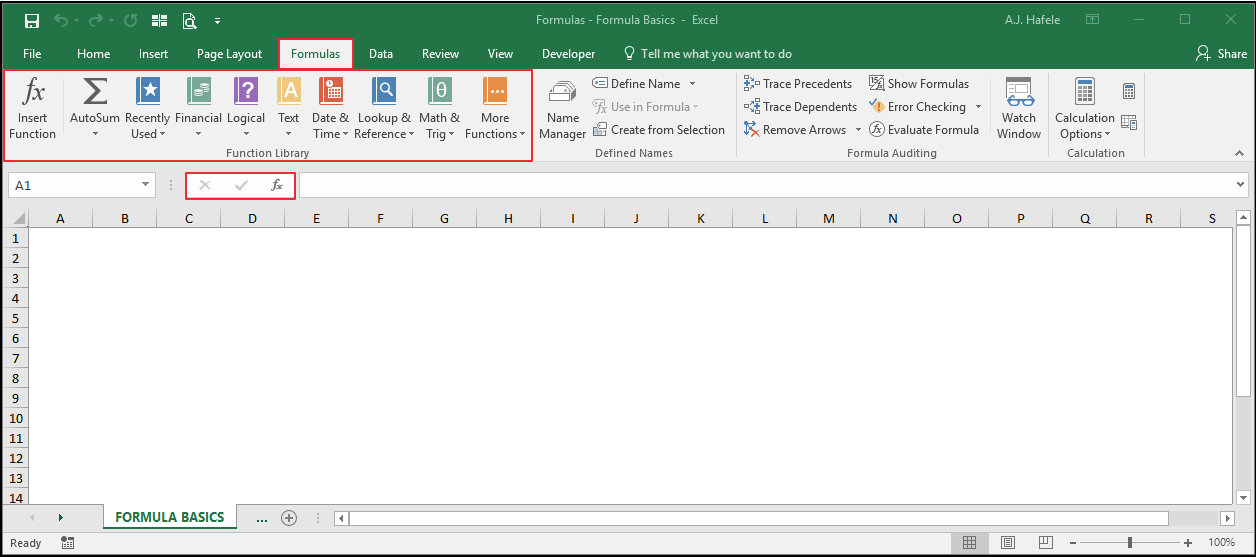
- Note that we will cover the usage of some of these buttons in future lectures
- For now, we just want to give you a high-level idea of where buttons related to formulas and functions are located within the Ribbon
Building Formulas
- In the context of Excel, a formula is, generically, a string of characters which tells Excel to perform some kind of calculation. Moreover, formulas:
- Are written in cells (as well as in other menus within Excel)
- Always start with the
= symbol
- Use constants, text, and/or cell references as inputs
- Calculate results/output which can be numerical, date/time, or text
- The easiest way to build a formula in a cell is to select the cell in question, press
=, type your formula, and then press TAB or ENTER as shown here:
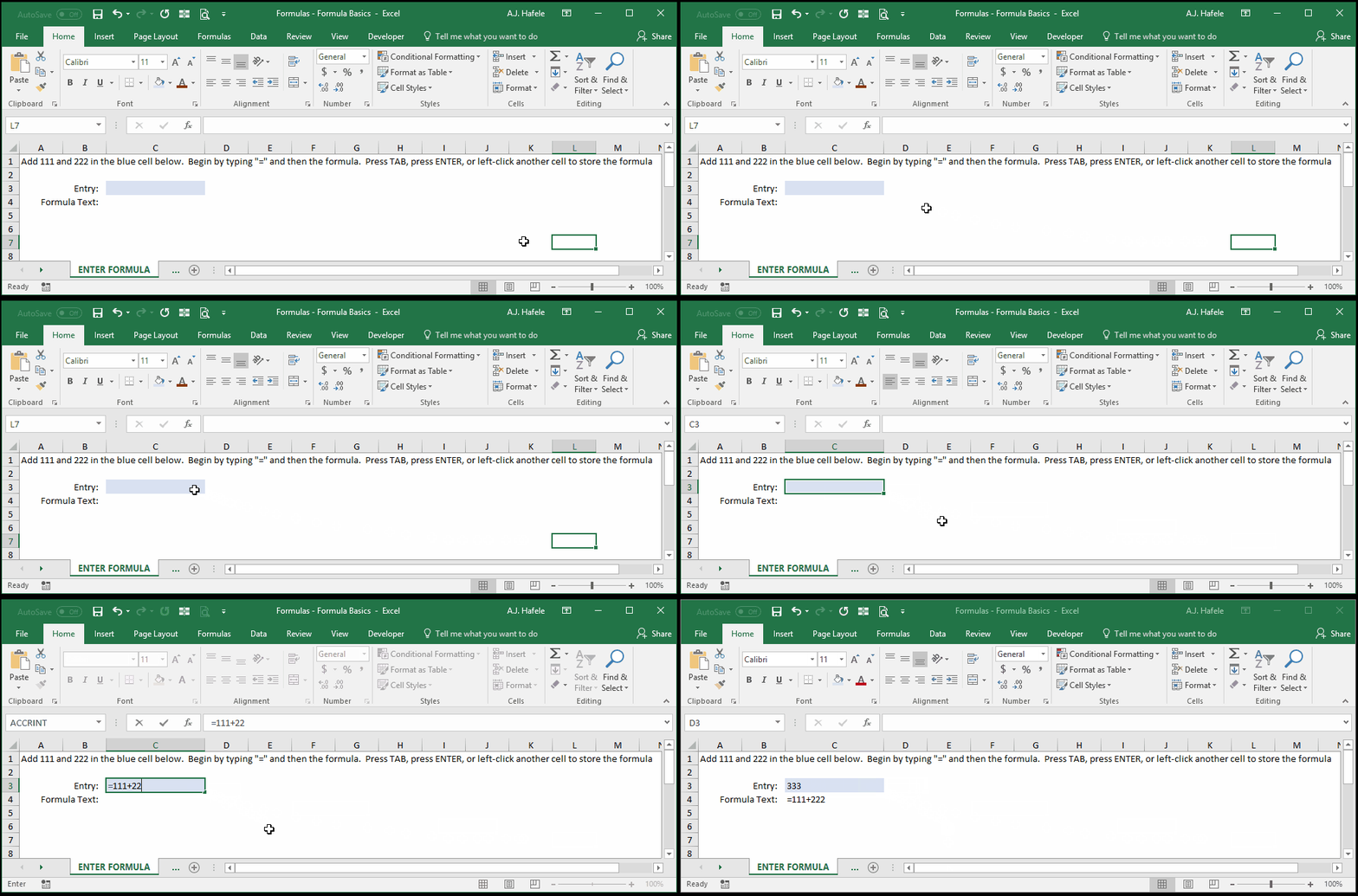
- Notice that:
- We first pressed TAB to store the cell contents
- After clicking Undo, we re-wrote the formula and pressed ENTER to store the cell contents
- In the above illustration, we added two constants
- When writing formulas, you can (and generally should) reference other cells instead of hard-coding constants
- In fact, the only way to reference other cells is to use formulas
- Observe as we write a simple formula referencing another cell (by manually typing
=B3):
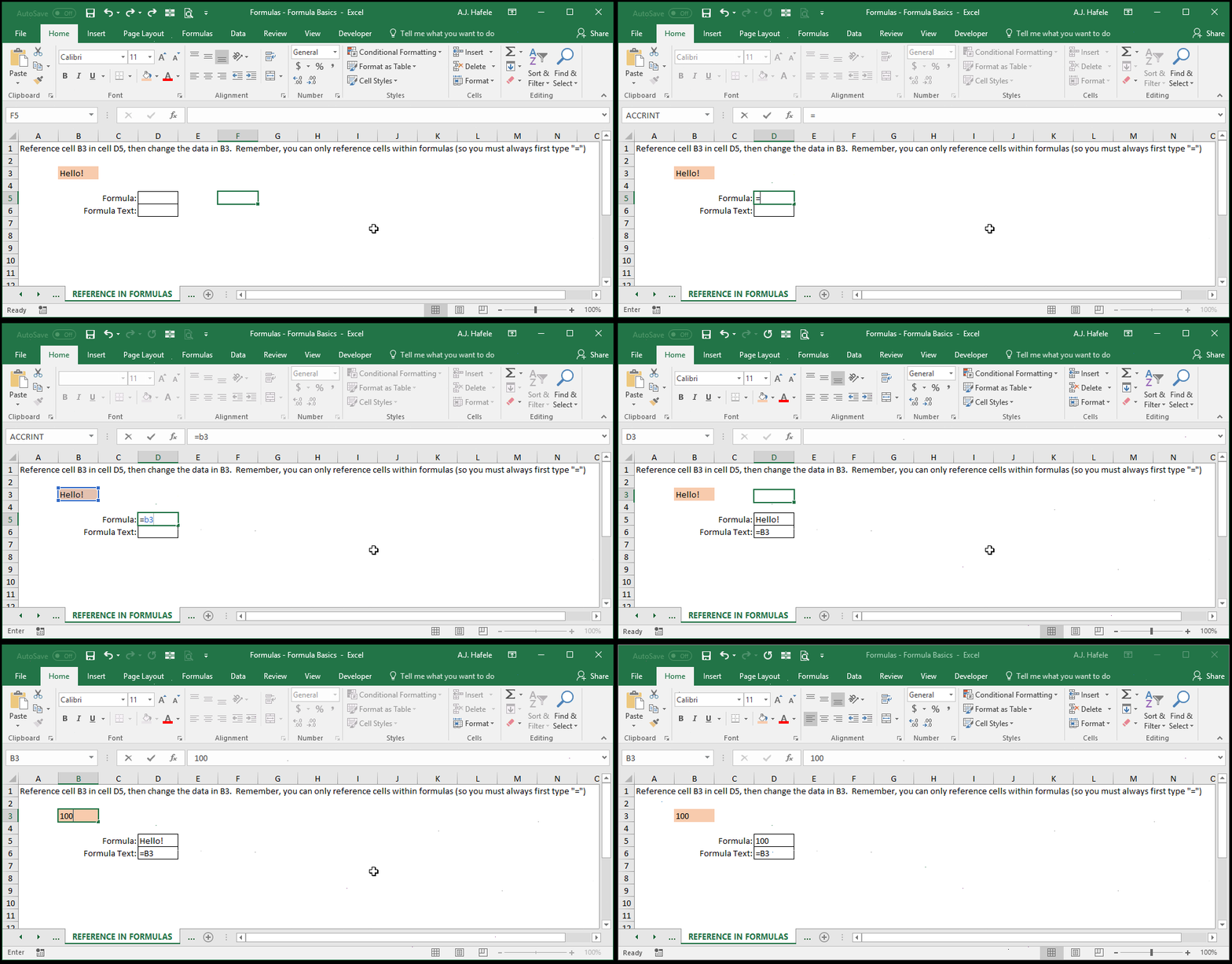
- Notice that:
- We typed
=b3 with a lowercase "b", but Excel automatically changed the "b" to an uppercase "B"
- Thus, do not worry too much about writing cell references with uppercase letters (unless you want to)
- When we changed the contents of B3, the output in cell D5 also changed, but its formula did not
- Let's repeat the same procedure, but this time, let's select B3 by using the ARROW keys:
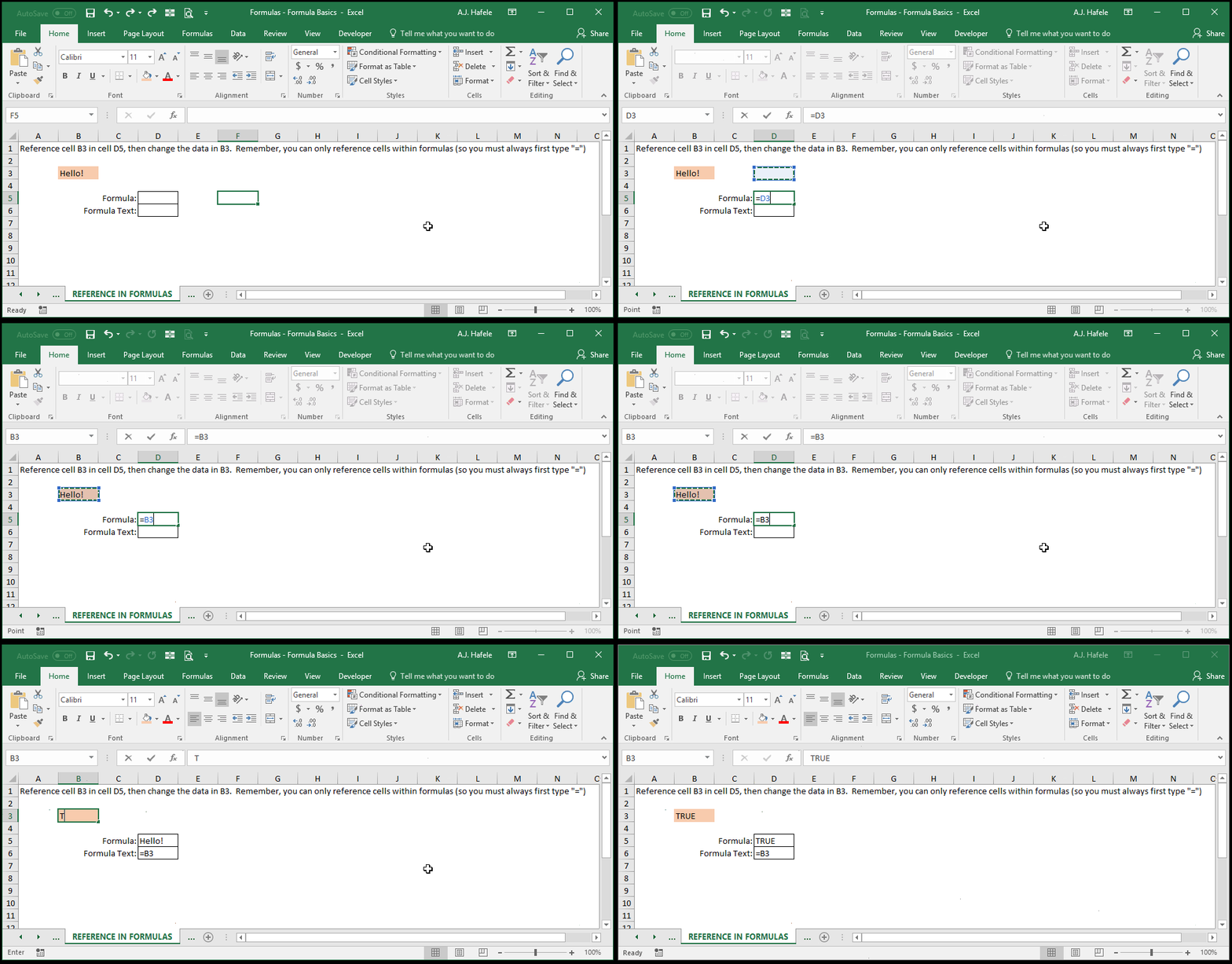
- Notice that:
- We were initially in Enter Mode (not Edit Mode), which switched us to Point Mode upon referencing other cells using the ARROW keys
- When we changed the contents of B3, the output in cell D5 also changed, but its formula did not
- Let's repeat the above exercise one more time, but this time let's use the mouse to select B3:
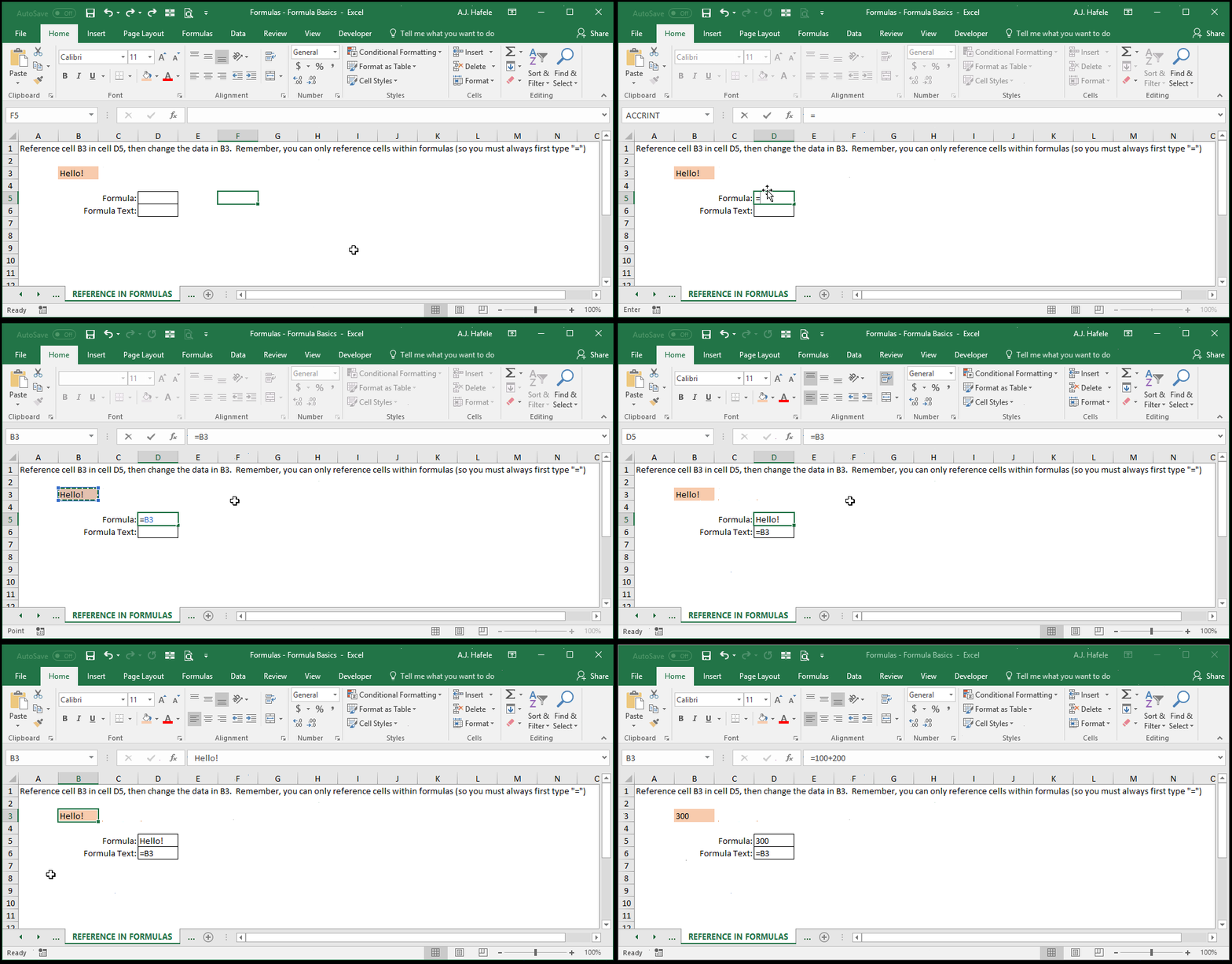
- Notice that:
- Upon clicking B3, the active cell stayed on D5, and the formula within D5 changed instantly to
=B3
- We updated B3 by entering the
=100+200 formula, which shows that you can indeed reference cells that contain formulas (and functions)
- When we changed the contents of B3, the output in cell D5 also changed, but its formula did not
The Structure of Formulas
- The following screenshot provides an example of how formulas are structured in Excel (review carefully!):
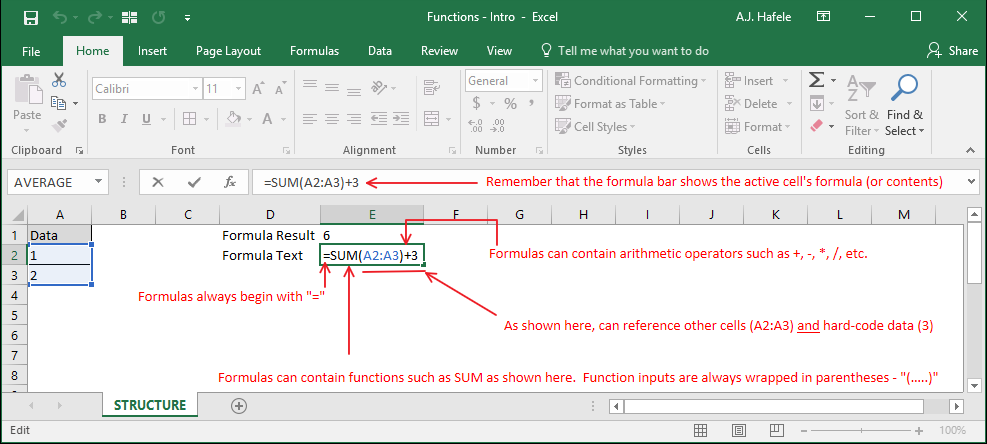
- As you can see, the above screenshot shows a formula which contains a function
- Remember that formulas do not always include functions
- Be sure to keep the terminology clear - the above formula contains the SUM function as well as the number 3
- With respect to the formula bar, if a cell does not contain a formula, then the cell's value (number, text, etc.) will be displayed instead
The Structure of Functions
- As mentioned above, Excel has many pre-defined functions which can be used in formulas
- The structure of functions is outlined in the following screenshot, using the SUM function (review carefully!):
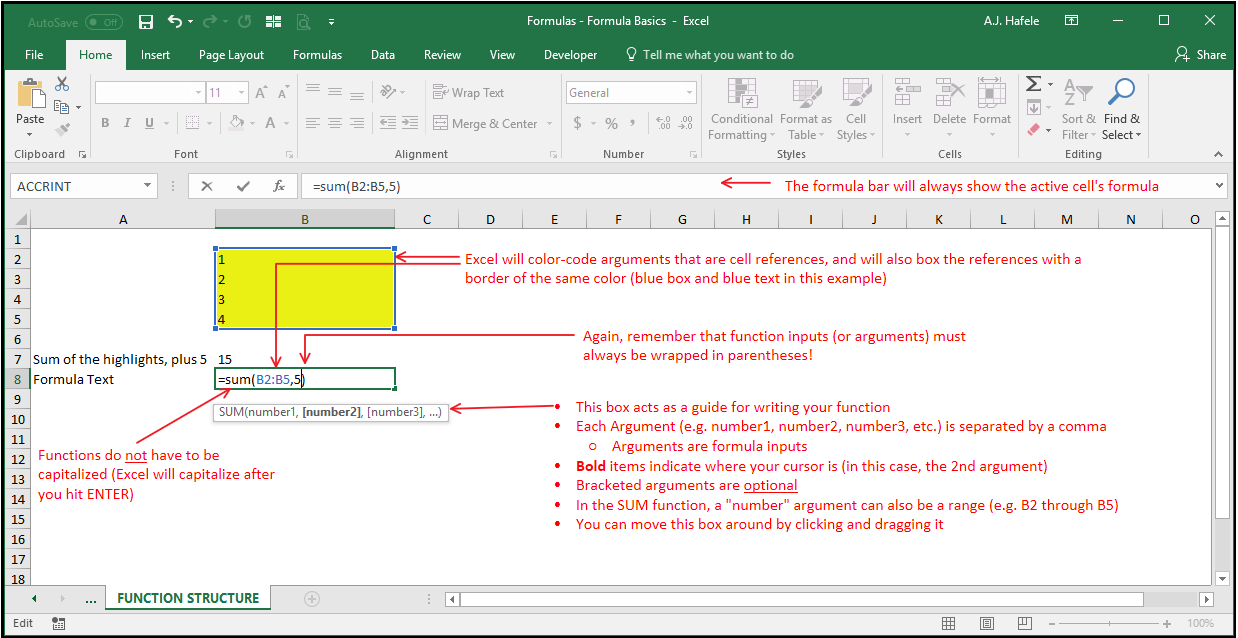
- Though not shown above, note that you can have more than one function in a formula
- Also, to re-emphasize, commas are used only to separate function arguments (do not use commas for anything else!)
- The following illustrates how you would enter the function from the previous screenshot:
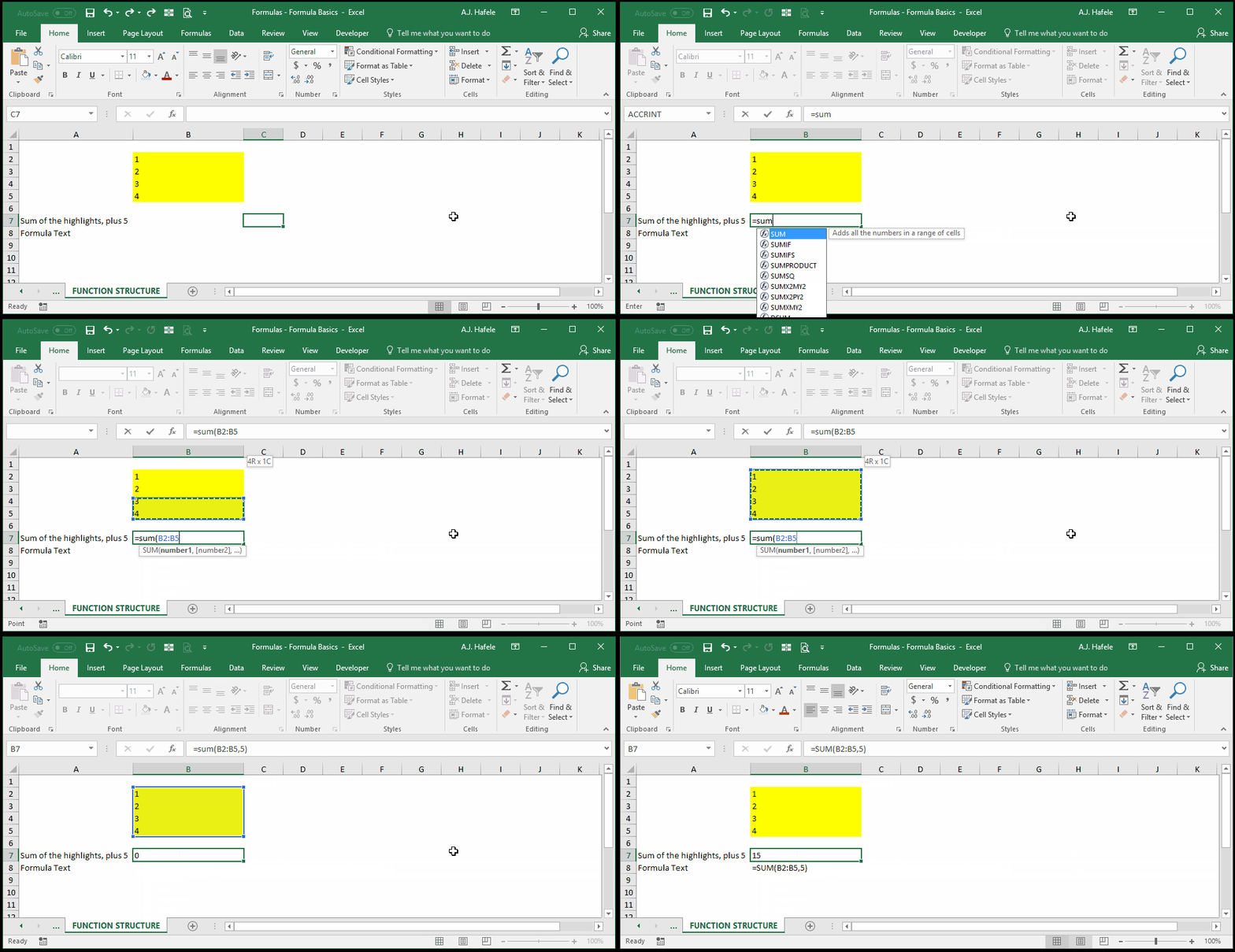
- After going through this course section, you will become very familiar with function structures, as well as the nuances of the functions covered
Color Coding When Referencing Cells
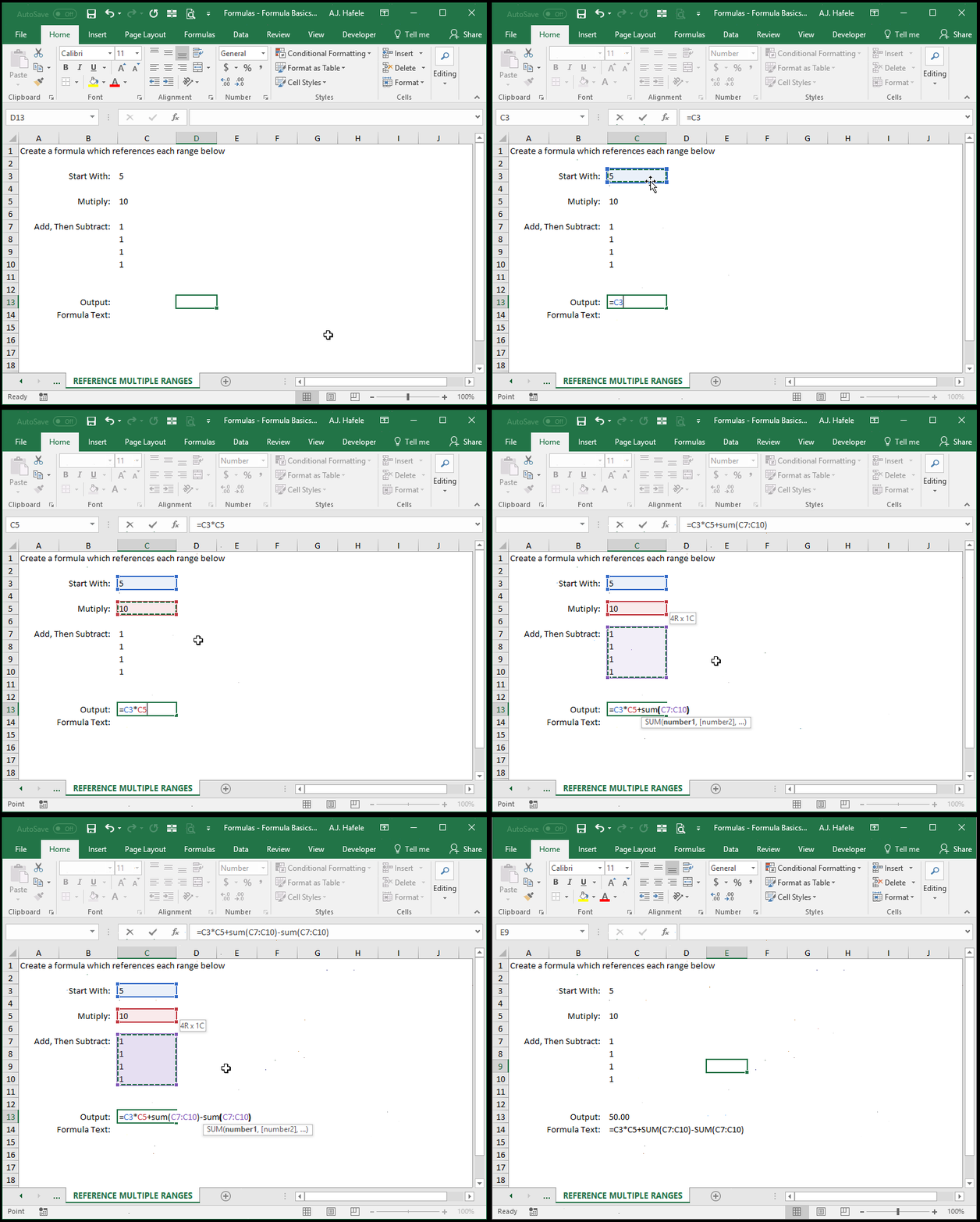
- As shown previously, you can reference multiple ranges within a given formula in Excel
- Excel helps keep things organized by color coding each range a unique color, as shown here:
- Here is a screenshot of the final result, for reference:
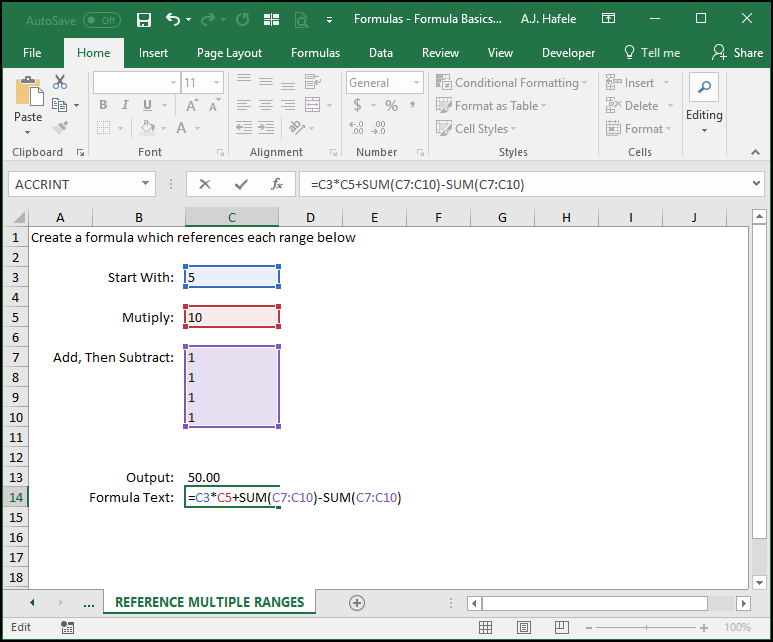
- As you can see:
- The color coding helps you visually in observing the cells your formula is referencing
- C7:C10 is referenced twice, and the reference is the same color within the formula (purple)
Tips
- For more practice, we highly recommend Microsoft's Formula Tutorial (linked below)
Practice
External Links
