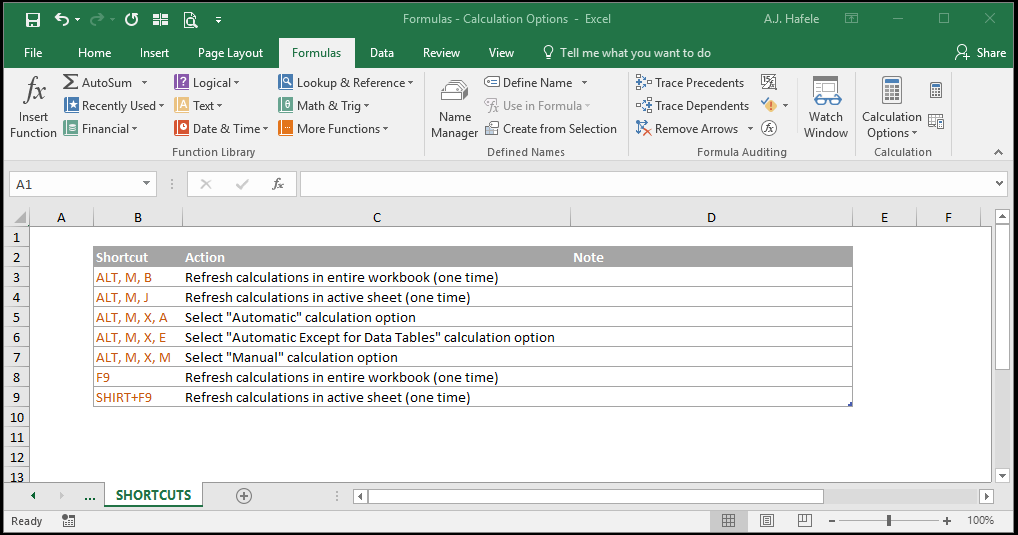
By default, Excel will compute and display formula results immediately after any cell is edited - this is referred to as "Automatic" calculation
However, you can actually change this feature so that formulas do not update unless you manually recalculate specific formulas ("Manual" calculation)
This may be desirable if you have a workbook with many computationally-intensive formulas
Typically, however, you should keep calculations set to Automatic so your data always stays up-to-date
Buttons
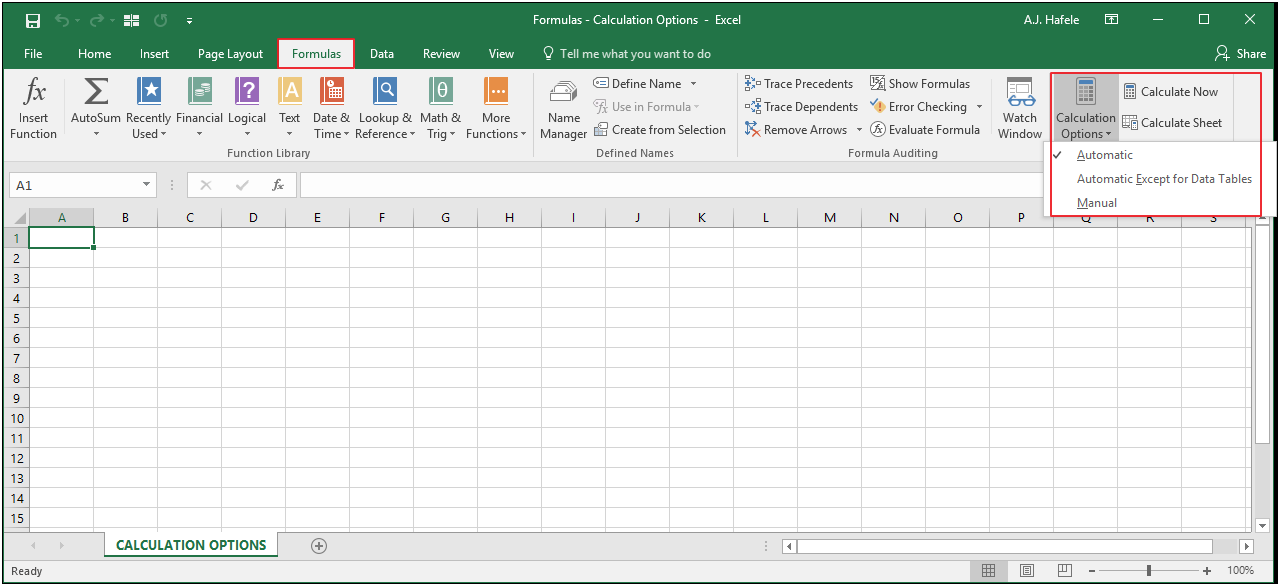
The relevant buttons can be found in the Calculation group of the Formulas tab:
The three buttons under the Calculation Options menu allow you to determine how Excel performs its calculations
Again, Automatic is the default
If calculations are set to Manual, your formulas will not update unless you press one of the following buttons shown above:
Calculate Now - performs recalculations in the entire workbook (you can also press F9 to do the exact same thing!)
Calculate Sheet - performs recalculations in the active sheet only
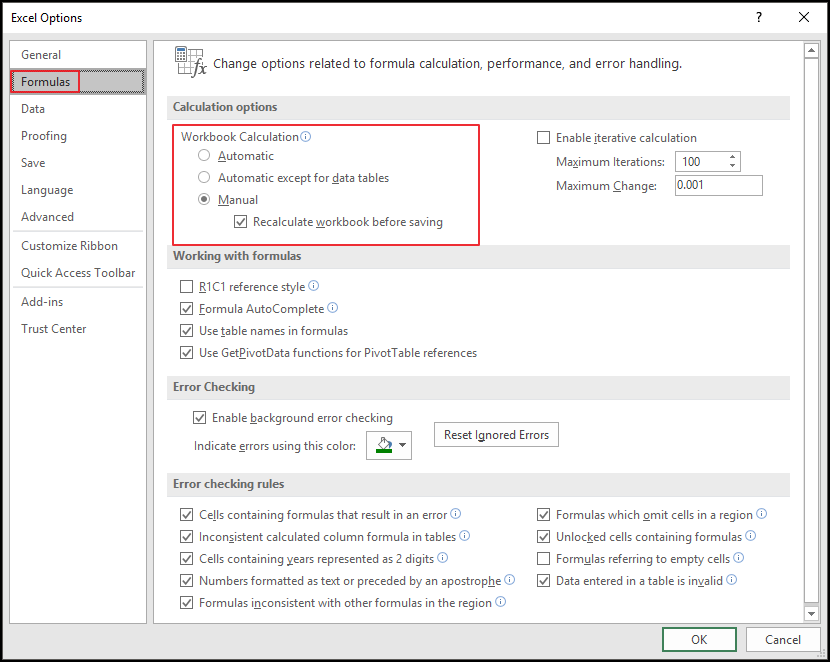
Note that you can also change Excel's calculation options from the Excel Options window (File > Options > Formulas > Calculation options > Workbook Calculation):
As is shown above, you can enable Excel to perform a final recalculation before saving the workbook (by checking or unchecking the box)
Examples
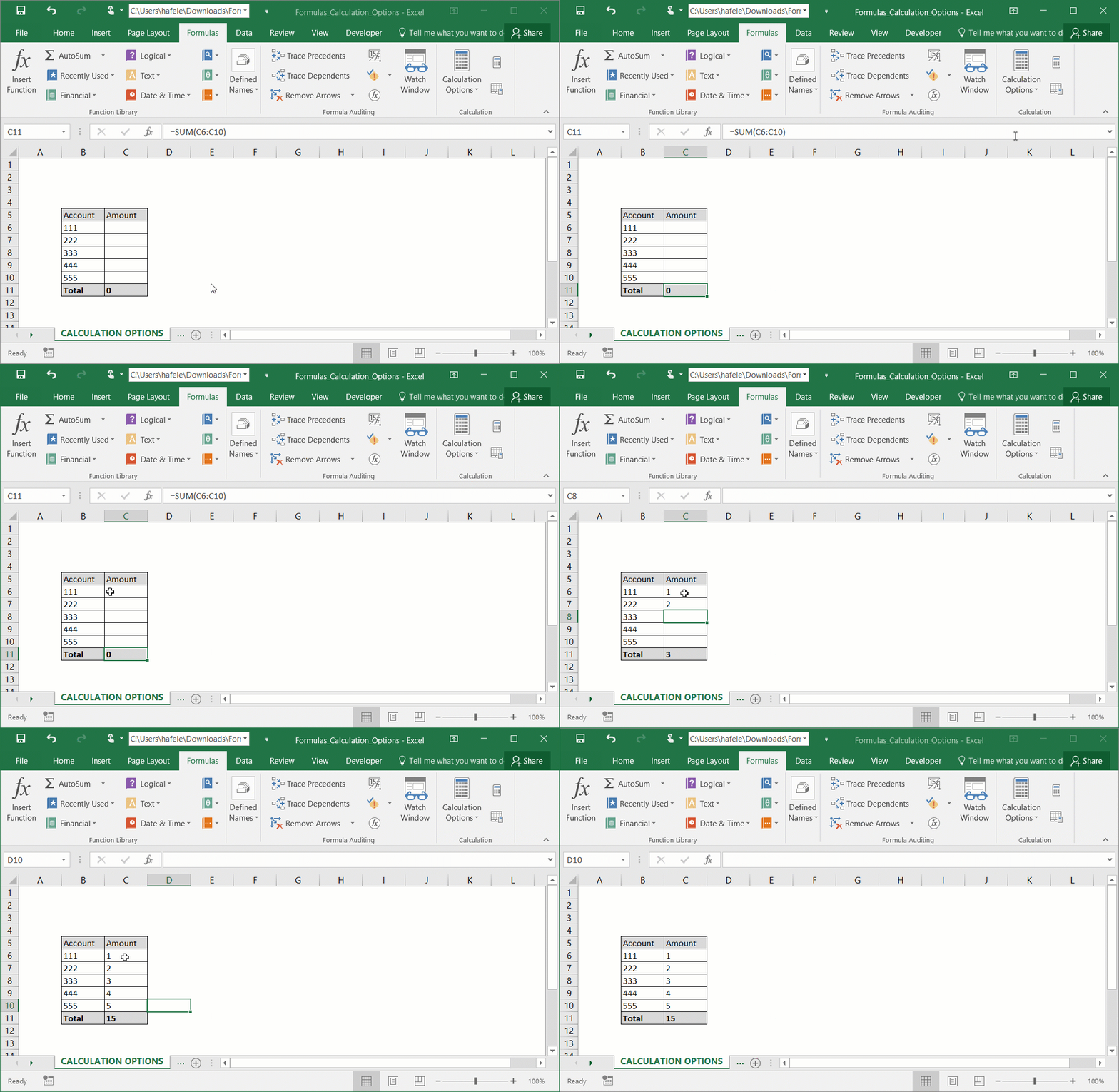
As you are familiar with, Excel will automatically refresh all calculations by default, such as the result of the SUM function here:
The SUM function result updates automatically because the Calculation Options is set to Automatic
In general, when this option is selected, all formulas in the entire workbook will refresh after any cell is edited (and the edits are actually stored)
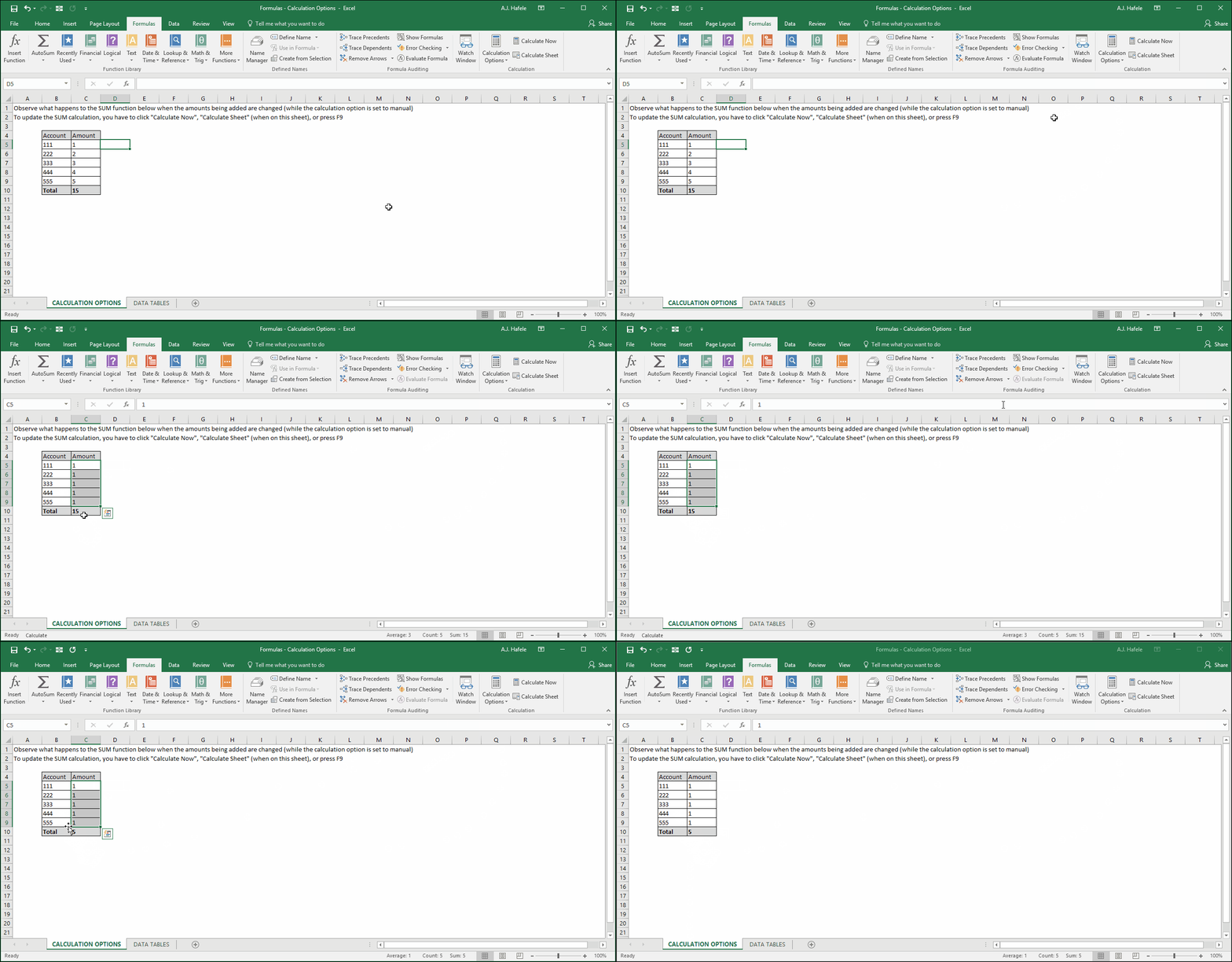
Watch what happens when we change this to "Manual" - the results of the SUM function will not immediately update!
Keep an eye out on the SUM result in this illustration:
Last, Excel also allows for automatic calculations except for with data tables, likely because they require more calculation horsepower behind the scenes
In general, be very careful if you change Excel's calculation options to anything other than Automatic