In other words, Format Painter copies the formatting from a cell (or range of cells) and pastes it to another
Buttons
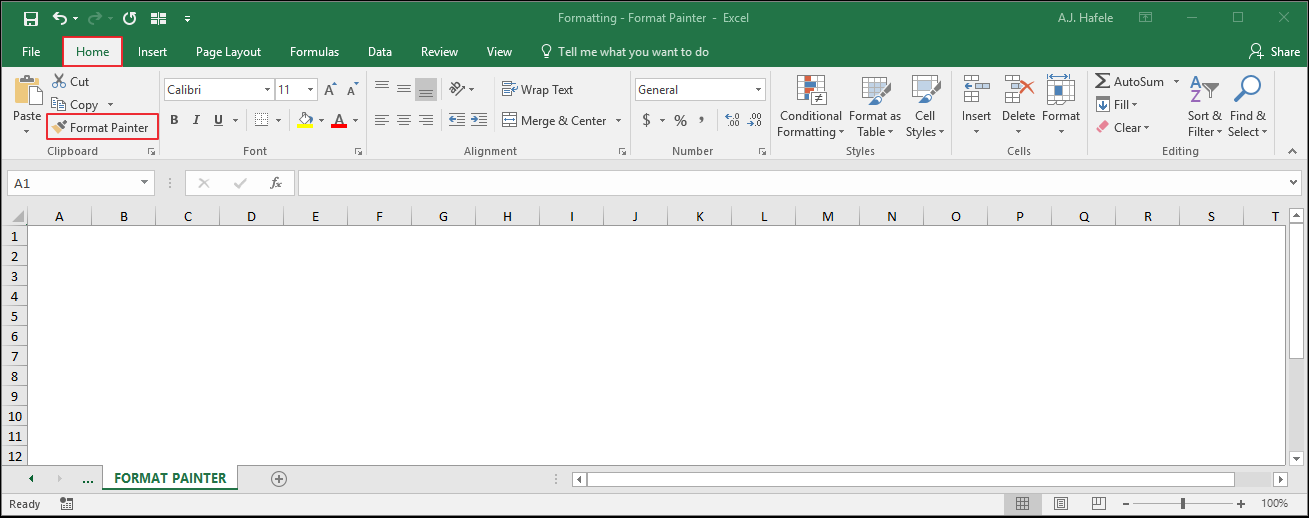
The Format Painter button can be found in the Clipboard group of the Home tab:
Note that you can either single-click or double-click this button
Double-clicking will allow you to apply Format Painter to multiple, non-contiguous ranges (as shown in an illustration below)
Using Format Painter
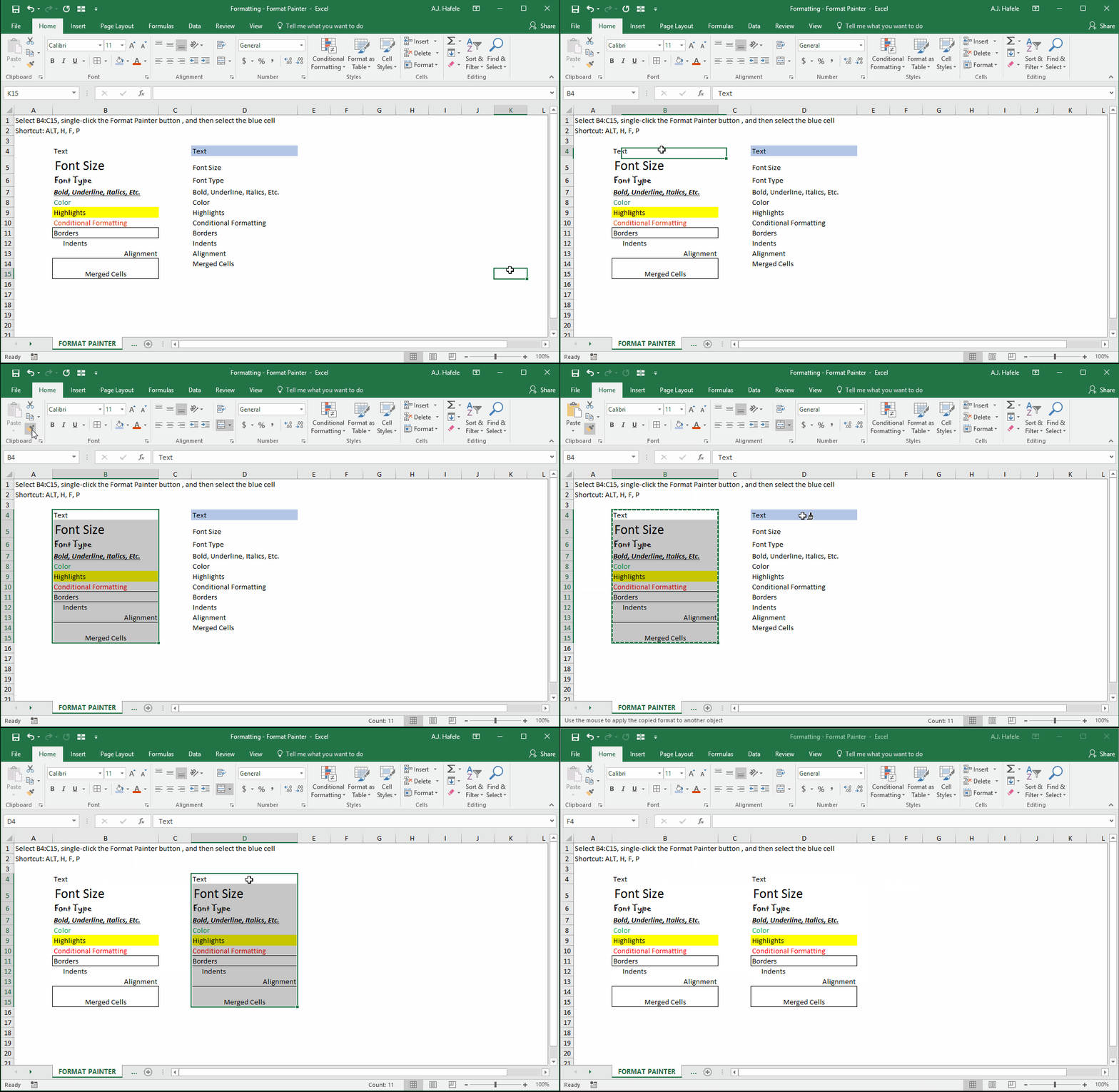
The following example demonstrates the use of Format Painter (using a mouse to single-click the Format Painter button, which, by the way, is shrunken because our Excel window has been narrowed):
Notice that Format Painter captures a wide variety of formats, including merged cells
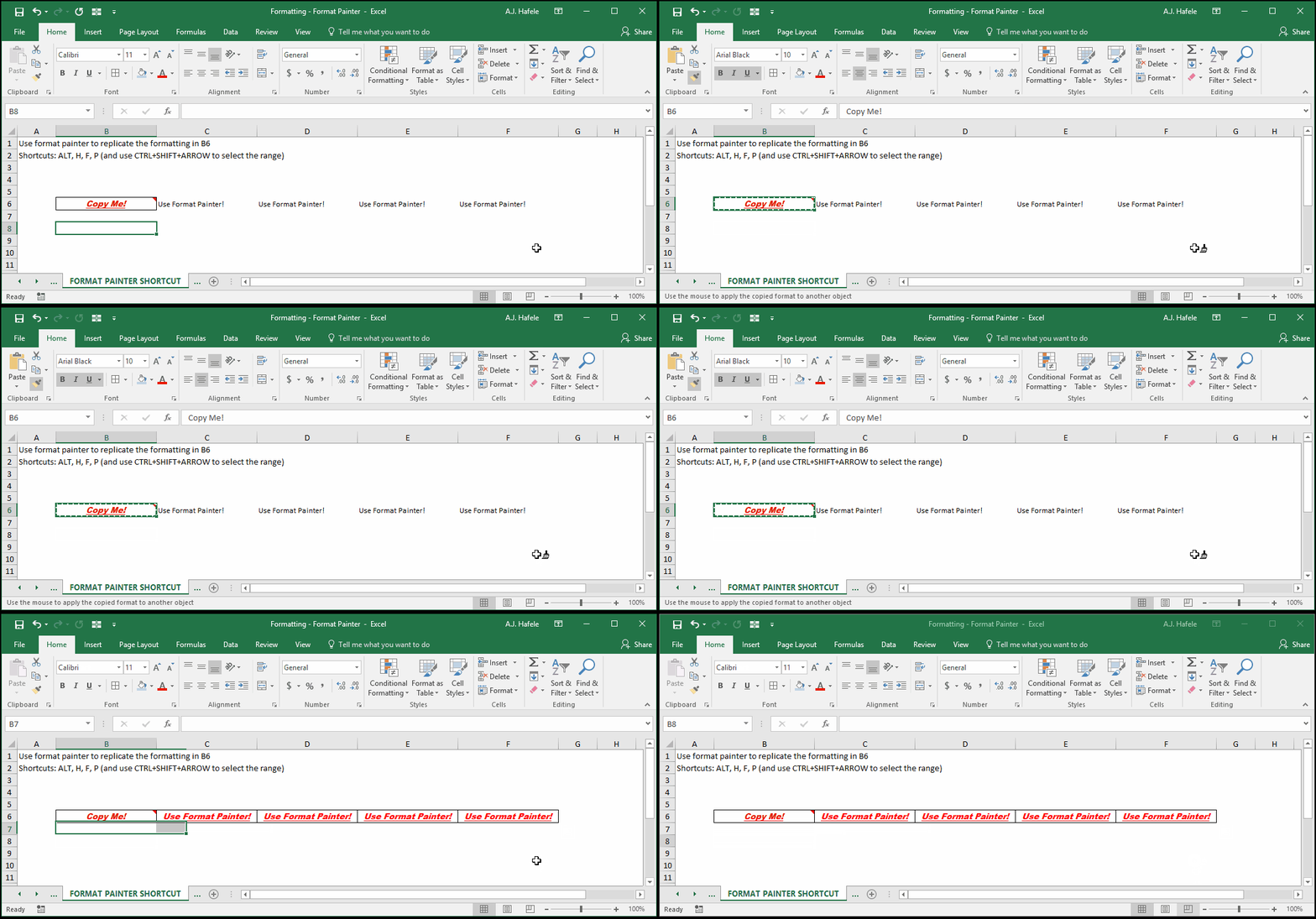
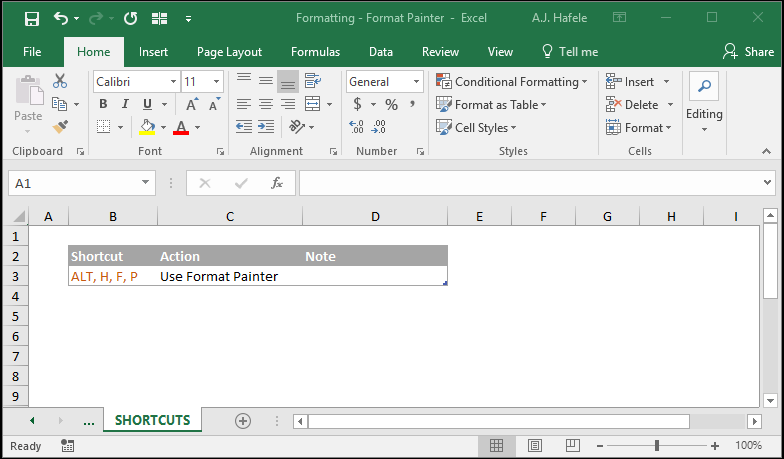
The next example illustrates the use of the shortcut (ALT, H, F, P):
Notice in the above example that Format Painter does not copy cell comments
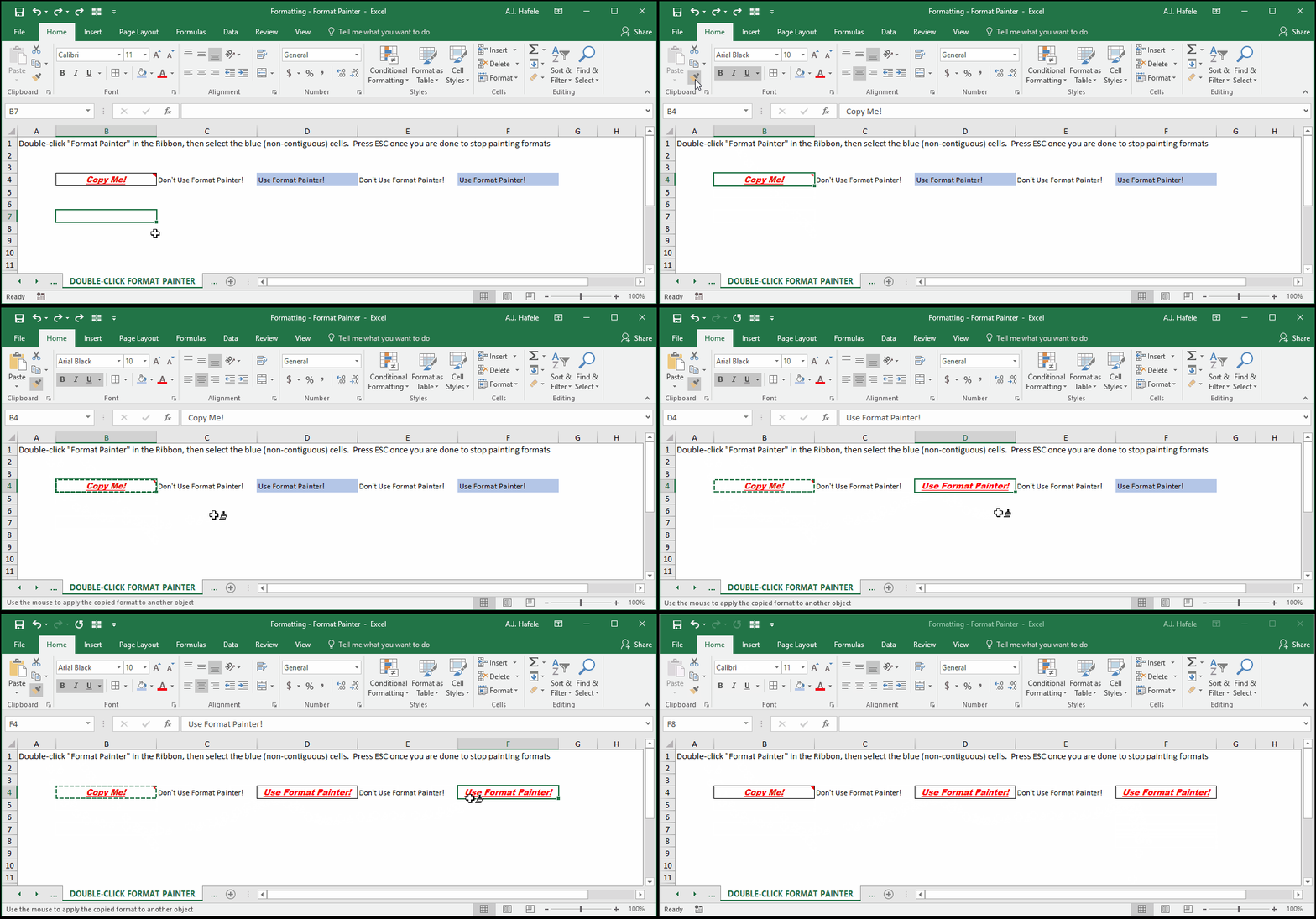
In the next example, we will use Format Painter on non-contiguous ranges, by double-clicking the Format Painter button:
Notice (again) that comments are not copied using Format Painter
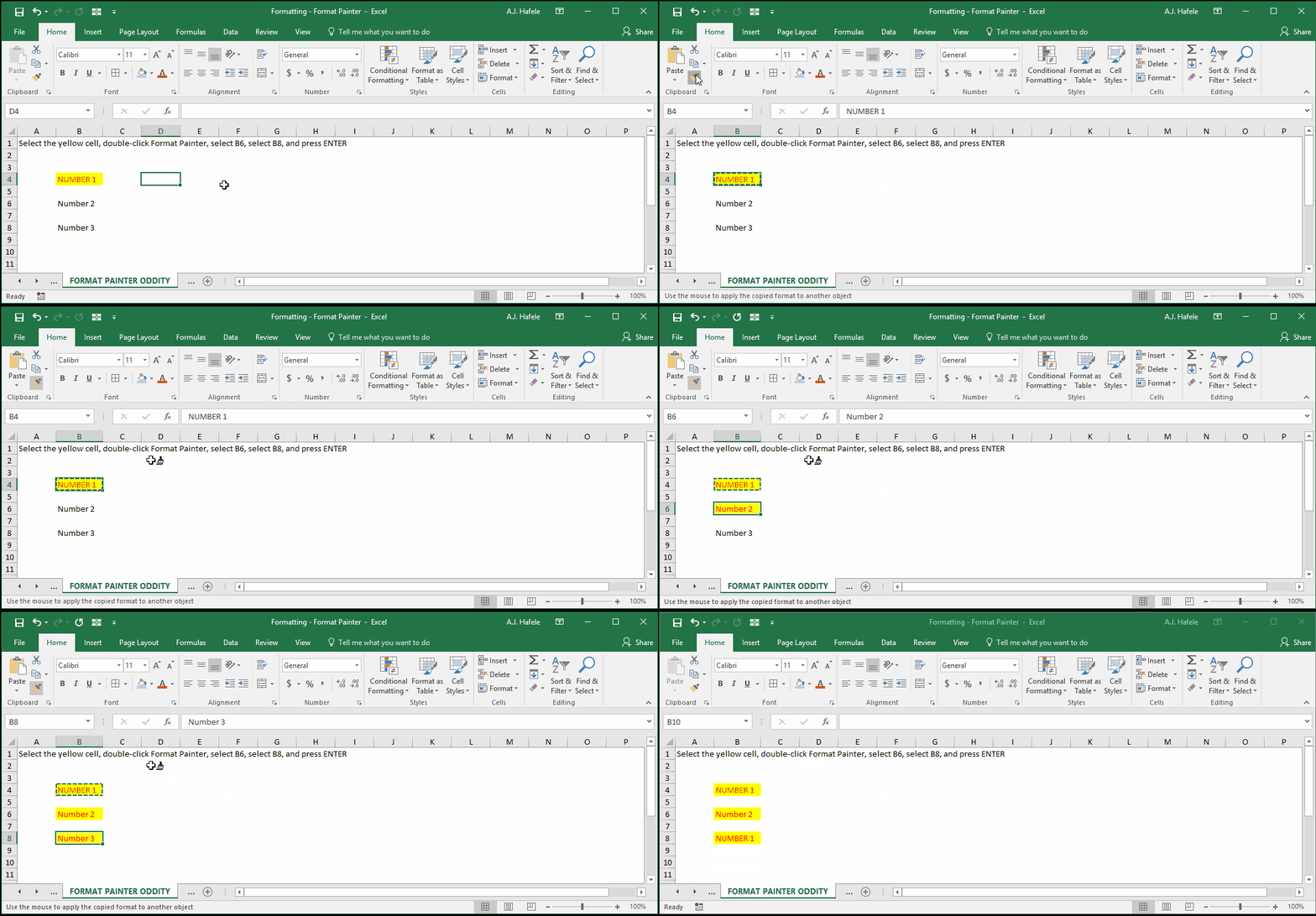
Last, there is one odd aspect of double-clicking Format Painter: if you press ENTER after using the functionality, Excel will actually paste the copied data into the last cell/s selected, as shown here:
As you can see above, Cell B8's content is actually replaced after we press ENTER