Excel 2016, Excel 365 and later versions are used throughout this site (all of which are on Windows)
However, previous Windows versions of Excel very similar, so users should find almost all content applicable, including most keyboard shortcuts
We recommend upgrading to the latest version of Excel if possible in order to take advantage of newer features
We also highly recommend using Excel for Windows and not Mac, as its features and shortcuts are much more limited
A Word on Illustrations
This course utilizes screenshots and short GIF clips extensively
GIFs can move fast, but they can be watched as many times as necessary
In some cases, we use keyboard shortcuts in GIFs, so you won't even be able to see what we are typing
Don't panic! You will have instructions which will allow you to replicate (at your own pace) what is being done in the illustrations
Note that our illustrations provide just one of many ways to accomplish the same thing
Basic Terminology
Let's begin by reviewing some of the most commonly used Excel terms
If you don't quite understand these terms fully after reviewing this list, don't worry too much, as they will become more clear as you proceed through the lectures
Please go here for a comprehensive glossary of Excel terms
Worksheet
Also referred to as a "spreadsheet", "sheet", or "tab"
A single tab within an Excel file
Note that each Excel file contains at least one worksheet
Workbook
The Excel file containing worksheets
Typical file extensions include:
.xlsx (newer Excel files)
.xls (older Excel files)
.xlsm (macro-enabled Excel files)
Cell
One of many boxes located within each worksheet (that forms a grid) in which information is entered
Cells are referenced by a row number and a column letter
For example, the top-left cell in every worksheet is referred to as cell A1
Range
A group of cells in a worksheet
Ranges can contain adjacent and non-adjacent cells
Formula
A calculation made inside of a cell, which always starts with the = symbol, and which returns an output value
For example, =1+1 is a formula which will return the value of 2
Copy and Paste
A term used to describe the process of duplicating information in Excel
A pre-defined expression which performs a calculation and returns a value
All functions must be used in formulas (i.e. the cell containing the function must start with the "=" symbol)
For example, =1+AVERAGE(A1:B1) is a formula which utilizes the AVERAGE function
Opening Excel For The First Time
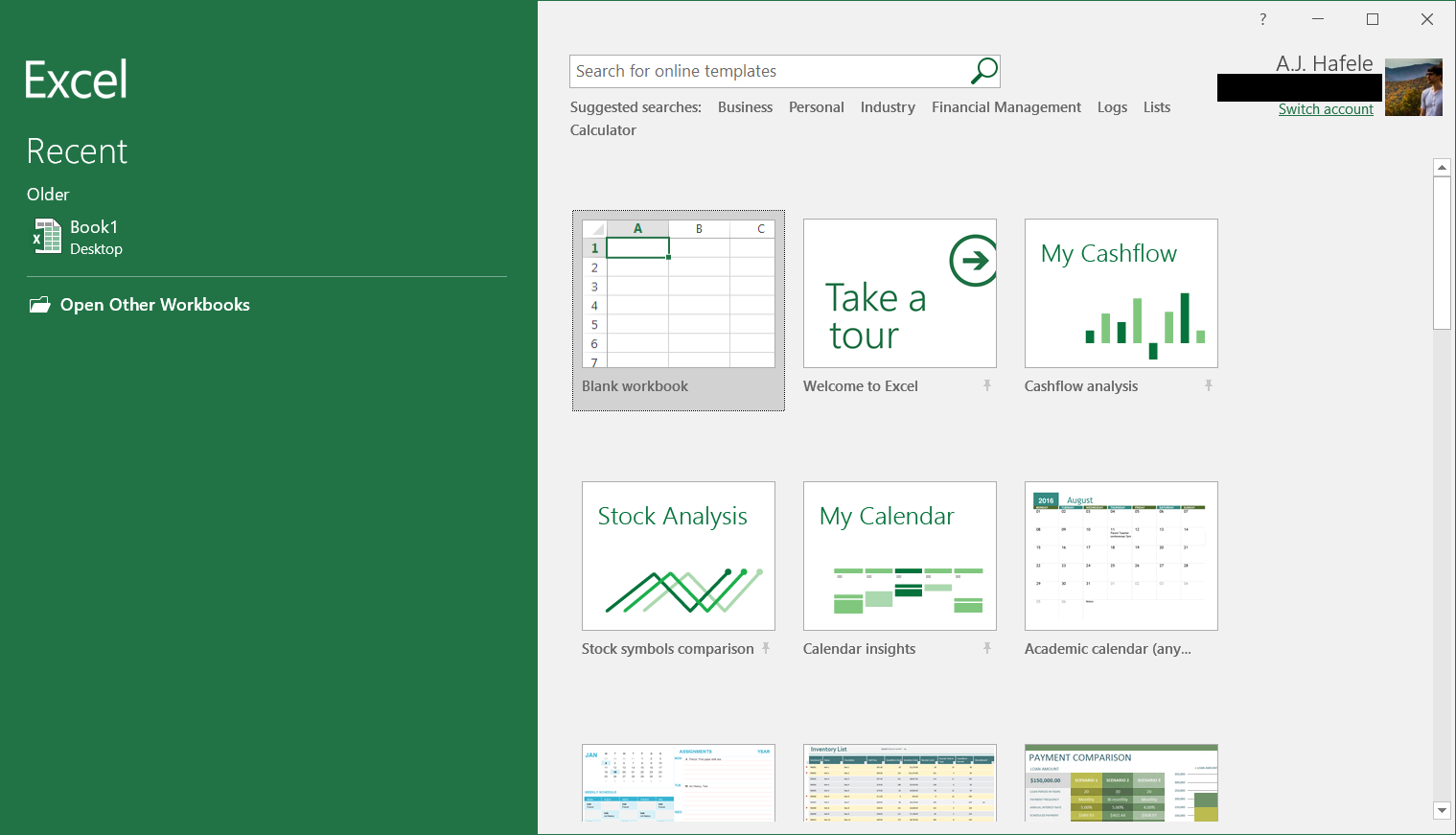
When you first open Excel, the Start Screen may pop up:
Some users like using the Start Screen, since it allows them to choose among opening a blank file, new template, or recently-used file
Other users like to bypass the start screen and jump straight to a blank workbook when starting Excel
To disable the start screen, perform the following:
Keyboard Shortcuts
Keyboard shortcuts, once learned, allow you to work through Excel files more efficiently
As such, throughout the course, we will provide keyboard shortcuts so users can familiarize themselves and improve efficiencies.
Let's now briefly review how we reference these shortcuts
The + Sign
Indicates shortcuts requiring 2+ keys to be pressed simultaneously
For example, pressing "ctrl" and "p" is the shortcut to print
Our terminology is CTRL+P (all caps and orange font, for emphasis)
Commas
Indicates shortcuts requiring 2+ keys to be pressed sequentially
For example, pressing, "Alt", then "f", then "t" will bring users to the Excel options menu
Our terminology is ALT, F, T (again, all caps and orange font, for emphasis)
The + Sign and Commas
Some shortcuts require both pressing keys simultaneously and pressing keys in some sequence
For example, a shortcut exists that requires you to press CTRL+ALT+V, V, ENTER
Notice that, in the first of the three sequences, you must simultaneously press three keys (CTRL+ALT+V)!
The last two sequences require you to press V and then ENTER individually
Do not stress over large shortcuts like this at this point - you will learn with practice!
A Note on ALT Shortcuts
To enter the proper Excel shortcuts (i.e. hotkeys), ensure that your Excel window is maximized (or large). If your ALT shortcuts are not working properly, it may be that your Excel window is too small
Shortcuts from Microsoft
Microsoft has an excellent keyboard shortcut summary here, though their syntax is slightly different from ours
In that link, Microsoft provides shortcuts for multiple versions of Excel (including for web, Mac, and mobile versions)
We highly recommend bookmarking this link and referencing it as needed
Switching Between Windows (Windows only)
Although this is not Excel-specific, using the following shortcut is a quick way to switch between applications opened on your computer
This shortcut is a bit different from the ones mentioned above:
Hold ALT and press TAB once
From there, press TAB to tab to the next window (navigate right)
Or, while still holding ALT, press SHIFT+TAB to navigate left
Or, while still holding ALT, use the ARROW keys to navigate in any direction
Release ALT once you have selected the appropriate window
Observe as we use this shortcut to navigate through different applications, ultimately selecting PowerPoint and then Excel:
Notice the white border surrounding the windows as we tab through the applications - that is the visual key to be mindful of when using this shortcut to switch windows