Cut and paste is more simple than copy and paste, primarily because less functionalities are available (unfortunately)
Cutting will essentially queue the target cells for complete removal to be moved somewhere else in Excel
Pasting will actually move the cut cells to the selected destination
Cell contents and formatting are pasted
Buttons
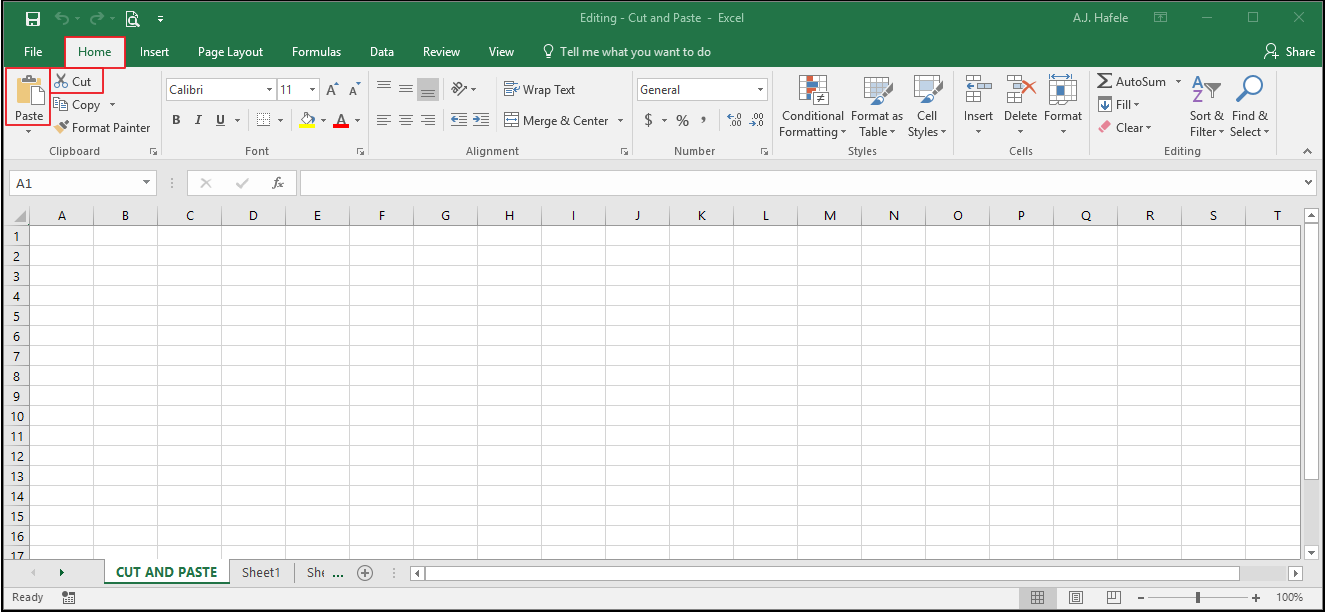
The relevant buttons can be found in the Clipboard group of the Home tab:
Basic Cut and Paste
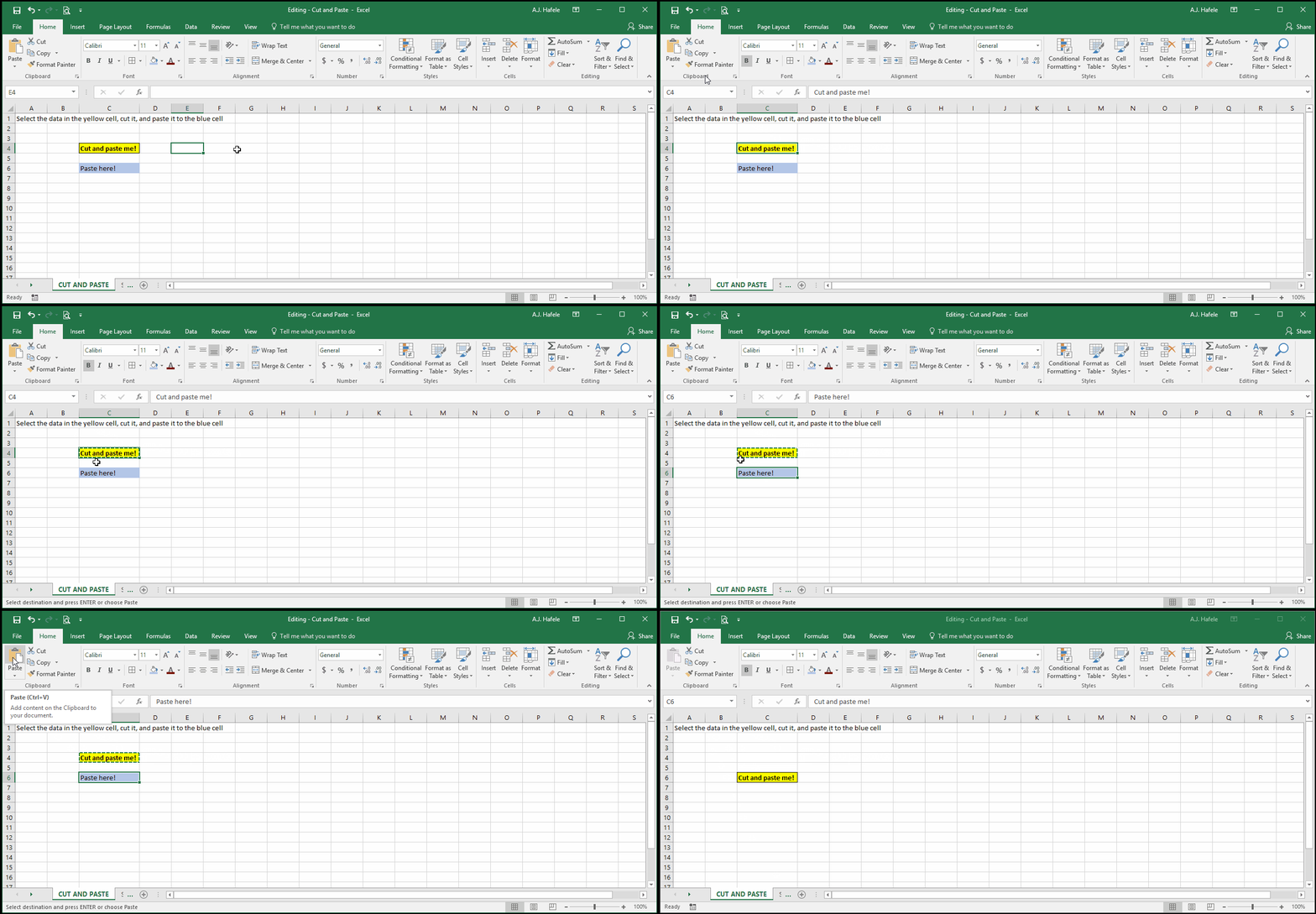
To cut and paste, do the following:
Select the data to be cut
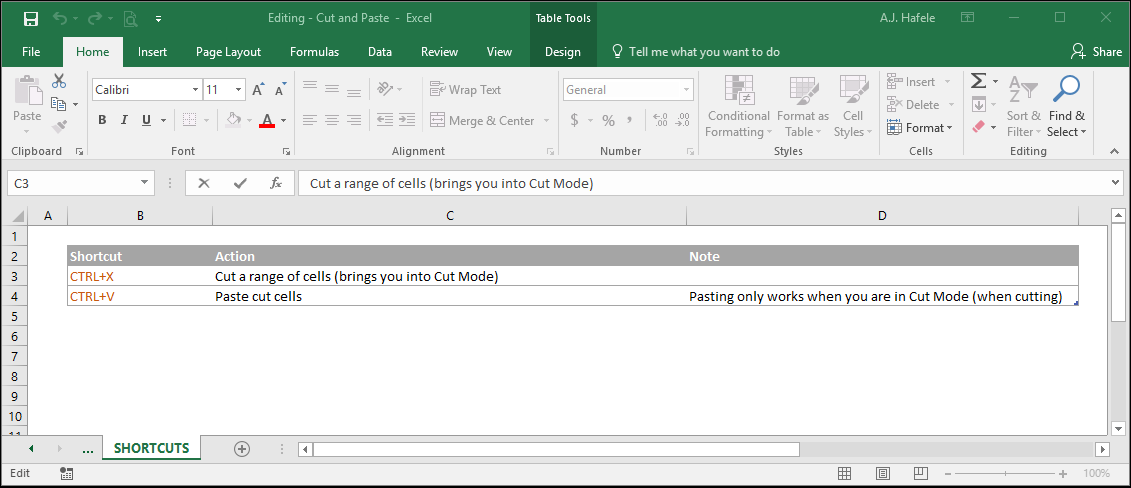
Click the Cut button (or press CTRL+X) to cut the data (which will put excel into "Cut Mode")
The data to be cut will show a moving dashed border, as per above; this indicates you are in Cut Mode
Select the destination of the soon-to-be-pasted cells
Click the Paste button (or press CTRL+V) to paste the data
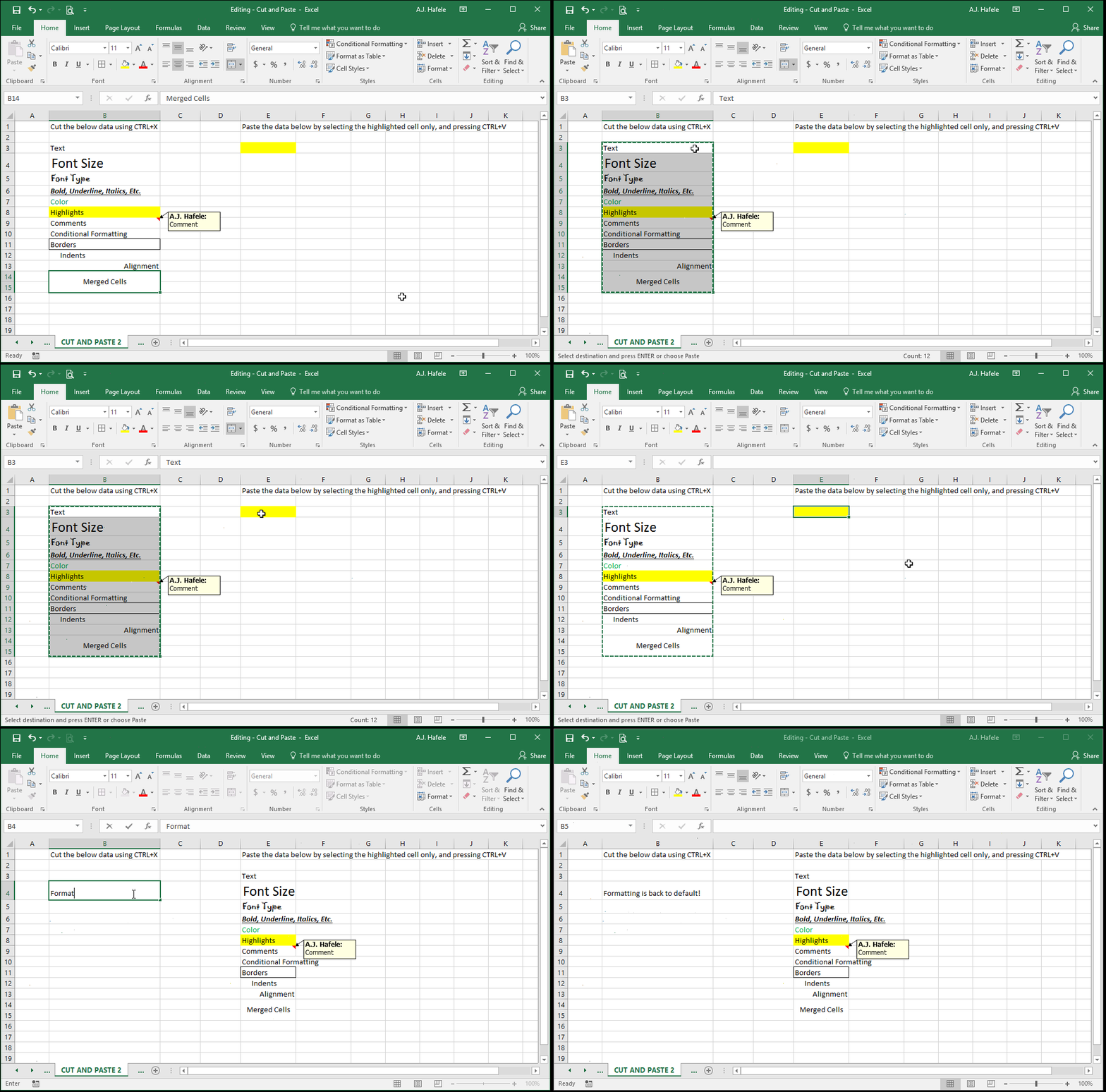
As indicated earlier, all content and formatting is cut and pasted, as shown here (using the keyboard shortcuts):
Notice that:
After the cut, the cells in column B contain no data, and the formatting reverted back to the defaults
Column widths were not pasted with the cut and paste
Cut and Paste With A Mouse
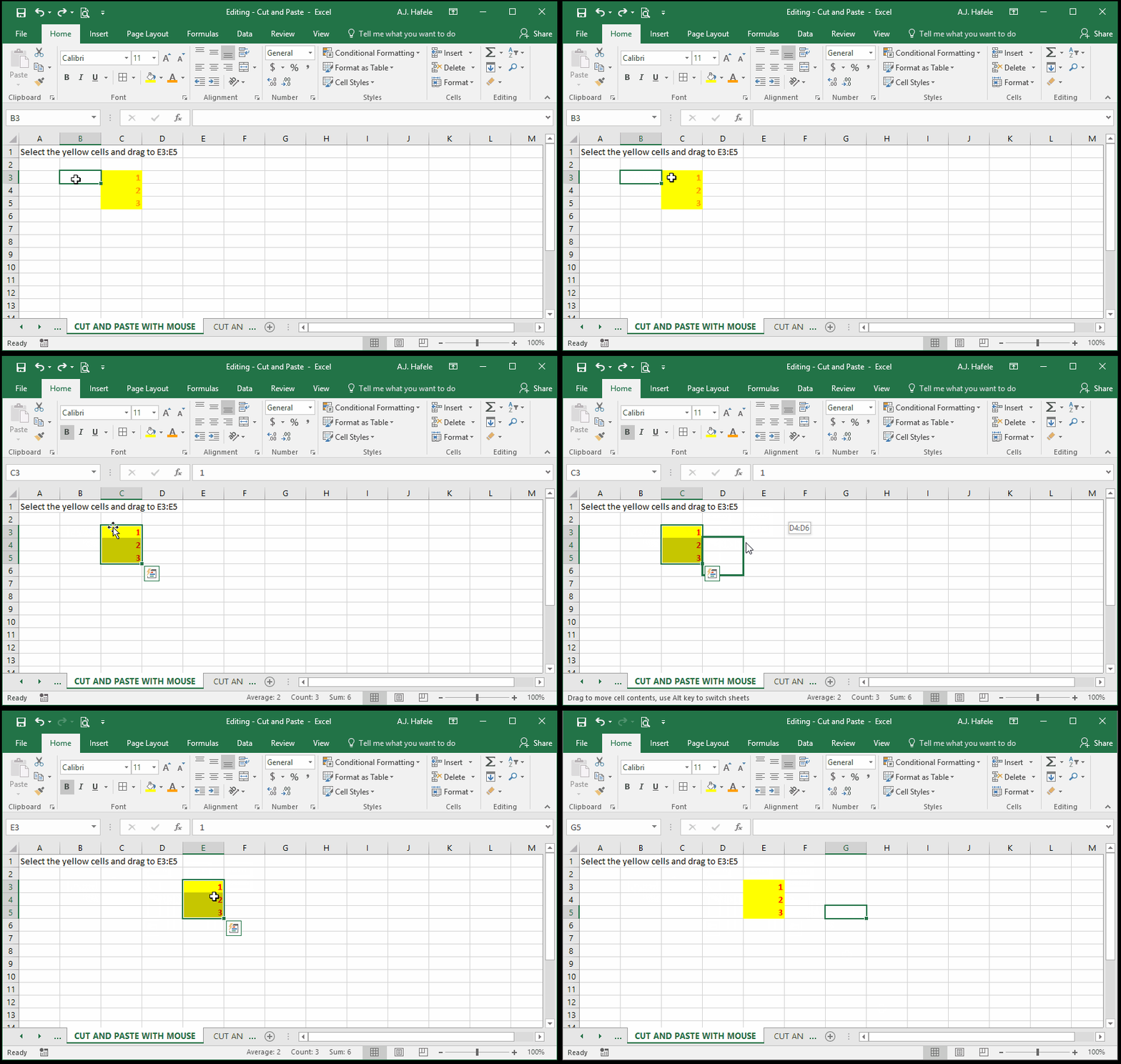
Rather than use the Ribbon buttons or the keyboard shortcuts to cut and paste, you can also select a range of cells and drag them to the desired location, as shown here:
Cut and Paste Special (Is Not Possible)
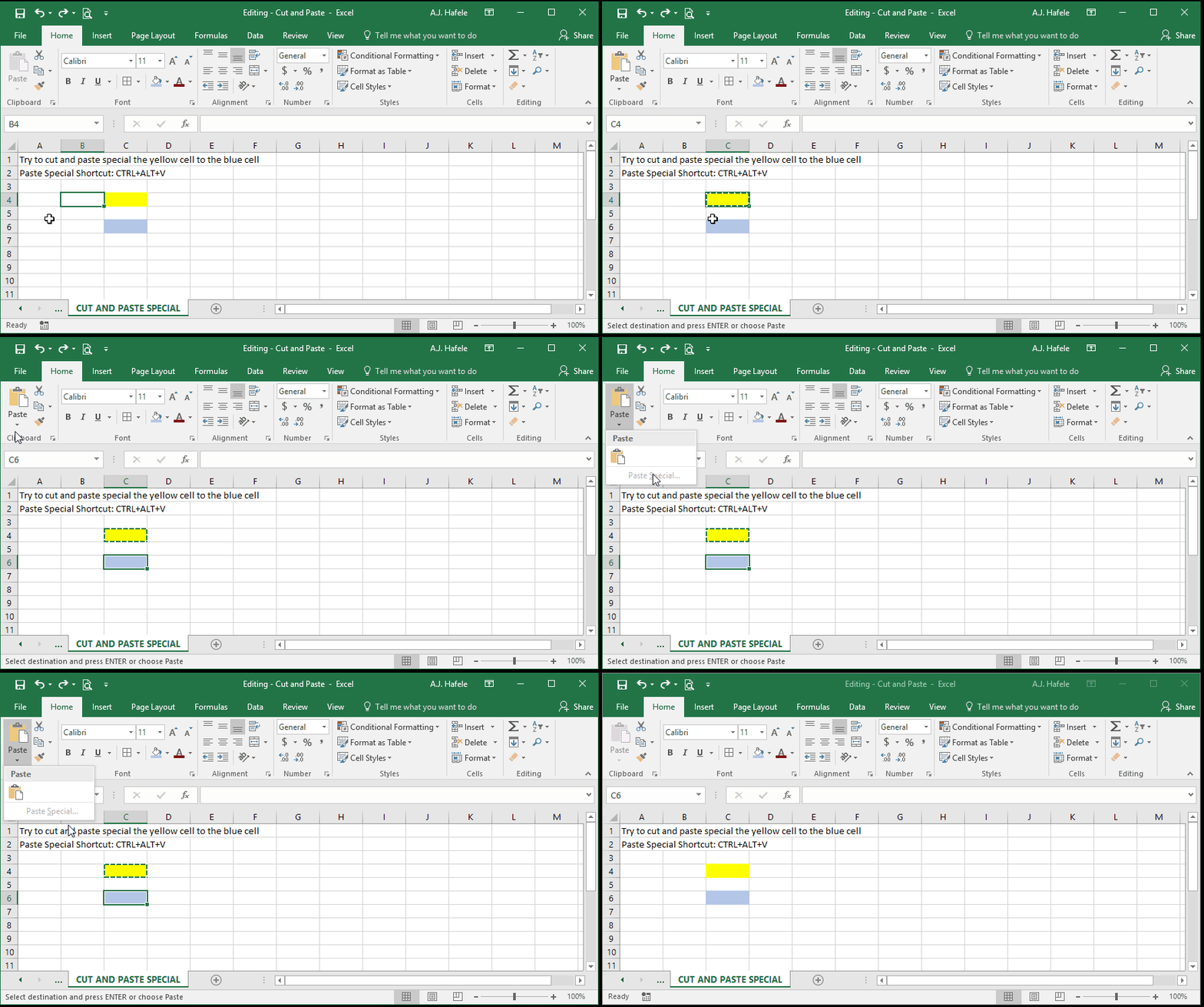
Unfortunately, you cannot Paste Special with cut cells, as shown here:
Notice that the Paste Special... button was completely greyed out (and CTRL+ALT+V did nothing)
Cut and Paste Non-Contiguous Ranges (Is Not Possible)
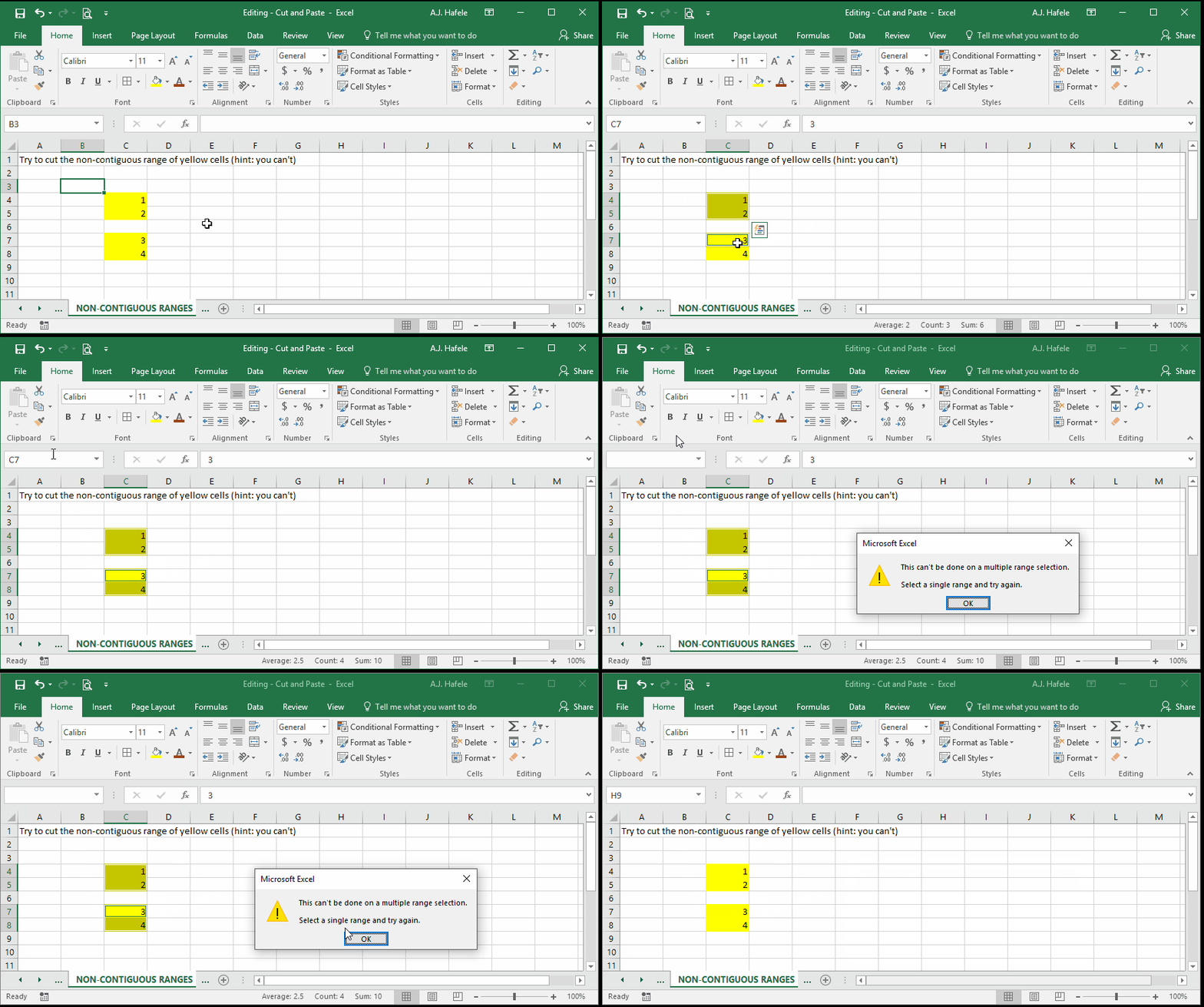
Unfortunately, you cannot cut and paste non-contiguous ranges, as shown here (remember, hold in CTRL and use your mouse to select non-contiguous ranges):
Cut And Paste Cells With Cell References
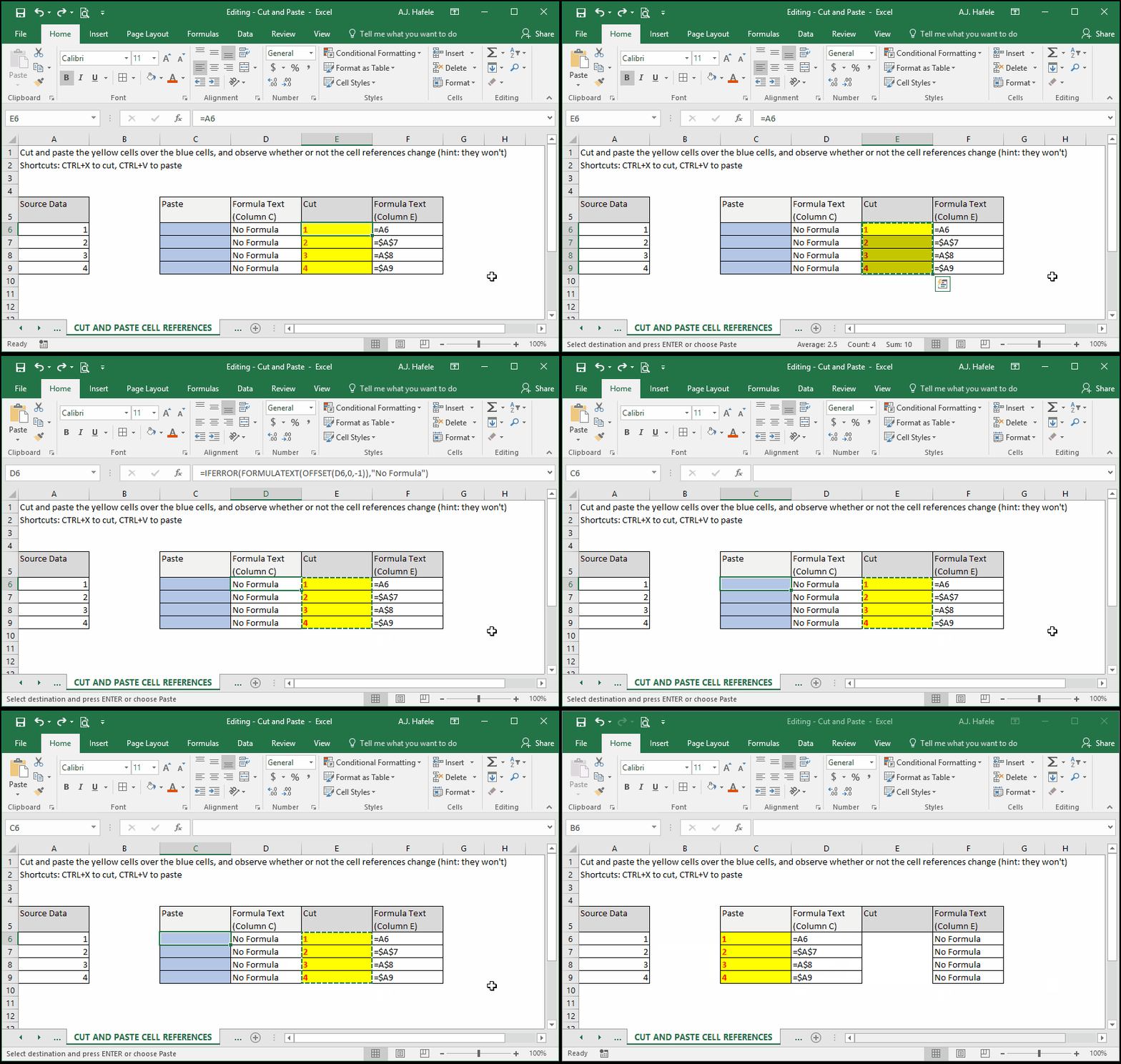
When cutting and pasting cells with cell references, the cell references will not change after the paste
This is true regardless of whether the references are absolute, relative, or mixed
Notice that:
The cell references (referencing A6, $A$7, A$8, and $A9) did not change at all - only the cells containing the references changed (we cut them from column C to column E)
Once again, the format was cut from column E and pasted into column C
Pitfall - Cutting And Pasting Over Referenced Data
Be very careful not to cut and paste over data that is being referenced in other cells' formulas
The result is that the cells referencing the replaced data will not recognize the newly-pasted information
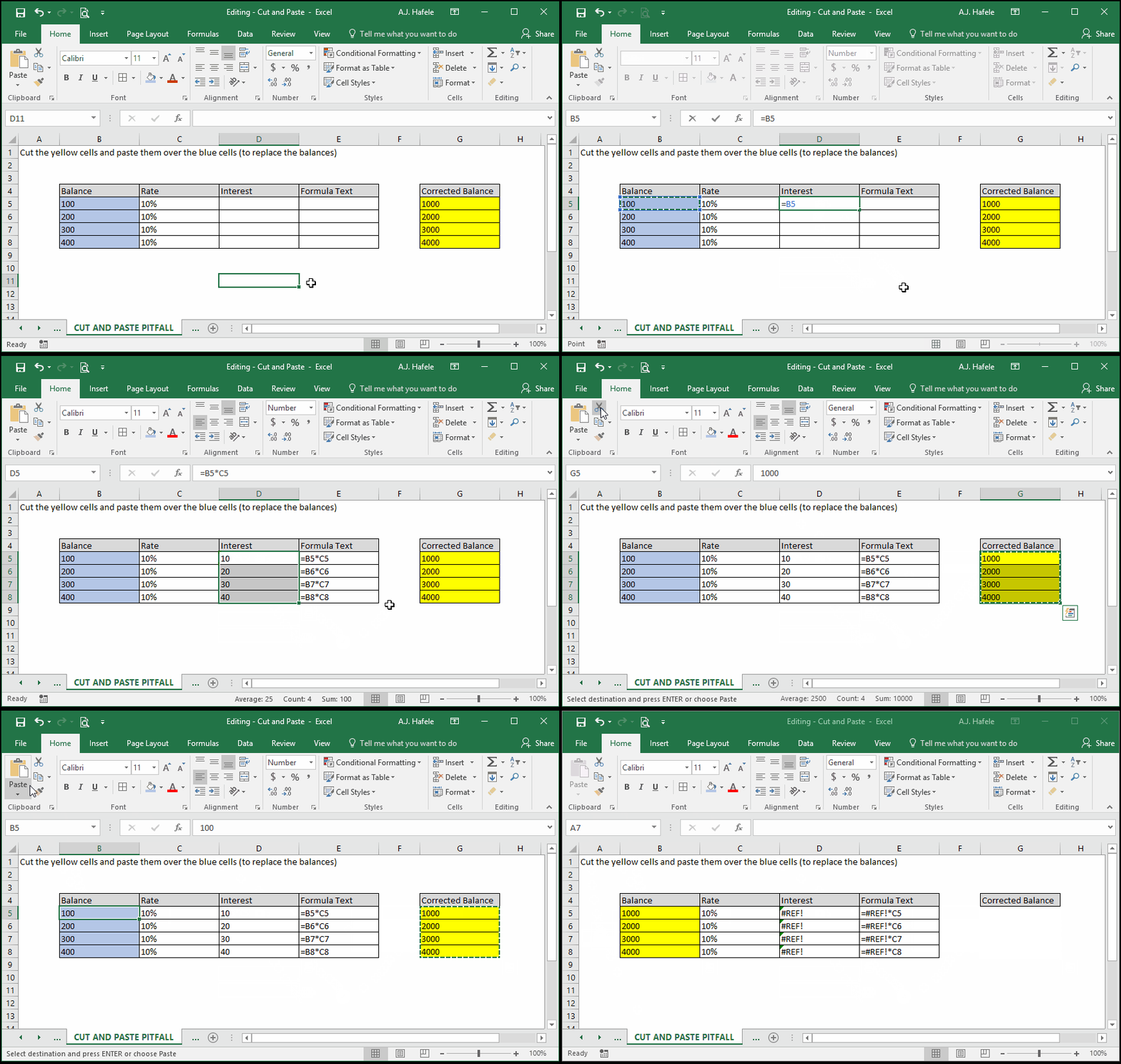
Carefully observe as we create a simple formula with cell references, and subsequently cut and paste over some of the cells being referenced:
Why did the #REF error occur?
Conceptually, when pasting over the blue cells, you essentially "covered up" the old data
As a result, the formulas in column D do not know what to reference anymore!
How can we avoid this problem?
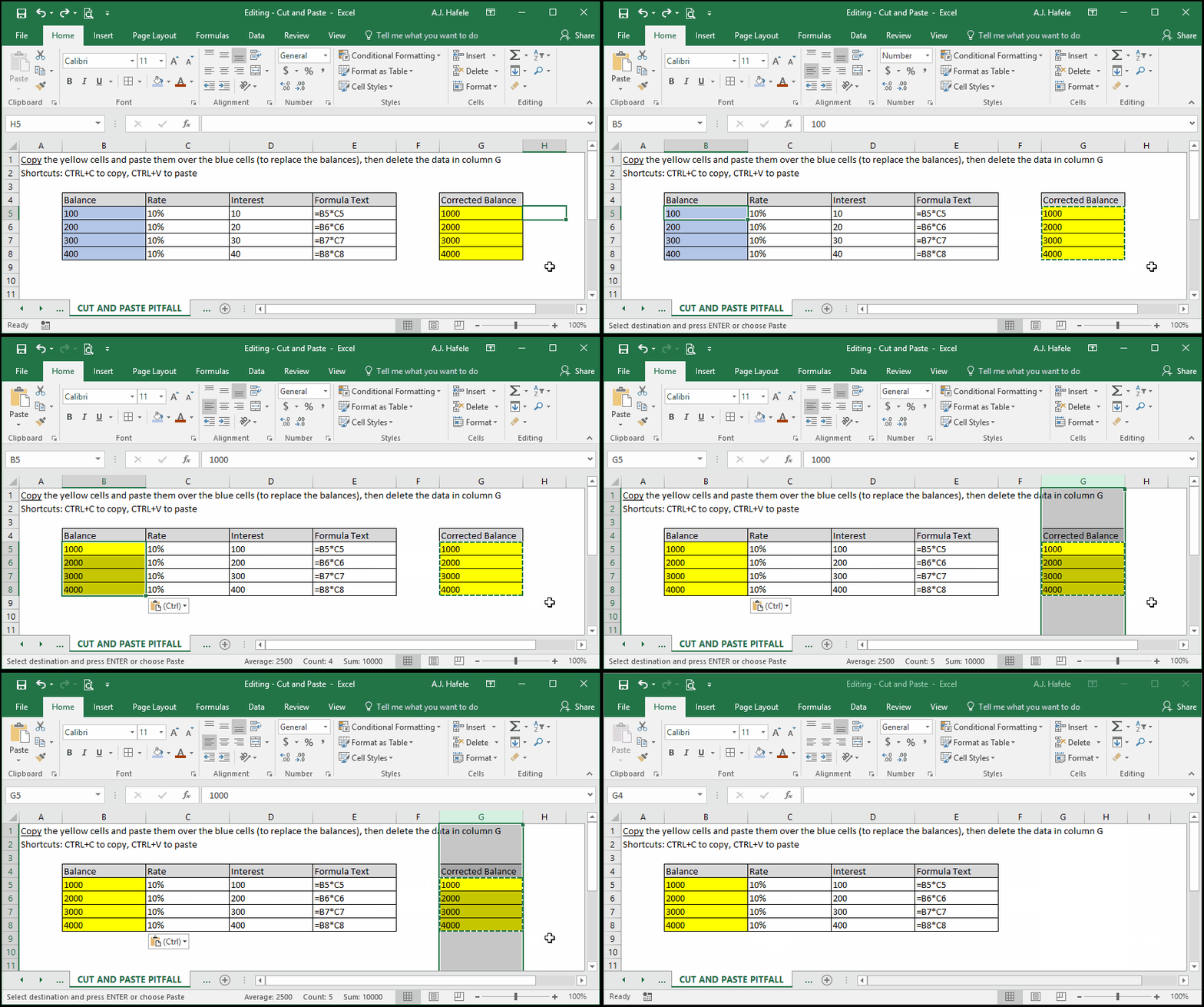
Consider using copy and paste instead, and then deleting out the original copied data, as shown here:
Notice that the cells in column D did not mess up this time! They are still referencing the cells in columns B and C, as desired
As a side note, recognize how easy it is to navigate Excel by using the keyboard shortcuts!