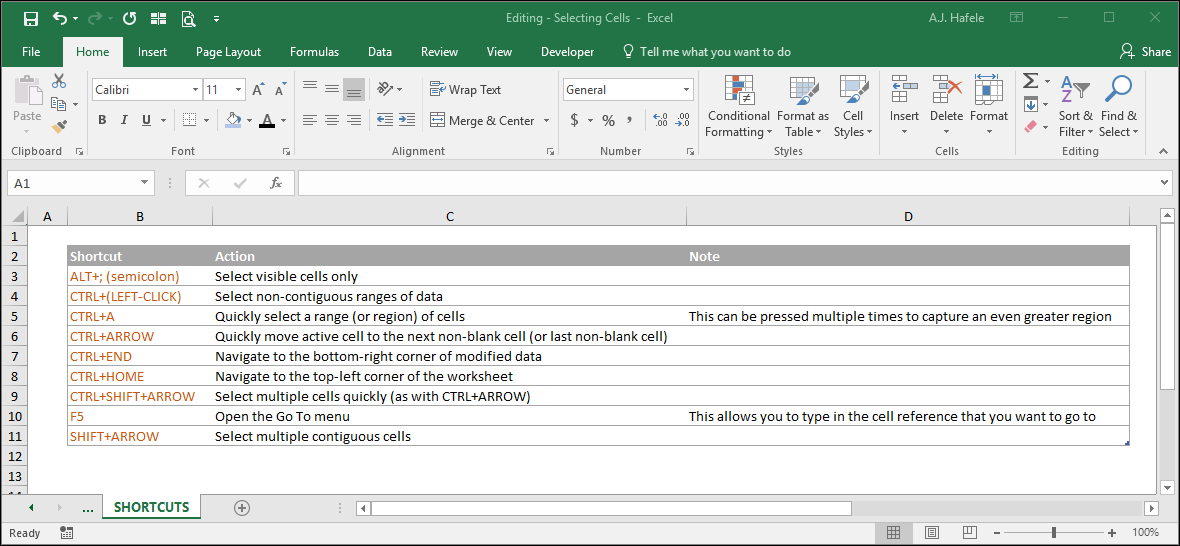
The purpose of this lecture is to go over various methods of selecting cells in Excel
Although these are basic concepts, mastery (especially of shortcuts) will drastically improve your speed and efficiency
Why Select Cells?
Cells must be selected in order to modify them
Modifications include:
Editing cell contents (enter / modify / delete information contained in cells)
Formatting cells (change how cells look)
Select Cells With A Mouse
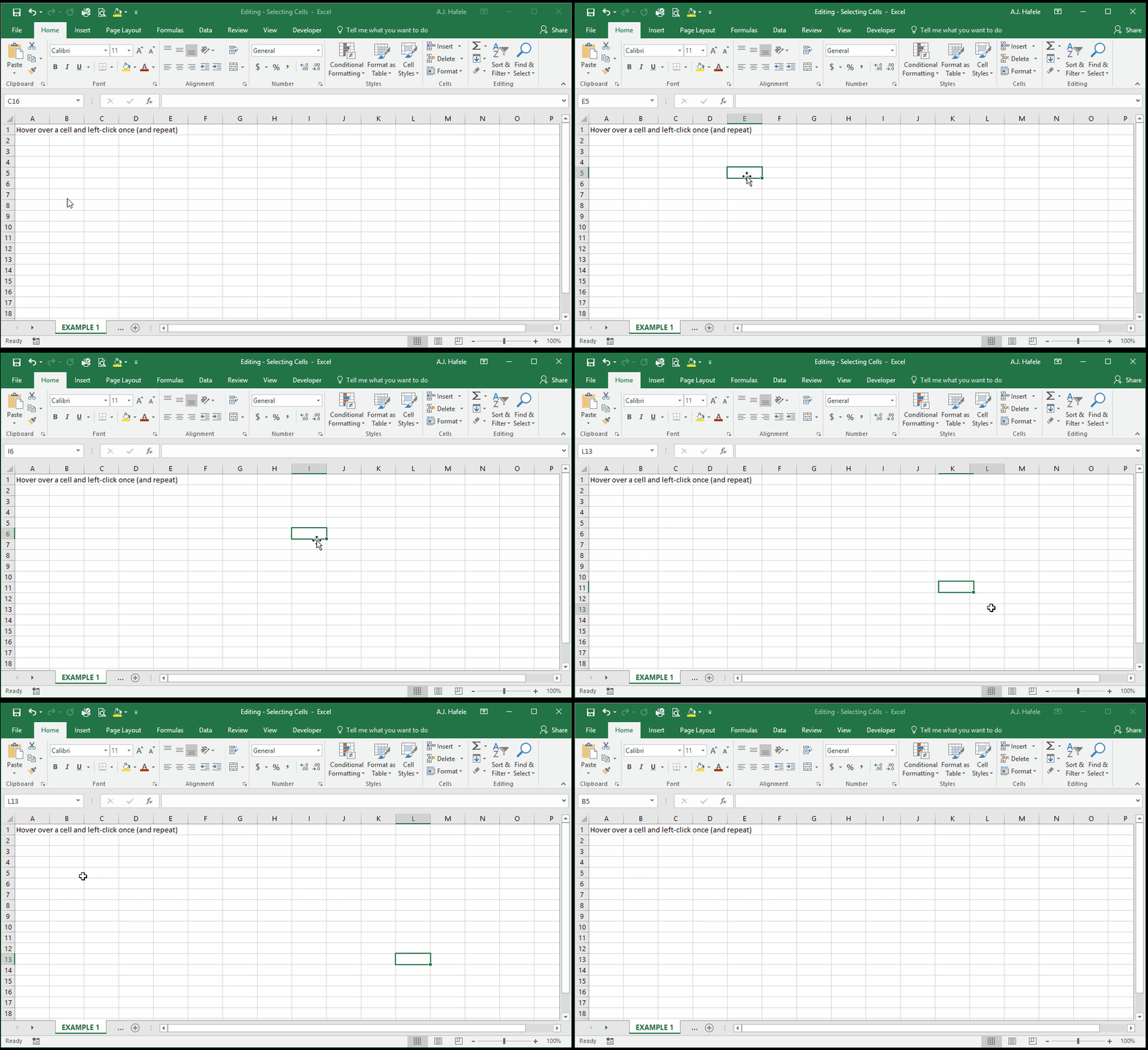
To select single cells with a mouse, simply move the mouse over the target cell and left-click once, as shown here:
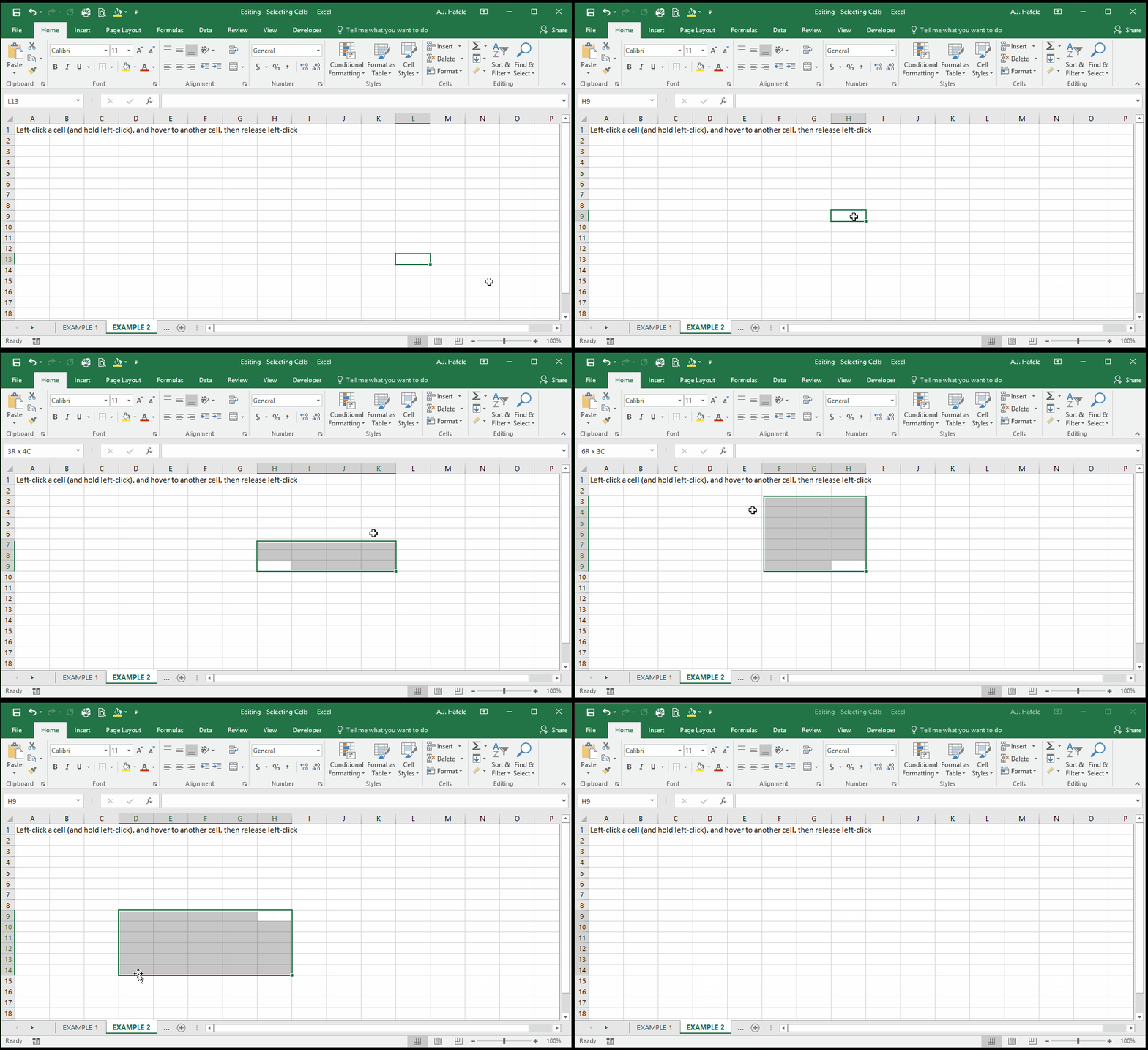
To select a contiguous range (i.e. a connected rectangle) of cells:
Left-click a cell on one of the corners of your target range, and hold down the left-click button
Drag your mouse to the destination cell, and
Release the left-click button
Observe as we hold in the left-click button on our mouse to select a contiguous range of cells (we only release the left-click at the very end of the clip, once we reach cell D14):
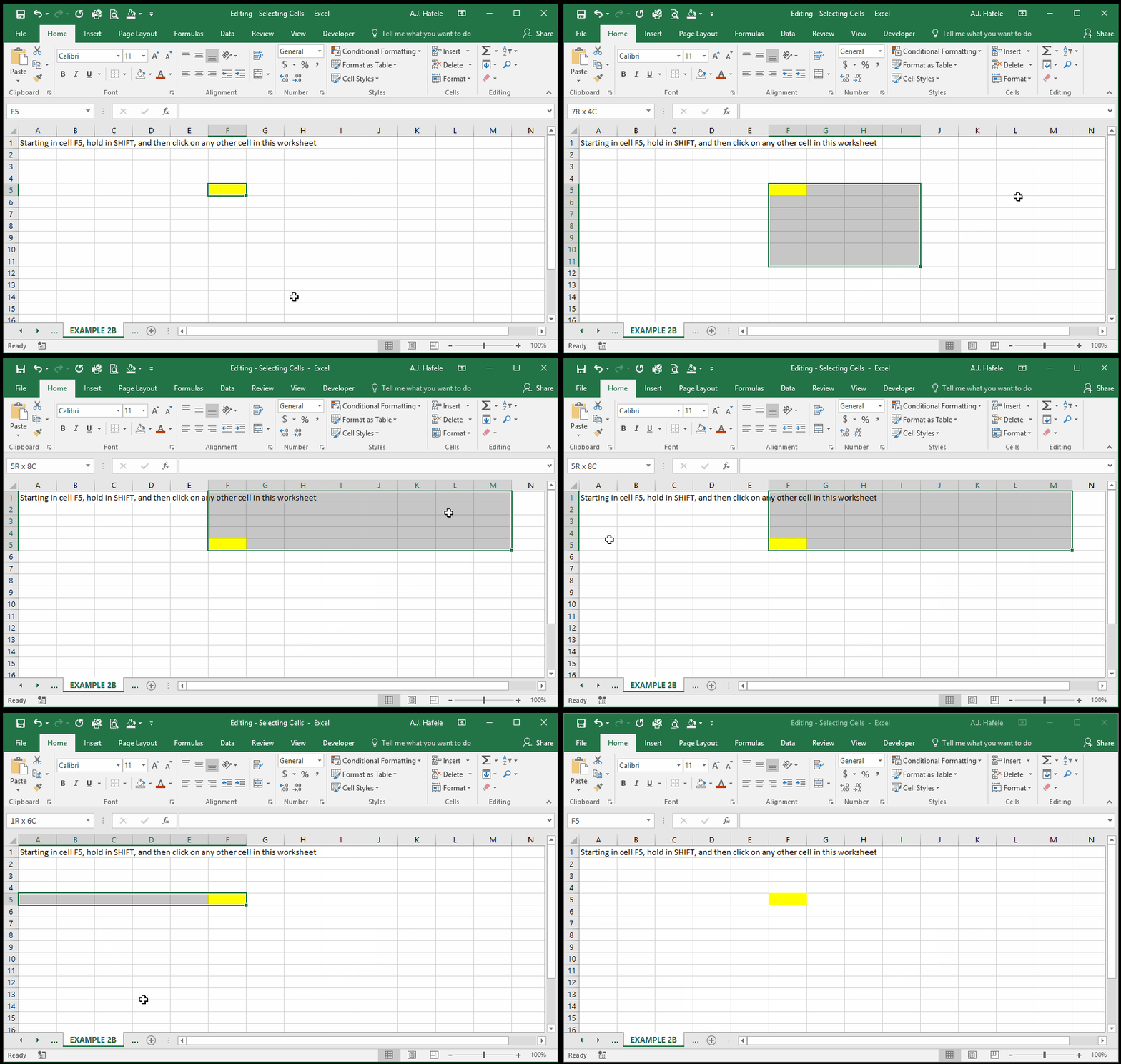
You can also select a contiguous range of cells by holding in SHIFT and clicking on the cell diagonal to your starting point, as shown here:
Select Non-Contiguous Ranges
To select non-contiguous ranges of cells, you need to use both the mouse and the keyboard, as follows:
Select the first contiguous range of cells
Press and hold CTRL
Select the second contiguous range of cells
Repeat as many times as needed, selecting all necessary ranges
Release CTRL
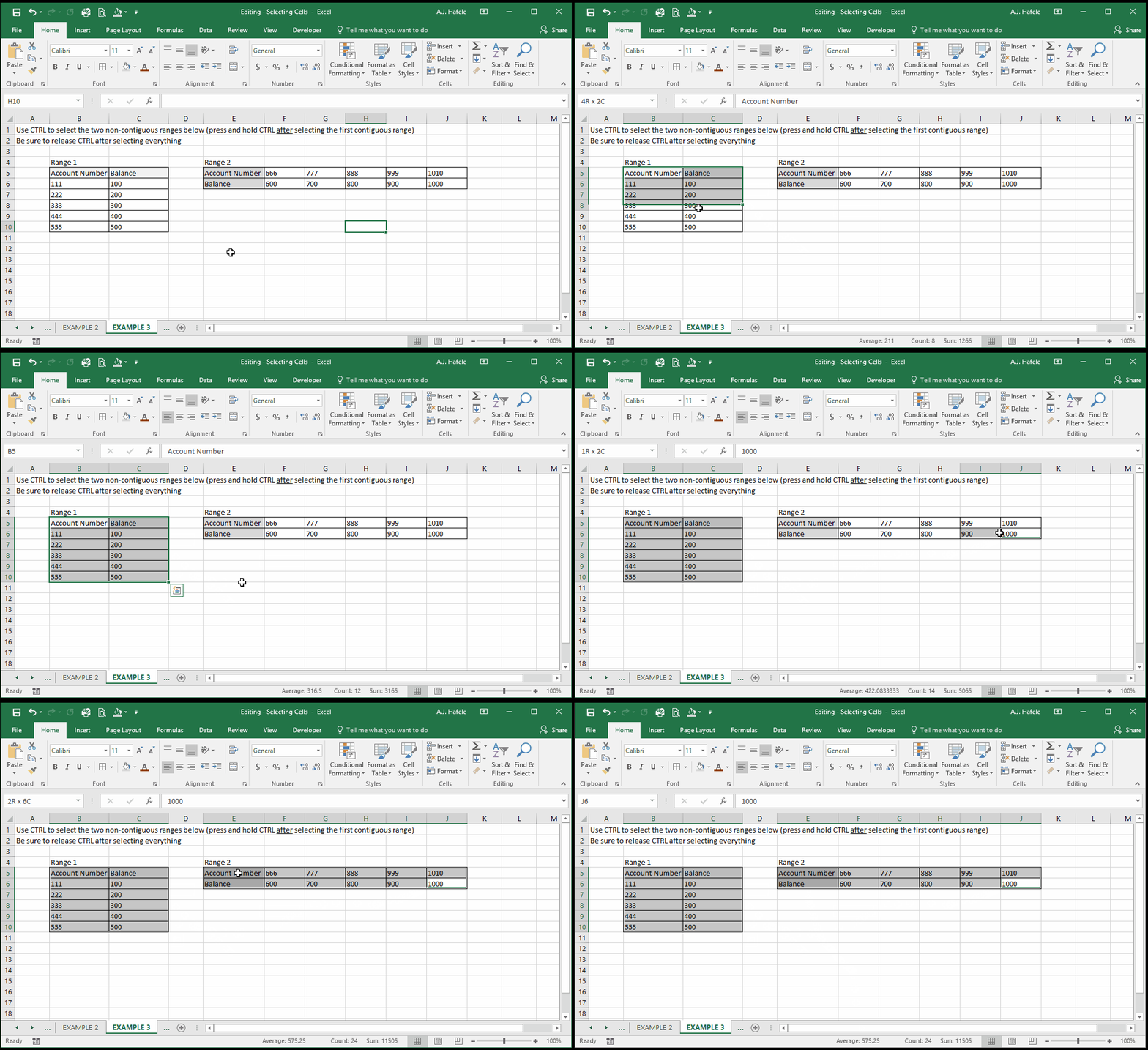
Observe as we select two non-contiguous ranges using this technique:
Note that we held in CTRL after selecting the first range, and released CTRL after selecting the second range
Select Cells With Arrow Keys
Rather than use a mouse, you can also select (and move between) cells with the ARROW keys
Note that ARROW refers to the up, down, left, and right directional keys on your keyboard
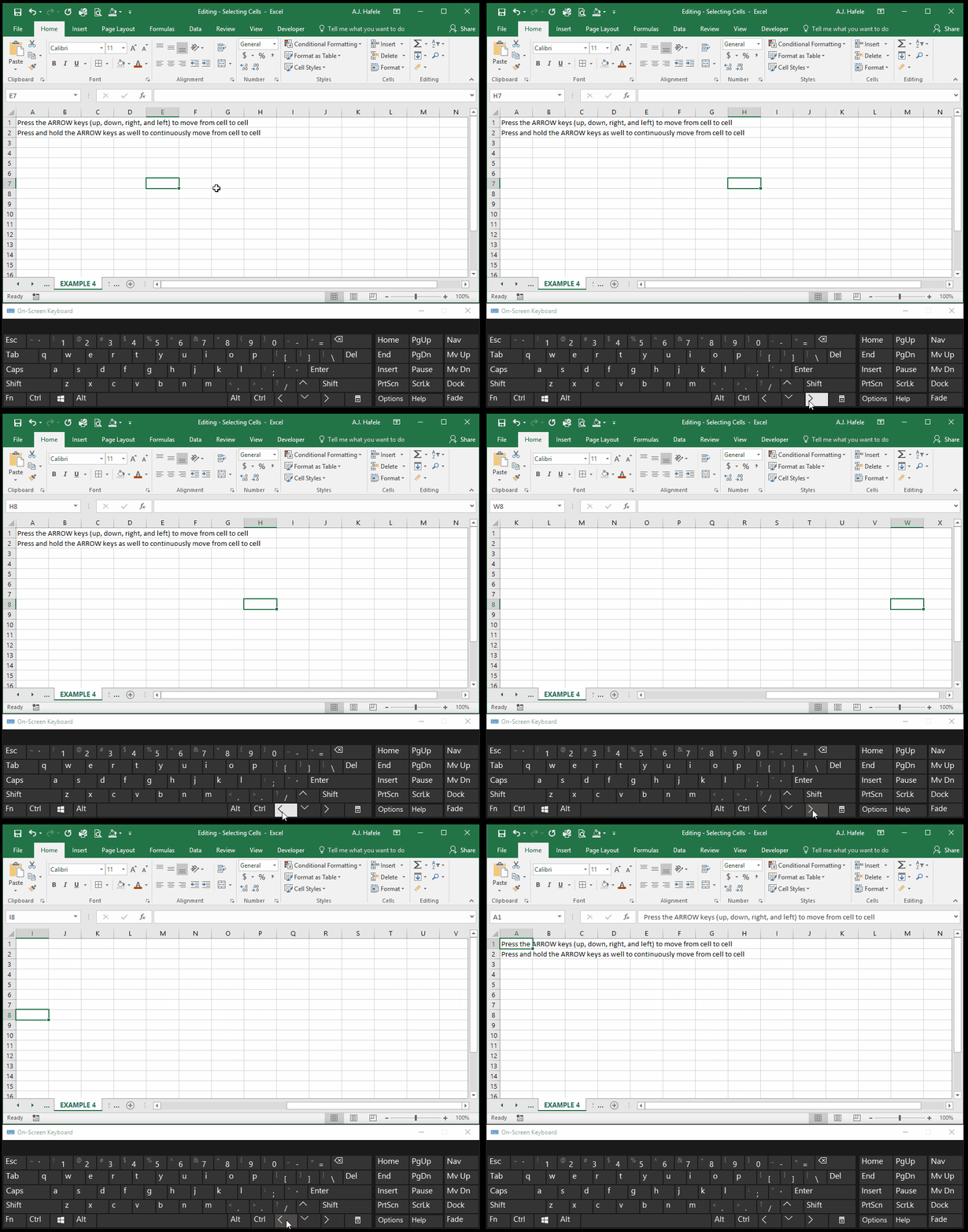
If an ARROW key is pressed once, the active cell will move one space
If an ARROW key is pressed and held, the active cell will continuously move
Of course, if you reach the top row, bottom row, leftmost column, or rightmost column of the worksheet, the ARROW keys do nothing - you cannot go any further
Observe as we use the ARROW keys to move between cells (we will use the on-screen keyboard this time to help illustrate):
You can move between cells even more quickly by holding CTRL while pressing the ARROW keys
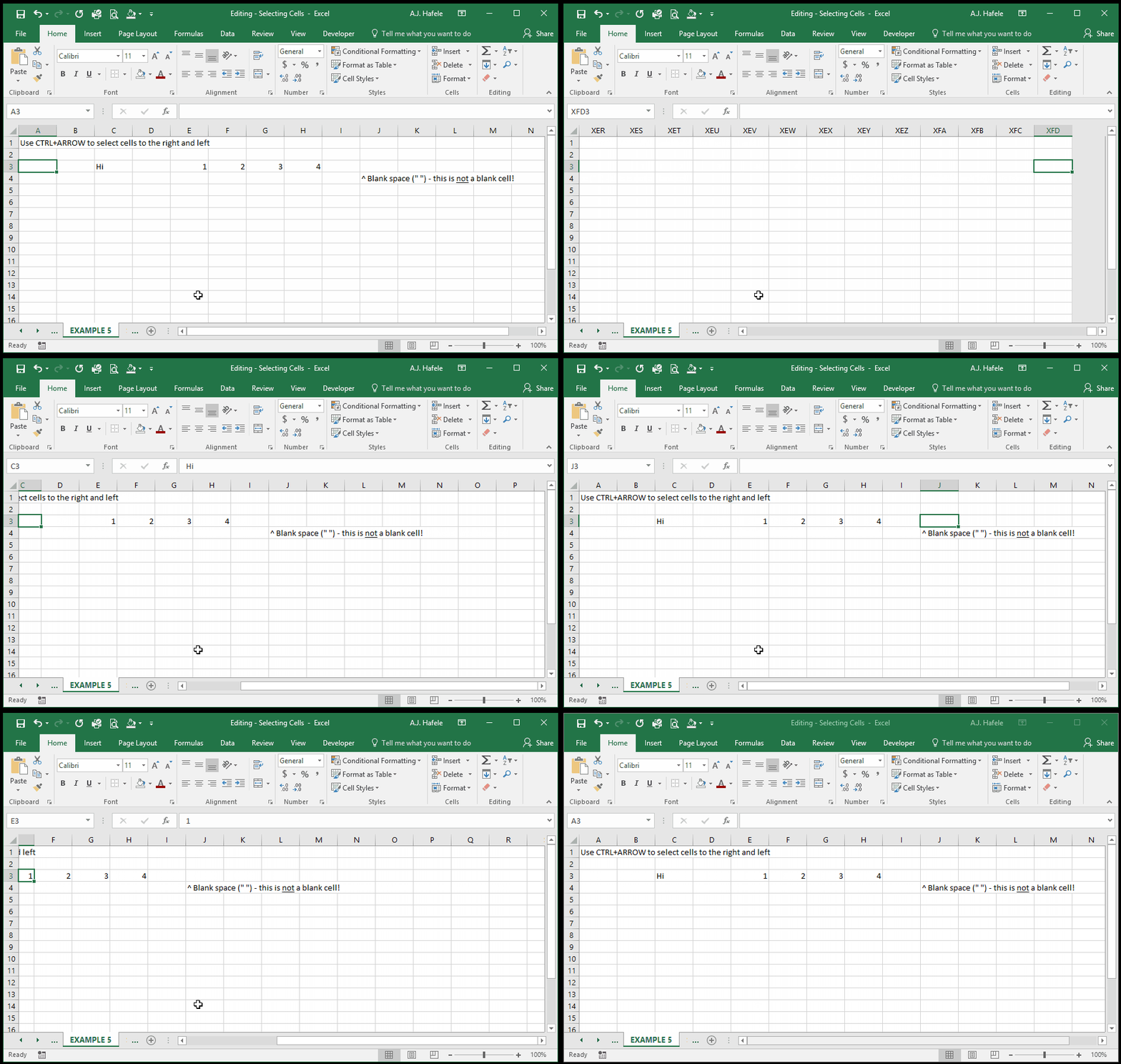
Let's show you what this looks like, using CTRL+ARROW RIGHT and CTRL+ARROW LEFT:
In the above illustration, note that:
If the active cell is in a blank cell, CTRL+ARROW will move the active cell to the next non-blank cell
If the active cell is in a cell containing characters (of any sort), CTRL+ARROW will move the active cell to the last non-blank cell
CTRL+ARROW will bring you to the very end of the worksheet if a non-blank cell doesn't stand in the way!
Also notice that cells containing only blank spaces (such as cell J3 above) are counted as characters, so the cells are technically non-blank
Though not shown in the above illustration, CTRL+ARROW UP and CTRL+ARROW DOWN work in exactly the same way
Moving on, imagine that you need to select a range of cells with the keyboard
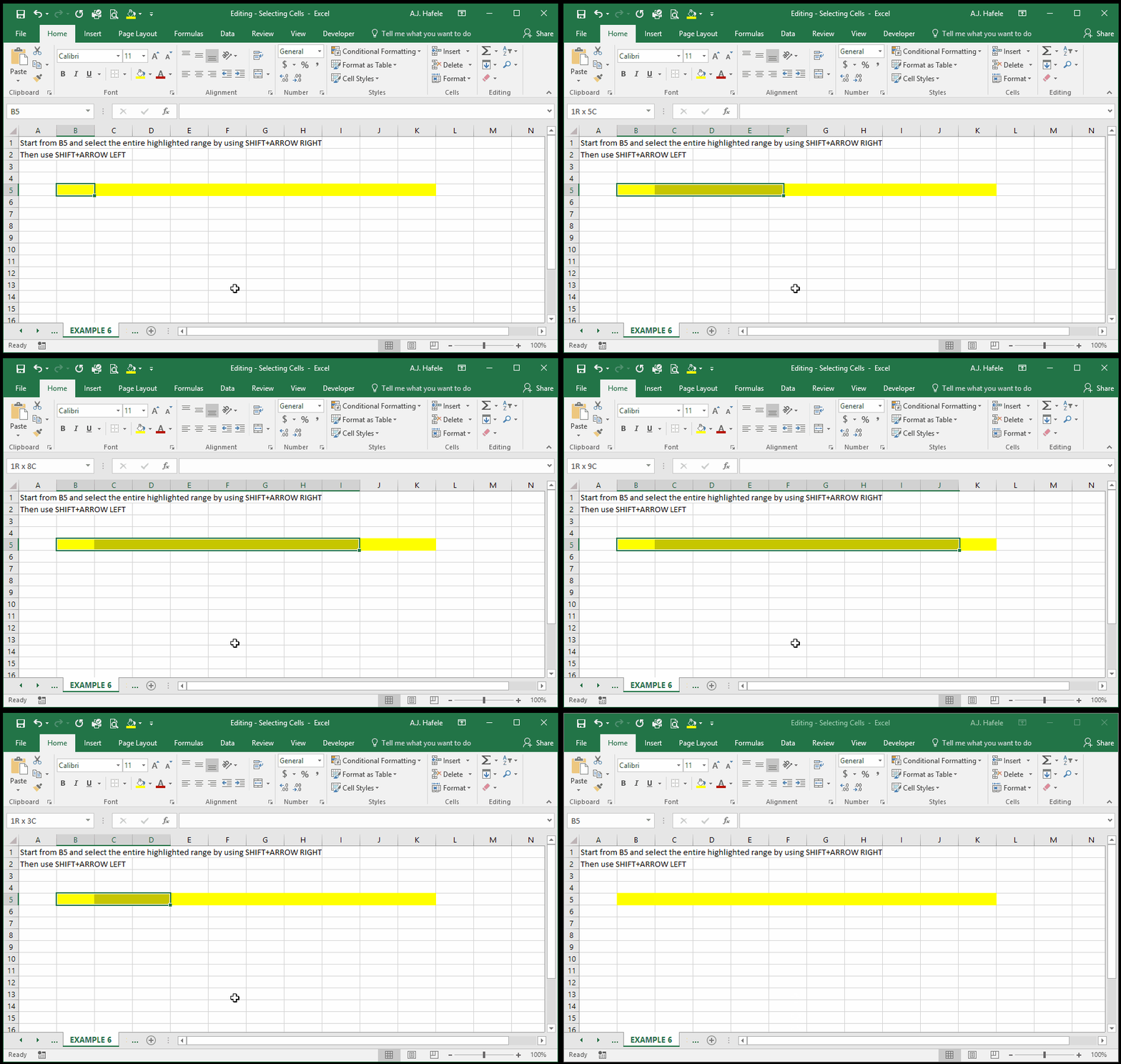
To do this, hold SHIFT while pressing ARROW
If ARROW is pressed once, one additional cell is selected
If ARROW is pressed and held, multiple cells will be selected until ARROW is released
Observe as we use SHIFT+ARRO1111W to select and subsequently deselect a range of cells:
Instead, what if we want to select a contiguous range rapidly?
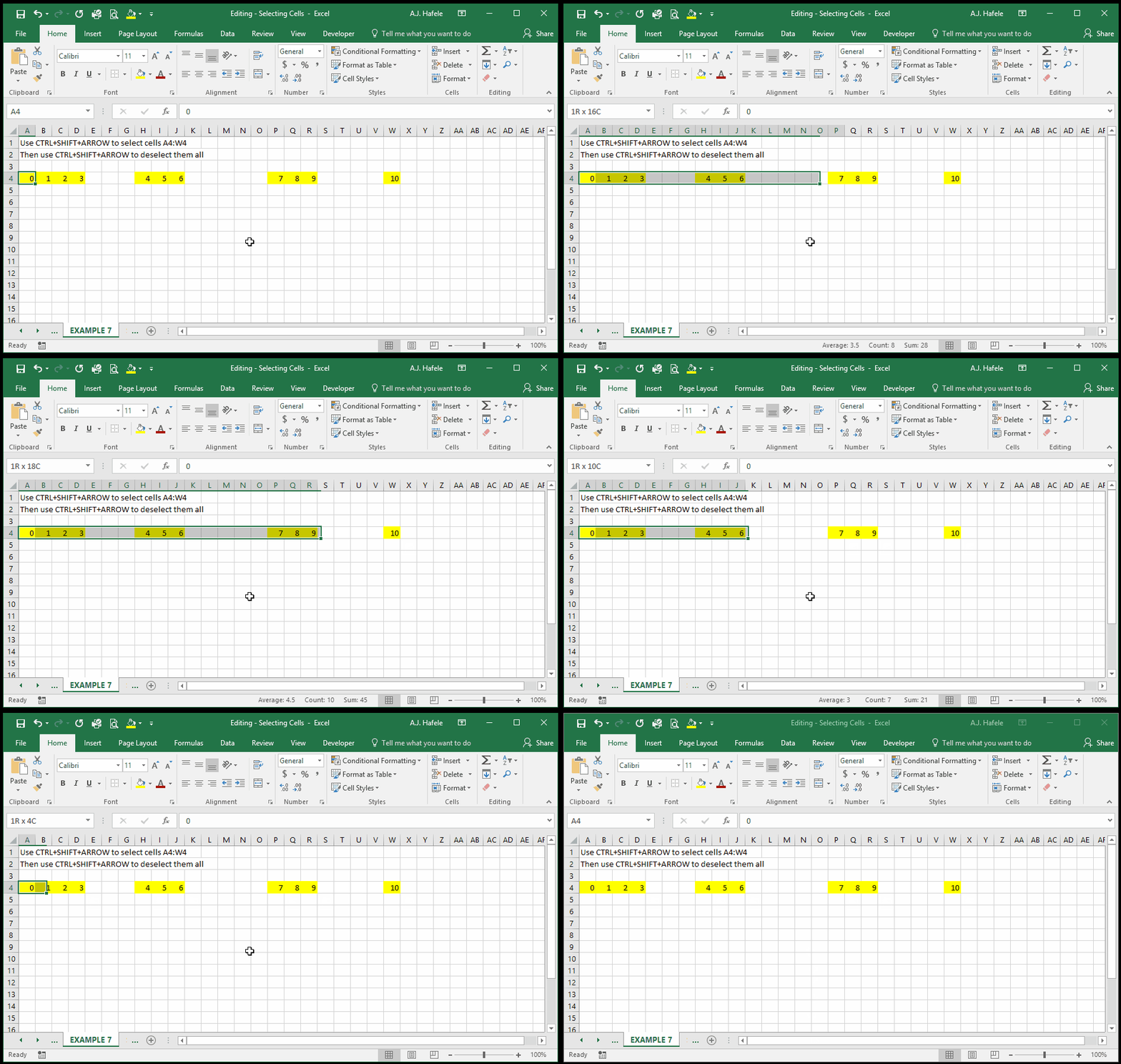
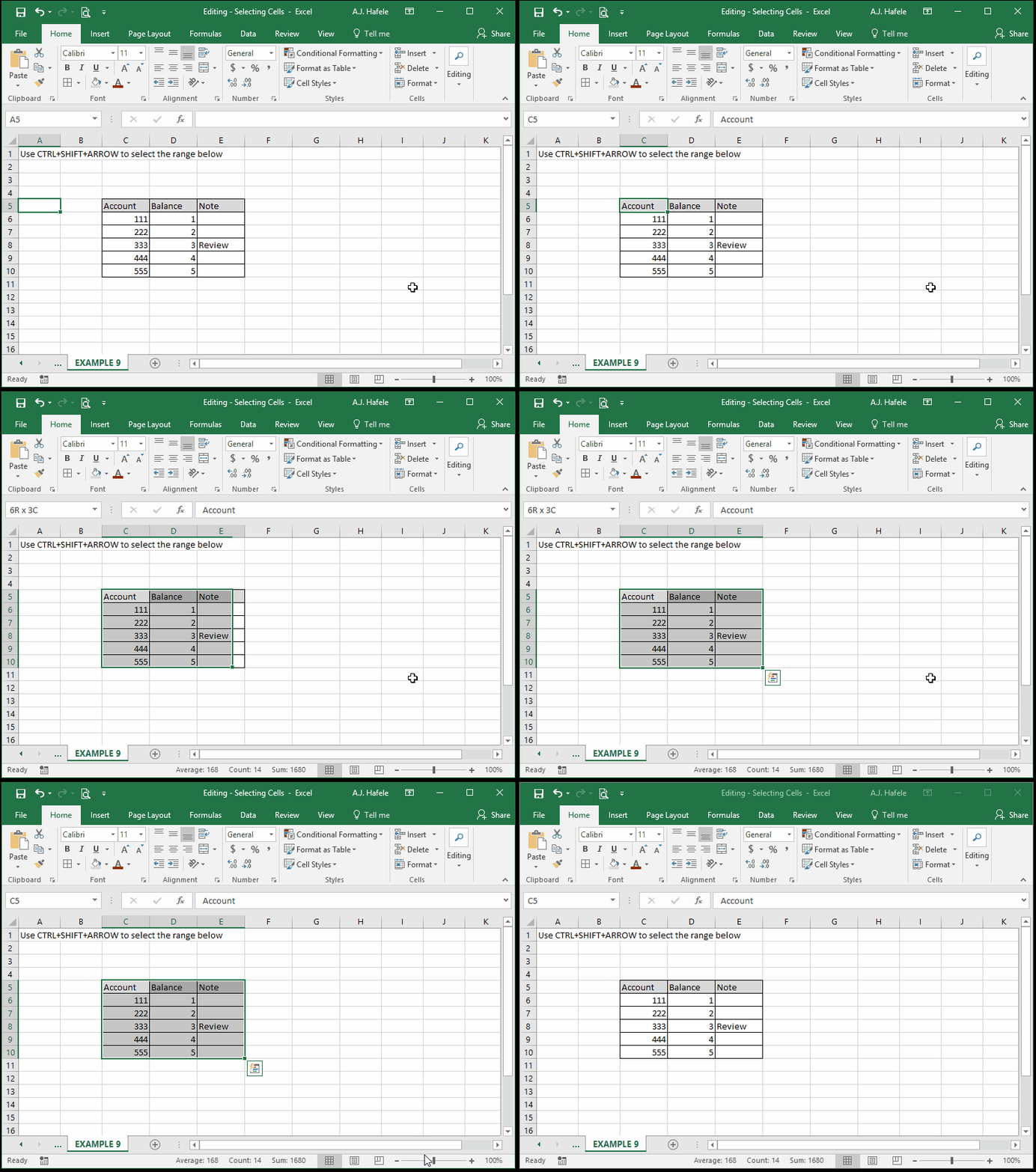
Easy - just hold CTRL+SHIFT simultaneously while pressing ARROW:
Select Visible Cells Only
In Excel, there are a number of ways to essentially hide cells from view (such as filtering, grouping, and hiding cells, discussed later)
Sometimes, you may need to only select the cells that you actually see, without "touching" the hidden cells
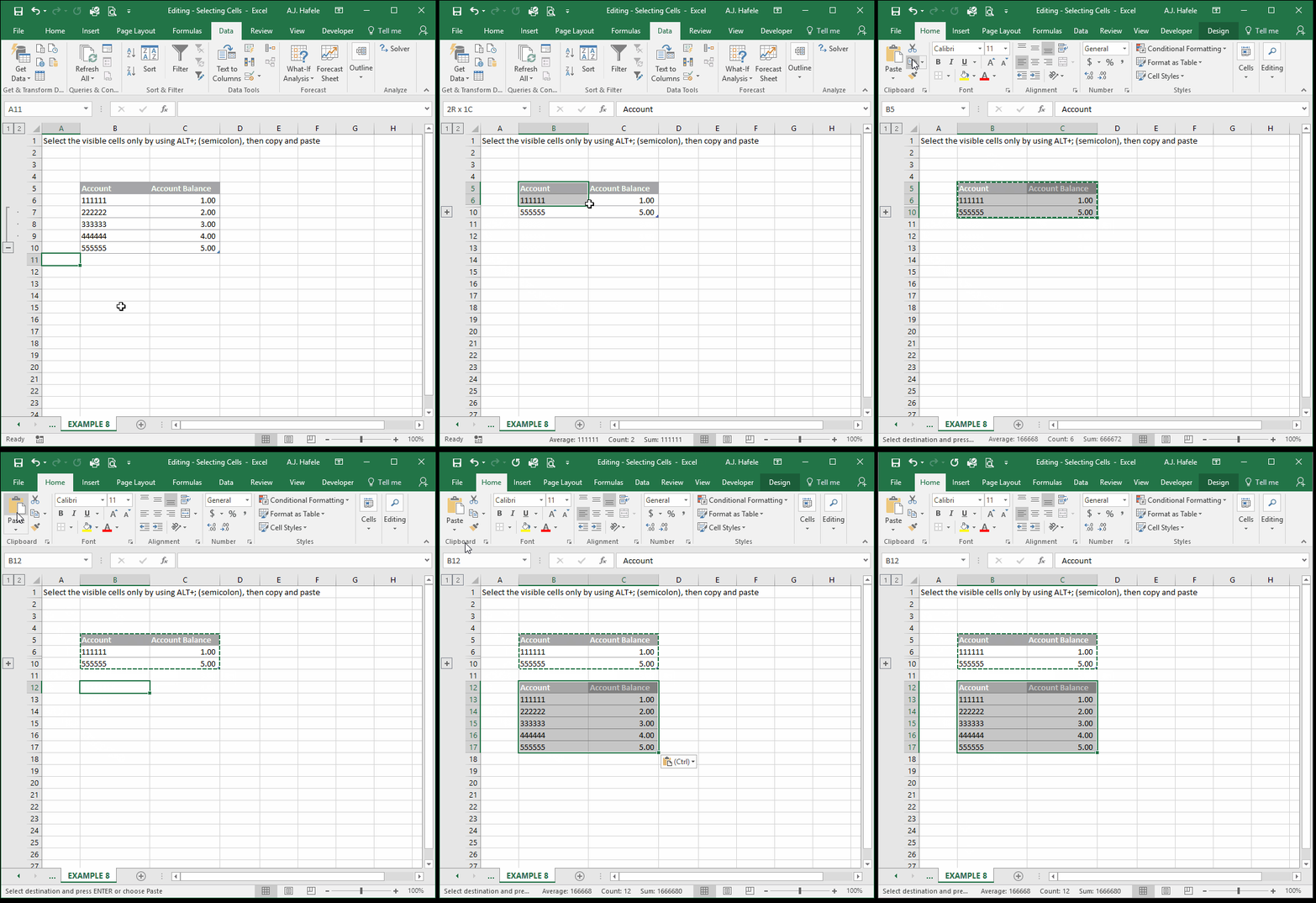
We will first copy and paste (i.e. duplicate) a range of data that has collapsed groupings, as shown here:
Notice that the entire set of data, including the grouped (hidden) data, were duplicated!
What if we just wanted the two visible lines?
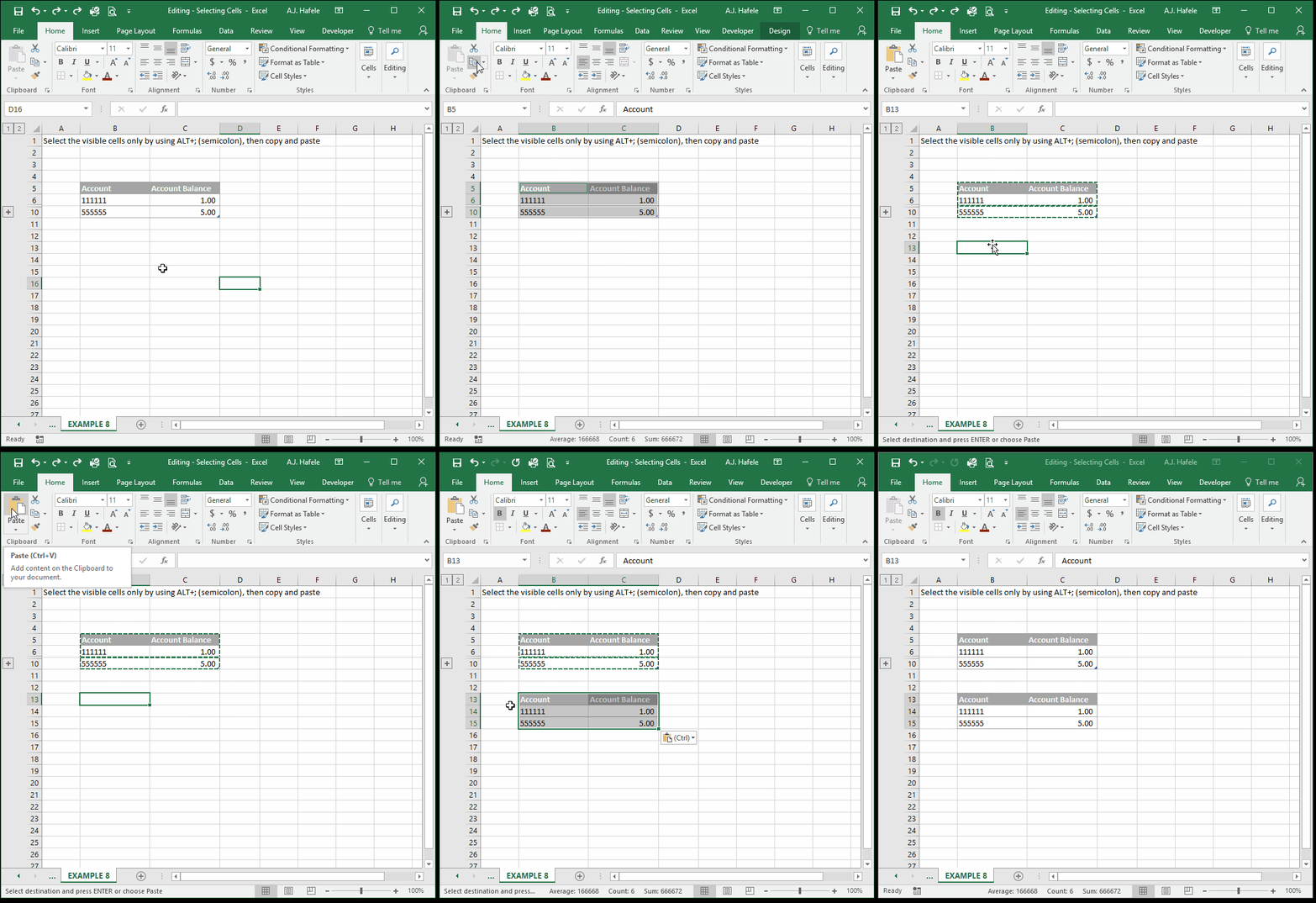
The secret is to select visible cells only using ALT+; (semicolon), as shown here:
But how do we know that visible cells only were selected?
Look at the illustration above closely, when ALT+; is pressed
Subtle white borders surround the selected cells
When pressing copy (CTRL+C), the moving dashed lines surround only the visible cells
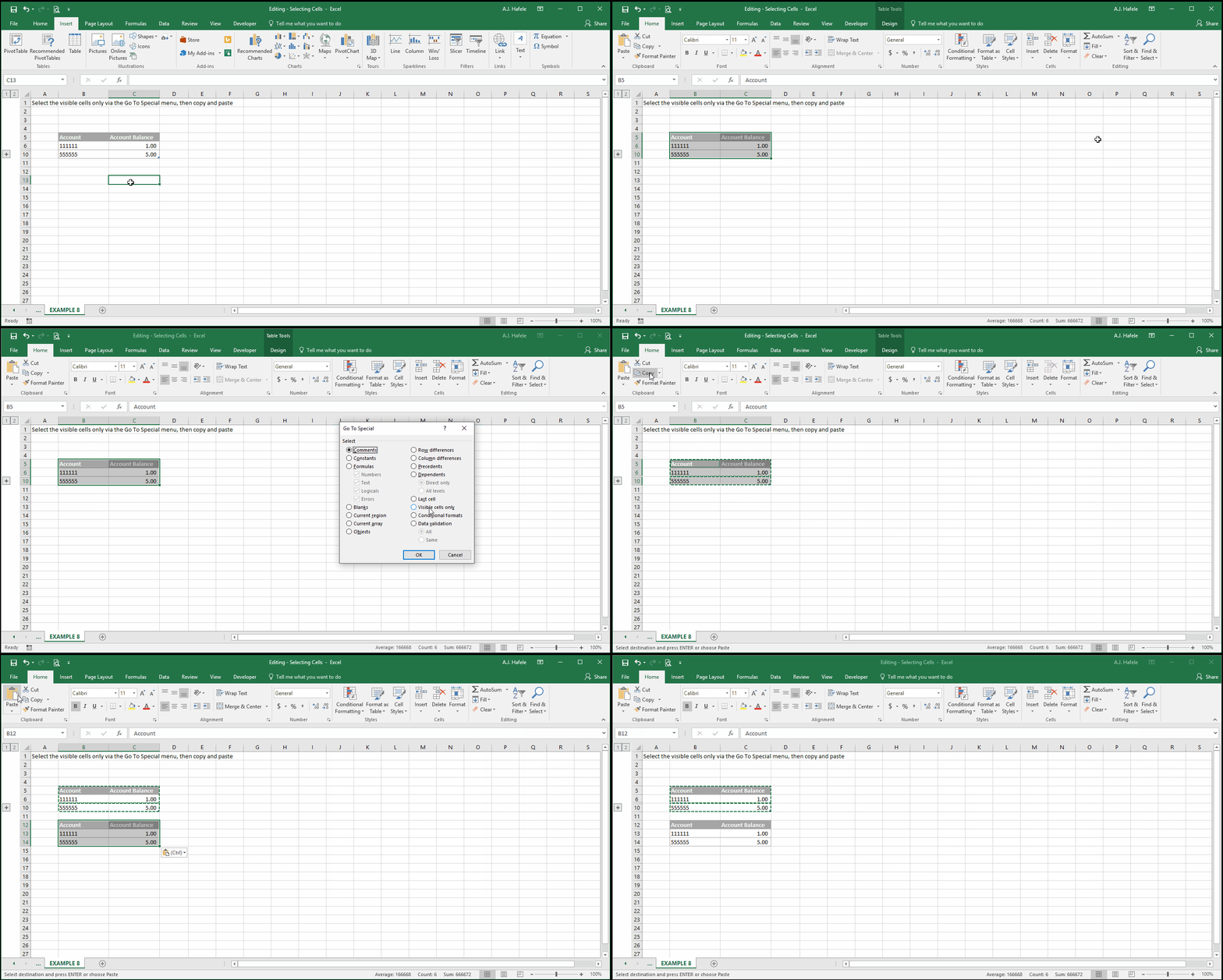
As an alternative to using the keyboard shortcut, you can select visible cells only via the Go To Special menu, as follows:
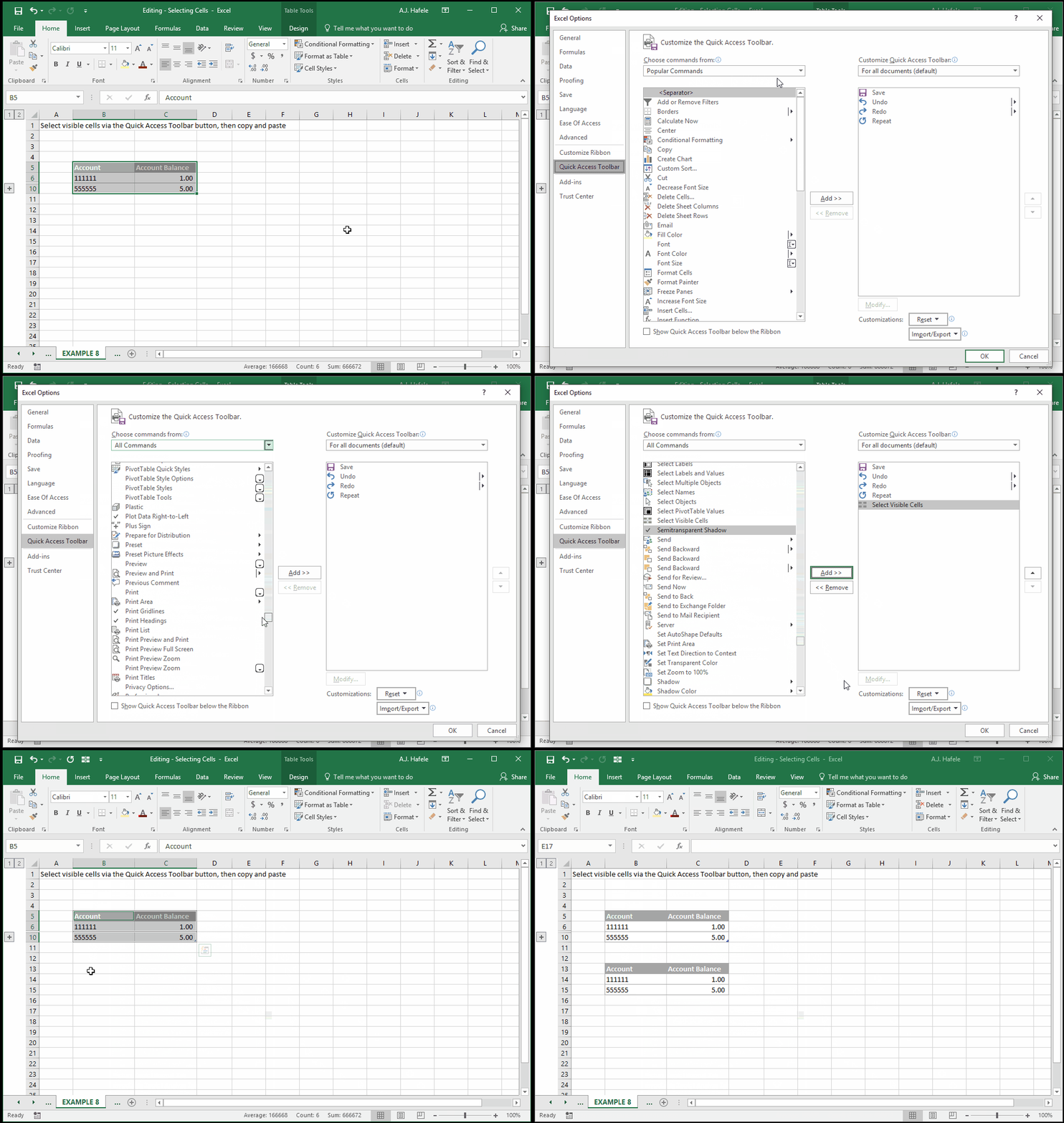
As a final alternative, you can add the Select Visible Cells button to the Quick Access Toolbar, as shown here (we use CTRL+C and CTRL+V to subsequently copy and paste):
Select Contiguous Ranges
Using what we have learned thus far, to quickly select a contiguous range of cells, use CTRL+SHIFT+ARROW, as shown here:
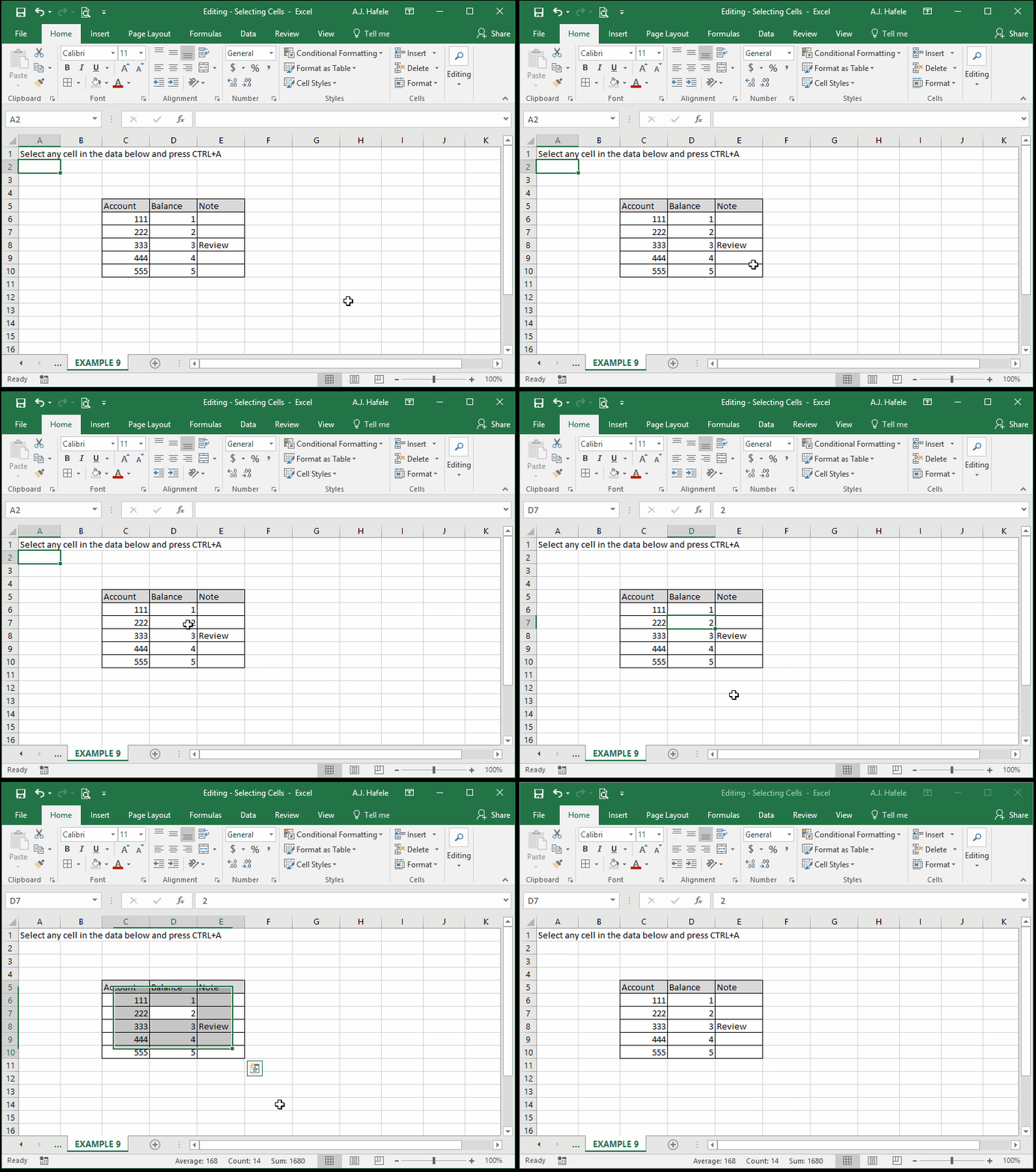
Alternatively, select anywhere in the range and press CTRL+A, as shown here:
Note that the CTRL+A shortcut can be spotty at times (resulting in every cell in the sheet being selected), so be aware that it may not work as intended
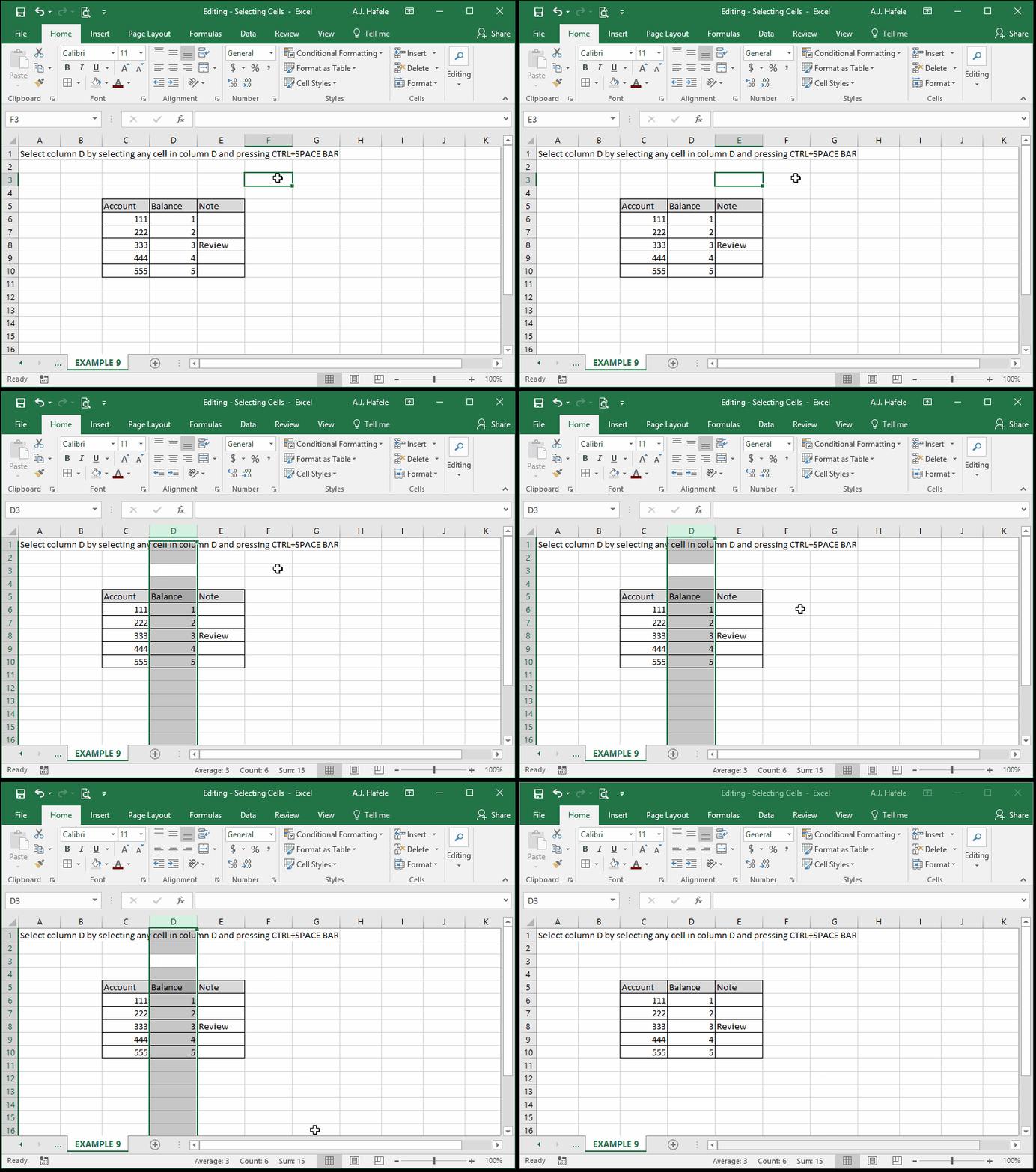
To quickly select an entire column, press CTRL+SPACE BAR, as shown here:
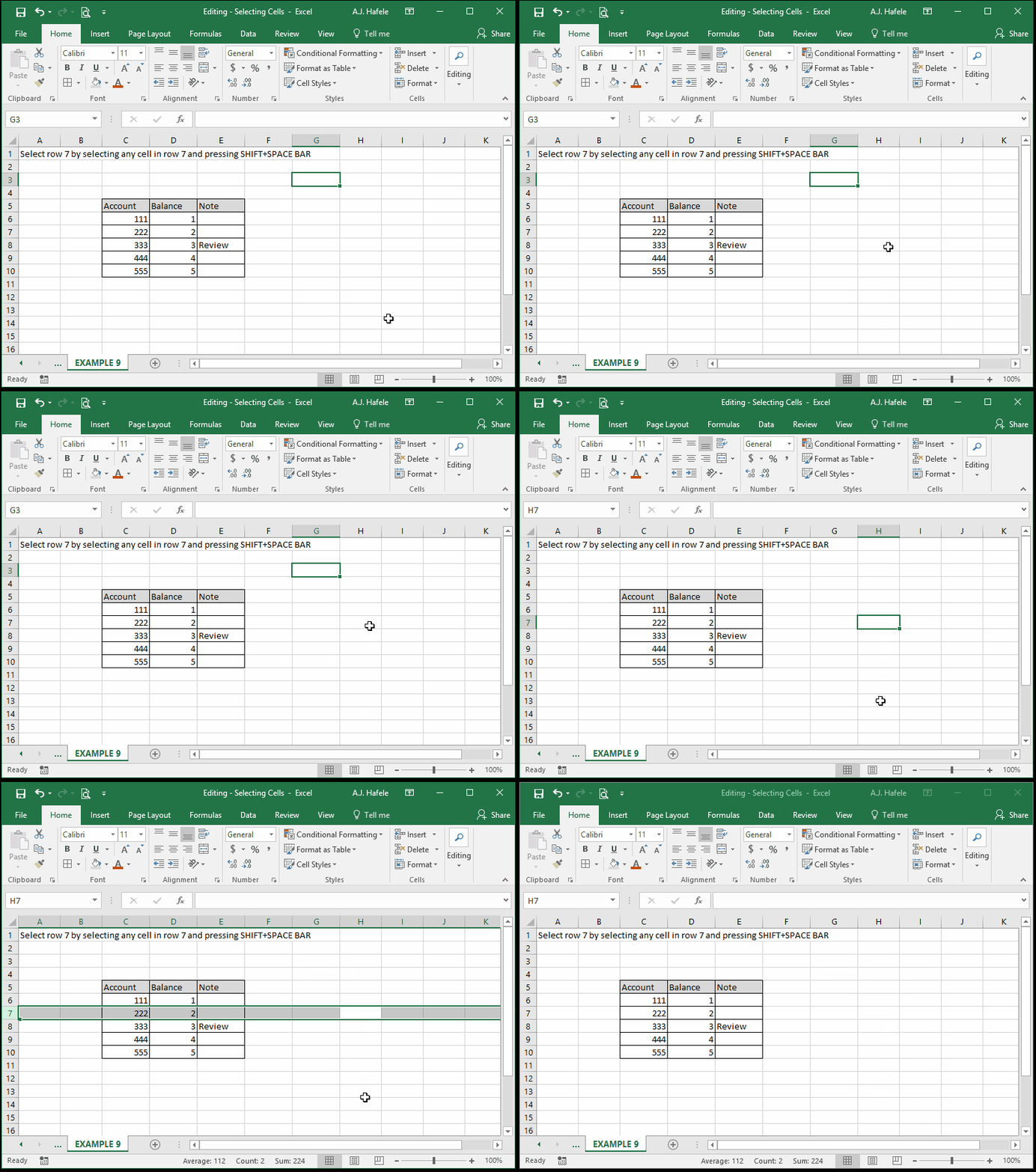
To quickly select an entire row, press SHIFT+SPACE BAR, as shown here:
Jump to Beginning of Worksheet
Sometimes, you may need to jump back to the top-left corner of your worksheet
This is typically cell A1, unless you freeze panes
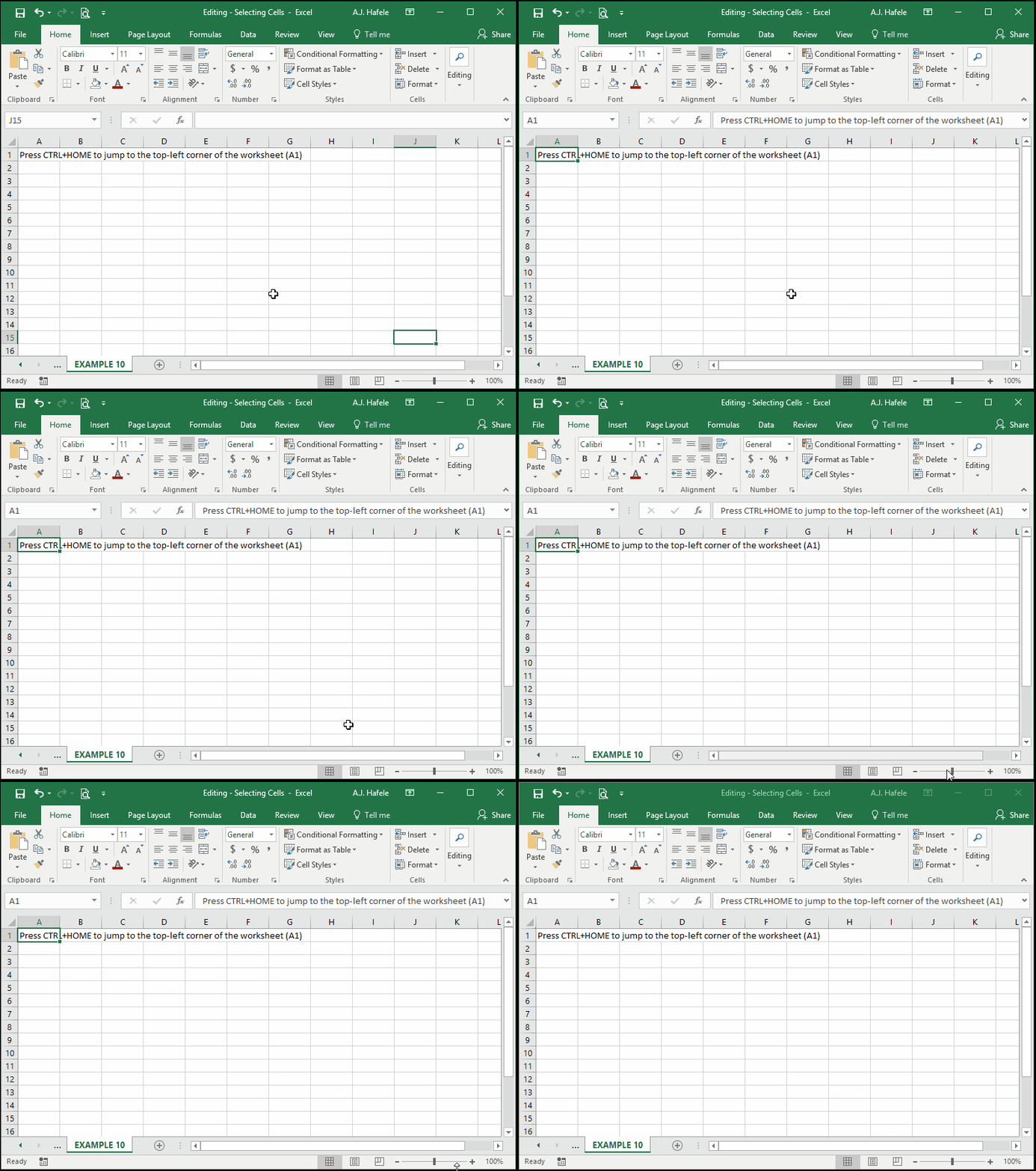
You can do this very easily by pressing CTRL+HOME, as shown here:
Jump to End of Worksheet
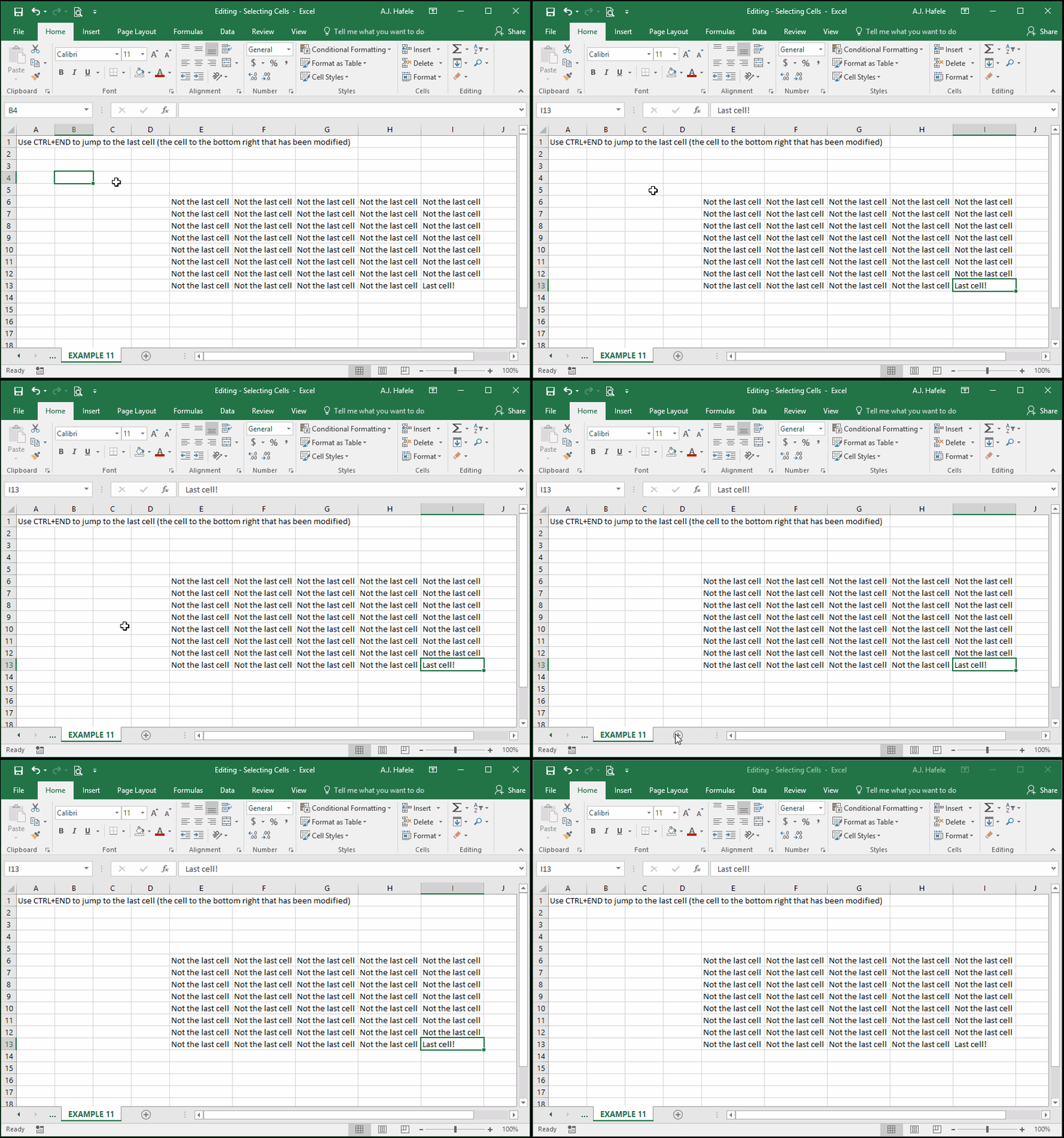
To jump to the bottom-right corner of the worksheet (that you have actually modified in some way, referred to as the "last cell"), press CTRL+END, as shown here:
Select Cells With Similar Data
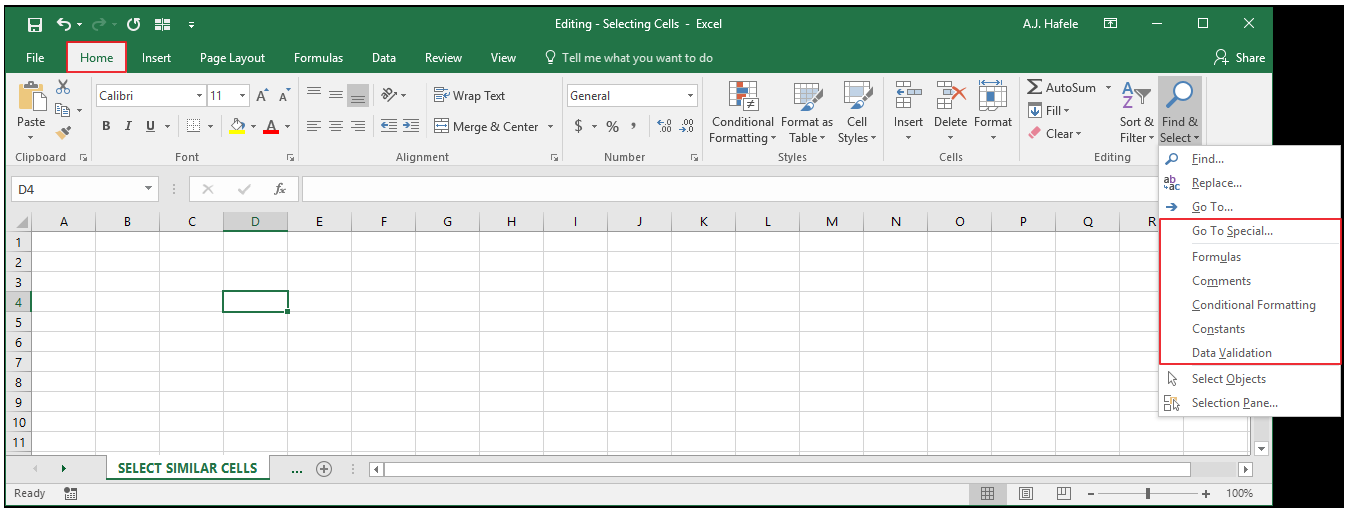
In addition to selecting cells in the manners described above, you can also select cells containing similar data, including cells containing similar:
To do this, use the following options in the Ribbon:
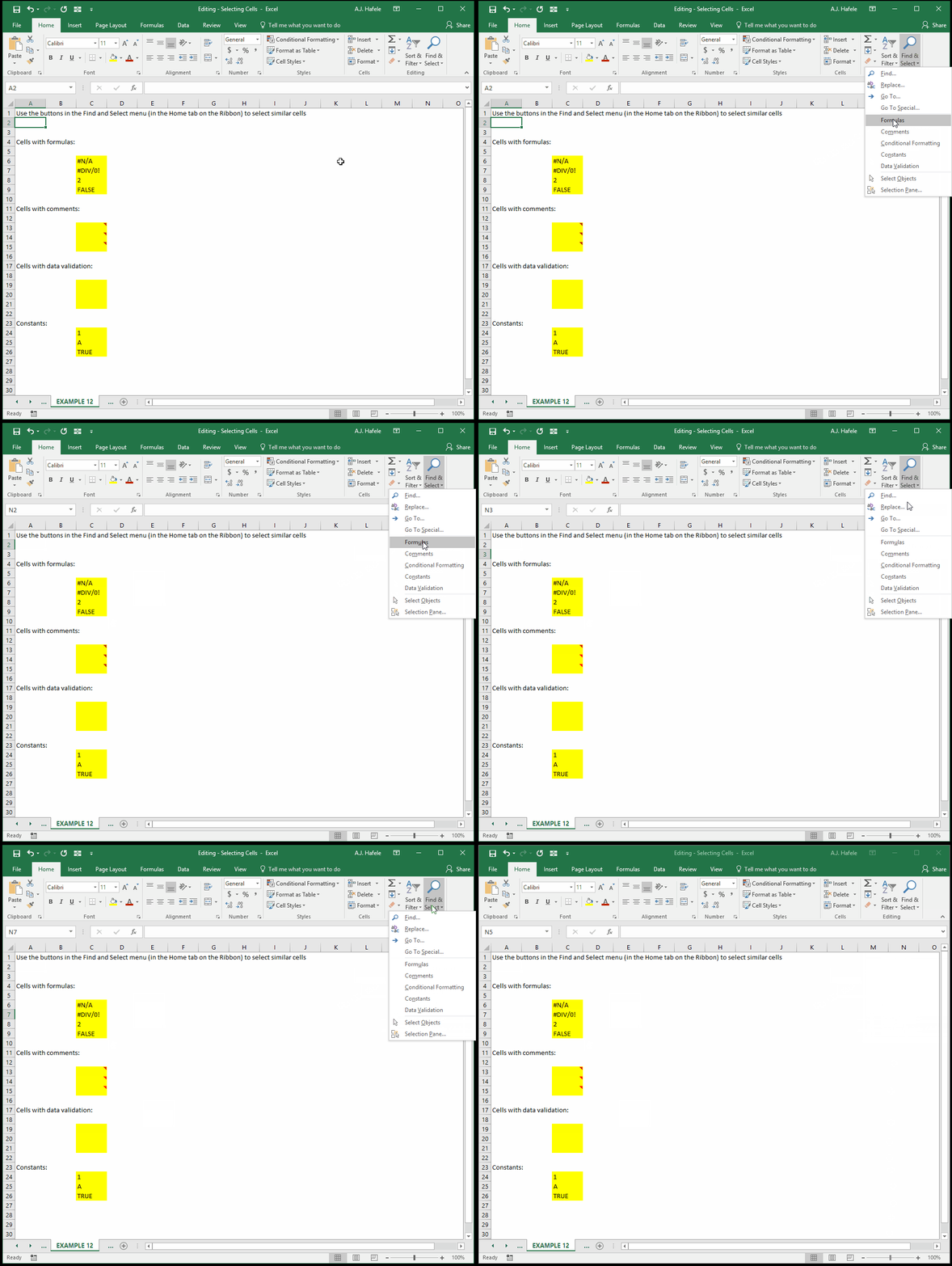
Observe as we select similar cells using some of these options:
You may not yet recognize what the terms "cell comments" or "data validation" refer to in the above example, but you will, after you review the lectures dedicated to those topics
At this point, just be aware that you can select cells with similar characteristics with the push of a button
Jump to A Specific Cell
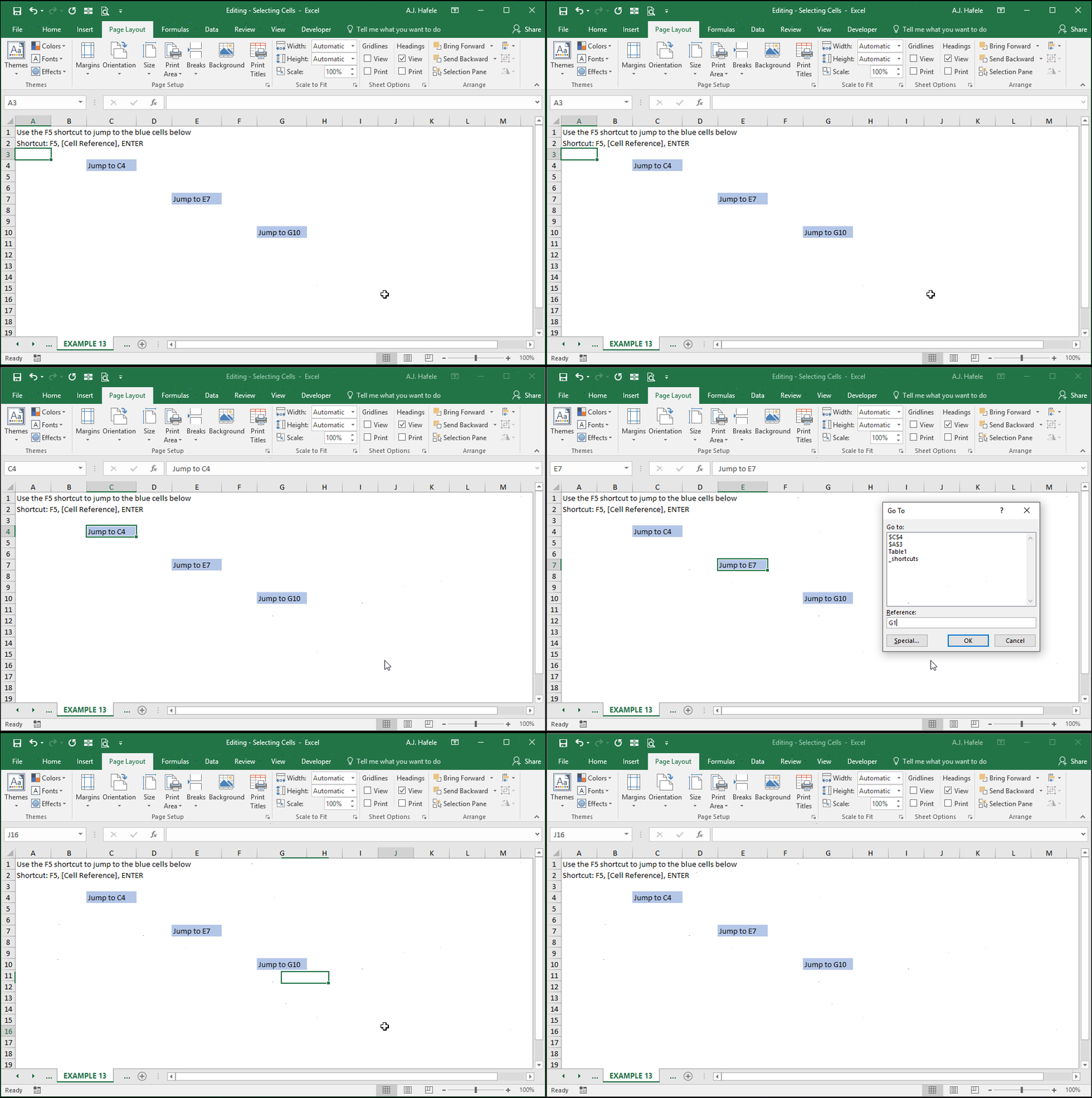
To quickly jump to a specific cell, use the F5 shortcut, as shown here:
Note that you can also jump to ranges of cells (e.g. A1:B10) if needed